
01Who this is for
- Community managers who need a quick way to capture member opinions without external tools.
- Course creators who want to gauge learner preferences directly inside a membership community.
02Community polls, explained
Polls are a type of post that appear in a Community feed. When a poll is published members can select an answer and, if allowed, view the current results. The poll can close automatically at a set date and time, after which voting is disabled.
In the web version the poll editor lives inside the post composer. You add answer options, reorder or delete them, and toggle settings such as multiple answers, result visibility, and an end date before posting. The mobile GoKollab app provides a similar editor accessed from the post screen.
Both editors keep the poll within the Community, so members never need to leave the platform to give feedback. After publishing, the web editor lets you edit the poll and add new answer options.
03How businesses use community polls
- Fitness studio. The studio creates a poll in a Community post asking members which new class they prefer. They set the poll to allow only one answer, hide results until the poll closes, and schedule the poll to end after one week. Members vote from the feed and the studio reviews the final tally.
- Online course creator. A creator posts a poll in the course community to decide the next module topic. They enable multiple answers so learners can choose several interests, allow results to be visible, and set an end date for the voting period. The poll is built using the mobile app while on the go.
- Real estate agency. An agent publishes a poll asking clients which neighborhood they want a market update for. The poll allows only one selection, shows results right away, and has no end date, keeping the question open for ongoing feedback. The agent creates the poll from the web portal.
04The numbers and rules that matter
- 2 to 10 answer options.
- Each answer option up to 100 characters.
05Before you start
- Access to the Memberships area in the HighLevel subaccount must be available.
- If the newer unified Communities experience is desired, the beta client portal must be enabled.
06How to set up and use community polls in HighLevel
Create a poll in HighLevel Communities (web)
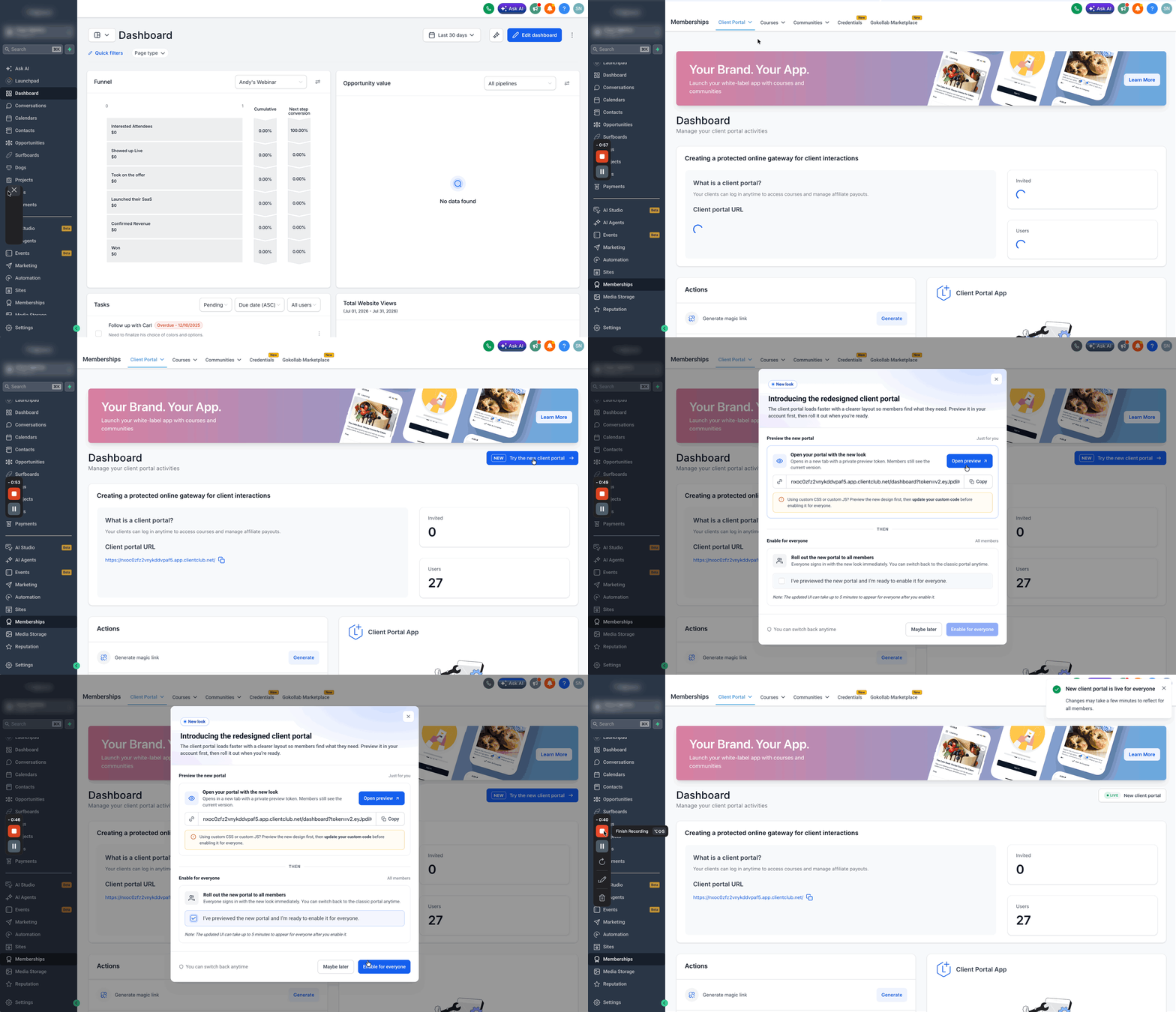
- From the HighLevel subaccount view, select Memberships in the left menu.
- Under Client Portal, click Try the new Client Portal if it is not yet active.
- Check the box and click Enable for everyone to turn on the updated experience.
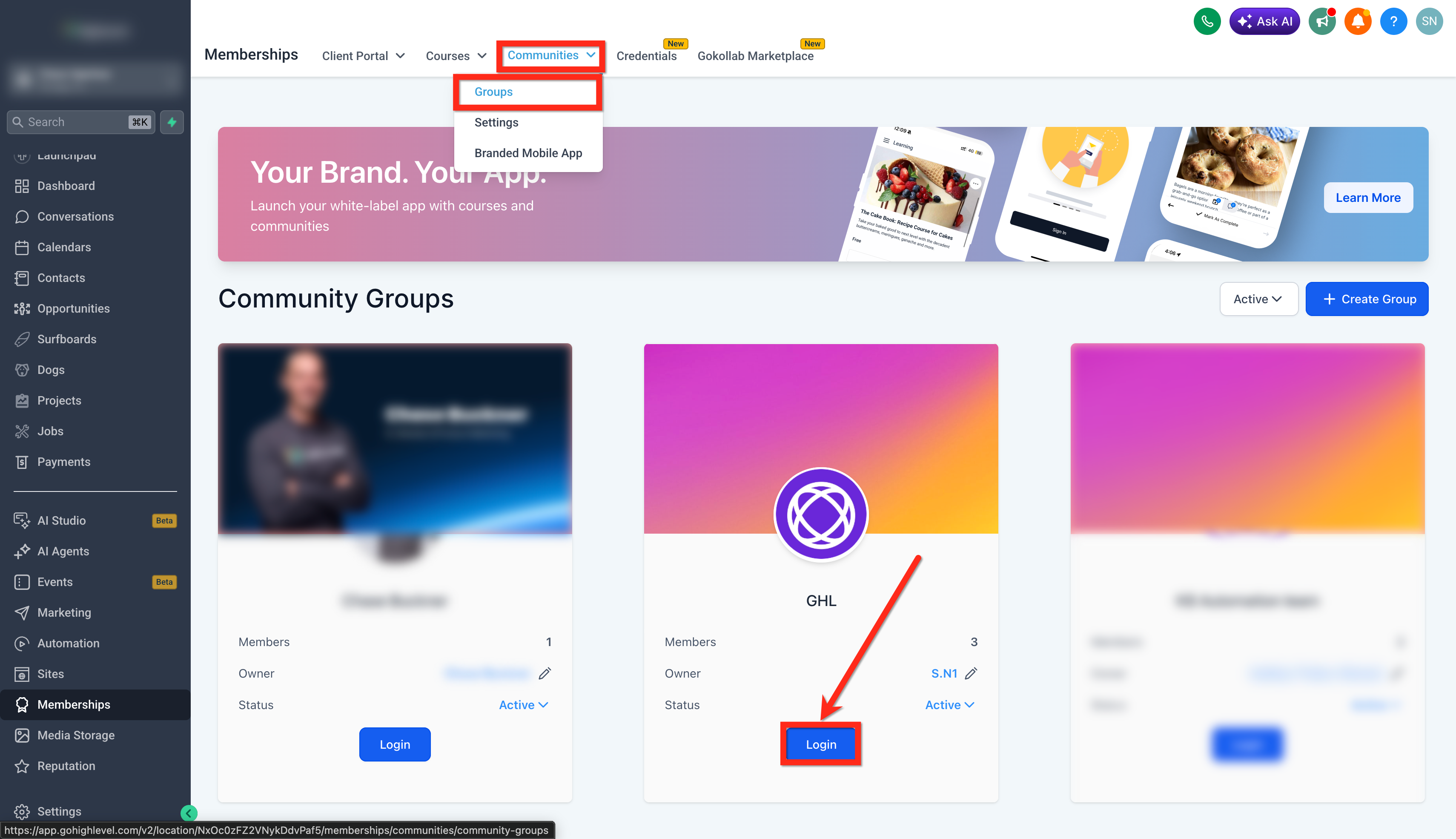
- In Memberships, choose Communities and open Groups.
- Click Login for the Group where the poll will be published.
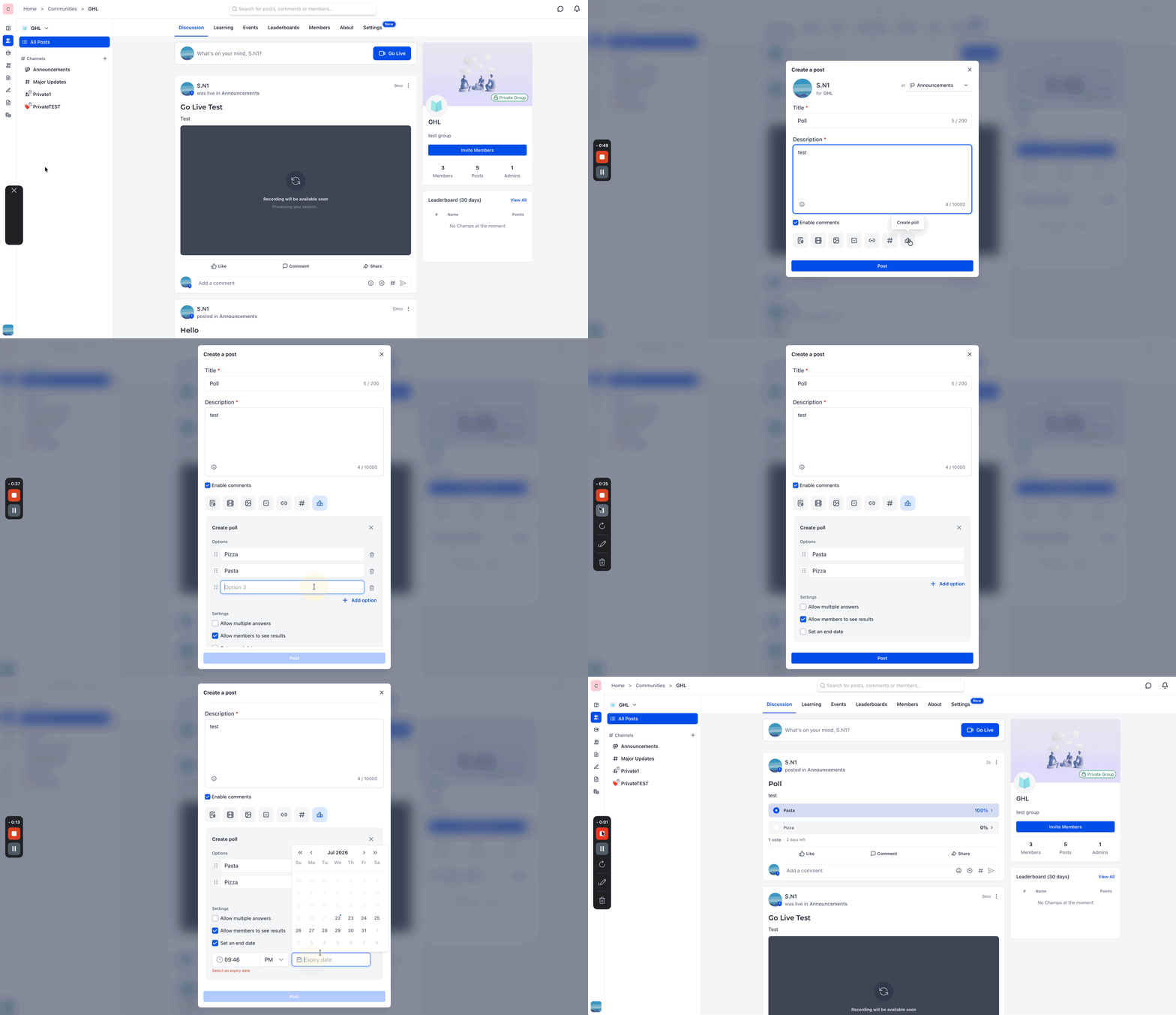
- Click Create a post.
- Enter the post Title and Description.
- Click Poll in the post composer.
- Add the poll answer options.
- Reorder or delete answer options as needed.
- Turn on Allow multiple answers to permit multiple select.
- Turn Allow Members to See Results on or off to control result visibility.
- Configure the poll end date and time if you want voting to close automatically.
- Review the poll and click Post to publish it to the Community feed.
Create a poll in the GoKollab mobile app
- Open the GoKollab mobile app and sign in with your Community credentials.
- Tap Communities in the bottom navigation.
- Open the Community where the poll should be created.
- Start a new Community post to open the Create post screen.
- Select the destination channel using the channel selector at the top of the composer.
- Enter the post title and the question or description for members.
- Open the Create poll panel from the post composer.
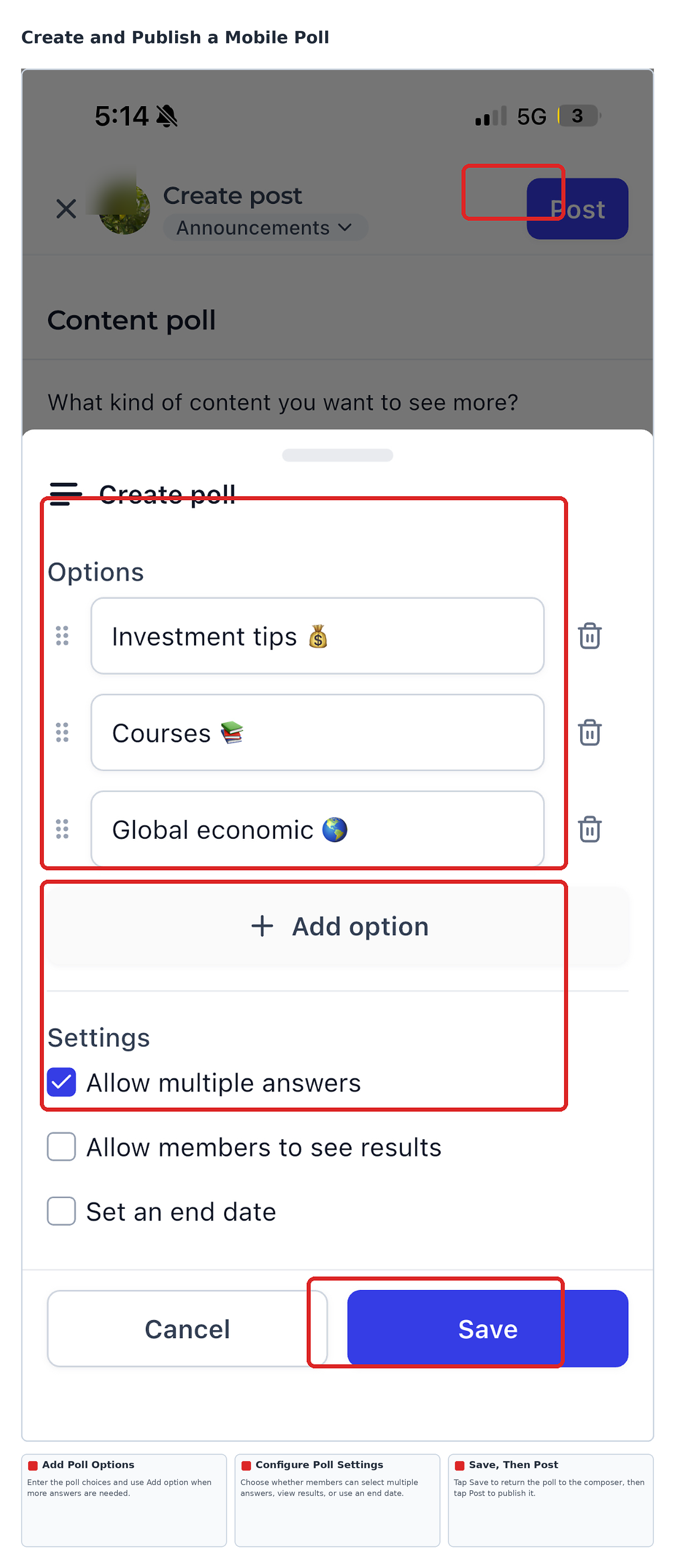
- Add the answer choices that members can vote on.
- Tap Add option to include more answer choices and use the reorder and delete controls as needed.
- Review the poll settings: Allow multiple answers, Allow members to see results, and Set an end date.
- Tap Save to store the poll settings and return to the post composer.
- Check the post title, selected channel and poll details then tap Post in the upper right corner.
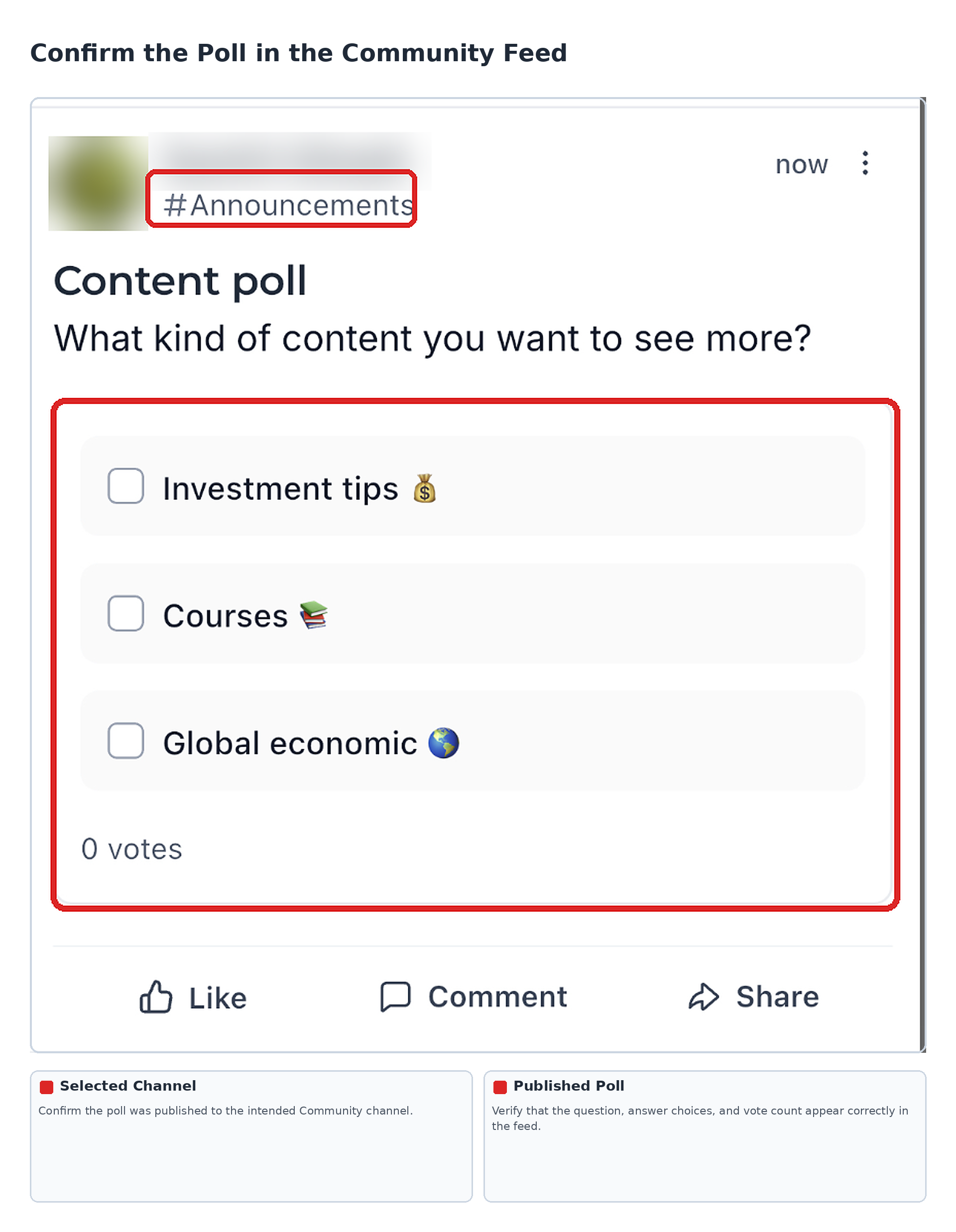
- Return to the Community feed and confirm that the poll appears with its question, answer choices and vote count.
07What it looks like in HighLevel
08Settings that matter
- Allow multiple answers. Controls whether members may select more than one option when voting.
- Allow Members to See Results. Determines if members can view vote counts or percentages after voting.
- Poll end date and time. Sets a specific moment when the poll automatically closes and stops accepting votes.
09Things to know before you rely on it
- A poll can contain between 2 and 10 answer options.
- Each answer option can hold up to 100 characters in the web editor.
- The web poll editor is only available in the documented Client Portal workflow; the unified Communities beta may show a different layout.
10How it connects to the rest of HighLevel
- Learn how to set up and manage a HighLevel community Community setup
- Manage members inside groups for targeted poll distribution Group members
- Create channels and posts to organize poll placement Manage content
Michael's take

Community polls feel like a small convenience that can quickly turn a quiet thread into a lively discussion. Adding a quick question lets members share their thoughts without leaving the feed, so you get real time insight without extra tools.
A fitness studio that runs weekly classes could drop a poll asking members which class they’d like to see next month. The studio can set the poll to close after a few days, see the results, and schedule the most voted class. I’d make sure the poll end time aligns with the studio’s decision making schedule before relying on the results.