
01Who this is for
- Online course creators, they let students choose their own passwords without manual admin work.
- Coaches hosting membership sites, they give clients a simple way to recover access if a password is forgotten.
- Community managers, they provide members a secure self service login flow through the portal.
02Password setup and reset, explained
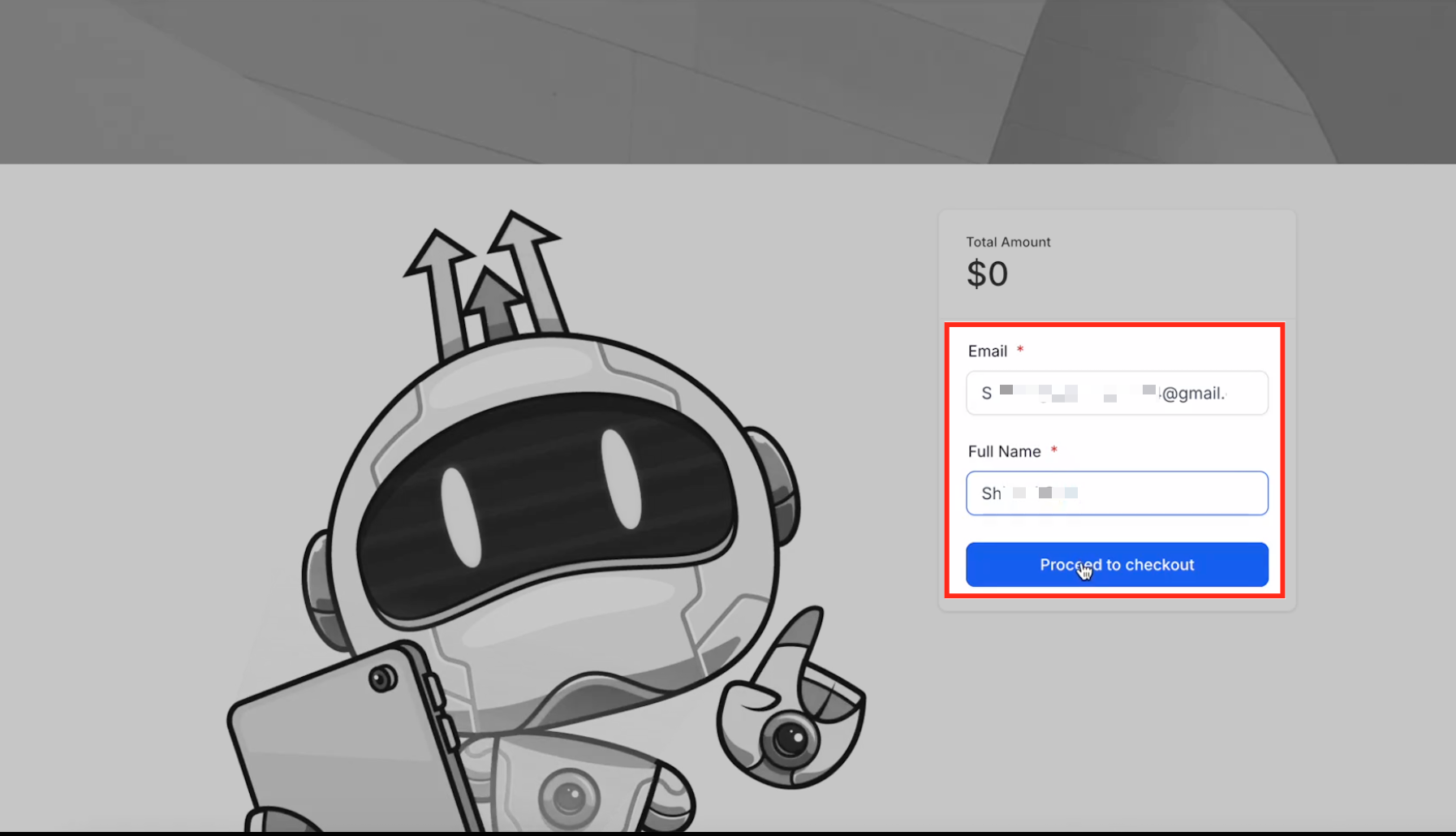
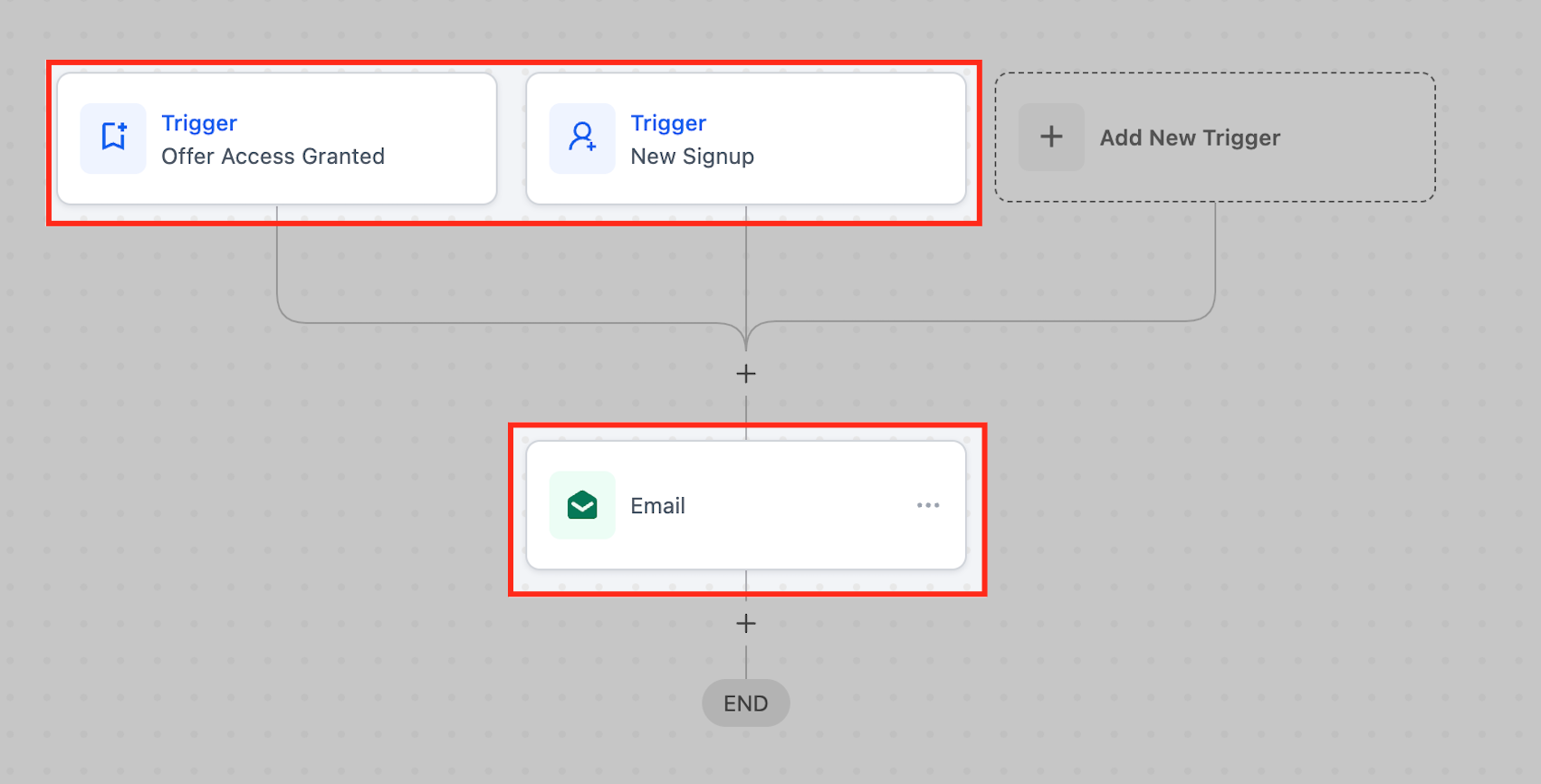
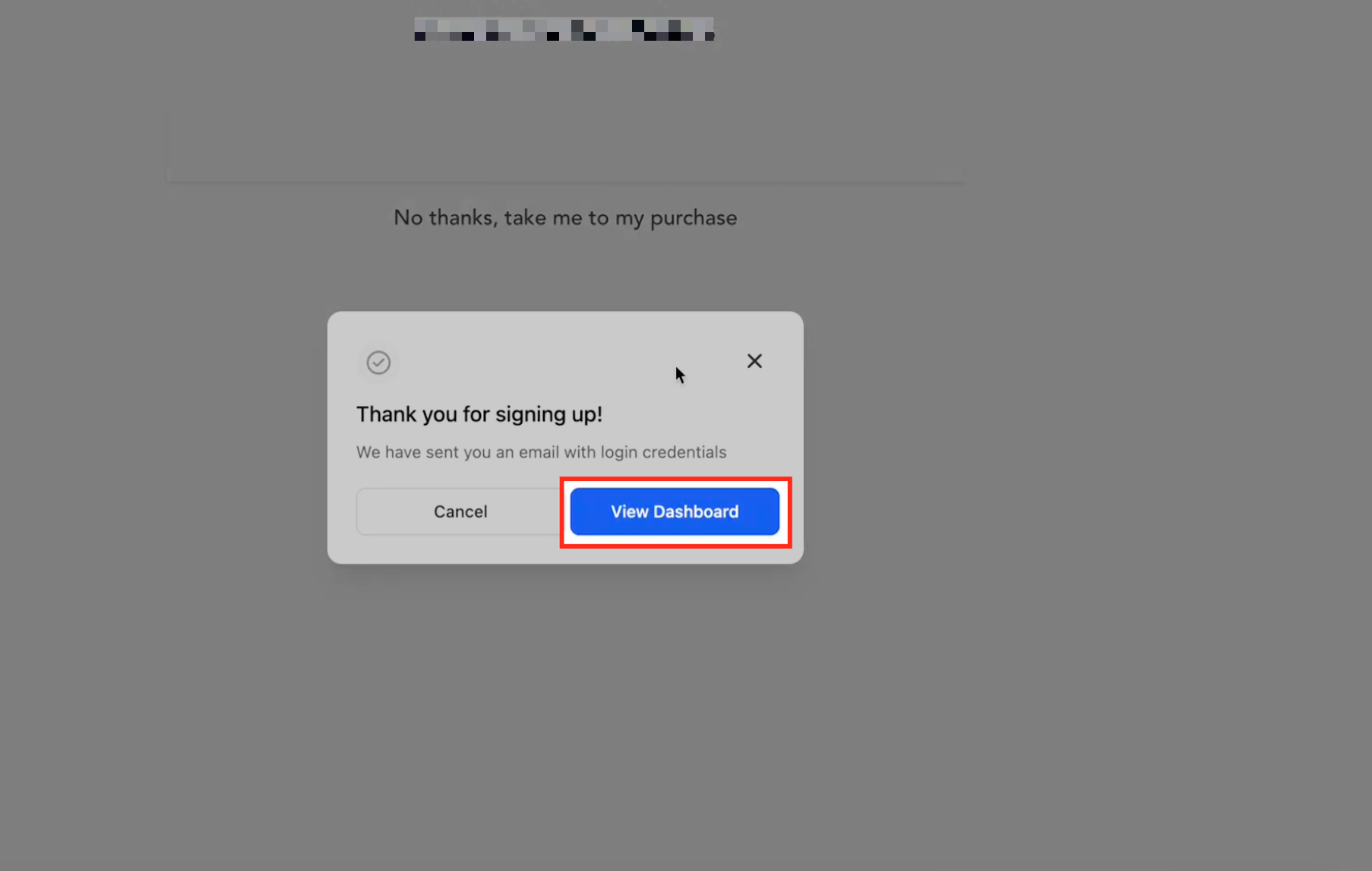
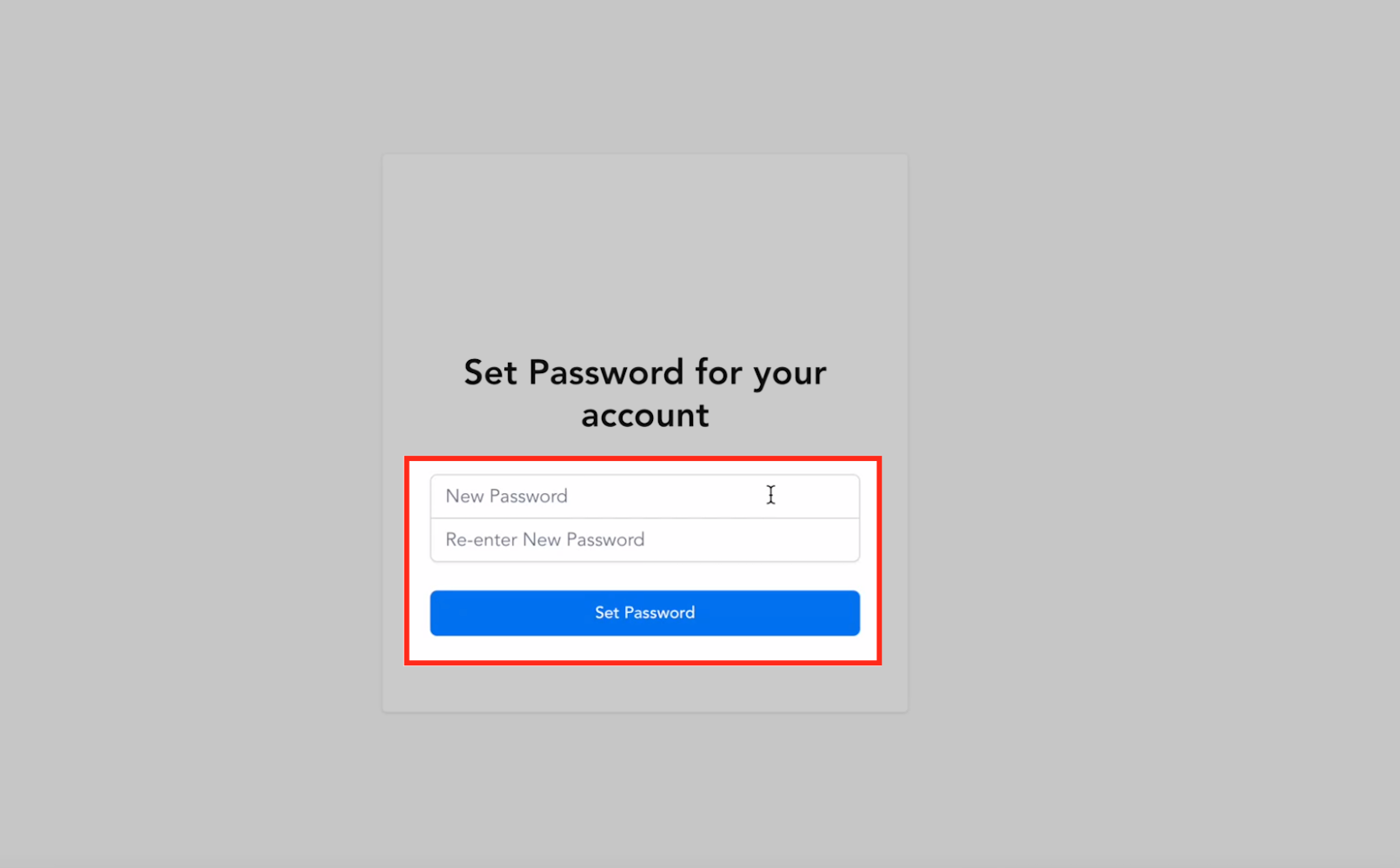
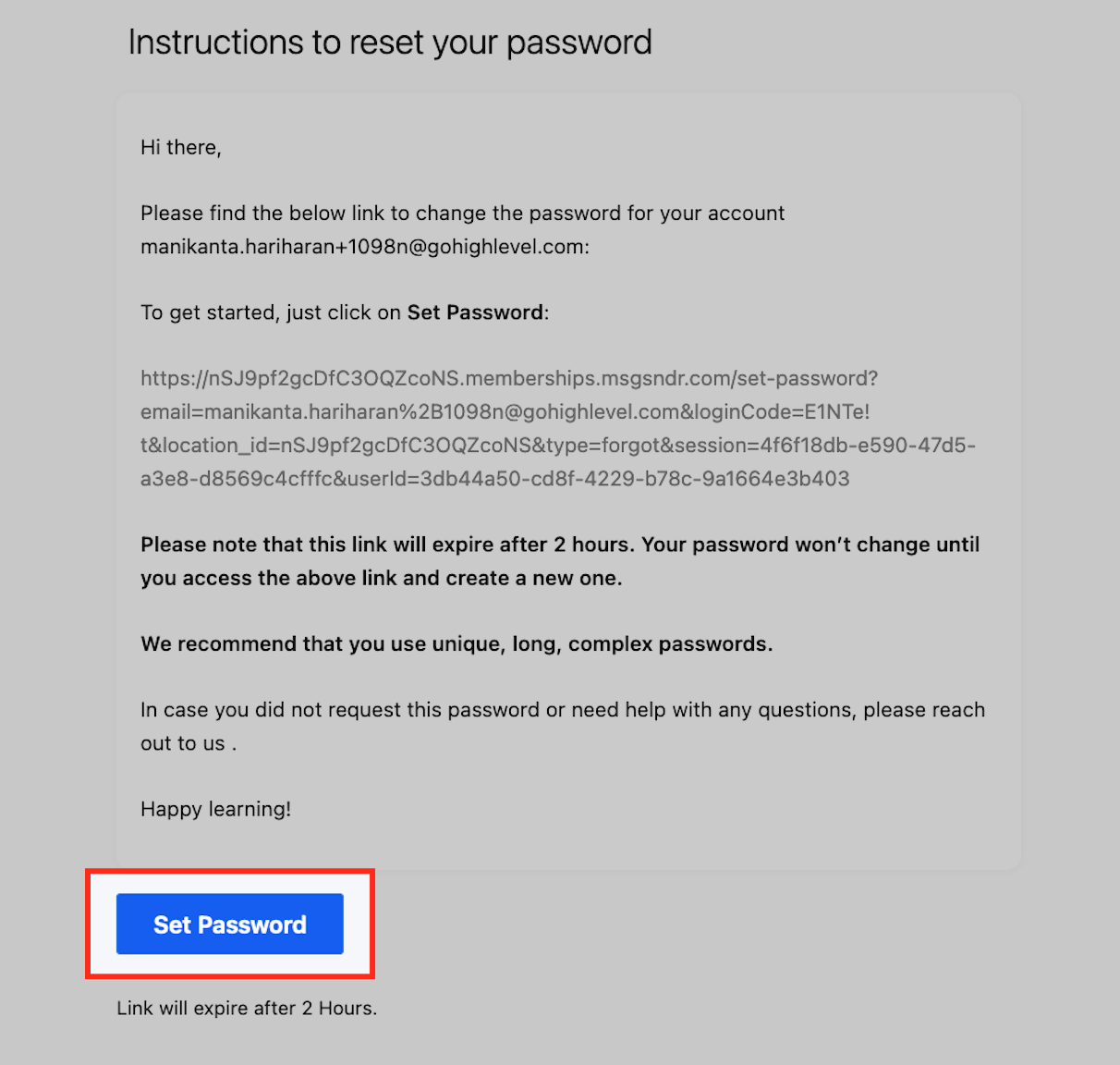
The platform sends a magic link email instead of a generated password. The email contains a URL that opens a password creation page. This process works for the first login and for any later password reset. The same mechanism is used whether access comes from a checkout, an admin enrollment, or an automated workflow.
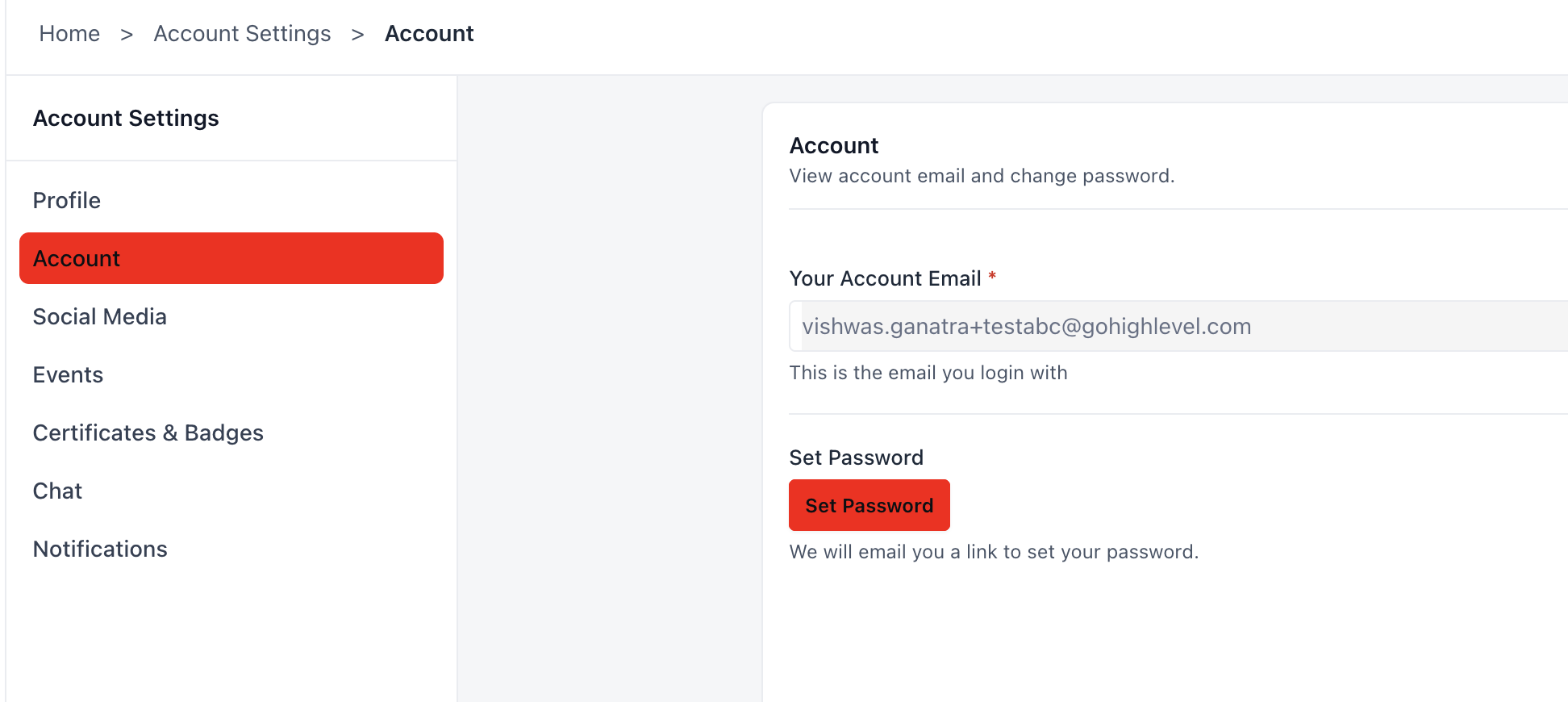
Members can also start the password setup from their own portal by opening account settings and requesting a setup link. If a password is forgotten, the login page offers a reset option that sends a time limited link. After the new password is saved, the user is automatically signed in.
03How businesses use password setup and reset
- Online course platform. When a learner buys a course, the system emails a magic link. The learner clicks the link, creates a password, and is taken straight to the course dashboard. No admin action is needed for password creation.
- Coaching membership site. A client who signed up via an automation receives the same magic link. If the client later forgets the password, they use the Forgot Password link on the login page, receive a reset link, set a new password, and are logged in automatically.
- Community forum. A member already logged into the portal can go to Account Settings, request a password setup link, follow the email instructions, and establish a password for future direct logins.
04The numbers and rules that matter
- The password reset link expires in 2 hours.
05Before you start
- The member’s email address must be correctly entered in the system.
- The Courses Login URL email must be enabled for the account.
06How to set up and use password setup and reset in HighLevel
Set a password from Client Portal
- Log in to the Client Portal.
- Open Account Settings.
- Select Account.
- Click the Set Password button.
- Check the email for a password setup link.
- Open the link and follow the prompts to create a password.
Reset forgotten password
- Navigate to the login page.
- Select Forgot Password.
- Enter the account email address.
- Open the password reset email that arrives.
- Click the link and set a new password.
- The system logs the user in automatically after the reset.
07What it looks like in HighLevel
08Settings that matter
- Courses Login URL. Controls whether the system sends the magic link email that lets users set or reset their password.
09Things to know before you rely on it
- The password reset link is valid for two hours only.
- Admins cannot directly change a member’s password; they must direct the member to use the reset flow.
- Invalidating all active sessions is optional during a reset.
10If something goes wrong
- Member does not receive the magic link email. Confirm the email address is correct and verify that the Courses Login URL email is enabled. Review email delivery logs for delivery status.
- Password reset email not received. Check the member’s email address in the system, ensure the domain is authenticated, and resend the reset email if needed.
11How it connects to the rest of HighLevel
- Learn how magic links are generated and sent magic links
- Build and launch courses that use this password flow course builder
- View pricing and plan options for membership features pricing
Get More InformationOpens on HighLevelPublished November 2, 2026 · Updated November 16, 2026