
01Who this is for
- Coaches who hold weekly client sessions and want a single link for all calls.
- Agency teams that need a standing stand up room for daily check ins.
- Consultants who schedule occasional strategy calls and prefer not to manage multiple URLs.
02Meetings, explained
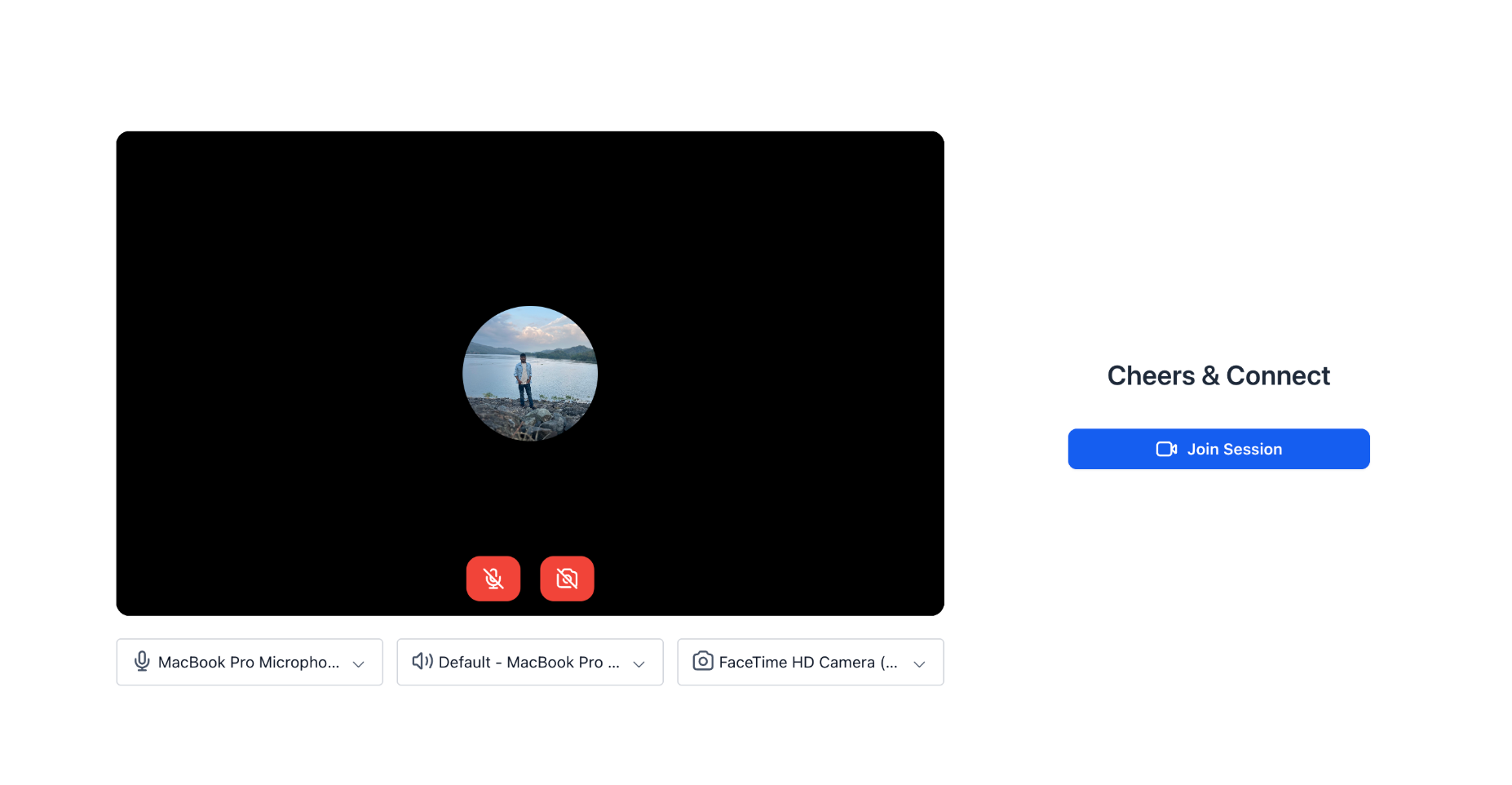
Meetings is HighLevel's built in video call feature that creates a reusable URL for live sessions. When you open a Meeting the platform launches a real time video room that works in a browser so no extra software is required. The same address can be used for one time calls or recurring series letting hosts start the room at any moment.
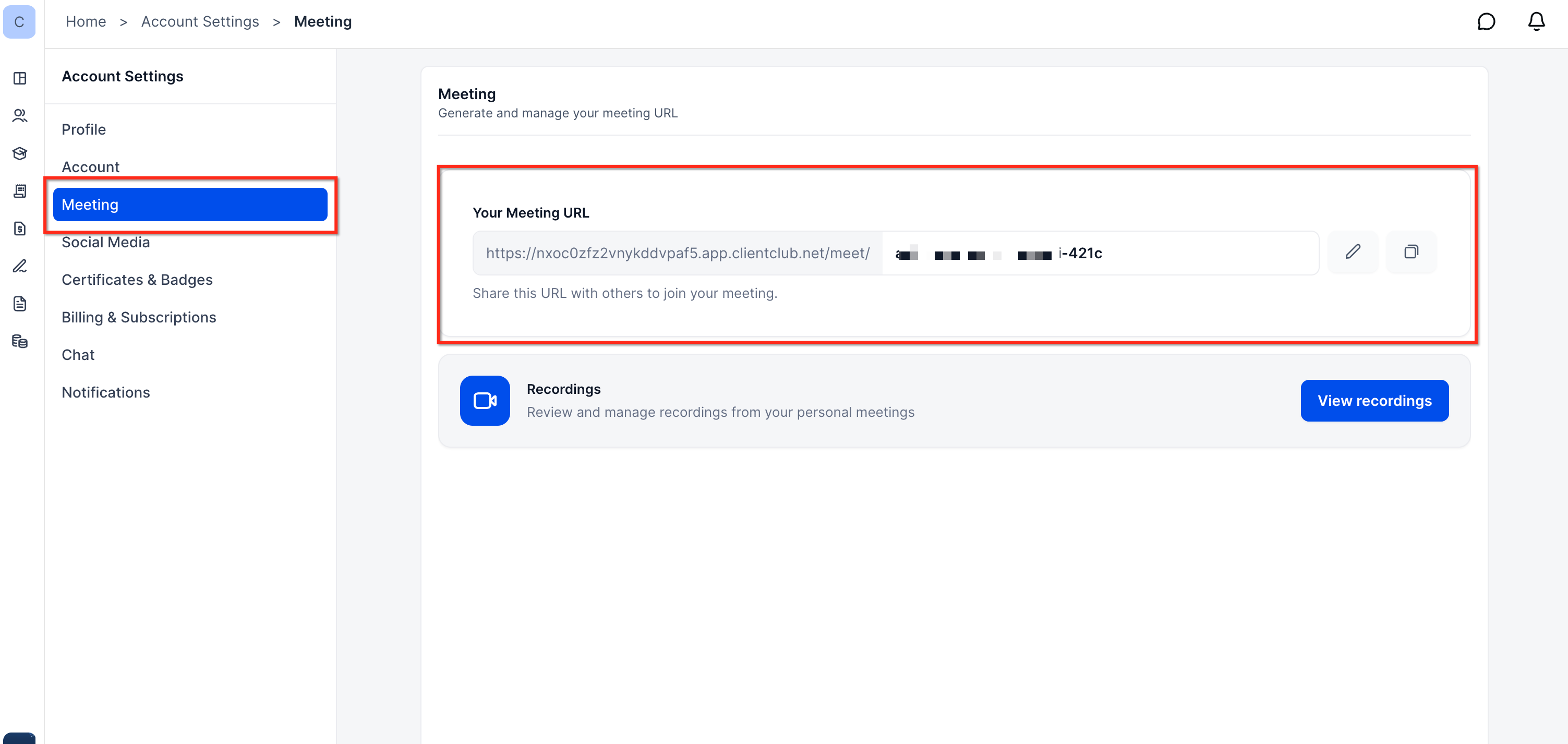
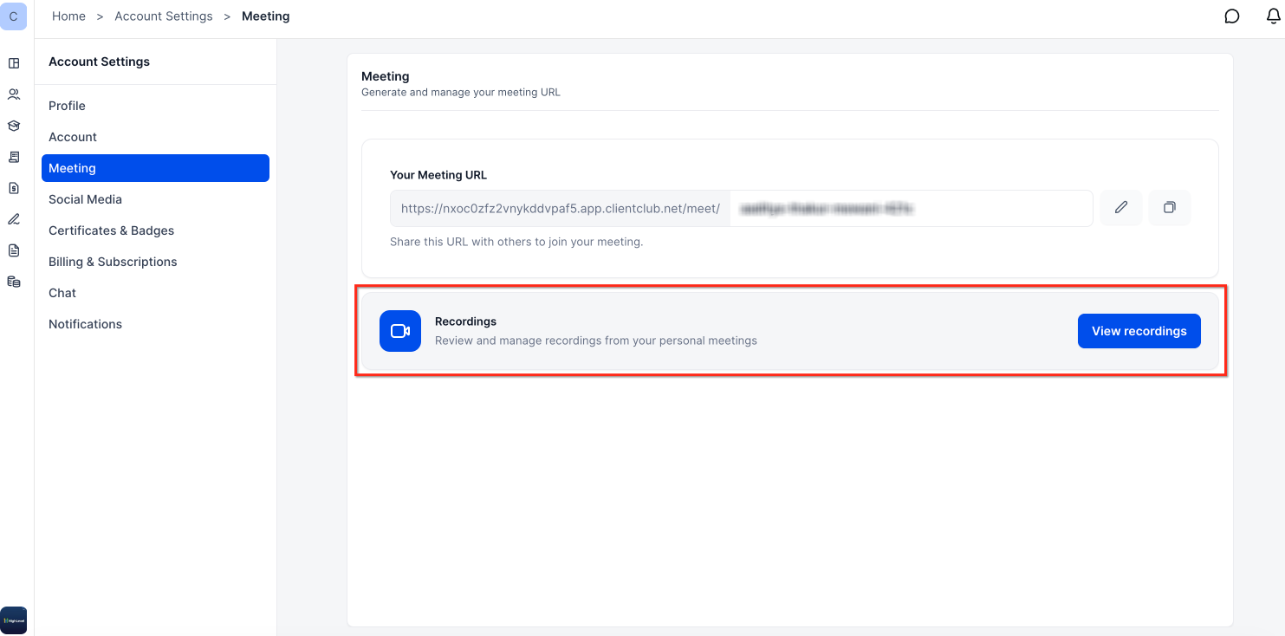
The personal Meeting URL lives in each user’s Account Settings under the Meeting section. From there you can copy the link, share it in emails or automation and view any recordings stored for that meeting. All past sessions are listed in the Meeting history view showing dates, durations and participants.
03How businesses use meetings
- Coaching practice. Create a personal Meeting URL and place it in client onboarding emails. Clients click the same link for every weekly coaching session while the coach starts the room whenever it is time. Recordings are later accessed from the Meeting section for follow up.
- Agency internal stand up. Add the personal Meeting link to a Slack channel pinned message. Team members click the link to join the daily stand up. The host opens the room at the scheduled time and the meeting history logs each day’s attendance.
- Consultant strategy calls. Insert the reusable Meeting link into a workflow that sends calendar reminders. Each scheduled strategy call uses the same URL so the consultant does not need to generate a new link for every client appointment.
04How to set up and use meetings in HighLevel
Access your personal meeting link
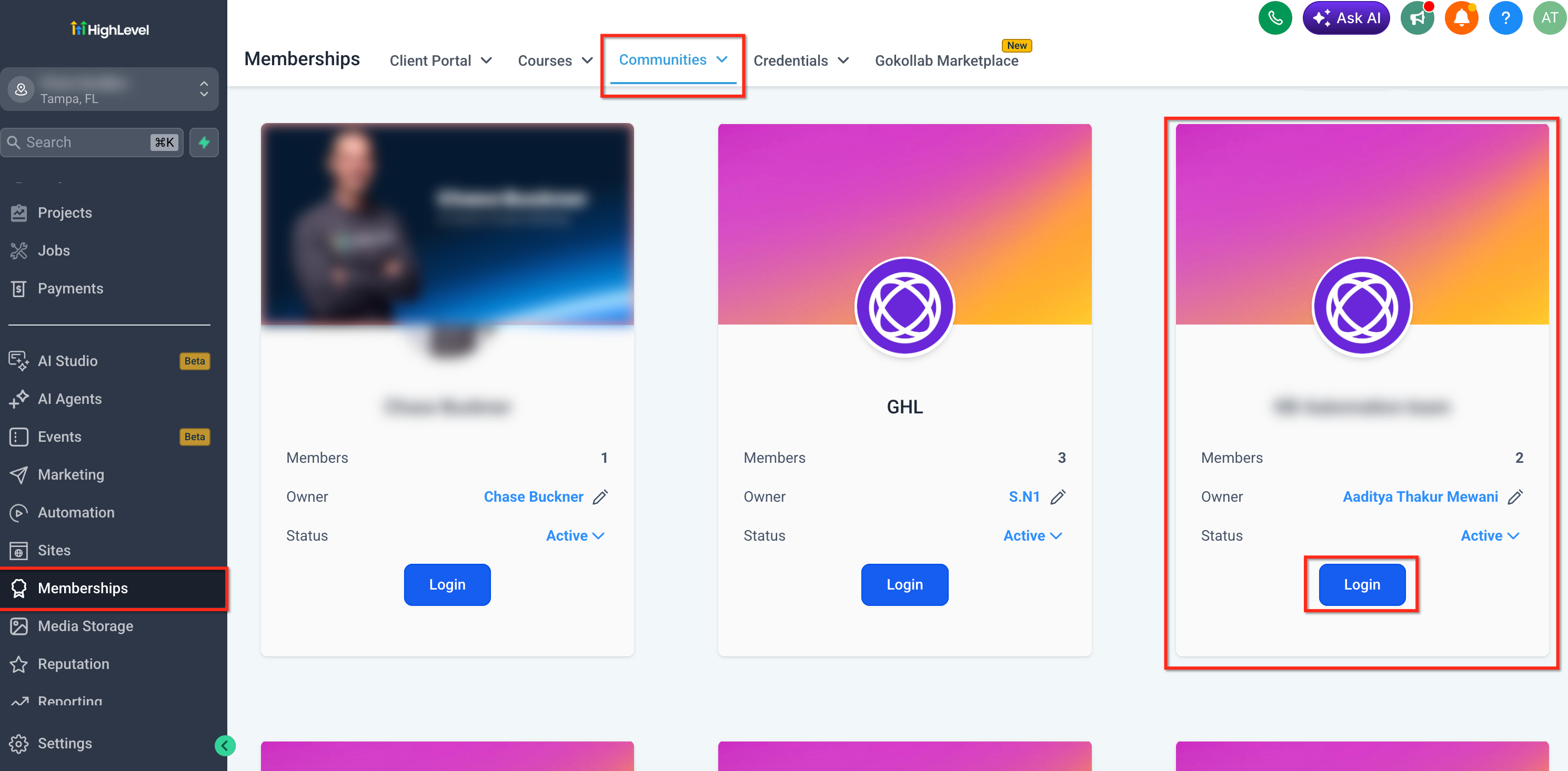
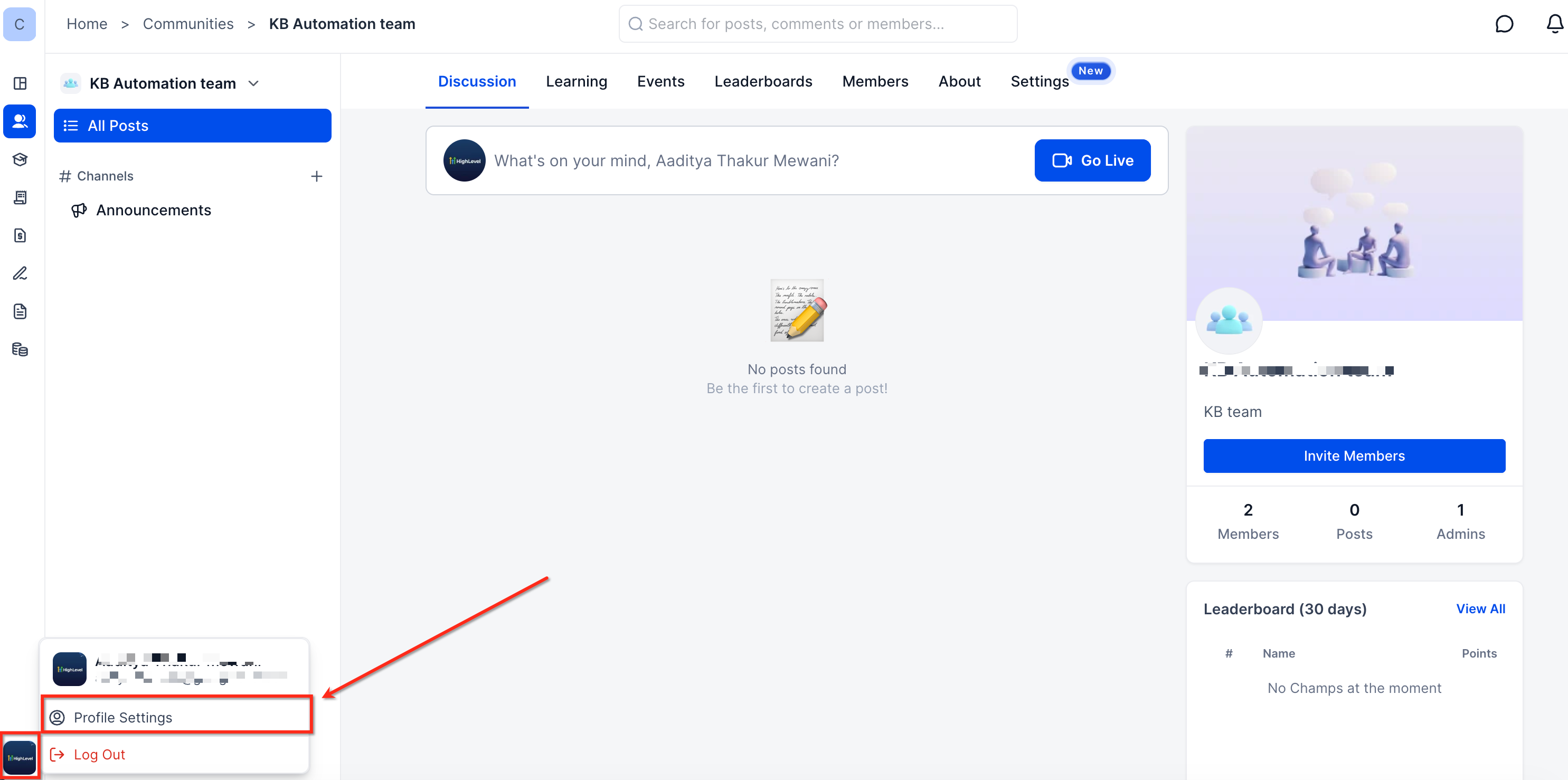
- Navigate to Account Settings, in the left navigation menu go to Memberships, click the Communities tab at the top of the page, select the community where you want to access your meeting settings, click your profile icon usually in the bottom left corner and select Profile Settings.
- In the Account Settings sidebar click Meeting.
- Locate the "Your Meeting URL" field and press the Copy icon.
- Paste the copied URL wherever you need to share it.
- In the same Meeting section find the Recordings card and click View recordings.
- Use the recordings view to review or manage past session videos.
05What it looks like in HighLevel
06Settings that matter
- Your Meeting URL. Shows the personal reusable link that others can use to join any of your meetings.
- Recordings. Provides access to video recordings of past meetings for review and sharing.
07Things to know before you rely on it
- Meeting links stay valid across multiple sessions and do not automatically expire after a call ends.
- Recurring meetings keep the same URL for long term use eliminating the need to rotate links.
- Webinar mode co host support and in meeting recording controls are not yet available.
08How it connects to the rest of HighLevel
- Learn how to set up a HighLevel community where meeting URLs can be shared. Create a community
- Explore HighLevel pricing and plans to see which subscription includes Meetings. Pricing page
- Start a 30 day trial to test Meetings and other video features. Free trial
Michael's take

Wondering if you really need another video tool? The answer is simple: If you run weekly coaching calls or daily team huddles, a single reusable link cuts down on the back and forth of new URLs and keeps everything in one place.
I would add the personal Meeting URL to my email signature and any automation that schedules calls. That way every client lands on the same room and I get a clear history of each session without juggling multiple platforms.