
01Who this is for
- Founders of online education platforms, they can give learners a professional, easy to share proof of completion.
- Community managers running membership sites, the preview lets members showcase achievements without logging in.
- HR managers hiring from training programs, the clear issuer and expiry info helps verify credentials quickly.
02Credentials preview, explained
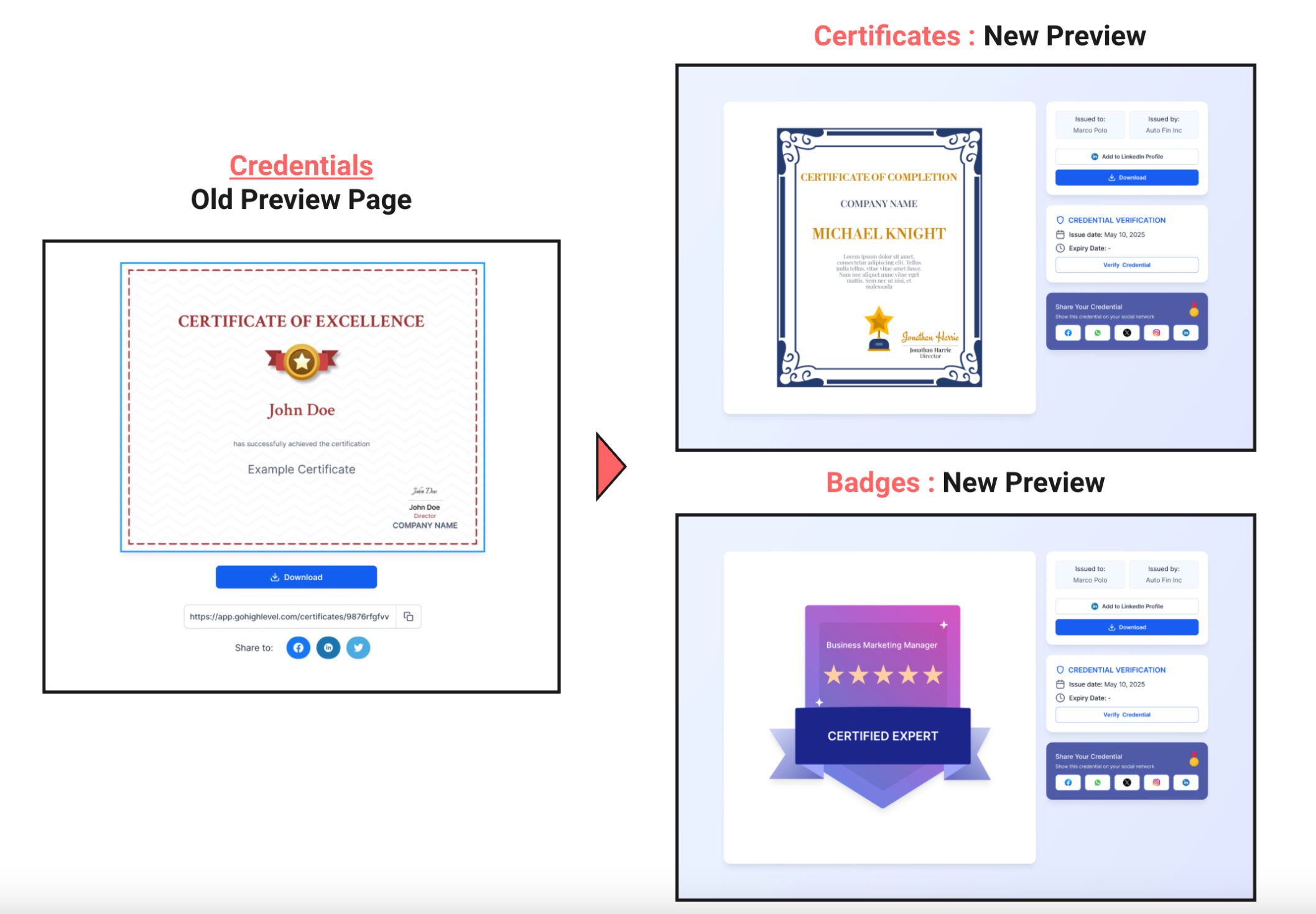
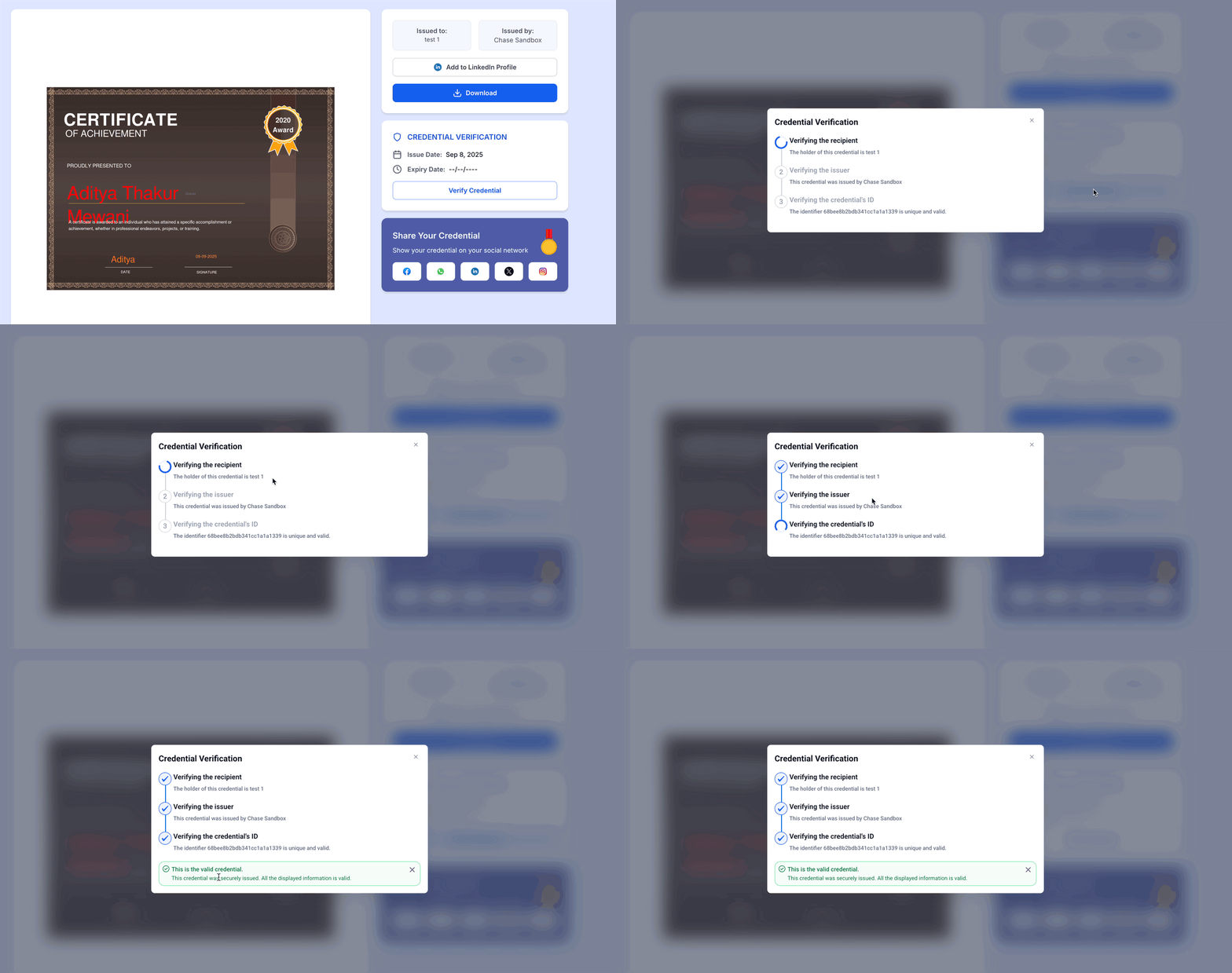
Credential Preview is a public certificate page that replaces the older static view. The page adapts to desktop and mobile screens, shows key metadata in distinct boxes, and includes share and download buttons.
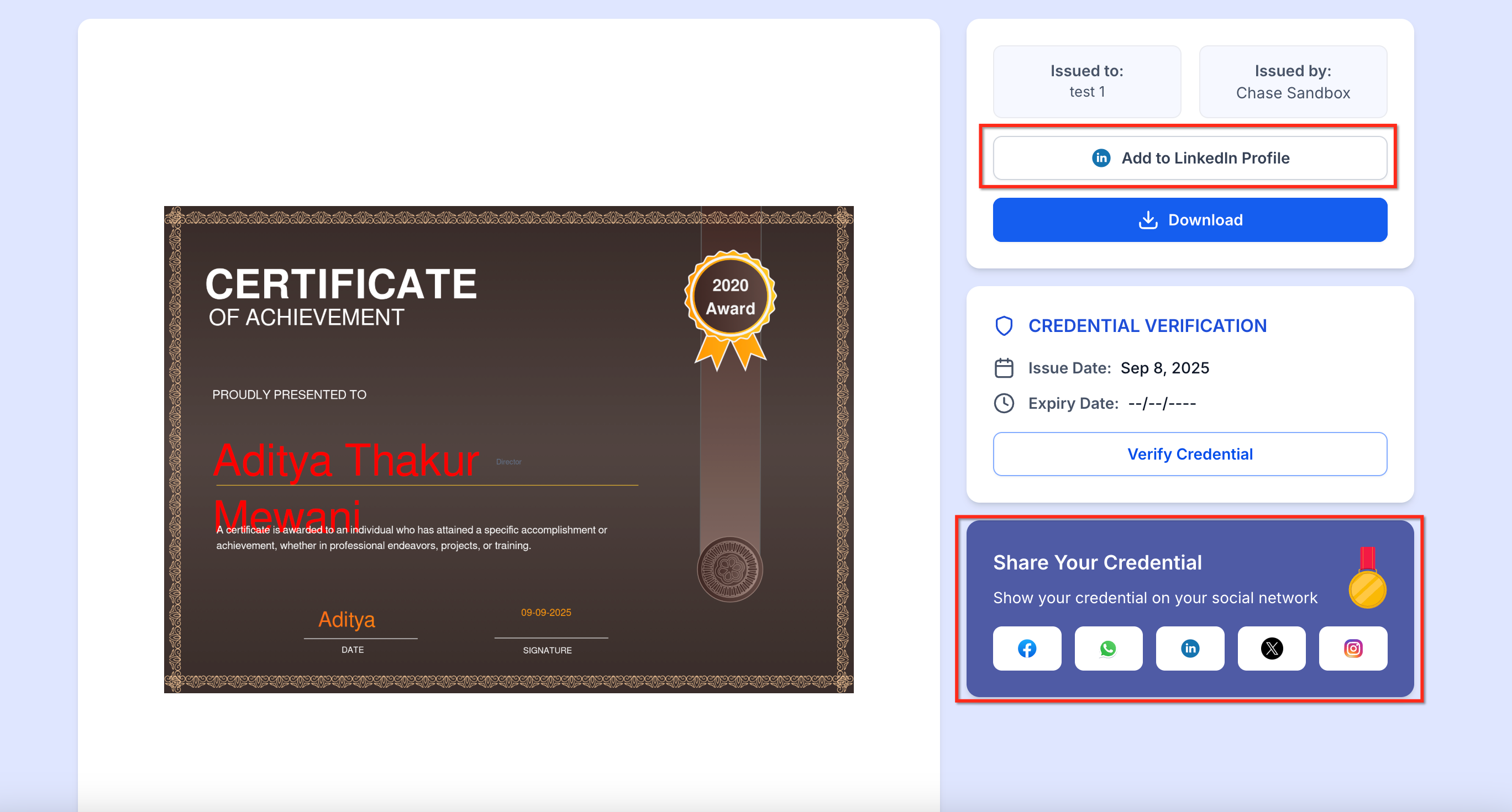
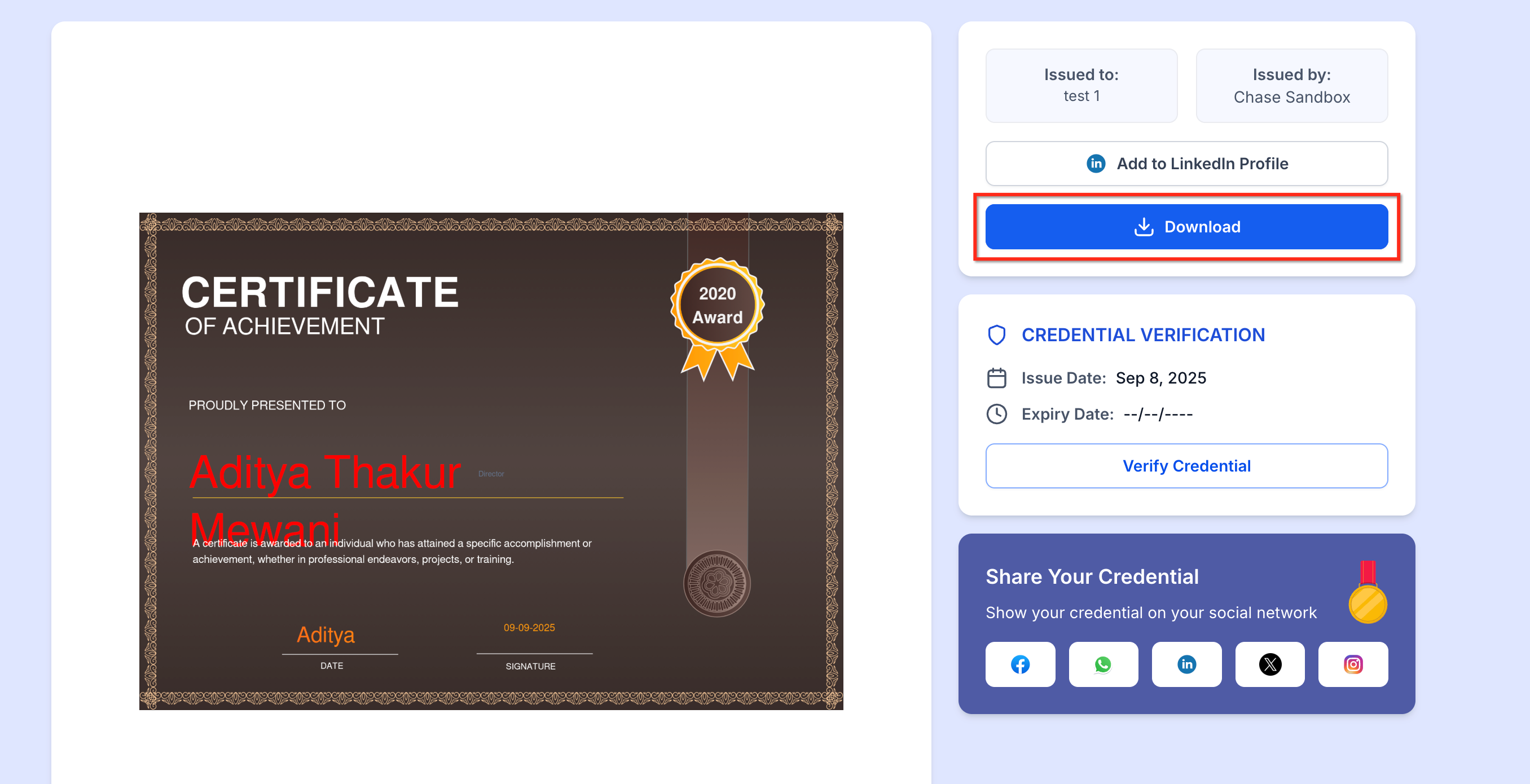
When a certificate is issued, HighLevel automatically generates a PNG version for instant download. Recipients can click the LinkedIn Add to Profile button to post the credential directly to their profile, or share to Facebook, X or WhatsApp with one tap.
The preview URL is unique and does not require a login, so anyone with the link can see the certificate. If the certificate reaches its expiry date, the preview becomes unavailable, and the expiry set for the issued certificate overrides any template level expiry.
03How businesses use credentials preview
- Online course provider. The provider creates a certificate template, maps fields such as student name and completion date, and then sends the badge to each graduate. Recipients use the LinkedIn button to add the credential to their profile, increasing the course’s visibility.
- Professional association. The association designs a badge for continuing education credits, sets an expiry date, and shares the public link in member newsletters. Members can download a PNG for printing or share the link on social channels without needing a platform account.
- Corporate training program. HR creates a certificate for internal certifications, previews it to ensure issuer and date appear correctly, and distributes the credential via email. Employees then share the public preview on LinkedIn to demonstrate the skill to potential employers.
04The numbers and rules that matter
- Optional reminder emails can be customized, replacing the old 2- and 7 day defaults.
05How to set up and use credentials preview in HighLevel
Set up credential preview
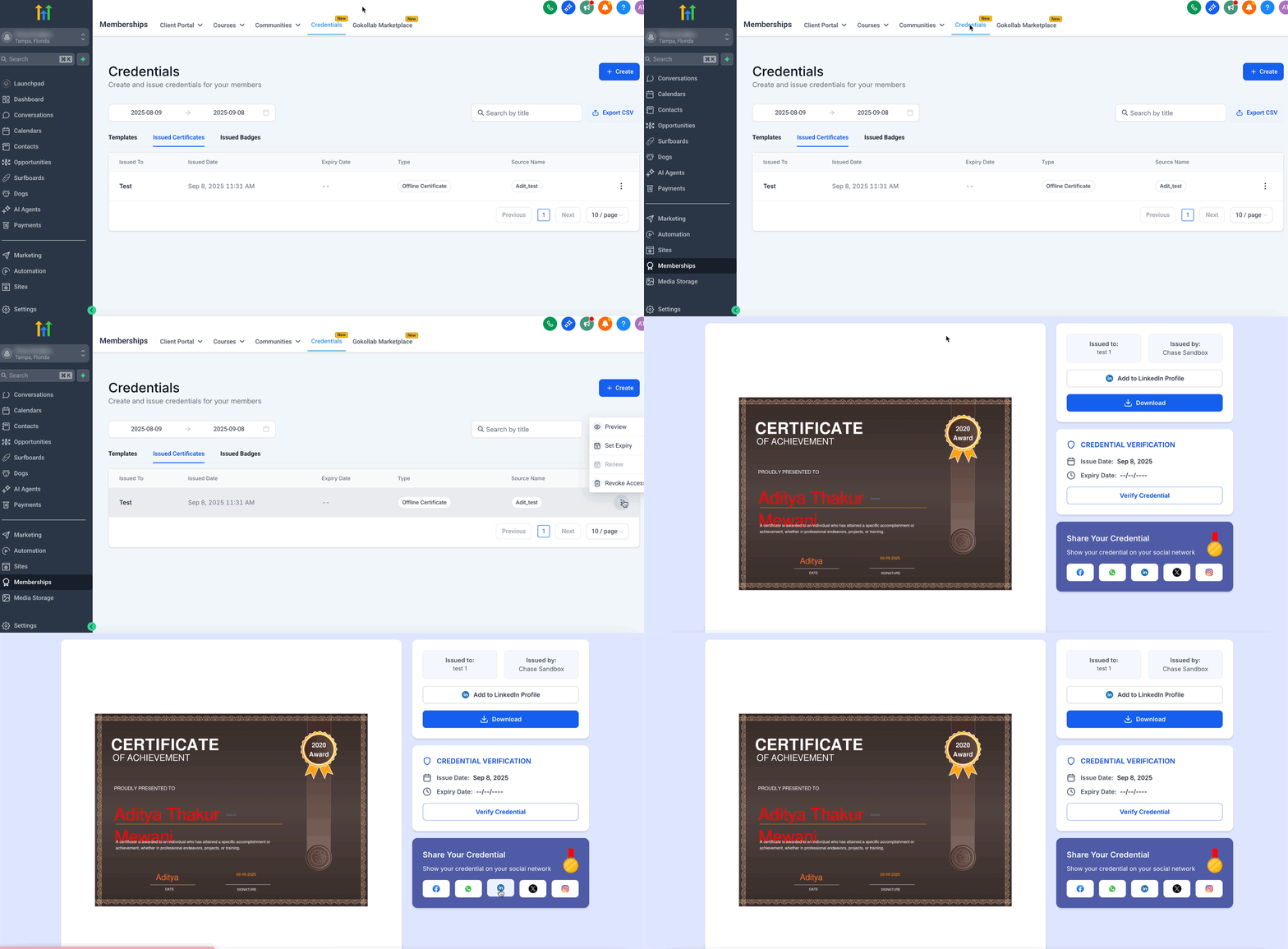
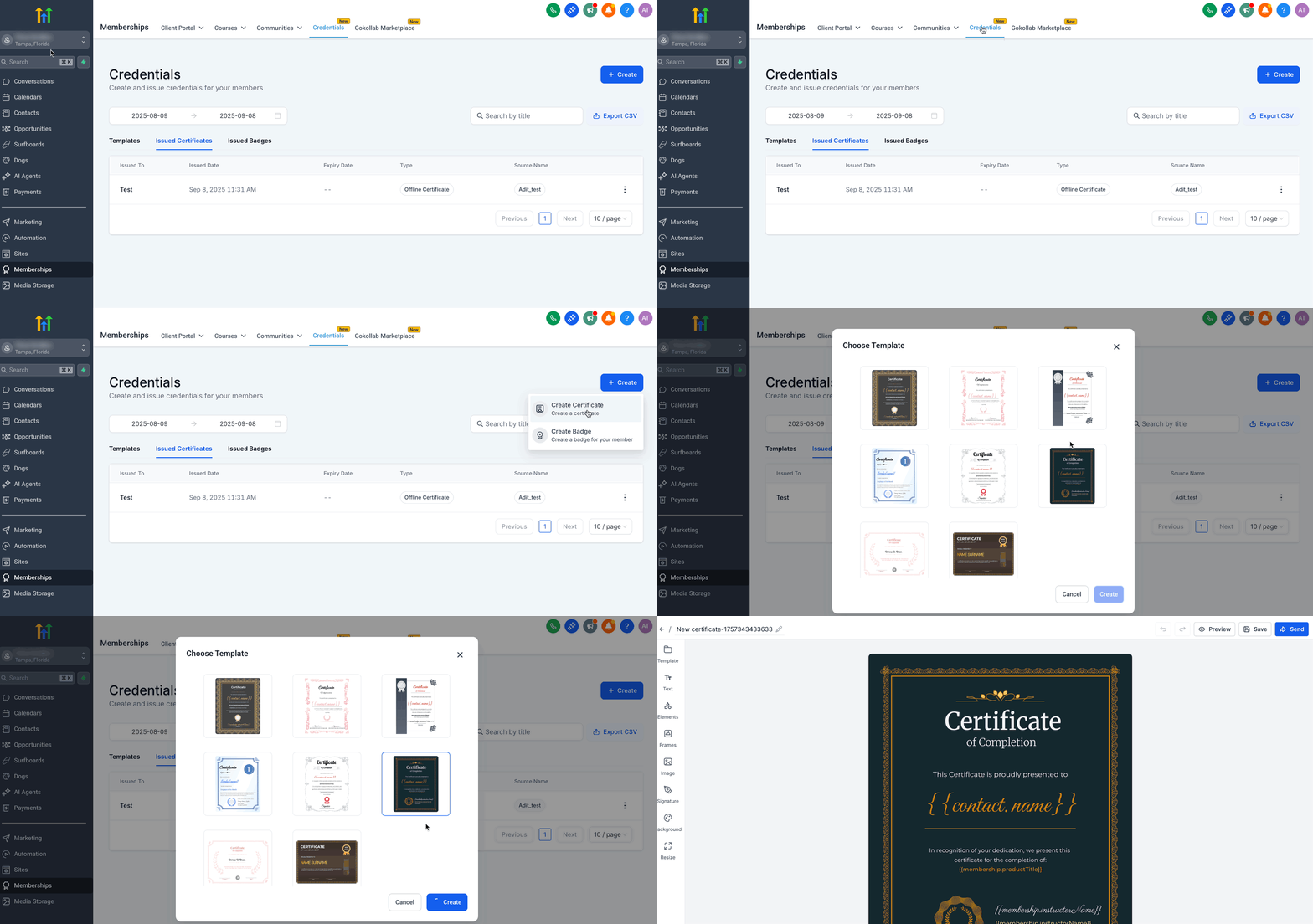
- Open Memberships > Credentials > Templates and select Create Certificate/Badge or edit an existing one.
- In the builder, add design elements and map the required fields, then use the preview button to confirm names, dates and IDs appear correctly.
- Use the three dot menu on the template to Preview, Set Expiry, Edit, Delete or Clone the credential.
- If needed, select Set Expiry from the three dot menu and define the expiration date for the credential.
- Send the credential by either emailing a test to yourself or sharing directly; enter the instructor’s name, choose the recipient, pick an email template if desired, and click Send.
06What it looks like in HighLevel
07Things to know before you rely on it
- Share buttons appear only when previewing an issued certificate.
- Public preview links are not searchable or indexed; anyone with the URL can view the page without logging in.
- When a certificate expires, its preview is no longer accessible, and the issued certificate expiry overrides any template level expiry.
08How it connects to the rest of HighLevel
- Learn how to build courses that issue certificates in HighLevel. Course builder guide
- Review pricing and plan options for accessing Memberships features. Pricing page
Michael's take

Credentials preview feels like a small convenience upgrade that quietly lifts the professionalism of any badge program. It lets learners showcase achievements without hunting for files or fiddling with copy paste, and gives hiring managers a quick way to verify authenticity.
A coaching business that issues completion certificates for its training modules fits perfectly. The built in LinkedIn button means graduates can add the credential to their profiles in seconds, boosting the coach’s brand visibility.