
01Who this is for
- Admins, can highlight announcements so all members notice them immediately.
- Owners, can ensure promotional messages appear first on the dashboard for members.
02Featured posts, explained
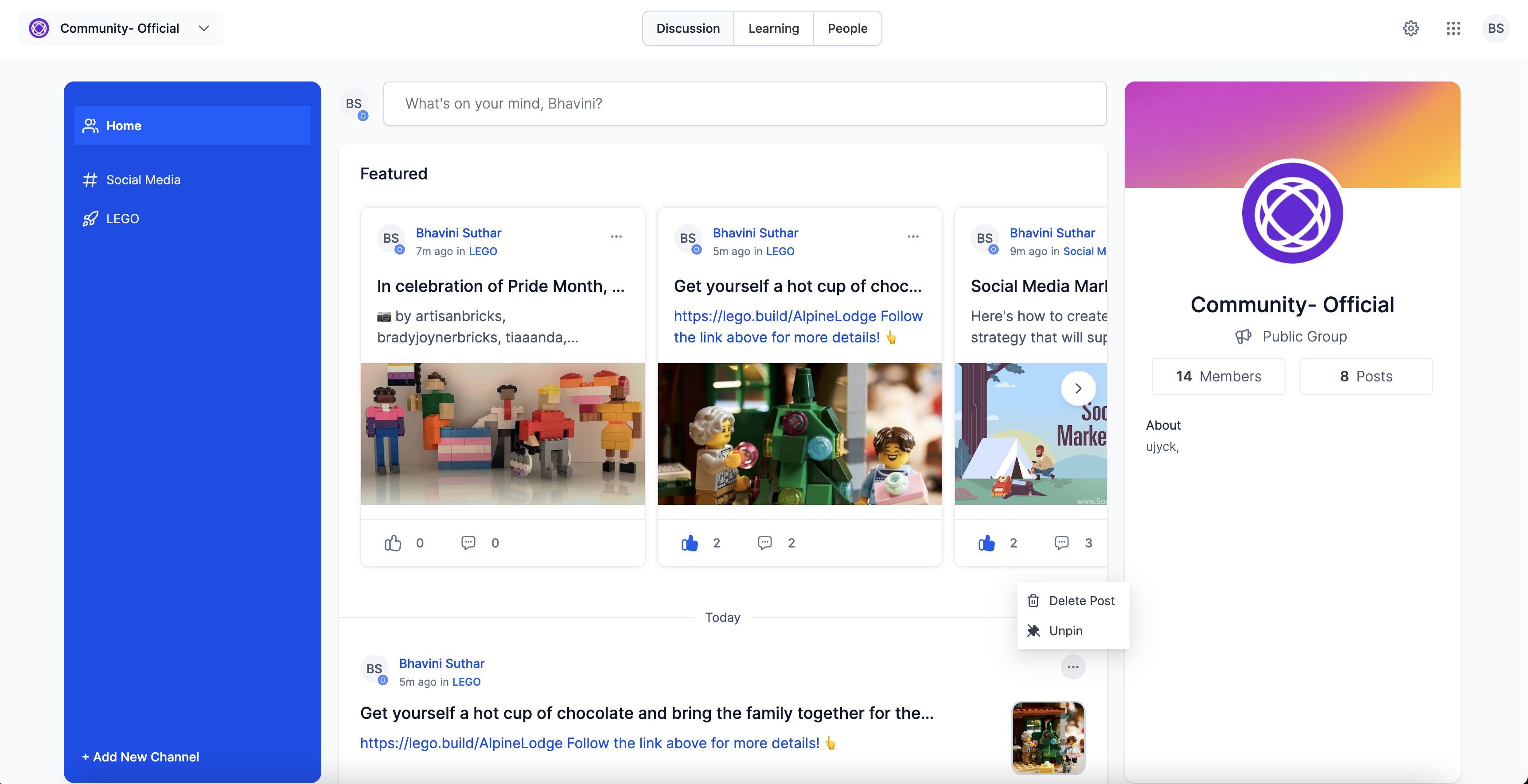
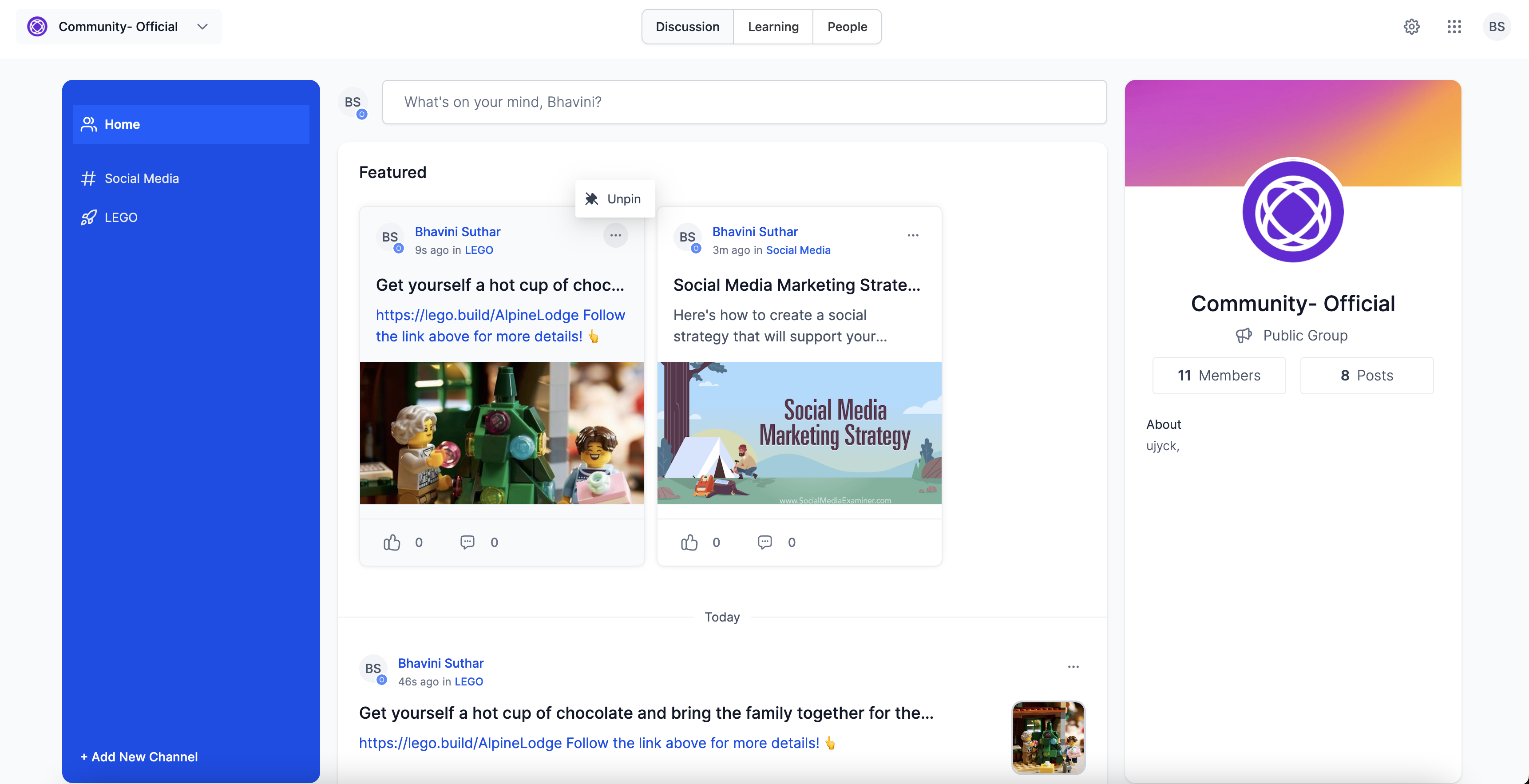
The Featured Posts feature adds a pin option to any post in a community channel or on the home timeline. When an admin or owner selects Pin, the post is marked as Featured and jumps to the very top of the channel feed and the home feed, making it the first content members encounter.
Only admins and owners see the pin menu. The featured status can be removed at any time by choosing Unpin, which restores the post to its original location while keeping the content intact. Featured posts thus give controlled prominence without deleting or altering the original post.
03How businesses use featured posts
- Fitness studio. The studio pins a class schedule update so members see the new hours right away in the channel feed. After the schedule changes, the manager unpins the post to keep the feed current. The steps are: locate the post, open the three dot menu, and select Pin or Unpin.
- SaaS product community. The product team pins a feature release announcement to guarantee every user reads it on the home timeline. When the release window closes, they unpin the announcement, letting it remain in the channel but no longer dominate the top. They use the same three dot menu to toggle the status.
- Non profit organization. The organization highlights a fundraising drive by pinning the post in the community channel. Once the campaign ends, they unpin it so newer posts appear first. They follow the locate menu pin sequence for both actions.
04How to set up and use featured posts in HighLevel
Mark a post as featured
- Locate the post you want to highlight.
- Open the three dot menu on that post.
- Choose the Pin option.
Unpin a featured post
- Find the post that is currently featured.
- Open the three dot menu on that post.
- Select the Unpin option.
05What it looks like in HighLevel
06How it connects to the rest of HighLevel
- Create and manage a HighLevel community Community setup guide
- Create channels, posts and manage content Content management
- Manage members inside groups Member management
Michael's take

Most people think pinning only moves a post inside the channel they’re working in. In reality the same pin also lifts the post to the very top of the home timeline, so it catches eyes even when members aren’t in that channel.
If I were setting up a community, I’d pin the welcome message and the latest policy update so they dominate both views. That way new members see the essentials right away, and seasoned members keep the info front and center.