
01Who this is for
- Members who need to access training courses on their mobile devices.
- Learners who want to listen to audio or video lessons while navigating other parts of the app.
02Courses mobile, explained
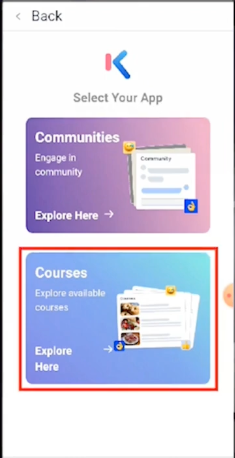
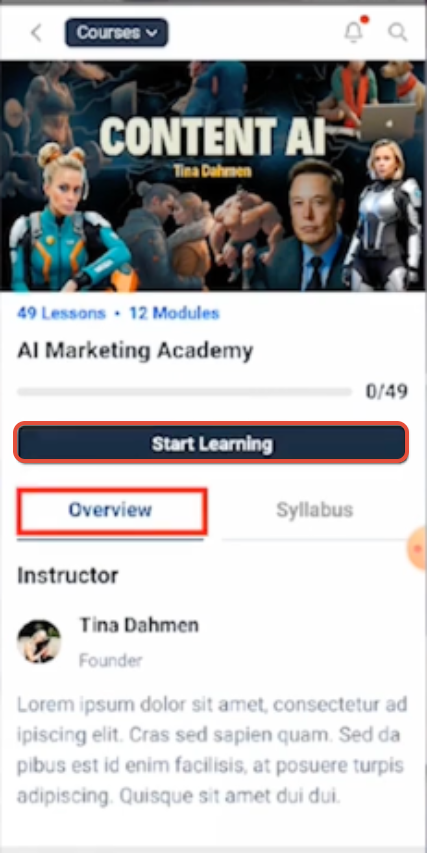
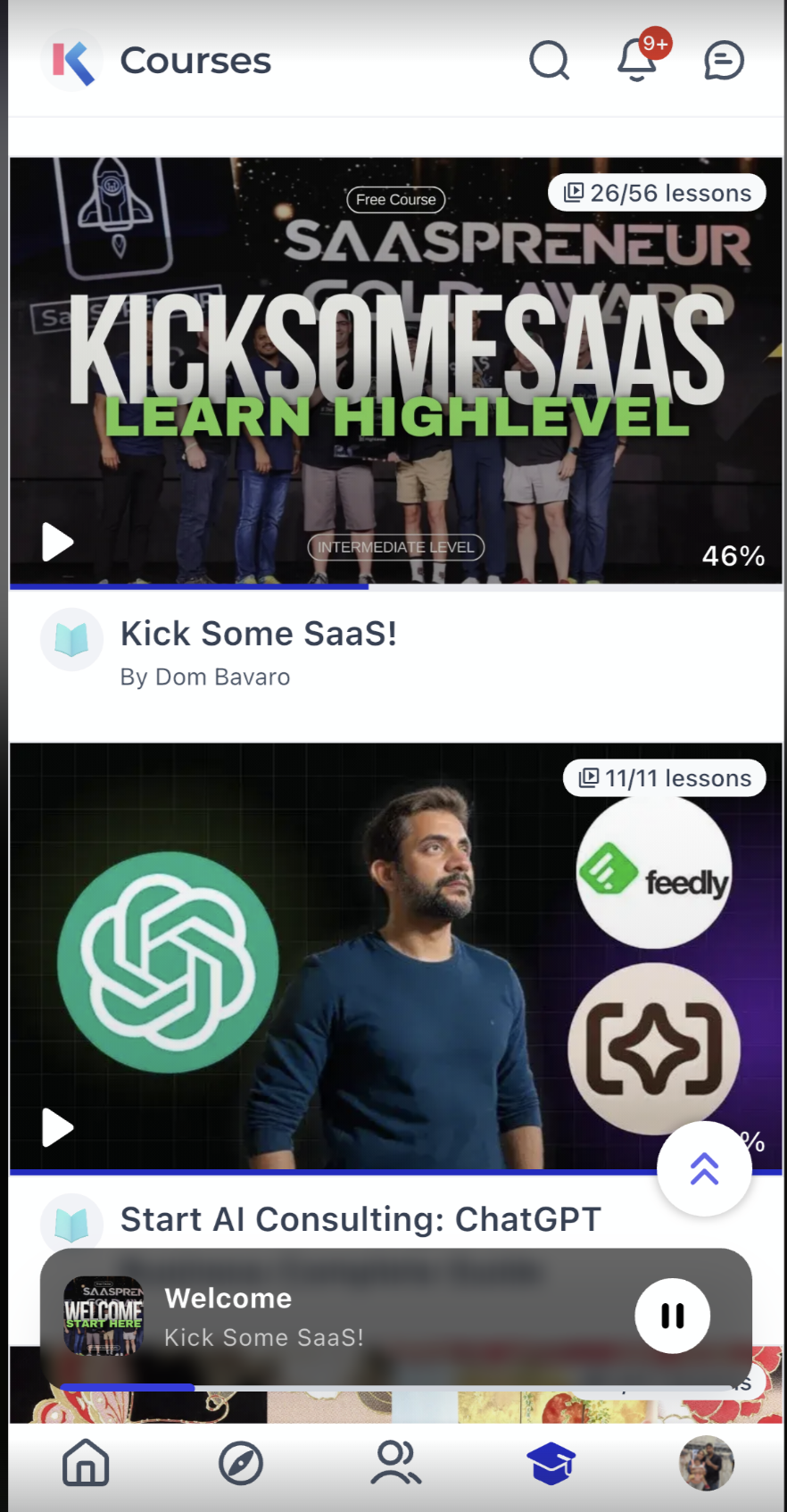
The mobile Courses UI combines lesson access, curriculum navigation and media playback in a single flow. After signing into GoKollab, members tap the Courses icon and select a course to see an overview that shows module count, progress and entry points.
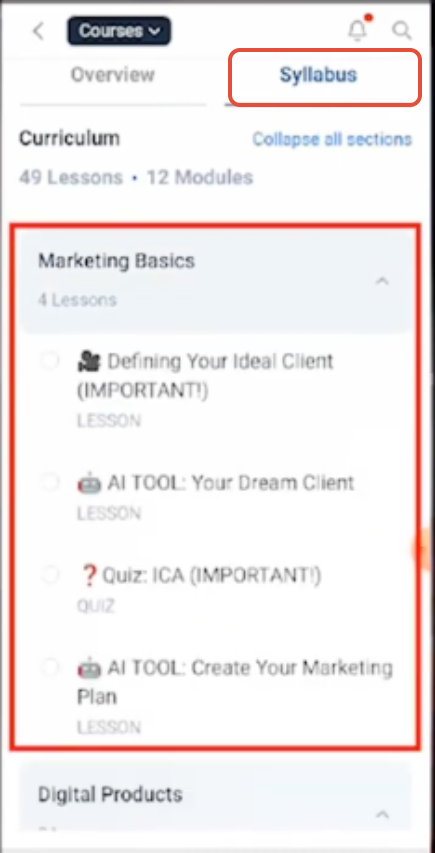
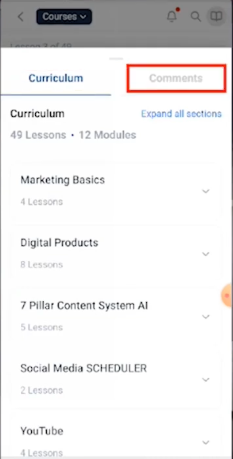
Inside a course, the Syllabus tab displays the full curriculum. Users can expand modules to reveal individual lessons, quizzes or assignments, and collapse them to keep the view tidy. Selecting any item opens it directly, eliminating the need to backtrack.
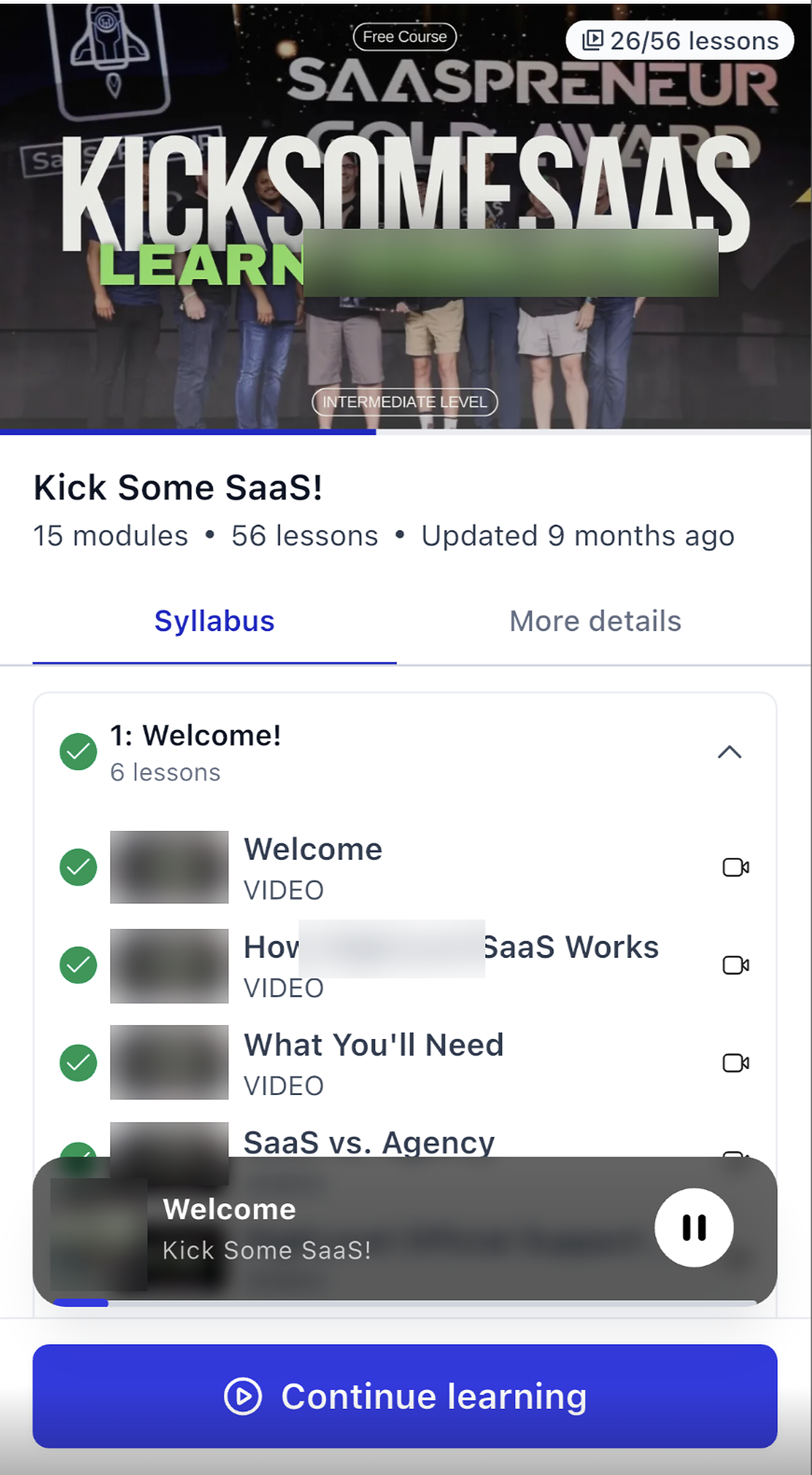
A built in Course Miniplayer lets audio or video continue playing while the learner moves to other sections of the app. The mini player stays on screen, offering pause and play controls, but it does not support background or lock screen playback.
03How businesses use courses mobile
- Online fitness coaching. The coach uploads workout videos as lessons. Clients open the course, expand the week’s module in the syllabus, start a video, and let the Miniplayer keep the audio running while they view the next day’s plan.
- Language school. Teachers add reading, listening and speaking lessons. Students expand a grammar module, start an audio lesson, and the Miniplayer lets them continue listening while they switch to a vocabulary quiz in the same course.
- Corporate compliance training. The provider includes policy documents, video briefings, quizzes and upload based assignments. Employees open the assignment, fill in required text, attach a PDF, submit it, and then view the review status right inside the app.
04Before you start
- Sign in to the GoKollab mobile app with your account credentials.
- Update the app to the latest version to access the newest navigation features.
05How to set up and use courses mobile in HighLevel
Access courses
- Launch the GoKollab app on your device.
- Enter your login details to sign in.
- Tap the Courses option that appears in the app selection screen or bottom navigation.
- Choose the course you wish to open from the list.
- Look at the course overview or press Start Learning to begin.
Use the syllabus
- Open the desired course.
- Select the Syllabus tab at the top of the screen.
- Tap a section header to expand and see its lessons and activities.
- Tap the same header again to collapse it when you no longer need it.
- Tap any lesson, quiz or assignment shown to open that item.
Use the Course Miniplayer
- Open GoKollab and choose Courses.
- Open the specific course you want to continue.
- Select the lesson you intend to listen to.
- Press the play control to start the media.
- Move to another part of the Courses area while the Miniplayer stays visible.
- Use the Miniplayer’s pause or play button to control playback as you navigate.
Complete a quiz
- Navigate to the quiz through the course syllabus and open it.
- Answer each question presented on the mobile layout.
- Submit the completed quiz.
- Review the displayed results, including score and correct answers.
Submit an assignment
- Open the assignment from the syllabus or course content.
- Enter the required written response fields.
- Upload any supporting files using the provided option.
- Press the submit button to send your work.
- Check the assignment screen for the current review status.
06What it looks like in HighLevel
07Things to know before you rely on it
- The Miniplayer only works while you stay inside the Courses experience; it does not play in the background, on the lock screen, or outside the app.
- To see the latest course UI, you must keep the GoKollab app updated to the newest version.
08If something goes wrong
- The latest course experience does not appear.. Update GoKollab to the most recent version and verify that your account has access to the course.
09How it connects to the rest of HighLevel
- Learn how to build and launch courses in HighLevel Course builder
- Generate password free access links for courses Magic links
- View HighLevel pricing and plan options Pricing
Michael's take

The Courses mobile UI is a clean way for members to keep learning on the go, but it adds little if you never use the GoKollab app.
Skip it if your community relies solely on desktop learning or you don’t need in app audio playback.