
01Who this is for
- Online educators who need to keep students engaged without constant manual clicks.
- Membership site owners looking to standardize lesson flow across many courses.
- Coaching businesses that want to automate onboarding sequences while preserving control.
02Learner experience controls and lesson auto progression, explained
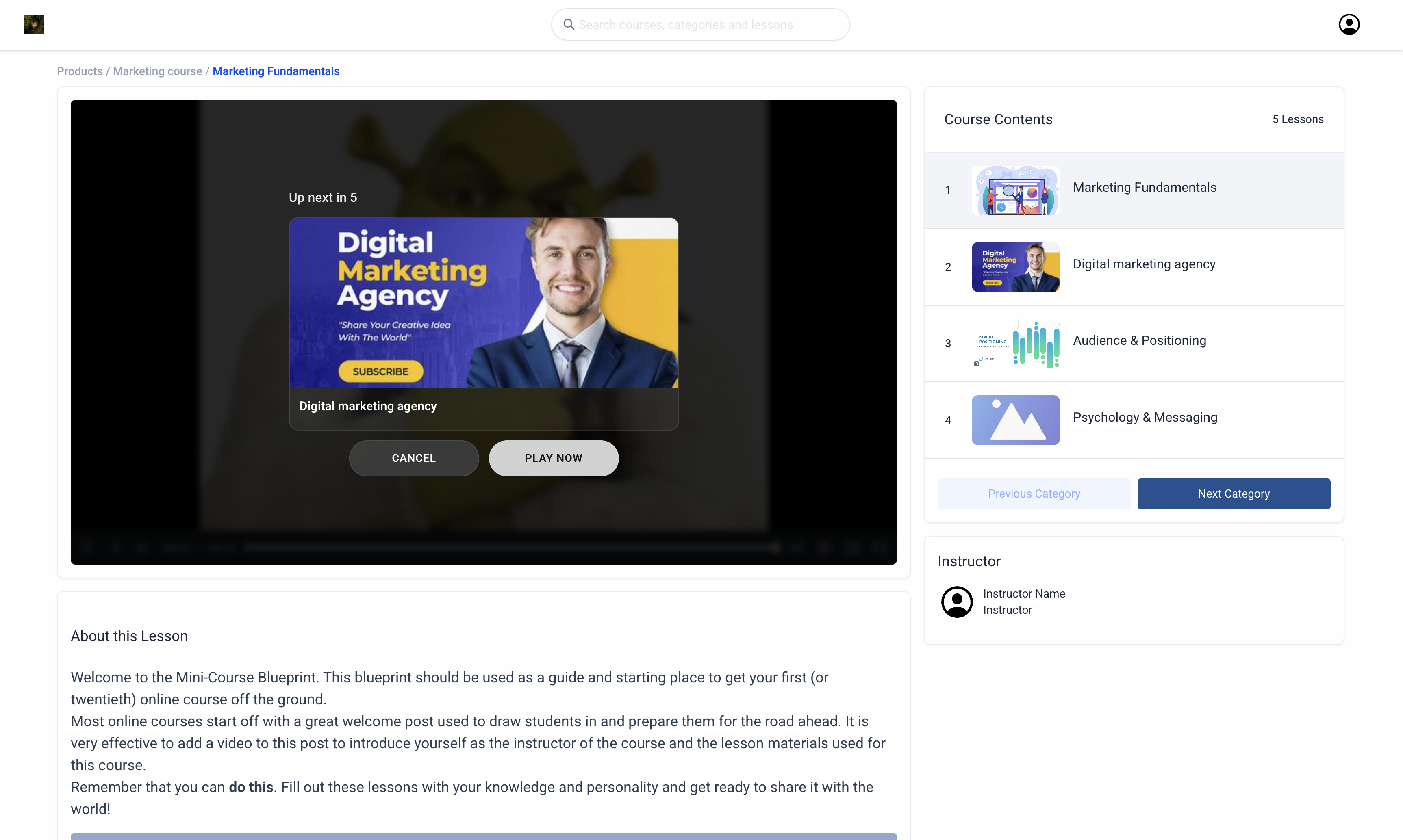
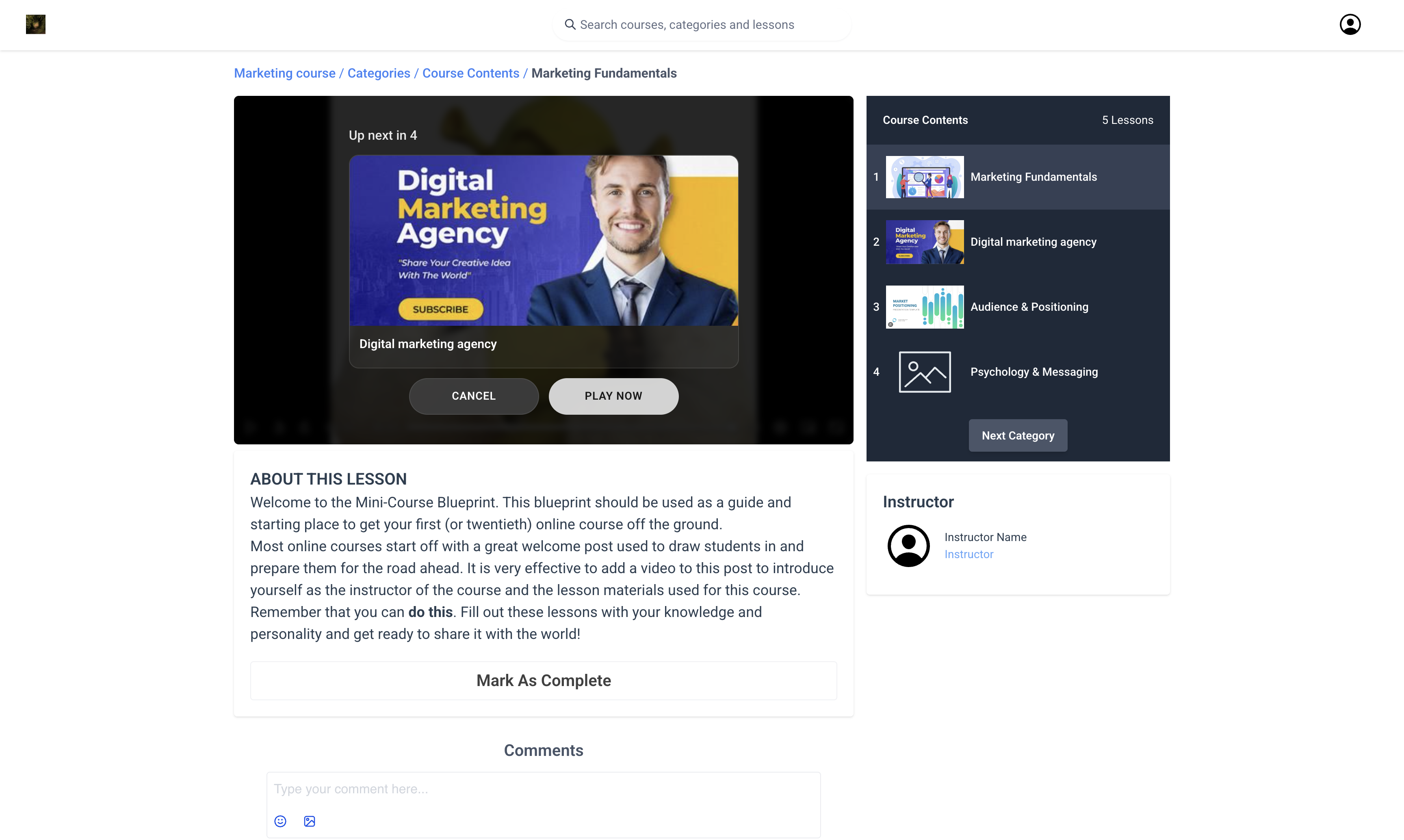
The learner experience controls are a group of course level options in HighLevel. They let you turn on auto start for the first lesson, enable auto play of the next lesson, and automatically complete lessons as learners progress. An Apply to All Courses toggle copies the same settings to every course in your catalog.
These controls live inside each course’s Settings panel under the Learning Experience Controls section. By default the feature is active, but you can override any option for a single course or for all courses at once.
03How businesses use learner experience controls and lesson auto progression
- Digital marketing agency. The agency enables Auto Start First Lesson so new client onboarding videos begin right away. Auto Play Next Lesson lets the series run continuously, and Auto Complete Lessons removes the need for manual clicks, keeping the client’s progress accurate for certification triggers.
- Fitness coaching program. The coach activates Auto Play Next Lesson so workout video lessons flow without interruption. With Auto Complete Lessons, text based instruction modules are marked complete as members advance, simplifying progress tracking for challenge milestones.
- Software SaaS company. The product team uses Apply to All Courses to enforce the same autoplay and auto completion behavior across all training modules, ensuring a consistent learning experience for new user onboarding.
04How to set up and use learner experience controls and lesson auto progression in HighLevel
Configure learner experience controls for a course
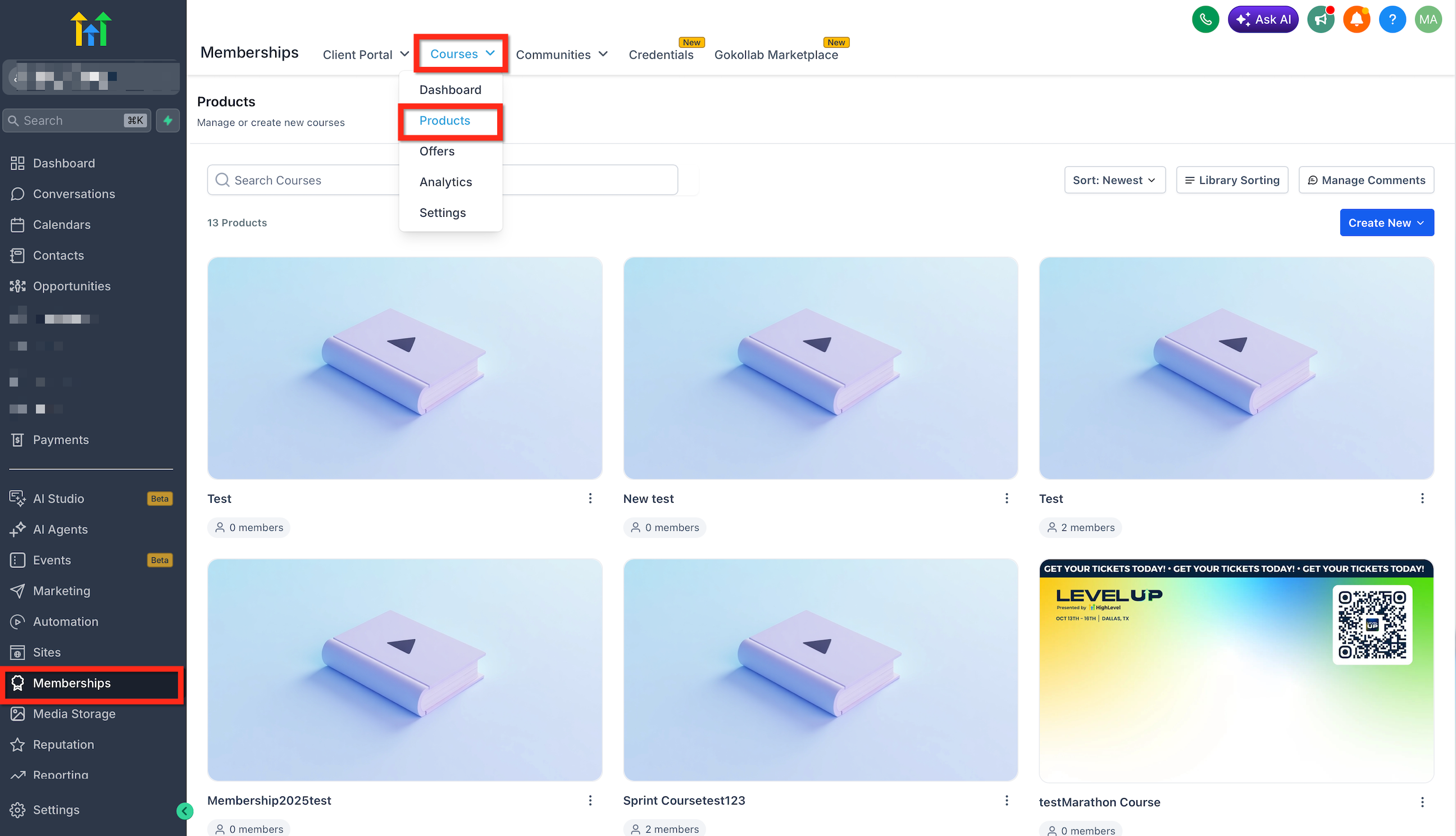
- Open Memberships from the main navigation.
- Select Courses > Products from the top menu.
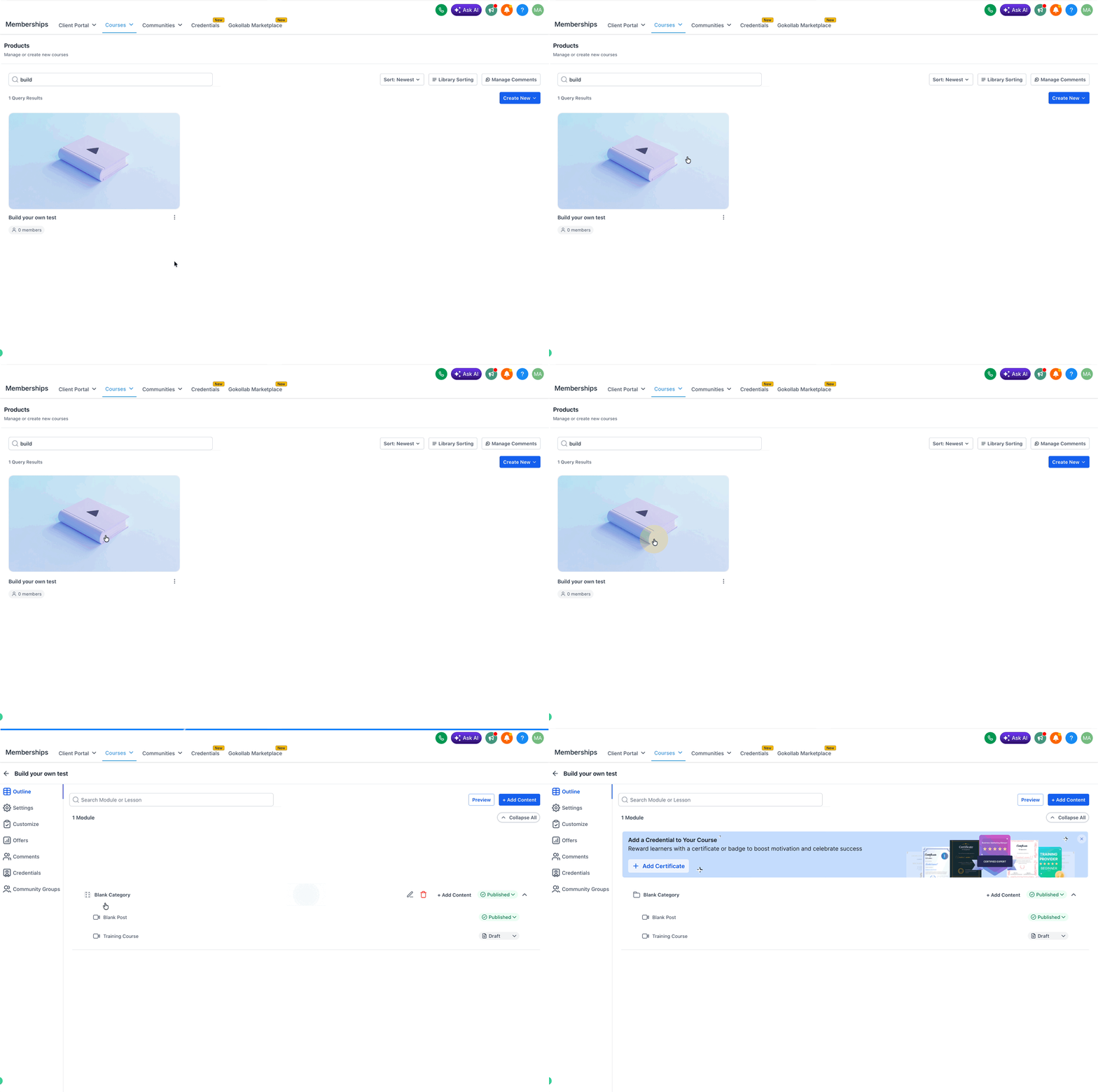
- Choose the course you want to edit.
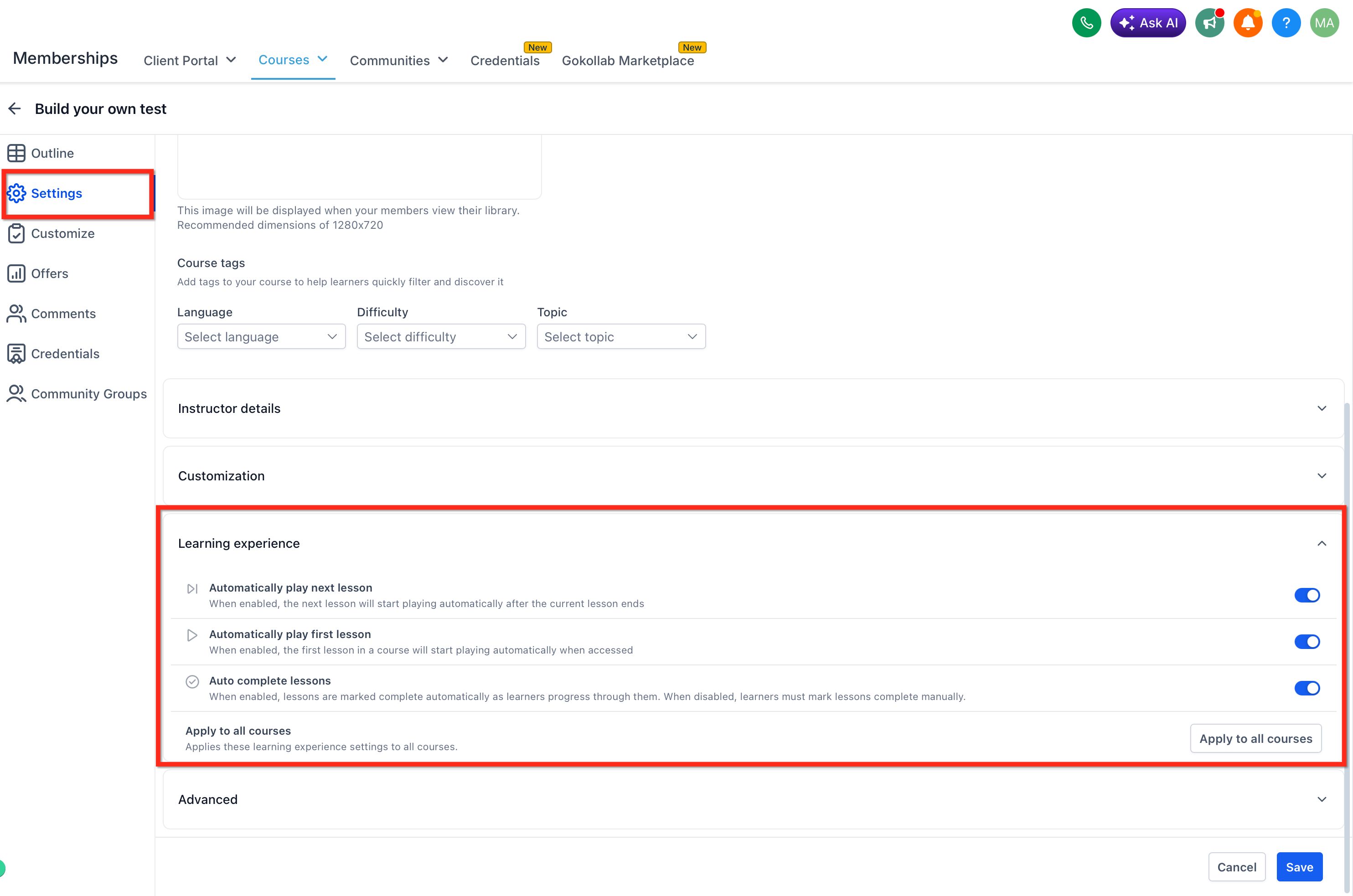
- Click Settings and open the Learning Experience Controls section.
- Toggle Enable Auto Start First Lesson.
- Toggle Enable Auto Play Next Lesson.
- Toggle Enable Auto Complete Lessons.
- If needed, use Apply to All Courses to copy the settings to every course.
- Save the changes and preview the course as a learner.
05What it looks like in HighLevel
06Settings that matter
- Enable Auto, Start First Lesson. Starts the first lesson automatically when a learner opens the course.
- Enable Auto, Play Next Lesson. Plays the subsequent lesson automatically after the current one ends.
- Enable Auto, Complete Lessons. Marks lessons as complete when a learner moves forward to the next lesson.
- Apply to All Courses. Copies the current learner experience settings to every course in the catalog.
07Things to know before you rely on it
- Learner experience enhancements are enabled by default.
- Creators can override any setting at the individual course level.
- Applying settings to all courses changes the behavior for every existing course.
08How it connects to the rest of HighLevel
- Build and launch your courses with the HighLevel course builder. Course builder
- Choose and customize themes for your membership courses. Membership themes
- Review plan options and pricing for HighLevel features. Pricing
Michael's take

A small convenience that can feel like a real shift for any creator who wants learners to glide through content without clicking “next” at every step. Removing those tiny interruptions keeps focus on the material and simplifies tracking for certificates or workflow triggers.