
01Who this is for
- Course creators who want to include external video without uploading it.
- Marketing teams that need to share podcast episodes inside training modules.
- Coaches who wish to embed demo recordings from supported platforms.
02Third party media embedding, explained
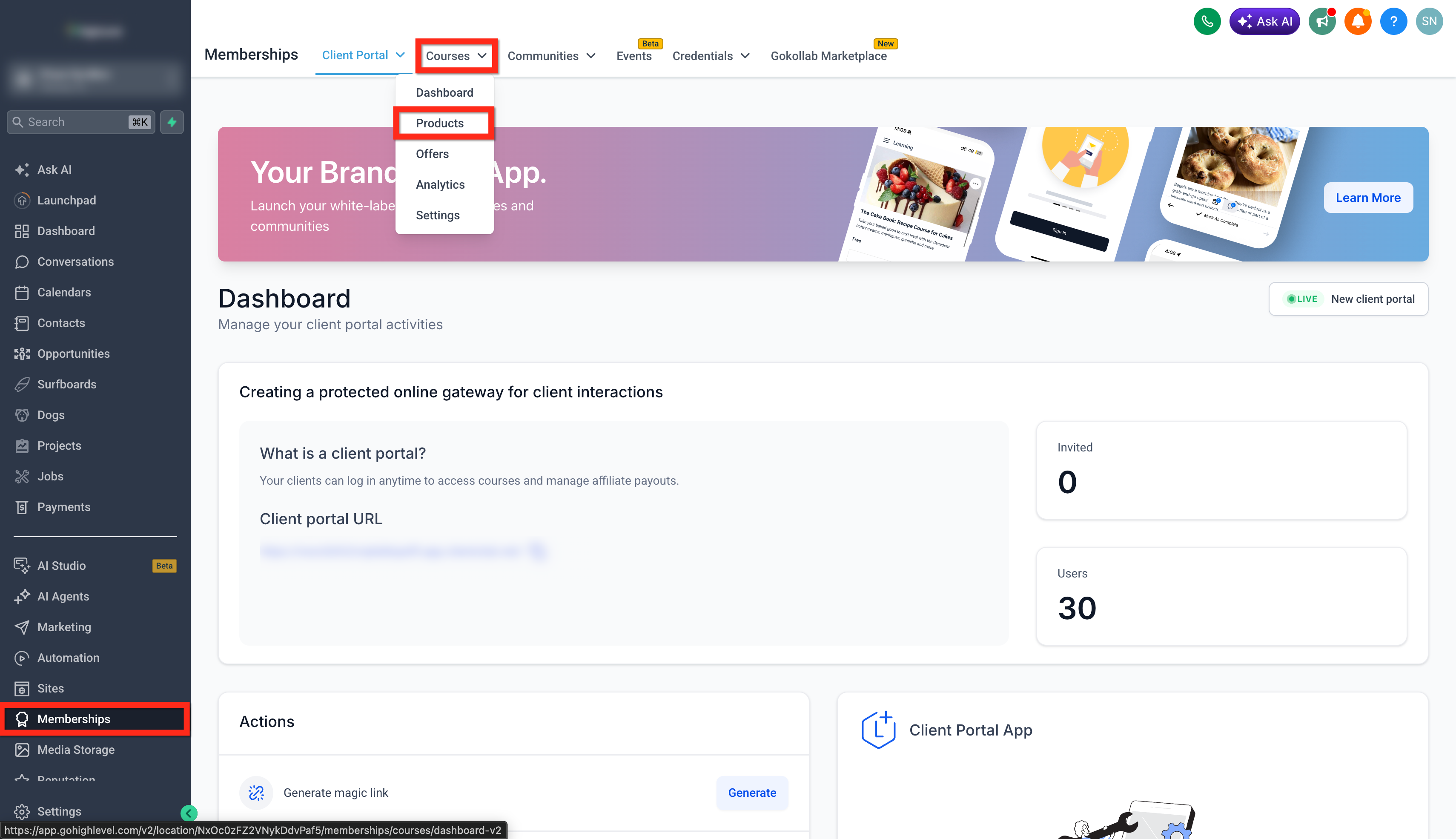
Third party media embedding adds a video or audio player to a lesson by using an iframe code from a supported platform. The media remains on the original host and loads inside the lesson when a learner opens it. The feature is found inside the Memberships > Courses > Products section of HighLevel.
When you select Embed Media in a lesson, HighLevel renders the iframe exactly as supplied. The player appears in the lesson content area, and learners can interact with it just like native media. No file upload is required, and the lesson can be saved and published as usual.
03How businesses use third party media embedding
- E learning company. The team copies the iframe code from a YouTube tutorial video. They paste the code into the Embed Media field of the lesson. The video then plays inside the course without using HighLevel storage.
- Fitness coach. A coach grabs the embed code for a Spotify podcast episode. The code is placed in the lesson description using Embed Media. Clients hear the audio directly while completing the workout module.
- SaaS onboarding team. The team obtains an embed code from a Loom product demo. They add it to a lesson that explains new features. The demo video appears inside the onboarding course for new users.
04The numbers and rules that matter
- Supported video platforms: YouTube, Vimeo, Loom.
- Supported audio platforms: SoundCloud, Wistia, Spotify, Mixcloud.
05Before you start
- A course must already exist in the Memberships > Courses > Products area.
- You must have a public or permissioned video or audio on a supported platform.
- You need the official iframe embed code from that platform.
06How to set up and use third party media embedding in HighLevel
Add third party media to a course lesson
- Navigate to Memberships > Courses > Products.
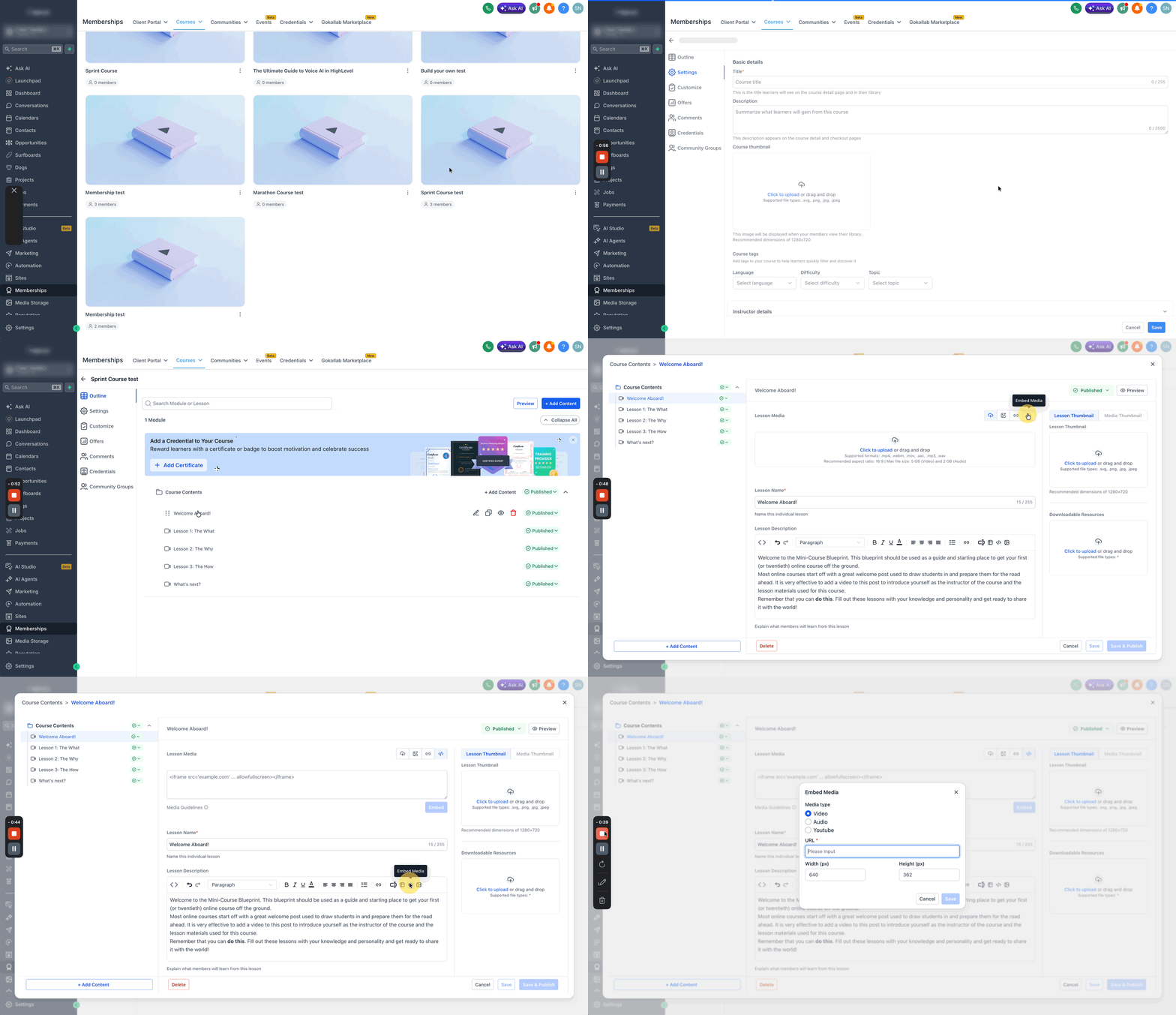
- Open the course you want to edit.
- Select the lesson or module where the media will be placed.
- In Lesson Media or Description, choose Embed Media.
- Copy the iframe embed code from a supported third party platform.
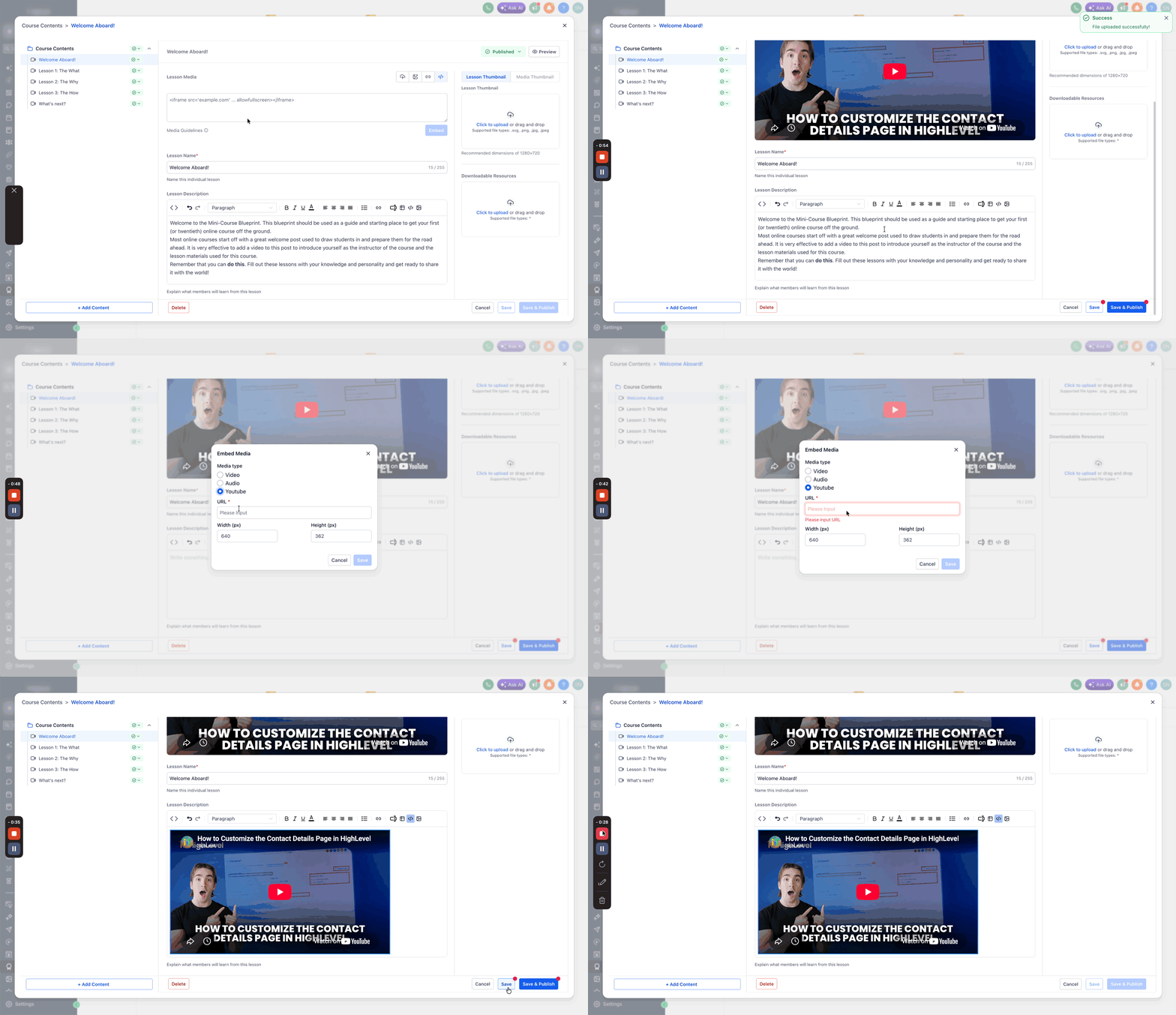
- Return to the lesson and paste the iframe code into the Embed Media field.
- Click the Embed button.
- Verify that the media appears correctly inside the lesson.
- Save and publish the lesson as needed.
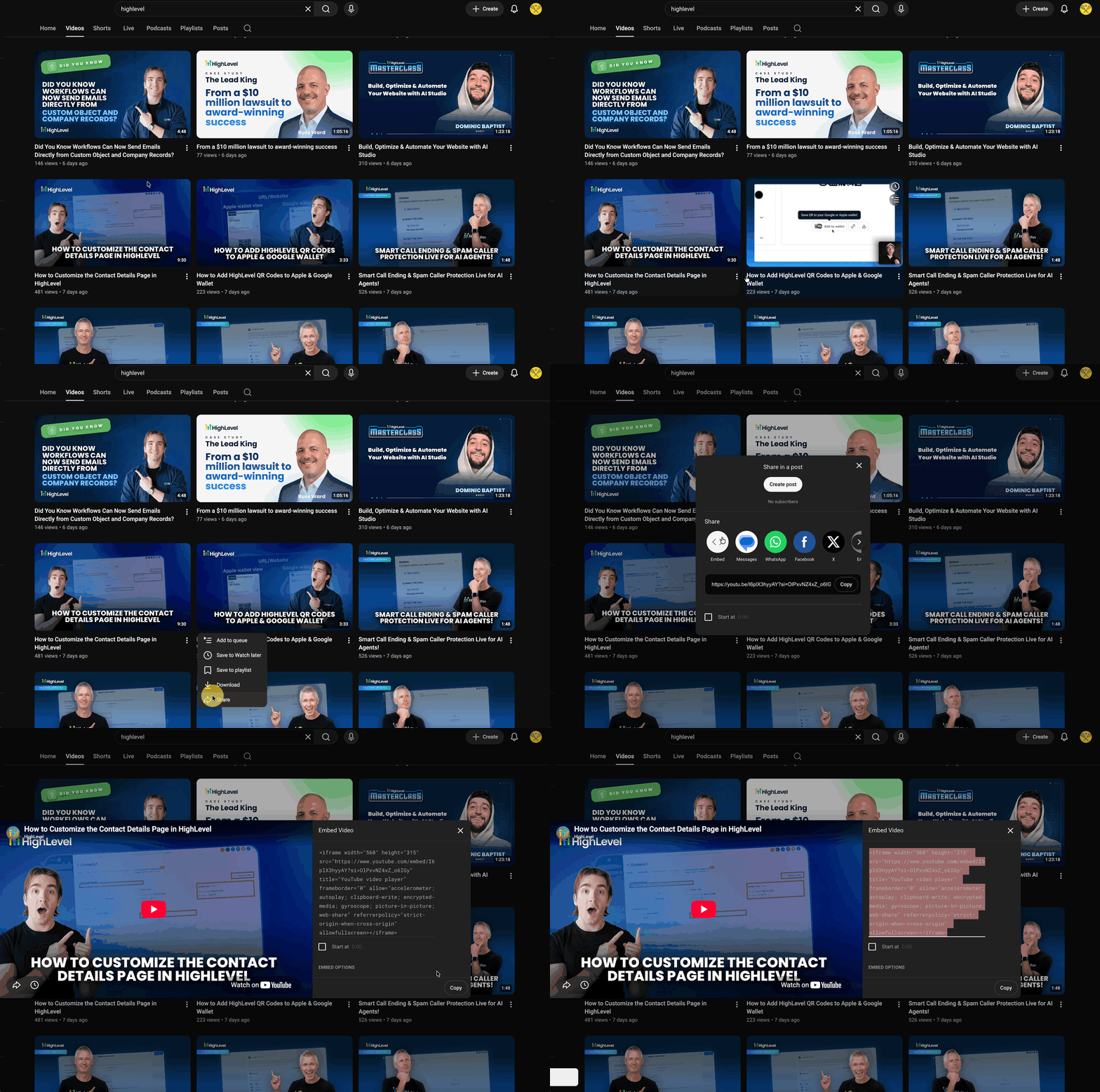
Get an iframe embed code from YouTube
- Open the YouTube video you want to embed.
- Click the Share option.
- Select the Embed choice.
- Copy the iframe code that is displayed.
07What it looks like in HighLevel
08Settings that matter
- Embed Media. Controls the placement of an external video or audio player by accepting an iframe code that HighLevel renders inside the lesson.
09Things to know before you rely on it
- Only videos from YouTube, Vimeo, Loom and audio from SoundCloud, Wistia, Spotify, Mixcloud are supported.
- Use the official iframe embed code; shortened or redirected links are not allowed.
- Do not embed content that is private, licensed without permission, or marked as non shareable.
10If something goes wrong
- Embedded media does not display correctly. Confirm you copied the official iframe embed code from a supported platform and that the source media is publicly shareable.
11How it connects to the rest of HighLevel
- Learn how to build and launch a course in HighLevel Course builder
- Explore membership product themes for a branded experience Membership themes
- Review HighLevel pricing and plan options Pricing
Michael's take

Michael ReimerFounder of CRM Pros, HighLevel Commander and Certified Admin
It’s a straightforward way to get media into a course without extra uploads.
Get More InformationOpens on HighLevelPublished November 2, 2026 · Updated November 17, 2026