
01Who this is for
- Online educators, they can share new lesson releases or reminders directly where students study.
- Membership site owners, they keep all members aware of policy changes without extra email tools.
- Corporate training managers, they deliver rollout notices to employees in a central learning hub.
02Course announcements, explained
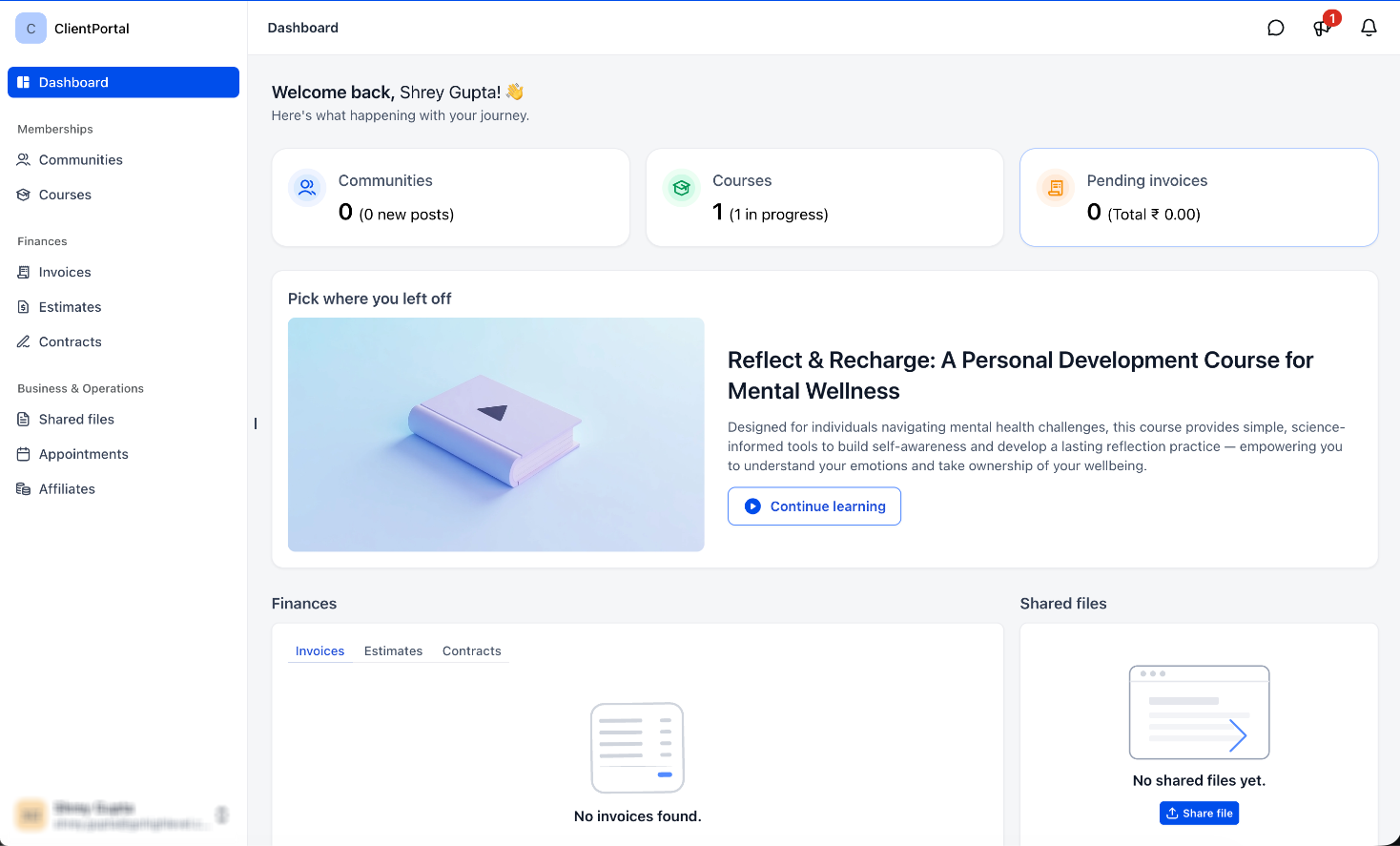
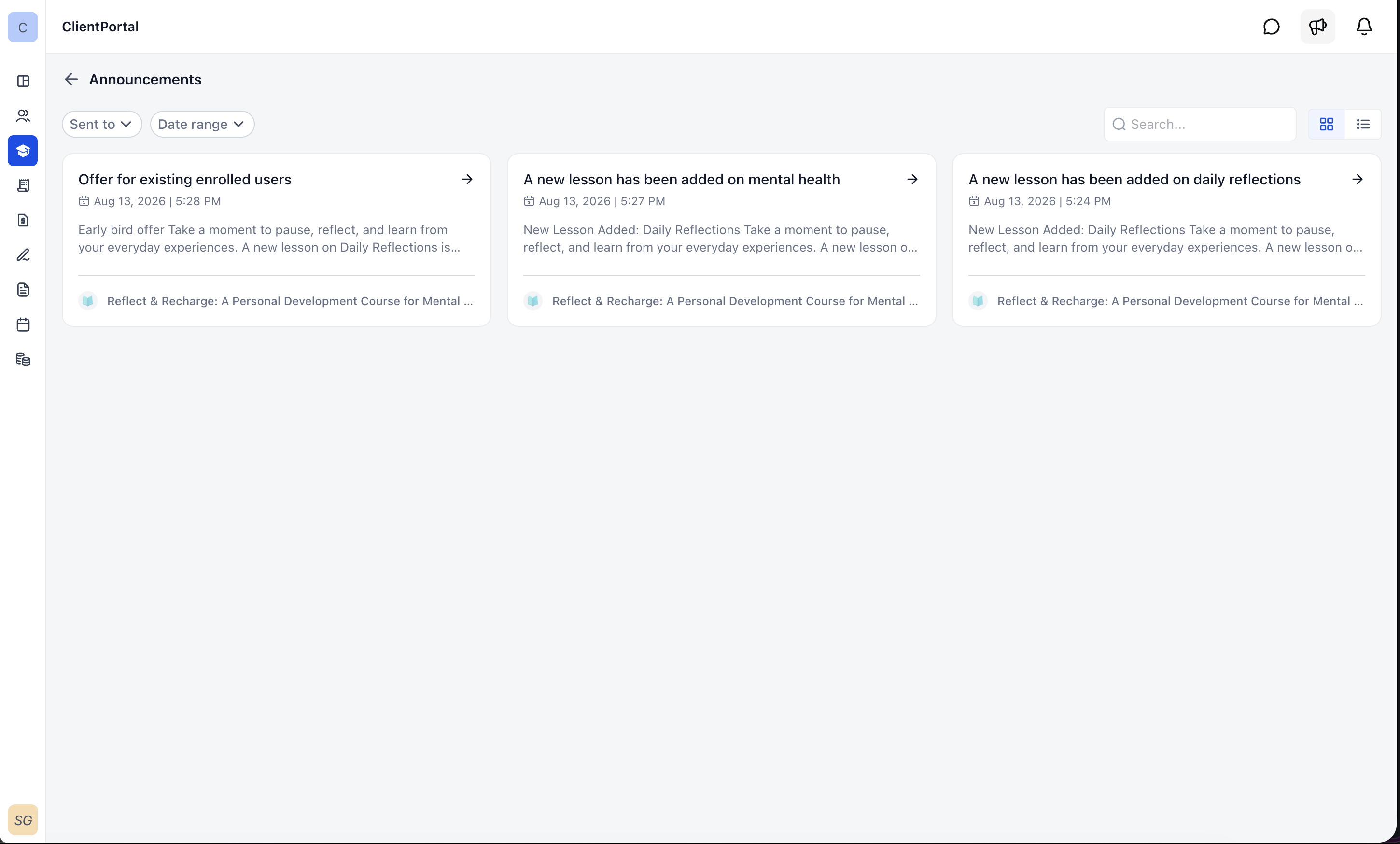
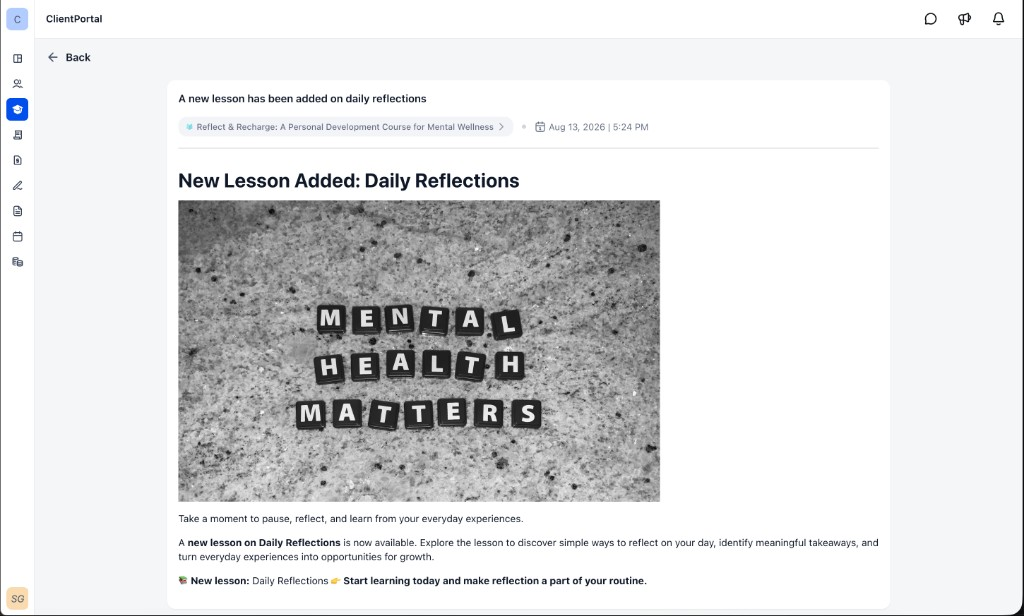
Course Announcements are created from the Courses admin area. After you write an update, it shows up inside the client portal as a banner, an unread icon in the top bar, and a list of all announcements for that course. Learners can click the list to read the full rich content without leaving their study environment.
The feature supports rich text, images, and links, and you can choose to send the message to a single course or broadcast it across every course you host. When you enable the optional email toggle, members also receive the announcement in their inbox, but the in app display is always available.
03How businesses use course announcements
- Online tutoring service. The tutor creates an announcement announcing a new live session, adds a Zoom link and a thumbnail image, and targets only the specific course for that student group. Learners see the update in app and, if needed, receive an email reminder.
- Fitness membership platform. The program manager drafts an announcement about a schedule change, includes a formatted table of class times, and chooses to send it to all courses. Members view the change directly in their portal and can opt in to an email alert.
- Professional certification provider. The certification team publishes an announcement with a link to a new exam guide, targets the relevant certification course, and enables email notifications so participants get the guide both in app and via email.
04How to set up and use course announcements in HighLevel
Create and manage course announcements
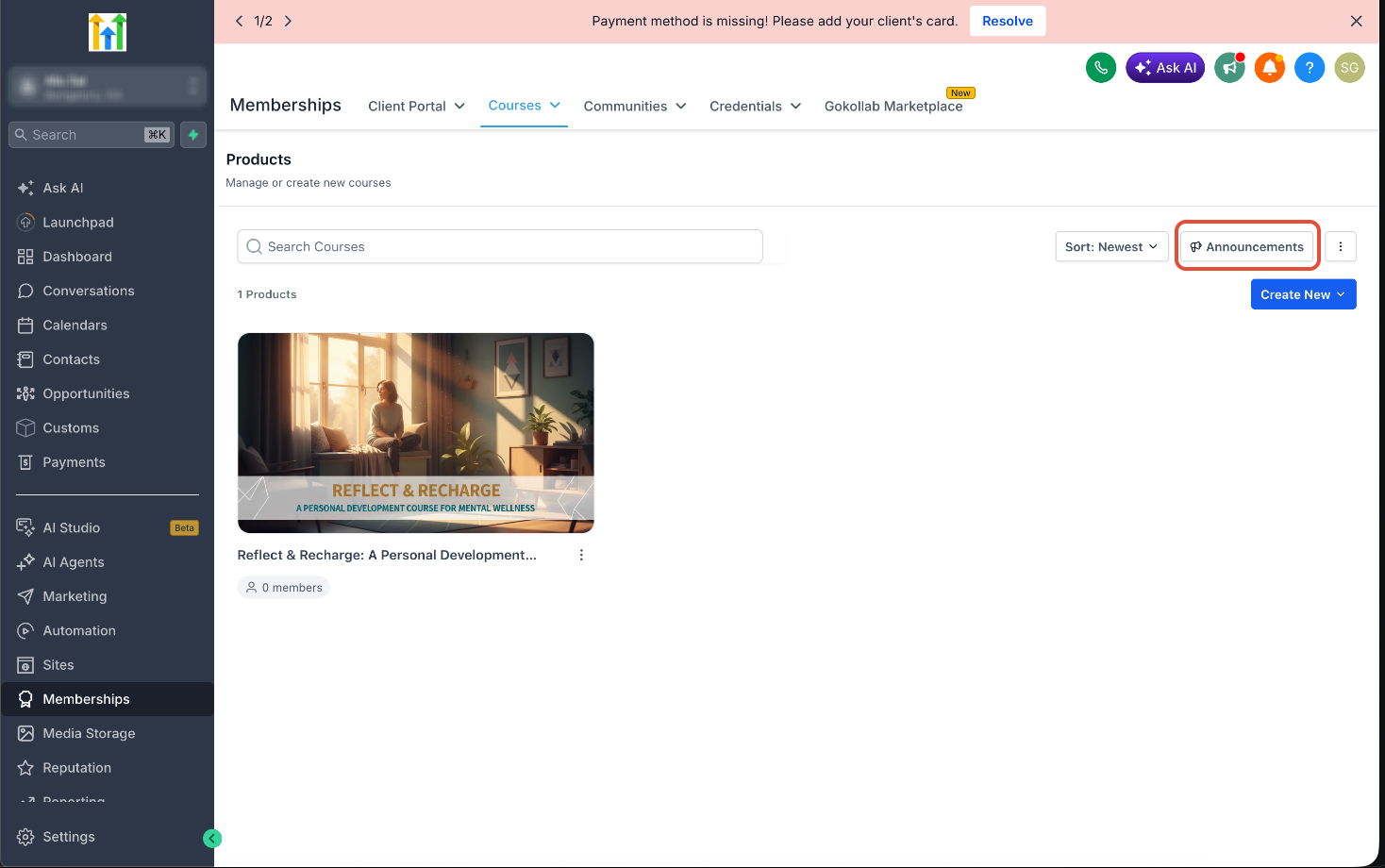
- Open Memberships > Courses > Products.
- Click the Announcements button at the top right of the Products page.
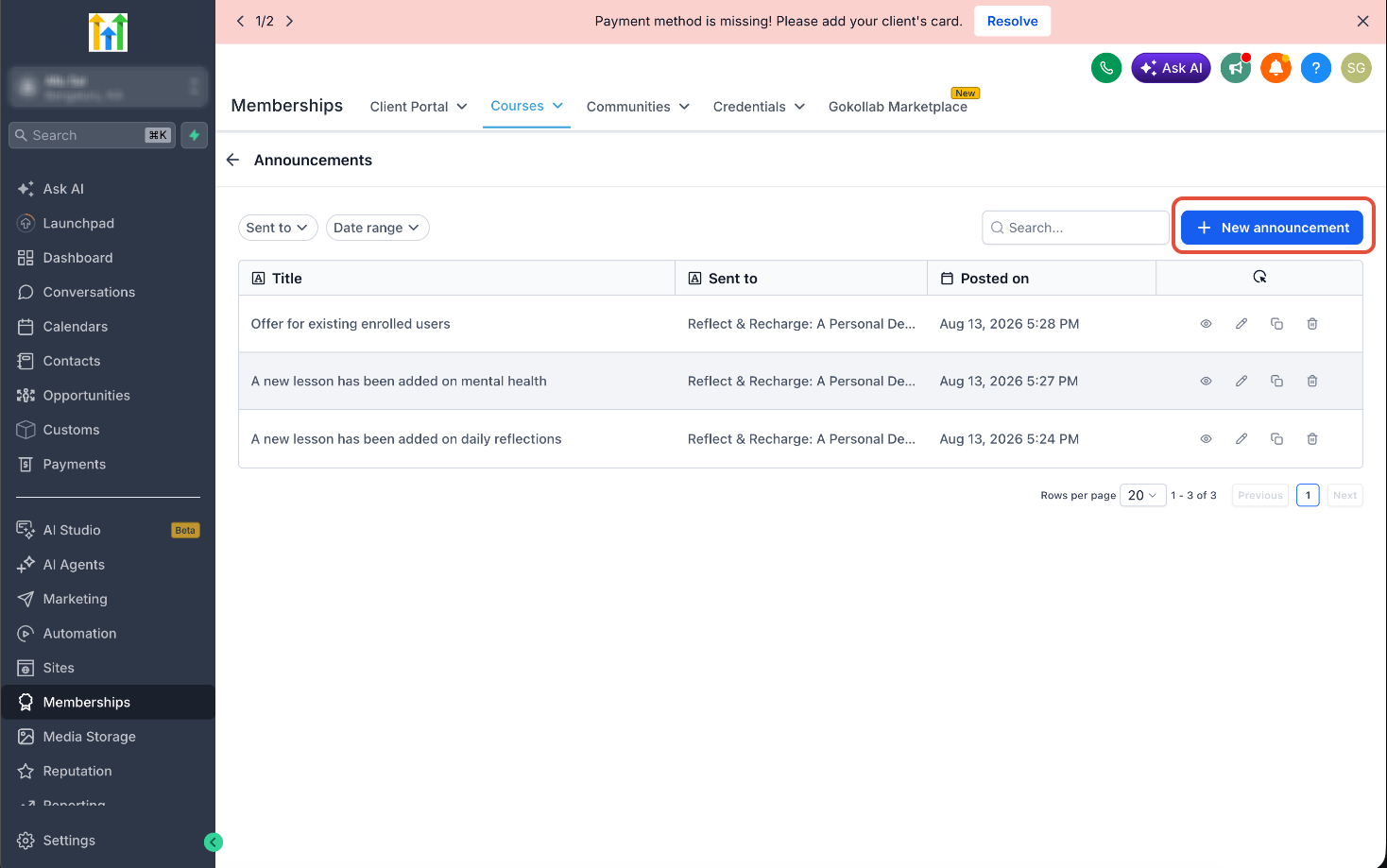
- Select + New announcement.
- Enter a clear title for the announcement.
- Add formatted text, images, or links using the rich text editor.
- Choose whether the announcement targets a specific course or all courses.
- Toggle email notifications on if members should also receive an email.
- Click Publish to make the announcement live.
- Return to the Announcements list to view all posted announcements.
- Use the edit, clone, or delete icons to modify an announcement as needed.
- Apply the Sent to or Date range filters, or use the search box to find a particular announcement.
05What it looks like in HighLevel
06Settings that matter
- Targeting. Controls whether the announcement is sent to learners of a single selected course or to every course in the membership site.
- Email notifications. When enabled, the platform also sends the announcement content to each learner’s email address.
07How it connects to the rest of HighLevel
- Build the course that will receive announcements Course builder
- Generate password free access for learners using magic links Magic links
- Customize the look of your membership portal Membership themes
Michael's take

Course announcements feel like a small convenience that can become a real shift for anyone running a membership site. They let you keep the conversation inside the learning environment instead of juggling separate email blasts, which can improve visibility and engagement.
A coaching business that releases new video modules each week fits perfectly. Publish a brief announcement with the new module link, enable the optional email, and members see the update when they log in.