
01Who this is for
- Community managers can interact directly with members while keeping control over which groups allow messaging.
- Coaches running membership programs can provide one to one support without leaving the platform.
- Association leaders can protect members from spam by blocking inappropriate senders.
02Community chats, explained
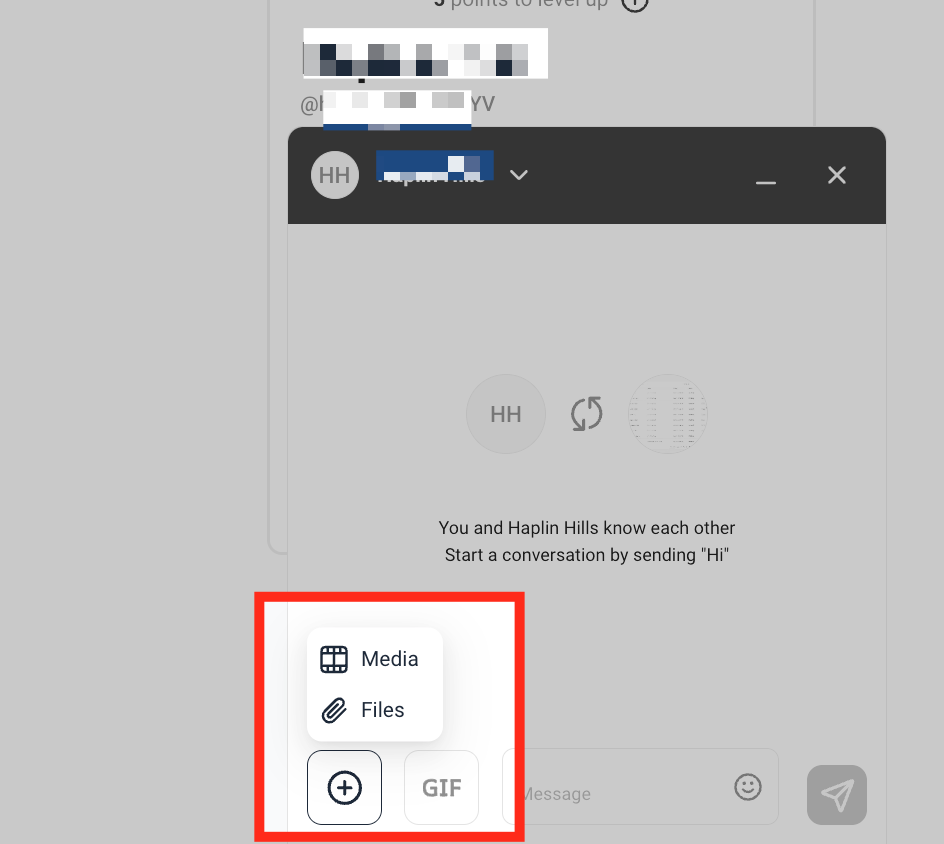
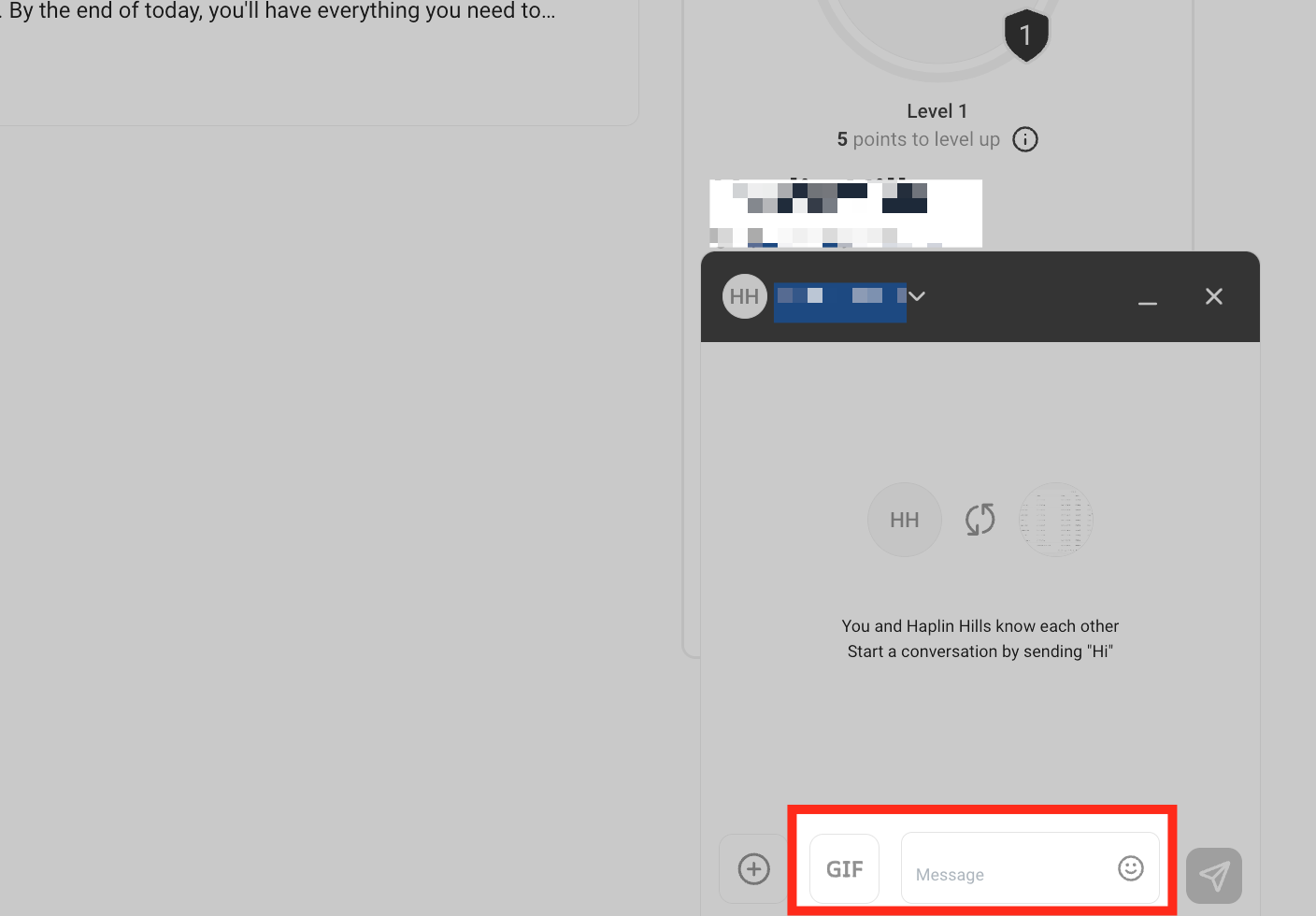
The Community Chat feature adds a private messaging layer to any HighLevel community. After joining a group, members can open the chat tab, pick any fellow member, and exchange text, photos, videos, documents, emojis, and GIFs. Push notifications alert users to new messages when enabled in the mobile app settings.
Admins have additional privacy tools. They can turn off the chat capability for individual groups from the account settings, and any member can block another user directly from a conversation. Both actions remove the ability to send further messages while leaving other community functions intact.
03How businesses use community chats
- Online coaching program. Coaches join the group that contains their clients, open the chat tab, and start private conversations to answer questions. If a client is disruptive, the coach blocks them to stop future messages.
- Fitness class community. Instructors enable chats for the class group, allowing members to share workout videos and progress pictures. They can mute chat for a specific group during off season periods and re enable it later.
- Professional association. Members use the chat to discuss industry topics one on one. The association leadership disables chat for a committee group that prefers email, and any member receiving spam can block the sender.
04The numbers and rules that matter
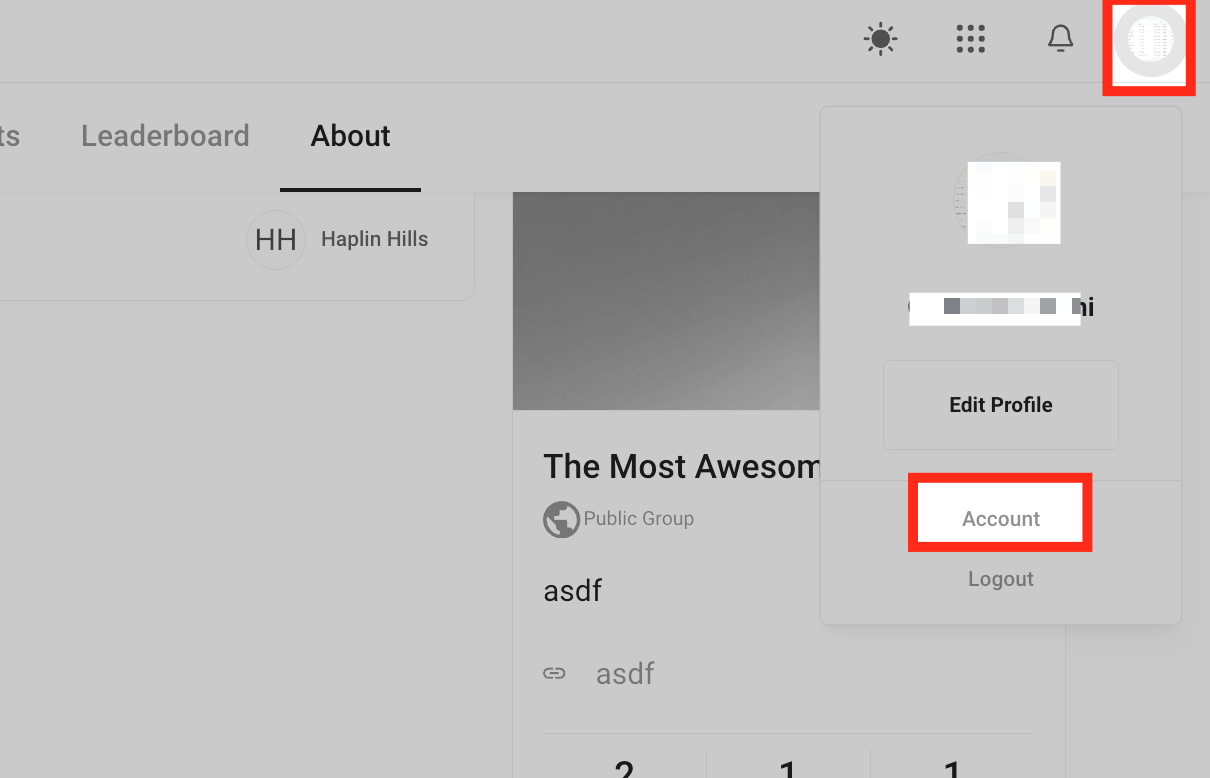
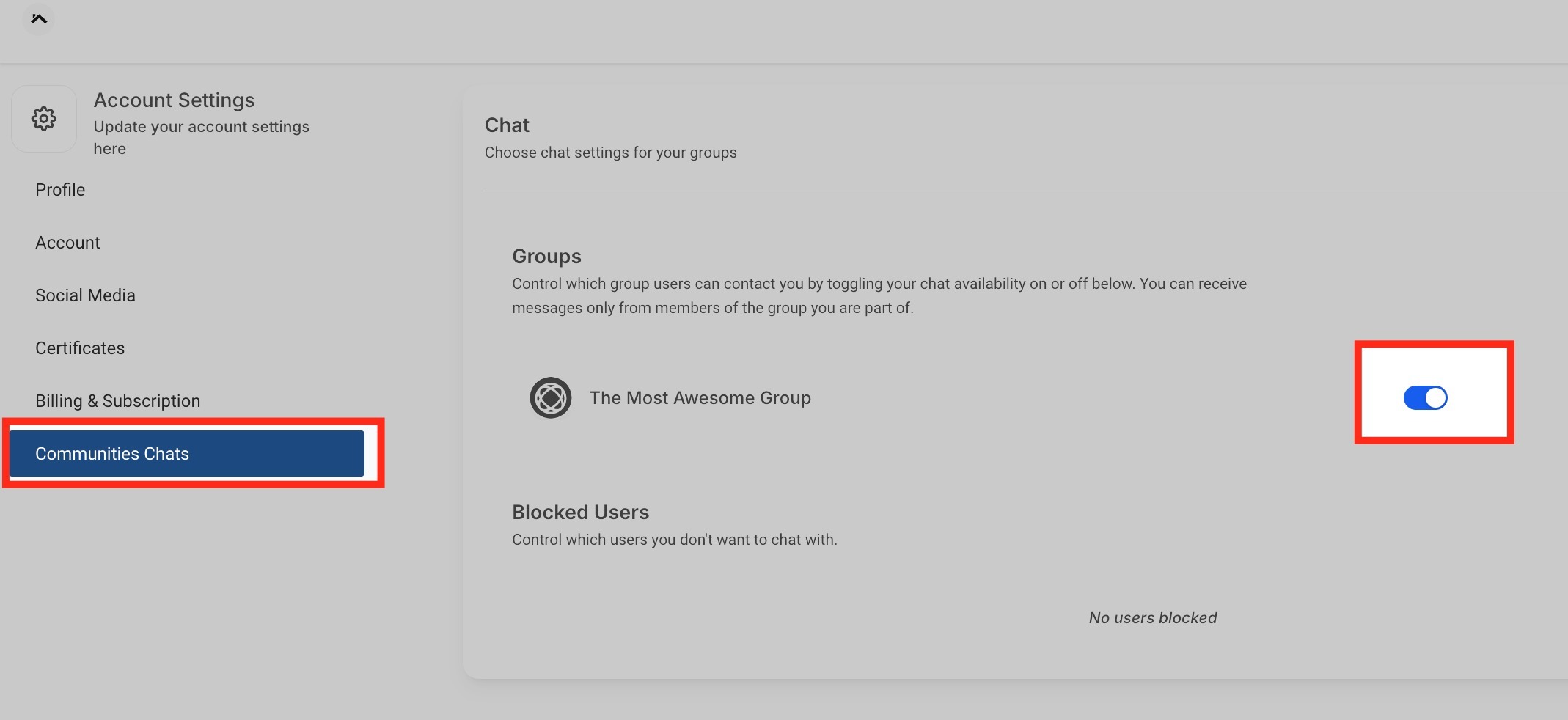
- Disable chats per group via Profile > Account Settings > Community Chat toggle.
05Before you start
- You must be a member of a group within the community before you can start a private chat.
06How to set up and use community chats in HighLevel
Start a private chat with another member
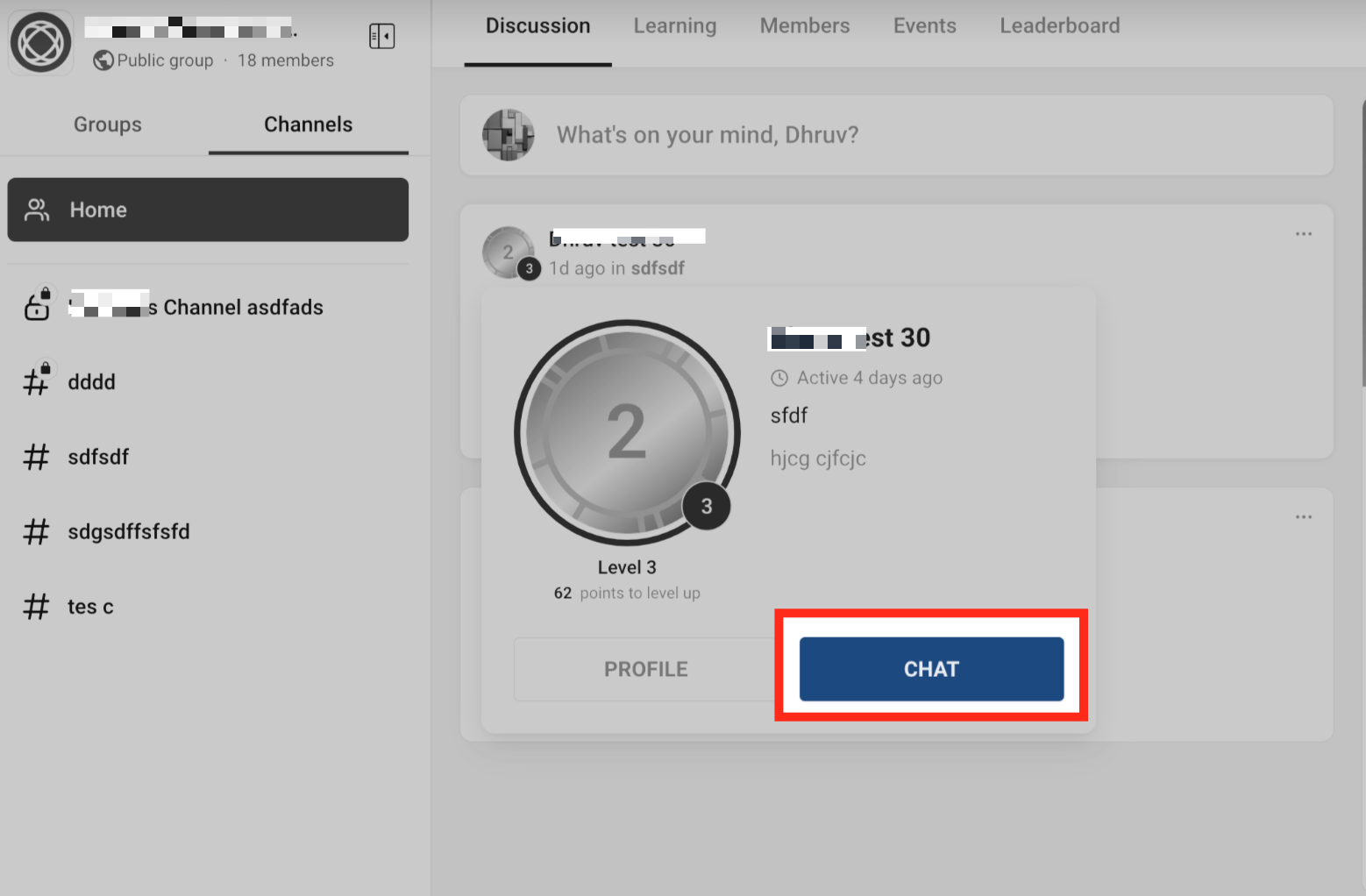
- Join a group in the community by locating it in the Groups section and selecting Join.
- Navigate to the Community Chat tab inside the app.
- Select a user from the group’s member list to open a private conversation.
Disable chats for a specific group
- Open Profile and go to Account Settings.
- Find the Community Chat section and locate the group you wish to mute.
- Toggle the Enable Chat switch off for that group.
Block unwanted messages from a user
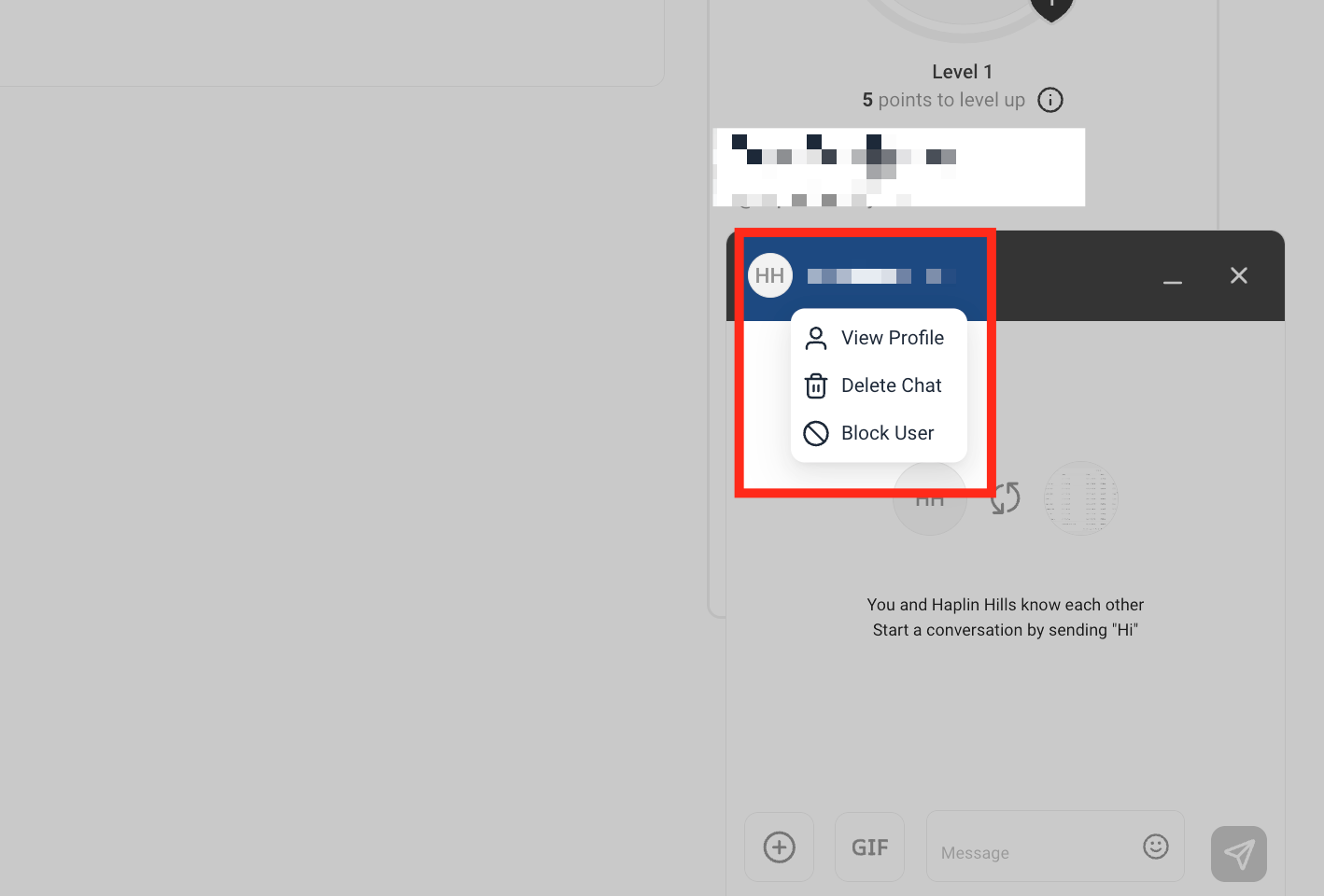
- Open the private chat with the user you want to block.
- Select the Options dropdown menu inside the chat window.
- Choose Block User to prevent further messages from that person.
07What it looks like in HighLevel
08Settings that matter
- Enable Chat. Controls whether members can send and receive private messages in the selected group.
09How it connects to the rest of HighLevel
- Create and manage a HighLevel community Create community
- Manage members inside groups in HighLevel Group management
- View HighLevel pricing and plans Pricing
Michael's take

Most people think they can jump straight into a private conversation, but the chat feature only works after you’ve joined a group. That extra step is easy to miss and can lead to frustration when trying to reach someone.
I would first make sure I’m in the right group, then open the Community Chat tab and pick the person I need. After that, I enable push notifications so I can get notified of replies, and I keep the block option handy in case anyone starts spamming.