
01Who this is for
- Community managers, can automate moderation alerts without manual monitoring.
- Marketing teams, can enroll members into nurture flows as soon as they post or register for events.
02Communities workflow triggers, explained
The feature adds four new triggers to the Workflow Builder that listen for specific actions inside HighLevel Communities groups. When the defined activity occurs, the trigger starts a workflow that can run any combination of actions.
Each trigger requires you to select at least one group and may include additional filters such as channel, post title, post content, comment content, or event title. The triggers fire only at the moment the event happens, for example, when a post is created or a join request is rejected, and do not re fire on later edits.
You find these triggers in the Add New Trigger list within Automation > Workflows, under the Communities category, alongside existing community triggers like Group Access Granted.
03How businesses use the Communities workflow triggers
- Online coaching program. When a member posts a question in the "Help" channel, the Group Post Created trigger can launch a workflow that sends an automatic reply with relevant resources and alerts a coach. The same trigger can add a tag to segment members who need extra support.
- SaaS product user community. If a high value client comments with the word "issue" on any post, the Group Comment Created trigger can open a support ticket and notify the support team. Filters on comment content and group ensure only relevant interactions start the flow.
- Fitness studio. When a member registers for a class event in a private group, the Member Registered for Group Event trigger can send a confirmation email, add the member to a follow up campaign, and tag the contact as "Class Attendee".
04Before you start
- A Community group must already exist in HighLevel.
- Access to the Workflow Builder (Automation > Workflows) is required.
05How to set up and use the Communities workflow triggers in HighLevel
Set up a Communities workflow trigger
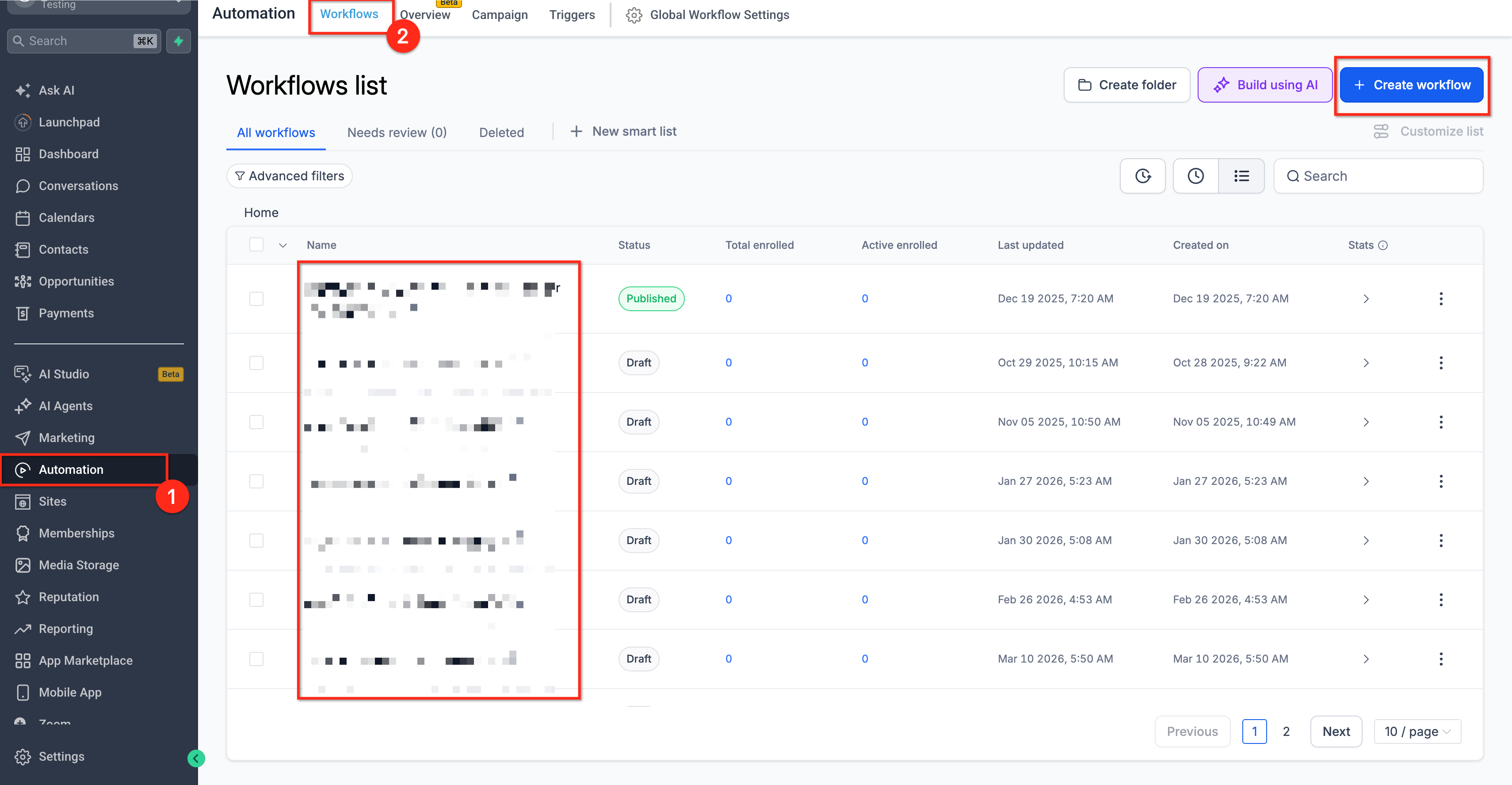
- Open the Workflow Builder by navigating to Automation > Workflows.
- Click Create Workflow or open an existing workflow.
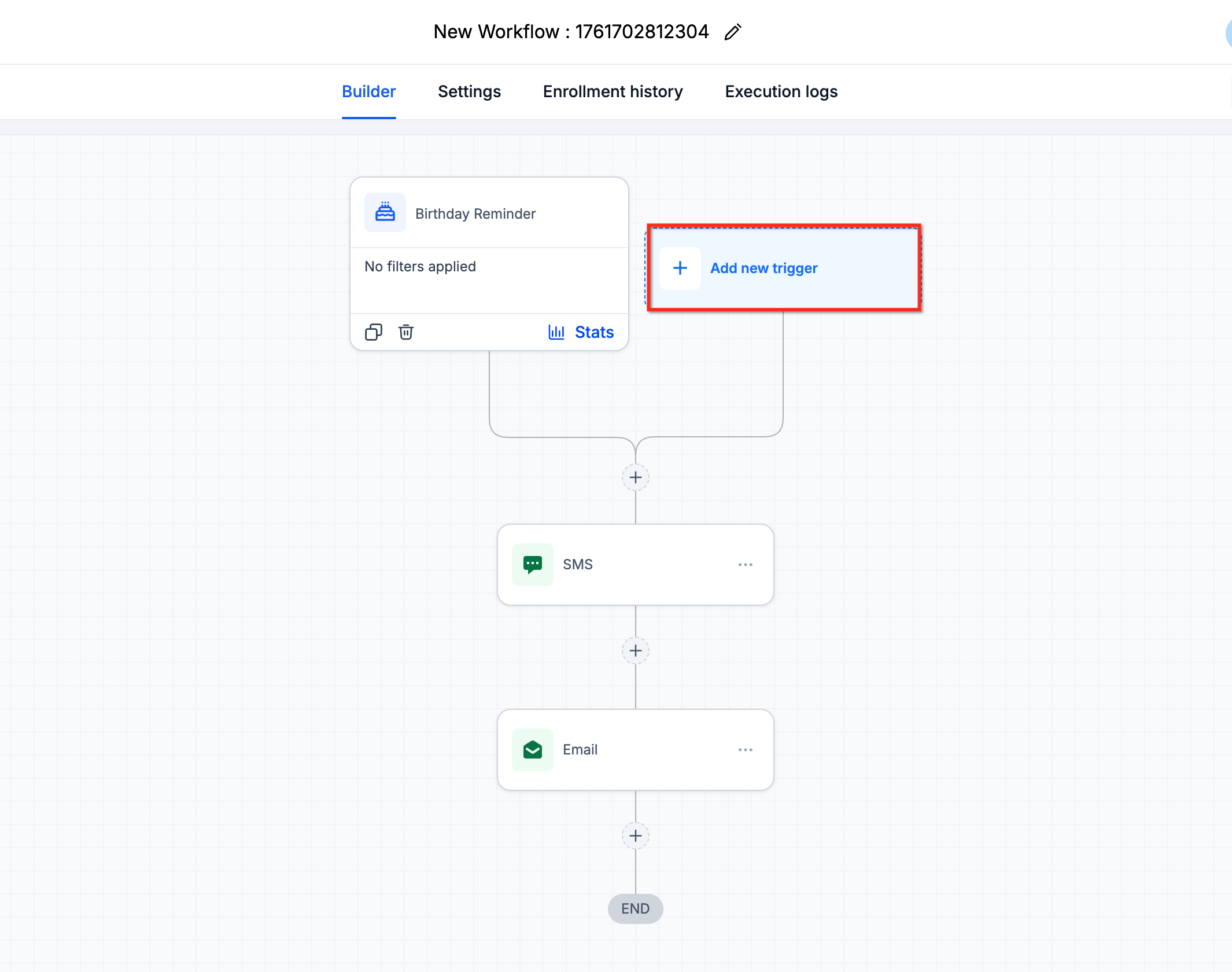
- Select Add New Trigger on the workflow canvas.
- In the trigger list, scroll to the Communities category.
- Choose the desired trigger, Group Joining Request Rejected, Group Post Created, Group Comment Created, or Member Registered for Group Event.
- Under Filters, set the required Group filter to the target community group.
- Add any optional filters such as Channel, Post Title, Post Content, Comment Content, or Event Title.
- Click Save Trigger to store the configuration.
- Add one or more actions such as sending an email, creating a task, or applying tags.
- Test the workflow with a sample contact and then toggle Publish to activate it.
06What it looks like in HighLevel
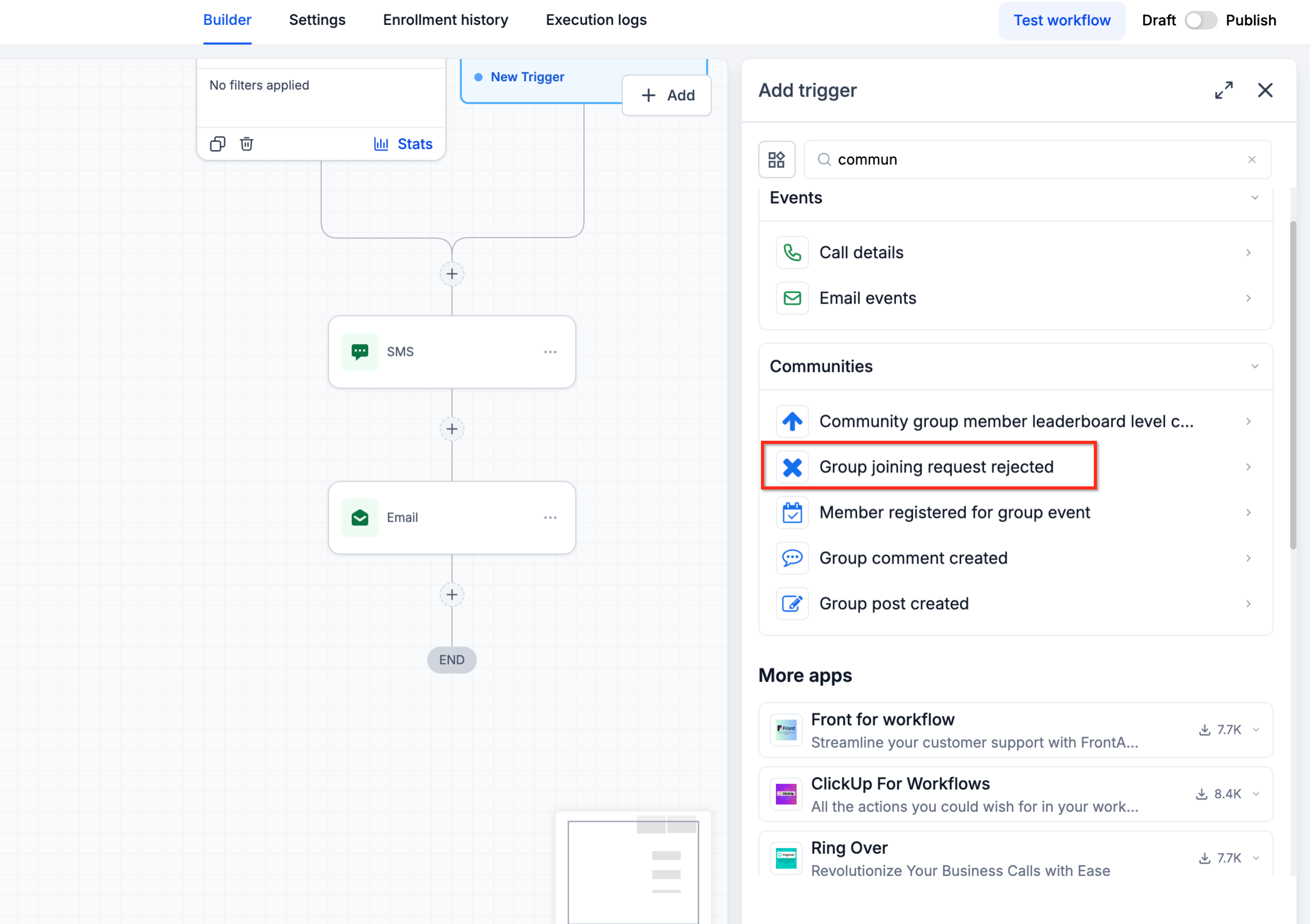
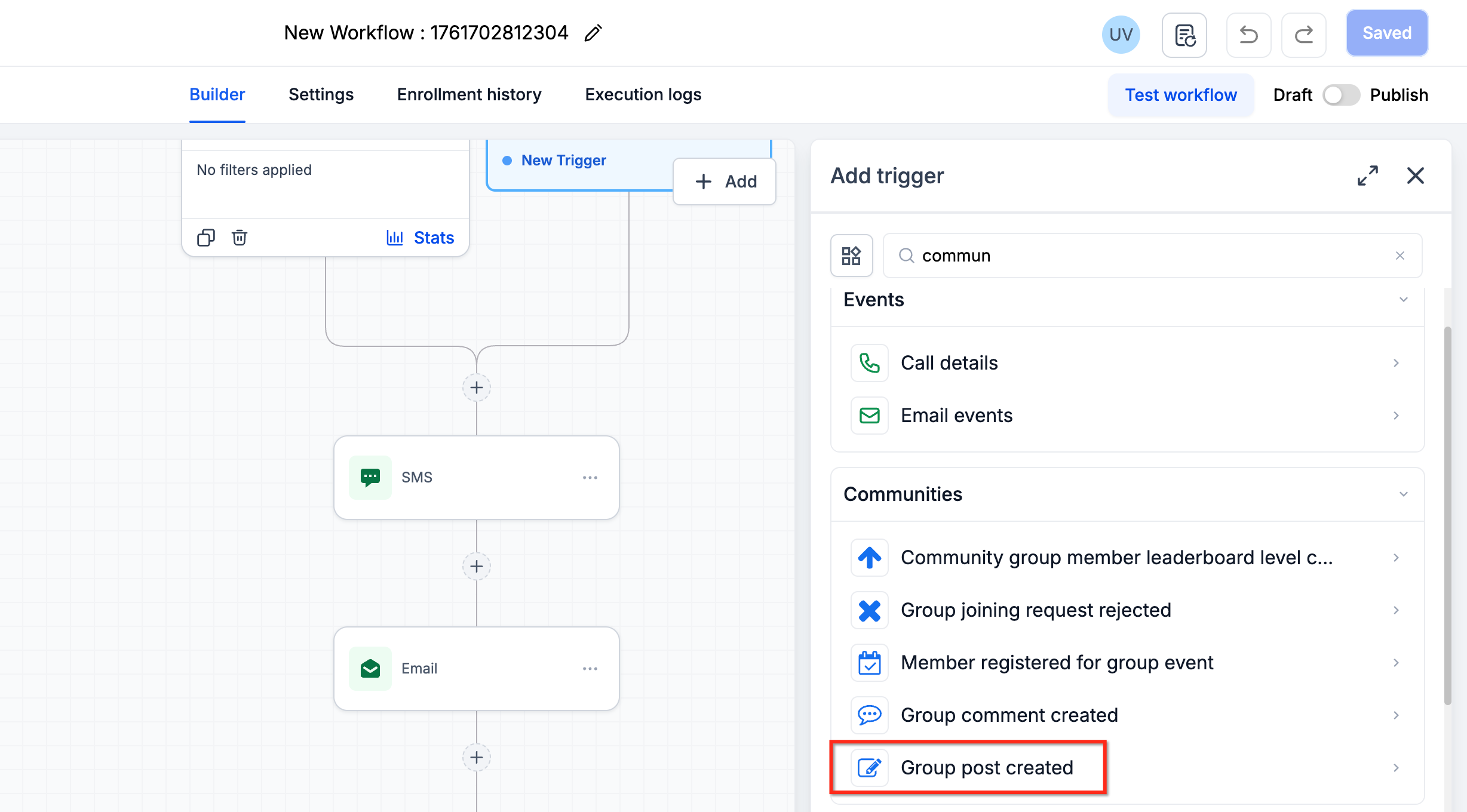
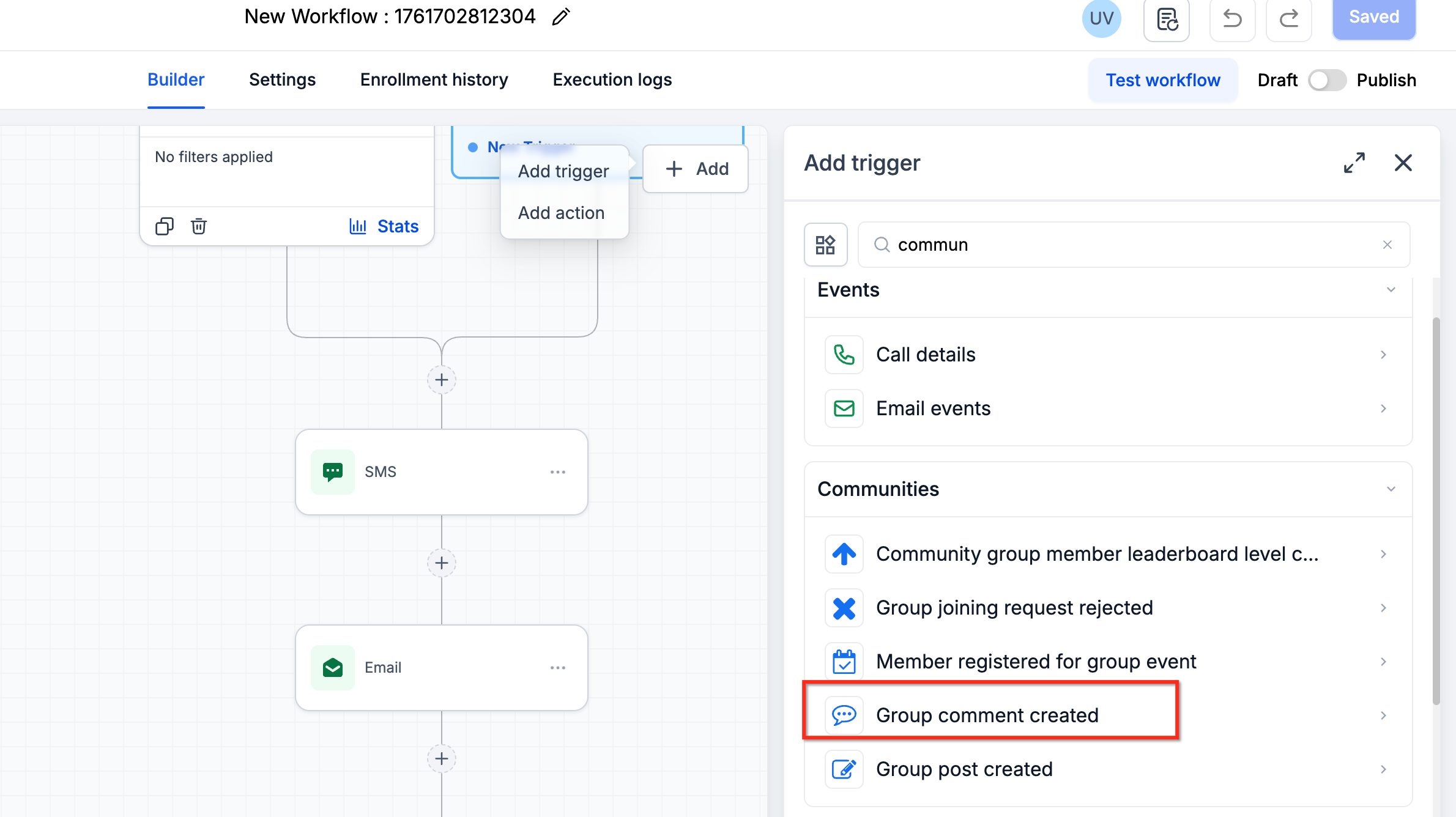
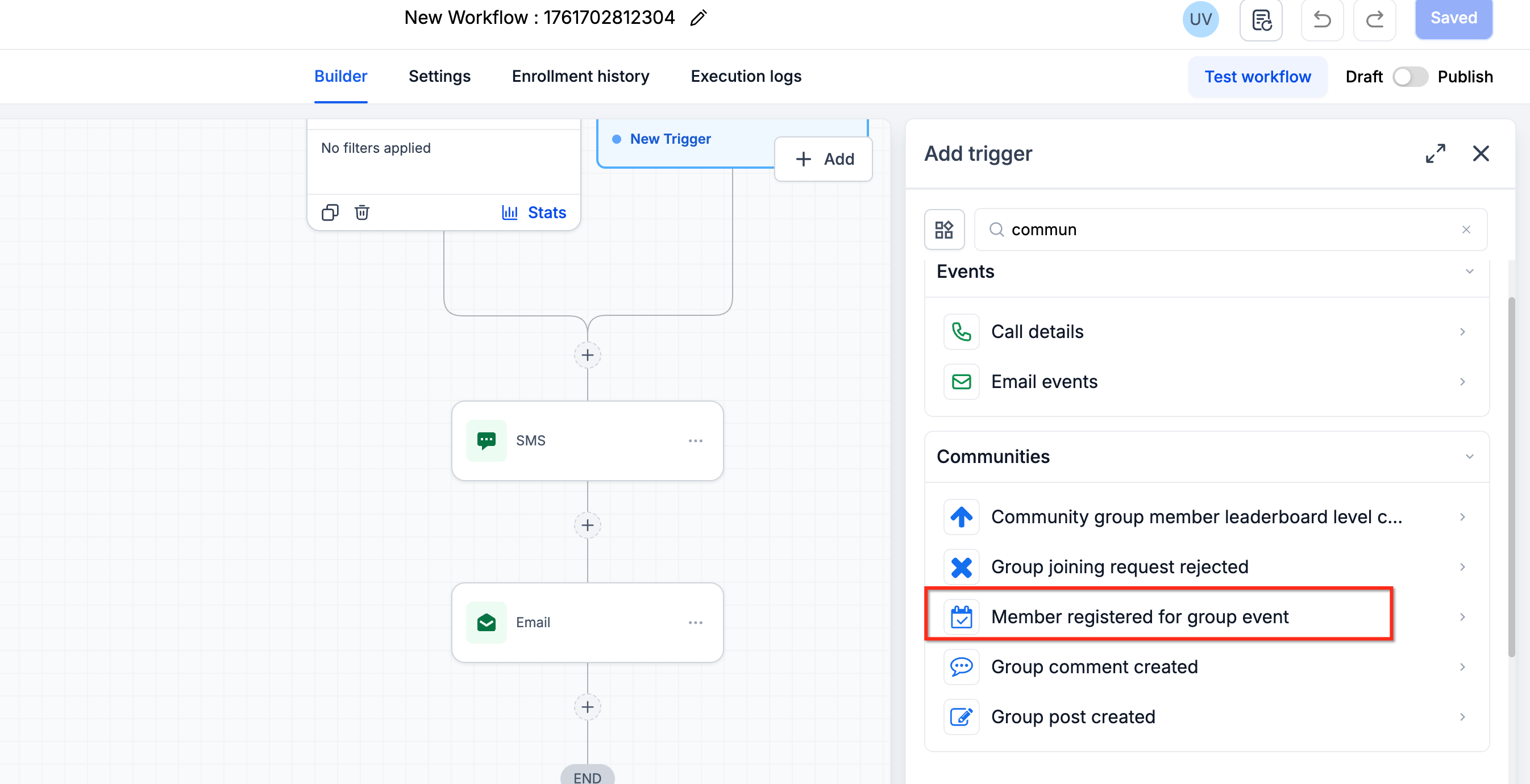
07Settings that matter
- Group (required). Specifies which community group(s) the trigger monitors for the selected activity.
- Channel. Restricts the trigger to a particular channel within the group, used for post and comment triggers.
- Post Title. Matches posts whose titles contain the given words or phrases, allowing finer targeting.
- Post Content. Filters posts based on the body text, useful for keyword based moderation or engagement.
- Comment Content. Limits comment based triggers to comments that contain specified keywords or phrases.
- Event Title. Targets a specific event or group of events by name when using the Member Registered for Group Event trigger.
08Things to know before you rely on it
- The Group filter is mandatory for all four triggers; you cannot run them without selecting at least one group.
- Triggers fire only at the moment the event occurs; subsequent edits to posts or comments do not re trigger the workflow.
- The triggers operate in both public and private groups as long as the group is managed through HighLevel Communities.
09How it connects to the rest of HighLevel
- How to create and manage a HighLevel community Community setup guide
- Managing members inside groups in HighLevel Member management
- HighLevel community: create channels, posts and manage content Content management
Michael's take

Most people assume the trigger will fire for every group automatically, but the Group filter is mandatory. Without picking the right group the workflow never starts, and you’ll spend time chasing a silent trigger.
Once the group is set, I link the trigger to a simple follow up. An email or a task. And then run a quick test with a dummy member. Seeing the email land confirms the connection and gives confidence to expand the flow with more complex actions.