
01Who this is for
- Community managers can streamline member navigation by linking directly to relevant channels or events.
- Course creators can point learners to specific live sessions or discussion boards within the community.
- Support teams can reference help desk channels in announcements to guide users quickly.
02Tagging channels and events, explained
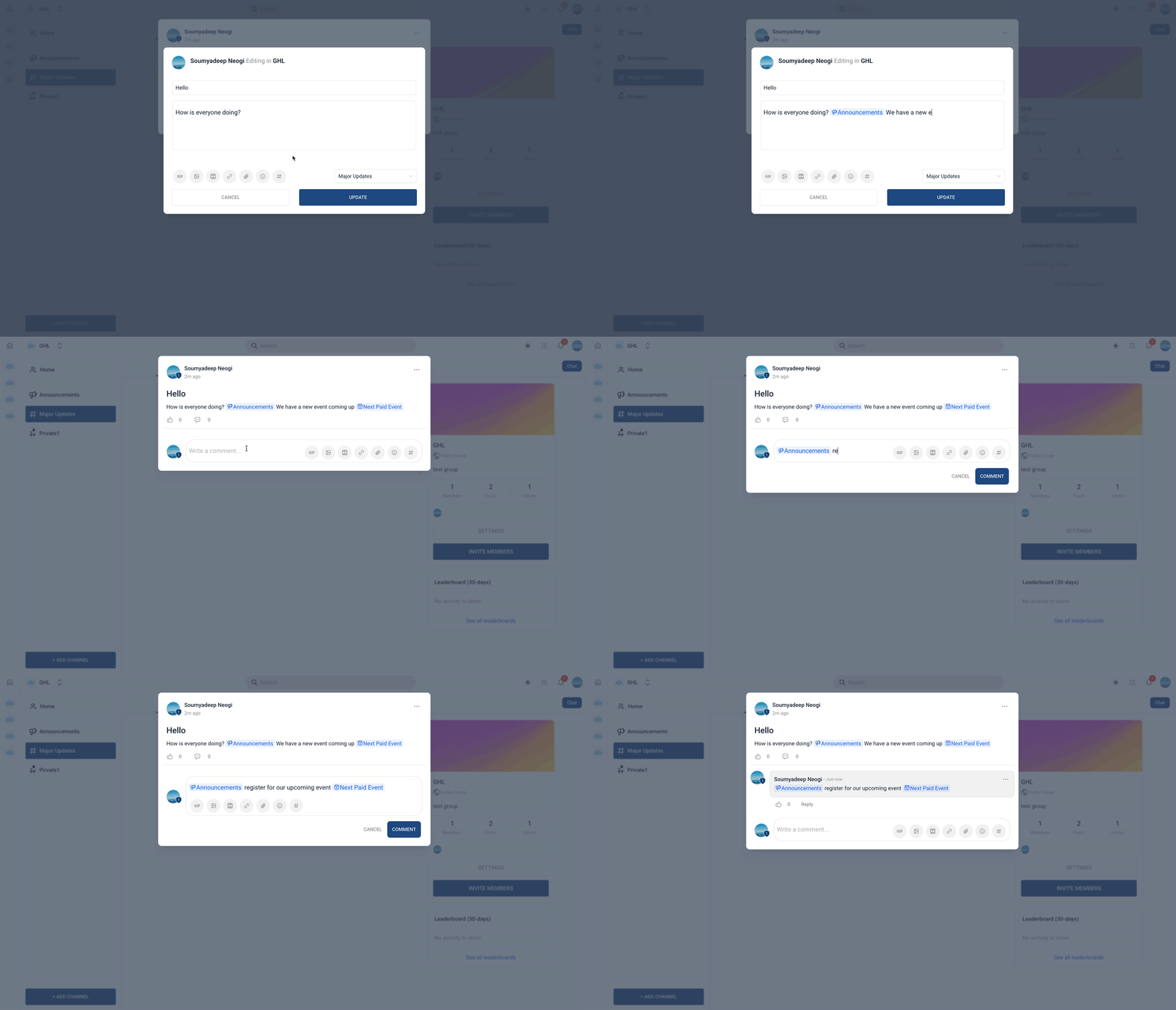
Channel and event tagging lets any user who can post in a community convert a plain reference into a clickable link. When the # symbol is typed, a picker shows only the channels and events the user can access. Selecting one inserts a tag with an icon that indicates whether it is a channel or an event.
When members click the tag, they are taken to the linked destination, provided they have the required permissions. The feature lives inside the post or comment editor of each group within the Communities section of HighLevel.
03How businesses use tagging channels and events
- Community manager. The manager composes an announcement and types # to choose the “Updates” channel. The inserted tag appears as an icon link, allowing members to jump straight to the channel from the announcement.
- Online course provider. While posting a lesson reminder, the provider types # and selects the upcoming live webinar event. The tag becomes a clickable reference, so students can open the event details directly from the post.
- Customer support team. A support agent replies to a ticket inside a group and includes a # tag for the “FAQ” channel. Members reading the reply can click the tag to view the FAQ without navigating away manually.
04Before you start
- User must have permission to create posts or comments in the community.
- User must have access to the channel or event they intend to tag.
05How to set up and use tagging channels and events in HighLevel
Tag a channel or event in a post or comment
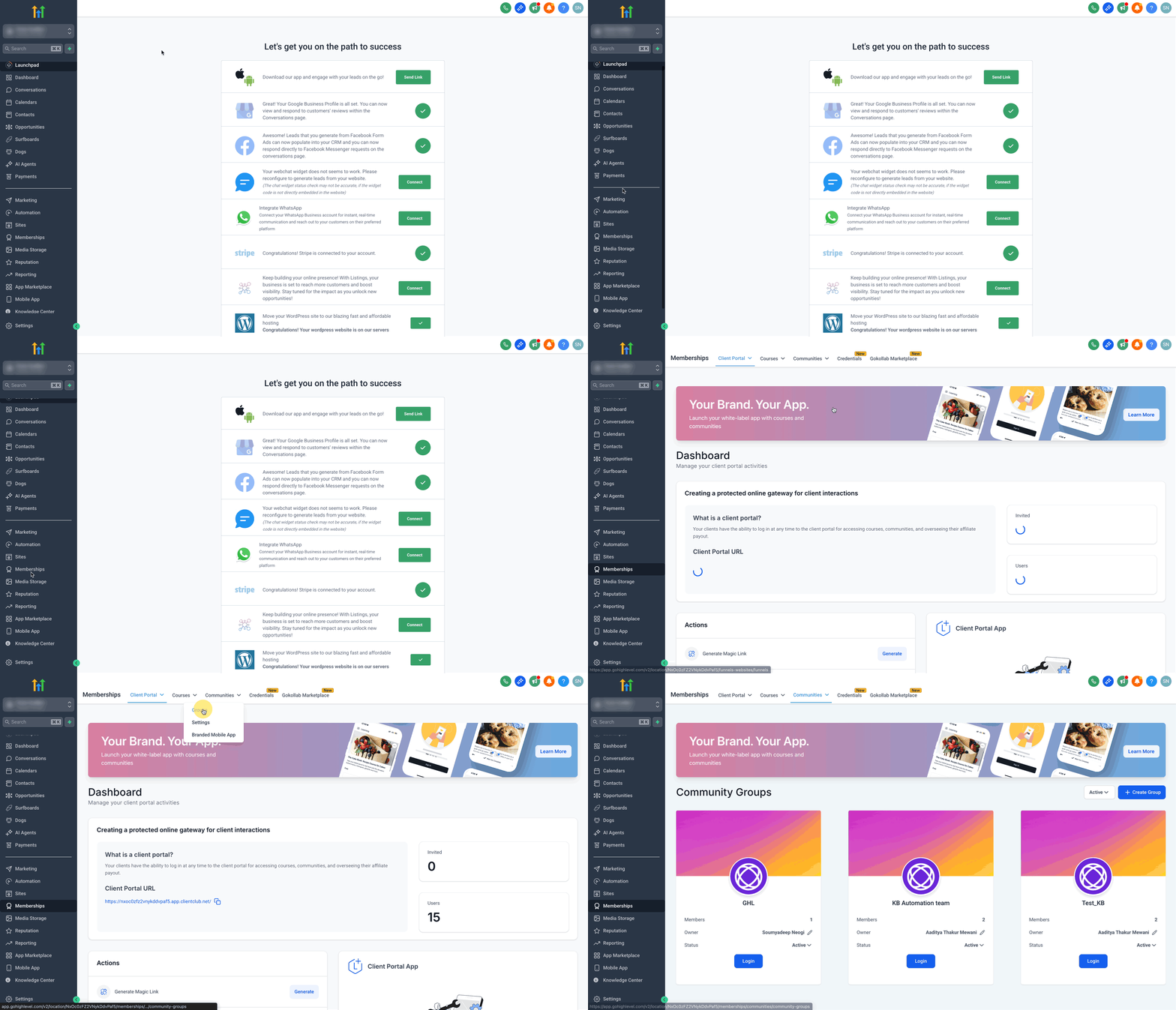
- Click Memberships in your subaccount.
- Select the Communities tab.
- Choose Groups from the drop down list.
- Log in to the desired group.
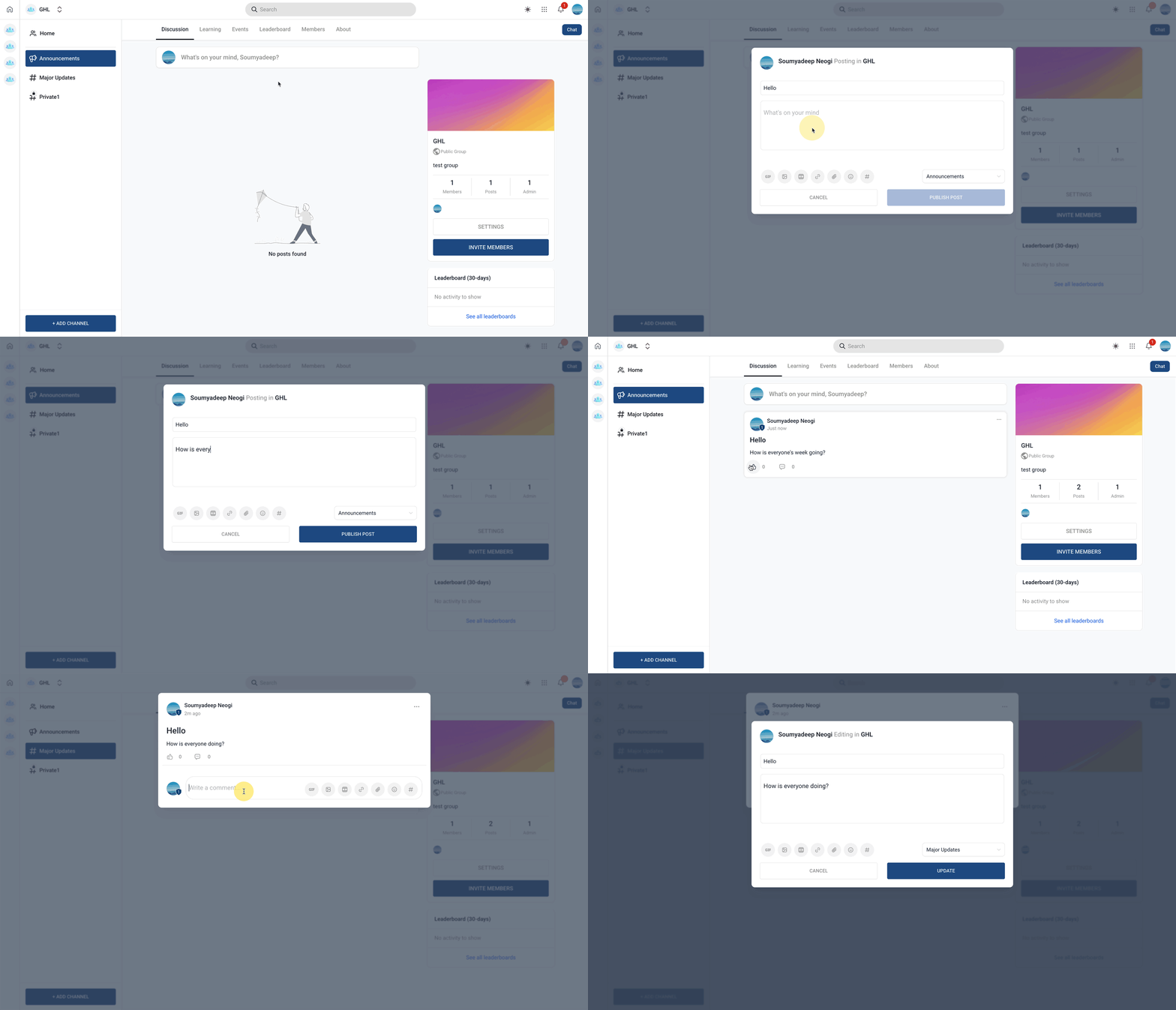
- Open the post or comment editor.
- Type # to launch the channel/event picker.
- Search or scroll, then select the required channel or event.
- Press Enter or click to insert the tag and finish your message.
- Click Publish and verify the tag opens the correct destination.
06What it looks like in HighLevel
07If something goes wrong
- Channel or event does not appear in the # picker. Confirm you have permission to view that channel or event and that you are a member of it.
08How to Use GIFs in Communities for Posts and Comments
GIFs in communities let you embed animated images directly in posts and comments, making conversations more lively on both web and mobile.
HighLevel now supports animated GIFs inside community posts and comments, appearing inline rather than as attachments.
09How it connects to the rest of HighLevel
- Set up and manage your community groups Community setup guide
- Manage members inside groups for proper permissions Member management
- Create channels, posts, and organize content Content management
Michael's take

Tagging channels and events is a handy shortcut for keeping community conversations pointed at the right place.
Skip it if you never need to reference other channels or events inside your posts.