
01Who this is for
- Community managers who need to separate paid members from free members.
- Course creators who want exclusive discussion spaces for enrolled students.
- Small business owners running gated cohorts and requiring visual channel identifiers.
02Private channels and channel emojis, explained
Private channels are discussion spaces that only approved members can view and post in. They hide from anyone who is not added, keeping sensitive or paid content away from the public channel list. Channel emojis are small icons that appear beside the channel name, helping members spot the right conversation quickly.
Both features live inside the Communities area of a HighLevel subaccount. You access them through the group you have created, then manage each channel’s privacy and visual label from the channel settings. Managers of a private channel act as admins for that channel only, while the overall group owner remains unable to leave a private channel.
03How businesses use private channels and channel emojis
- Online fitness coaching business. Create a private channel for premium clients to discuss workout plans. Convert it back to public when a promotion opens the class to all members. Assign a dumbbell emoji so clients can easily locate the channel.
- Professional association. Set up a private channel for board members to exchange governance documents. Add or remove members as board composition changes. Use a shield emoji to signal the confidential nature of the channel.
- Digital marketing agency. Create a private channel for each high value client project. Convert the channel to public when the campaign launches and everyone needs access. Choose a rocket emoji to mark active project channels.
04How to set up and use private channels and channel emojis in HighLevel
Create a private channel
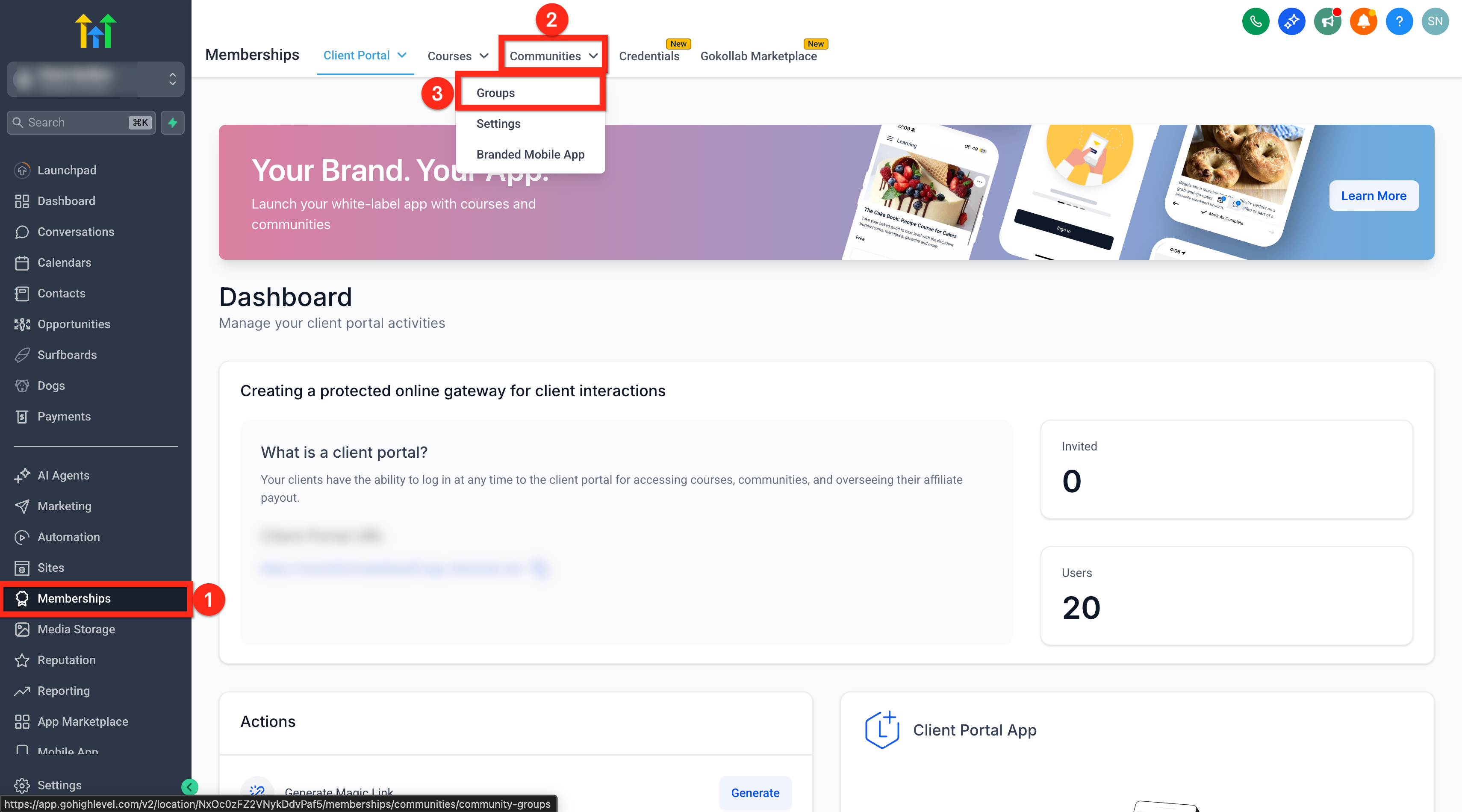
- Select Memberships from your subaccount.
- Navigate to Communities.
- Choose Groups from the dropdown menu.
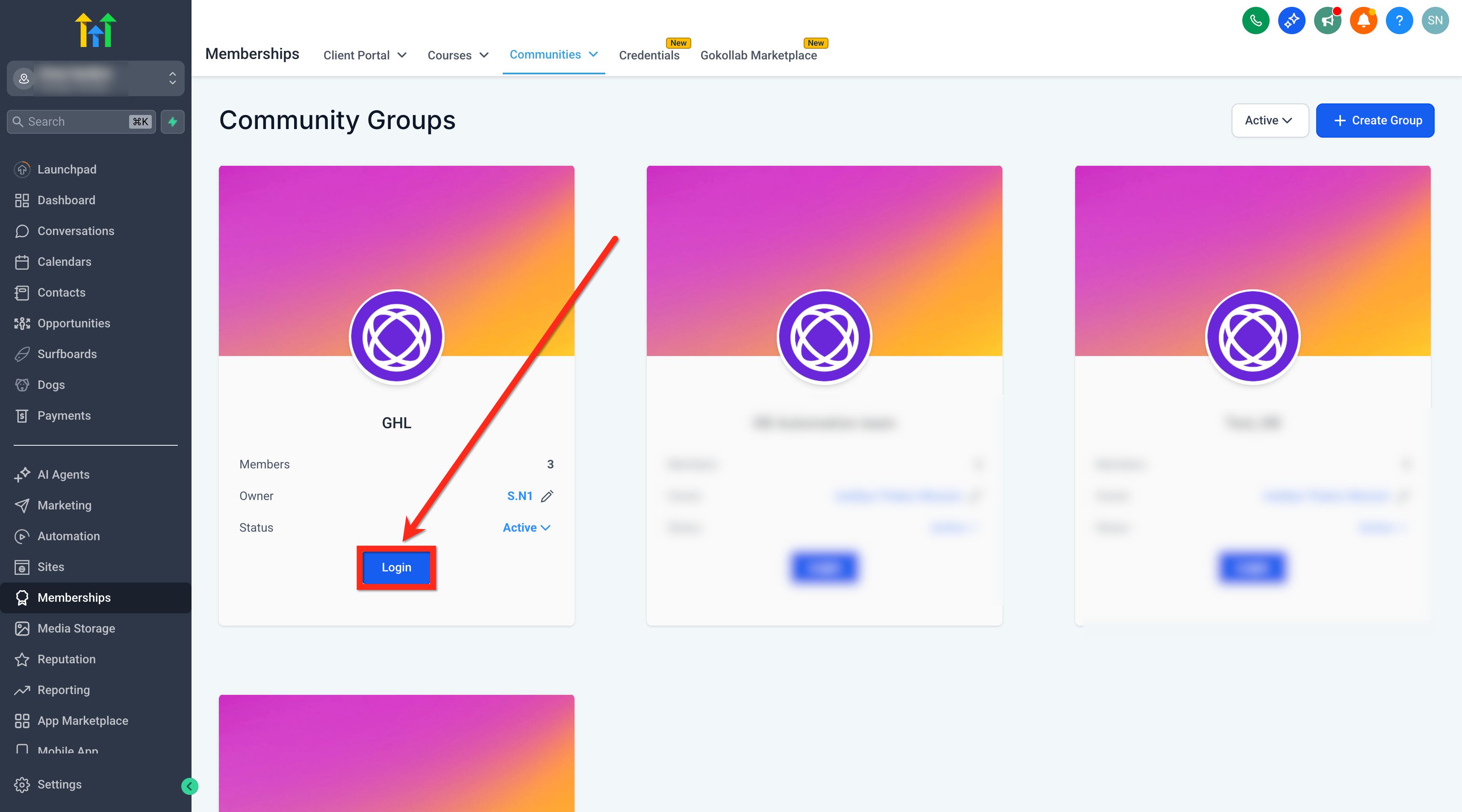
- Open the desired group.
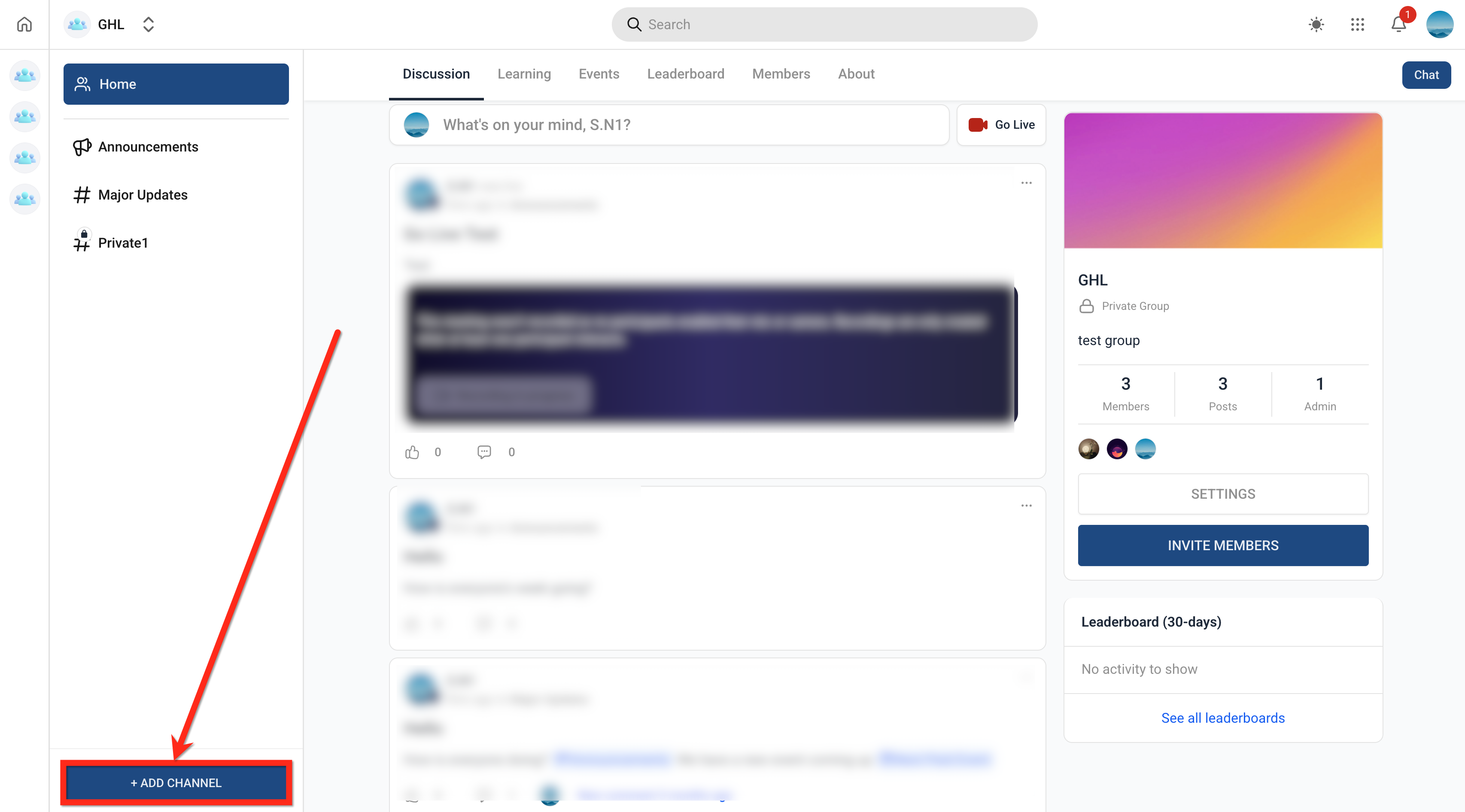
- Press the + Add Channel button.
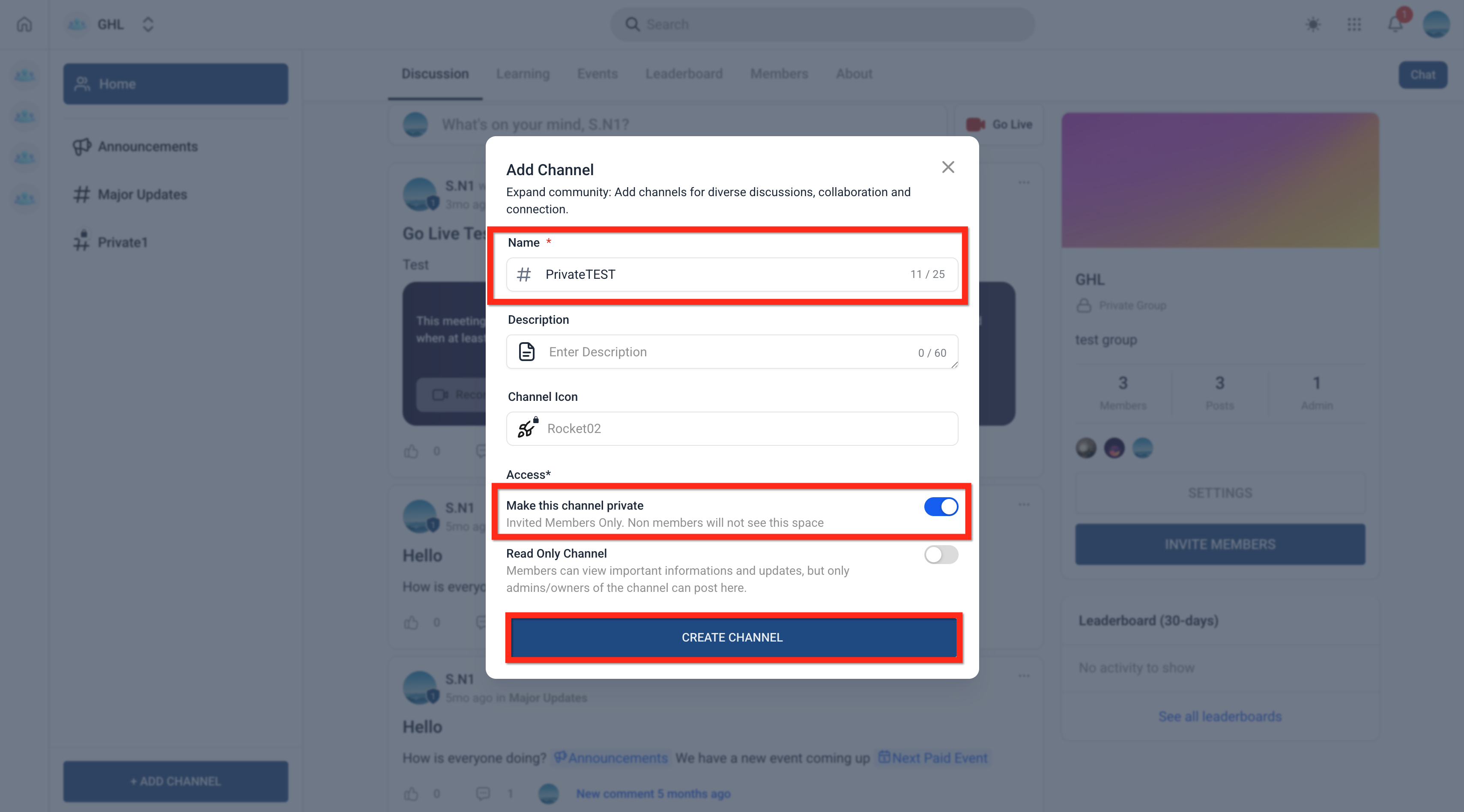
- Enter a channel name; optionally add a description or an icon.
- Toggle the Make this Channel Private option to ON.
- Click Create Channel.
- Note: The group owner and channel creator are automatically added as channel managers.
- Note: A channel manager acts as an admin for that specific channel; group roles like owner and group admin have no effect inside a private channel.
- Note: The group owner cannot leave a private channel.
- Note: Private channels will not be visible in the channel list to users who are not members.
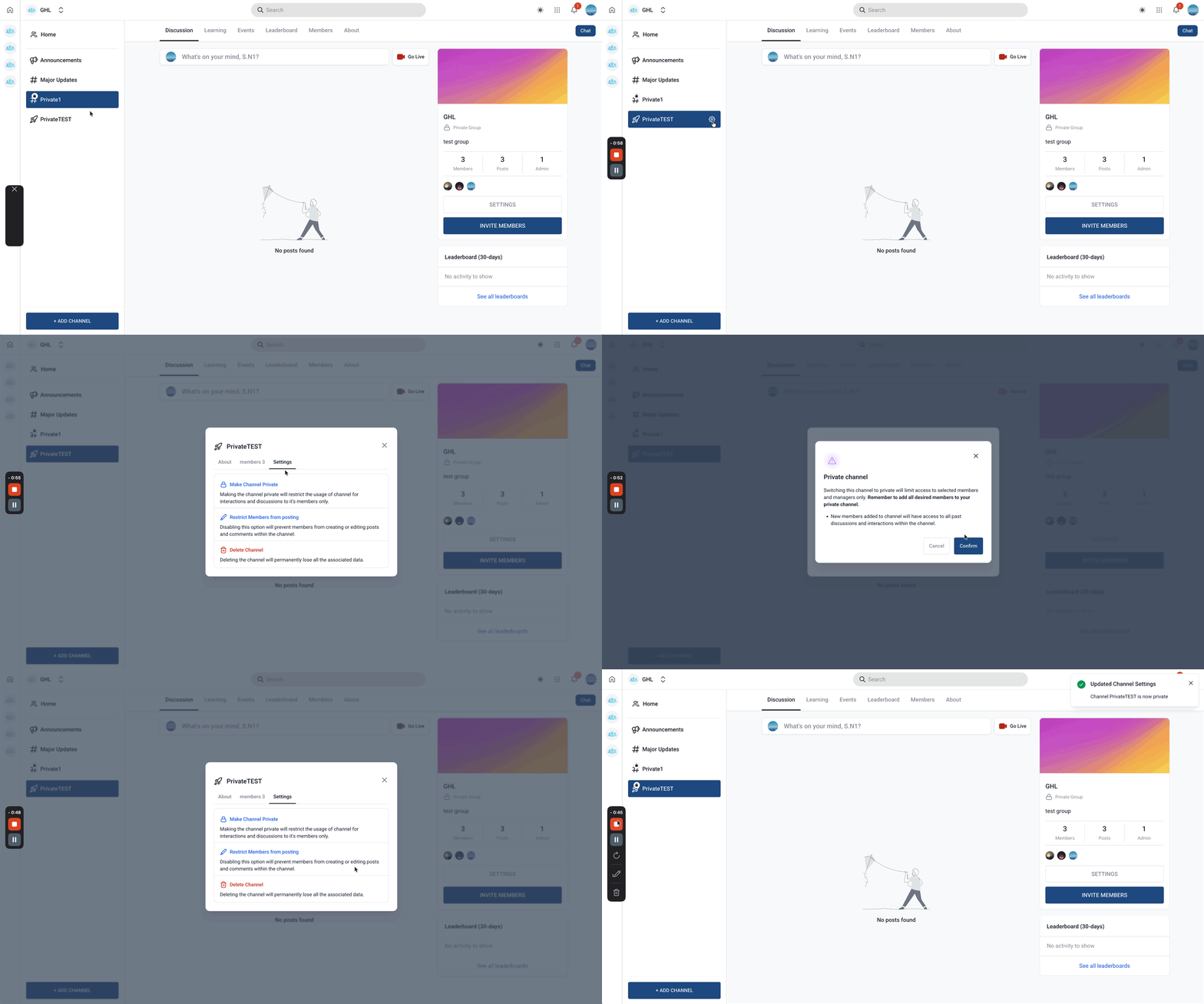
Convert a public channel to private
- Open the target channel.
- Click the Settings (gear) icon.
- Select the Settings tab.
- Click Make Channel Private.
- Read the acknowledgement popup and click Confirm.
- Note: Non members will no longer see the channel in the list after conversion.
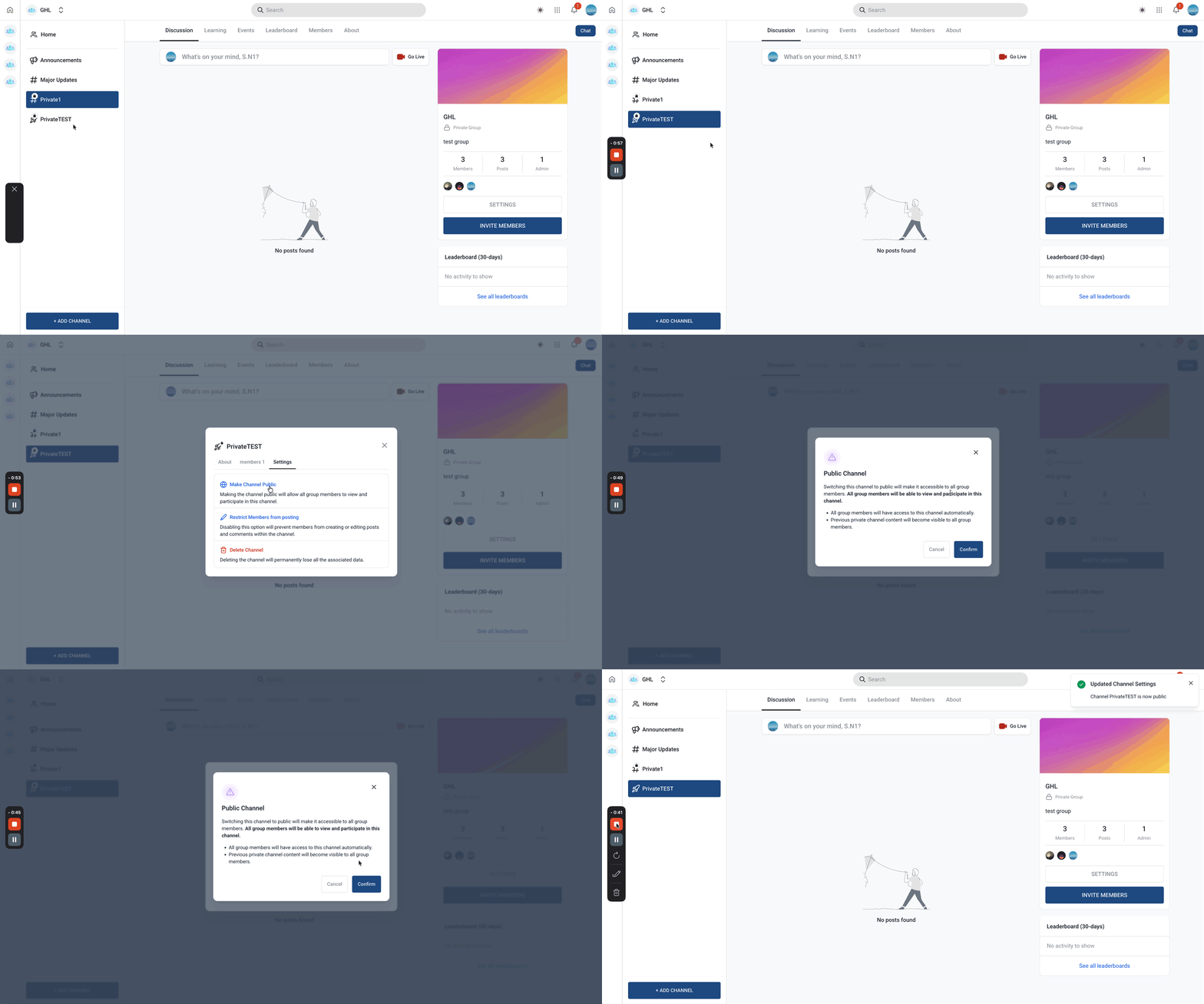
Convert a private channel back to public
- Open the private channel.
- Click the Settings (gear) icon.
- Select the Settings tab.
- Click Make Channel Public.
- Read the acknowledgement popup and click Confirm.
- Important: After conversion, the channel is visible to all group members and the existing post history remains in the channel.
Add or remove members in a private channel
- Open the private channel.
- Click the Settings (gear) icon.
- Open the Members tab.
- Add Members: search and add users.
- Remove Members: locate the user, click the three dots beside the name, then select Remove from Channel.
Set or change a channel emoji or icon
- Open the channel.
- Click the Settings (gear) icon.
- Click the Edit button next to the channel name.
- Click the Channel Icon option and choose an Emoji or Icon of your choice.
- Click Save to apply the change.
05What it looks like in HighLevel
06Settings that matter
- Make this Channel Private. Controls whether the newly created channel is hidden from non members.
- Make Channel Private. Changes an existing public channel to a private one, restricting visibility.
- Make Channel Public. Reopens a private channel to all group members, making it visible again.
- Channel Icon. Lets you choose an emoji or graphic that appears next to the channel name.
07Things to know before you rely on it
- Group owners are automatically added as channel managers and cannot leave a private channel.
- Private channels are hidden from users who are not members of the channel.
- Roles such as group owner and group admin have no effect within a private channel; only channel managers matter.
- Converting a public channel to private removes it from non member view; converting back restores visibility to all group members.
08How it connects to the rest of HighLevel
- Learn how to set up and manage a HighLevel community. Community setup guide
- Manage members inside groups for more control. Group member management
- Create channels, posts and other content in your community. Content management
Michael's take

Most people assume the group owner can simply leave a private channel when it’s no longer needed. In reality the owner is locked into the channel, so you need to either convert it back to public or remove all members you no longer want, then archive the conversation if needed.
If I were setting up a gated cohort, I’d create the private channel first, add only the paying members, and assign a clear emoji that matches the course theme.