
01Who this is for
- Coaches who run membership sites benefit because members can control their own participation without admin help.
- Online educators can keep course access tidy by allowing students to leave groups, ensuring only active participants retain content.
- Event organizers maintain clean attendee lists as members exit, automatically removing event access.
02Self serve member exit, explained
The self service member exit feature gives a community member the ability to leave any group on their own. No admin approval is required; the member simply follows the in app steps to exit.
When the member confirms the leave action, HighLevel right away removes their rights to all resources tied to the group, such as courses, events and any paid content. The system also generates real time notifications for the admin via email, in app alerts and push messages.
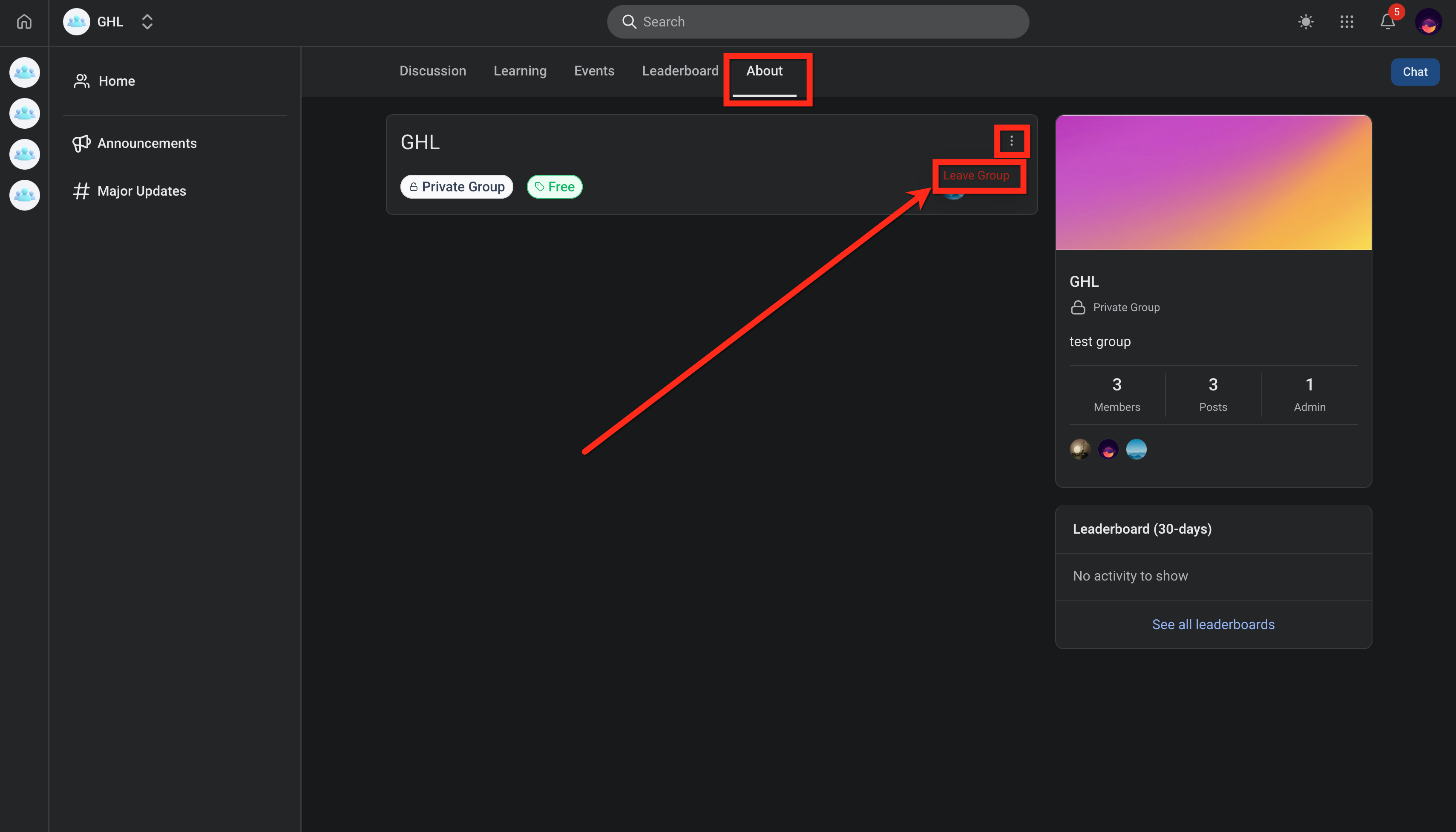
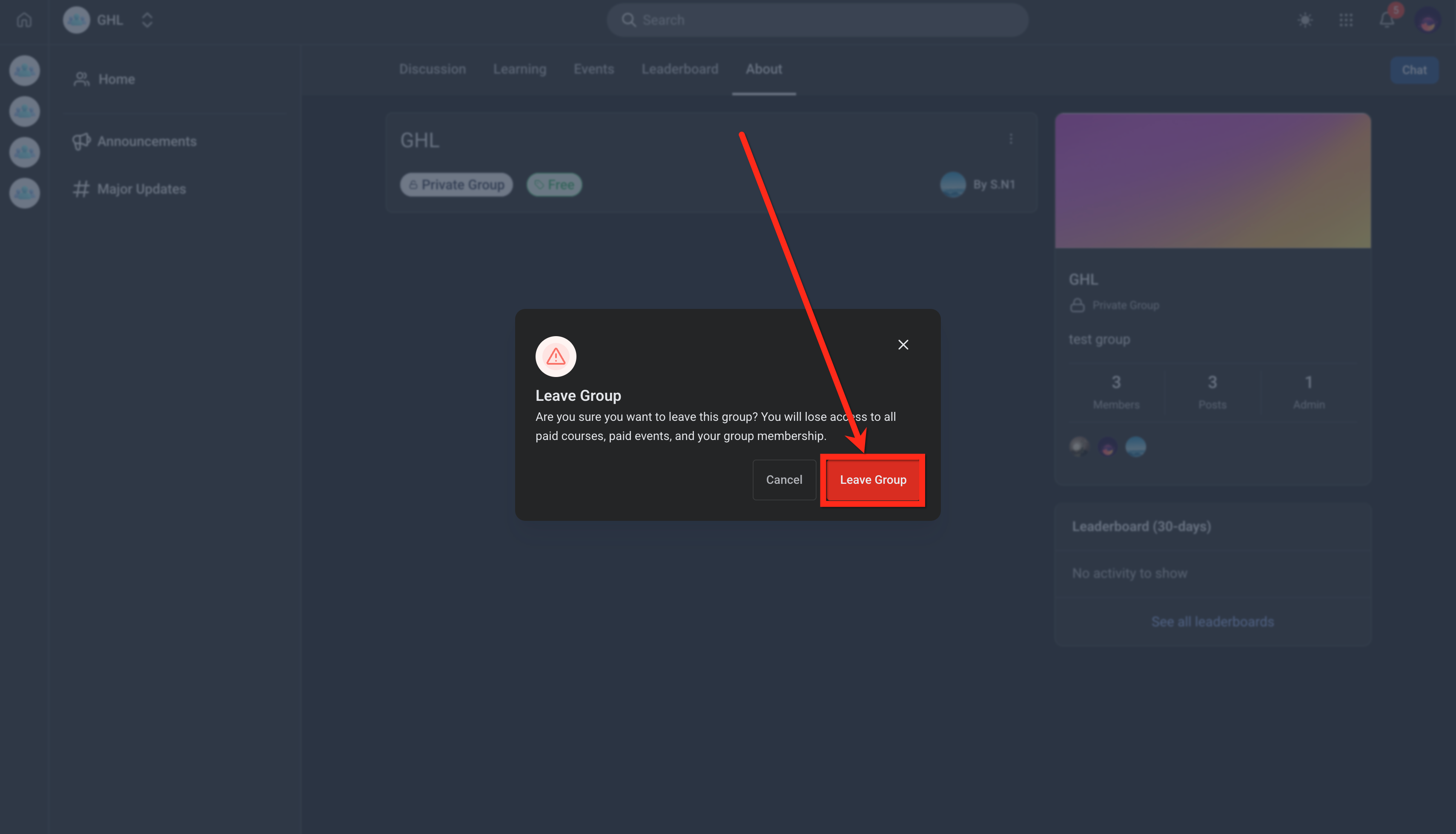
The option is found inside each community group. Members open the group, go to the About tab, open the three dot menu and select Leave Group, then confirm the choice.
03How businesses use self serve member exit
- Fitness coaching business. Clients who no longer want to participate in a coaching group can leave the community themselves. The platform immediately blocks their access to workout videos and live sessions, and the coach receives a notification of the departure.
- Online language school. Students can exit a language learning group when they finish the course. Their enrollment to the group’s lessons and any paid materials is revoked right away, and the instructor is alerted through an email notification.
- Professional association. Members may opt out of a special interest group within the association. After confirming the exit, their ability to view group discussions, webinars and exclusive documents is removed, and the association’s admin sees a push alert.
04Before you start
- Member must be logged into the community group.
05How to set up and use self serve member exit in HighLevel
Member leaves a group
- Sign in to the HighLevel platform and open the community group where you are a member.
- Select the About tab displayed on the web view.
- Tap the three dot menu (⋮) to open additional options.
- Choose the Leave Group option from the menu.
- Confirm the action by clicking the Leave Group button.
06What it looks like in HighLevel
07How it connects to the rest of HighLevel
- Admins can manage member status and see leave notifications alongside other member actions. Manage members
- Setting up a community defines the groups where members can use the self serve exit feature. Create community
- Access to this feature depends on the plan you are on, see pricing for details. Pricing
Michael's take

People often think they need to ask an admin every time they want out of a group. In reality the self serve exit does the work for them, and the admin gets a heads up automatically. I would let members try the Leave Group flow as soon as they join so they know the process is there.
If I were setting up a community, I’d double check that the notification settings are on so admins aren’t left in the dark. A quick test of the exit and a look at the admin inbox confirms everything’s wired correctly.