
01Who this is for
- Community managers can tailor the member experience by displaying only the tabs that match the group’s purpose.
- Course creators benefit by hiding irrelevant tabs and keeping the focus on the Learning tab for members.
- Event planners can present an Events only view, removing discussion distractions for attendees.
02Customizable navigation tabs, explained
The feature resides in each Community Group’s Settings. Admins select which optional tabs, Learning, Events, Leaderboard, Members, appear alongside the always on Discussion and About tabs.
When a toggle is switched, the change applies immediately to every member of that group, both on desktop and mobile views. The setting is saved at the group level, not across the whole account.
The Members tab remains visible to administrators even if hidden from regular members, ensuring member management is always accessible.
03How businesses use customizable navigation tabs
- Online coaching business. A coach can hide the Events and Leaderboard tabs, leaving Discussion, Learning and About visible. This keeps the group focused on coursework and conversation without unrelated features.
- Conference organizer. The organizer enables the Events tab and disables Learning and Leaderboard. Members see a clean navigation that centers on upcoming sessions and related details.
- Fitness community. The admin shows the Leaderboard and Members tabs while hiding Learning and Events. Participants can view rankings and member lists without extra distractions.
04The numbers and rules that matter
- Supported tabs: Discussion (mandatory), Learning, Events, Leaderboard, Members, About (mandatory).
- Scope: Settings apply per Group (not global across all groups).
05Before you start
- You must have administrator access to the Community Group’s Settings.
- You need to be logged into the appropriate subaccount and have the Memberships feature enabled.
06How to set up and use customizable navigation tabs in HighLevel
Configure navigation tabs for a Community Group
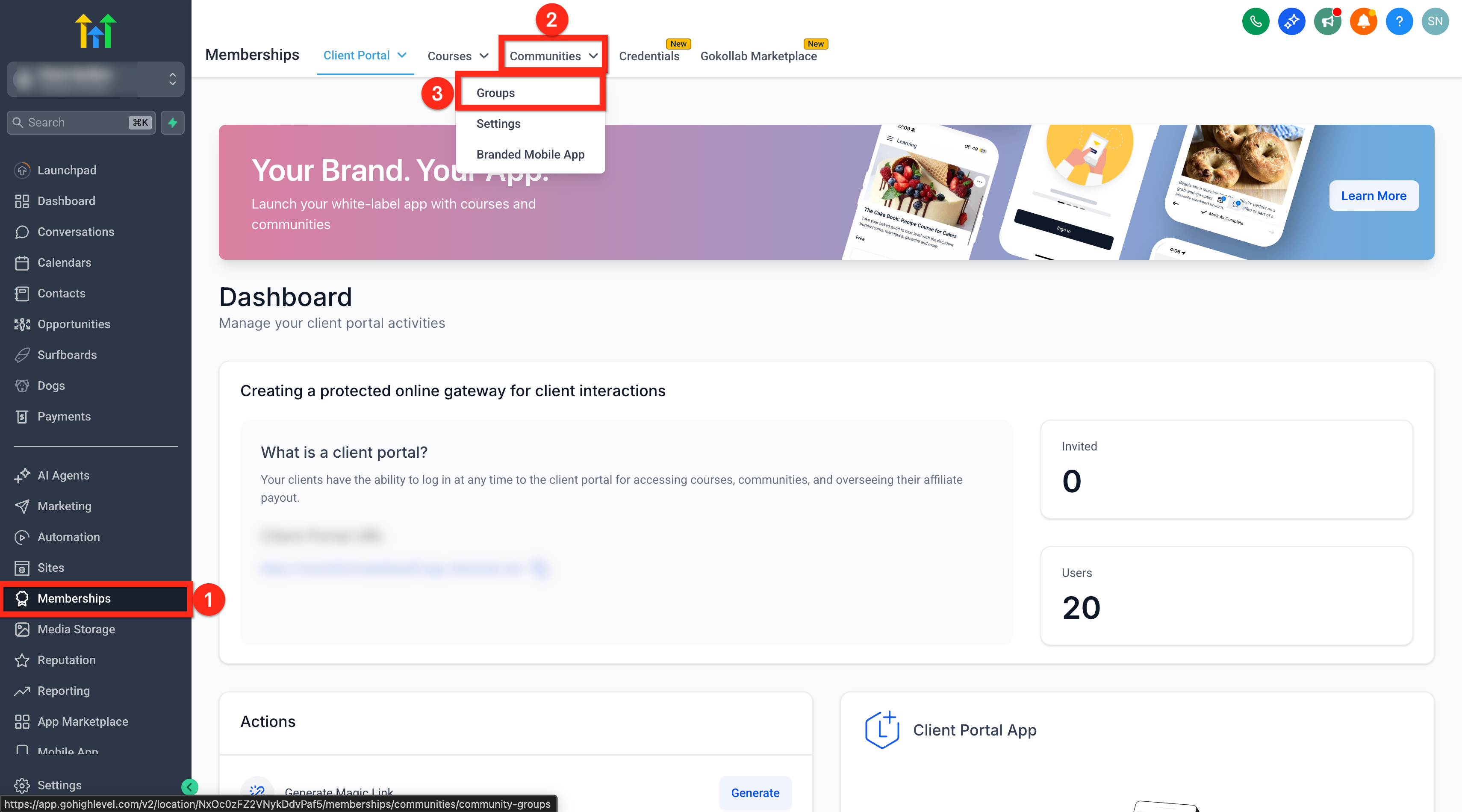
- Select Memberships from your subaccount menu.
- Choose Communities.
- Click Groups in the dropdown list.
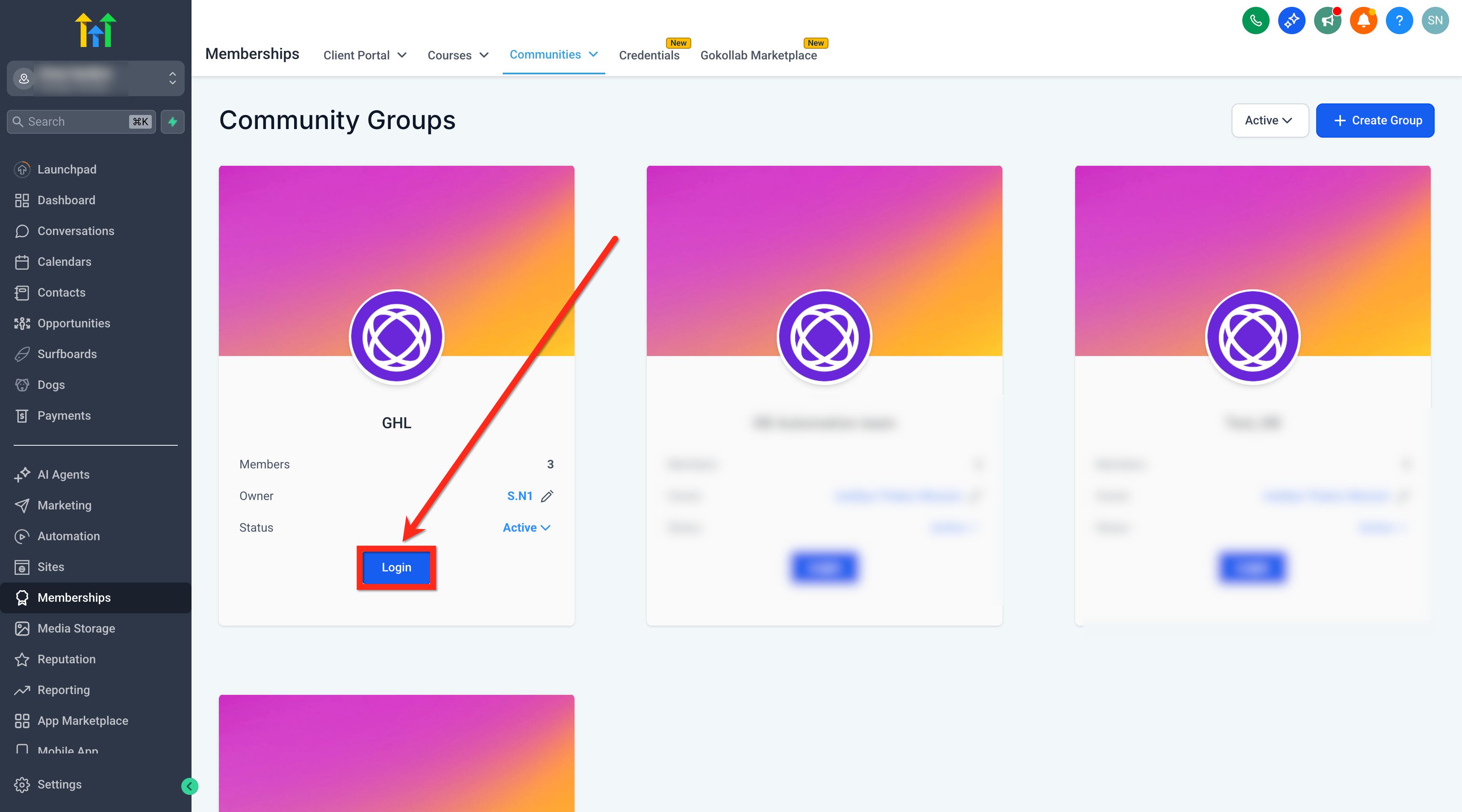
- Open or log in to the specific Group you want to edit.
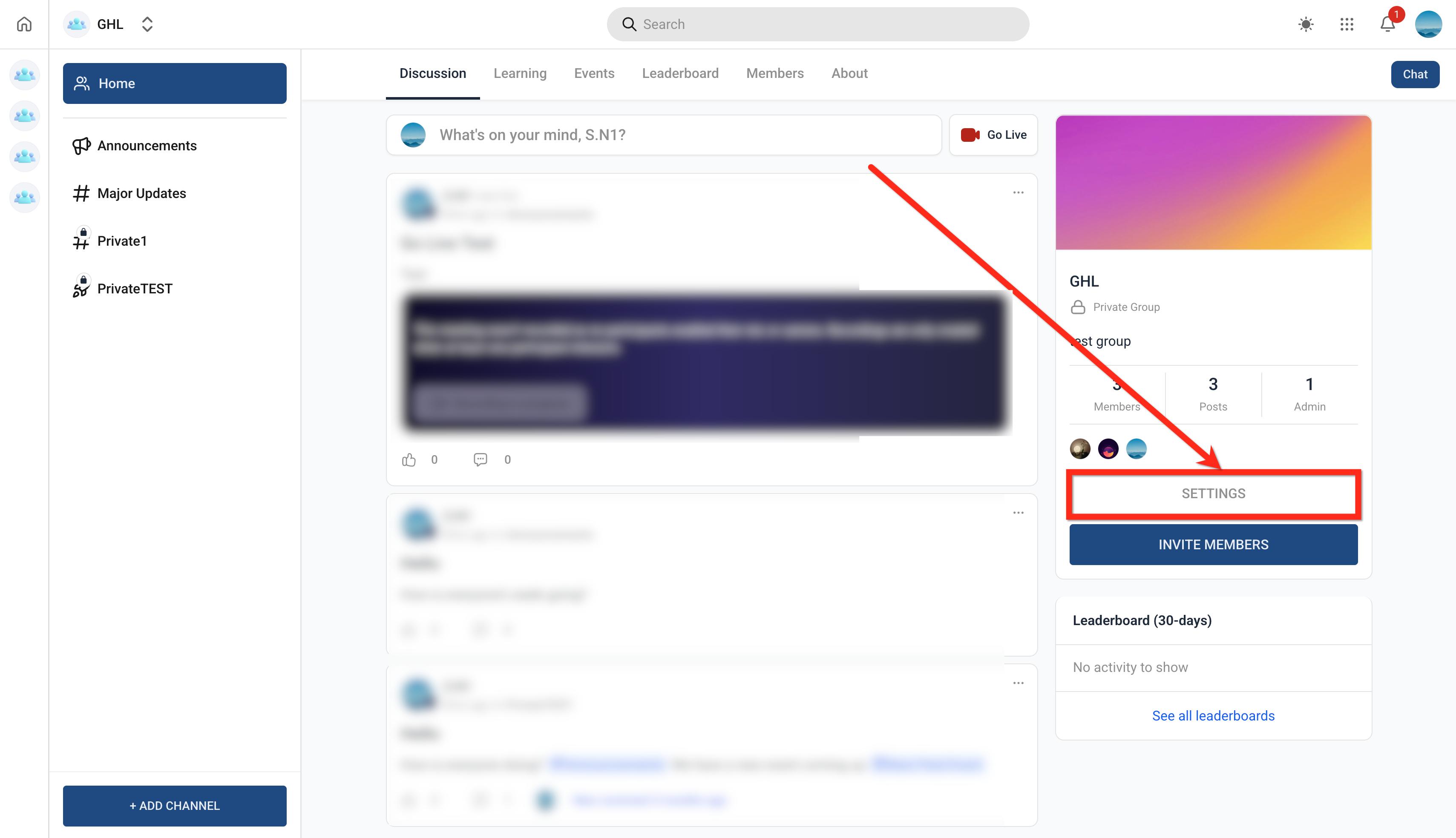
- Open Settings for that Group.
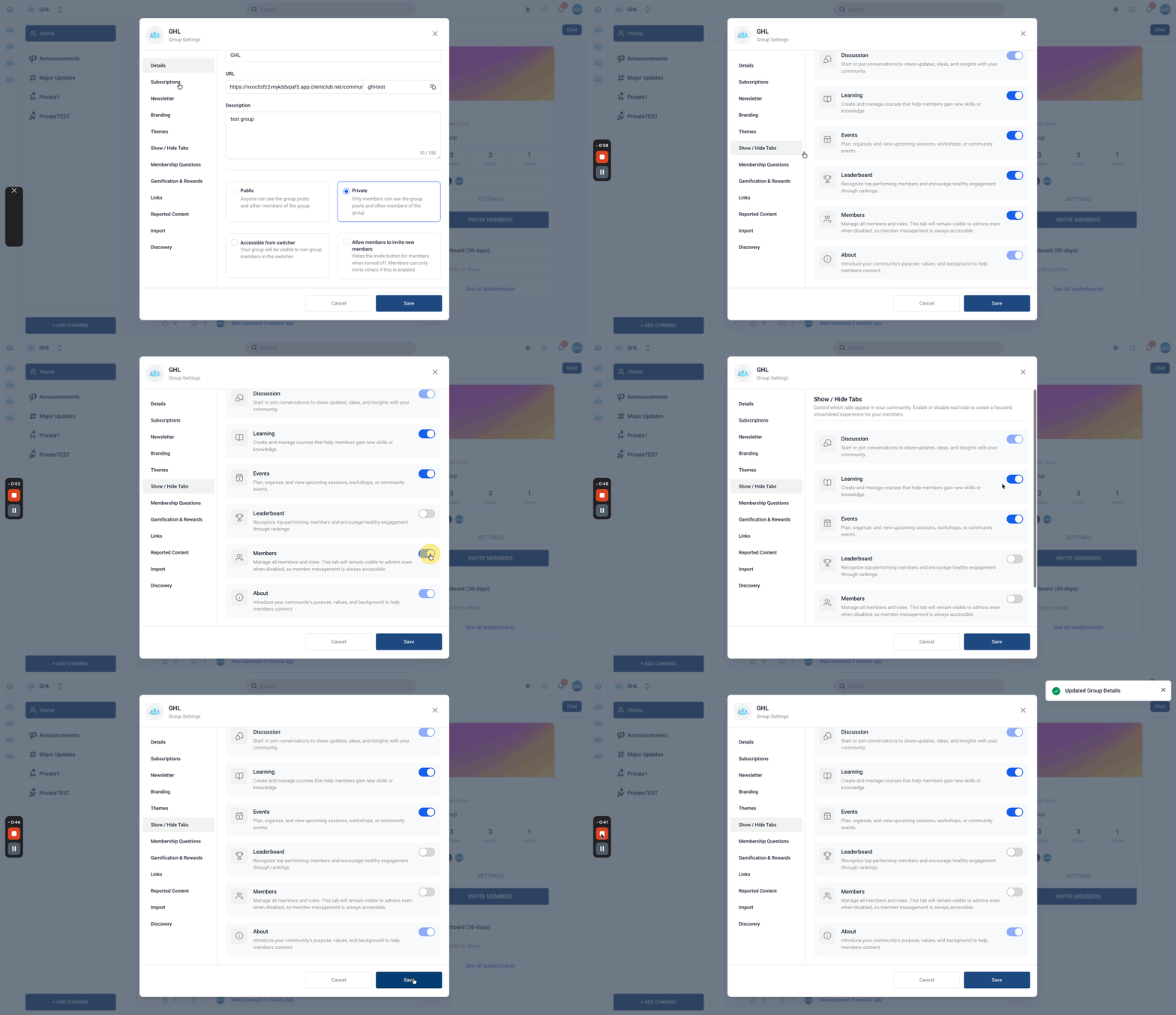
- Select Navigation Tabs (Show/Hide).
- Toggle Learning, Events, Leaderboard, and Members on or off as needed.
- Leave Discussion and About enabled, as they cannot be disabled.
- Click Save for the changes to take effect.
07What it looks like in HighLevel
08Settings that matter
- Navigation Tabs (Show/Hide). Controls which optional tabs are visible in the group’s navigation bar.
- Learning. Shows or hides the Learning tab that hosts courses and training content.
- Events. Shows or hides the Events tab that lists upcoming sessions and workshops.
- Leaderboard. Shows or hides the Leaderboard tab that displays member rankings.
- Members. Shows or hides the Members tab for regular users; admins always retain access.
09Things to know before you rely on it
- Discussion and About tabs are mandatory and cannot be disabled.
- Tab visibility settings apply only to the selected group, not to all groups.
- When the Members tab is hidden, it still remains accessible to administrators.
- Changes to tab visibility take effect immediately for every group member.
10How it connects to the rest of HighLevel
- How to create and manage a HighLevel community Create community guide
- Managing members inside groups in HighLevel Member management
- HighLevel community: create channels, posts and manage content Content management
Michael's take

Michael ReimerFounder of CRM Pros, HighLevel Commander and Certified Admin
Customizable navigation tabs are a useful way to keep community interfaces clean, but if you don’t need to tailor each group’s layout, you can skip it.
Get More InformationOpens on HighLevelPublished November 2, 2026 · Updated November 17, 2026