
01Who this is for
- Community Owners who need a reliable place to broadcast product changes without cluttering discussion threads.
- Admins managing member groups and wanting to control who can post while still allowing members to react to updates.
- Members who benefit from a single feed of important announcements and can easily spot pinned messages.
02Announcement channels, explained
Announcement Channels are a special type of channel inside a HighLevel community. They are configured as read only, so only Community Owners and Admins can add posts while members can only view, react, and see pinned items. The channel can be set to Public, reaching every community member, or Private, limiting access to invited members.
The feature lives in the community’s Channel Management area. When you enable the Announcement Channel option, the channel switches to this mode and the posting composer disappears for members. Owners and Admins can still create, publish, and pin posts. The channel can be reverted to a normal discussion channel at any time by disabling the Announcement Channel setting.
Announcements trigger notifications based on each member’s preferences. Supported notification types include In App alerts, push notifications (when enabled on the device), and email for certain course unlock events. This ensures members stay aware of new information without searching through conversation history.
03How businesses use announcement channels
- SaaS product company. The product team creates a private Announcement Channel for beta testers, publishes release notes, and pins the most critical changes. Only Owners and Admins can post, keeping the feed clean for testers.
- Fitness studio. The studio sets up a public Announcement Channel to broadcast class schedule adjustments and holiday closures. Instructors (Admins) post updates, members read them and react with emojis, and pinned announcements stay at the top for quick access.
- Nonprofit organization. The nonprofit creates a private Announcement Channel for volunteers, publishes event reminders, and pins the RSVP deadline. Volunteers receive push notifications if they have them enabled, ensuring timely participation.
04The numbers and rules that matter
- Notifications may include In App, Push, and Email depending on type.
05Before you start
- You must have Owner or Admin permissions in the community.
- A community must already exist in HighLevel.
- Decide whether the channel will be Public or Private before creating it.
06How to set up and use announcement channels in HighLevel
Create an announcement channel
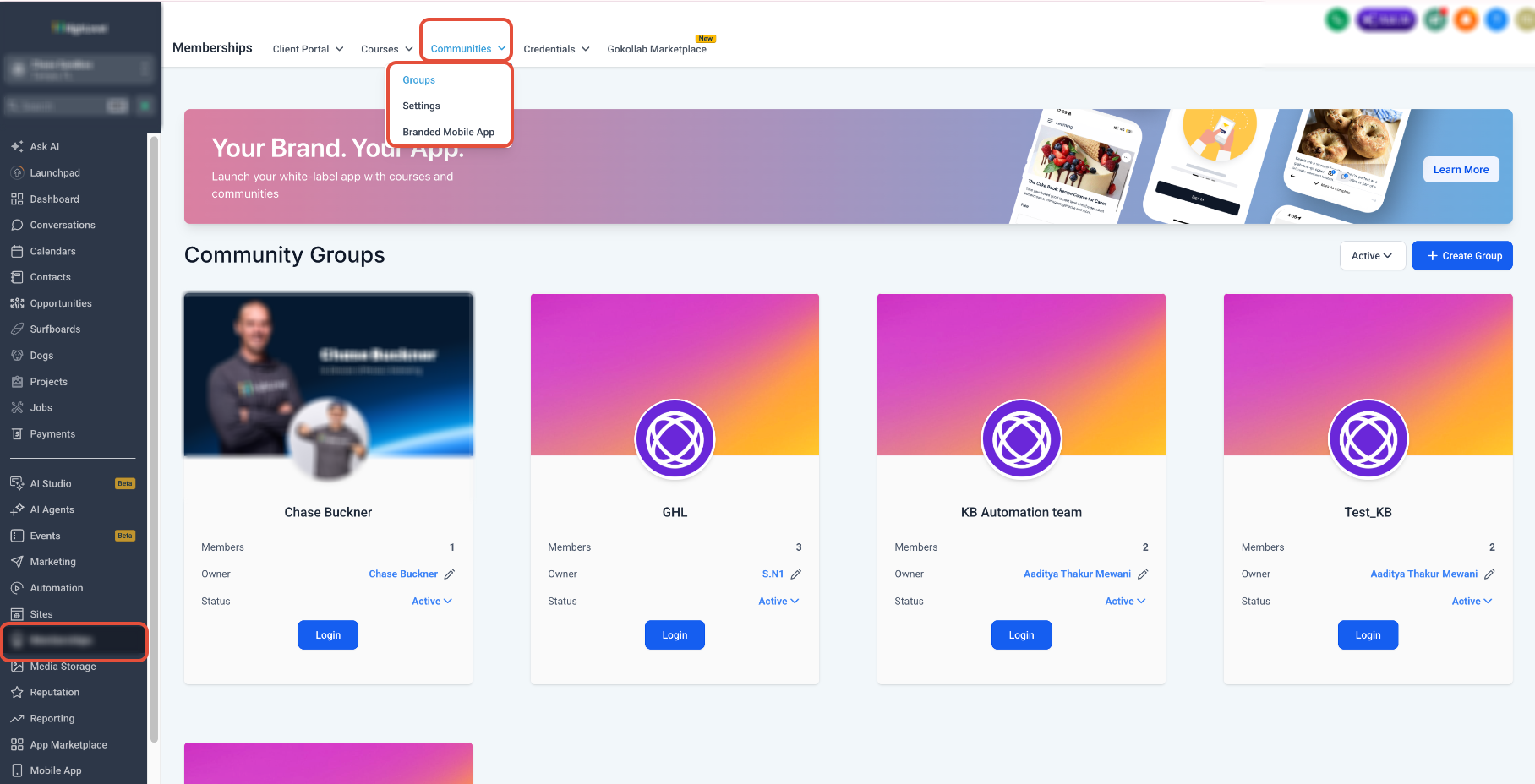
- Open the Communities section and select the target community.
- Enter the Channel Management view.
- Choose Create Channel or edit an existing channel.
- Turn on the Announcement Channel option.
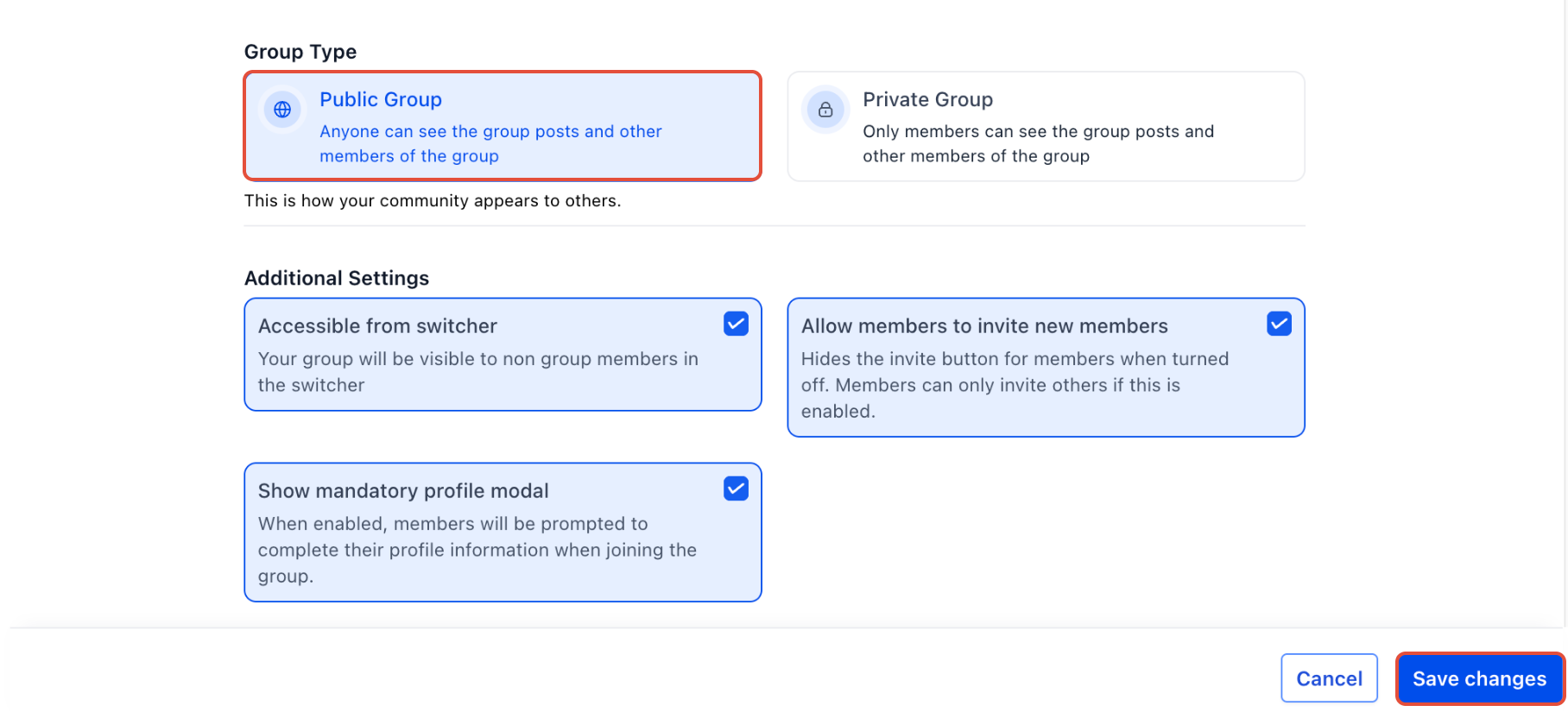
- Select Public or Private for the channel visibility.
- Save the channel configuration.
- Publish the first announcement in the new channel.
Post the first announcement
- Open the newly created Announcement Channel.
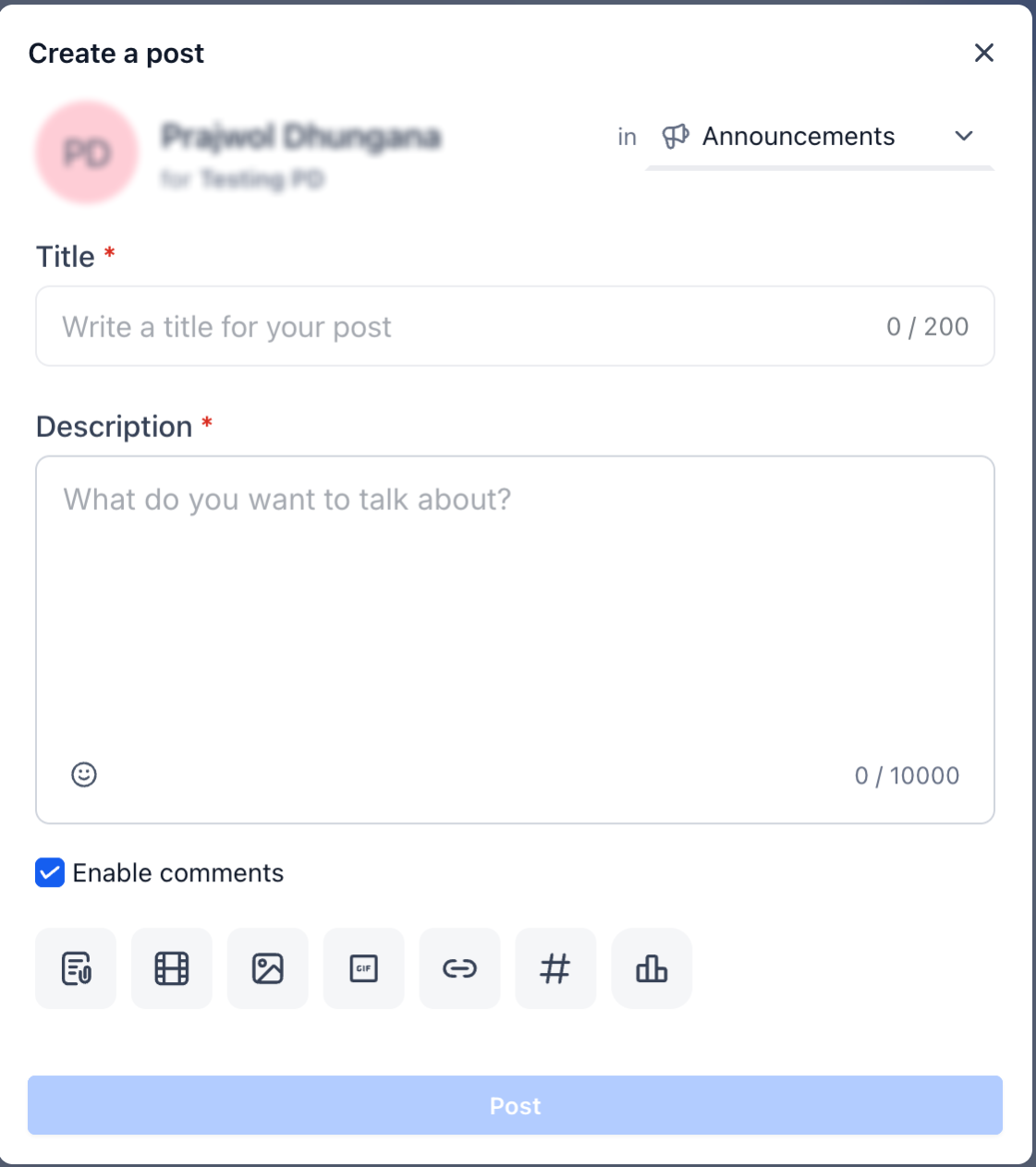
- Start a new post within the channel.
- Publish the announcement for members to see.
- Pin the post if it should stay at the top of the channel.
07What it looks like in HighLevel
08Settings that matter
- Announcement Channel. Turns a standard channel into a read only space where only Owners and Admins can publish posts.
- Public / Private. Controls whether all community members can see the channel (Public) or only invited members (Private).
09Things to know before you rely on it
- Only Community Owners and Admins can create and edit Announcement Channels.
- Only Owners and Admins can publish or pin posts inside an Announcement Channel.
- Members can only read, react, and view pinned posts; they cannot create new posts.
- Multiple Announcement Channels can exist within the same community.
- Announcement Channels can be switched back to regular discussion channels at any time.
10How it connects to the rest of HighLevel
- Set up a community before adding announcement channels Create and manage communities
- Learn how to manage channels and posts in HighLevel communities Channel and content management
- Explore all Memberships & Communities capabilities All Communities features
Michael's take

Wondering if you really need a separate place for updates? I’ve seen teams drown critical info in chat, so a read only channel gives you a clean shelf for announcements that members can’t accidentally push down.
Set it up once, pin the most urgent posts, and let the notification system do the rest. I’d test a single push notification to make sure members see it before rolling out a full series of level up alerts.