
01Who this is for
- Community managers can monitor earnings and member activity to guide engagement strategies.
- Marketing teams can see which traffic sources drive visits and adjust campaigns.
- Support staff can identify inactive users for outreach and retention efforts.
02Community analytics, explained
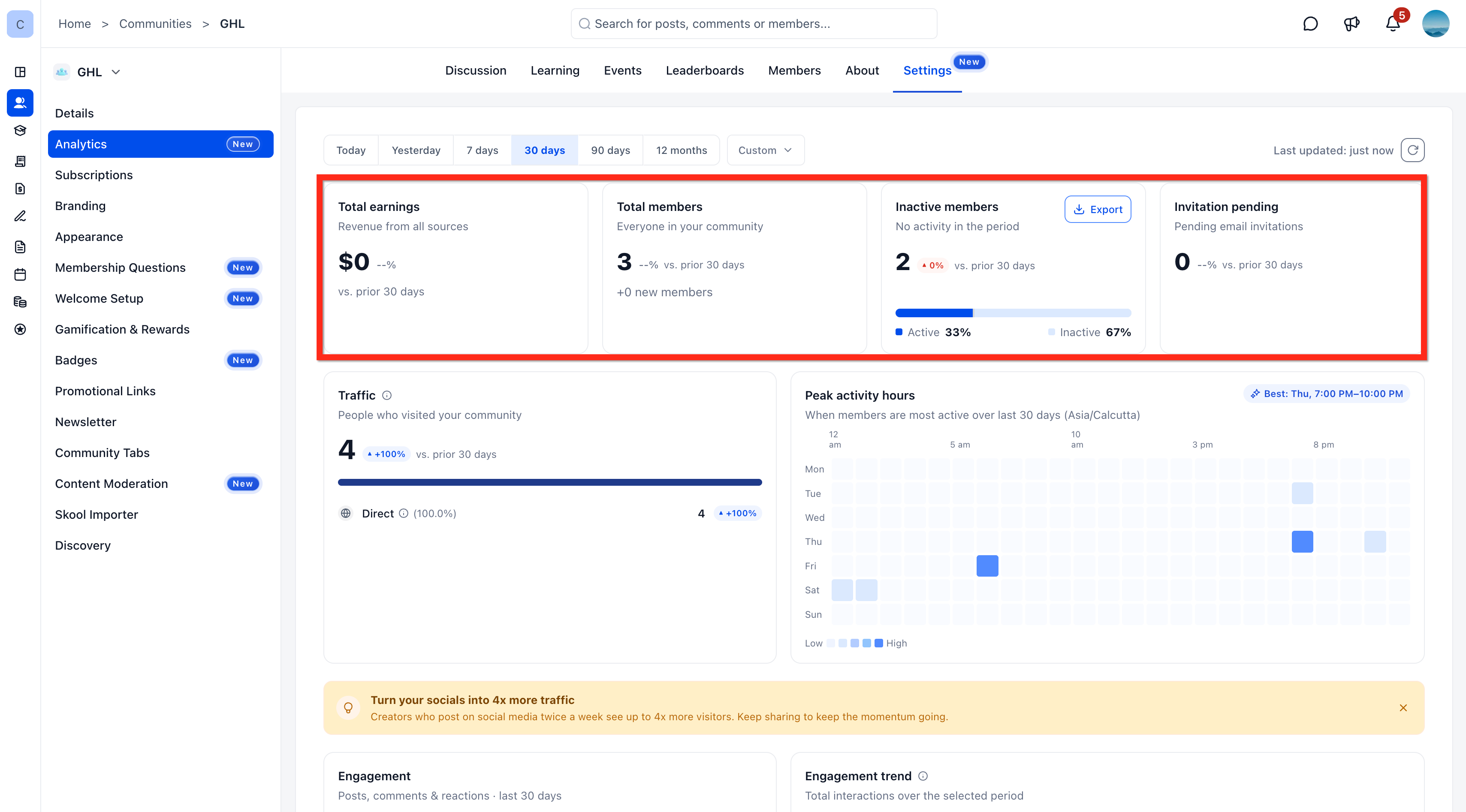
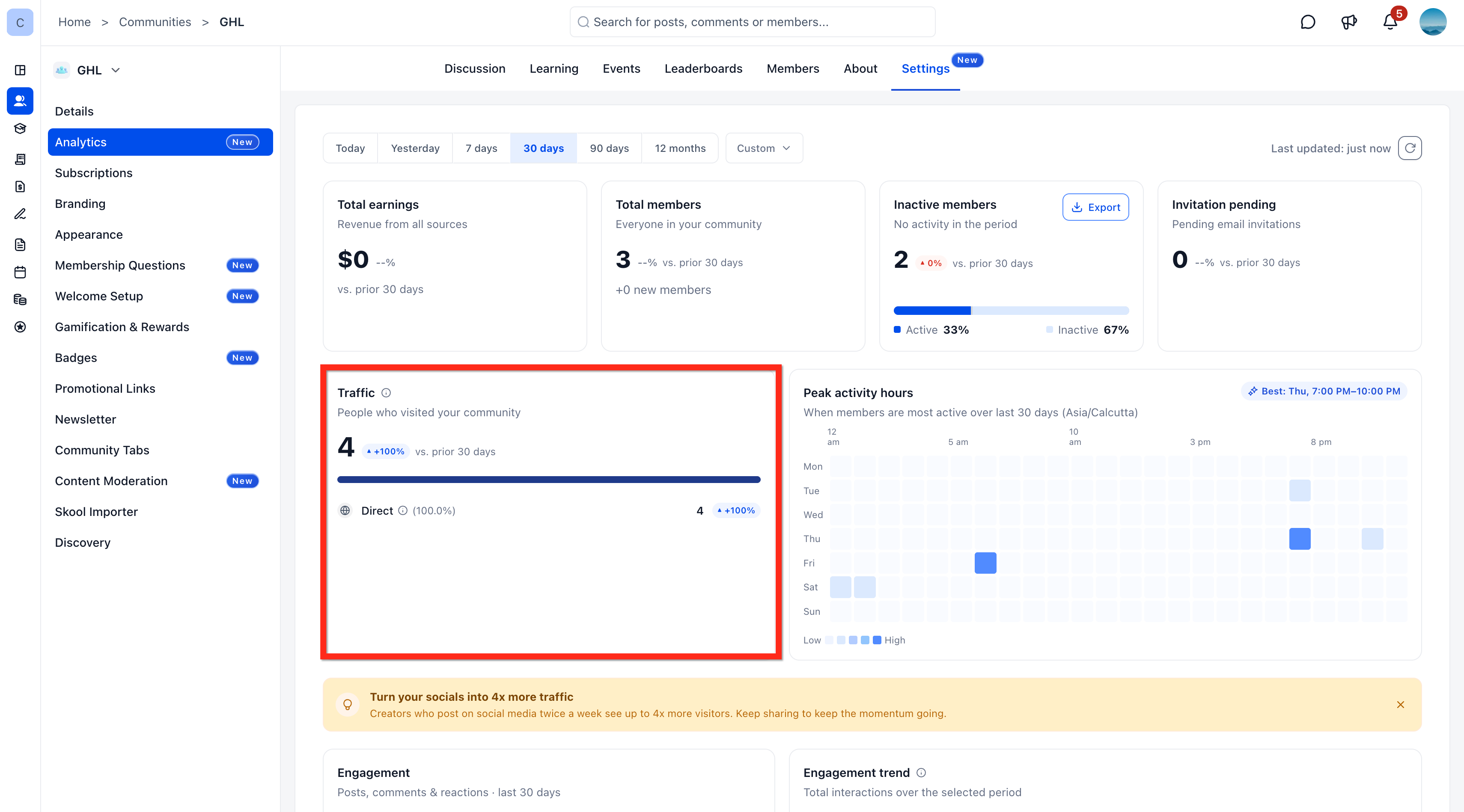
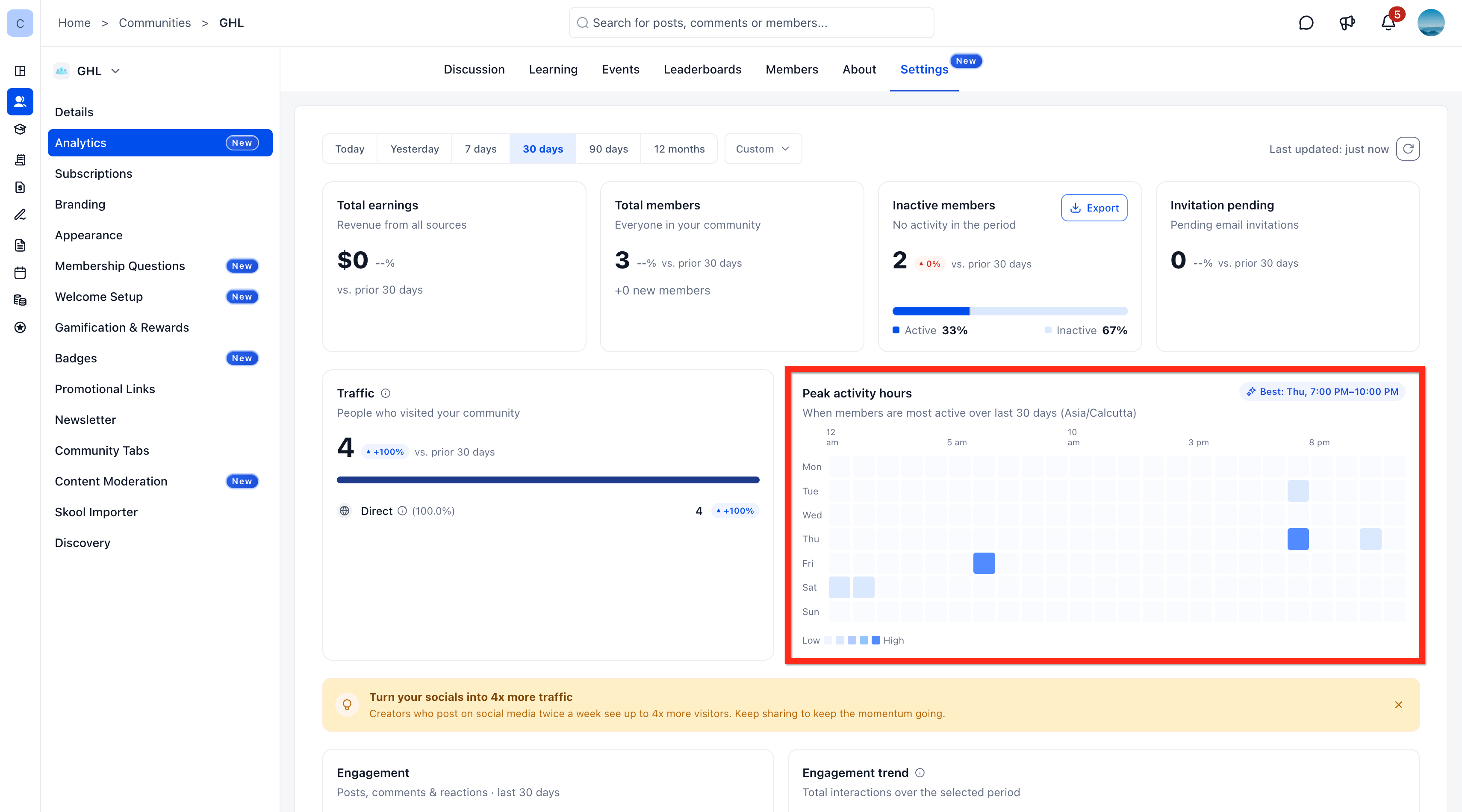
Community Analytics is a dashboard located inside each group’s Settings. It aggregates financial results, membership counts, traffic origins, activity peaks and interaction totals in separate cards and charts. The data shown reflects the date range you choose, which can be a preset period or a custom interval.
The dashboard also lets you export a list of members who had no recorded activity during the selected range. The export creates a CSV file that can be used for follow up or record keeping. All time based figures use the community’s own timezone.
03How businesses use community analytics
- Fitness studio. The studio can open the analytics dashboard to see earnings from paid memberships and the number of members who never logged in during the month. By exporting the inactive member CSV, the team can target those users with re engagement messages.
- Online education platform. The platform can filter the dashboard to the last 7 days to view traffic sources that led students to course material. Exporting inactive members helps identify learners who have not accessed any lessons, allowing the educators to send reminders.
- Professional association. The association can review the peak activity heat map to schedule webinars during the busiest hours. Using the export function, they can download members without activity and add them to a special outreach campaign.
04The numbers and rules that matter
- Default date range is the last 30 days.
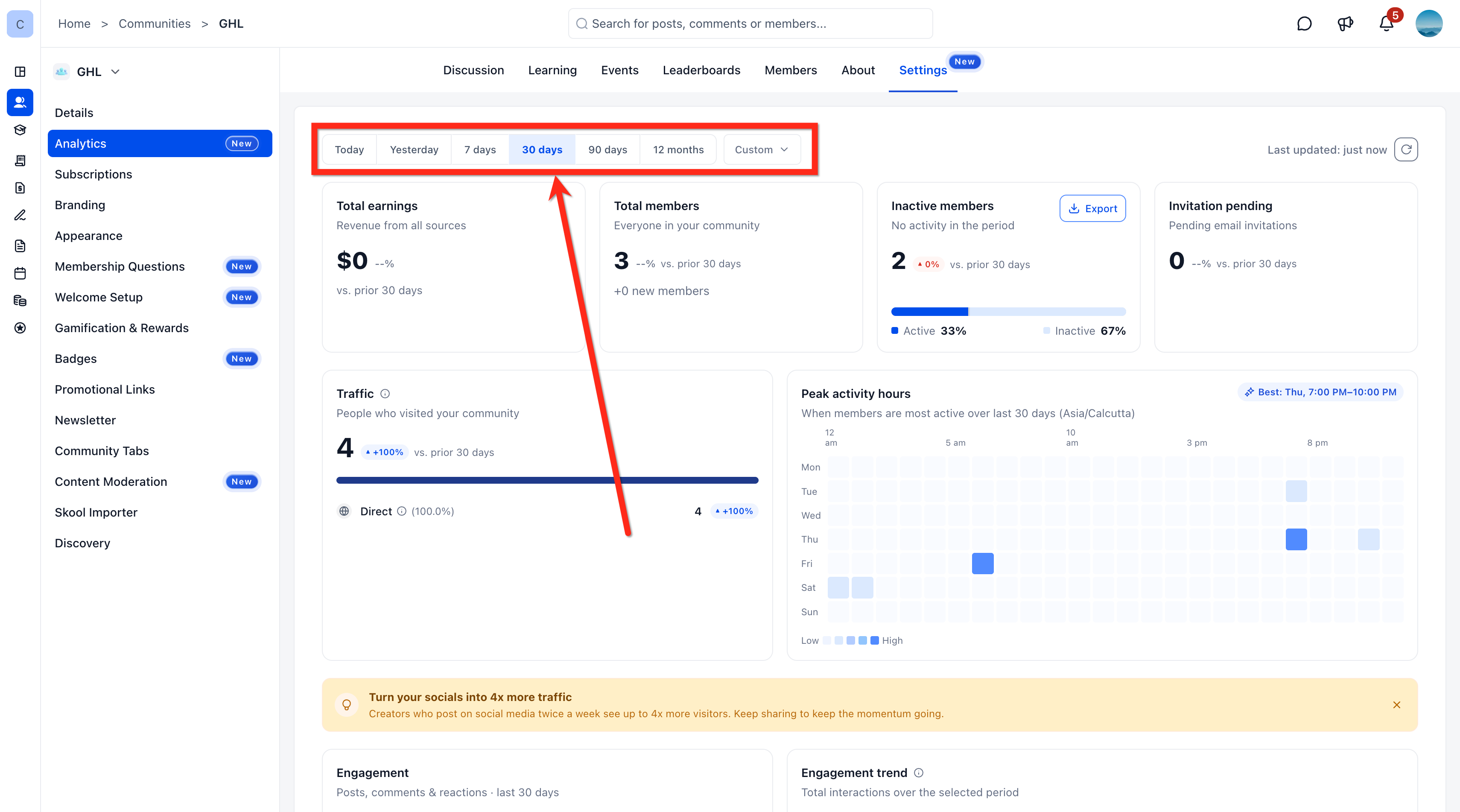
- Date filters: Today, Yesterday, 7 days, 30 days, 90 days, 12 months, Custom.
- Up to four named traffic sources are shown; others are grouped under Other.
05How to set up and use community analytics in HighLevel
Access community analytics
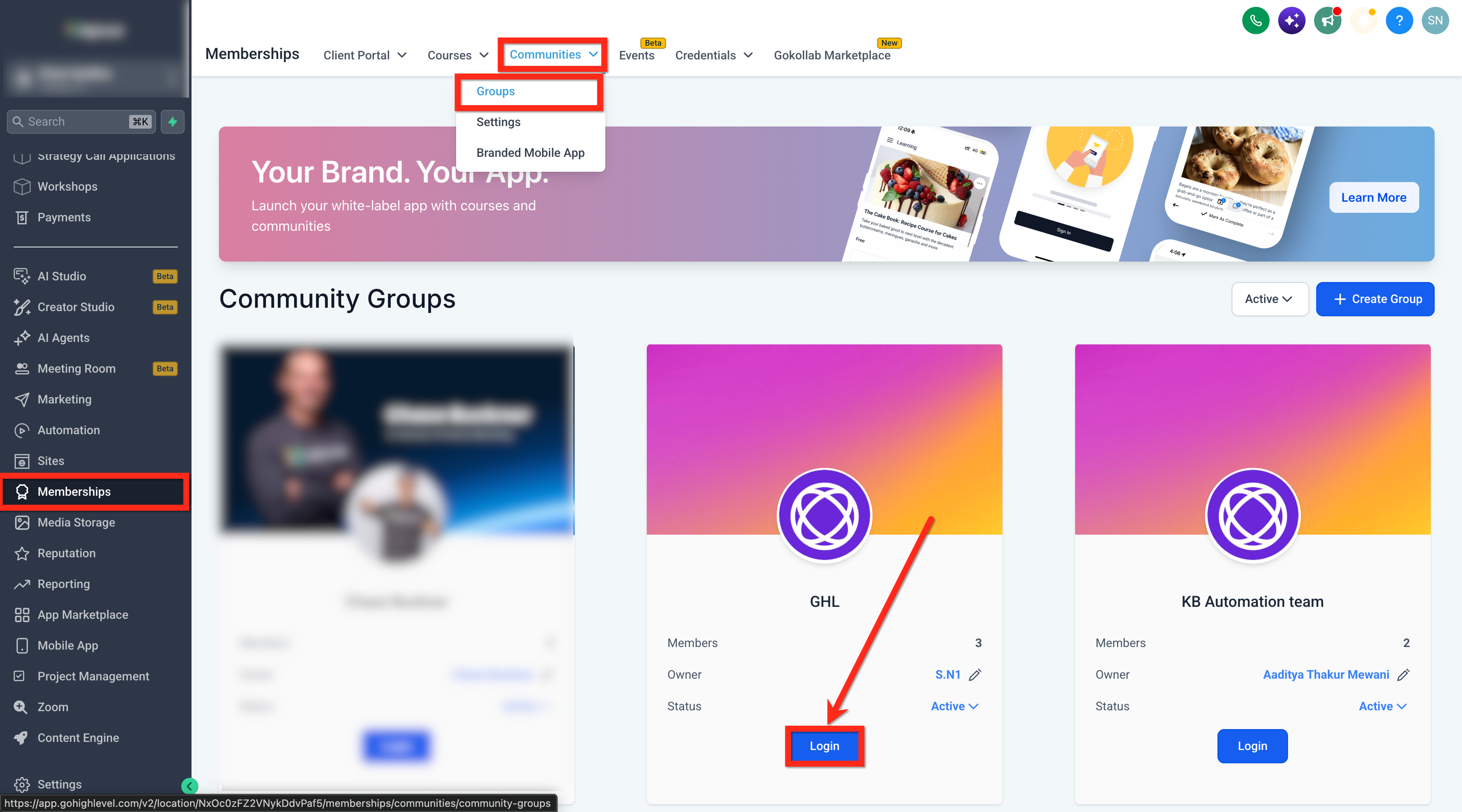
- Sign into your HighLevel account.
- Click Memberships in the left navigation menu.
- Select Communities.
- Choose Groups.
- Find the group you want and click Login to your group.
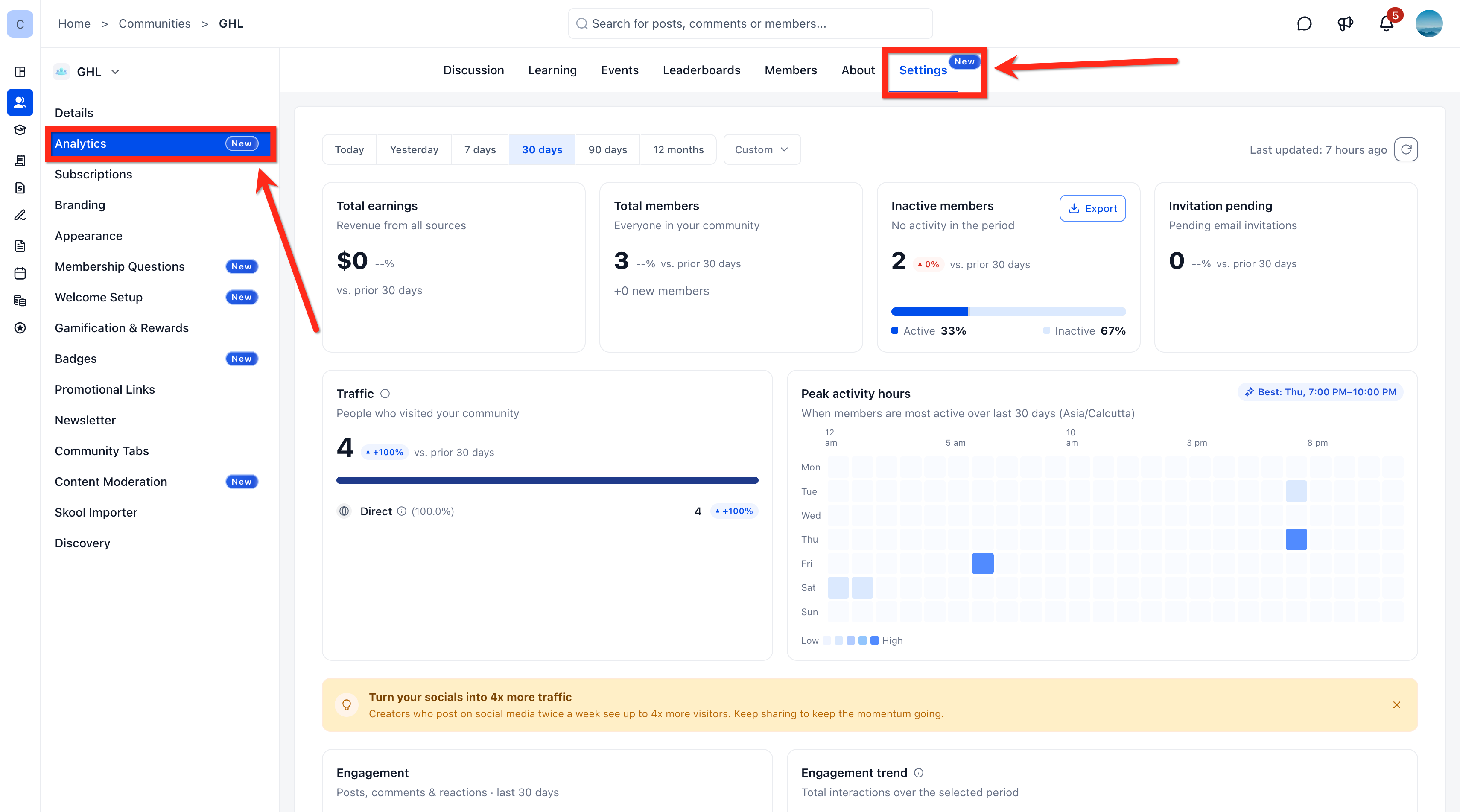
- Inside the group, click Settings in the top navigation.
- From the Settings sidebar, select Analytics.
Export inactive members
- Set the reporting period using the date filter at the top of the analytics dashboard.
- Locate the Inactive members card on the page.
- Click Export to download the inactive member list as a CSV file.
06What it looks like in HighLevel
07Settings that matter
- Analytics. opens the Community Analytics dashboard where performance cards, traffic charts and engagement visuals are shown
08Things to know before you rely on it
- Visits recorded before traffic tracking began are not backfilled.
- Inactive members are identified only from activity recorded within the selected date range.
- Percentage changes compare the current period to the previous equal length period.
- Time based metrics use the community’s timezone instead of UTC.
- The traffic chart shows up to four named sources; additional sources appear under "Other".
- Automated bots and crawlers are excluded from traffic counts.
09How it connects to the rest of HighLevel
- Learn how to create and manage a HighLevel community. Create and manage communities
- Manage members inside groups to affect analytics data. Manage group members
- Review plan options that include access to Communities and analytics. HighLevel pricing
Michael's take

You need a clear picture of how your community is performing. Revenue, member growth, traffic origins and engagement. Before you can make smart decisions. The first thing I would lock in is the date range filter, because all the numbers on the dashboard flow from that setting.
Once the period is set, I would pull the inactive member export and start a simple outreach plan. It’s a quick way to see who’s slipping away and to test a reengagement message before committing more resources.