
01Who this is for
- Community managers who run online groups and need a quick way to bring existing Skool members into HighLevel.
- Coaches with paid membership sites who want to preserve member identities and discussion history when switching platforms.
02Skool importer, explained
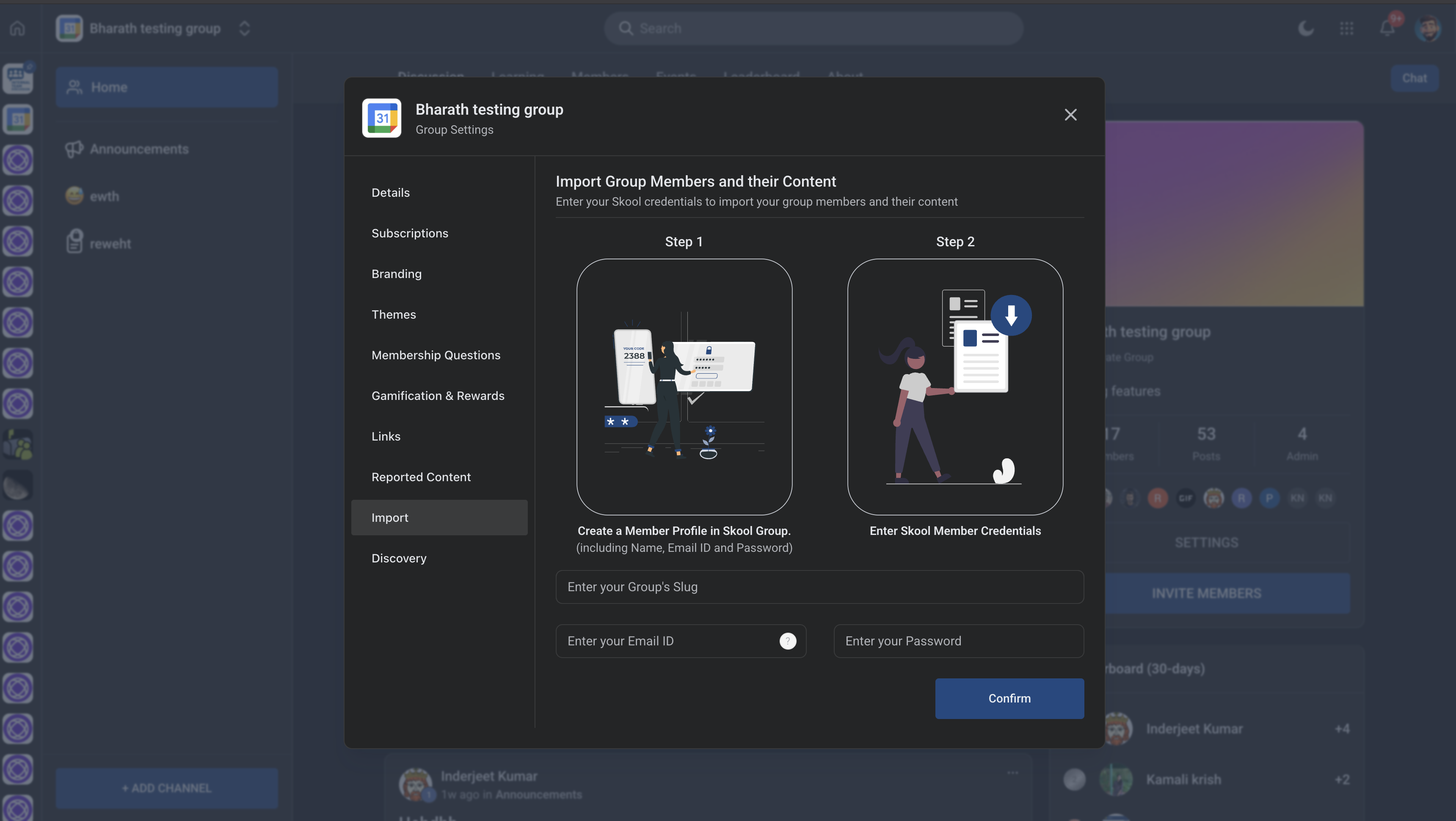
The feature resides in a community’s Group Settings under an Import tab. After you enter the Skool URL slug, admin email, and password, the tool pulls member data and produces a CSV file. You edit the file to add any missing email addresses, then upload it back. The system validates each row, adds valid members, and reports how many succeeded or failed. Once members are in place, you can start importing the group’s posts, which are linked to the newly created member records.
Real time indicators show the status of both member and post imports, and error messages point out issues such as missing emails. The process is split into two clear phases, members first, posts second, so that the relationship between posts and their authors remains intact.
03How businesses use skool importer
- Fitness coaching community. The coach enters the Skool group details, downloads the member CSV, fills in any missing client emails, uploads the file, and then moves the discussion threads so that active members keep their workout logs and comments inside the HighLevel community.
- Professional association. An association admin imports the Skool membership list, corrects email gaps, uploads the corrected CSV, and finally migrates board meeting posts, ensuring that each post stays attached to the right member profile.
- Digital product launch group. The product team pulls the Skool subscriber list, updates missing contact information, uploads the list, and then imports launch related forum posts so that early adopters retain their conversation history in the new HighLevel community.
04Before you start
- A Skool group with members and posts must exist.
- Admin email address and password for the Skool account must be available.
05How to set up and use skool importer in HighLevel
Enter your Skool group details
- Open the GHL Group Settings page.
- Select the Import tab from the left hand menu.
- Enter the Skool group slug, admin email ID, and password.
- Click Confirm to begin the import.
Fetch and prepare member data
- Wait for the system to generate a CSV file of members.
- Download the CSV to your computer.
- Add any missing email addresses directly in the file.
- Click Refresh user list if new members were added after the file was created.
Upload completed CSV
- Click Select File and choose the updated CSV.
- Confirm the upload so the system can process the data.
- Review the count of members added successfully.
- If errors appear, correct the CSV and click Try Again.
Migrate posts
- Accept the prompt to start post migration after members import succeeds.
- Watch the real time progress indicator as posts are imported.
- Confirm that posts are linked to the correct members when the process finishes.
06What it looks like in HighLevel
07Settings that matter
- Group Slug. Identifies the Skool group to import by using its URL slug.
- Admin Email ID. Provides the email address of the Skool admin for authentication.
- Password. Supplies the Skool account password required to access group data.
- Import tab. Opens the interface where you enter Skool credentials and start the import.
08Things to know before you rely on it
- Do not modify the profileSlug column in the CSV; it is used to match members.
- Members without an email address cannot be imported and will appear as failed entries.
- Posts are only imported for members that were added successfully.
- Refresh the user list before downloading the CSV if the Skool group is still active.
09If something goes wrong
- Missing email addresses cause import failures.. Add the missing emails to the CSV file and click Try Again.
- Changing the profileSlug value breaks the import.. Leave the profileSlug column exactly as it was generated.
10How it connects to the rest of HighLevel
- Learn how to set up and manage a HighLevel community. Community setup
- Manage members inside groups after the import. Member management
- Create channels and posts within HighLevel communities. Content management
Michael's take

When a community outgrows Skool or needs a more integrated platform, the biggest headache is pulling every member and their content over without losing anything. The Skool importer solves that by giving you a clean CSV to fix missing emails and then moving posts in lockstep with the members.
The setting I would get right first is the profile slug. It must stay exactly as the system creates it. Changing it will break the link between members and their posts, so I double check that column before uploading.