
01Who this is for
- Community Admins, need to set onboarding requirements for their groups.
- Group Owners, decide if new participants must complete a profile first.
02Mandatory profile modal, explained
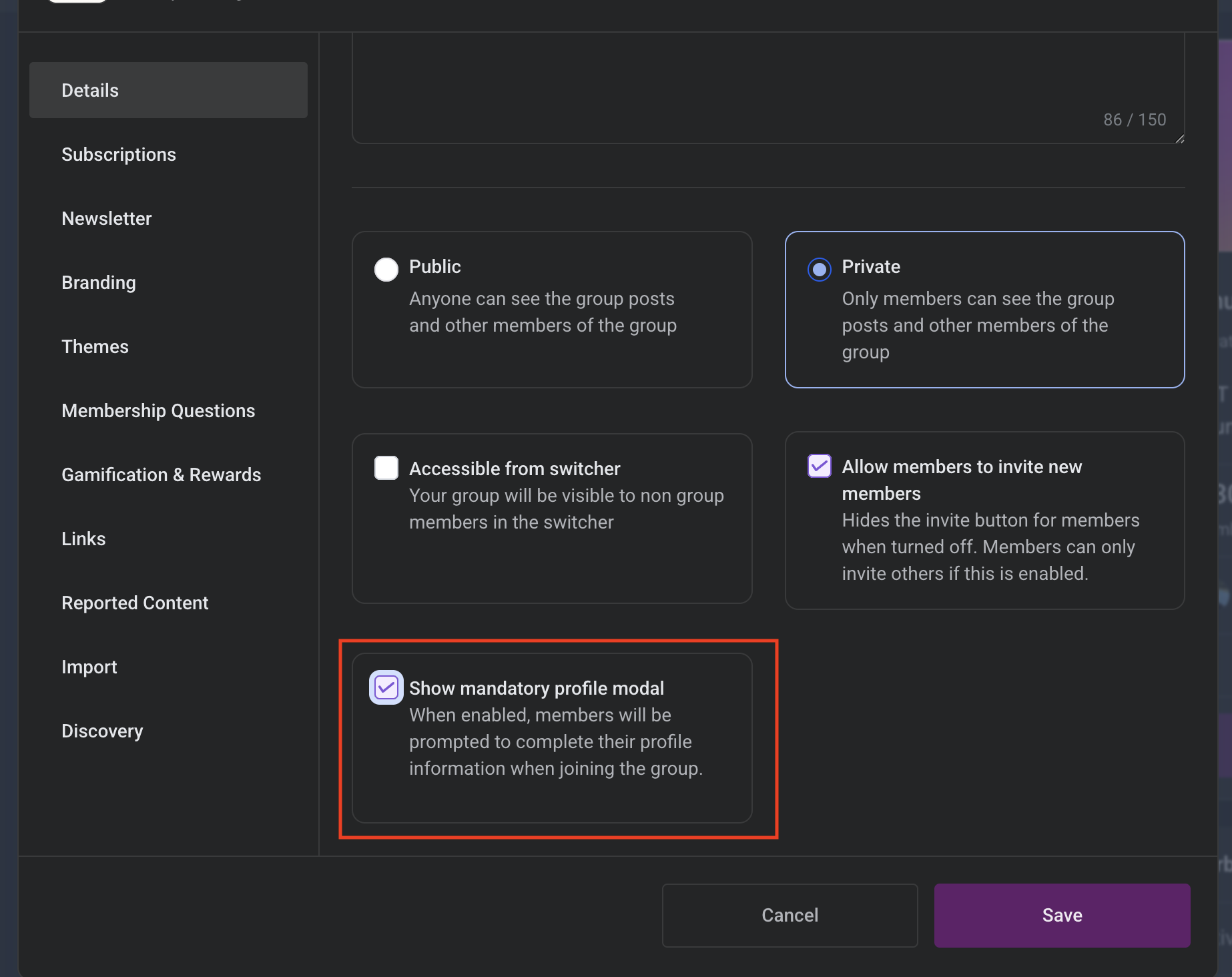
HighLevel adds a toggle called Show mandatory profile modal that lives inside each Community group's settings. When the toggle is ON, anyone joining that group for the first time sees a window asking for a profile picture and a brief biography. The window must be interacted with before the member can enter the group.
If the toggle is OFF, the same users skip the window and are taken directly to the group feed. The choice applies only to members who join after the setting is saved; current members keep their existing profiles. The behavior is consistent on the web site, iOS app, and Android app.
The option is found under the group’s Settings area, in either the Configuration or General subsection. Only users with Community Admin or Group Owner rights can change it.
03How businesses use the mandatory profile modal
- Coaching practice. A coach opens the specific community group, switches the setting to ON, and saves. New clients must upload a headshot and write a short introduction before accessing the coaching forum.
- Hobbyist membership site. The site owner sets the toggle to OFF, allowing visitors to browse discussion boards immediately while still being able to add a photo later from their account page.
- SaaS user community. A product manager enables the modal for a premium support group, ensuring that all newcomers provide a profile picture and a brief description before they can post support questions.
04The numbers and rules that matter
- Setting is managed per group, not globally.
05Before you start
- You must have Community Admin or Group Owner privileges for the group you plan to edit.
06How to set up and use the mandatory profile modal in HighLevel
Enable or disable the mandatory profile modal
- Open the Community group you want to modify.
- Select Settings for that group.
- Go to the Configuration or General tab.
- Find the Show mandatory profile modal option.
- Pick ON to require a picture and bio, or OFF to skip it.
- Click Save to apply the change.
07What it looks like in HighLevel
08Settings that matter
- Show mandatory profile modal. Determines whether new group members must complete a profile picture upload and short biography before entering the group.
09Things to know before you rely on it
- The toggle works per individual group, not across the entire community.
- Only members who join after the change are subject to the new requirement.
- Existing member avatars and bios remain unchanged.
- The setting works on web, iOS, and Android platforms.
10How it connects to the rest of HighLevel
- How to set up and manage a HighLevel community Community setup guide
- Managing members inside groups in HighLevel Group member management
- HighLevel pricing and plans Pricing page
Michael's take

The mandatory profile modal lets you require new members to upload a profile picture and bio before they can enter the group.
If you don’t need to enforce profile completion, skip it and let members join fast.