
01Who this is for
- Content managers who need to control which site pages feed AI answers, avoiding irrelevant material.
- Product teams that want to train documentation into a Knowledge Base without exceeding URL quotas.
02Knowledge Base web crawler sitemap powered URL selection, explained
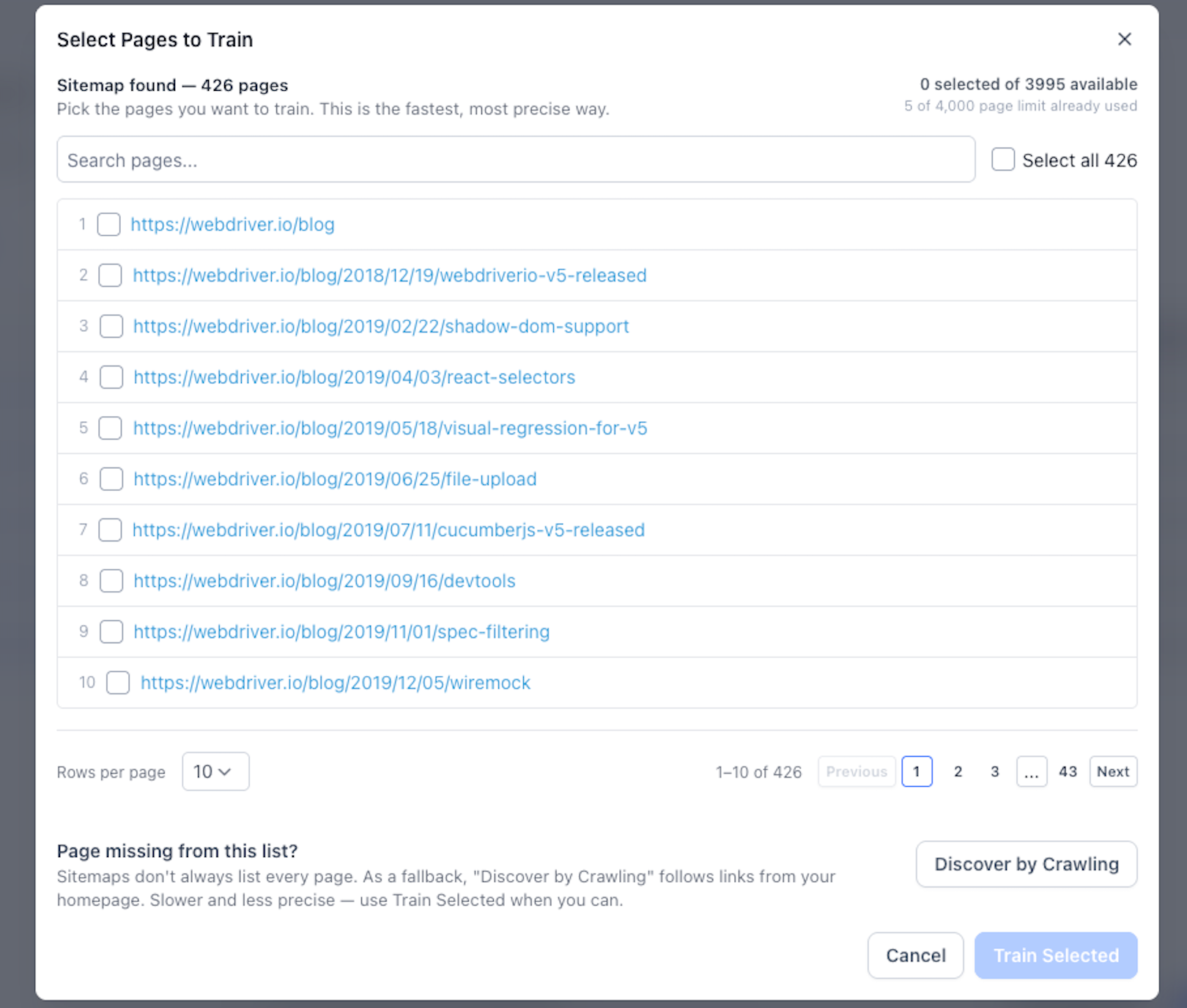
The feature shows a modal with all URLs found in a site's sitemap. Inside the modal you can search, filter, select individual pages or all pages, and see a live counter of how many URLs you have chosen versus how many you are allowed. The selection mode you pick, exact URL, path based, or domain wide, determines which set of pages the crawler starts from.
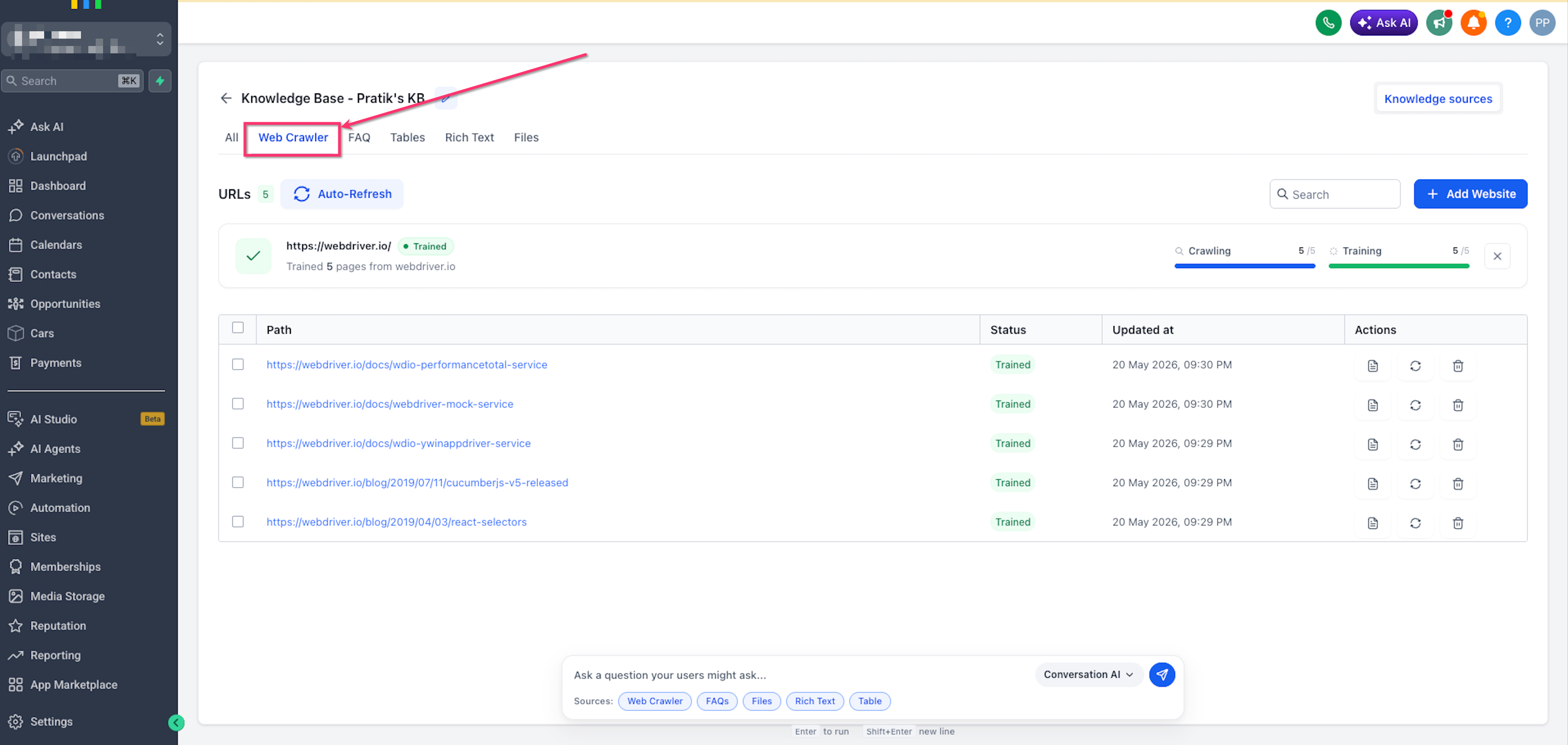
After confirming your choices, the system trains the selected URLs and displays an operation card that tracks crawling and training status. If the sitemap misses pages, you can launch a crawl that follows internal links to discover additional URLs. Failed pages appear on the card and can be retried without restarting the whole process.
03How businesses use Knowledge Base web crawler sitemap powered URL selection
- SaaS company. The team opens the Knowledge Base, adds the product site as a website source, selects the domain wide mode, filters the sitemap list to keep only feature pages, and trains them. They watch the operation card to ensure all pages load correctly.
- Ecommerce store. A manager adds the store’s help center URL, chooses the path based mode for /support, uses the search field to locate specific policy pages, selects them, and trains. They monitor the quota counter to stay under the allowed limit.
- Consulting firm. The firm adds a client’s landing page with exact URL mode to train a single service page. After training, they test the Knowledge Base retrieval tool to confirm the content appears in AI responses.
04The numbers and rules that matter
- Up to 4,000 web URLs per Knowledge Base.
- Sitemap found, 426 pages (example).
- 0 selected of 3,995 available (example quota counter).
05Before you start
- A Knowledge Base must exist in the HighLevel account.
- You need access to AI Agents and the Web Crawler tab.
06How to set up and use Knowledge Base web crawler sitemap powered URL selection in HighLevel
Train website pages using sitemap powered URL selection
- Open the Knowledge Base by navigating to AI Agents > Knowledge Base, select the desired Knowledge Base, and open the Web Crawler tab.
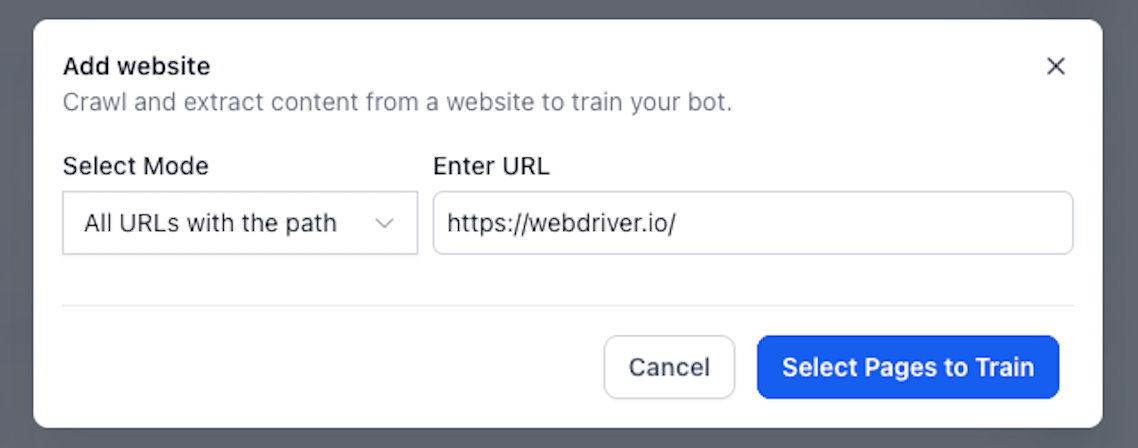
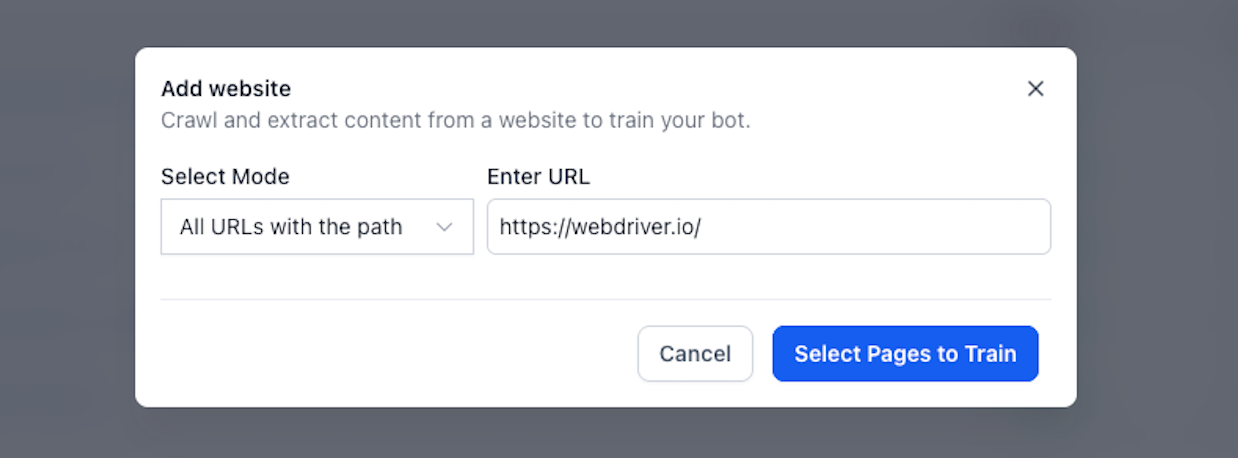
- Click + Add Website, choose a URL selection mode (Exact URL, All URLs with this Path, or All URLs in this Domain), enter the starting URL, and press Select Pages to Train.
- Review the modal that lists sitemap found URLs, noting the total page count displayed at the top.
- Use the search bar, adjust rows per page, and navigate with pagination to find relevant URLs; check the boxes for pages you want to include and watch the quota counter update.
- If required pages are missing, click Discover by Crawling, let the crawler add new URLs to the list, and refine your selections.
- Confirm the selected URLs and click Train Selected; an operation card will appear showing training progress.
- When training finishes, examine the results for any failed URLs and use the page level retry action to re train those pages.
07What it looks like in HighLevel

08Settings that matter
- URL selection mode. Controls whether the crawler uses a single exact page, all pages under a specific path, or every page in the domain as the starting set for discovery.
09Things to know before you rely on it
- A Knowledge Base can hold up to 4,000 web URLs; the quota counter prevents exceeding this limit (per HighLevel's help center, checked November 2026).
- Discover by Crawling may take longer than using the sitemap preview because it follows internal links.
- Only URLs within the selected scope (exact, path, or domain) are considered during crawling.
10If something goes wrong
- A URL fails during training. Open the Web Crawler tab, locate the failed URL in the page list, and use the retry or refresh action to attempt training again.
- Desired page is not in the sitemap list. Click Discover by Crawling to let the crawler follow internal links and add missing pages to the selection modal.
11How it connects to the rest of HighLevel
- Set up a website in HighLevel before adding it to the Knowledge Base. Website setup guide
- Learn how to connect a root domain or subdomain for your site. Root domain connection
- Review the limits for web URLs per Knowledge Base. Pricing and limits
Michael's take

Most people grab the sitemap and hit train without looking at what’s actually there. They end up filling the Knowledge Base with irrelevant pages, waste quota, and then have to prune later.
I would open the Select Pages to Train modal first, filter for the sections that matter, watch the quota counter, and only click Train Selected after I’m sure the list is clean. A quick check of the operation card afterward confirms everything trained as expected.