
01Who this is for
- Real estate teams can automatically text buyers or sellers linked to a property record, keeping communication timely.
- Insurance agencies can send renewal reminders to policyholders attached to a policy object, using personal fields.
- Dental practices can alert patients of upcoming appointments tied to a patient record, ensuring a personal touch.
02Send SMS actions, explained
The Send SMS action is a workflow step that sends text messages to Contacts associated with the enrolled Custom Object or Company. You place the step at any point in a workflow, pick a recipient mode, select relationship labels, and craft a message that can include dynamic fields.
The action lives under Automation > Workflows. When the workflow runs, the platform evaluates the chosen labels, picks the proper Contacts, substitutes field values, and sends the SMS through the location’s configured SMS service. Delivery information appears in the workflow’s Execution logs and in the action’s Statistics panel.
03How businesses use send SMS action
- Real estate team. Create a workflow that triggers when a property listing changes status. Add the Send SMS action, select the label linking the property to interested buyers, and personalize the text with the buyer’s first name and property address. The team can then quickly notify each buyer of price updates.
- Insurance agency. When a policy renewal date approaches, start a workflow on the policy custom object. Use Send SMS with the All associated contacts option, choose the policy to contact label, and include the policy name and renewal date in the message. Each policyholder receives a reminder.
- Dental practice. Set up a workflow that runs when an appointment record is created. Add Send SMS, select the label that connects the appointment to the patient contact, and write a reminder that pulls the patient’s first name and appointment time. The patient gets a personalized reminder.
04Before you start
- Enable the Send SMS action in Labs for the location.
- Ensure the record has Contacts linked under the association labels you will use.
- Confirm the location is set up to send SMS and that each Contact has a valid phone number and can receive SMS.
05How to set up and use send SMS action in HighLevel
Add and configure Send SMS
- Open Automation > Workflows and select the Custom Object or Company workflow you want to edit.
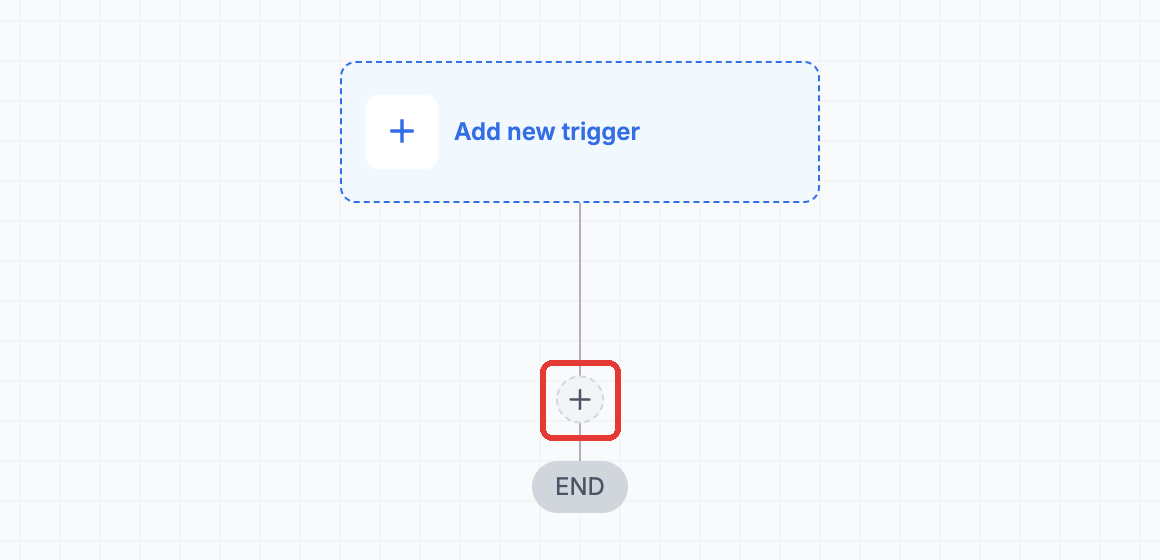
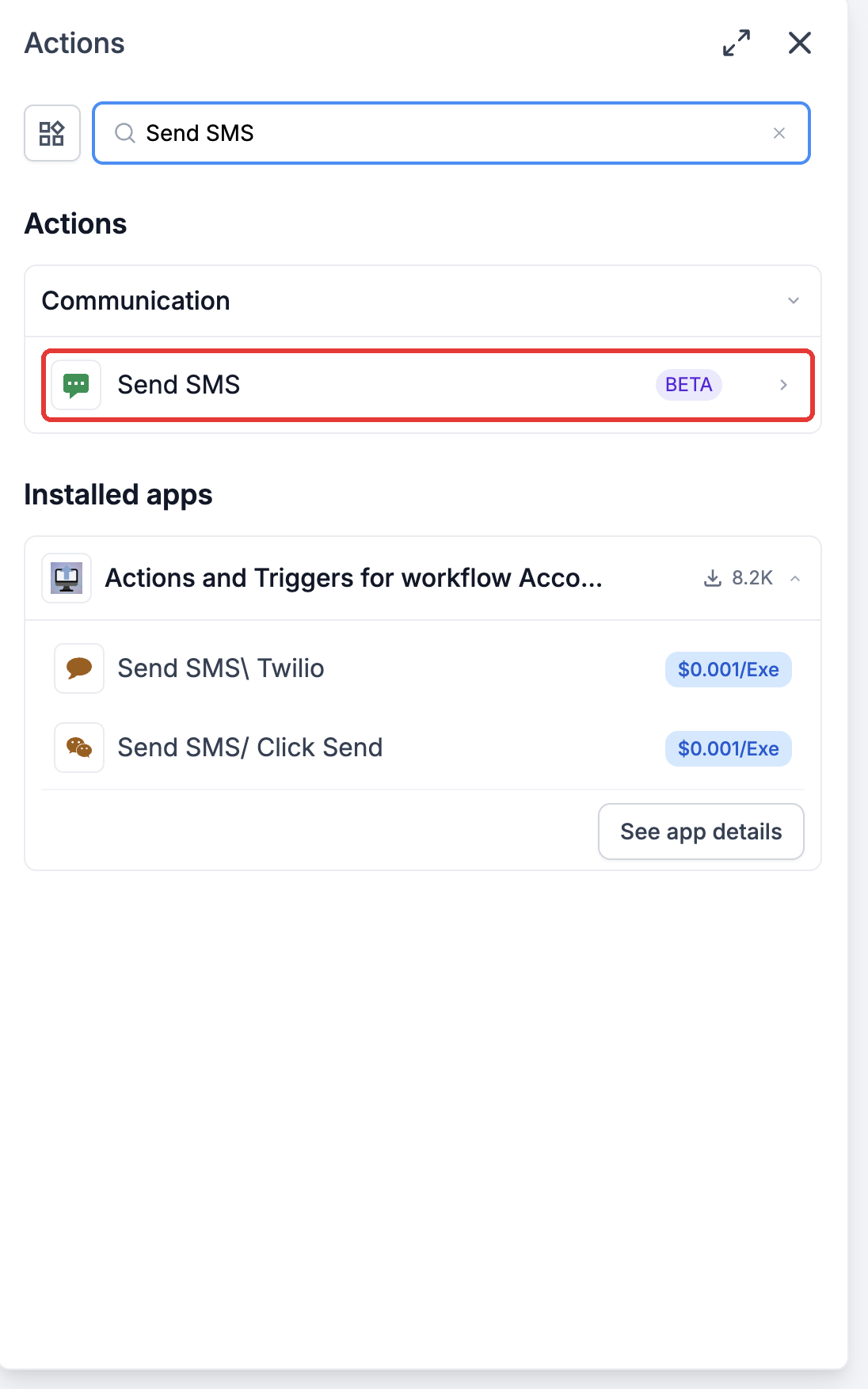
- Click the + button at the desired point and choose Communication > Send SMS.
- Pick a recipients option and add at least one association label.
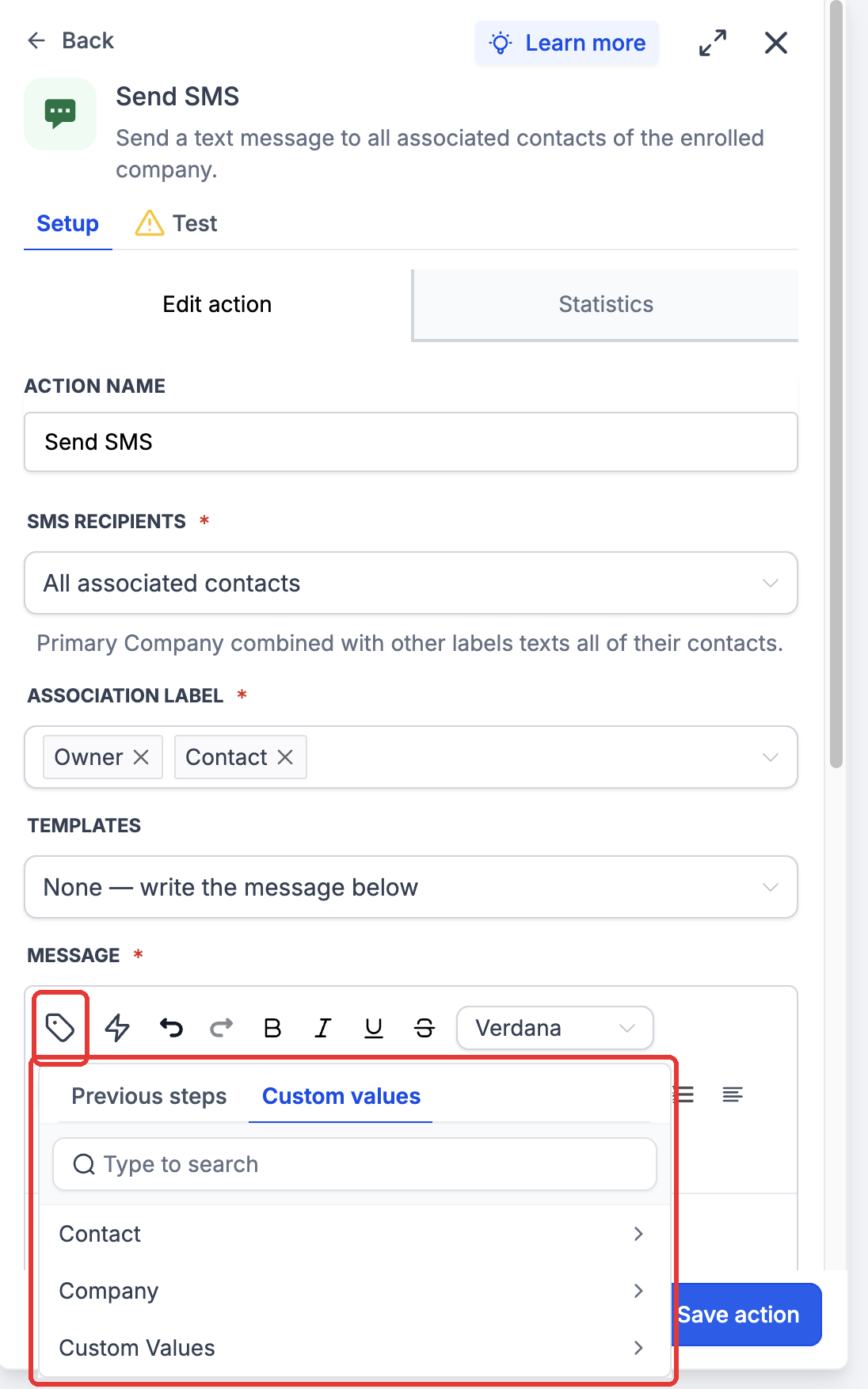
- Select an SMS template or choose None, then compose the message using the custom value picker and add any needed attachments.
- Save the action and review the workflow before publishing.
Choose the recipients
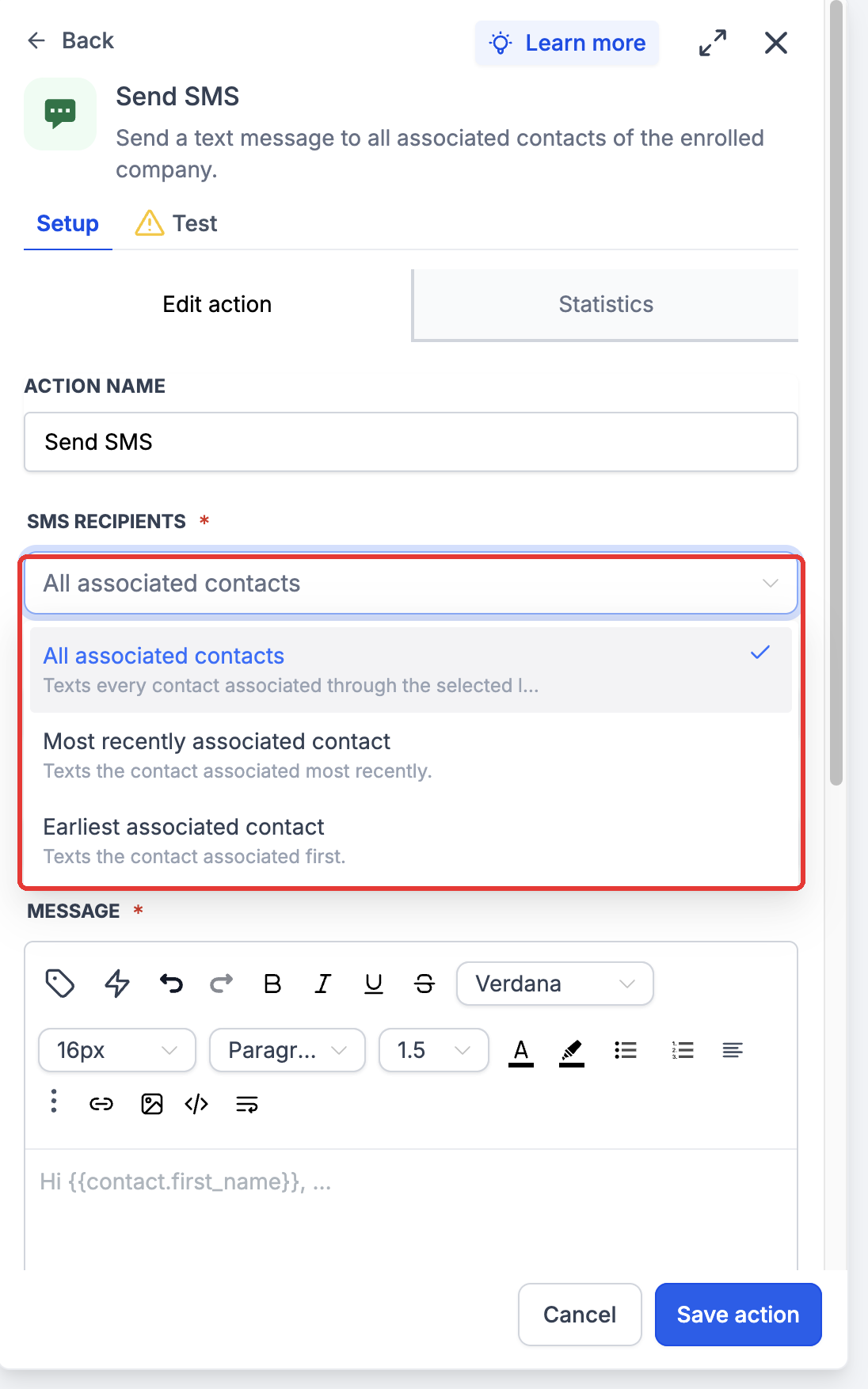
- Open the Recipients dropdown in the Send SMS action.
- Select All associated contacts, Most recently associated contact, or Earliest associated contact.
- Confirm the selection; the action will target contacts based on this choice.
Select company association labels
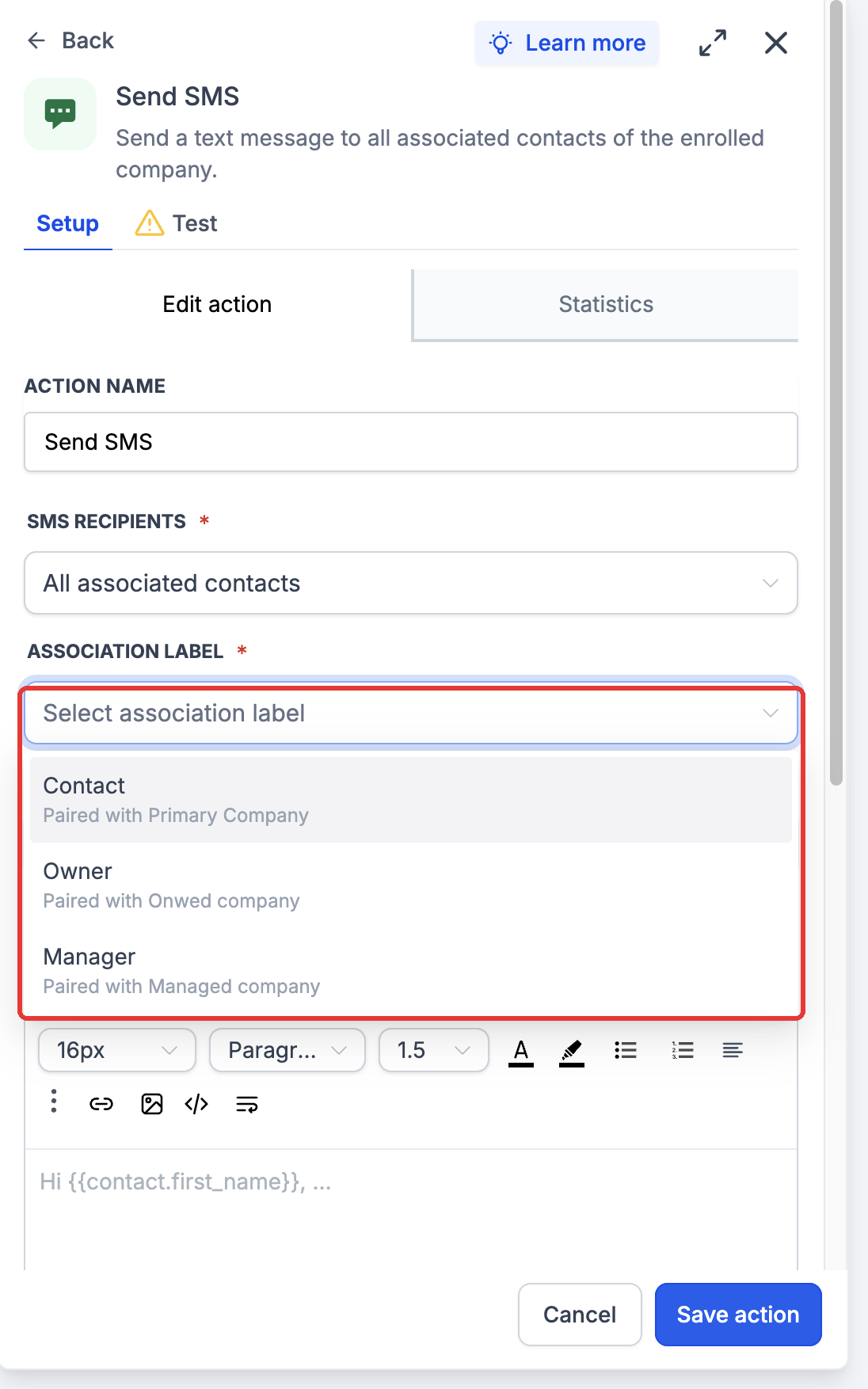
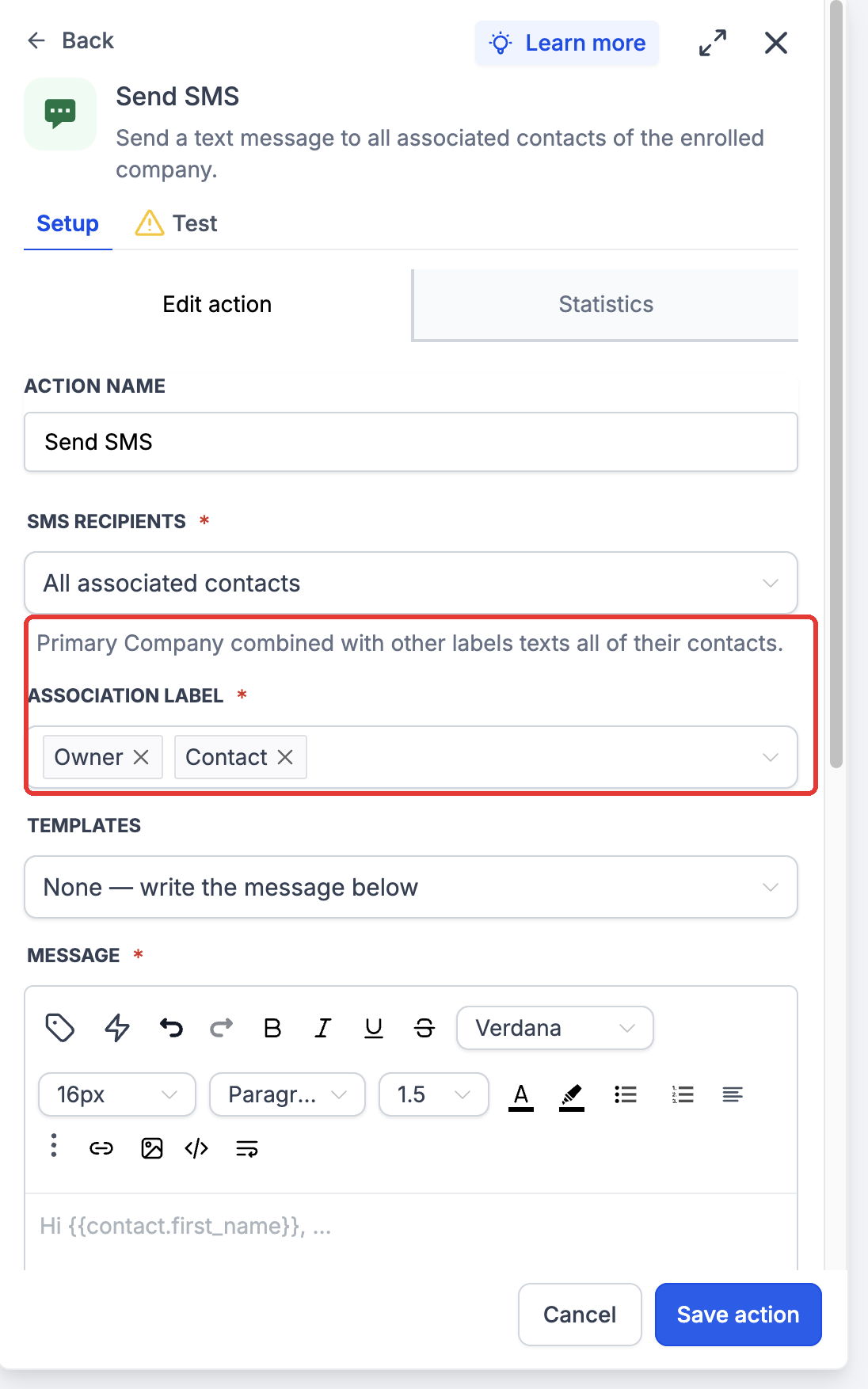
- In the Association Labels field, choose one or more relationship labels that connect the Company to Contacts.
- Read the on screen guidance if you combine labels, which affects available recipient options.
- Make sure the correct labels are chosen for the contacts you intend to reach.
Write and personalise the message
- Open the Message editor and either pick an existing SMS template or select None to type a new message.
- Use the custom value picker to insert fields from the enrolled record and the recipient Contact.
- Review the final text and any attachment settings, then save the action.
06What it looks like in HighLevel
07Settings that matter
- SMS recipients option. Determines whether the action sends to all associated contacts, the most recent, or the earliest associated contact.
- Association label. Specifies which Contact relationships are considered when selecting recipients for the SMS.
- Template. Provides prewritten SMS content that can be used instead of composing a new message.
- Message. The body of the SMS, which can include dynamic data from the enrolled record and the recipient Contact.
- Attachments. Allows adding files, text, or URLs to the SMS, subject to the limits of the connected SMS service.
08Things to know before you rely on it
- When Primary Company is combined with another label, the most recent and earliest recipient modes are unavailable; the action defaults to All associated contacts.
- A Contact that matches multiple selected labels receives only one SMS per action run.
- Most recent and earliest modes refer to the time a Contact was linked to the record, not the Contact’s creation date.
- The action will not send to Contacts without a valid phone number or with a do not contact restriction.
- The feature must be enabled in Labs for the location before it can be used.
09If something goes wrong
- No matching Contacts. Verify the enrolled record has Contacts linked under the chosen association labels and that the selected recipient mode is correct.
- Only Primary Company Contacts receive SMS. Add the additional Company to Contact relationship labels needed for the intended recipients.
- Most recent or earliest option unavailable. Check if Primary Company is combined with another label; this combination forces All associated contacts.
- A recipient did not receive the SMS. Confirm the Contact’s phone number is valid and they are not restricted, then review Execution logs for delivery status.
- Personalisation is incomplete. Ensure the referenced fields contain values on both the enrolled record and the Contact, and that the correct merge fields were selected.
10How it connects to the rest of HighLevel
- Getting started with custom objects to create records for workflow enrollment Custom objects guide
- How to create, edit, and delete custom objects for use in workflows Custom object management
- HighLevel pricing and plans for access to Labs features Pricing page
Michael's take

I’d start by setting the appropriate association label to target the right contact group (Owner, Manager, Primary Company, etc.). Then I’d create a template that pulls in the record name and date fields, run a test enrollment to see the message land in a phone, and review the statistics for delivery status.