
01Who this is for
- Admins who need to model unique business entities beyond contacts and opportunities, because they can define fields and associations.
- Developers building integrations, as custom objects expose data through APIs and webhooks for external systems.
02Custom Objects, explained
Custom objects are user defined record types that sit alongside Contacts and Opportunities. Each object has its own set of fields, a primary display field, and optional associations to other objects.
After creation, the object appears in the Objects list and can be referenced in SmartLists, List View, Advanced Filters, and Workflow automations. Objects are visible throughout the platform wherever the support matrix allows.
03How businesses use Custom Objects
- Real estate agency. Create a Property object with fields like MLS number and status. Associate each Property with an Opportunity to track the sales pipeline. Build a workflow that runs when a Property record is created to notify agents.
- Veterinary clinic. Define a Pet object containing breed and vaccination dates. Link Pets to their owners via an association. Use a workflow that triggers on Pet updates to send reminder emails to owners.
- Car rental business. Set up a Vehicle object with fields for VIN and availability. Relate Vehicles to Reservations through associations. Automate a workflow that fires when a Vehicle record is changed to update inventory dashboards.
04The numbers and rules that matter
- Up to 10 Custom Objects per location.
- Up to 10 unique fields per object.
- Supported unique field types: Single Line Text, Multi Line Text, Number, Phone.
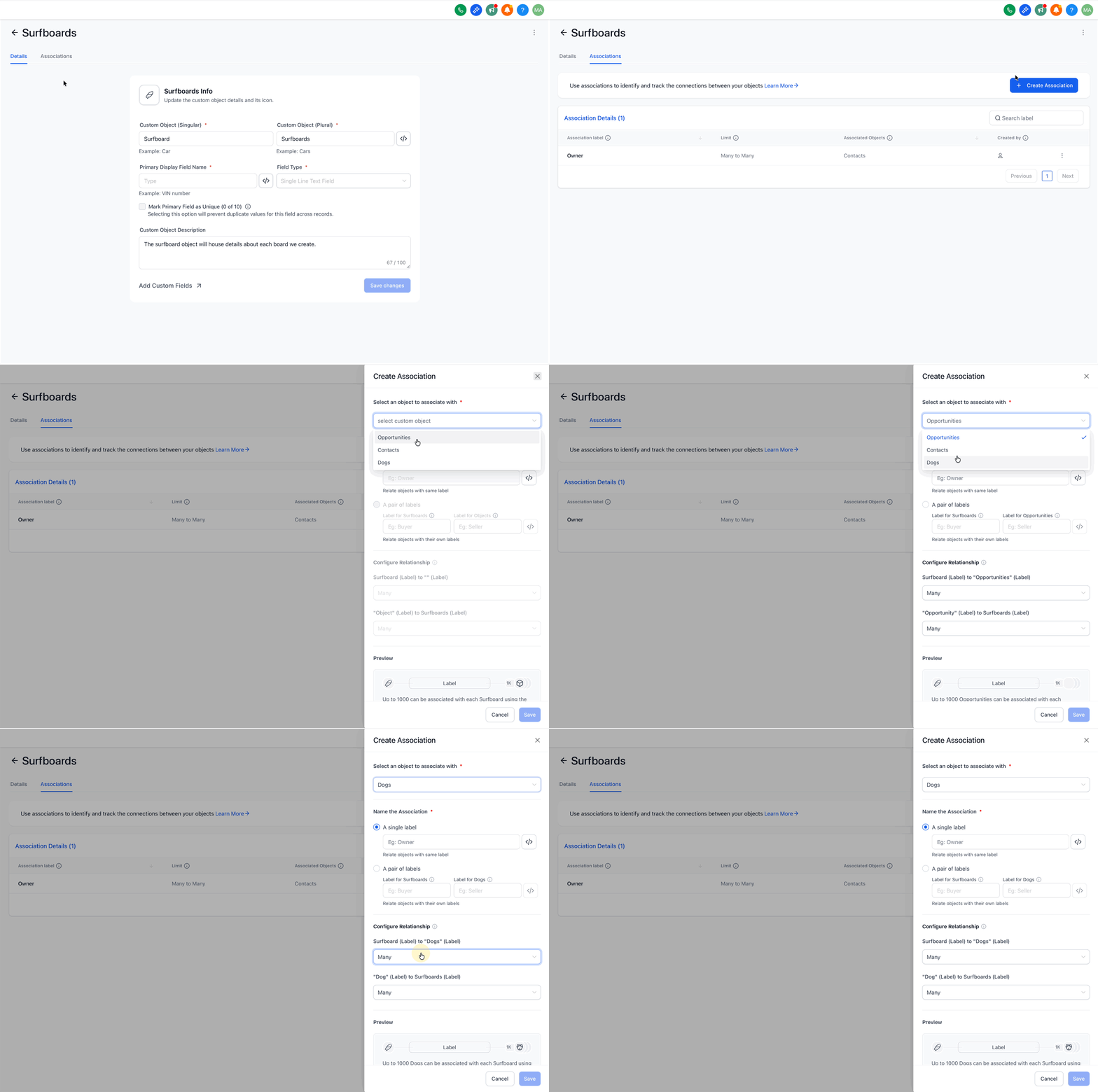
- Label limits: Up to 10 unique labels between any two objects.
- Custom Objects are not supported in Email Campaigns, Bulk Email, Bulk SMS, Conversations UI, Funnels & Websites, Calendars & Scheduling, Reputation/Reviews, Payments & Invoicing, Company object internals.
05Before you start
- Admin role at the subaccount location is required to create or modify custom objects.
06How to set up and use Custom Objects in HighLevel
Create a custom object
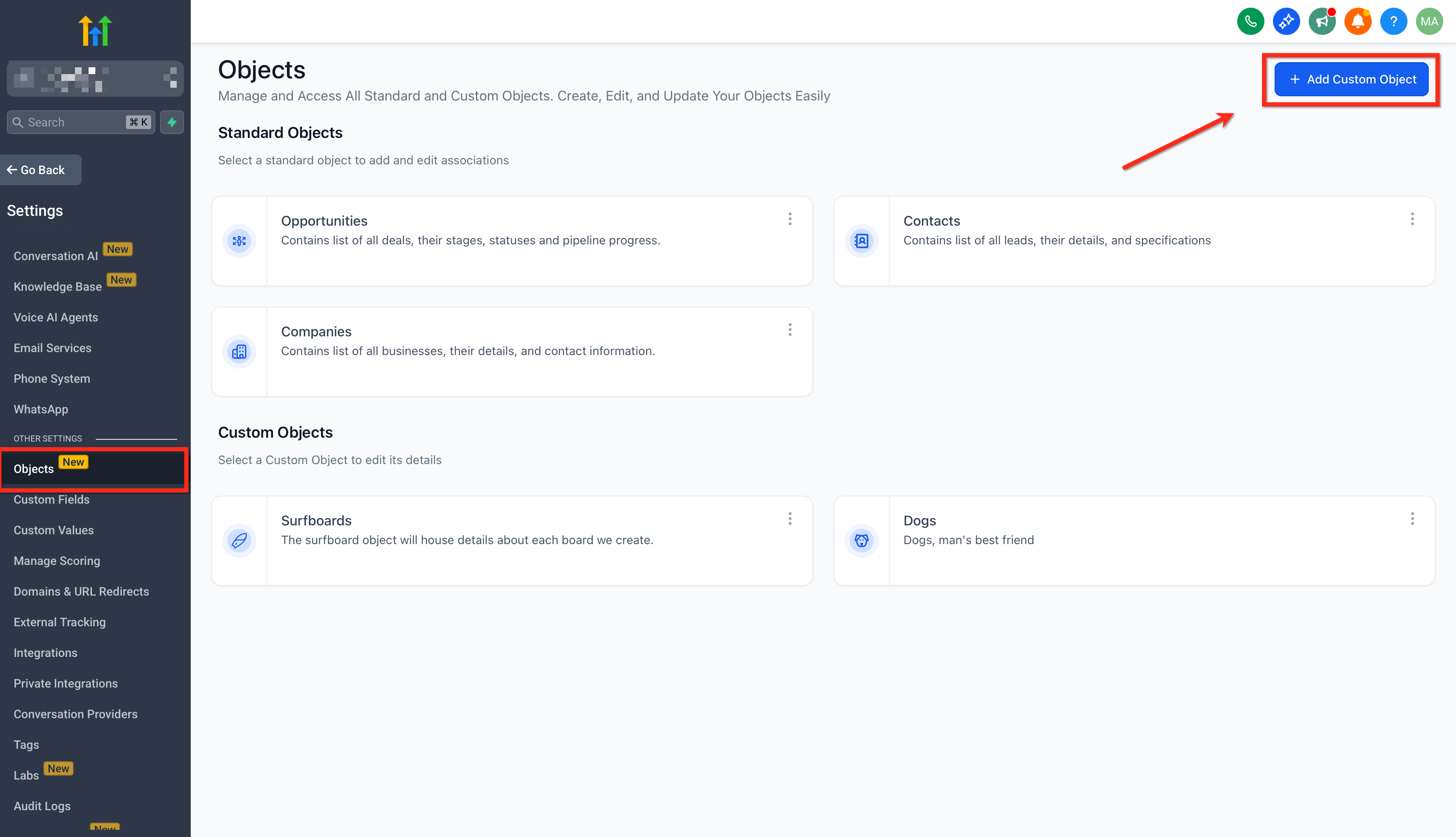
- Open Subaccount > Settings > Objects.
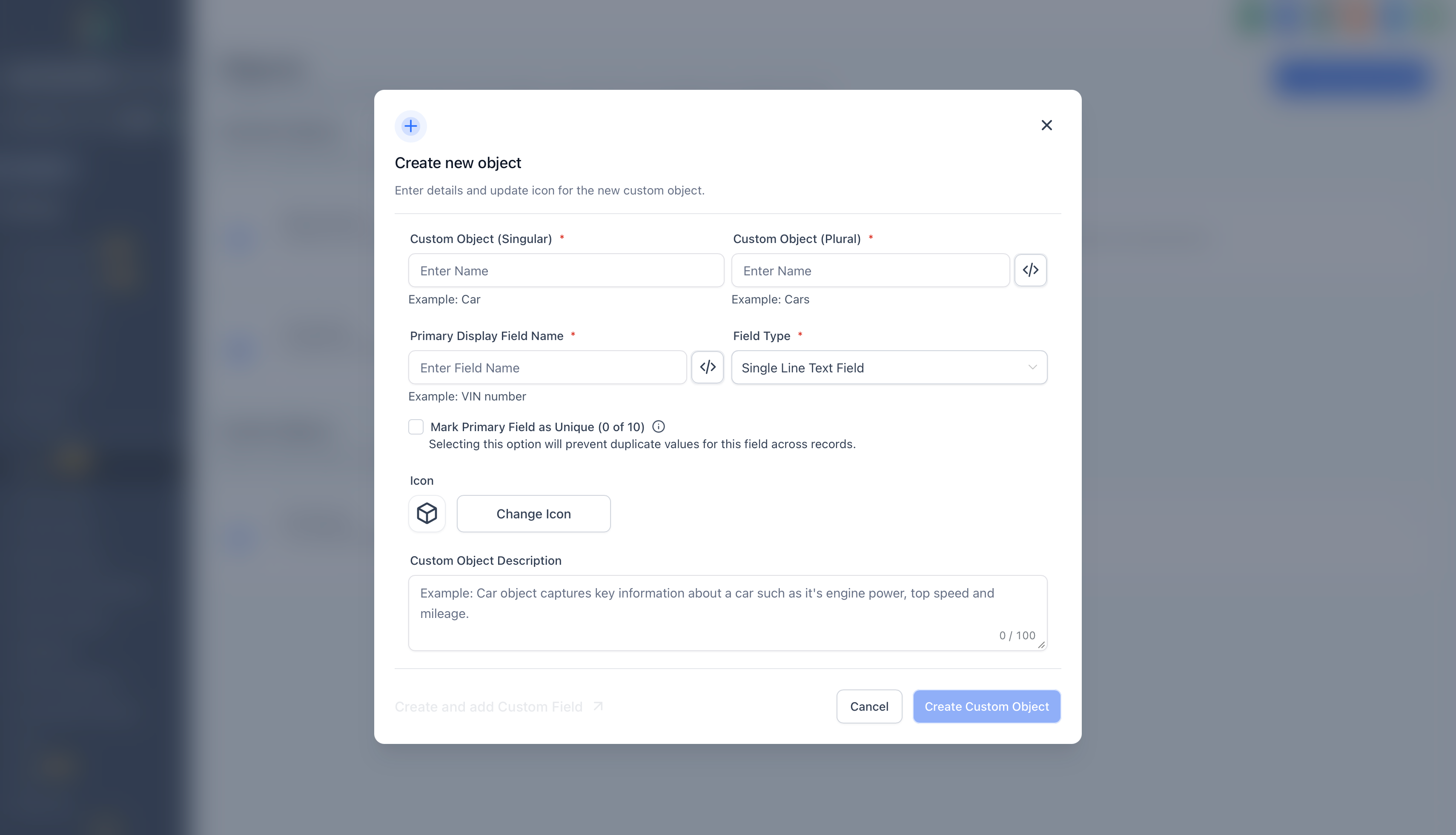
- Click the Add Custom Object button.
- Enter the singular name for the new record type.
- Enter the plural name for the record type.
- Review the internal name and edit it by clicking the code icon if needed.
- Provide a label for the primary display field.
- Select an icon, add a description, and press Create Custom Object.
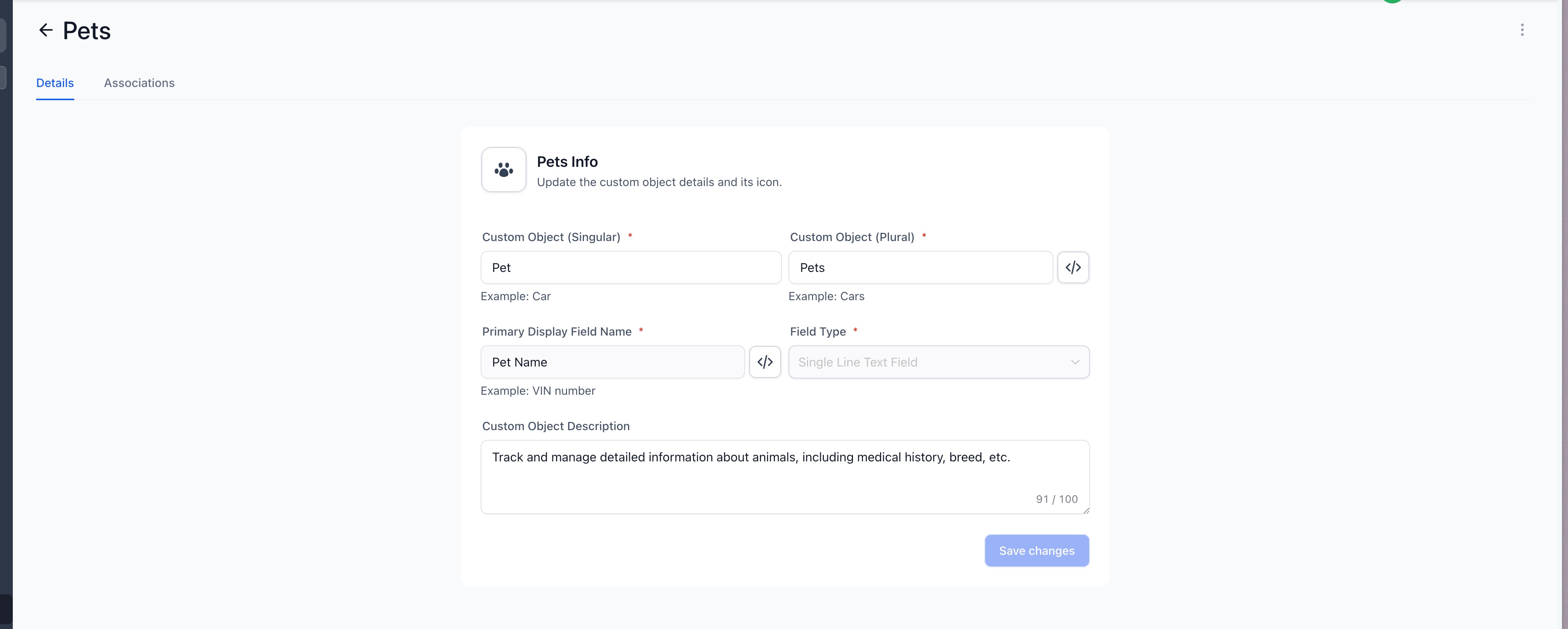
Edit a custom object
- Find the desired object in the Objects list.
- Click the object's name to open its definition page.
- Change the required details and save the modifications.
Delete a custom object
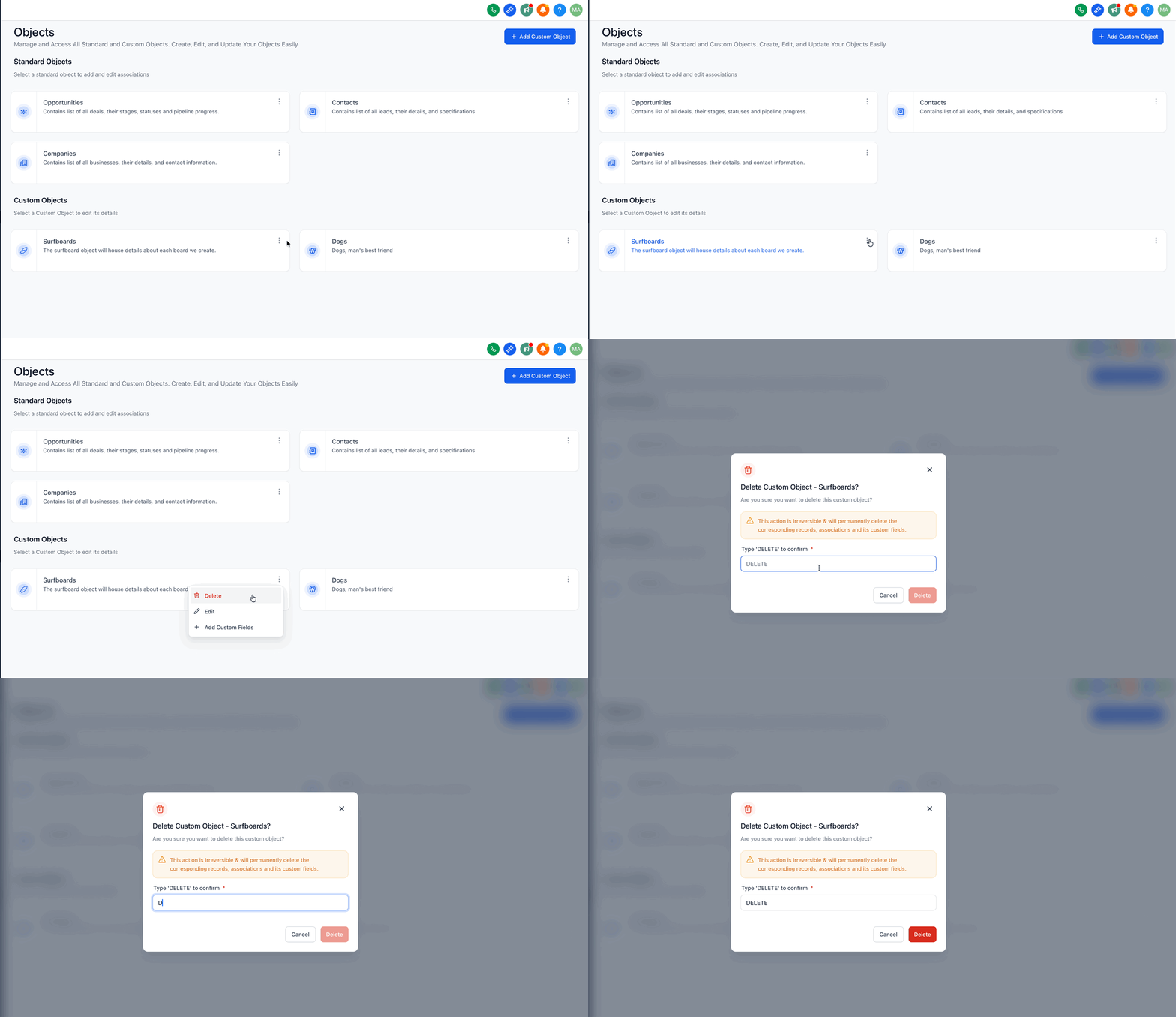
- Click the three dot menu next to the object's name.
- Choose Delete from the menu options.
- Type DELETE in the confirmation box to remove the object permanently.
- Note: Deletion removes the object and all records, associations, workflows, and custom fields; this cannot be recovered.
Create a custom object workflow
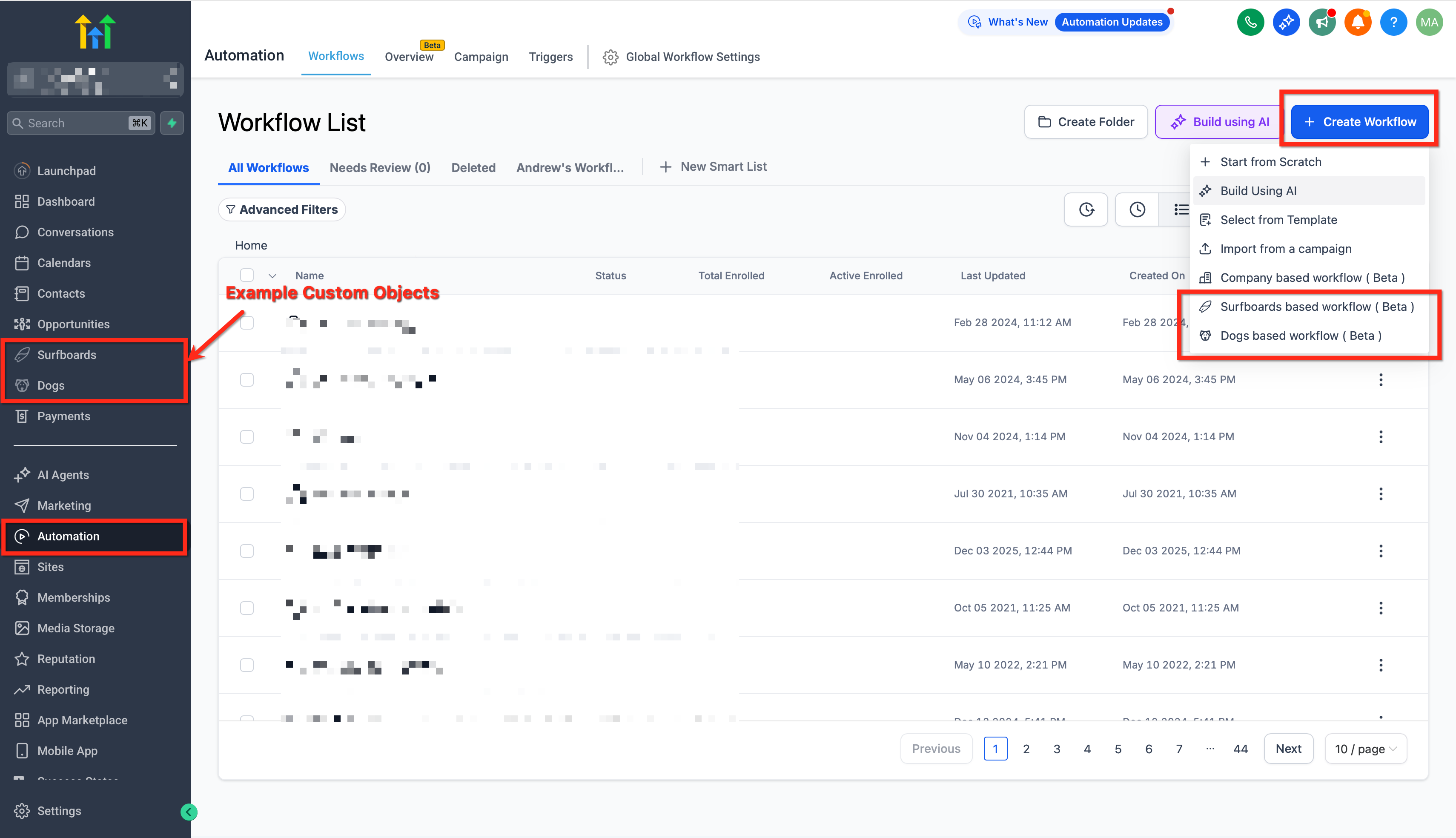
- Navigate to the Automation section.
- Select + Create Workflow and pick the custom object type to base the workflow on.
- Choose a trigger such as Custom Object Created or Changed.
- Configure any conditions or filters for the trigger.
- Add actions like create, update, clear, or send a webhook.
- Publish the workflow to make it active.
07What it looks like in HighLevel
08Settings that matter
- Singular name. Defines the one word label used for a single record of the object.
- Plural name. Specifies the label shown when multiple records of the object are listed.
- Internal Name. The system identifier used in APIs and automations; can be edited during creation.
- Primary field. The default field that uniquely identifies each record within the object.
- Label for the Primary display field. The friendly name shown to users for the primary field on record screens.
- Icon. Visual symbol that represents the object in menus and lists.
- Description. Short text that explains the purpose of the object to team members.
09Things to know before you rely on it
- A maximum of ten custom objects can be created per location across all plans.
- Each object can have up to ten unique fields.
- Unique fields may be Single Line Text, Multi Line Text, Number, or Phone.
- Ten unique association labels can exist between any two objects.
- Deleting an object permanently removes all its records, associations, workflows, and fields.
- If a unique field is downgraded to non unique, it cannot be made unique again.
10How it connects to the rest of HighLevel
- Step by step guide to start using custom objects Getting started guide
- Details on plan availability and limits for custom objects Plan limits
- How to incorporate custom objects into workflow triggers and actions Workflow integration
- Explore SmartLists that can filter custom object records SmartLists for objects
Michael's take

People often think they can rename the internal name or primary display field after the object is live. That’s not possible. Once you hit create those fields lock down. I would set them correctly the first time and treat them as permanent identifiers.
If I were building a new data model, I’d map out the fields and relationships on paper, then create the object with the right names before any automations go live. That way the later steps, like workflow triggers, line up without having to redo the object later.