
01Who this is for
- Real estate agencies can automate steps whenever a property listing changes status, keeping agents and spreadsheets in sync.
- Service businesses that track equipment or appointments can trigger follow up actions when a device record is added or modified.
- Product teams using custom objects for inventory items can automatically update related objects and log changes without manual effort.
02Custom Objects, explained
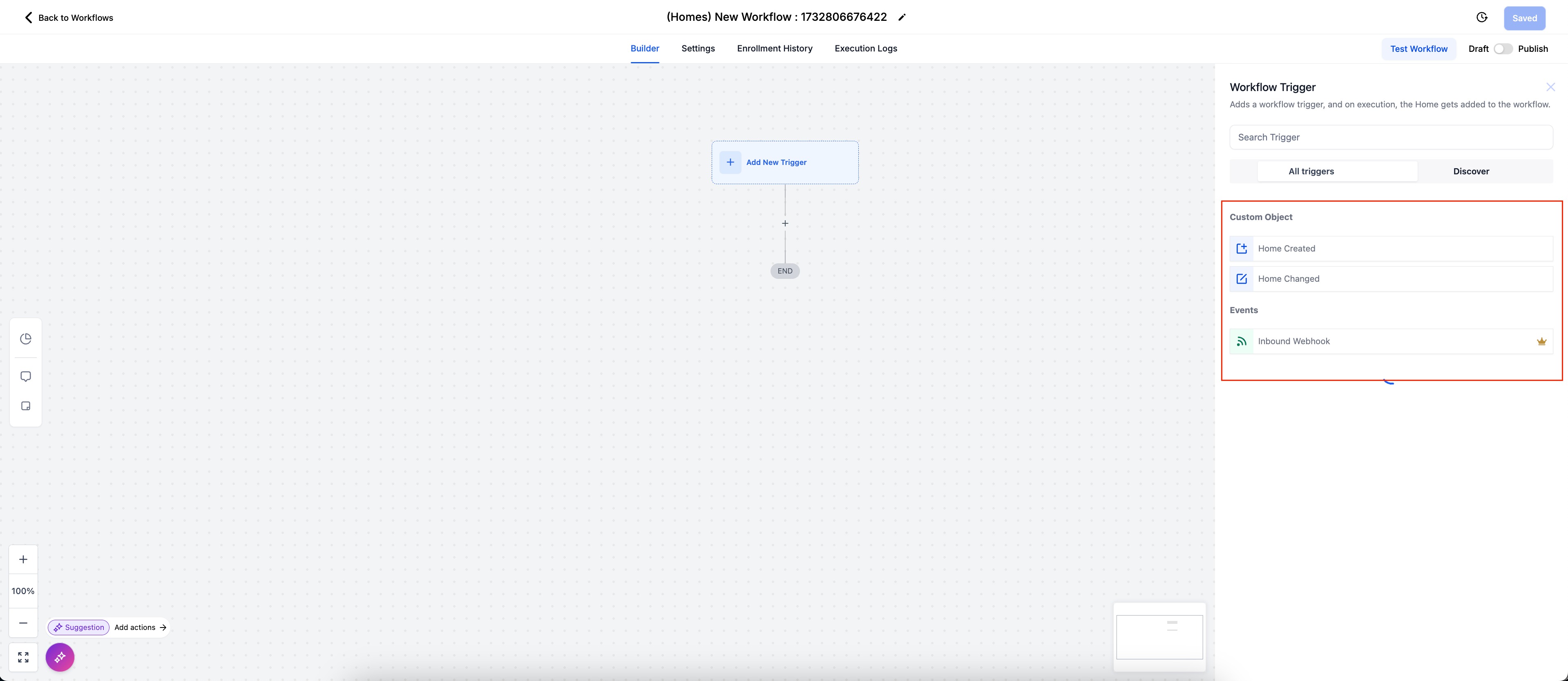
The feature adds a new workflow type that is tied to any custom object you have defined. When a record in that object is created or changed, the workflow can start automatically. You also can start a workflow from an inbound webhook event linked to the object.
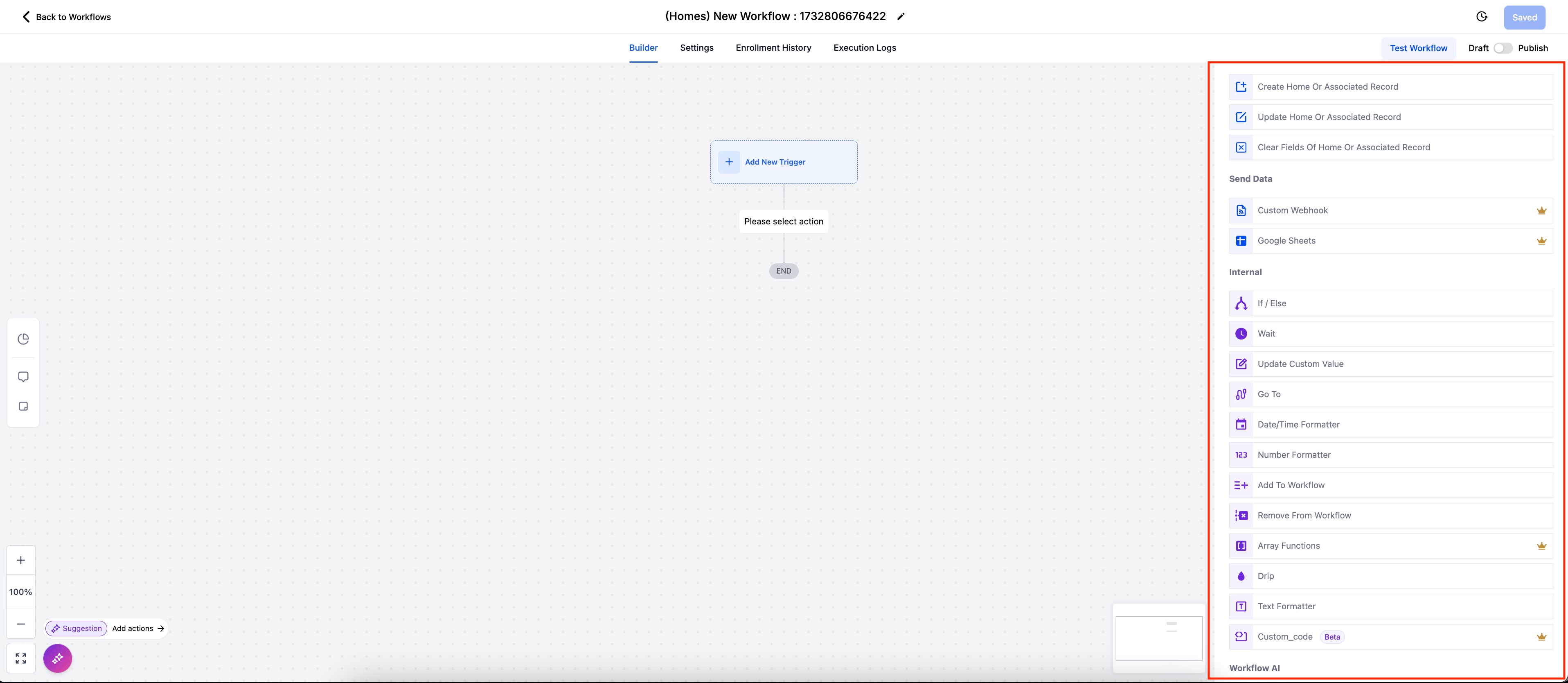
Inside the workflow you select from a set of actions that work directly on the custom object record or on associated records. Actions include creating a new record, updating fields, clearing specific fields, adding a note, sending a webhook, writing to Google Sheets, and using internal logic steps like If/Else or Wait. All actions behave the same way they do in standard workflows, but they target the custom object you selected.
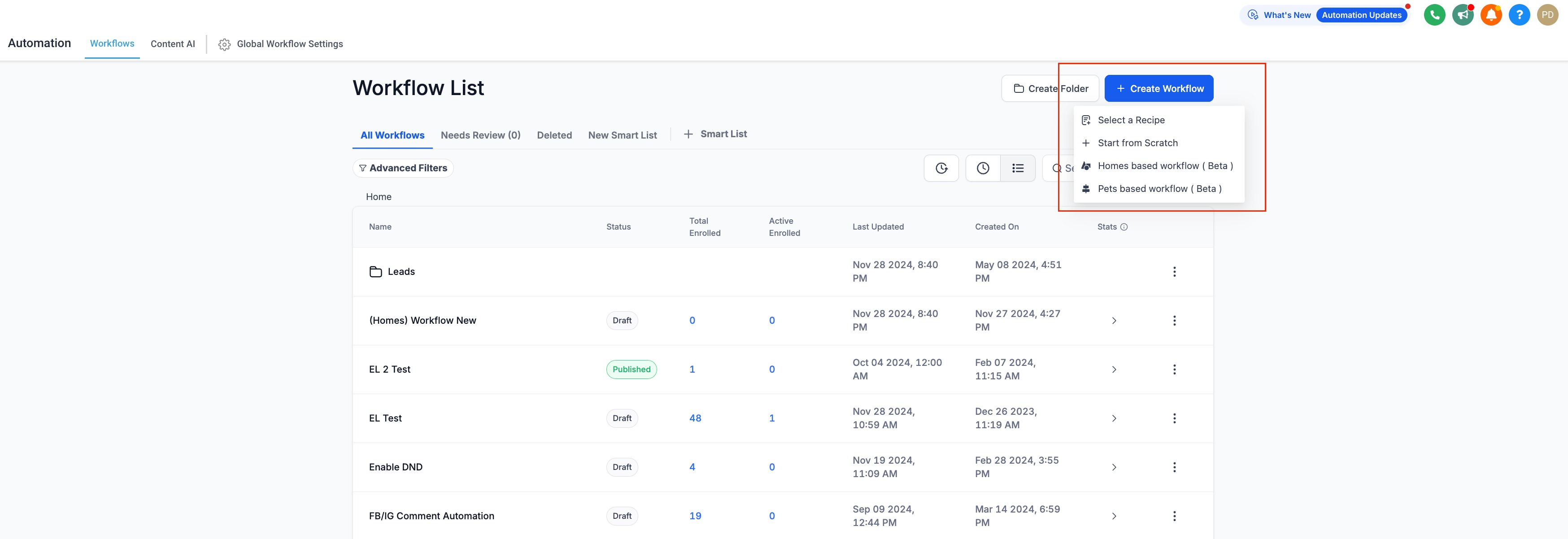
You find this capability on the Workflow landing page. Choose “Object based Workflow” when you create a new workflow, then pick the custom object (for example Home) and configure the desired trigger and actions.
03How businesses use Custom Objects
- Real estate agency. Create a workflow for the Home object that starts when the Home Status field changes to Closed. Add actions to update the linked Agent record, write a row to a Google Sheet, and clear temporary note fields.
- Equipment rental service. Build a workflow for a Rental custom object that fires when a new rental record is created. Use actions to send a webhook to an inventory system and add a note summarizing the rental terms.
- Online course provider. Set up a workflow for a Course custom object that triggers on Course Changed. Include actions to update related Student records, clear draft fields, and log the change to a Google Sheet.
04The numbers and rules that matter
- Internal actions include If / Else, Wait, Update Custom Value, Go To, Date/Time Formatter, Number Formatter, Add To Workflow, Remove From Workflow, Array Functions, Drip, Text Formatter, Custom Code.
05Before you start
- Create the Custom Object and define its fields before referencing it in any workflow trigger or action.
06How to set up and use Custom Objects in HighLevel
Create a custom object workflow
- Open the Workflow landing page and click the Create Workflow button.
- Choose the Object based Workflow option that matches the custom object you want to automate.
- Add the required triggers and select the actions that should run when the workflow is enrolled.
07What it looks like in HighLevel
08How it connects to the rest of HighLevel
- Getting started with custom objects Getting Started
- Create and edit custom object records Create/Edit Objects
- Custom objects are available in all plans Plan Details
Michael's take

People often jump straight into building a workflow and forget the simple step of creating the custom object first. Without that object and its fields defined, the workflow won’t recognize any triggers or actions.
I would create the custom object, map out the fields you need, then design a workflow that listens for the specific change you care about. Test the trigger with a sample record to make sure the actions fire as expected before rolling it out to live data.