
A set of quality of life updates for Custom Objects, most of them requested by customers. You can now rename an object's primary field from its settings, copy internal names with one click, open uploaded documents straight from the list view, and see your own name for the Company object in Custom Fi
Michael's take
My first take is that this update feels like a solid set of small improvements rather than a huge new feature. It addresses a handful of things people have been asking for. I like that it’s all about making daily work a bit smoother.
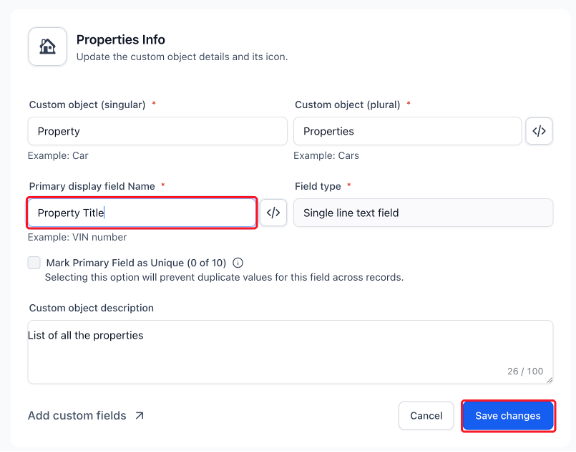
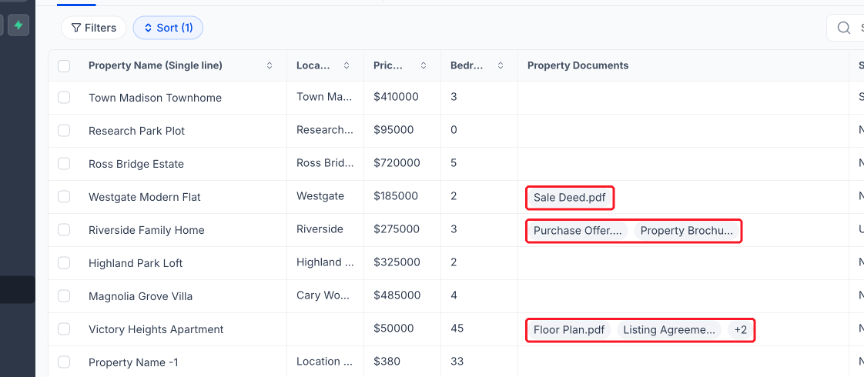
If you already have Custom Objects set up, you can now rename the primary display field right in the object settings. You can also copy an object’s internal name or its primary field name with a single click. The file upload chips in list view let you open a document without opening each record.
I would start by renaming a primary field and then checking that any integrations still see the same internal name. I would also test the copy button to make sure the clipboard contains exactly what shows in the code icon. Finally I would click a document chip in the list view to confirm the file opens in a new tab.
In a typical client workflow I could rename a field after the initial setup to match new terminology, then copy the internal name for a webhook without worrying about typos. I could also open a contract PDF straight from the list view and send it to a prospect in the same step. Those small shortcuts add up to less time spent navigating the UI.
I believe software should shave friction from the things we do every day. When the UI lets you fix a label or grab a code without extra steps, it frees up mental bandwidth for the real work.
Definitely worth checking out if you already rely on Custom Objects for your client data.
A set of quality of life updates for Custom Objects, most of them requested by customers. You can now rename an object's primary field from its settings, copy internal names with one click, open uploaded documents straight from the list view, and see your own name for the Company object in Custom Fields settings.
What changed
- Rename the primary field: Edit the Primary display field name from the Custom Object's settings. Its field type and internal name stay the same.
- Copy internal names: Copy the internal name of an object or its primary field with one click.
- Open documents from the list view: File upload fields show clickable chips, such as Listing Agreement.pdf, that open the document in a new tab.
- Your Company name in Custom Fields: The Custom Fields object dropdown shows the name you gave the Company object.
Why it matters for Founders
Keep field names accurate after setup, copy exact internal names for integrations without typos, and open documents without opening each record.
How to turn it on
- Go to Settings > Objects and open a Custom Object.
- Change Primary display field name and click Save changes.
- Click the code icon next to a name to see its internal name, then click copy.
- In the Custom Object list view, click a document chip to open the file.
Pro Tips
- Integrations keep working: Renaming the primary field does not change its internal name.
- Hover for details: Hover over a shortened file name, or over +N, to see full file names.
Questions Founders ask
What did HighLevel release in "Custom Objects: Rename the Primary Field, Copy Internal Names, Open Documents from the List, and More"?
A set of quality of life updates for Custom Objects, most of them requested by customers. You can now rename an object's primary field from its settings, copy internal names with one click, open uploaded documents straight from the list view, and see your own name for the Company object in Custom Fi
What should a Founder do with Custom Objects: Rename the Primary Field, Copy Internal Names, Open Documents from the List, and More?
Rename a primary field in one of your Custom Objects and verify the integration still works. Founders or agency owners who already use Custom Objects in HighLevel.
How do I turn on Custom Objects: Rename the Primary Field, Copy Internal Names, Open Documents from the List, and More in HighLevel?
In HighLevel: Go to Settings > Objects and open a Custom Object. Then Change Primary display field name and click Save changes. Then Click the code icon next to a name to see its internal name, then click copy. Then In the Custom Object list view, click a document chip to open the file.
Why does Custom Objects: Rename the Primary Field, Copy Internal Names, Open Documents from the List, and More matter?
Keep field names accurate after setup, copy exact internal names for integrations without typos, and open documents without opening each record.
How do I get this feature with setup help?
Start a free HighLevel trial through Michael Reimer's link and the CRM Pros team helps with setup in your first 7 days, with an onboarding call, three live calls every week and the affiliate community included.
Get More InformationOpens in a new tab Published November 10, 2026. Screenshots belong to HighLevel.