
01Who this is for
- Agency owners who need a flexible data store for client specific entities can build and maintain custom records.
- Small business Founders tracking assets like equipment or inventory can quickly add, update, and import those items.
- Developers creating niche applications inside HighLevel benefit from linking contacts or products to custom objects.
02Custom object records, explained
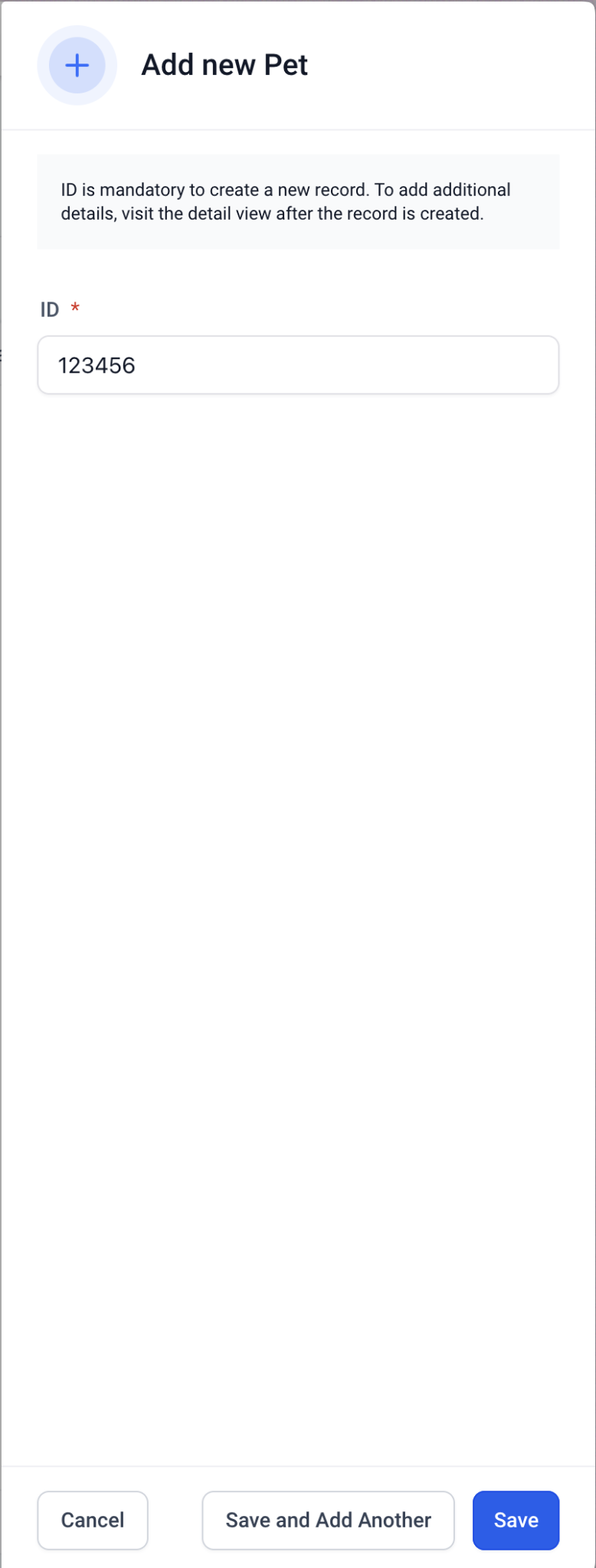
The feature provides a form based interface for adding a new record to any custom object type. Only the primary field is required when the record is first created, and you can save it or continue adding more entries without leaving the form.
Records can be edited, associated with other objects, deleted, or imported in bulk. Editing lets you change text, numeric, dropdown, and other field values. Deleting removes the record permanently. Importing uses a CSV file, lets you choose create or update mode, map fields, and optionally apply blank values.
03How businesses use custom object records
- Real estate agency. The agency creates a custom object for properties, adds each listing with its primary address field, edits details as listings change, links agents as related contacts, and imports a batch of new listings from a CSV file.
- Auto repair shop. The shop adds a custom object for customer vehicles, records the VIN as the primary field, updates mileage or service notes, associates parts as related products, and periodically imports new vehicle records from an exported spreadsheet.
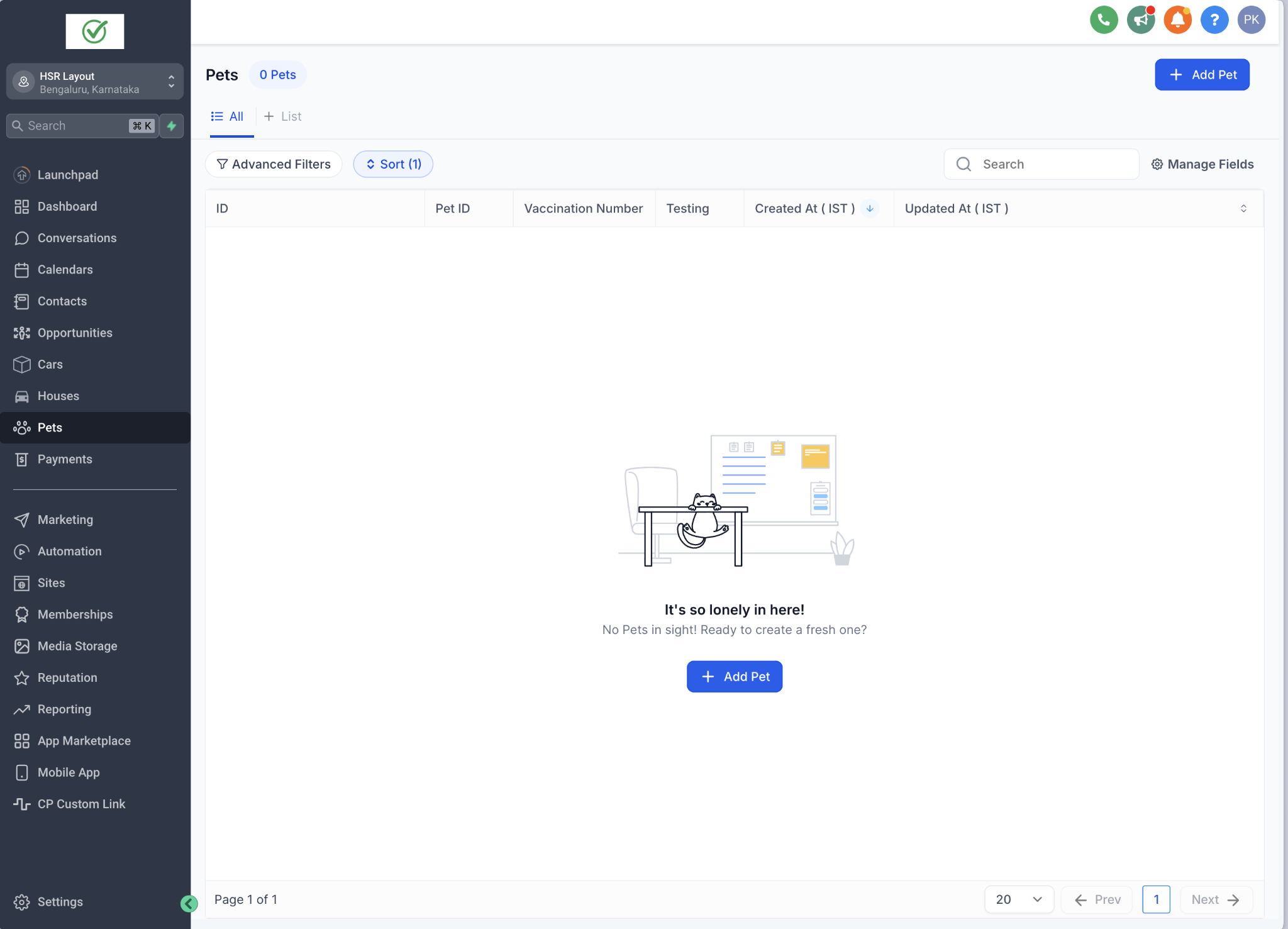
- Pet boarding service. The service creates a pet custom object, inputs the pet name as the primary field, edits health information, links owners as related contacts, and uses CSV import to load many pet profiles at the start of the season.
04How to set up and use custom object records in HighLevel
Create a new custom object record
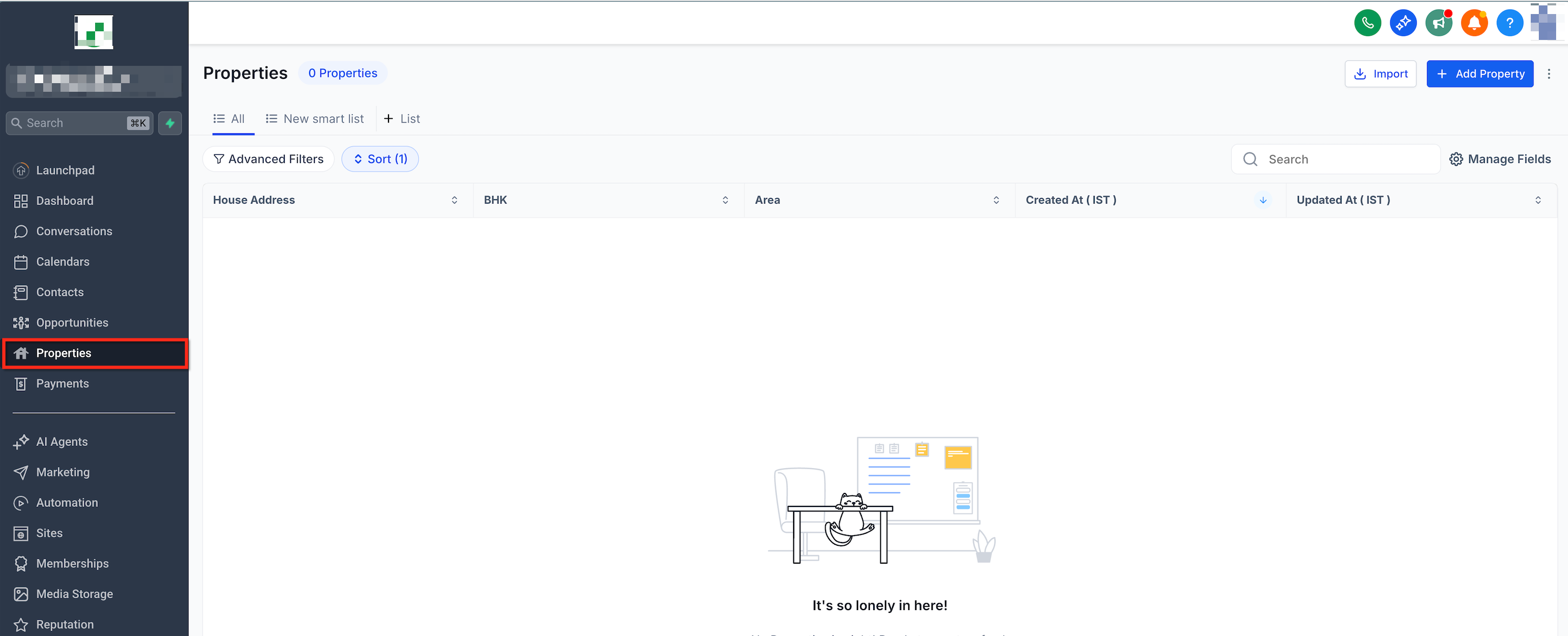
- Select the desired custom object type from the left hand navigation.
- Click the Add button at the top right of the list view.
- Enter a value for the primary field in the form that appears.
- Press Save to store the new record.
- Optionally choose Save and Add Another to stay in the form for additional entries.
Update an existing custom object record
- Open the list of records and locate the one you want to change.
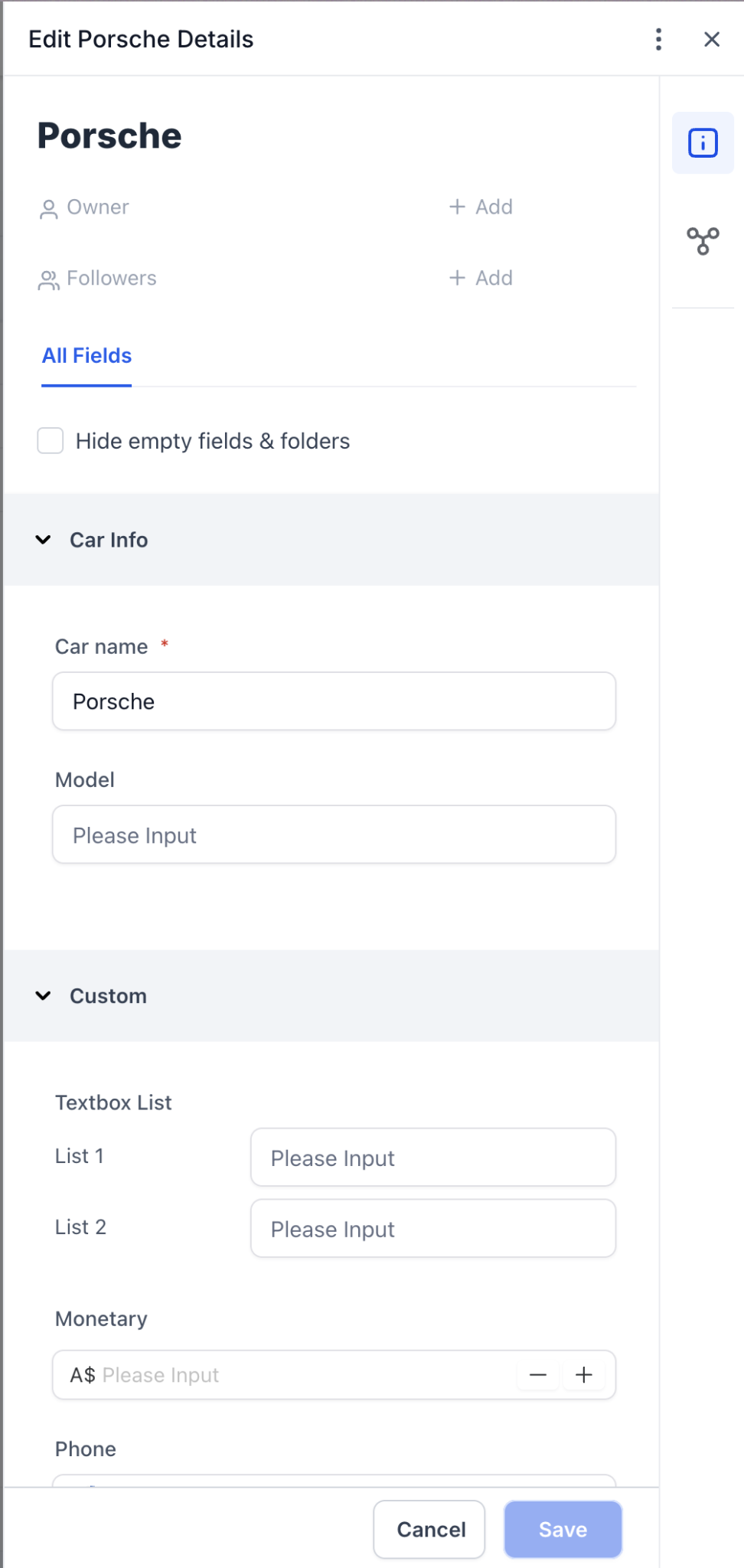
- Click the record name to view its details.
- Press the Edit button.
- Modify any fields such as text, numbers, or dropdown selections.
- Click Save to apply the changes or Cancel to discard them.
Manage related objects
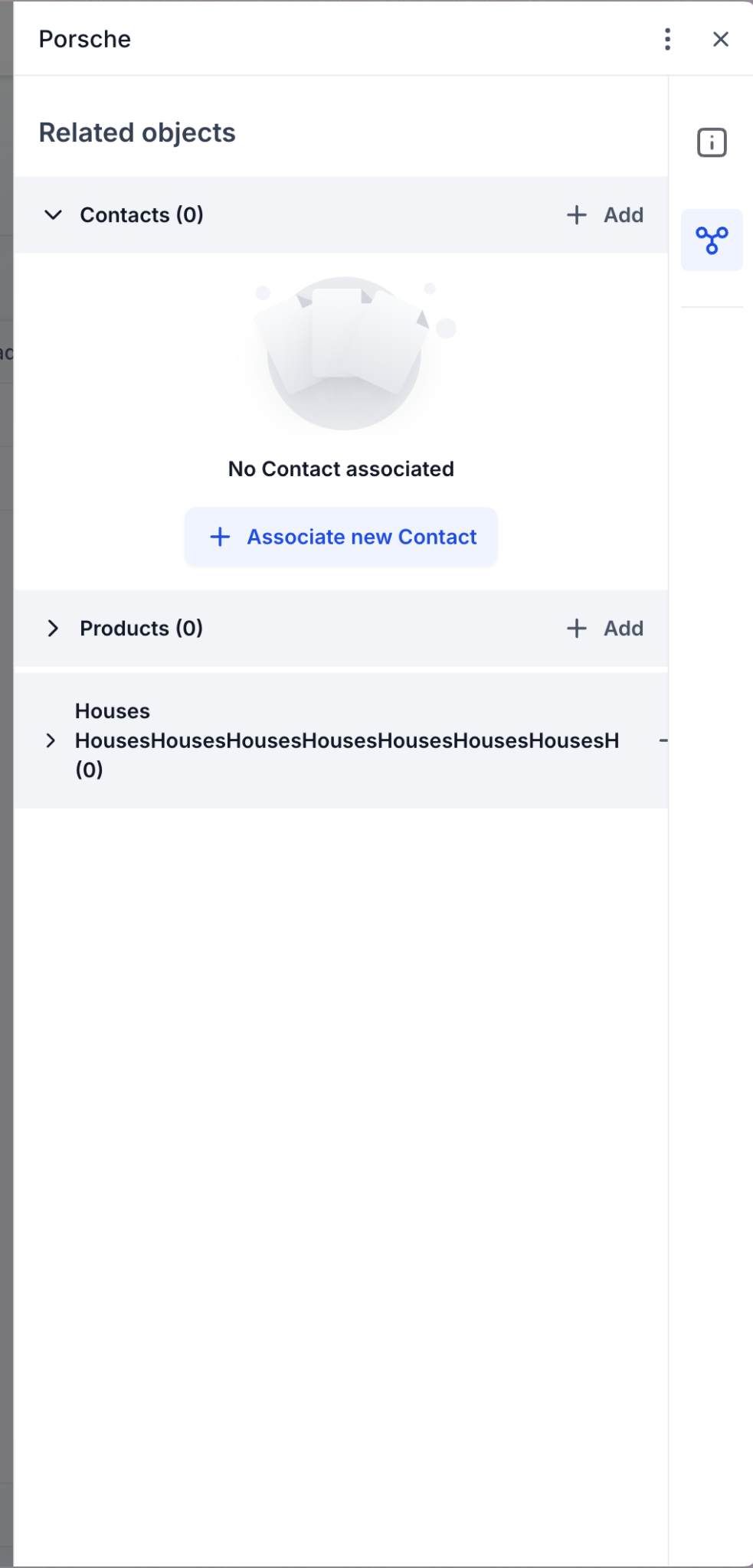
- Open the target custom object record and find the Related Objects section.
- Click Add next to the type of related record you wish to link.
- Search for the specific related record.
- Select Associate to connect it to the custom object.
Delete a custom object record
- Open the record you intend to remove.
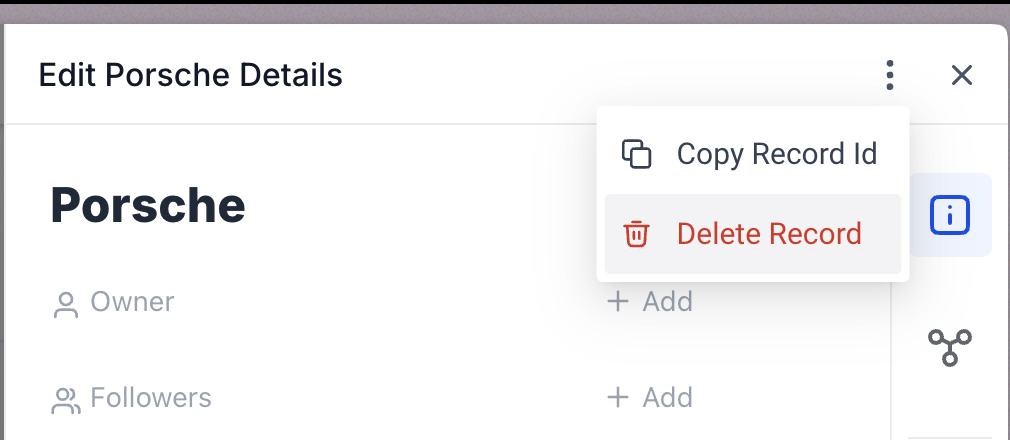
- Click the three dot (kebab) menu at the top right of the details view.
- Choose Delete from the dropdown menu.
- Confirm the deletion in the modal window.
- Note that deletion is irreversible and cannot be undone.
Import custom object records
- Navigate to Custom Objects in the subaccount and pick the target object.
- Click the Import button located at the top right.
- Select the CSV file you wish to import.
- Choose the import mode labeled Create & Update.
- If prompted, choose the dedupe unique field.
- Map the primary or required fields first.
- Map any additional fields, including Owner and Followers if needed.
- Enable Update empty values when you want blank values to overwrite existing data.
- Click Start Import to begin processing the file.
05What it looks like in HighLevel
06Settings that matter
- Import mode. Determines whether the import creates new records, updates existing ones, or does both.
- dedupe unique field. Selects which unique field the system uses to match incoming rows with existing records during import.
- Enable Update empty values. When turned on, blank values in the CSV will overwrite data in matching records.
- Primary/Required fields. Fields that must contain a value when a new record is created.
07Things to know before you rely on it
- Only values for primary fields can be entered when creating a new record.
- Deleting a custom object record permanently removes it; the action cannot be undone.
- The dedupe unique field option appears only if the object has multiple unique fields mapped.
- Primary or required fields cannot be left empty during a create operation.
08How it connects to the rest of HighLevel
- Start with the basics of custom objects Getting Started
- Automate actions using custom objects in workflows Workflow integration
- See plan limits and higher limits for custom objects Plan limits
Michael's take

When you have a steady flow of unique data. Like client pets, vehicle inventories, or property listings. The ability to store that information inside HighLevel saves you from juggling separate spreadsheets.
If you only need a handful of static entries or you already maintain a dedicated database, the effort to set up Custom Objects may not be justified. The feature shines when that data needs to be updated, related to other records, or imported in bulk; otherwise a simple list or tag might be enough.