
01Who this is for
- Real estate teams, can model properties and listings as separate objects.
- Insurance agencies, can track policies and claims with custom fields.
- Medical clinics, can manage patient records and appointments as unique objects.
02Custom Objects, explained
Custom Objects are a feature that lets you add brand new record types inside HighLevel. Every location may create up to ten objects, and each object can store as many as 300 K individual records. Objects also support up to ten unique labels that can be used between any two objects.
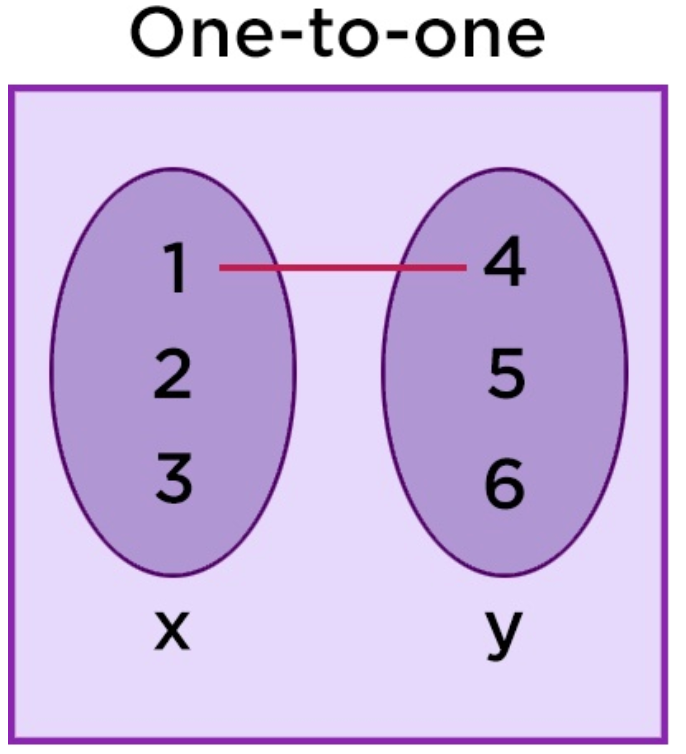
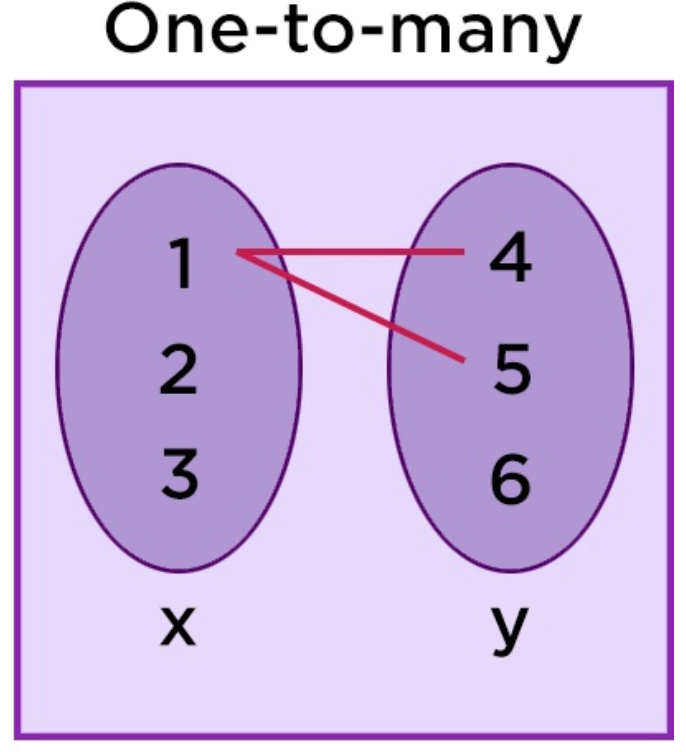
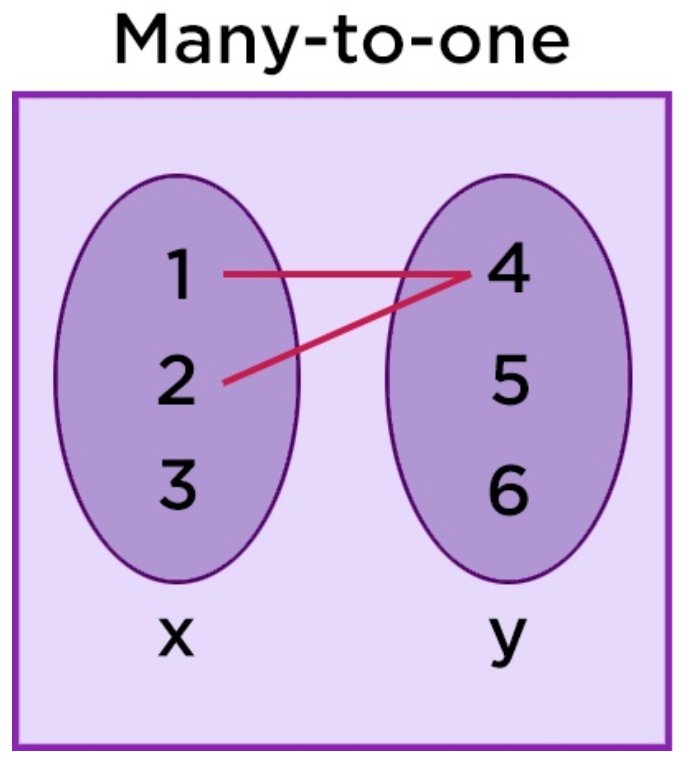
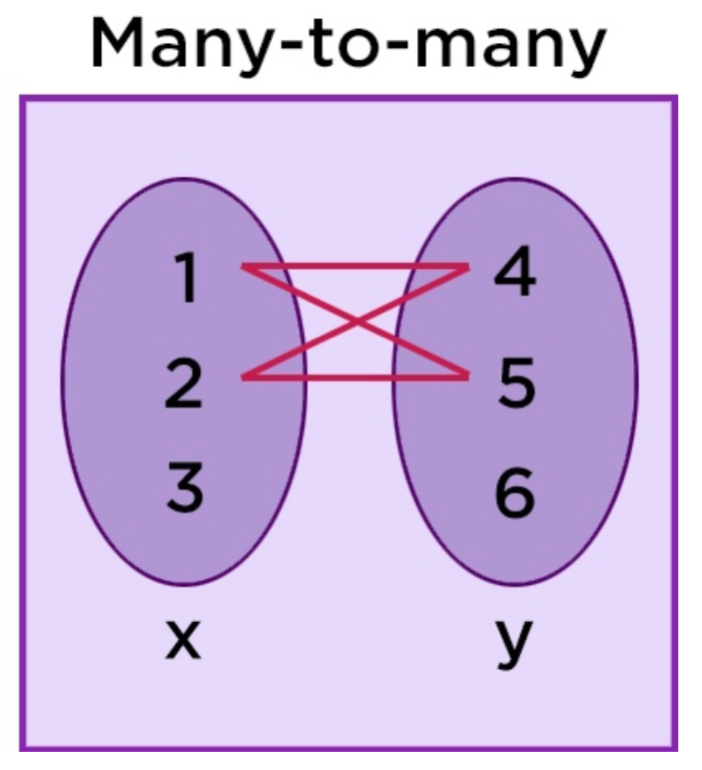
Inside the platform, Custom Objects appear alongside contacts and opportunities and can be referenced in workflows, forms, surveys, dashboards, APIs and webhooks. They accept all field types, can be linked through one to one, one to many or many to many associations, and provide audit logs for every create, update, delete or association change.
03How businesses use Custom Objects
- Real estate team. Create a Property object with fields for address, price and status. Link each property to contact records representing owners. Build a workflow that notifies agents when a new property record is added, and use SmartLists to display active listings.
- Insurance agency. Set up a Policy object containing policy number, coverage amount and renewal date. Associate policies with the insured contact. Add a workflow that sends an email reminder when a policy renewal date approaches.
- Medical clinic. Define a Patient object holding medical record number, DOB and appointment dates. Relate patients to contact records for billing. Use advanced filters to pull patients with upcoming appointments and trigger reminder texts via workflow.
04The numbers and rules that matter
- All plans get 10 Custom Objects per location.
- Records per Object are limited to 300K.
- Each Object gets up to 10 unique labels between any two objects.
- Custom Objects are available on Starter, Unlimited, and Pro as of October 2025.
05Before you start
- An admin user at the location level must be logged in to create, edit or delete Custom Objects.
- The account must be on a HighLevel plan (Starter, Unlimited or Pro) as Custom Objects are available on all plans.
06What it looks like in HighLevel
07Settings that matter
- Records per Object. Sets the maximum number of individual records allowed inside each custom object, limited to 300 K.
- Unique Labels per Object. Limits the count of distinct label values that can exist between any two objects to ten.
08Things to know before you rely on it
- Each location can create a maximum of ten Custom Objects.
- An object can contain up to 300 K records.
- Only ten unique labels are allowed between any two objects.
- Custom Objects cannot be used in Email Campaigns, Bulk Email/SMS, Conversations, Funnels & Websites, Calendars, Reputation Management, Payments, or Company modules.
- Future support is planned for Notes, dynamic data binding in Funnels & Websites, AI Knowledgebase access, and sending emails from workflow actions.
09How it connects to the rest of HighLevel
- Learn the basics of setting up Custom Objects in HighLevel. Getting Started
- Find detailed steps for creating, editing and automating Custom Objects. Create & Edit
- Check plan eligibility and pricing for accessing Custom Objects. Pricing
Michael's take

When you have a niche data set that doesn’t fit contacts or opportunities, Custom Objects let you keep everything inside HighLevel and fire automations when a record changes.
If your business only tracks standard CRM entities, the feature can feel like extra overhead. You’ll still pay for the same subscription, and the object limits may never be reached. In those cases you might prefer using Custom Fields on existing records rather than building a whole new object.