
01Who this is for
- Founders of real estate teams can keep property enquiries attached directly to Property records, so agents see the full conversation without switching contacts.
- Insurance agencies can attach renewal discussions to Insurance Policy records, giving underwriters instant access to relevant messages.
- Service companies can link project updates to Project records, allowing project managers to view all client communication in one place.
02Link conversations to Custom Object records, explained
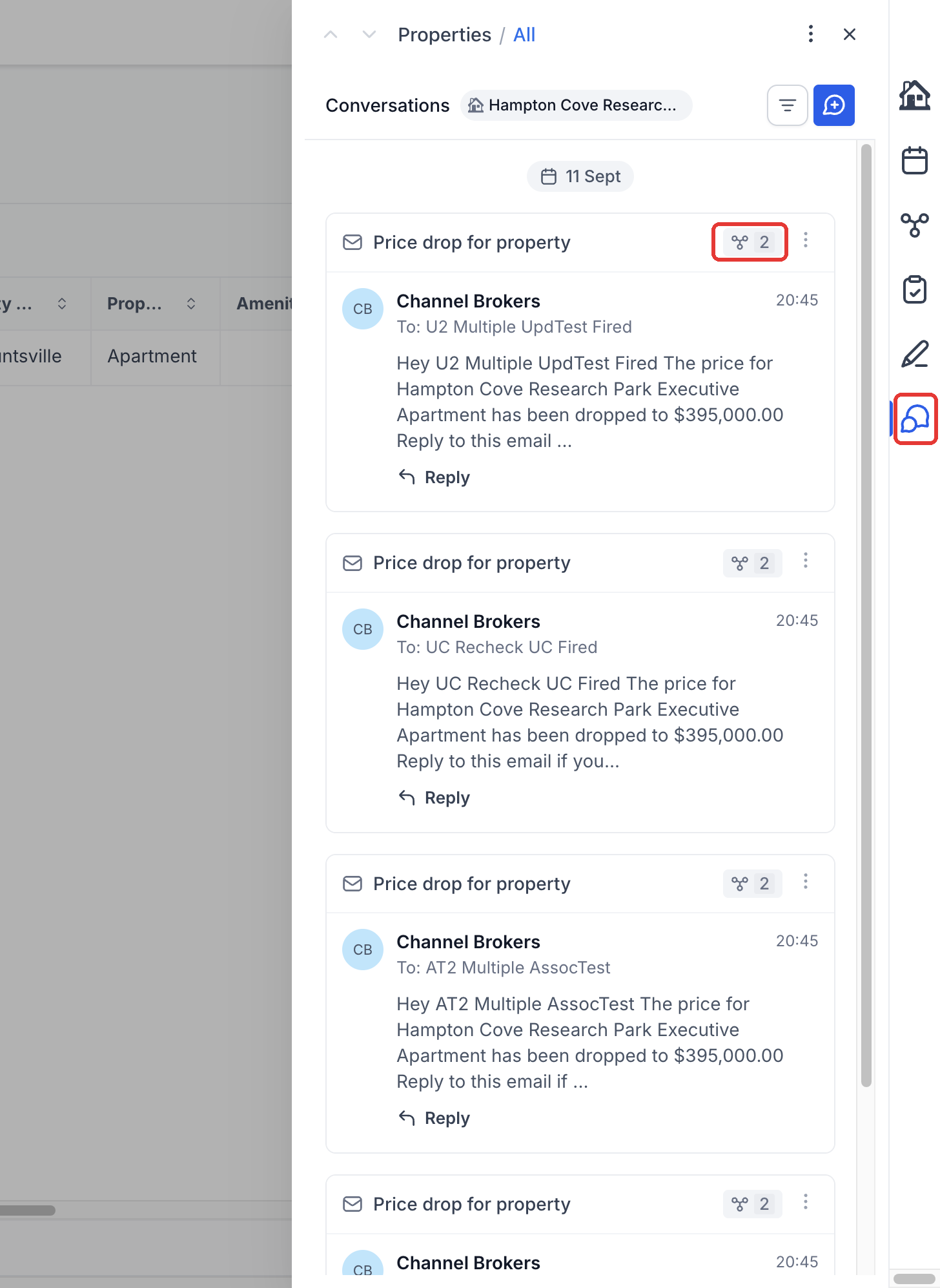
The feature adds a Conversations feed to each Custom Object record. Within that feed you can see messages that have been linked, filter them by Contact or Channel, reply, or start new conversations that are automatically tied to the record.
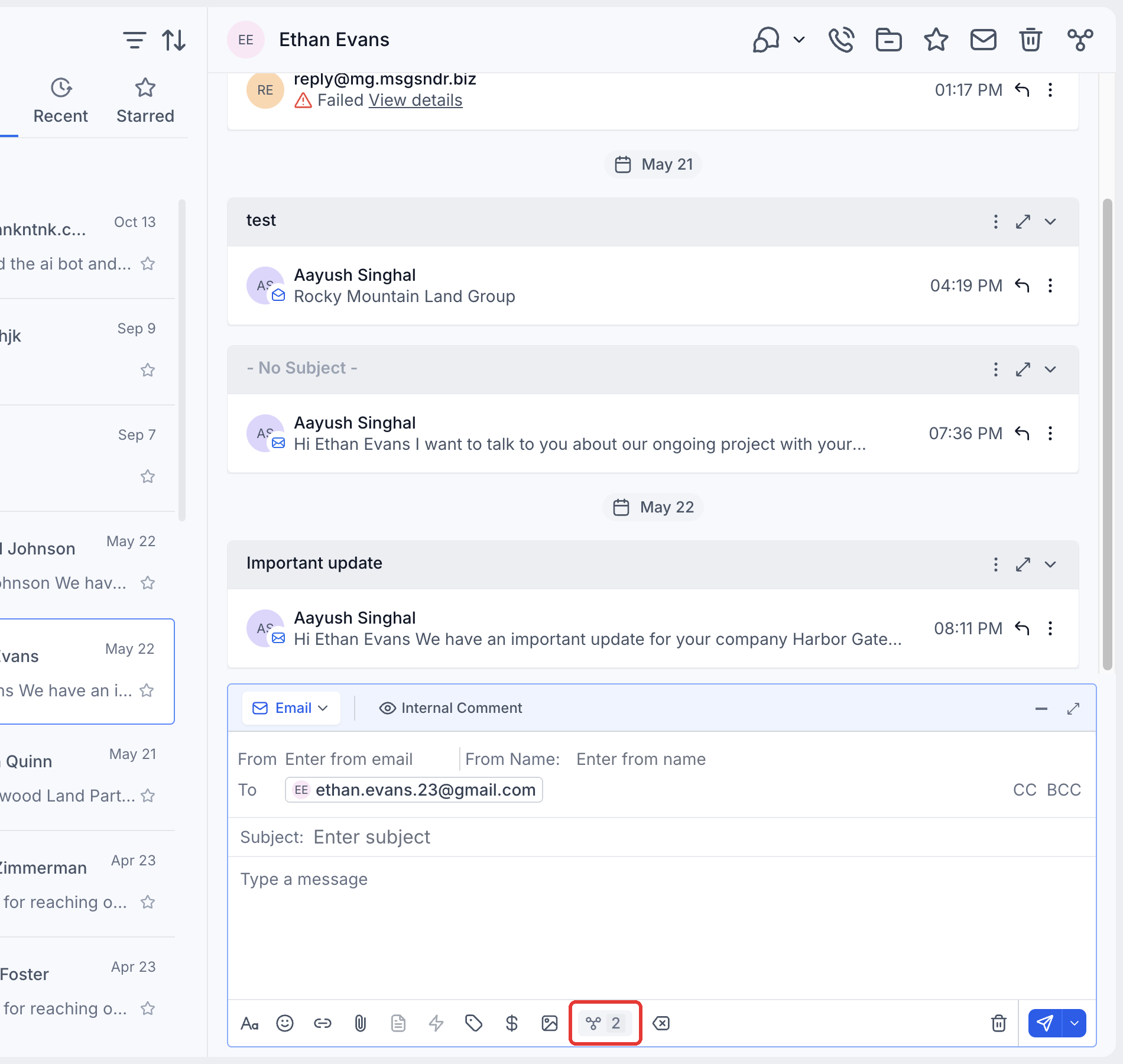
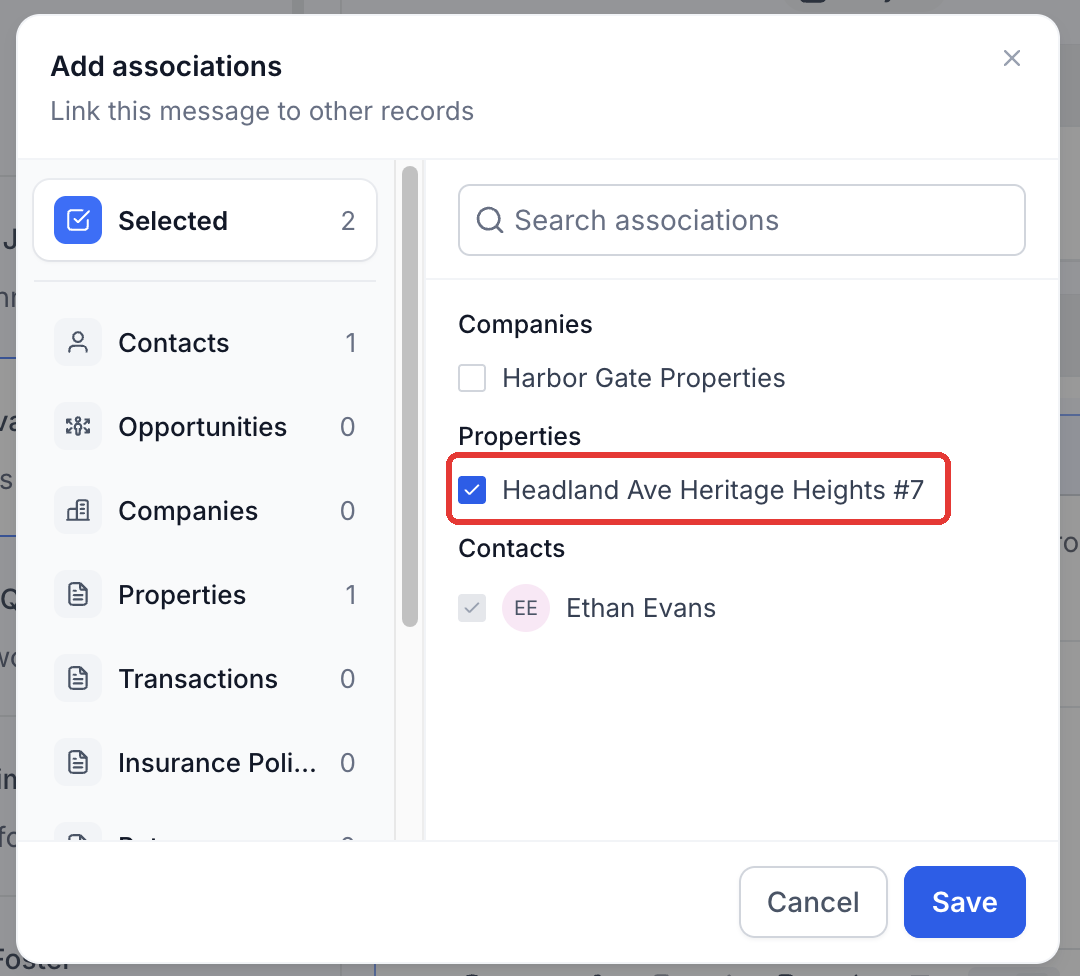
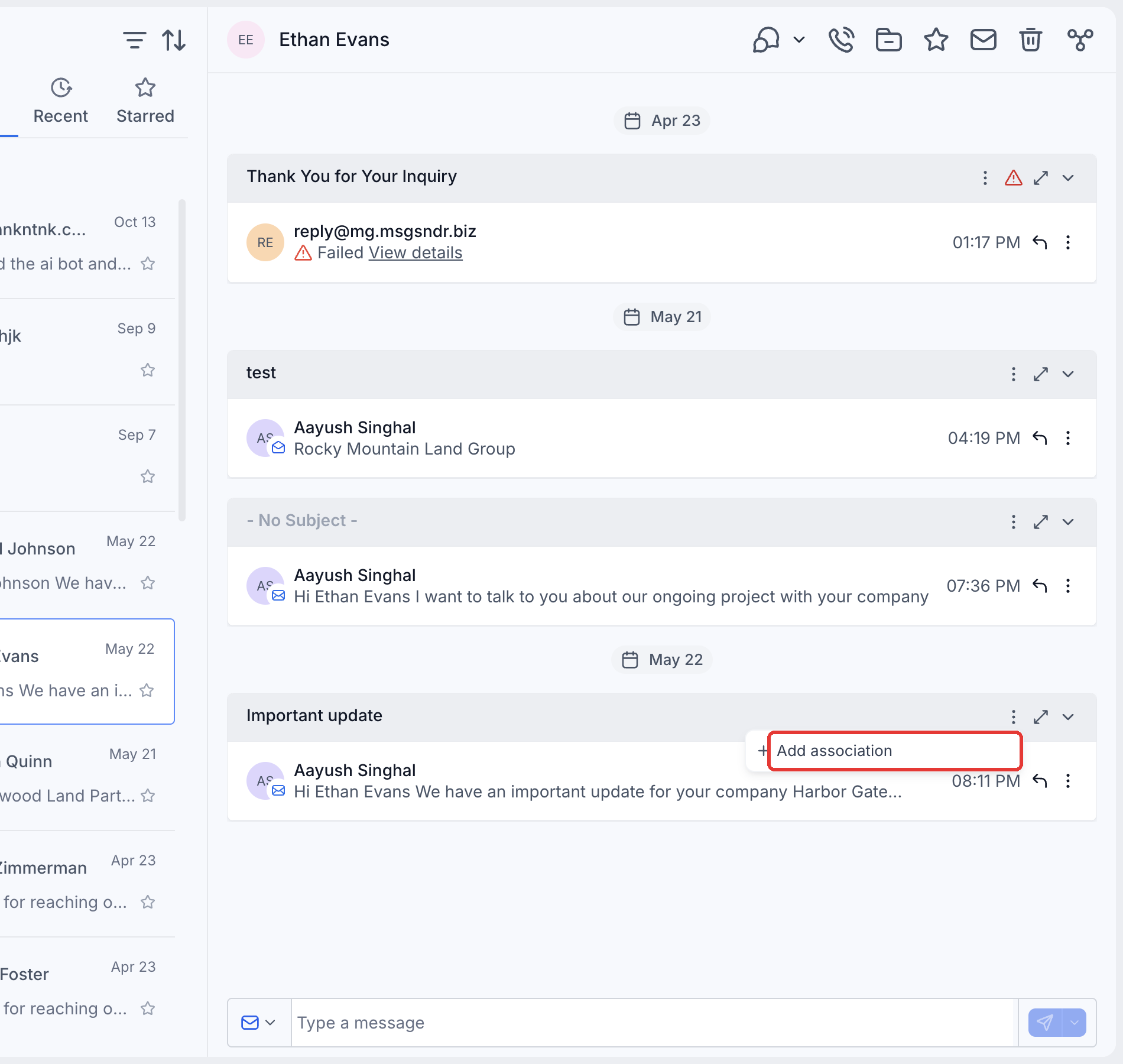
When you compose a new message, an associations button lets you select one or more Custom Object records to link. Existing messages can be retroactively linked using the three dot menu, and multiple messages can be associated in bulk. Linked messages remain in the original Contact thread while also showing up on each selected record.
The functionality is only available in locations that have been granted private beta access. Group SMS and internal chat messages cannot be linked.
03How businesses use link conversations to Custom Objects
- Real estate brokerage. Agents open a Property record, view its Conversations tab, and filter by Contact to see only messages from a specific buyer. They can start a new conversation from the record, ensuring every inquiry stays attached to the property.
- Insurance agency. An underwriter selects an Insurance Policy record, clicks the associations icon while drafting a renewal email, chooses the policy, and sends the message. The email appears on the policy record and in the client’s thread.
- Construction firm. A project manager selects several messages in a client conversation, uses Bulk associate messages, adds the relevant Project record, and saves. All chosen messages now display on the Project’s Conversations feed.
04The numbers and rules that matter
- A message can be linked to multiple Custom Object records, Companies, and other supported record types.
05Before you start
- The location must be part of the private beta and have the feature enabled via the beta access form.
- Custom Object types (for example Property, Insurance Policy) must already exist in the account.
06How to set up and use link conversations to Custom Objects in HighLevel
View a record's conversations
- Choose the desired Custom Object from the left sidebar and open the specific record.
- Click the Conversations tab in the right hand side panel.
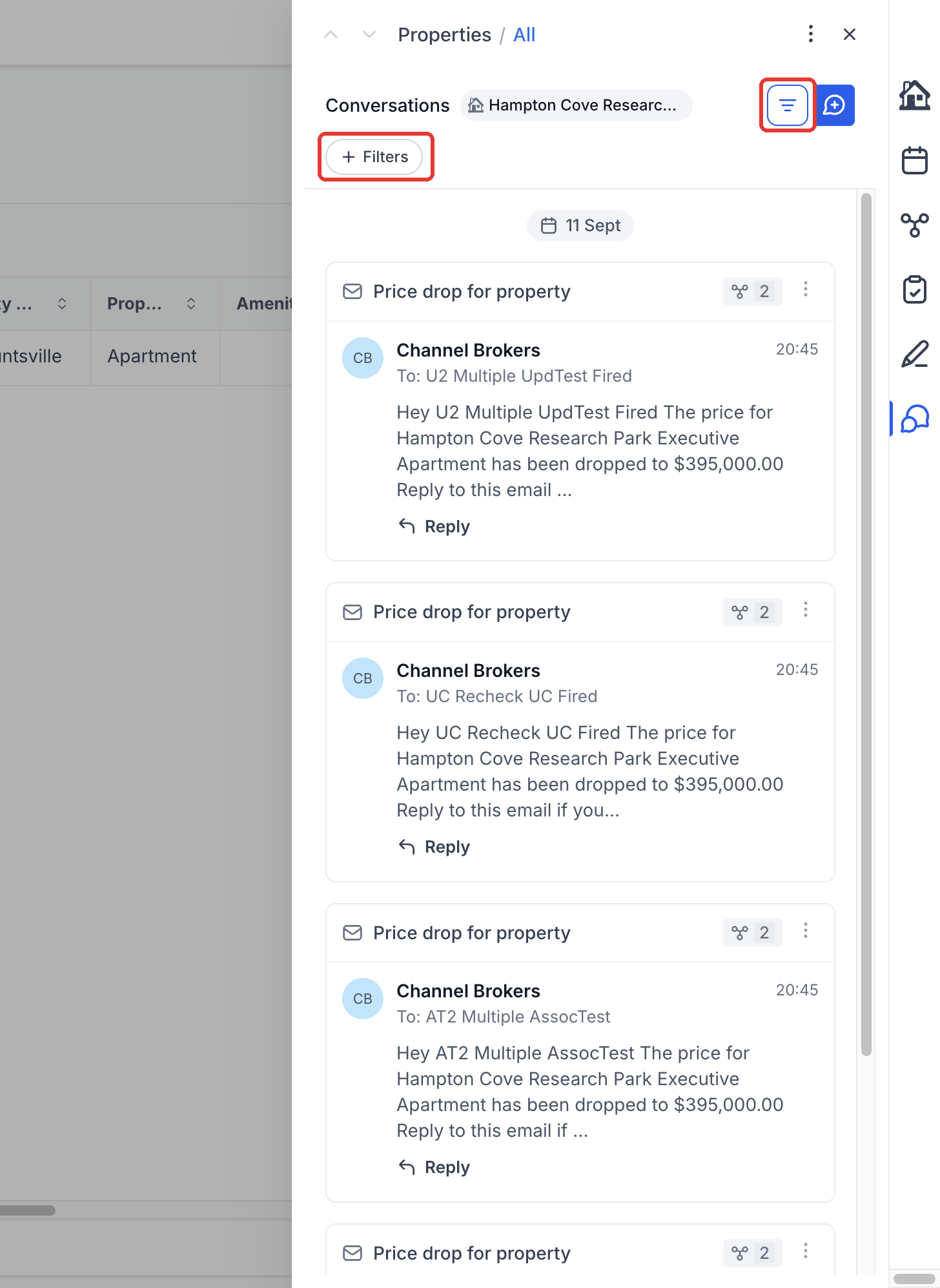
- Press the filter icon and select Contact or Channel to narrow the feed.
- Note: The badge on each message shows how many records it is linked to. An empty feed does not mean the Contact has no other conversations.
Start a conversation from a record
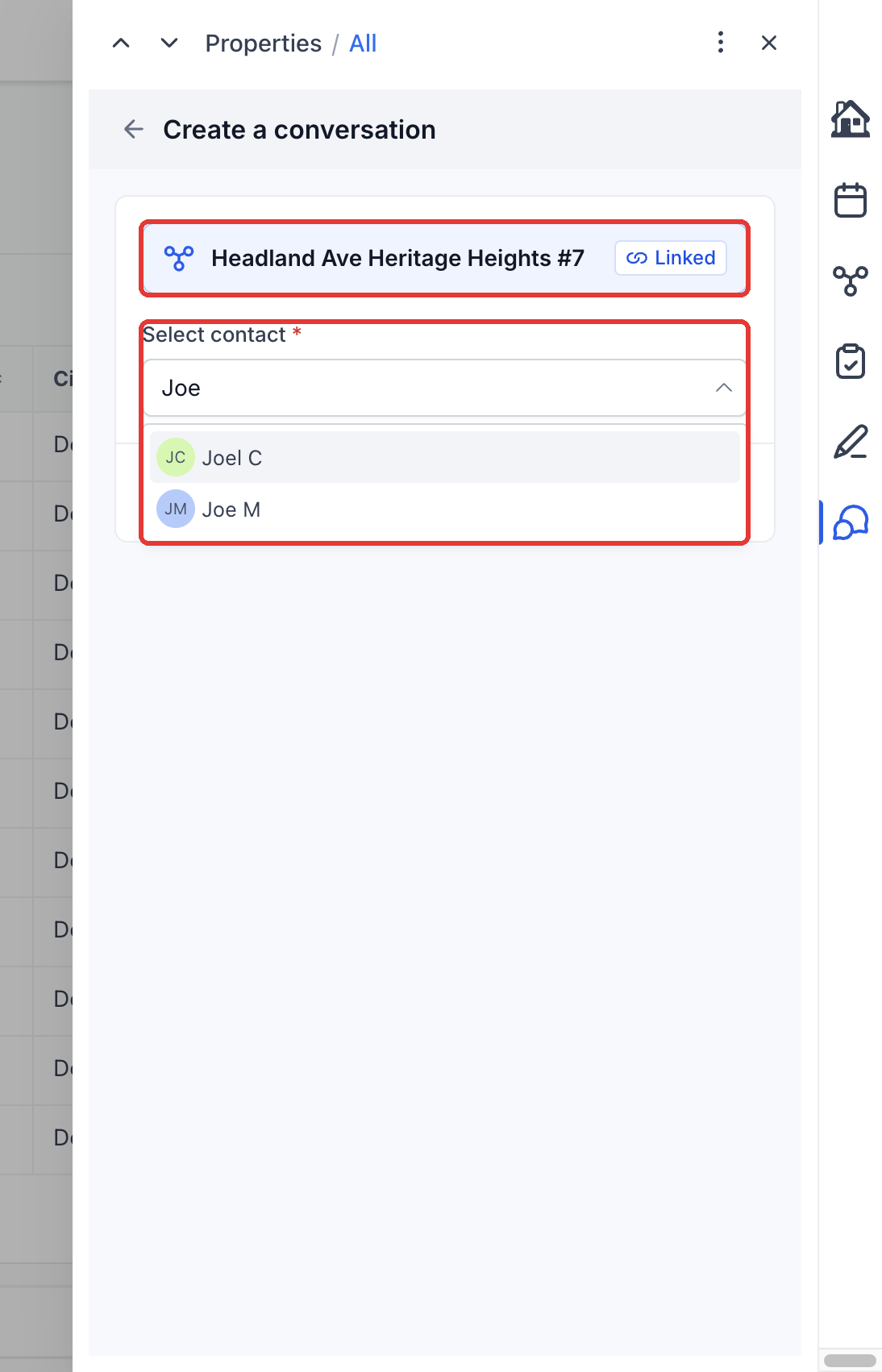
- In the record’s Conversations tab, click Create a conversation (or Create new conversation).
- Verify that the record appears in the Linked section.
- Pick the Contact you want to message from the Select contact dropdown.
- Click Create conversation to open the composer.
Link messages while composing
- In the composer, click the associations icon to open the link window.
- Select the Custom Object type, search for the target record, and press Save.
- Review the message content and recipients, then send.
Add association to an existing message
- Open the three dot menu on the message (or on the email header) and choose Add association.
- Choose the appropriate Custom Object type and locate the record.
- Click Save to attach the record to the message.
Bulk associate messages
- Click Bulk associate messages in the conversation header.
- Mark the messages you want to link.
- Choose Add associations and select the target records.
- Press Save to apply the links.
07What it looks like in HighLevel
08Settings that matter
- Associations icon. Opens the window where you select one or more Custom Object records to link to the message you are composing.
- Toggle filters → Filters. Filters the Conversations feed on a record by Contact or Channel, letting you narrow the displayed messages.
09Things to know before you rely on it
- Feature is only available through a private beta and only for locations that have been enabled.
- Group SMS and internal chat messages cannot be linked to records.
- A message can be linked to multiple Custom Object records, Companies, and other supported record types.
10How it connects to the rest of HighLevel
- Learn how to create and manage Custom Objects in HighLevel. Getting started with Custom Objects
- Read about creating, editing, and automating Custom Objects. Custom objects guide
- Review HighLevel pricing and plan options. Pricing
Michael's take

Linking conversations to Custom Object records can help keep context when staff open a property or policy file.
Avoid forgetting to enable the private beta for your location before you try to link messages.