
01Who this is for
- Sales managers need to see who the decision makers are within each prospect company.
- Finance teams benefit by quickly identifying billing contacts for invoice communications.
- Customer support leaders can spot owners or managers to route service inquiries correctly.
02Association labels, explained
Association labels are custom identifiers that define the relationship between a Contact and a Company. They can appear the same on both sides of the record or use paired names, like Employer for the Company side and Employee for the Contact side. Multiple labels can be attached to the same pair of records, allowing a single Contact to hold several roles.
The labels are managed in Settings under the Objects section. After creating a label, you set limits that control how many records may be linked with that label in each direction. The built in Primary Company relationship remains unchanged and works alongside any custom labels.
Labels are visible in a Company’s Associations tab, can be added as columns in the Companies list, and are usable in bulk email actions. When sending email, you select one or more association labels and choose which matching contacts receive the message.
03How businesses use association labels
- Software development agency. The agency creates a label called "Technical lead" and another called "Project manager". When adding a client’s staff to a Company record, they assign the appropriate label. Later they filter the Companies list to show only contacts with the "Technical lead" column, making resource planning easier.
- Real estate brokerage. The broker adds a "Listing agent" label. While linking agents to a property owner company, they select this label. They then use the bulk email feature to send market updates only to contacts marked as "Listing agent" across selected companies.
- Medical clinic network. The network defines a "Billing contact" label. When a new office is added, the finance team assigns the label to the office administrator. They later generate a Companies list column for "Billing contact" to verify payment points before invoicing.
04The numbers and rules that matter
- Association limits determine how many records can be linked under an association; once a limit is reached, additional links are prevented.
05How to set up and use association labels in HighLevel
Create an association label
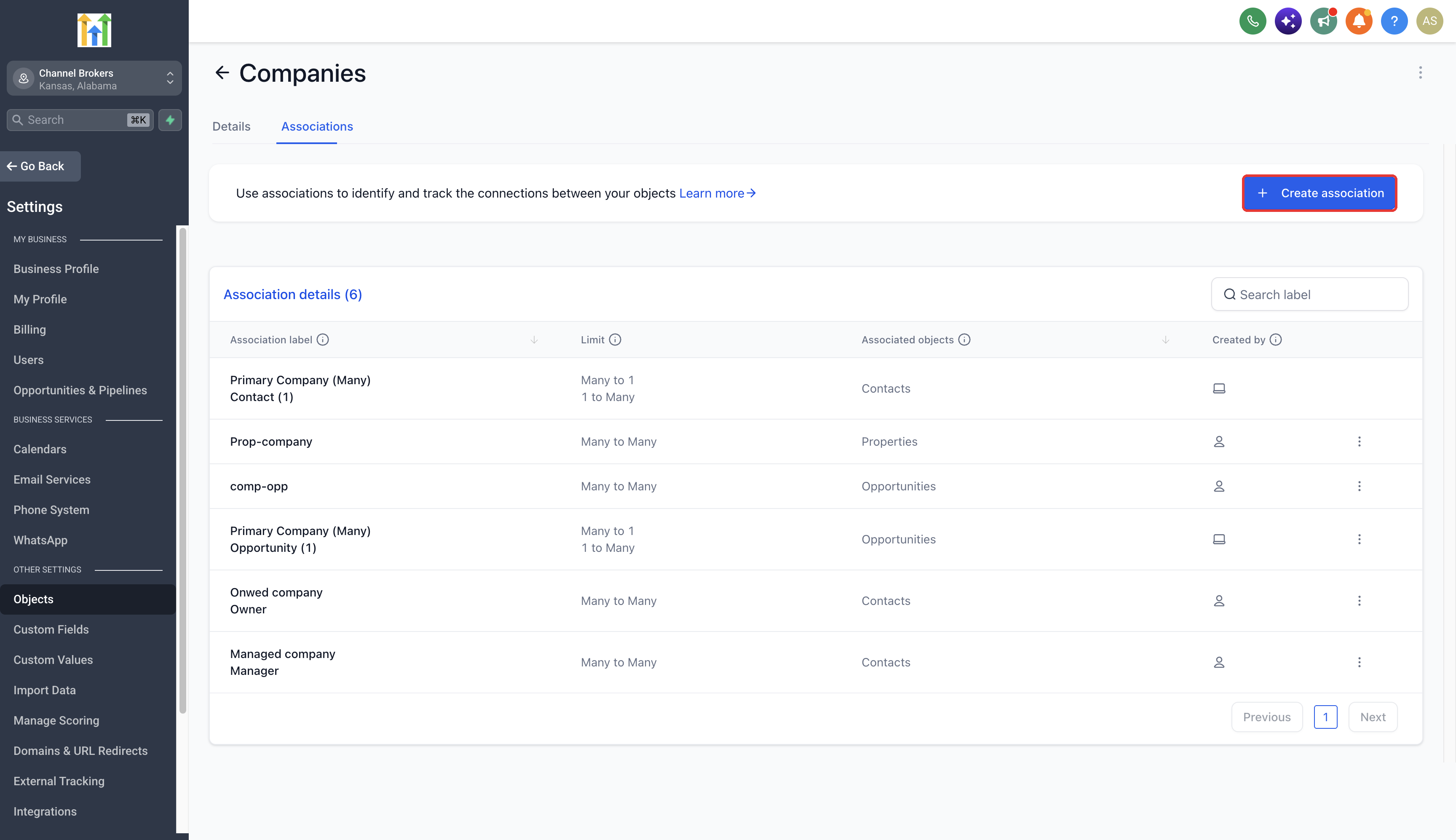
- Open Settings > Objects and select either Companies or Contacts, then click Associations.
- Press Create association.
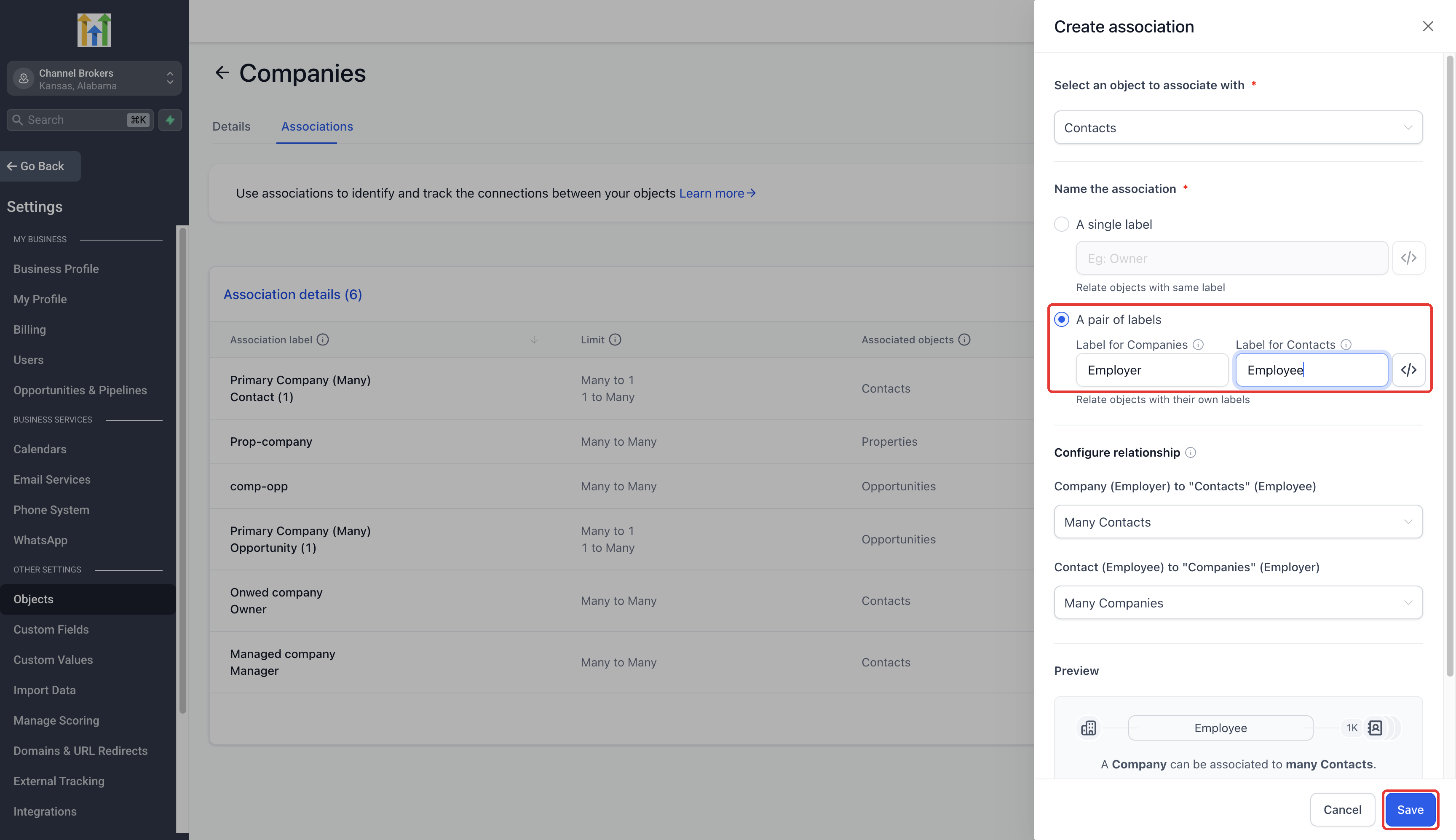
- Choose the opposite object type: select Contacts if starting from Companies, or Companies if starting from Contacts.
- Pick Single label or Pair of labels and type the label names.
- Set the relationship limits for both directions and review the preview.
- Click Save.
Assign association labels to contacts
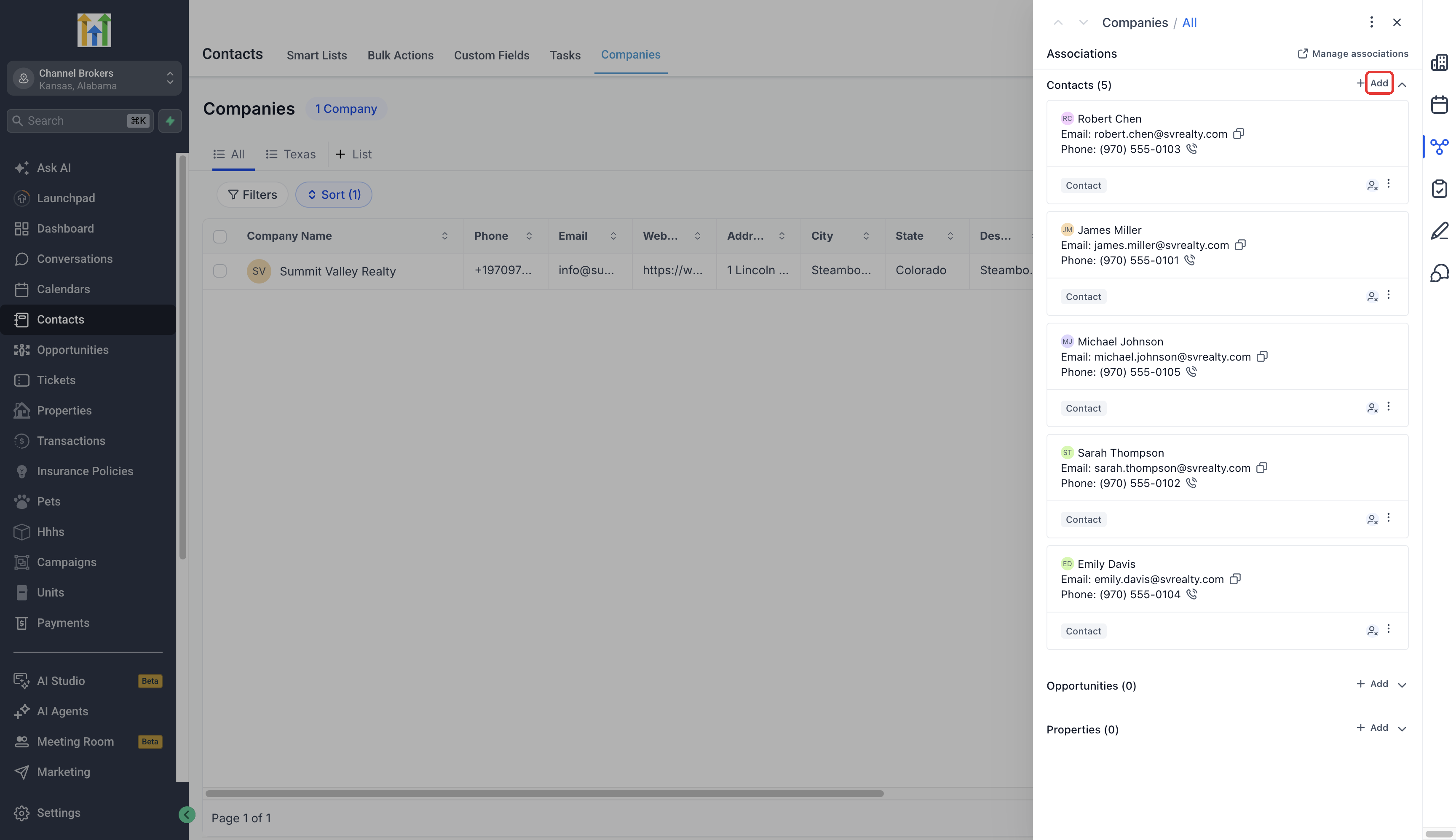
- Open a specific Company record and go to the Associations tab.
- Click Add next to the Contacts section.
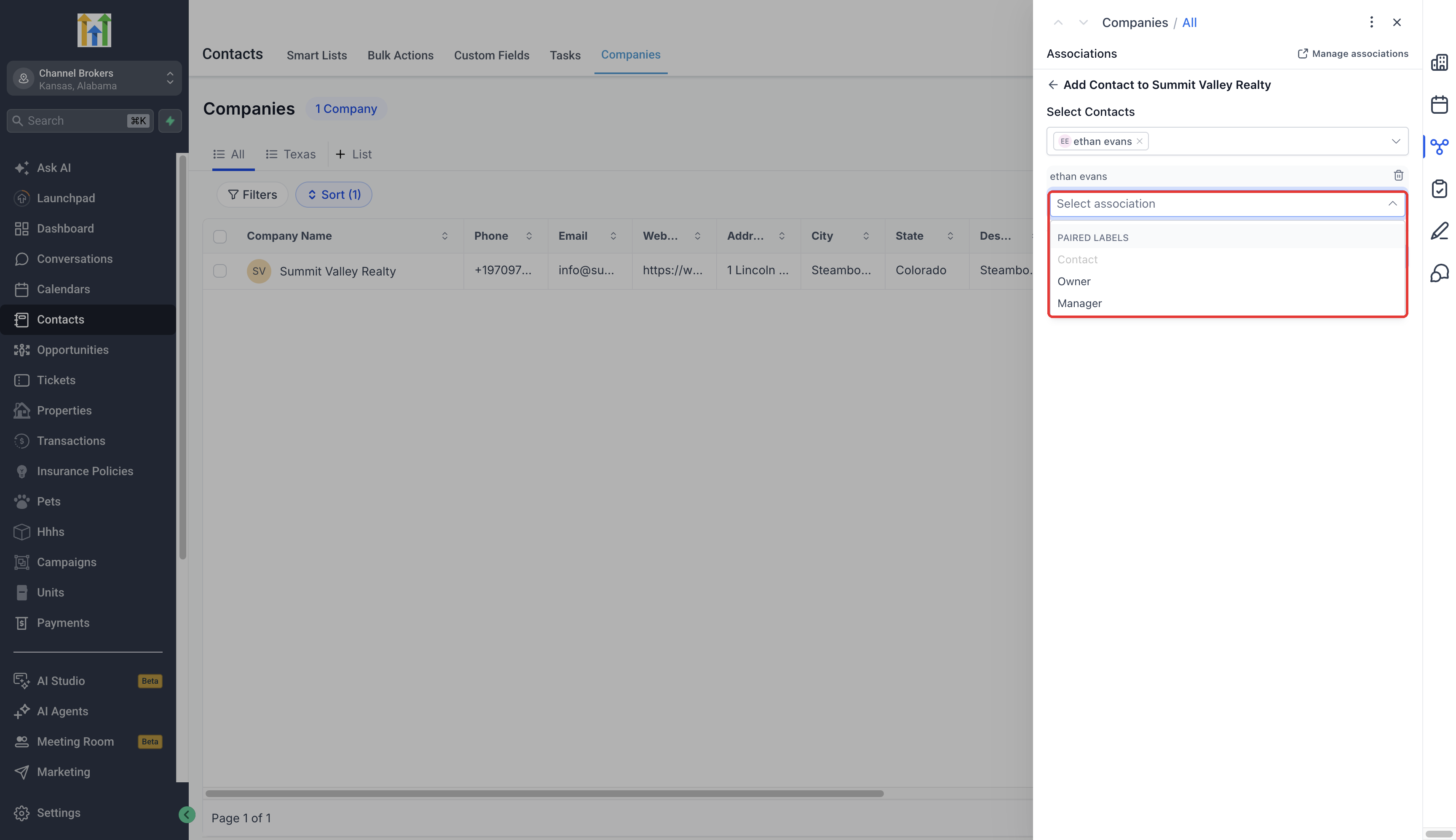
- Search for the desired Contact and select it.
- Select the appropriate association label and click Save.
Edit or add additional contact roles
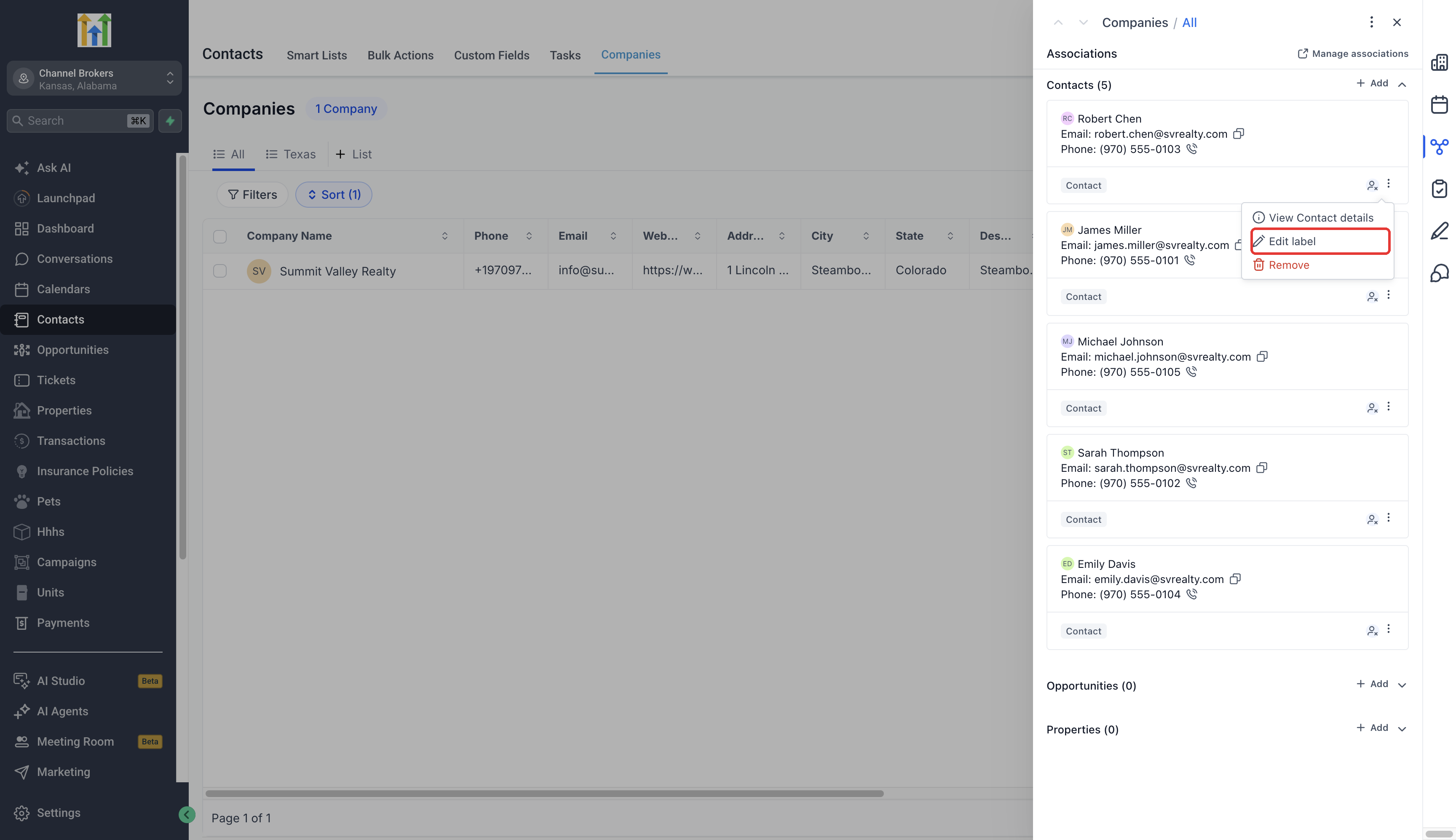
- Open the Company's Associations tab.
- Locate the Contact and open the three dot menu on the association card.
- Choose Edit label.
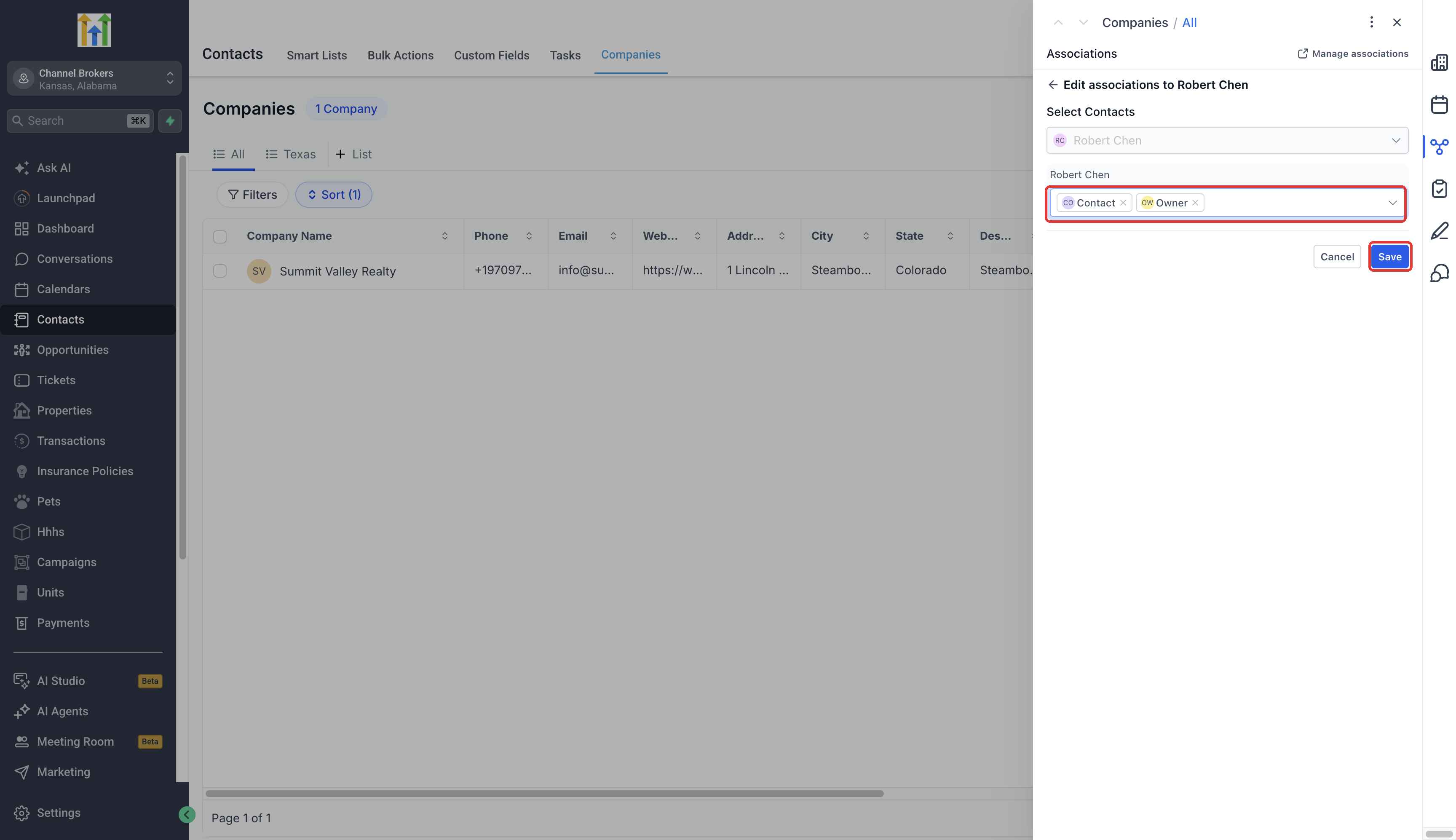
- Modify the existing label or add another label to give the Contact multiple roles.
- Click Save.
- Note: the system defined Primary Company label is protected from removal in the label editor.
View roles in the Companies list
- Open the Companies list view.
- Select Manage fields.
- Add the Contact association columns for the roles you want displayed.
Send emails to contacts based on their roles
- Open Companies and select the Companies whose contacts you wish to email.
- Click Send email and move to the email composition form.
- Under Association label, pick the role labels to include.
- Under Email recipients, choose All associated contacts, Most recently associated contact, or Earliest associated contact.
- Complete the email, review the audience and settings, then send.
06What it looks like in HighLevel
07Settings that matter
- Association limits. Controls how many records can be linked using a particular association label in each direction; exceeding the limit blocks further links.
08Things to know before you rely on it
- The built in Primary Company relationship cannot be changed into a custom label.
- Primary Company is protected from removal in the label editor.
- When association limits are reached, the system blocks additional links for that label.
- Selecting multiple association labels for an email combines matching contacts into a deduplicated audience.
- Recipient options (most recent or earliest) appear only when custom labels are chosen.
09How it connects to the rest of HighLevel
- Bulk email actions can target contacts by their association labels. Bulk actions for contacts
- Add custom label columns to the Companies list to see roles at a glance. Smart Lists
- Manage contacts and companies to create or edit association labels. Contact management
Michael's take

I find that having multiple association labels makes it easier to see who is responsible within each company, and it simplifies pulling the right people into a bulk email.
If your business typically works with a single point of contact per company, you might choose to rely on the default Primary Company relationship instead of creating custom labels.