
01Who this is for
- Marketing managers benefit because they can automatically segment audiences for campaigns.
- Sales teams gain by viewing up to date lead lists that reflect recent activity.
- Customer support leaders use Smart Lists to prioritize contacts based on ticket status or engagement.
02Smart Lists, explained
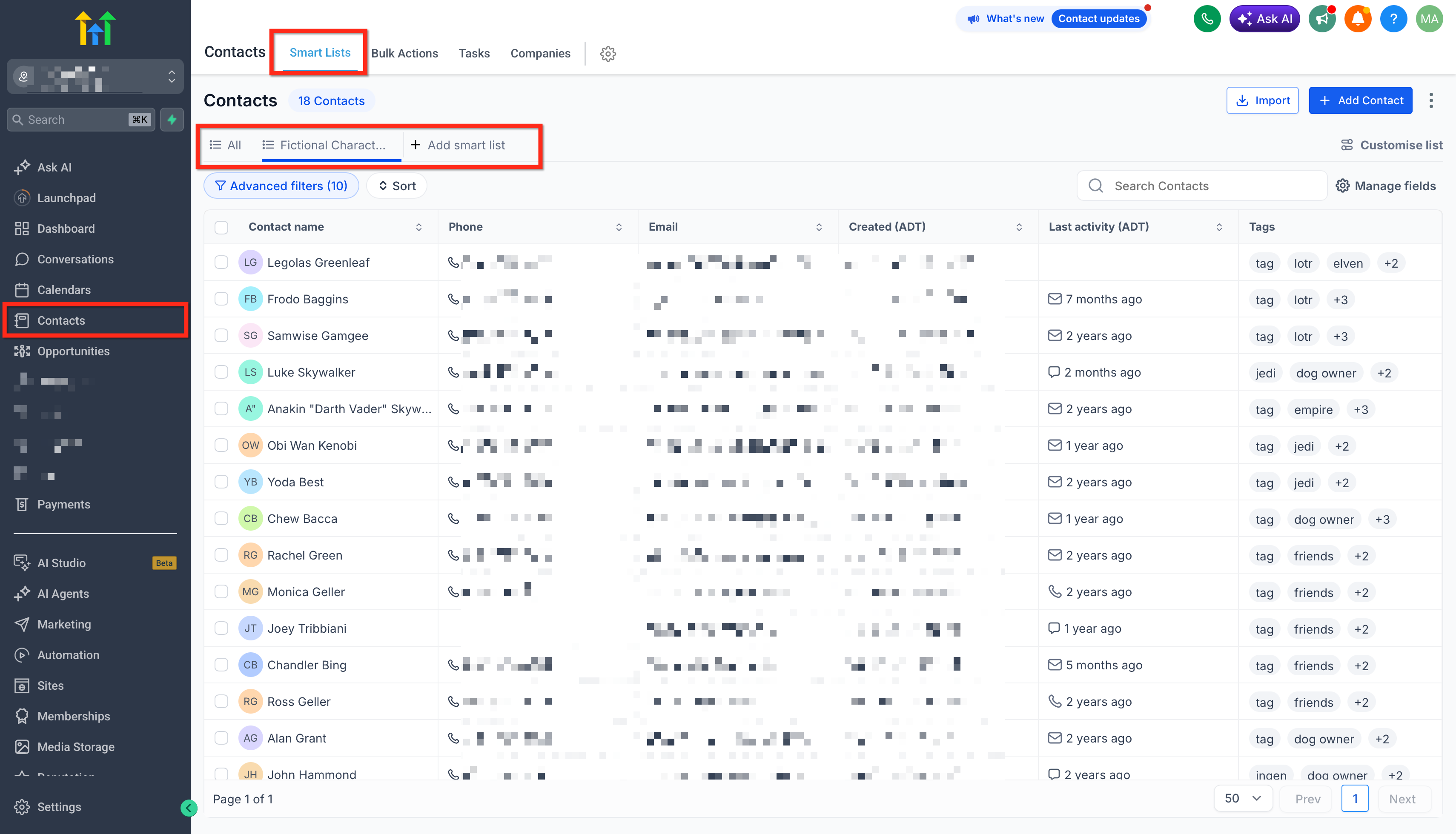
Smart Lists are dynamic views of contacts that refresh right away when data changes. They apply one or more filters, such as tags, custom fields, engagement actions, or opportunity stages, to include or exclude contacts. The lists live under Subaccount > Contacts > Smartlists and can be referenced in workflows for automated actions.
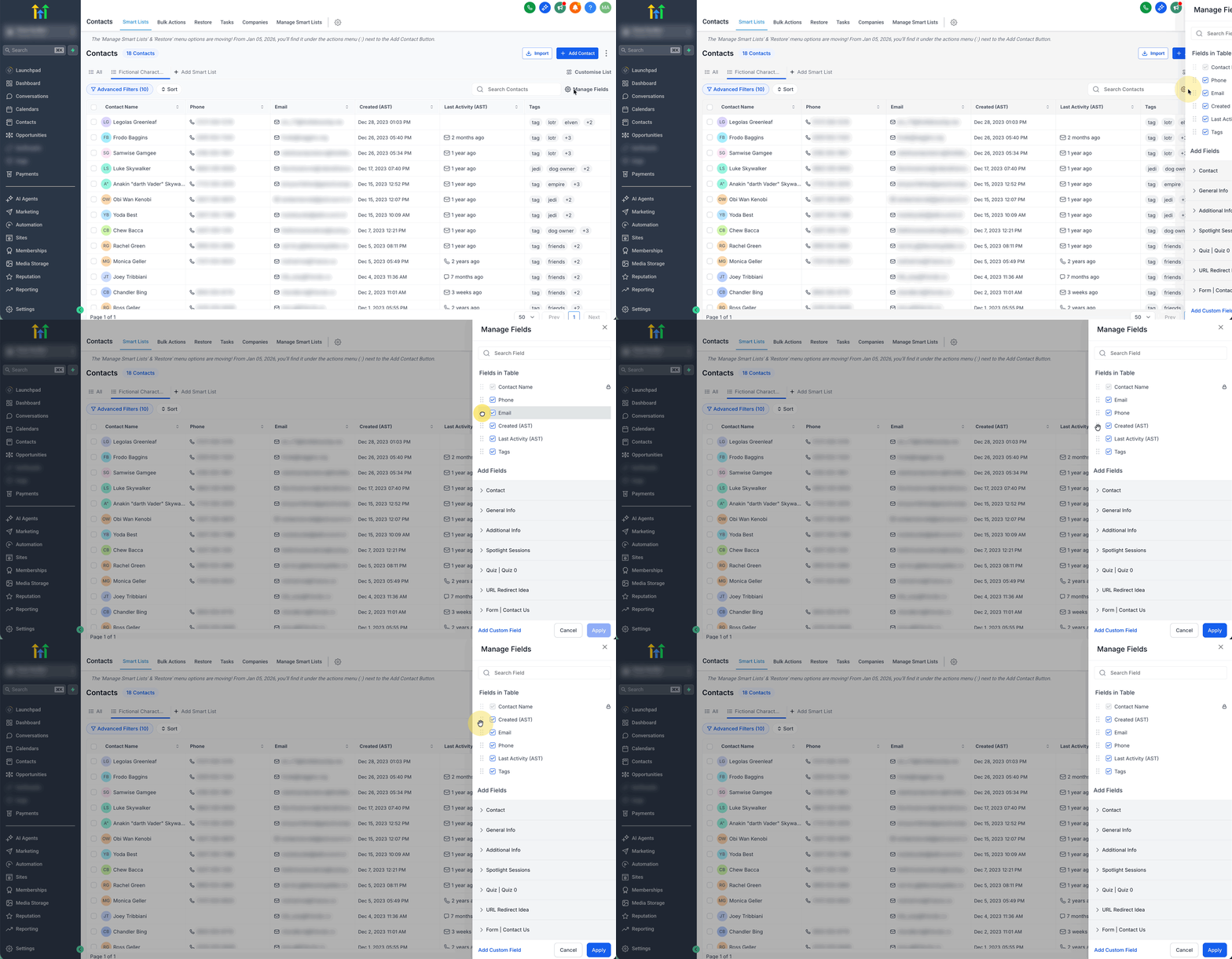
The feature lets you choose which columns appear in the list and reorder them by drag and drop. Any change to contact information that matches the list criteria updates the list in real time. Smart Lists can be shared with admins, copied, renamed, or deleted from the Manage Smart List menu.
03How businesses use Smart Lists
- Digital marketing agency. The agency creates a Smart List filtered by contacts who opened an email in the last 30 days and have an active contract. The list automatically updates, so the agency can send follow up offers without rebuilding the segment each time.
- Online tutoring service. The service defines a Smart List for students who have a pending invoice and a tag for the current course. As payments are recorded, students move in and out of the list, allowing the team to focus outreach on those who need reminders.
- Real estate brokerage. Agents set up a Smart List showing contacts with a property interest tag and a custom field indicating budget range. By reordering columns, agents keep the most relevant fields at the top for quick review during calls.
04The numbers and rules that matter
- Contacts per page selector offers 20, 50, or 100 options.
05Before you start
- Users must have 'settings' access to manage Smart Lists.
06How to set up and use Smart Lists in HighLevel
Create a smart list
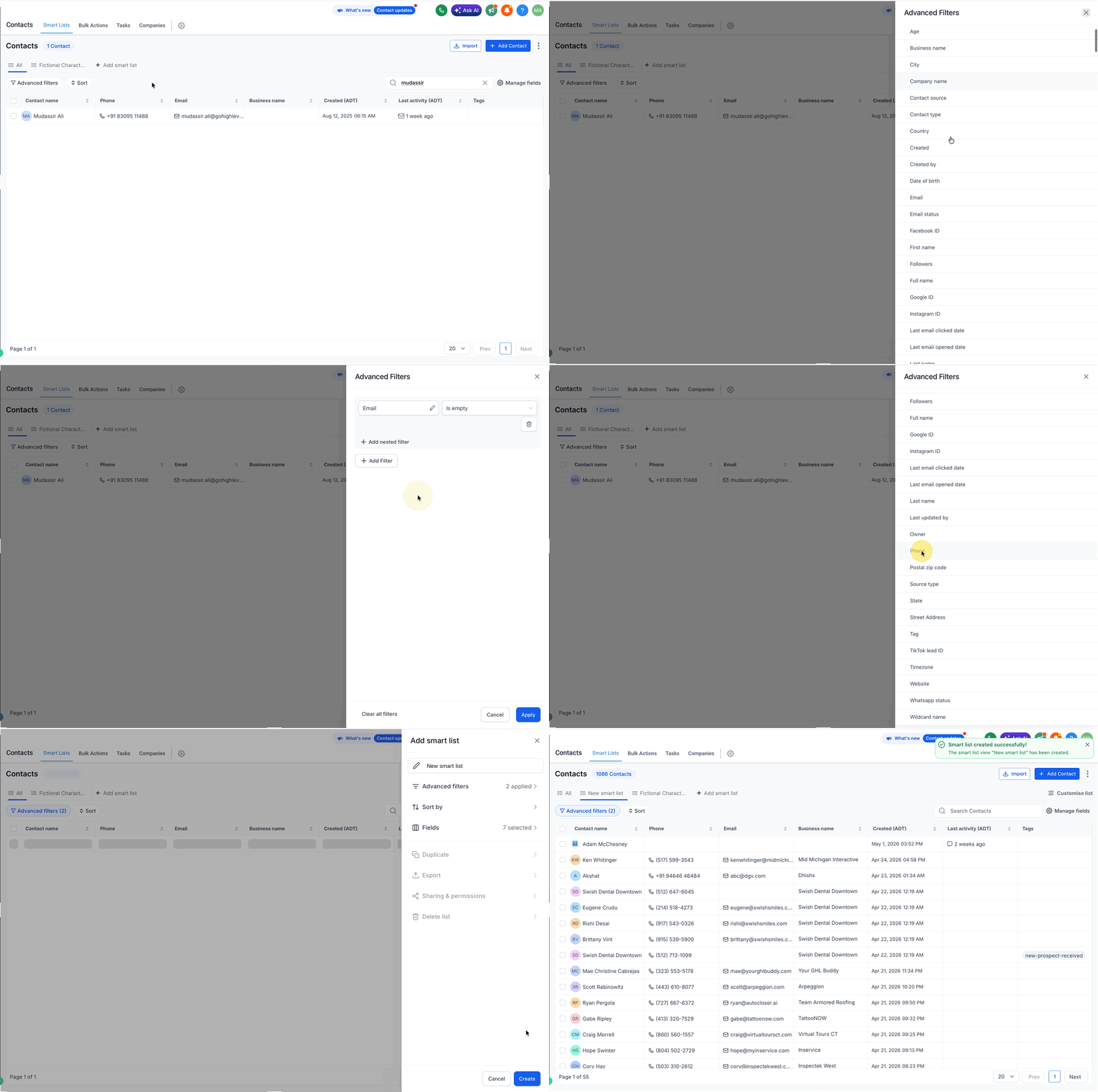
- Open Contacts > Contacts/Smart Lists and click the '+ Add smart list' button.
- Select one or more filters from the dropdown menu on the right side.
- Enter the required details for each filter and press 'Apply'.
- Choose the 'AND' option to add additional filters if needed.
- Click 'Create' at the bottom of the screen to save the new Smart List.
Modify a smart list
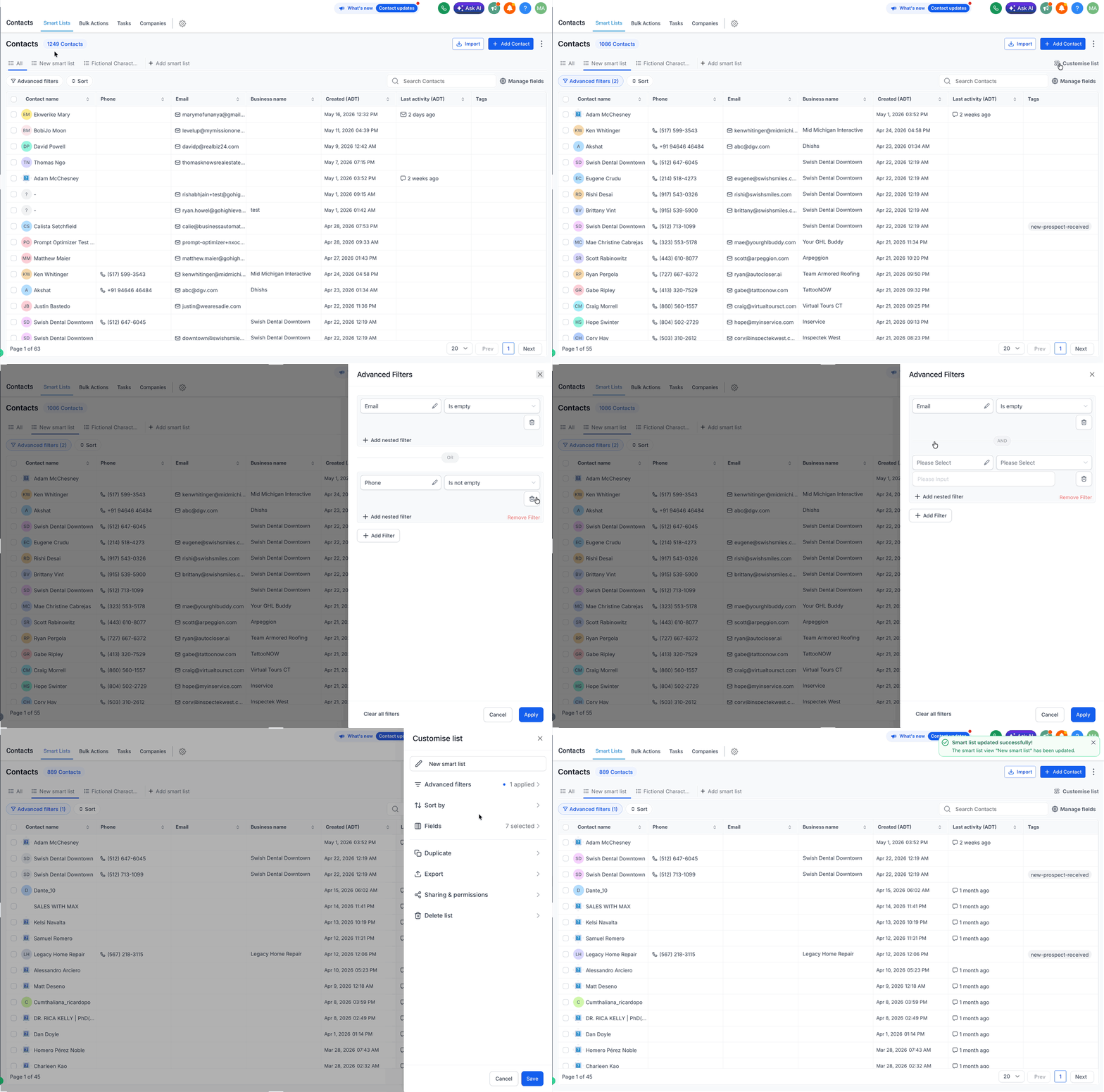
- In the Contacts area, click a Smart List name at the top to open it.
- On the right side, locate the Customise List panel.
- Select Advanced Filters, then edit a filter by clicking the pencil icon or remove it using the dropdown arrow.
- Press the Save icon to store the modifications.
Manage Smart lists
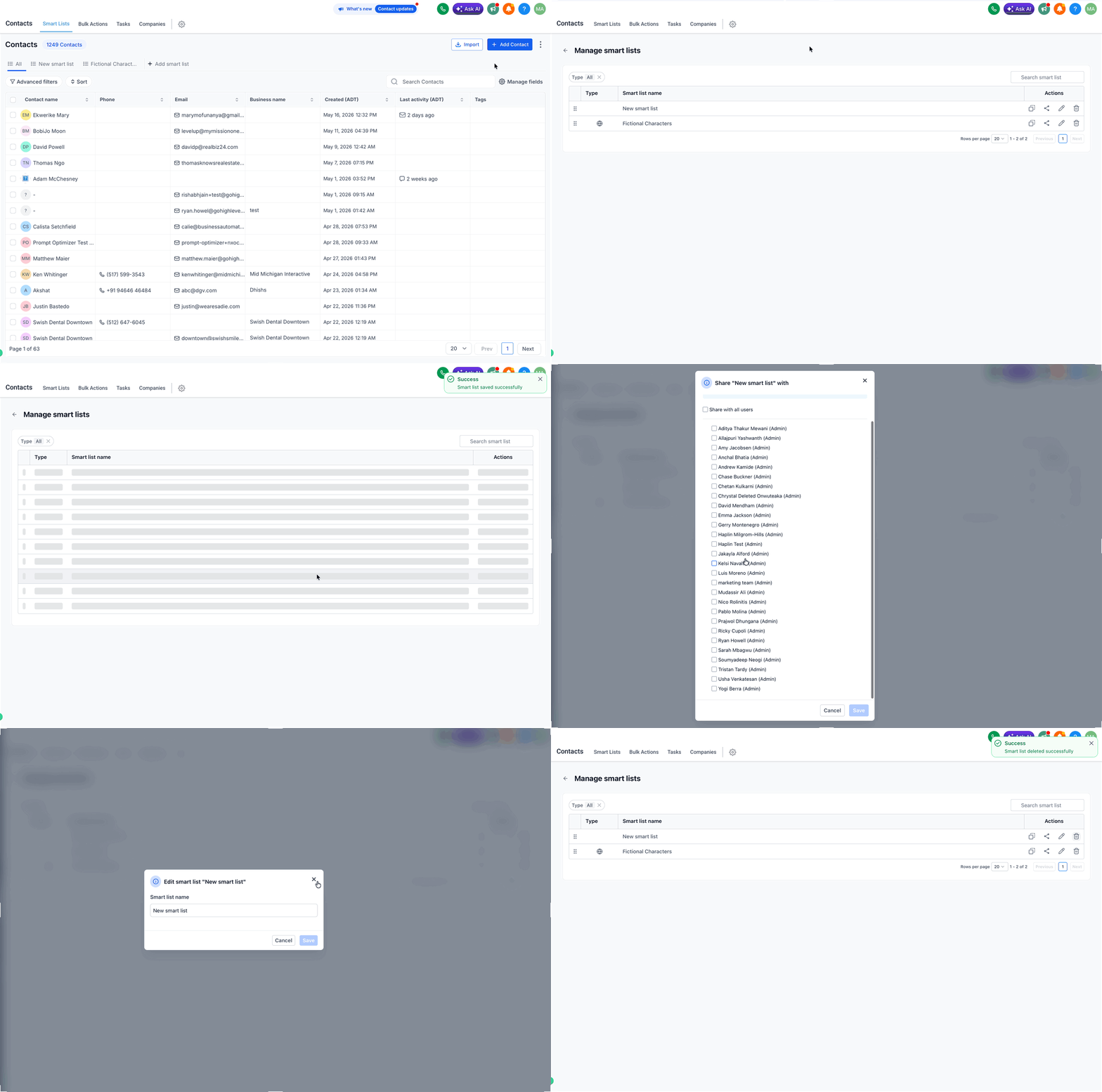
- Navigate to Contacts > Smart Lists and open the three dot (⋮) menu next to Add Contact.
- Select Manage Smart List from the menu.
- Use the icons in the Actions column to copy, share with admins, rename, or delete the Smart List.
- Confirm the chosen action by clicking the appropriate icon.
Reorder columns
- Go to Contacts > Smart Lists and open the Smart List you wish to edit.
- Open the column/field management option near the top of the table.
- Drag each column to the desired position.
- Release the column to set its new order.
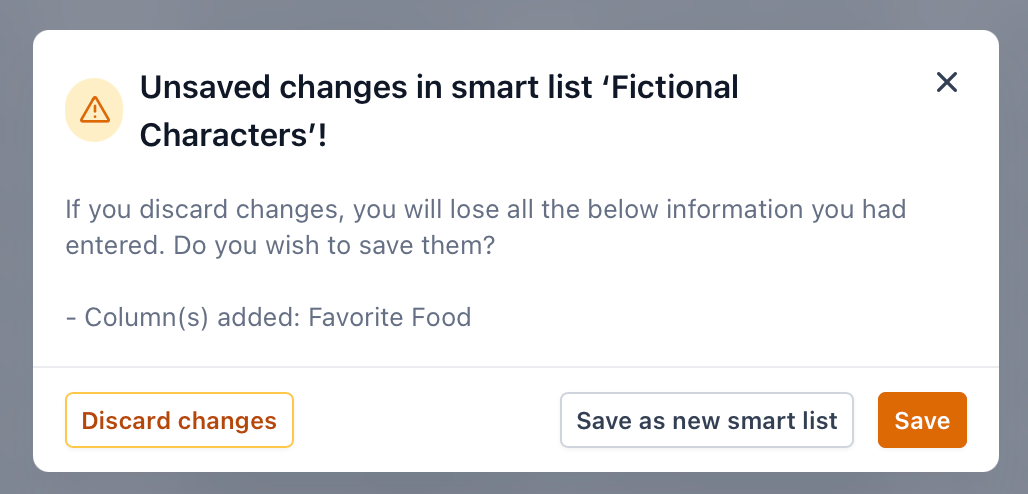
- Close the column manager and save the Smart List to keep the layout.
07What it looks like in HighLevel
08Settings that matter
- Advanced Filters. Controls which filter criteria can be added, edited, or removed for a Smart List.
- Column/field management option. Determines which contact fields appear in the list view and their order.
09Things to know before you rely on it
- Contacts cannot be manually added to a Smart List; they are added only through matching filter conditions.
- HighLevel does not record who created or shared a Smart List.
- Smart Lists cannot be moved between accounts or imported into a snapshot.
- Users need 'settings' access to manage Smart Lists.
- The most recently saved column order and visibility are used; unsaved changes are not retained.
10How it connects to the rest of HighLevel
- Use bulk actions to apply changes to contacts inside a Smart List. Bulk actions for contacts & smartlists
- Learn how to create and manage contacts before building Smart Lists. Getting Started: Contacts
Michael's take

Smart Lists feel like a small convenience that can become a real shift for anyone who relies on up to date contact groups. They remove the grunt work of constantly cleaning lists and let the system keep pace with your data changes.
A boutique marketing agency that runs frequent email blasts and targeted follow ups will find Smart Lists especially useful. The ability to have the list refresh right before a campaign means every message reaches the right audience without extra manual steps.