
01Who this is for
- Founders who need to move existing leads into HighLevel quickly and avoid duplicate records.
- Marketing teams that rely on accurate owner assignment and tagging for campaign automation.
02Bulk imports via CSV, explained
The bulk import feature accepts a single sheet CSV file and creates or updates contact records in HighLevel. It checks required fields, unique identifiers, and property formats before adding data. Errors are logged per import action, allowing you to review and correct problematic rows.
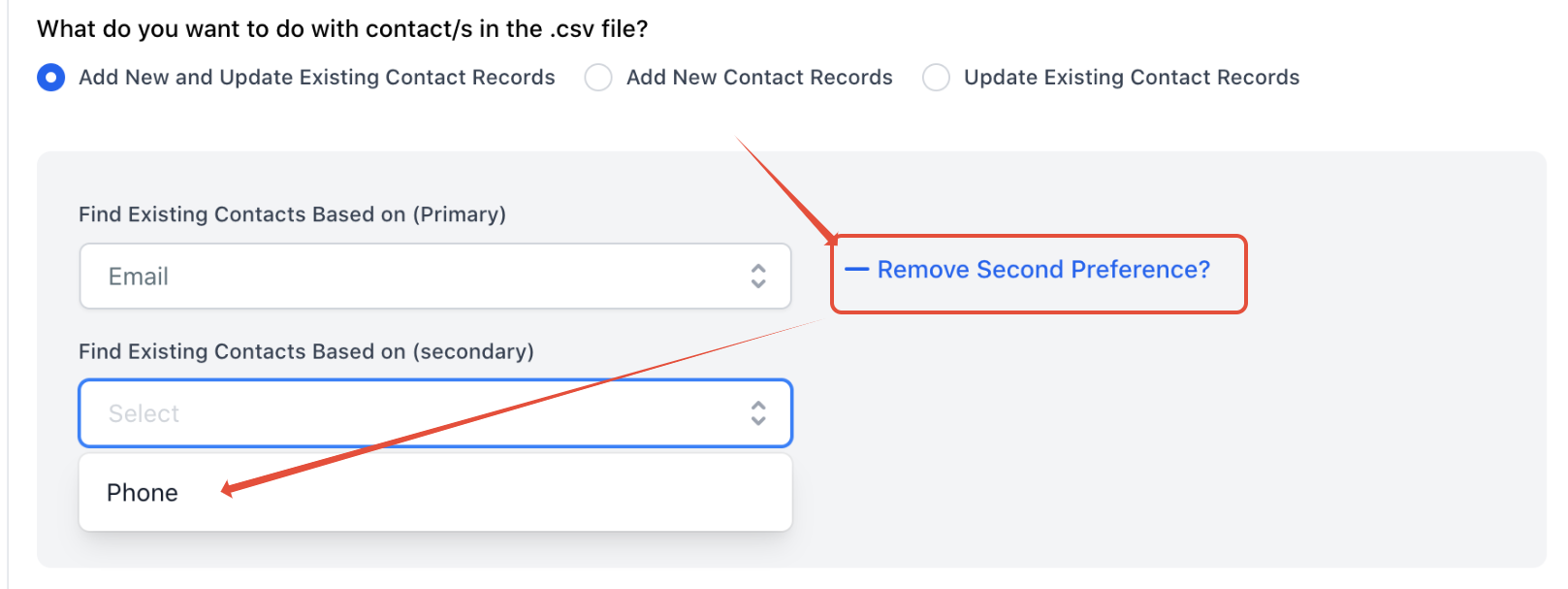
You start the import from the contacts area, select a CSV file, choose a primary column such as Email or Contact ID, and decide whether to update existing contacts. After the upload, HighLevel reports any rows it could not process and provides an error code for each issue.
03How businesses use bulk imports via CSV
- Real estate brokerage. Export leads from a previous system, ensure each row has a unique email or contact ID, and upload the CSV. If the file returns error 1005, adjust property values to match the brokerage's dropdown lists before re importing.
- Dental practice. Import patient contact information, using the practice’s patient ID as the primary column. When error 1013 appears, reformat phone numbers to the E.164 standard and re run the import to keep phone fields populated.
- Ecommerce store. Load a CSV of recent purchasers, confirming that email addresses follow the name@domain.com format. If error 1008 occurs, correct the malformed emails and re import so new customers receive automated order confirmations.
04The numbers and rules that matter
- Maximum file size is 20 MB or 10,000 rows, whichever comes first.
- Phone numbers must follow E.164 format.
- Notes field allows one note per contact with a limit of 500 characters.
- Exported notes support up to 255 characters for the last note.
05Before you start
- Make sure the CSV contains only one sheet.
- Fill all required fields and format emails, phone numbers, and dates correctly.
- Provide a unique Contact ID or another unique primary column for each row.
- Match enumeration values exactly to the options defined in HighLevel.
- Enter valid HighLevel user emails in the Owner column.
06How to set up and use bulk imports via CSV in HighLevel
Resolve bulk import CSV errors
- Confirm the file meets all requirements; clear the browser cache or try a different browser, then re import.
- Replace any owner names with their email addresses in the file, or update the Owner property manually after import.
- Remove any extra sheets so only one sheet remains, then re import.
- Check the format of each required property, correct any invalid values, and re import.
- Identify enumeration values that do not match existing options, update them or add new custom options, then re import or edit records manually.
- Verify that Contact IDs in the file match existing IDs; export current contacts to get correct IDs, or deselect the update existing records checkbox if not needed.
- Make sure the selected file is saved on your computer and is a .csv file, then upload again.
- Correct any email addresses that lack a proper format, then re import.
- Ensure unique identifier values follow the required format, then re import or edit affected records manually.
- Choose a different primary column or fix duplicate values, then re import.
- Select a different unique column header or correct duplicated values, then re import.
- Remove duplicate Contact ID rows, keep the most recent information, and re import.
- Update phone numbers to numeric E.164 format, then re import or edit records manually.
- Adjust date values to match the selected format, then re import or edit manually.
- Enter a valid user name or email in the Owner column; add the user to HighLevel if missing, then re import.
- For ambiguous enumeration values, ensure each entry matches only one existing option, then re import or edit manually.
07What it looks like in HighLevel
08Settings that matter
- Owner. Specifies which HighLevel user owns each imported contact; must be an email address to avoid duplicate matches.
- Primary Column. Defines the unique identifier used to match or create contacts, such as Email or Contact ID.
- Contact ID. A system generated identifier; when selected for updates, the CSV must contain matching IDs.
09Things to know before you rely on it
- Only .csv files are accepted for bulk import.
- File size cannot exceed 20 MB or 10 000 rows, whichever limit is reached first.
- A contact can have only one note per import, limited to 5 000 characters.
- Enumeration properties must match exactly one existing option; ambiguous matches will not be saved.
10If something goes wrong
- Unknown error (code 1001). Confirm the file meets all requirements, clear the browser cache or try another browser, then re import.
- Multiple owners found (code 1002). Replace owner names with their email addresses in the CSV, or update the Owner property manually after import.
- Invalid sheet count (code 1003). Remove additional sheets so only one remains, then re import.
- Invalid required property (code 1004). Check the required property’s format, correct the values, and re import.
- Invalid enumeration option (code 1005). Match the value to an existing option or add a custom option, then re import.
- Invalid contact ID (code 1006). Ensure Contact IDs are correct; export existing contacts for reference, or deselect the update existing records checkbox.
- File not found (code 1007). Verify the file is saved locally, is a .csv, and re upload it.
- Failed validation of Email (code 1008). Correct email formats to name@domain.com, then re import.
- Empty unique property value (code 1009). Provide a valid value for the primary column and re import, or edit the record manually.
- Duplicate unique property value in HighLevel (code 1010). Select a different primary column or fix duplicate values, then re import.
11How it connects to the rest of HighLevel
- Import contacts using a CSV file CSV import guide
- Bulk actions for contacts & smartlists Bulk actions overview
- Add multiple phone numbers for a contact Phone number handling
- HighLevel pricing and plans Pricing
- Start a 30 day HighLevel trial Free trial
Michael's take

In my experience, bulk imports can reduce a lot of manual data entry when the CSV is formatted correctly.
If the list has inconsistent phone formats, duplicate emails, or missing owner emails, spending time cleaning the data first often saves effort.