
01Who this is for
- Sales teams can keep signed contracts attached to each prospect for quick reference.
- Service providers can store client intake forms beside contact details for easy access.
- Administrators can centralize invoices and receipts within contact records to streamline document retrieval.
02Files to contacts, explained
The File Upload custom field is a type of field you add to the Contact object. It provides a slot where a document can be attached directly to a contact record. The field appears in the Custom Fields section of the contact profile and behaves like any other custom field, showing a file name that can be opened, replaced, or removed.
You configure the field in Settings, choosing allowed file types, maximum size, whether one or multiple files are permitted, and which tab groups the field under. Once saved, the field becomes selectable on any contact that belongs to the Contact object.
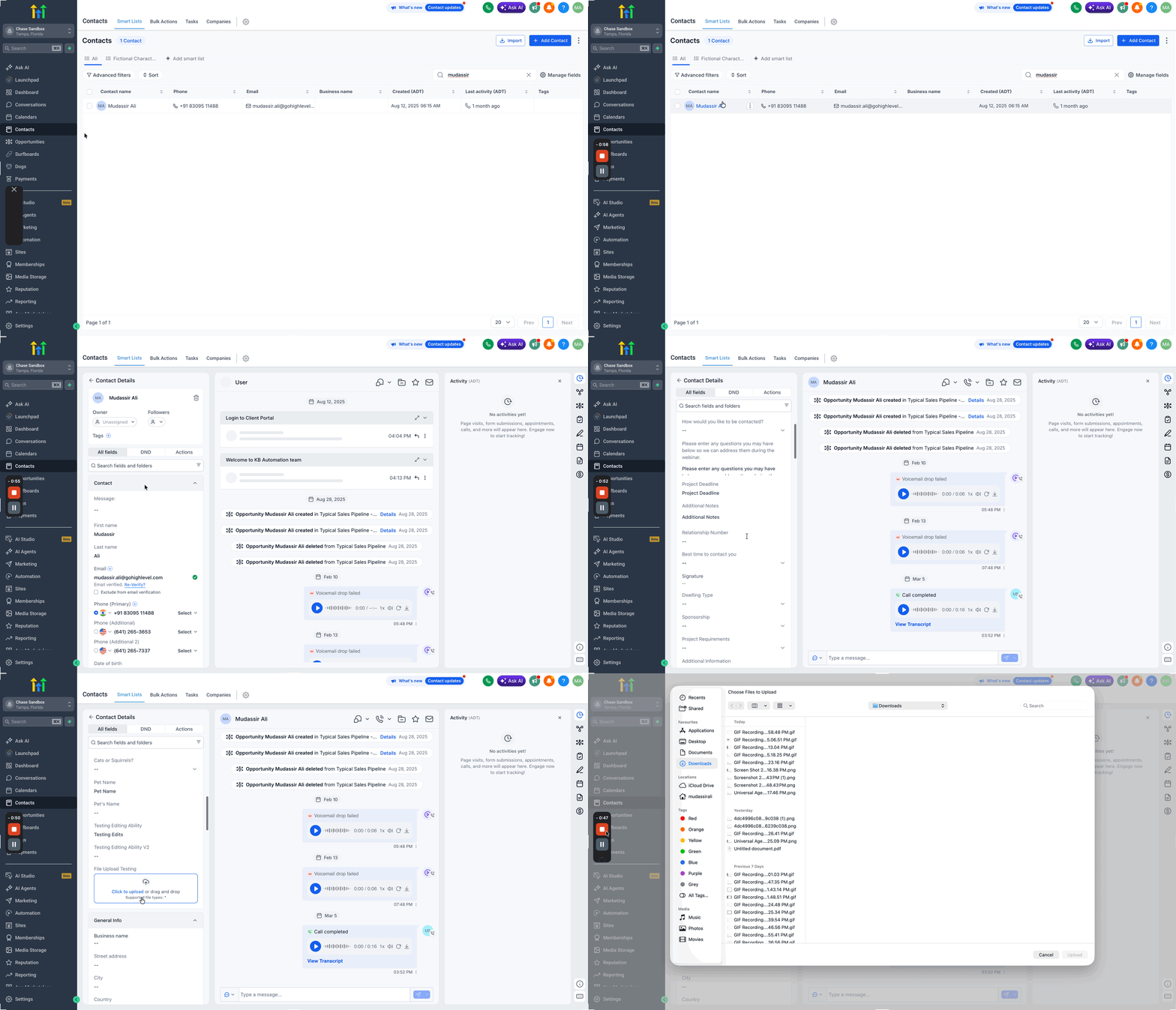
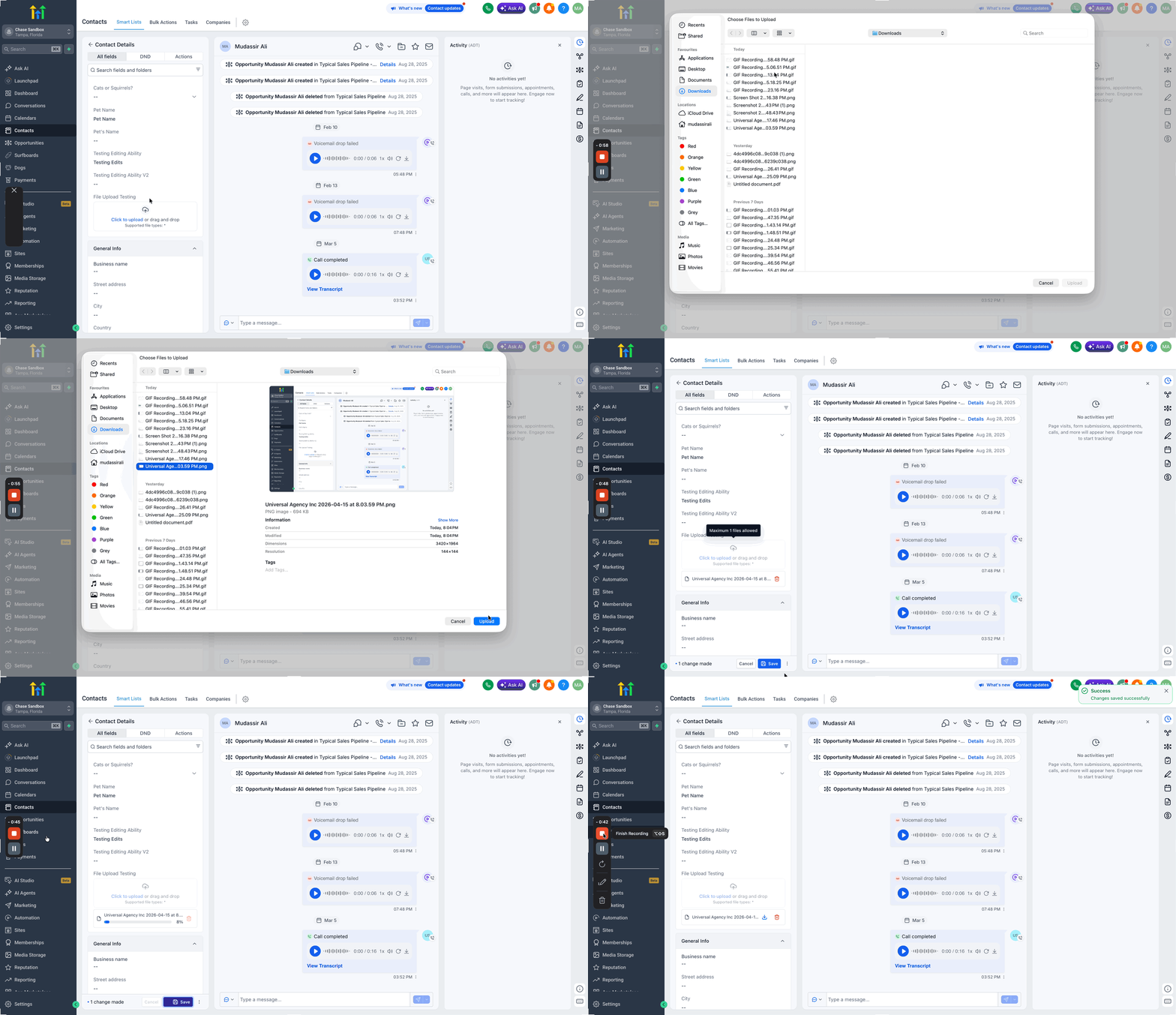
From the contact’s page, the field shows an Upload File button. Selecting a file from your device stores it in HighLevel, and the file link appears in the field. You may later click the link to view, delete, or replace the file, and an Undo option appears if a deletion is accidental.
03How businesses use files to contacts
- Real estate brokerage. Create a File Upload field named "Lease Agreement". Open each buyer or tenant contact, locate the field, and attach the signed lease PDF. The document stays with the contact for any agent to view or replace.
- Health clinic. Add a custom field called "Consent Form". For every patient contact, upload the signed PDF consent. Staff can open the form from the contact record or replace it when a new version is signed.
- Marketing agency. Set up a field titled "Creative Brief" that allows multiple files. Upload the brief, mockup images, and spreadsheets to a client contact, then replace or delete individual files as the project evolves.
04The numbers and rules that matter
- Maximum file size is 250 MB per file.
- Supported document and image formats include PDF, DOCX, PNG, JPG, CSV, PPTX, and XLSX.
05Before you start
- A File Upload custom field must be created before any file can be attached to a contact.
- Important: Uploading a file through a File Upload custom field is different from other file or document features in HighLevel.
06How to set up and use files to contacts in HighLevel
Create a File Upload custom field
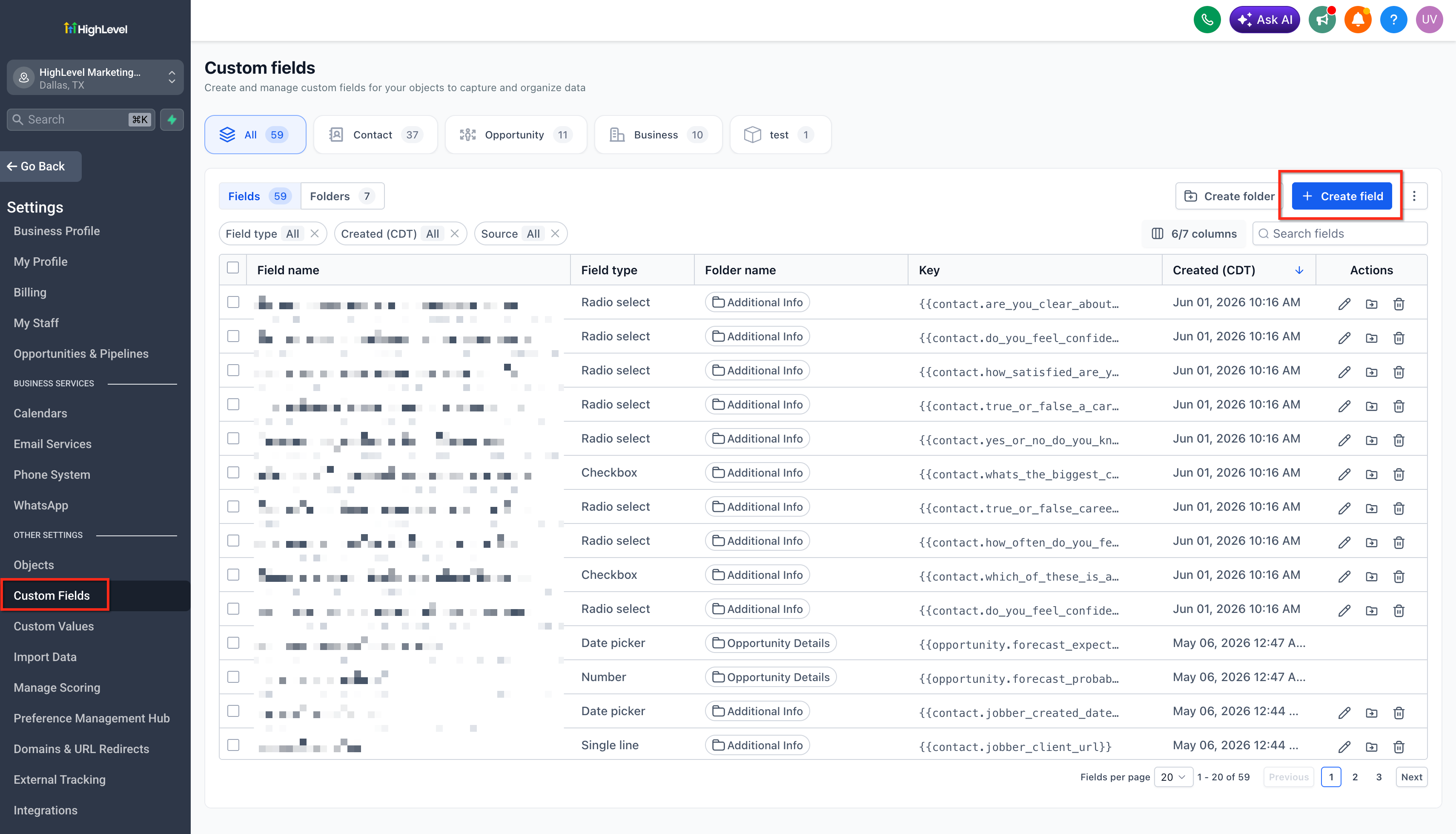
- Open Settings from the left navigation menu.
- Choose Custom Fields.
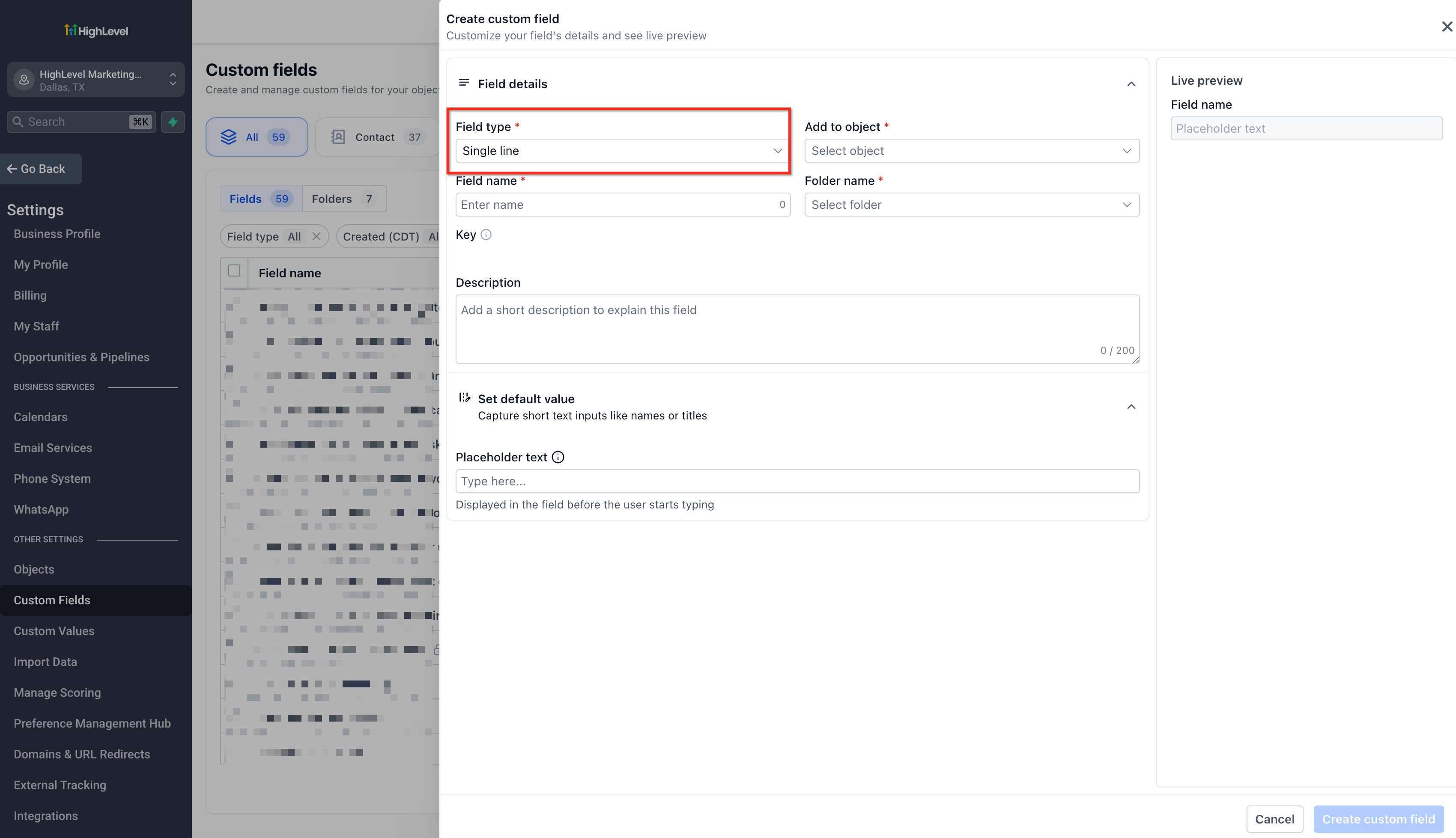
- Press Create Custom Field.
- Pick the File Upload field type.
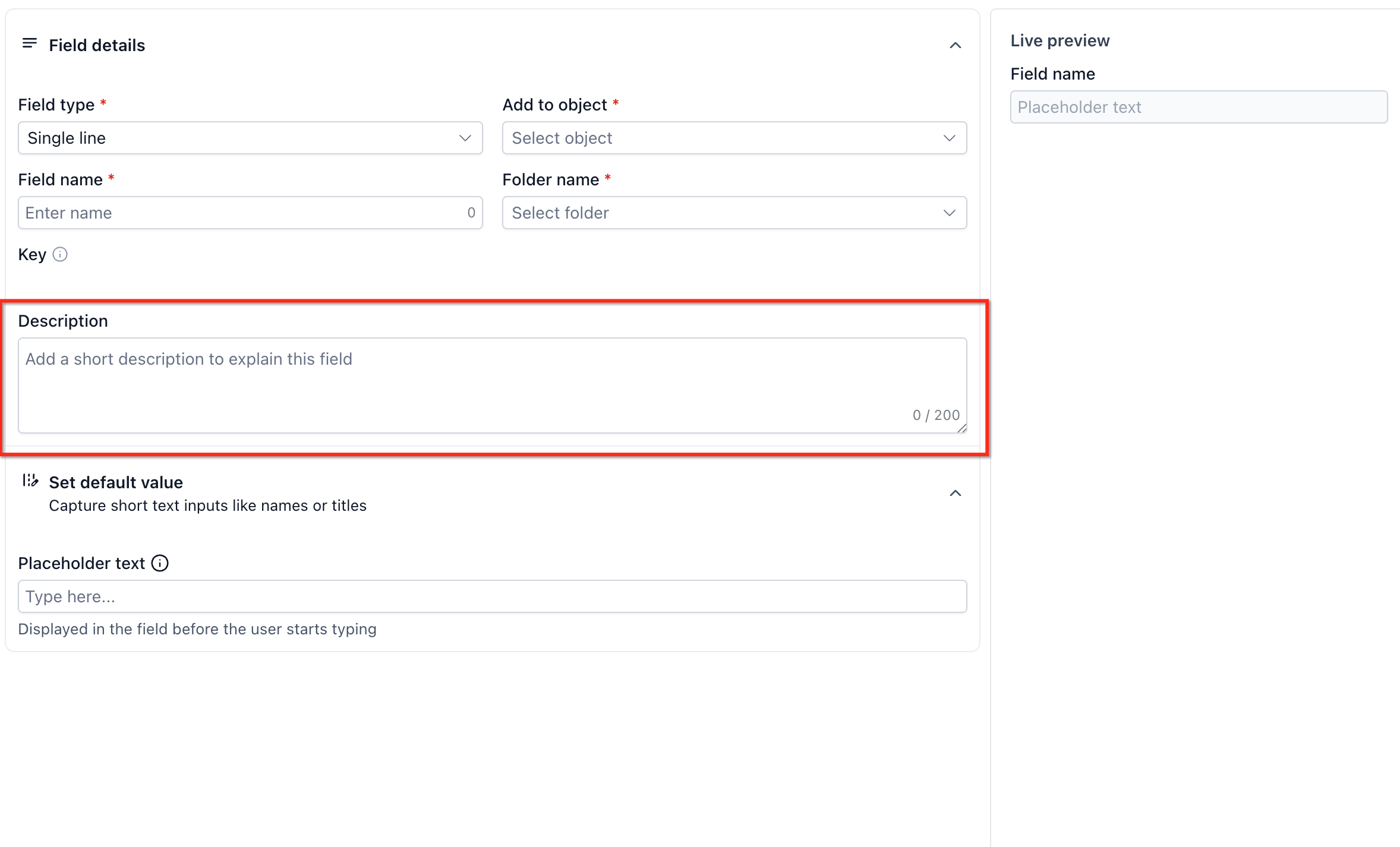
- Type a clear name such as Contract Upload.
- Adjust the file and field options as required.
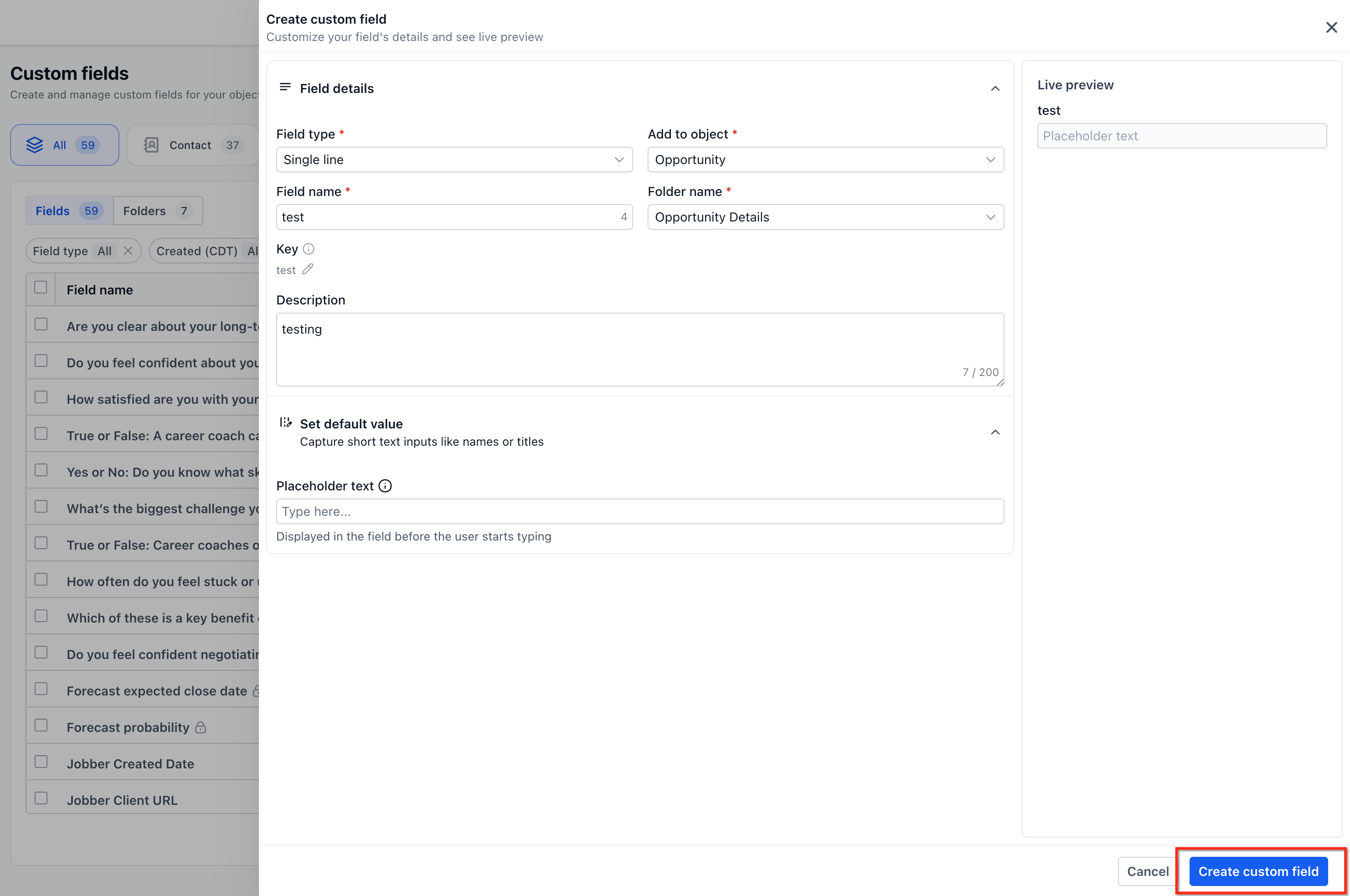
- Click Save to store the new custom field.
Locate the File Upload field on a contact
- Navigate to Contacts.
- Select the specific contact record.
- Scroll to the Custom Fields section within the profile.
- Find the File Upload custom field you previously created.
Upload the file
- Find the File Upload custom field on the contact.
- Click the Upload File button.
- Choose the desired file from your computer.
- Confirm the upload to attach the document.
07What it looks like in HighLevel
08Settings that matter
- File Type. Defines which document or image formats can be uploaded, such as PDF, DOCX, PNG, JPG, CSV, PPTX, and XLSX.
- File Restriction. Sets the maximum allowed size for each uploaded file, which is limited to 250 MB.
- Allow Multiple Files. Controls whether the field accepts a single file or multiple files, based on the number you specify.
- Object Type. Specifies that the custom field belongs to the Contact object, linking uploaded files to contact records.
- Group Tab. Determines the tab within the contact profile where the custom field appears, such as Contact Information or Additional Info.
09Things to know before you rely on it
- Each uploaded file may be up to 250 MB in size.
- Supported formats include PDF, DOCX, PNG, JPG, CSV, PPTX, and XLSX; video files are not accepted.
- The Allow Multiple Files setting determines if one or several files can be stored in the field.
- The feature applies only to files stored in a contact’s Custom Fields section, not to other document storage areas.
10If something goes wrong
- File fails to upload. Verify the file uses a supported type and does not exceed 250 MB. Check your internet connection. Refresh the page and try the upload again.
11How it connects to the rest of HighLevel
- Learn how to manage multiple email addresses for contacts. Multiple email addresses
- Add several phone numbers for a contact in HighLevel. Multiple phone numbers
- Get started with creating, editing, and deleting contacts. Contact management basics
Michael's take

Adding files to contacts feels like a small convenience that can become a real shift for businesses that need quick access to contracts, invoices, or client forms. It centralises documents right where the contact lives, so your team isn’t hunting through separate folders or email threads.
A service based business such as a home repair franchise fits well. Imagine a technician pulling up a client’s record and fast seeing the signed service agreement attached.