
01Who this is for
- Sales teams benefit because they can reach prospects on every listed line.
- Support departments keep backup numbers for clients, ensuring they can respond quickly.
- Agencies manage both personal and business numbers for vendors and partners.
02Multiple phone numbers, explained
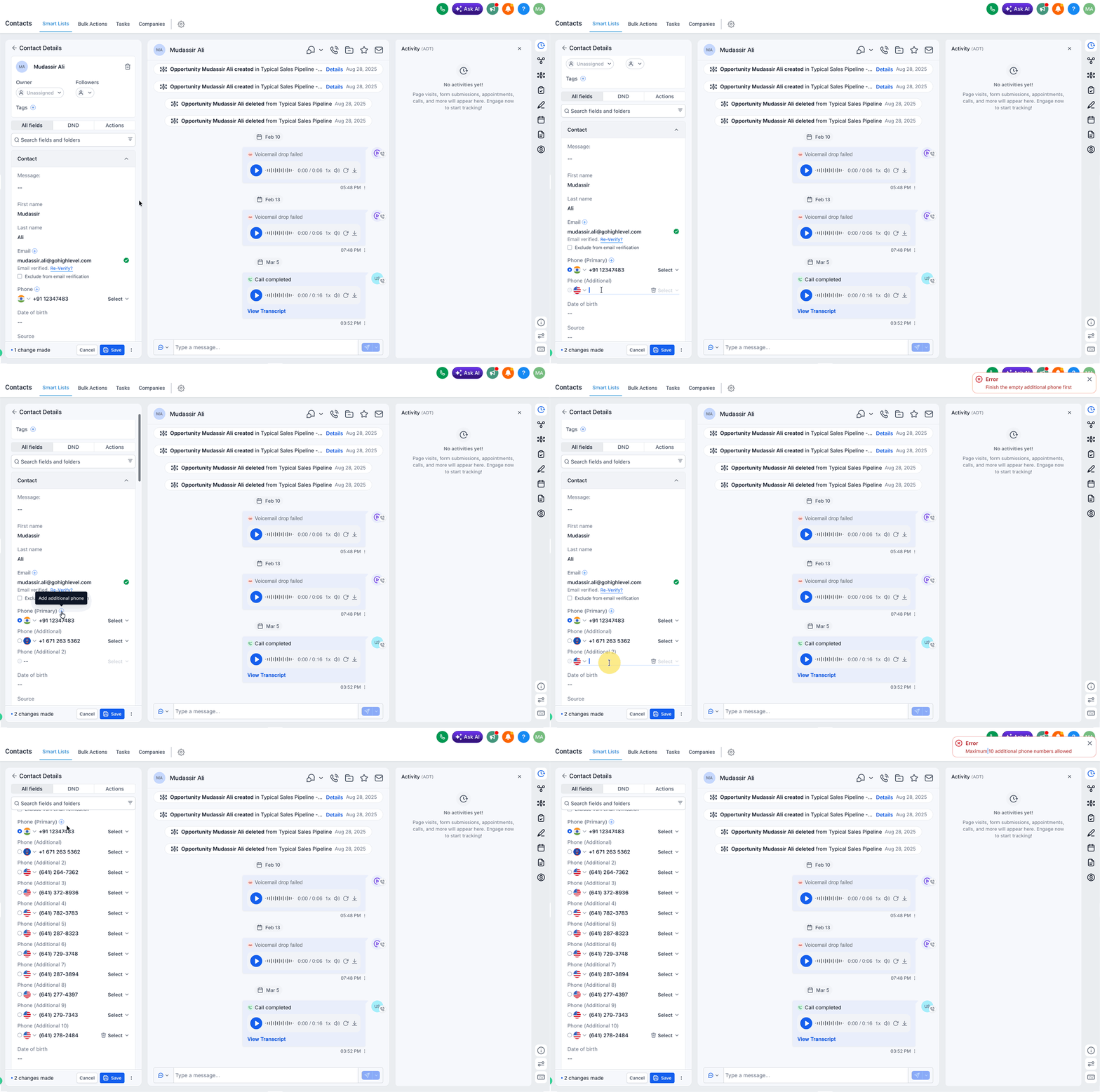
HighLevel provides a field on the contact record where you can attach several phone entries. You can enter up to eleven distinct numbers, give each a descriptive label, and tick a box to make one the primary choice. The primary number is automatically used in calls and messages unless a workflow overrides it.
The phone section lives inside each contact’s detail view. Labels are limited to one per contact, preventing duplicate identifiers. Numbers appear in the order they are entered; rearranging requires removal and adding again. International formatting is supported when you include the country code.
03How businesses use multiple phone numbers
- Sales team. A salesperson opens a lead’s contact record, clicks to add numbers, and records the prospect’s mobile, office, and home lines with appropriate labels. The primary line is set to the mobile number so calls default there.
- Customer support unit. Support staff edit a client’s contact page, add a work number and a backup personal line, label each, and select the work line as primary. The backup appears for escalation if the primary fails.
- Agency managing vendors. An agency adds a vendor’s billing phone and operations desk number to the vendor contact, assigns unique labels, and marks the billing line as primary for invoicing communications.
04The numbers and rules that matter
- Store up to 11 numbers per contact.
- Each label can only be used once per contact.
05How to set up and use multiple phone numbers in HighLevel
Add a phone number to a contact
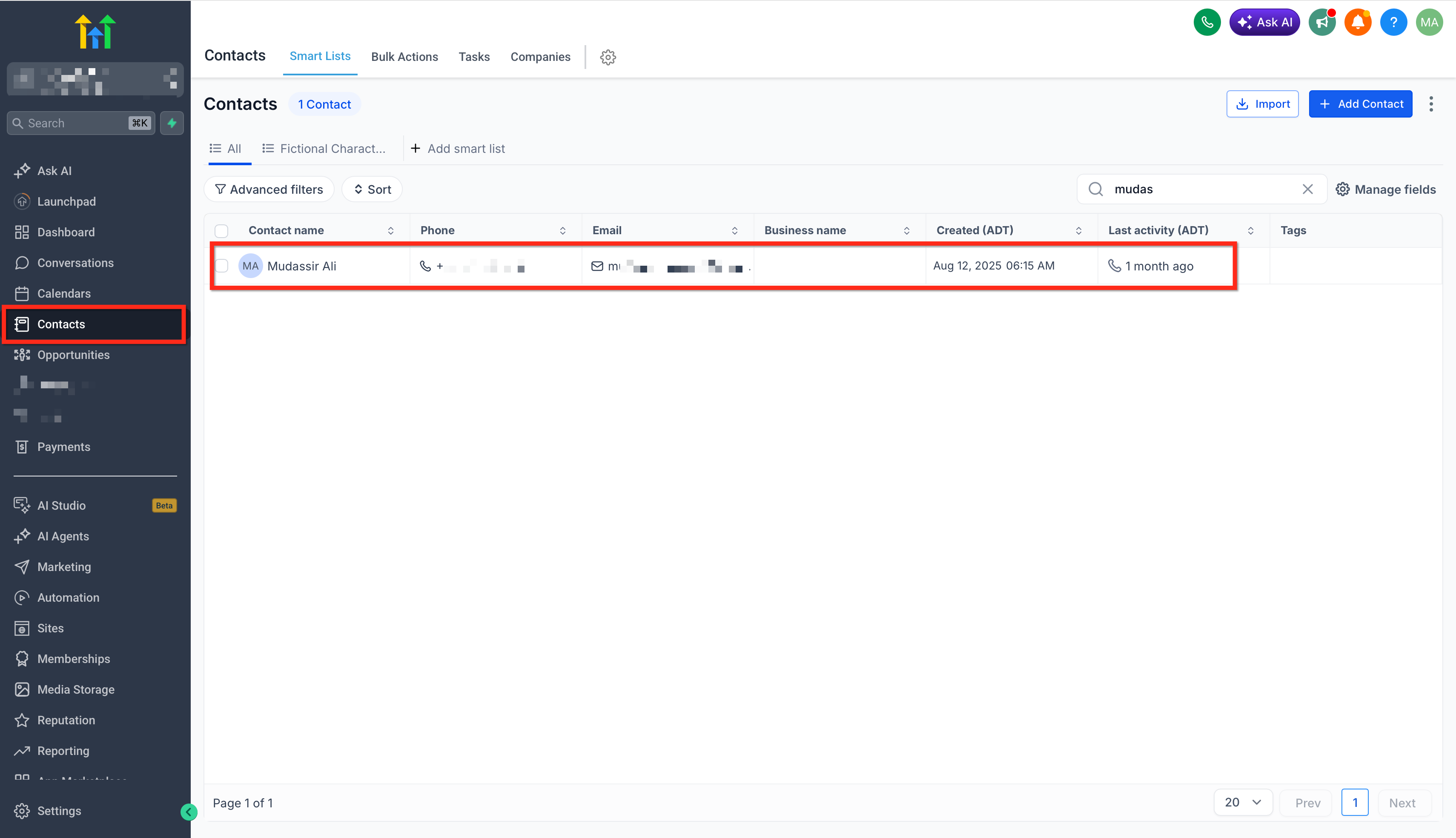
- Open the Contacts tab from the HighLevel dashboard.
- Select an existing contact or create a new one to open its details.
- Click the “+ Add Phone Number” button in the phone section.
- Enter the telephone digits and choose a label such as Mobile or Work.
- If desired, tick the Primary box to make this entry the default number.
Edit an existing phone number
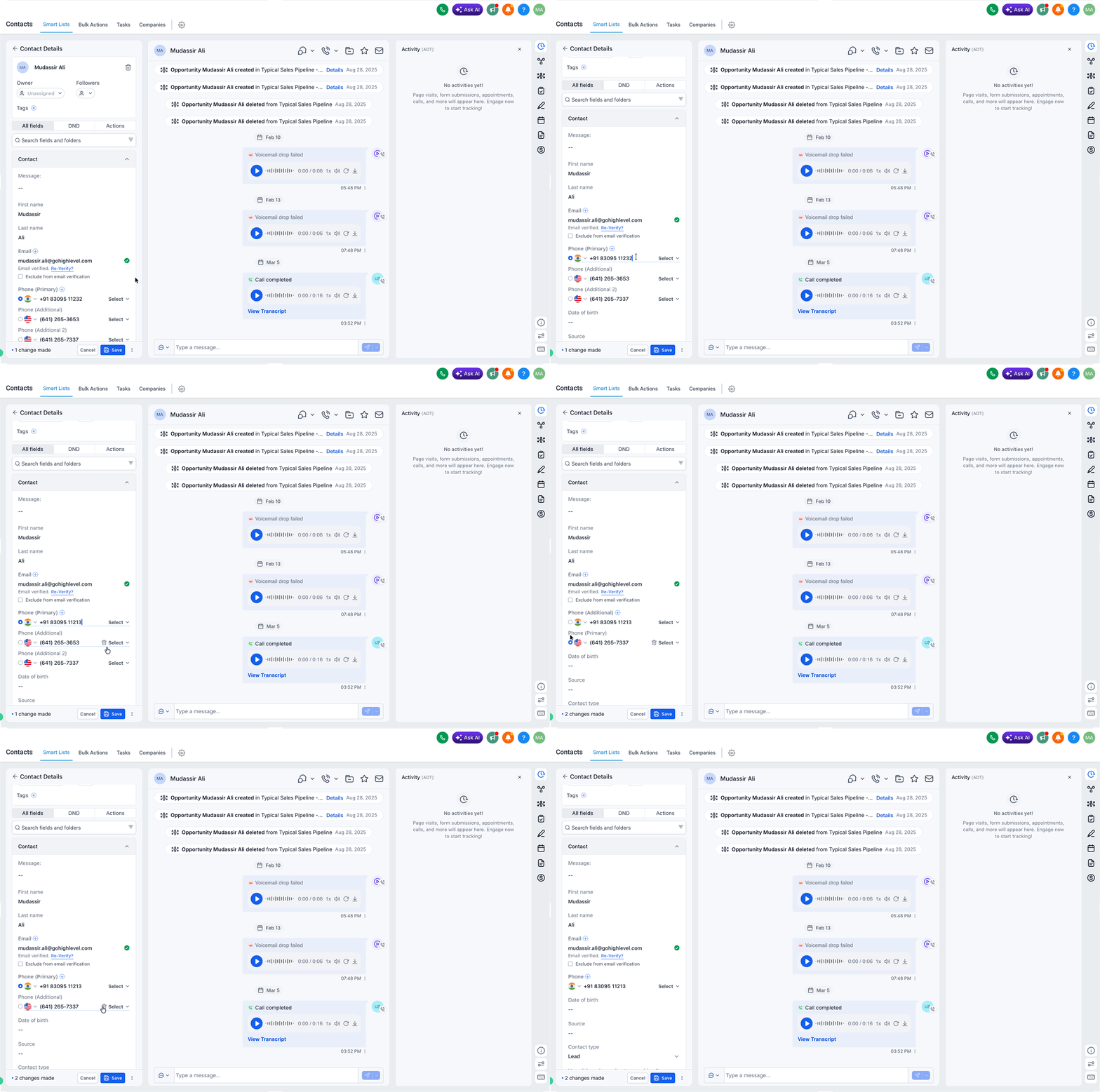
- In the contact record, click on the phone number you wish to change.
- Modify the digits or label as needed.
- Save the changes by clicking outside the field or pressing Enter.
Remove a phone number
- In the contact record, click the Trash icon next to the number you want to delete.
- Confirm the removal if prompted.
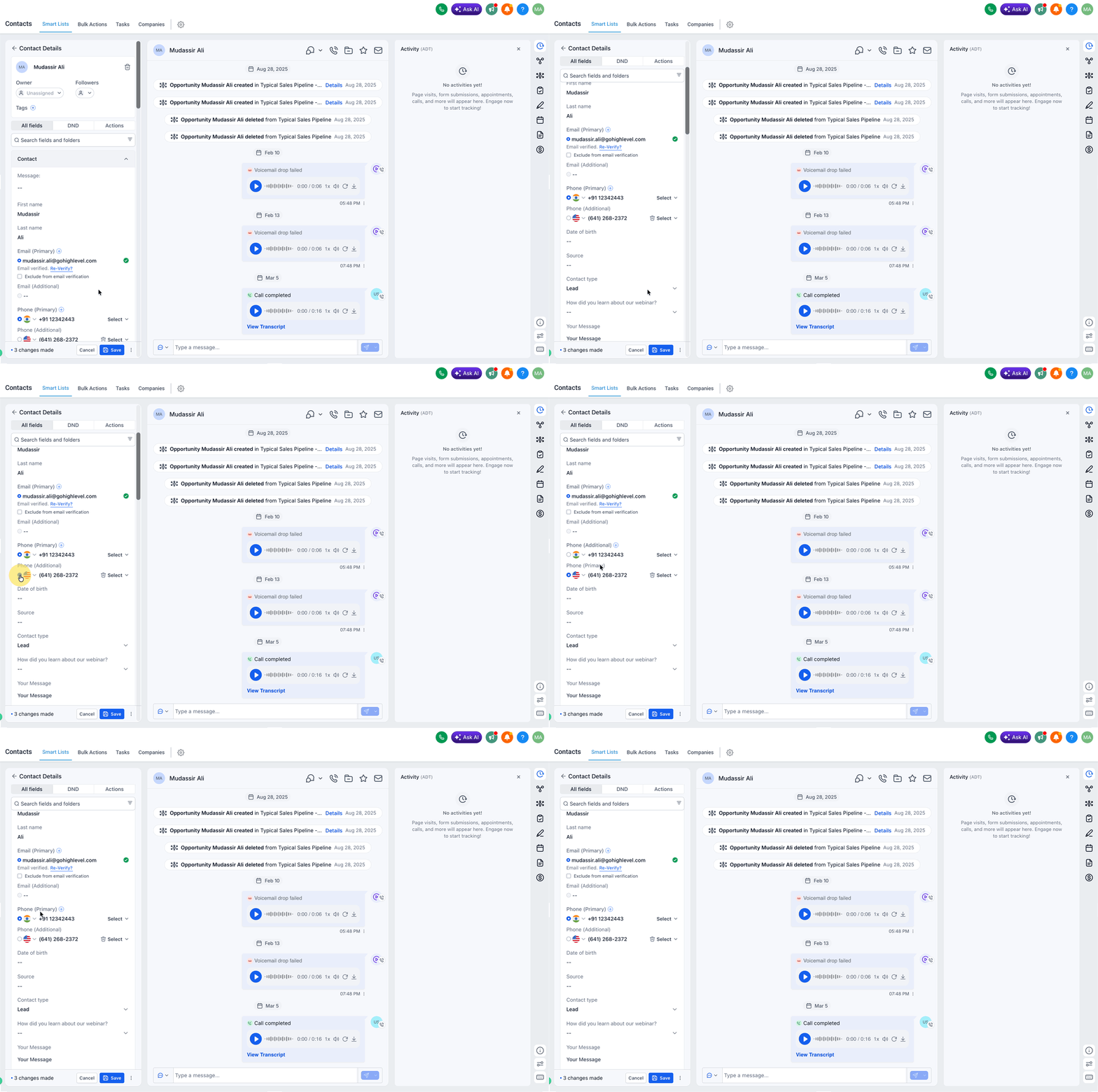
Set or change the primary number
- Check the Primary box next to the desired number.
- If another number was previously marked as Primary, it will be deselected automatically.
06What it looks like in HighLevel
07Settings that matter
- Label. Specifies the category for each phone entry, allowing only one label per contact.
- Primary. Marks a single number as the default for outbound communication.
08Things to know before you rely on it
- A maximum of eleven phone numbers can be stored for each contact.
- Each label may be used only once per contact to avoid confusion.
- Only one number can be flagged as Primary at any time.
09How it connects to the rest of HighLevel
- Create and manage contacts in HighLevel Contact management
- Import contacts using a CSV file CSV import
- HighLevel pricing and plans Pricing page
Michael's take

The multiple phone numbers feature is handy but not essential for every business.
Those who only need a single contact line can skip it and keep their contact records simple.