
01Who this is for
- Agency admins who need to keep client contact data accurate, because they control duplicate search permissions.
- Sales teams that rely on a single contact view to track conversations and opportunities without split records.
- Marketing managers who want clean lists for campaigns and accurate reporting on contact counts.
02Duplicate contacts, explained
The duplicate contact feature helps you identify and combine records that represent the same person. It reviews fields such as email, phone, business name, tags, notes, appointments and custom fields, keeping the chosen master record’s values by default and adding missing custom values from duplicates.
You can start the process from the Contacts area. The manual method works on any contacts list, while the Manage Duplicates tool runs a scan based on email, phone or name and groups potential duplicates for review. Settings also let you stop new duplicates from being created by defining primary and secondary deduplication fields.
03How businesses use duplicate contacts
- Real estate brokerage. The broker searches the contacts list for clients with similar names or emails, selects the duplicate entries, and merges them so all property history, appointments and notes appear under one profile.
- Dental practice. The office staff runs the Manage Duplicates tool, chooses Email as the find criterion, reviews each group, picks the most up to date patient record as master, and merges to keep treatment records and reminders together.
- Online coaching business. The Founder sets the Contact Preferences to disallow duplicate contacts and selects Email as the primary deduplication field, preventing new sign ups from creating duplicate student records.
04The numbers and rules that matter
- Select up to 10 records to merge at once.
05Before you start
- You must have an Admin or Subaccount Admin role to use the Manage Duplicates tool.
- Access to Settings > Business Profile > Contact Preferences is required to change deduplication settings.
06How to set up and use duplicate contacts in HighLevel
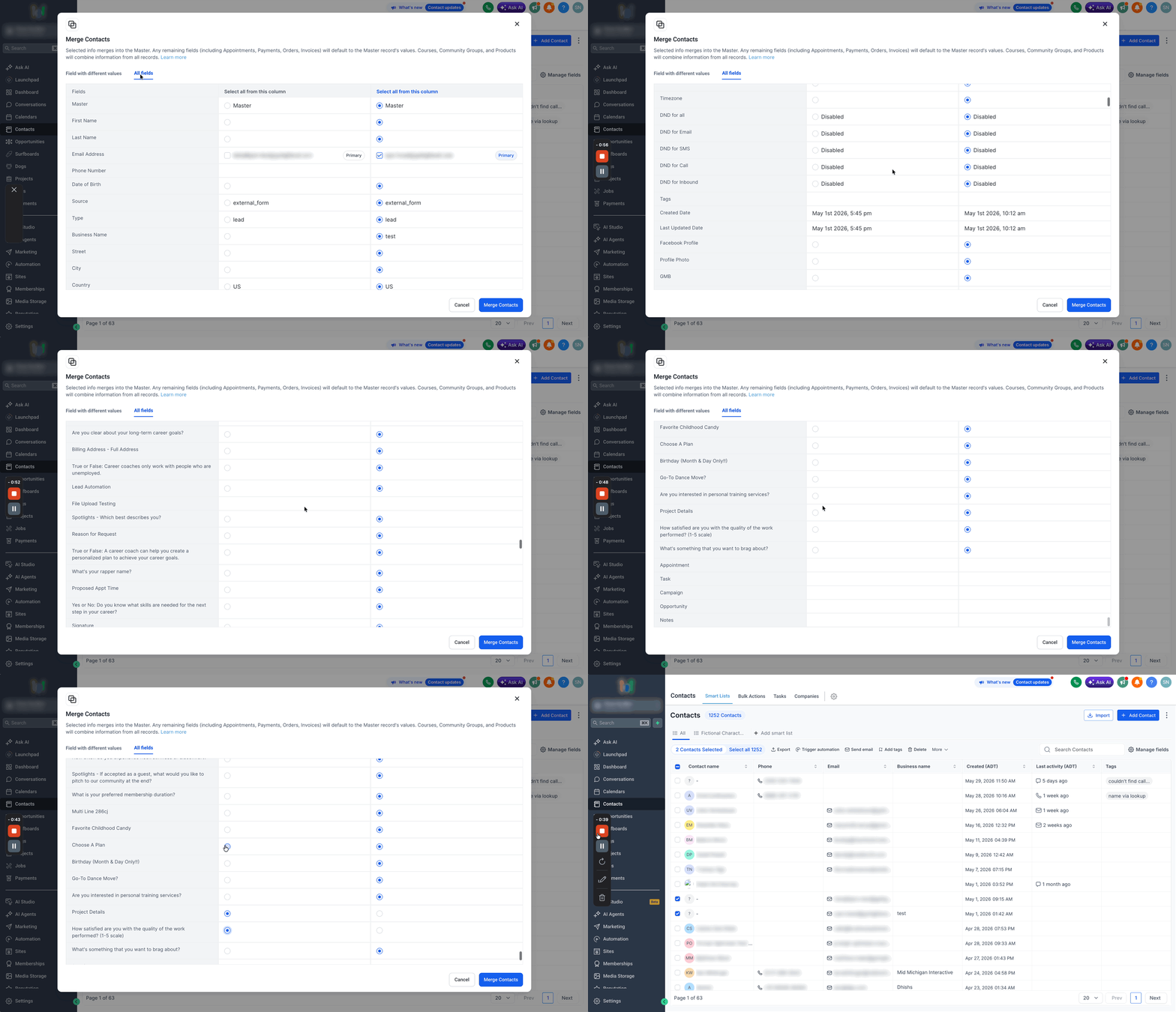
Manually merge selected contacts from a contacts list
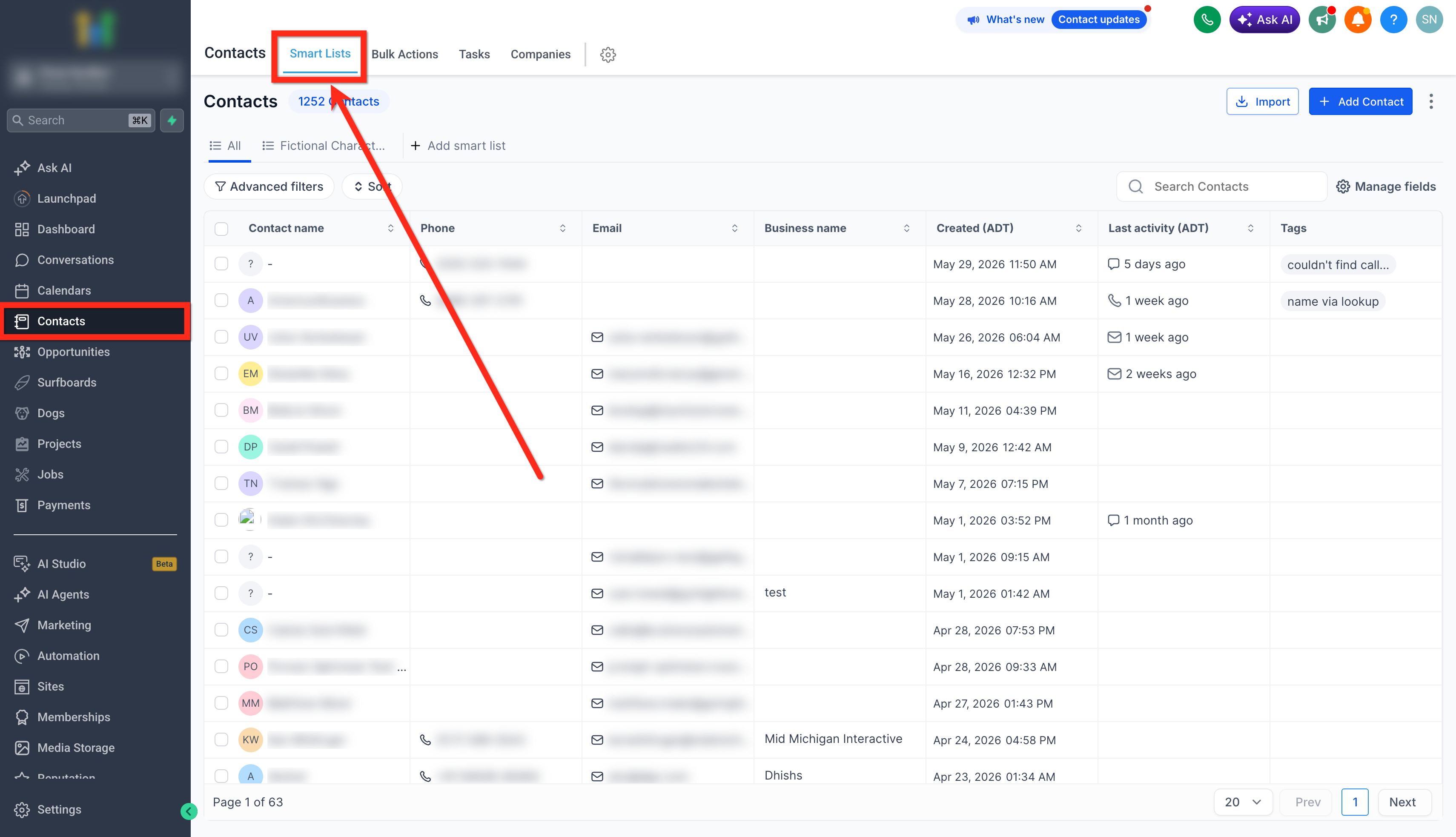
- Go to Contacts > Smart Lists.
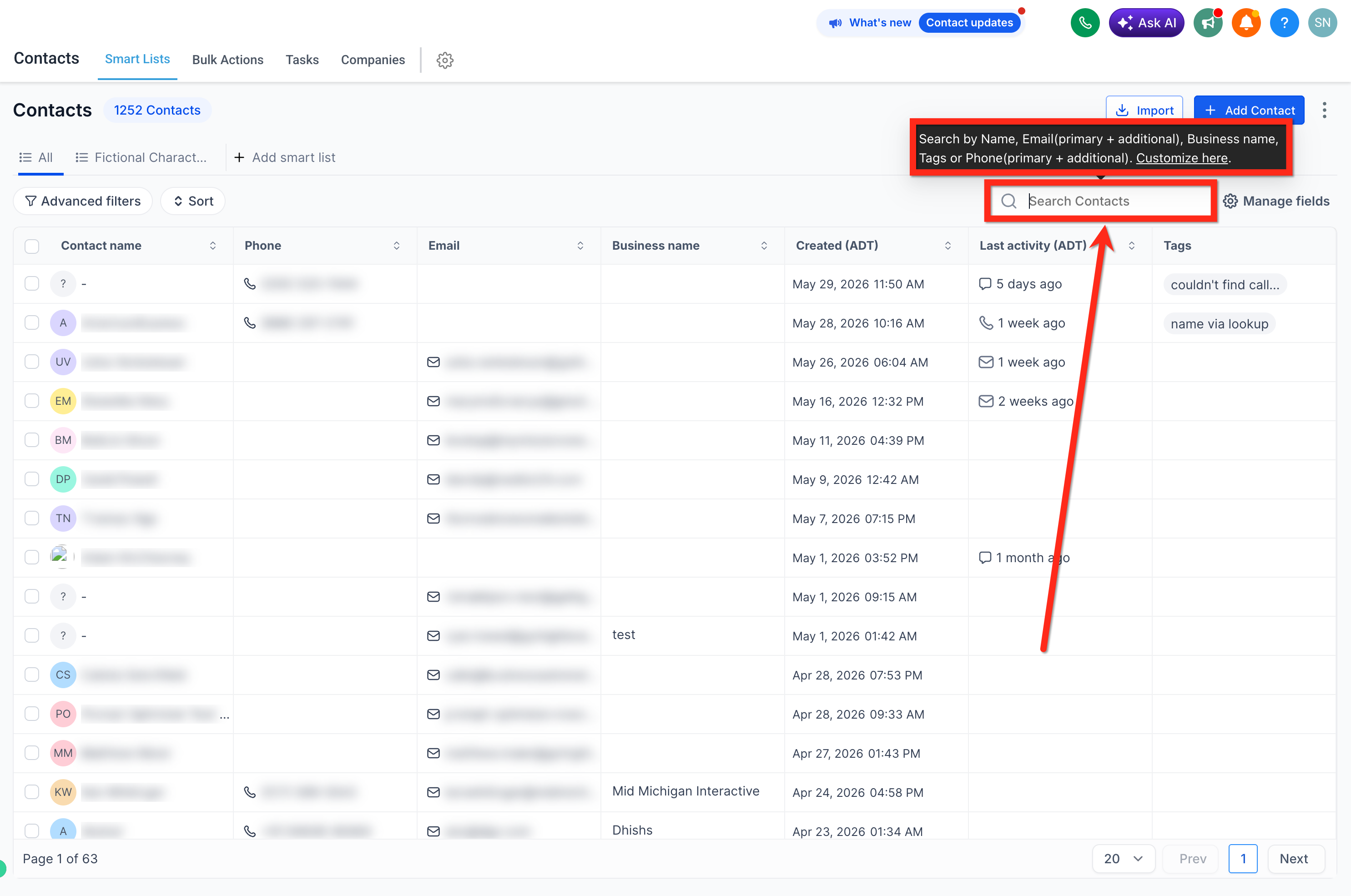
- Use the Search Contacts box to locate the duplicate records.
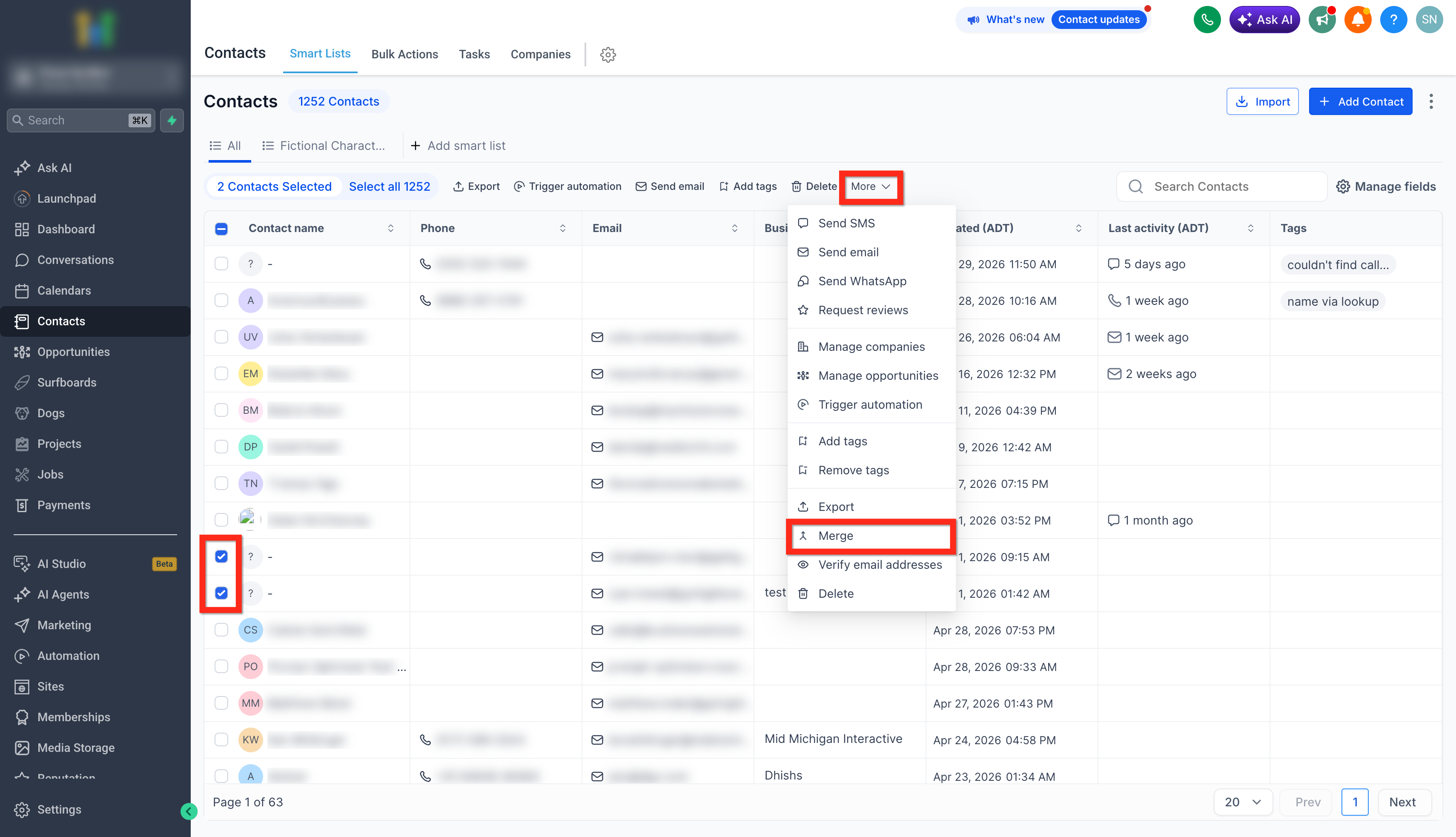
- Select the contacts you want to merge.
- Click More in the top action bar.
- Choose Merge from the dropdown.
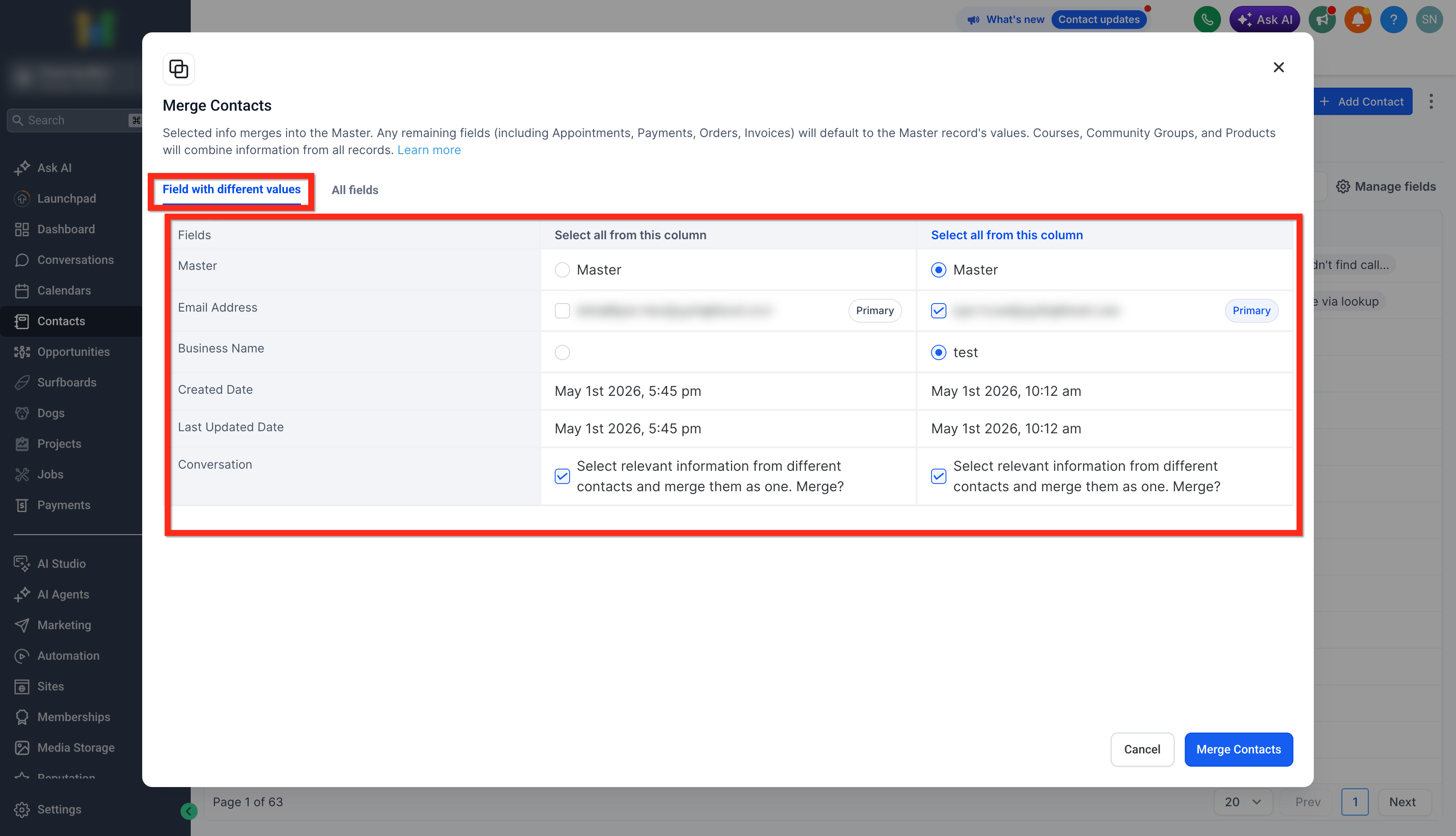
- In the Merge Contacts window, pick the contact that will remain as the Master record.
- Review any fields that show different values.
- In the All Fields view, select the values you wish to keep.
- Click Merge Contacts to finish the merge.
Merge contacts using the Manage Duplicates tool
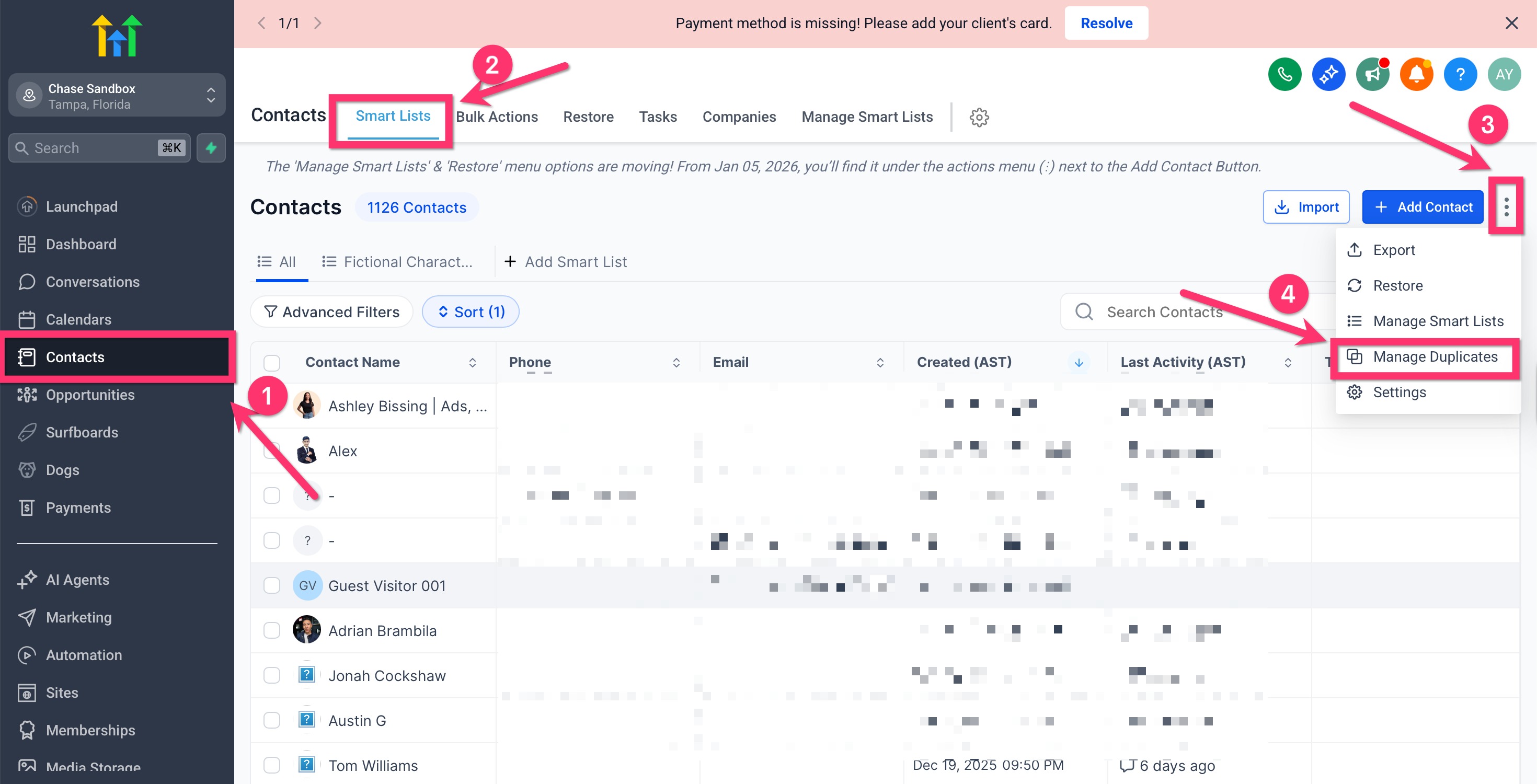
- Open Contacts in your subaccount.
- Open the three dot menu and select Manage Duplicates.
- Choose a Find By option (Email, Phone, or Name) and click Find Duplicates.
- Review the displayed list of duplicate groups.
- Expand a group by clicking its down arrow to see all contacts.
- Click Review to compare fields side by side and decide which values to keep.
- Select a Master contact for the group.
- Click Merge, acknowledge the warning, then click Merge Duplicates.
- If you do not want to merge a group, click Reject and confirm the popup.
Set contact deduplication preferences
- Navigate to Settings > Business Profile > Contact Preferences.
- Enable or disable the Allow Duplicate Contacts option.
- Choose Email or Phone as the primary and secondary deduplication fields.
07What it looks like in HighLevel
08Settings that matter
- Allow Duplicate Contacts. Controls whether the system permits creating new contacts that match existing records.
- Primary deduplication field. Defines the first data point (Email or Phone) used to check for duplicates when a new contact is added.
- Secondary deduplication field. Provides a second check (Email or Phone) to further prevent duplicate entries.
09Things to know before you rely on it
- You can merge a maximum of ten contacts at one time; the tool shows a limit reached 10/10 notice.
- Merges are permanent and cannot be undone.
- Only Admin and Subaccount Admin roles have full access to find and merge duplicates; team members cannot use the feature.
- Rejected duplicate criteria are excluded from future scans and cannot be reverted.
10If something goes wrong
- No duplicates found. Try a different Find By criterion such as Phone or Name.
- Limit reached (10/10). Merge the first ten records, then run another batch for the remaining contacts.
- Merge button disabled. Check the “I understand this cannot be undone” acknowledgment box.
- Missing merge option. Ensure you have an Admin role; non admin users cannot access the merge function.
11How it connects to the rest of HighLevel
- Create and manage Smart Lists for easier contact searches Smart Lists guide
- Use bulk actions to select multiple contacts at once Bulk actions
- Learn how to add contacts manually or via import Create contacts
Michael's take

Duplicate contacts can clutter a CRM and make reporting less accurate. I would begin with making sure the Allow Duplicate Contacts setting is off so new entries don’t keep piling up. Then I’d run a scan, pick the record with the most up to date details as the master, and merge the rest.
If I were cleaning a list from a recent import, I’d use the Manage Duplicates tool because it quickly surfaces matches by email or phone. I’d double check any conflicting fields before confirming, because once the merge is done there’s no way to roll it back.