
01Who this is for
- Founders who need audit trails for large scale contact imports and tagging actions.
- Marketing managers who run bulk SMS or email campaigns and must pause or cancel them on short notice.
- Operations staff responsible for cleaning up contact lists and recovering accidental deletions.
02Bulk actions, explained
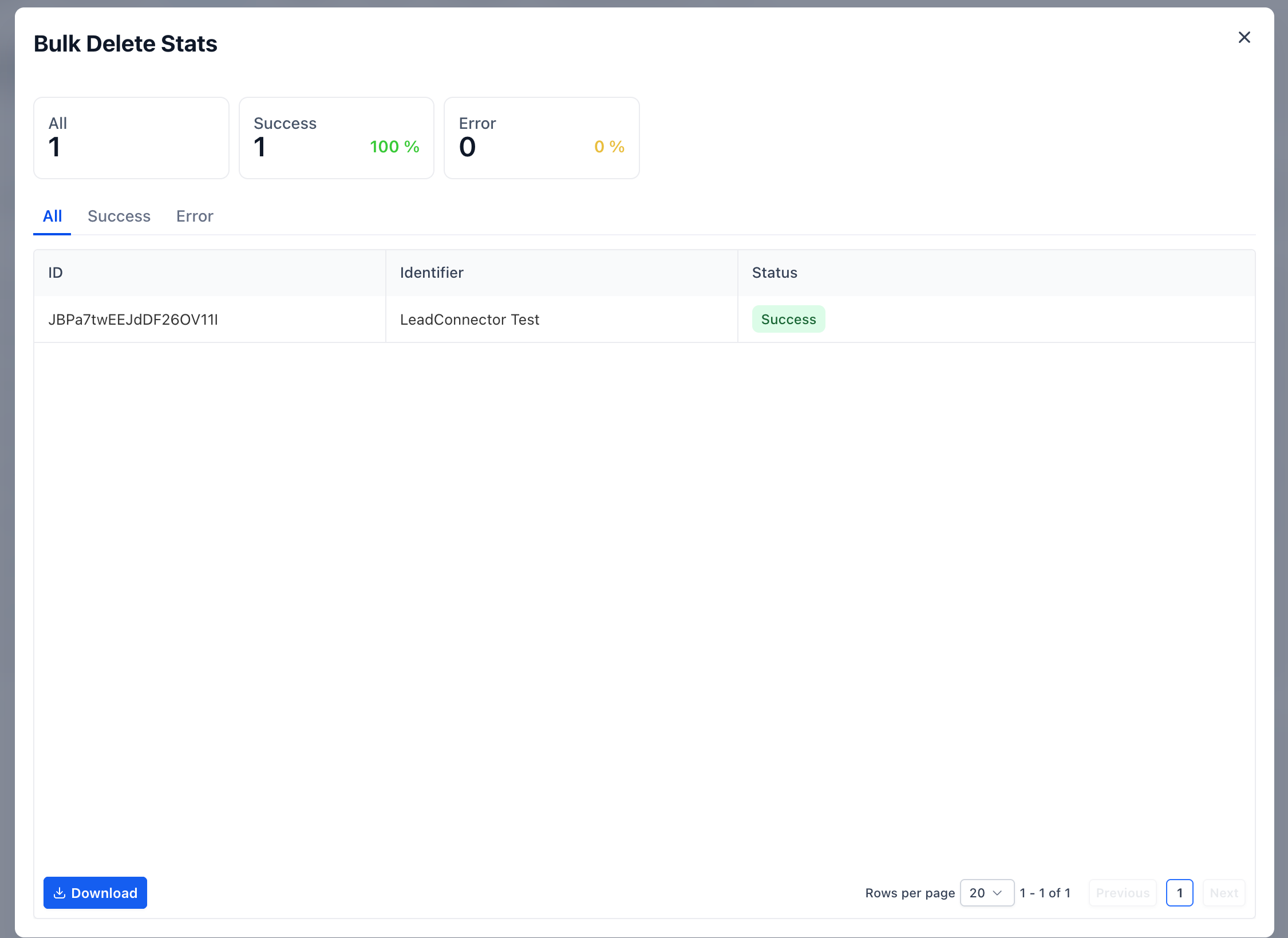
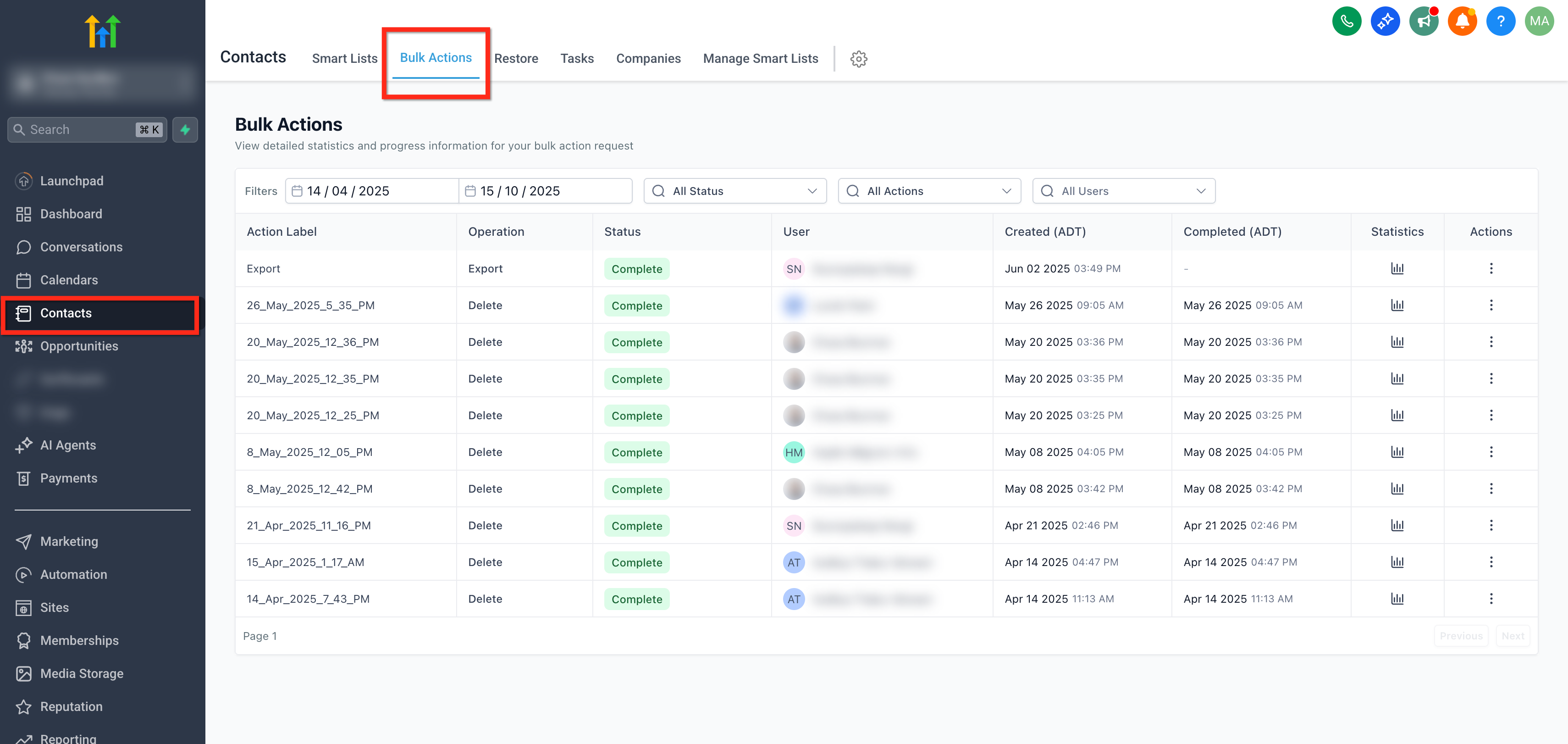
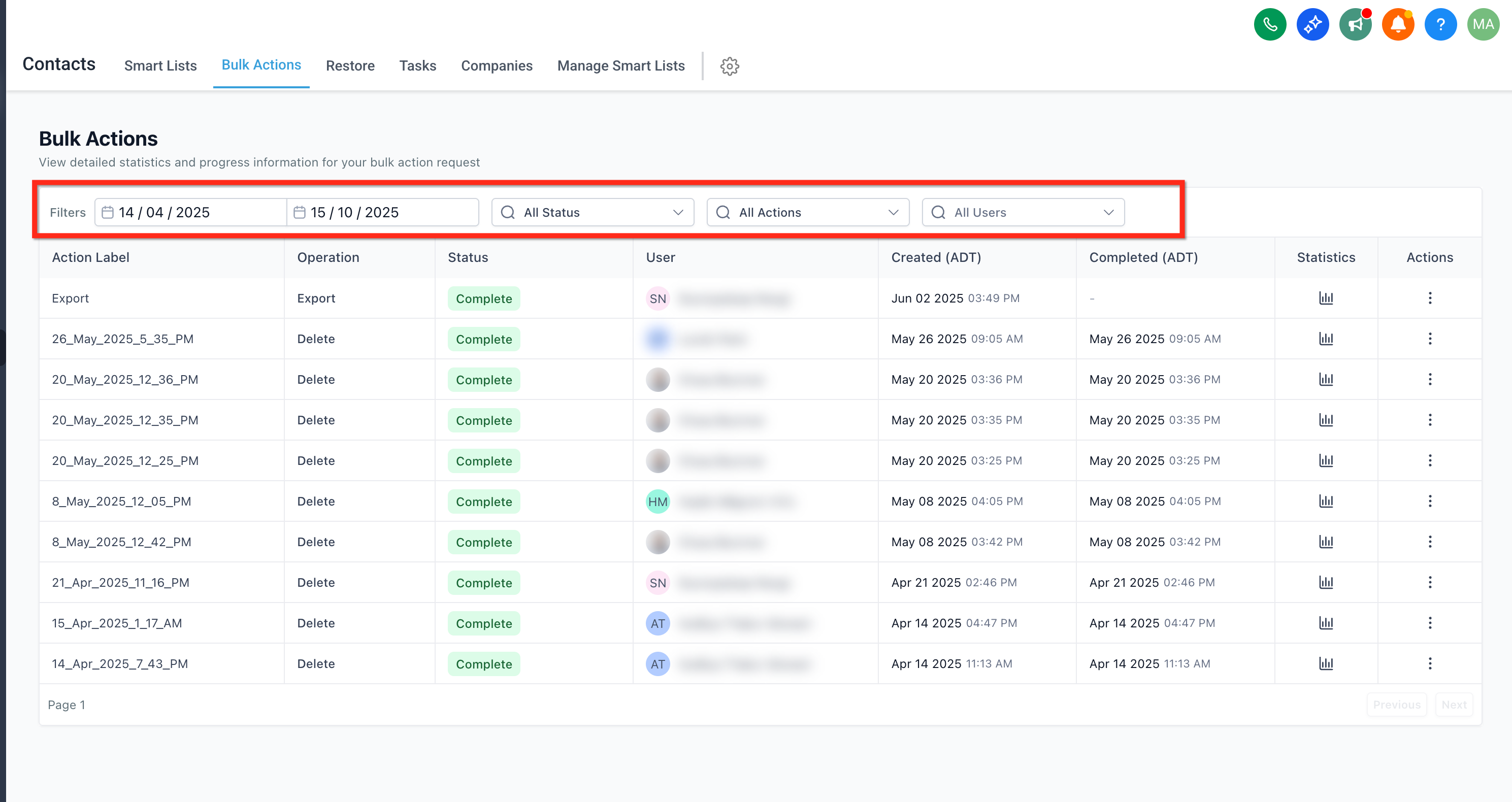
The Bulk Actions page aggregates all mass operations launched from the Contacts area, such as imports, tag changes, bulk messaging and deletions. Each job appears as a row with columns for action name, type, creator, creation time and current status. From the row you can open a stats drawer, download error logs, pause, edit, cancel or restore the job where the function is allowed.
The page lives under Contacts > Bulk Actions inside the selected subaccount. Filters let you narrow the list by status, action type, user or date range, making it easy to locate specific jobs. Stats display totals, success and error counts, and for messaging jobs include delivery outcomes. Error logs can be exported for troubleshooting.
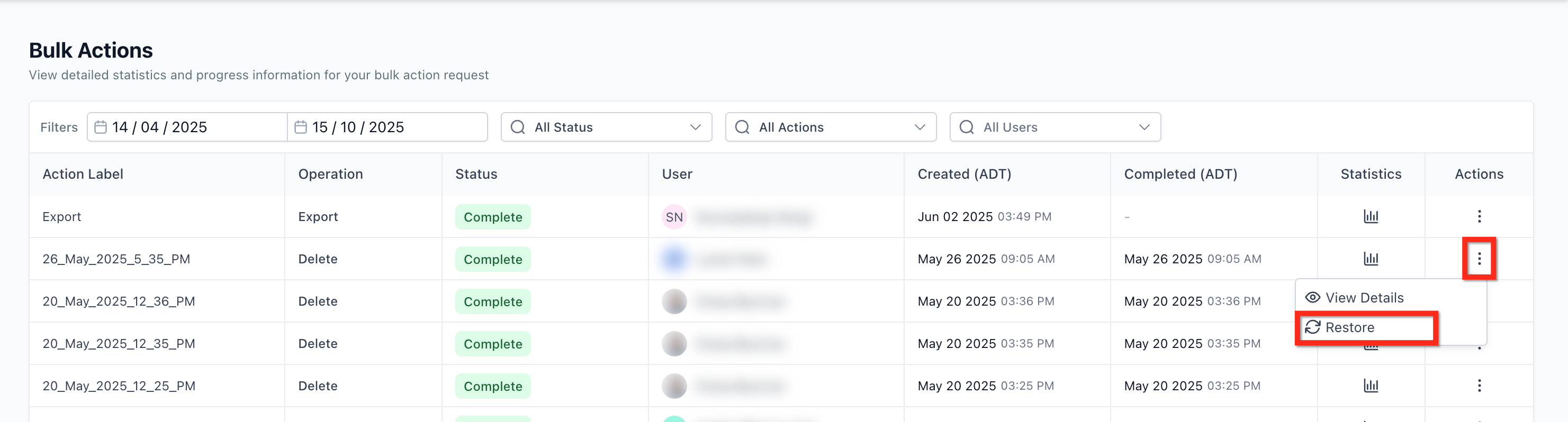
For Delete Contacts jobs that are still within the restore window, a Restore button appears. Confirming it creates a new restore job that runs through the Bulk Actions table. Certain bulk actions, such as Bulk Email or Bulk Tag Add, cannot be restored.
03How businesses use bulk actions
- Real estate agency. Import a large list of leads via CSV, then open Show Stats to see how many records succeeded. Download the error log to correct failed rows and re import. The agency can also filter by Action Type to review only import jobs.
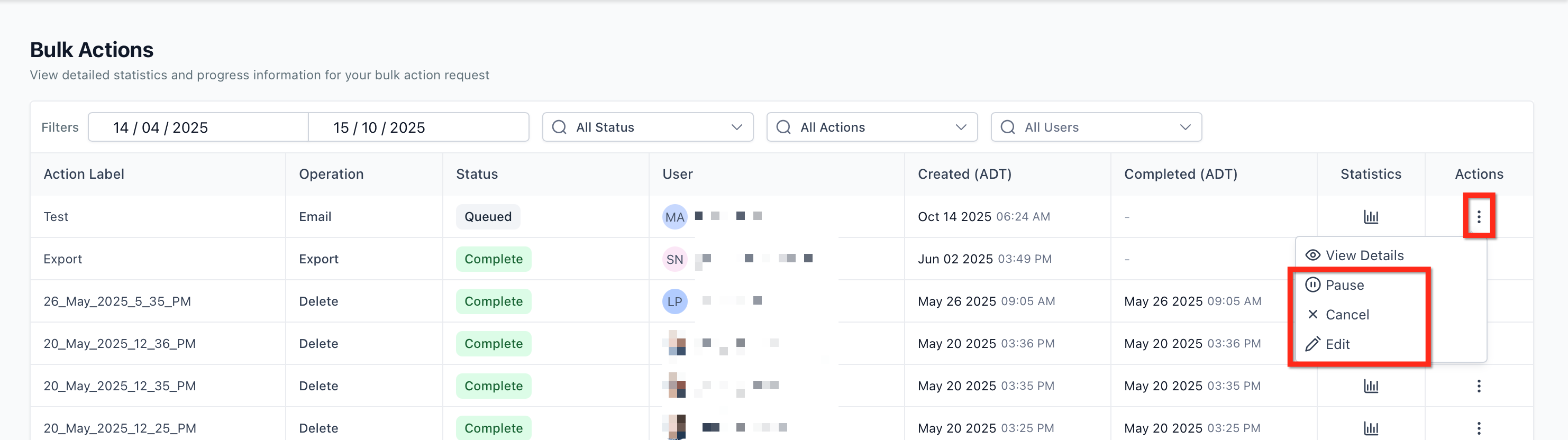
- Fitness studio. Launch a bulk SMS promotion and, if the class schedule changes, open the three dot menu on the running job to Pause, Edit the send time, or Cancel the send entirely before it completes.
- Ecommerce store. Delete a batch of inactive contacts, then, if the deletion was accidental, use the Restore option within the 60 day window to reinstate those contacts. The restore job appears alongside other bulk jobs.
04The numbers and rules that matter
- Status options include In Progress, Completed, Canceled, Paused, Queued.
- Action Types include Import, Delete Contacts, Add Tag, Remove Tag, Bulk SMS, Bulk Email.
- Restore window is typically be restored within about 60 days from the date of deletion.
05Before you start
- You must be logged into the subaccount where you want to view bulk jobs.
06How to set up and use bulk actions in HighLevel
Set up and use the Bulk Actions page
- Navigate to Contacts > Bulk Actions in the desired subaccount.
- Select filter values such as Status, Action Type, User, or Date to locate specific jobs.
- Click the Show Stats button on a job row to open the detailed metrics drawer.
- If the job is a Delete Contacts job within the restore window, click Restore and confirm to start a restore job.
- For eligible queued bulk sends, open the three dot menu on the row and choose Pause, Edit, or Cancel as needed.
07What it looks like in HighLevel

08Things to know before you rely on it
- Restore is only available for Delete Contacts bulk jobs and only within roughly 60 days after deletion.
- Bulk Email, Bulk Email Verification, Bulk Update Contacts to Company, Bulk Tag Add, and Bulk SMS jobs cannot be restored.
- Pause, Edit, and Cancel actions appear only for eligible job types such as queued bulk SMS sends.
- The Bulk Actions page displays jobs only for the subaccount you are currently in.
09How it connects to the rest of HighLevel
- Add tags in bulk Bulk tag addition
- Import contacts via CSV CSV import guide
- HighLevel pricing and plans Pricing
Michael's take

Running massive contact imports or messaging blasts without a clear audit trail can leave you scrambling when something goes wrong. The Bulk Actions page adds a single place to see exactly what happened, spot errors and even pull back a mistaken delete. If you act quickly.
When you have a team that regularly pushes bulk updates, the ability to filter by user, action type or date makes it easy to hold everyone accountable and keep HighLevel tidy. I’d jump straight to the Show Stats view for any job that shows errors, grab the log and fix the problem before you run the next batch.