
01Who this is for
- Marketing managers, they can quickly update audience segmentation when campaigns end.
- Sales team leaders, they keep lead lists accurate by removing obsolete tags.
- Agency owners, they maintain clean client contact databases across multiple accounts.
02Removing contact tags, explained
The bulk Remove Tags action deletes tag assignments from selected contacts without affecting any other contact data. It works from the Contacts tab, where you can pick individual records or filtered groups. After you start the action, the platform processes the changes and logs the task in the Bulk Actions dashboard where you can view progress and detailed results.
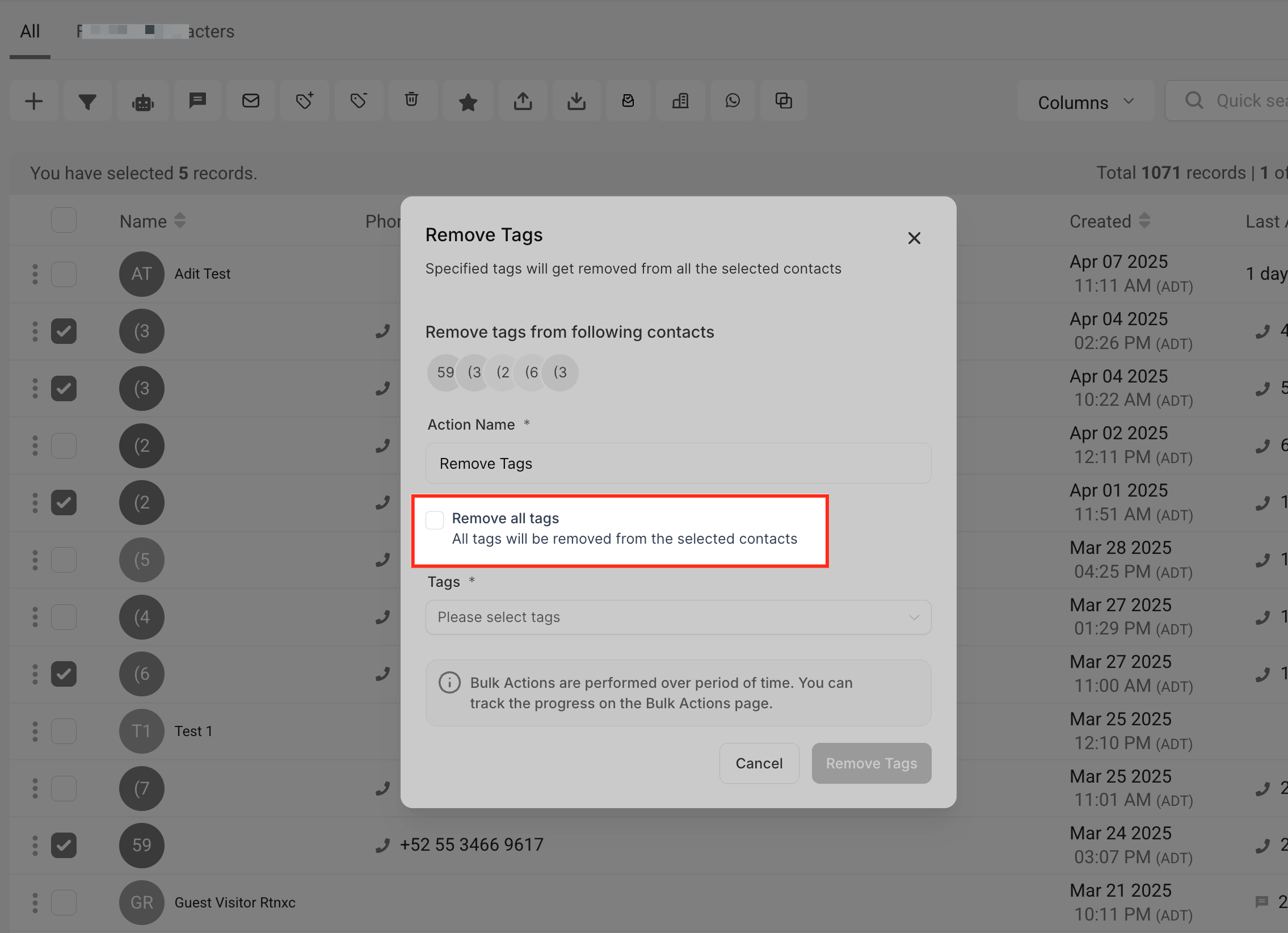
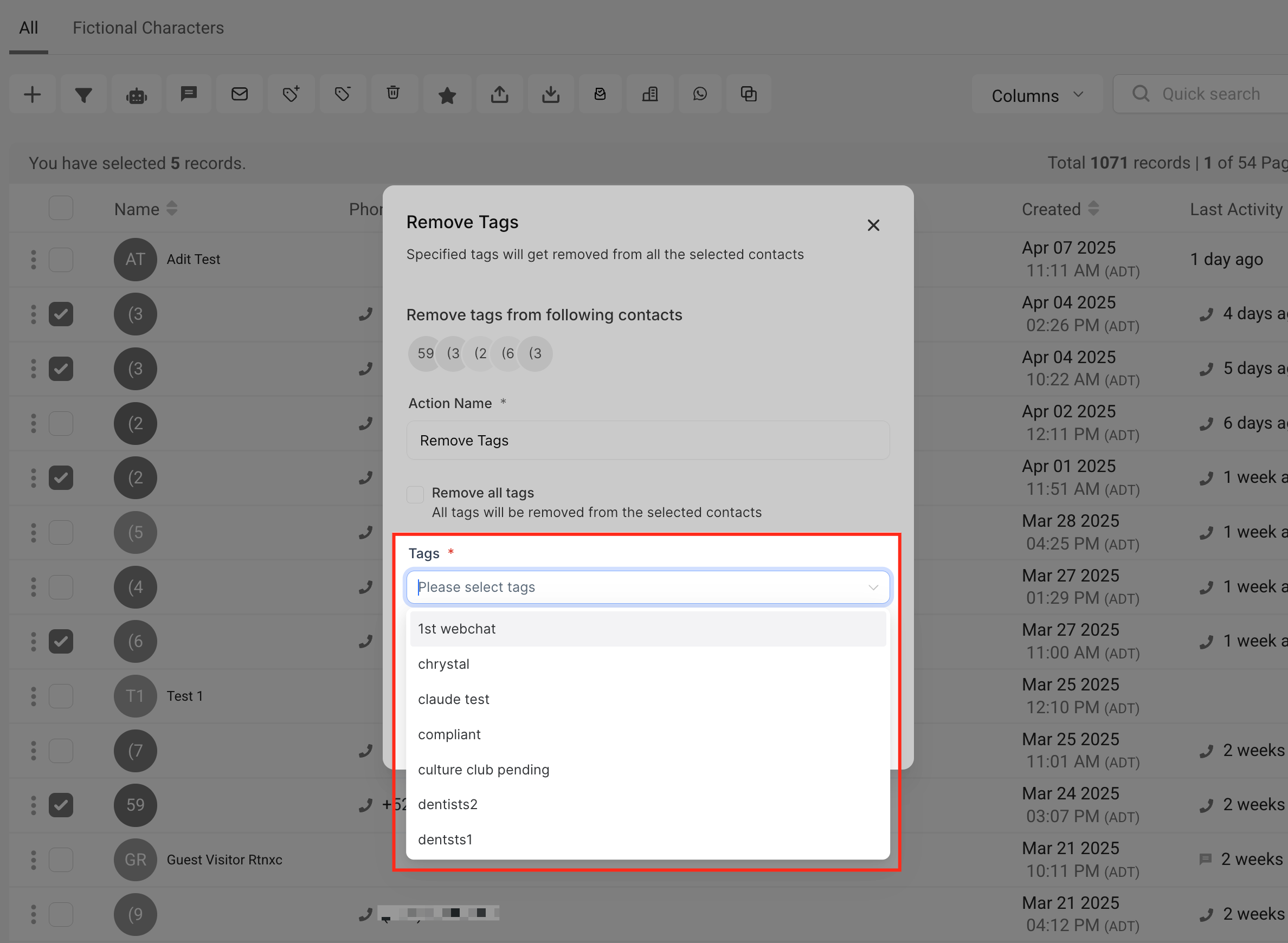
The feature offers two options: checking the “Remove all tags” box to clear every tag from the chosen contacts, or selecting specific tags from a dropdown to delete only those. An Action Name you provide helps you identify the operation later in the dashboard.
03How businesses use removing contact tags
- Real estate agency. The agency selects contacts tied to a past open house, checks the Remove all tags box, names the action “Cleanup Open House Leads,” and runs the bulk removal. The operation logs in Bulk Actions for future reference.
- Dental practice. The practice picks patients marked with a “Summer Promo” tag, selects that tag in the dropdown, and runs the bulk removal to prevent the tag from affecting future appointment reminders.
- Online course provider. The provider filters contacts enrolled in a completed course, chooses the “Course Completed” tag from the dropdown, and removes it in bulk so those contacts no longer appear in the course completion segment.
04How to set up and use removing contact tags in HighLevel
Remove tags from multiple contacts
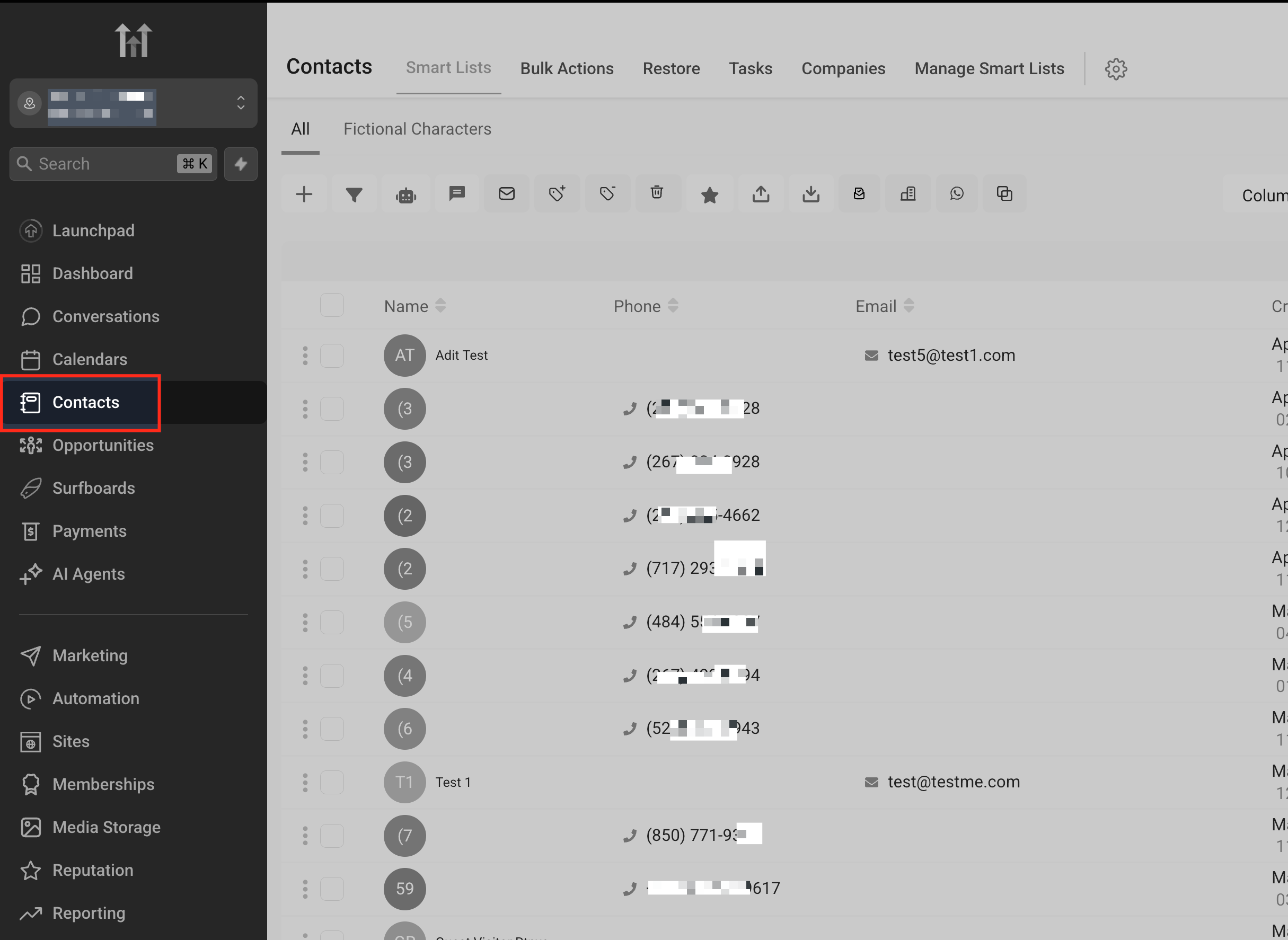
- Open the dashboard and click the Contacts tab in the left navigation.
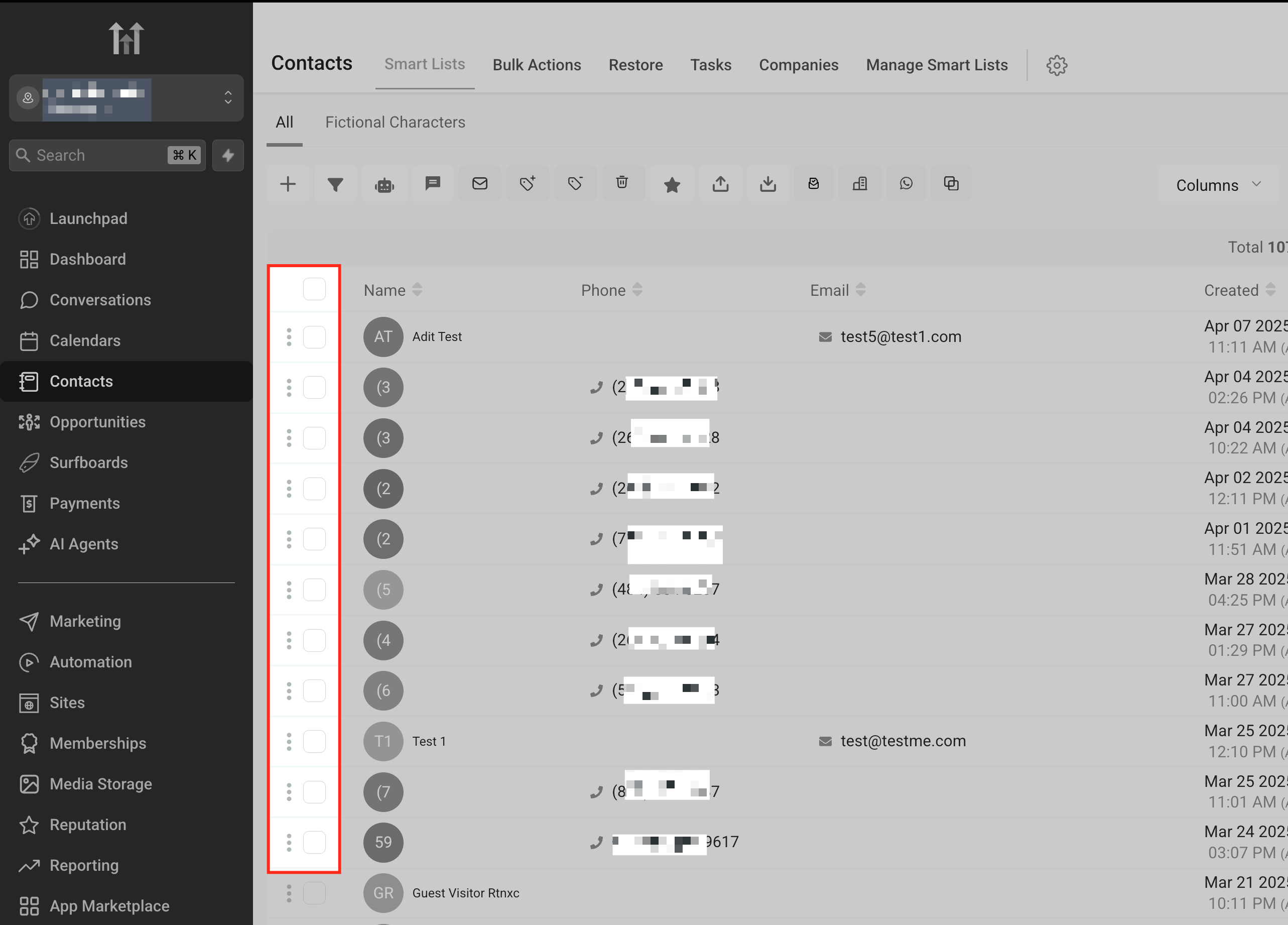
- Check the boxes next to each contact you want to update, or apply a filter first.
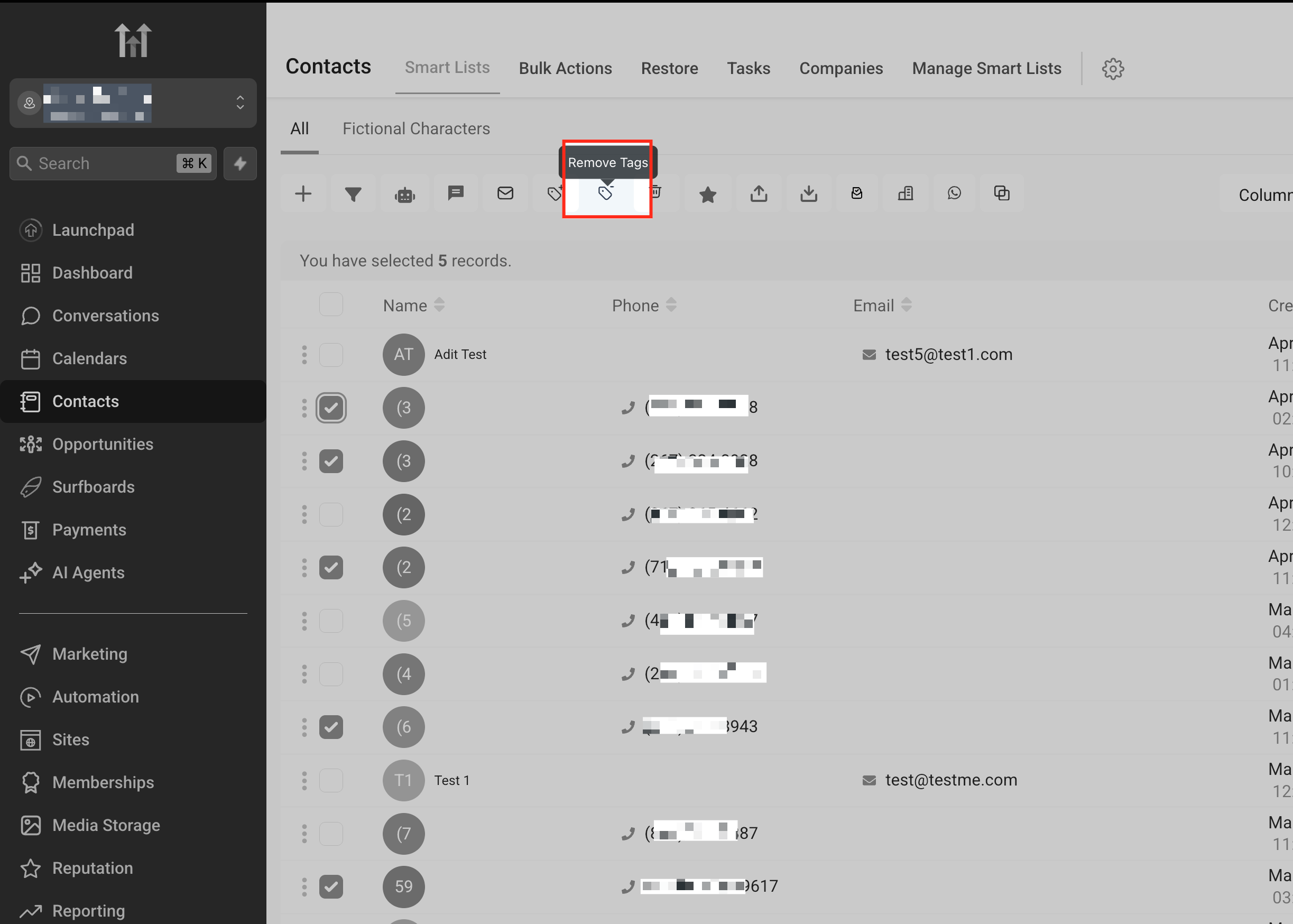
- Press the Remove Tags icon in the top action bar.
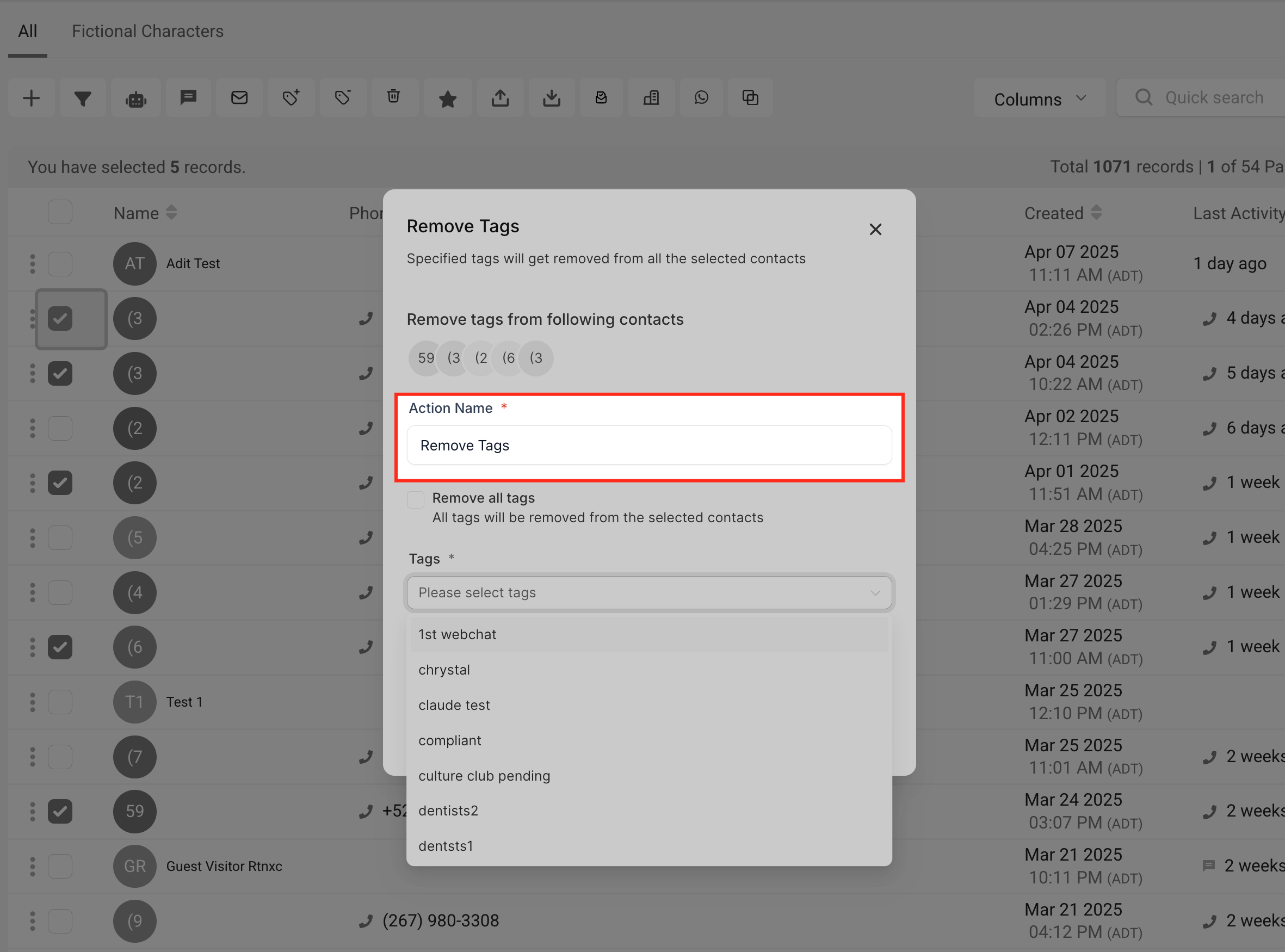
- Enter a name for the bulk action in the Action Name field.
- If you need to delete every tag, tick the Remove all tags box.
- Confirm that you want to delete all tags because this cannot be undone.
- To delete only certain tags, open the Tags dropdown and select the desired tags.
- Click the Remove Tags button to start the process.
- When the confirmation appears, click Check Progress to watch the job’s status.
- Open the Bulk Actions dashboard to see the new entry with its name and timestamps.
- Select Show Stats beside the entry to review which contacts were updated and the success details.
05What it looks like in HighLevel
06Settings that matter
- Remove all tags. When checked, it clears every tag attached to each selected contact.
- Action Name. A label you supply to identify the bulk removal task later in the dashboard.
- Tags. A dropdown that lets you pick one or more specific tags to delete from the chosen contacts.
07Things to know before you rely on it
- Tag removals cannot be undone directly; you must reapply tags using a separate bulk Add Tags action if needed.
- Be certain before enabling the Remove all tags option, as it erases all tag assignments for the selected contacts in one step.
08How it connects to the rest of HighLevel
- How to add tags to multiple contacts Add tags bulk
- Overview of bulk actions for contacts and smartlists Bulk actions guide
- Bulk import contacts and opportunities via CSV CSV import
Michael's take

When tags pile up, reports get noisy and automations fire at the wrong audience. Bulk removing tags fixes that mess in minutes instead of hunting through each record. The first thing I’d get right is the Action Name. It saves you a lot of head scratching when you later check the Bulk Actions log.
If I were cleaning up a stale segment, I’d use the Remove all tags box only after confirming the segment’s no longer needed. A quick glance at the Show Stats link afterward tells me exactly which contacts were affected, so I can re tag if I missed something.