
01Who this is for
- Agency administrators who need a reliable way to back up client contact lists.
- Marketing teams that want to extract specific fields for email or SMS campaigns.
- Data analysts who require a CSV dump for offline reporting or integration with other tools.
02Contacts export as CSV upgrade, explained
The feature moves the export process from the browser to HighLevel’s servers. When you start an export, a job is queued, processed in parallel, and its progress appears on the Bulk Actions page. Once finished, a downloadable CSV file is saved in the cloud for 30 days.
The export includes any columns currently visible in the contacts table, such as names, emails, phone numbers, tags, and selected custom fields. Notes longer than 255 characters are shortened, and automation history is not part of the file. Only users with Admin rights can initiate and retrieve exports.
03How businesses use contacts export as CSV upgrade
- Digital marketing agency. An agency admin filters contacts by tag or campaign status, chooses the columns needed for a client report, starts the export, and later downloads the CSV from Bulk Actions to share with the client.
- Marketing department. The team selects contacts marked for a new email blast, customizes the fields to include only email and tags, runs the export, and receives a notification when the file is ready for download.
- Consulting firm. A consultant admin applies advanced filters to isolate contacts from a specific business unit, adjusts visible columns to show phone and tag data, initiates the export, and retrieves the CSV for offline backup.
04The numbers and rules that matter
- Exported files remain available for 30 days.
- Notes longer than 255 characters may be truncated.
05Before you start
- You must be logged in as an Admin user for the subaccount.
06How to set up and use contacts export as CSV upgrade in HighLevel
Export contacts as CSV
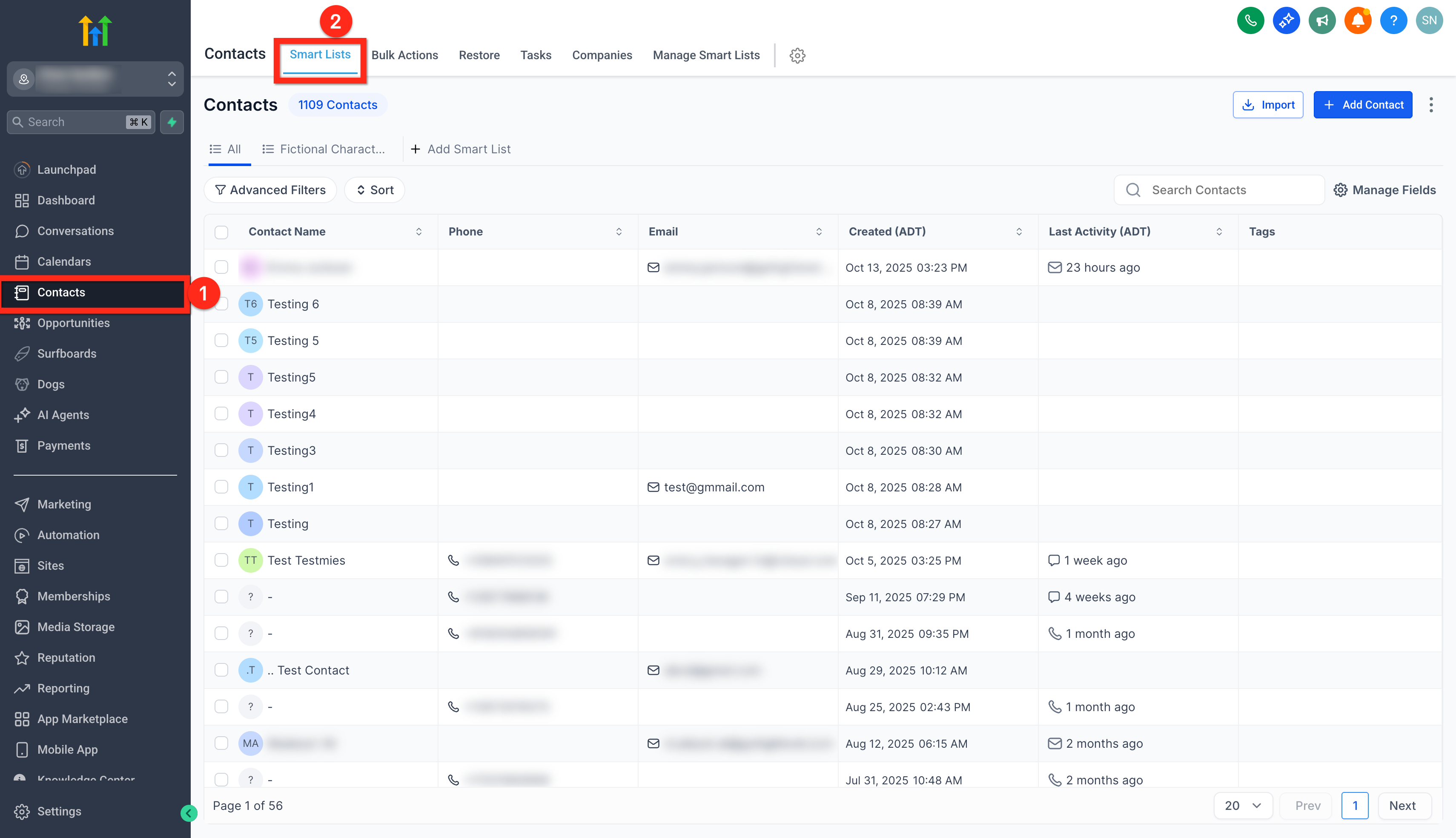
- Open the Contacts area from your subaccount menu.
- Click on Smart Lists.
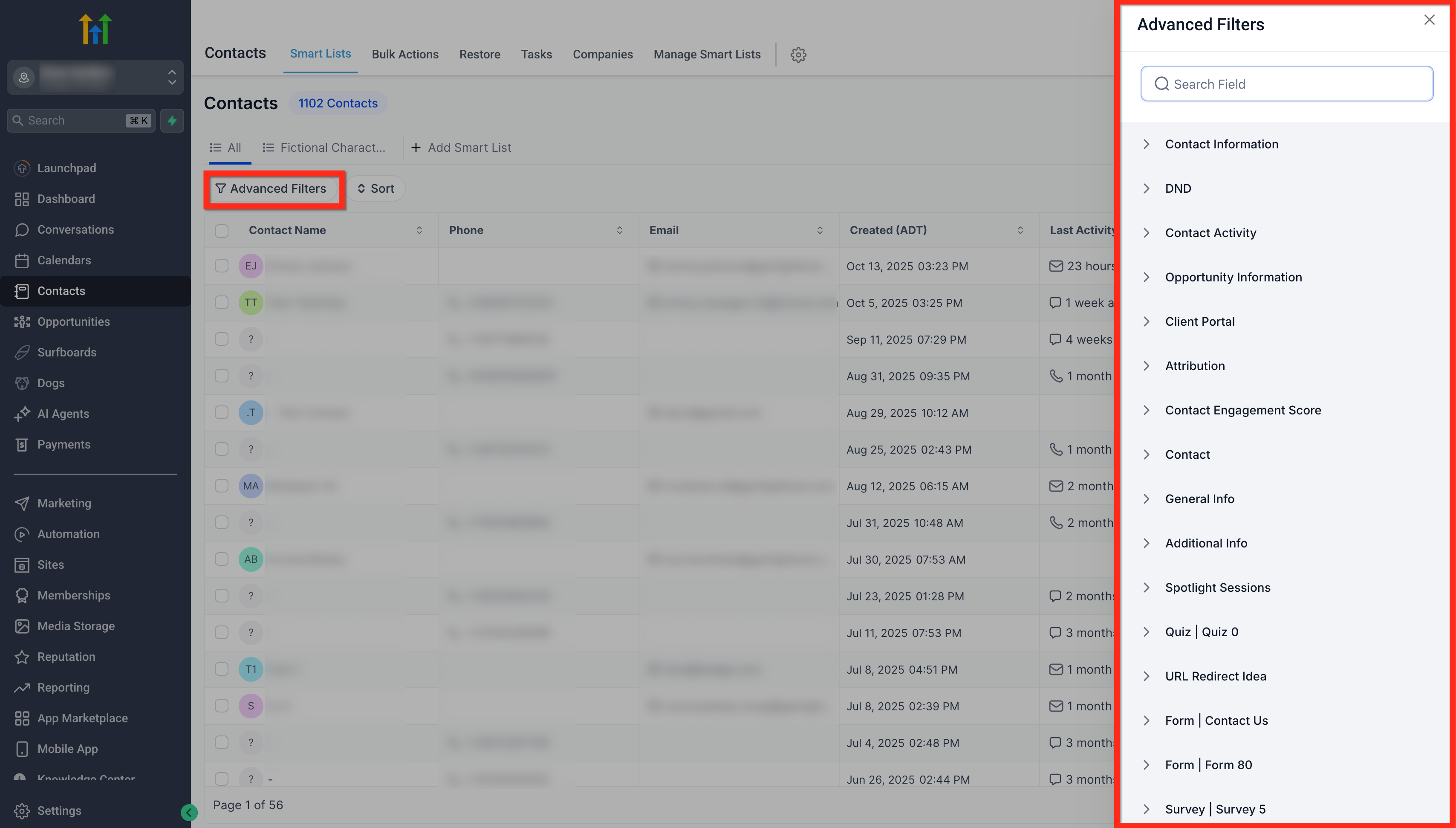
- Apply Advanced Filters to narrow the list as required.
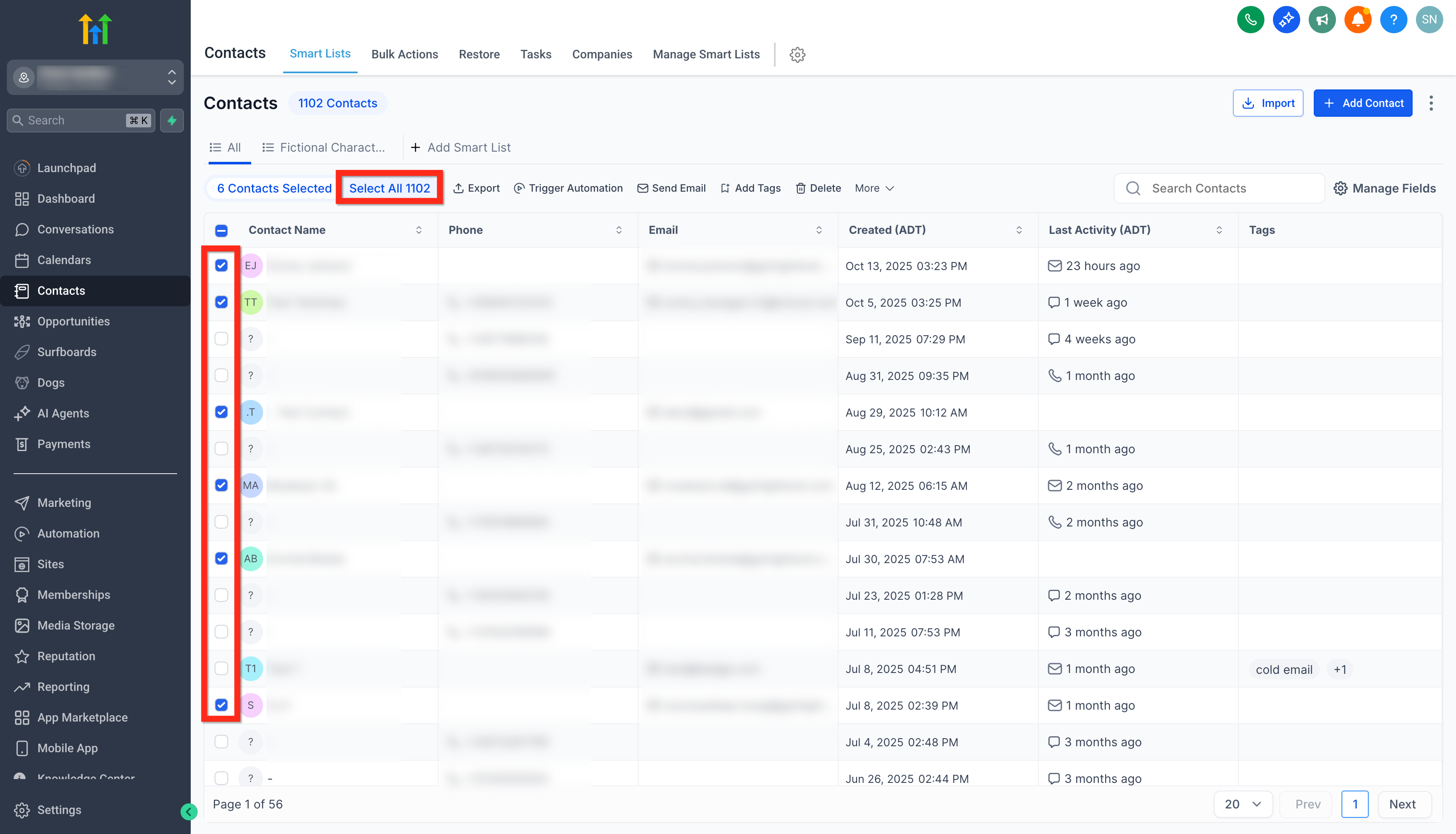
- Check the boxes next to the contacts you wish to export.
- To export every contact, tick the checkbox beside the filter fields on the left and choose Select All Contacts.
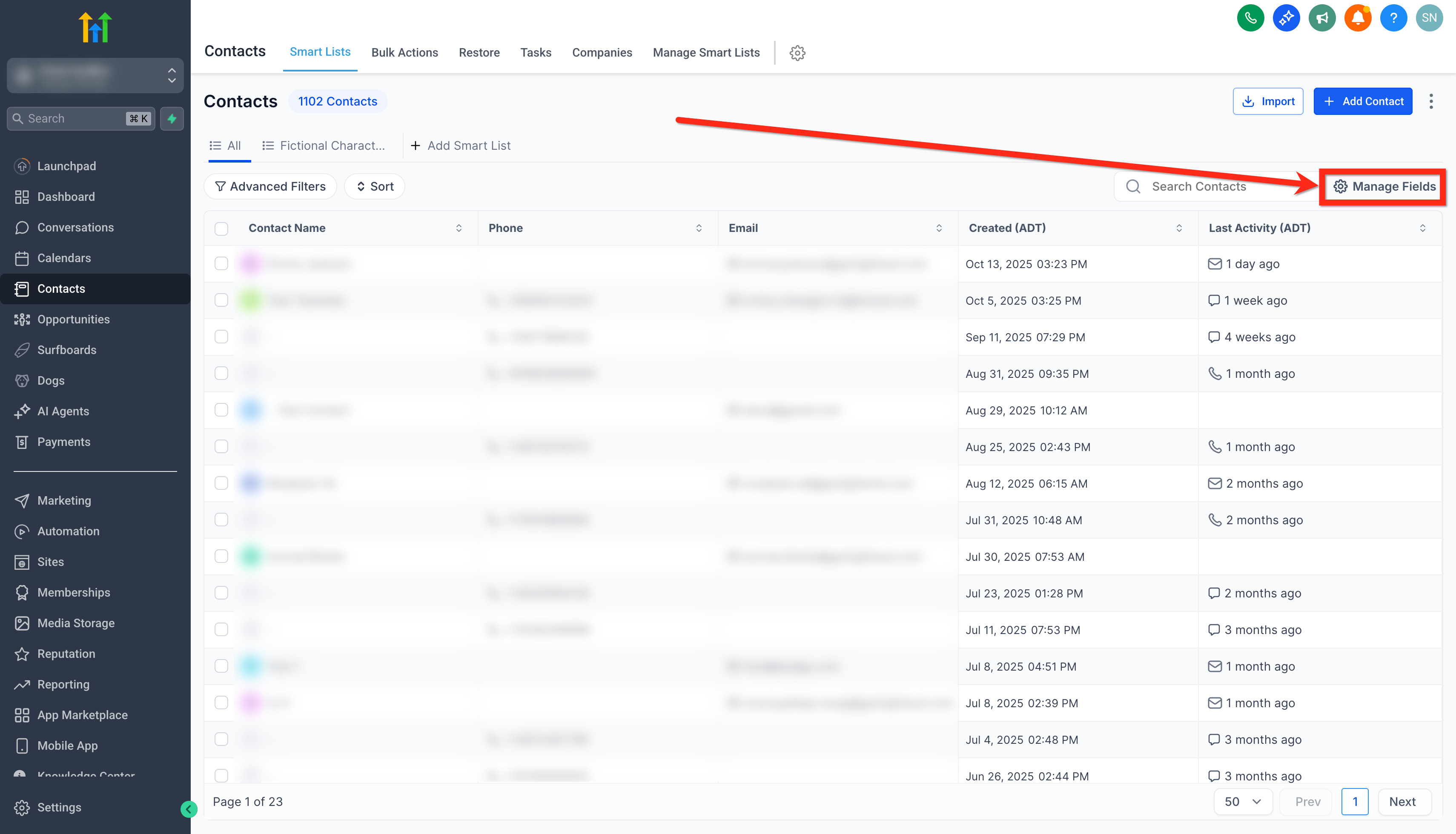
- Click the Manage Fields button and select the columns you want in the CSV.
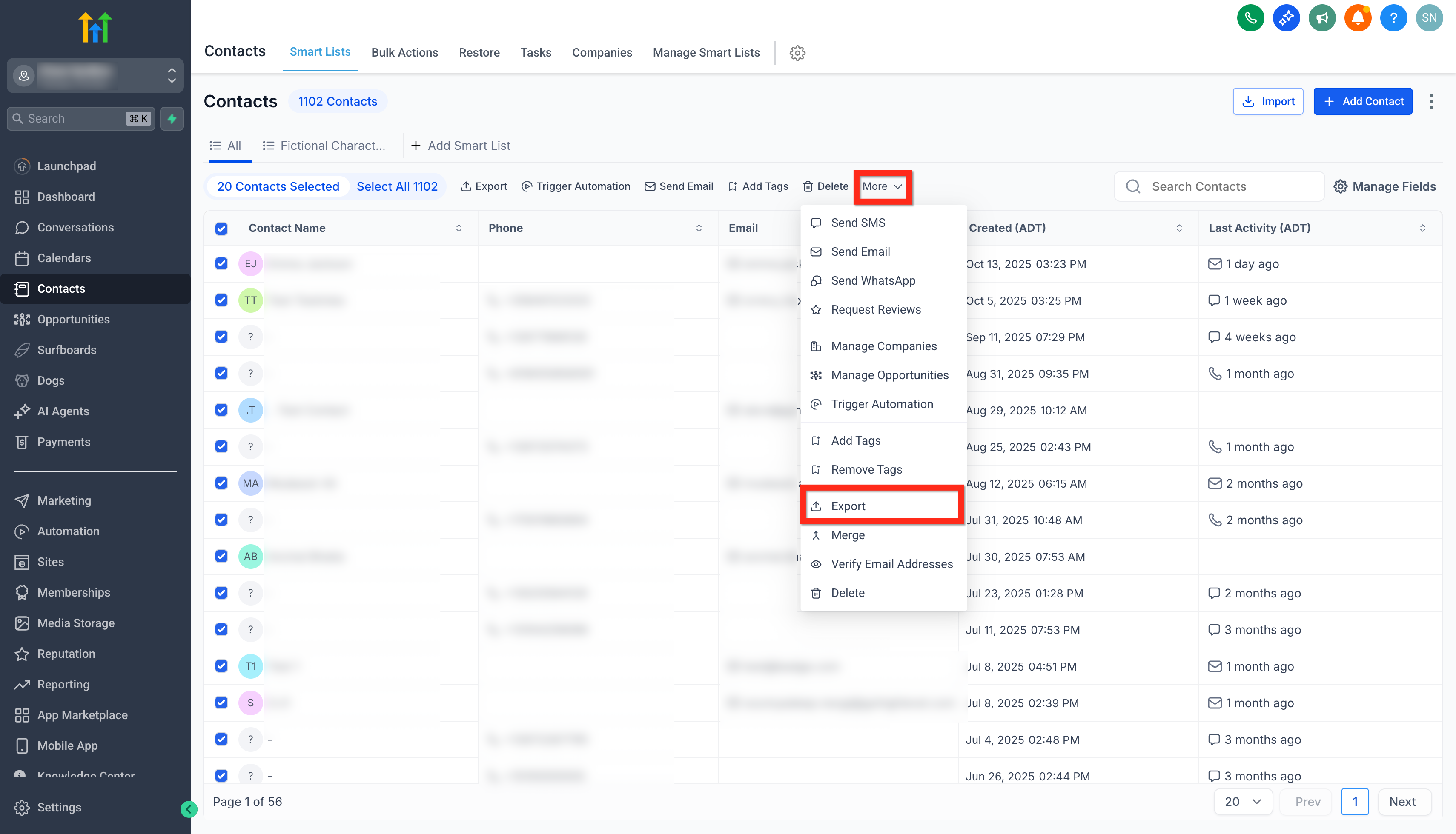
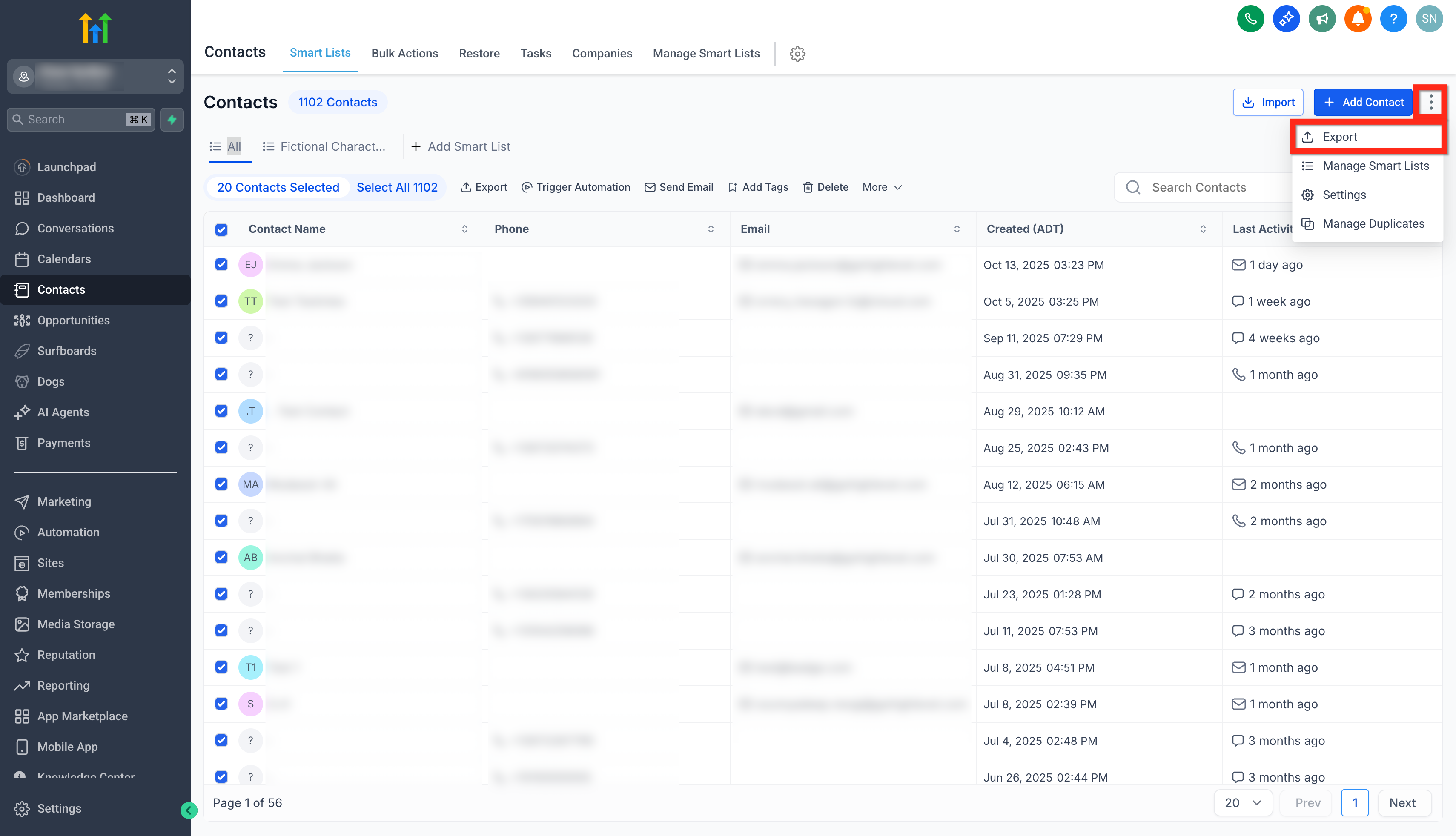
- Open the More menu (or the three dot icon next to + Add Contact) and choose Export.
- Confirm the operation in the export modal and click Export.
- A success message will appear indicating that the export has started.
- Click Check Progress to view the export status in Bulk Actions, or dismiss the message.
- Continue working; the export runs asynchronously in the background.
- You will receive a push notification when the file is ready for download.
- Navigate to Contacts > Bulk Actions, locate the completed export row, and press the download icon.
- Remember that the download link expires after 30 days.
07What it looks like in HighLevel
08Settings that matter
- Manage Fields. Controls which contact columns appear in the exported CSV file.
- Advance Filters. Defines the subset of contacts that will be included in the export.
09Things to know before you rely on it
- Exported files remain downloadable for only 30 days before the link is disabled.
- Notes longer than 255 characters are cut off in the export.
- Automation history such as past email or SMS logs is not included.
- Only Admin users can start an export or download the resulting file.
- Exports must be run per subaccount; you cannot combine accounts in a single job.
10How it connects to the rest of HighLevel
- Bulk actions for contacts & smartlists in HighLevel Bulk actions overview
- HighLevel guide to bulk importing contacts and opportunities via CSV Import contacts
- Adding tags to multiple contacts in HighLevel Tag bulk actions
Michael's take

Getting a clean copy of your contact list is something every growing agency runs into, whether it’s for a backup, a migration, or a fresh campaign. The first setting I would lock down is the column view. Make sure only the fields you truly need are visible so the CSV comes out tidy and ready to use.
Once the columns are set, I’d fire off an export, let it run in the background, and watch the Bulk Actions page for the done signal. It’s a simple way to pull a massive list without freezing your screen, and the 30 day retention gives a safety net in case you need the file later.