
01Who this is for
- Marketing managers can quickly segment leads for email campaigns without opening each record.
- Sales teams can flag prospects by stage, making it easy to filter for follow up calls.
- Automation specialists can apply trigger tags that start workflows for many contacts at once.
02Adding tags to multiple contacts, explained
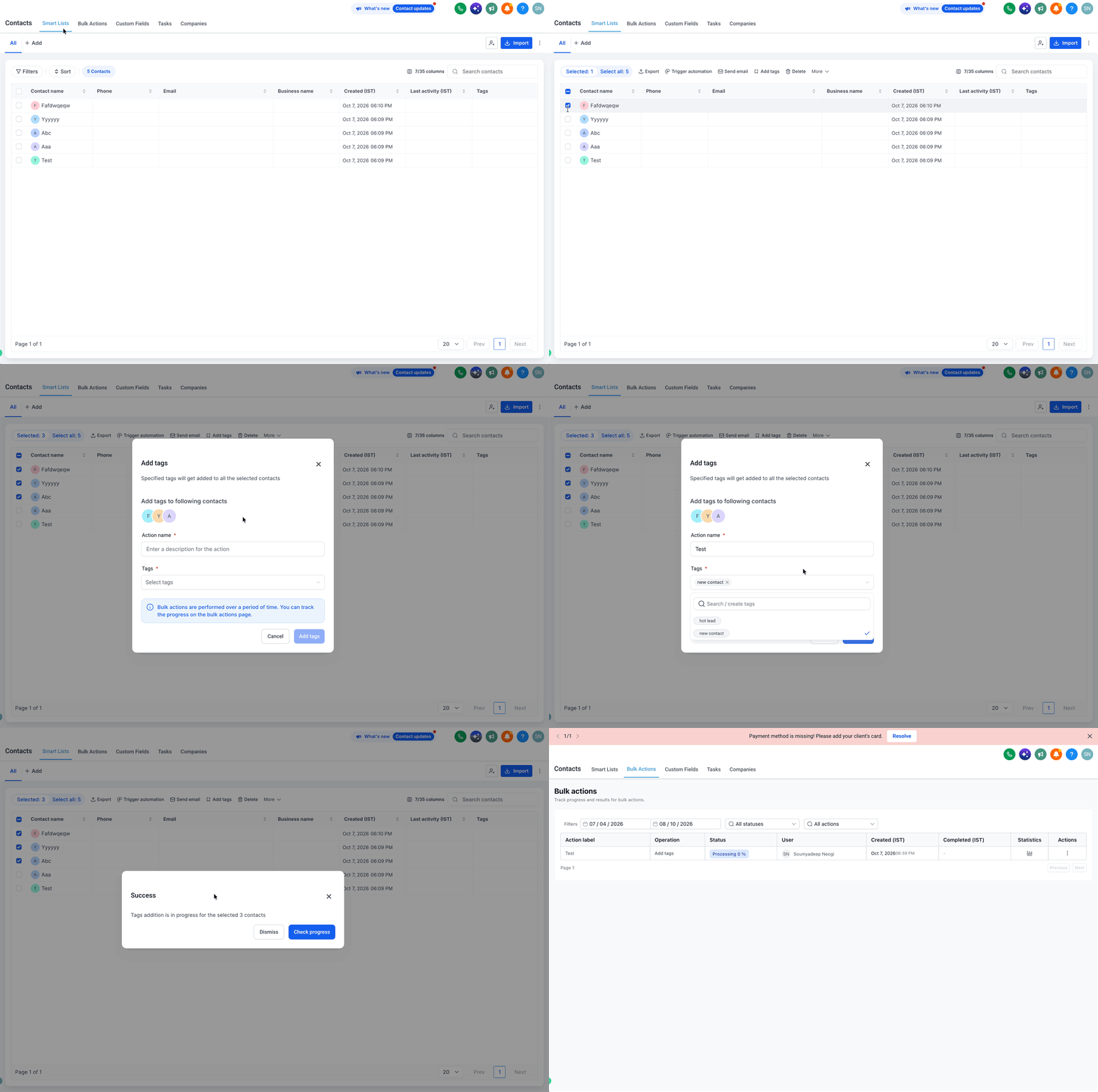
The feature lives on the Contacts page. After picking the checkboxes beside the rows you want, an Add Tag button appears in the top action bar. Clicking it opens a small window where you give the bulk operation a name and pick one or more tags from a dropdown.
When you confirm, HighLevel starts a background job. A confirmation popup appears and offers a Check Progress button. Selecting that takes you to the Bulk Actions tab, where the system shows real time status, a summary of the run and a link to view detailed statistics.
Tags added in this way are appended to any tags already on each contact; nothing is removed.
03How businesses use adding tags to multiple contacts
- Real estate brokerage. The broker selects all leads that have shown interest in a new development, adds the tags "New Development" and "Hot Lead" in one bulk action, then uses those tags to feed a targeted email sequence.
- Fitness studio. The owner checks every member who attended a free trial class, bulk adds the tag "Trial Attendee" to schedule a follow up automation that sends a welcome offer.
- Ecommerce retailer. The marketing manager selects customers who purchased in the last month, adds the tag "Recent Buyer" along with "VIP" to trigger a loyalty workflow that dispatches exclusive coupons.
04How to set up and use adding tags to multiple contacts in HighLevel
Add tags to multiple contacts
- Open the Contacts section from the left navigation.
- Mark the checkboxes next to each contact you want to tag.
- Click the Add Tag icon on the top action bar.
- Enter a name for the bulk action in the Action Name field.
- Open the Tags dropdown and choose one or more tags.
- Press the Add Tags button to start the tagging job.
- A confirmation popup appears; click the Add Tags button again to confirm.
- Use the Check Progress button to view the task in the Bulk Actions tab.
05What it looks like in HighLevel
06Settings that matter
- Action Name. The label you assign to the bulk tagging job, used later for tracking in the Bulk Actions list.
- Tags. The list of tags you select to apply; you can pick multiple tags which will be added to every chosen contact.
07Things to know before you rely on it
- You may select as many contacts as needed; the system does not impose a visible maximum in this workflow.
- Adding tags does not replace existing tags; it only appends the new ones.
- Multiple tags can be chosen in a single bulk action.
08How it connects to the rest of HighLevel
- Track the progress of your bulk tag operation Bulk actions guide
- Learn how to remove tags from many contacts Remove tags bulk
- Use tags as workflow triggers for automation Workflow triggers
Michael's take

Bulk tagging is a small convenience that can feel like a real shift for teams still clicking through contacts one by one. It chops down the manual grind and lets you keep your list tidy with a few clicks.