
01Who this is for
- Founders running marketing agencies who need to send bulk SMS or email without hitting carrier throttling.
- Small businesses managing long term nurture series, such as a 12 week challenge, and require reliable multi day scheduling.
02Drip mode for bulk actions, explained
Drip Mode for Bulk Actions lets you pace messages, tag changes, workflow additions, or opportunity updates in repeatable intervals measured in minutes, hours, or days. The system divides the total audience into batches, processes each batch, records a checkpoint, and moves to the next batch only when the defined interval passes. If the platform restarts or a subaccount disconnects, the engine resumes from the last checkpoint, preventing lost sends.
All bulk actions that previously offered Drip Mode now share a single, configuration driven scheduler. The same form used for a single action now feeds the universal engine, providing consistent behavior for SMS, email, tag management, workflow enrollment, and opportunity updates. The scheduler respects account time zone, quiet hours, and daily cutoff times.
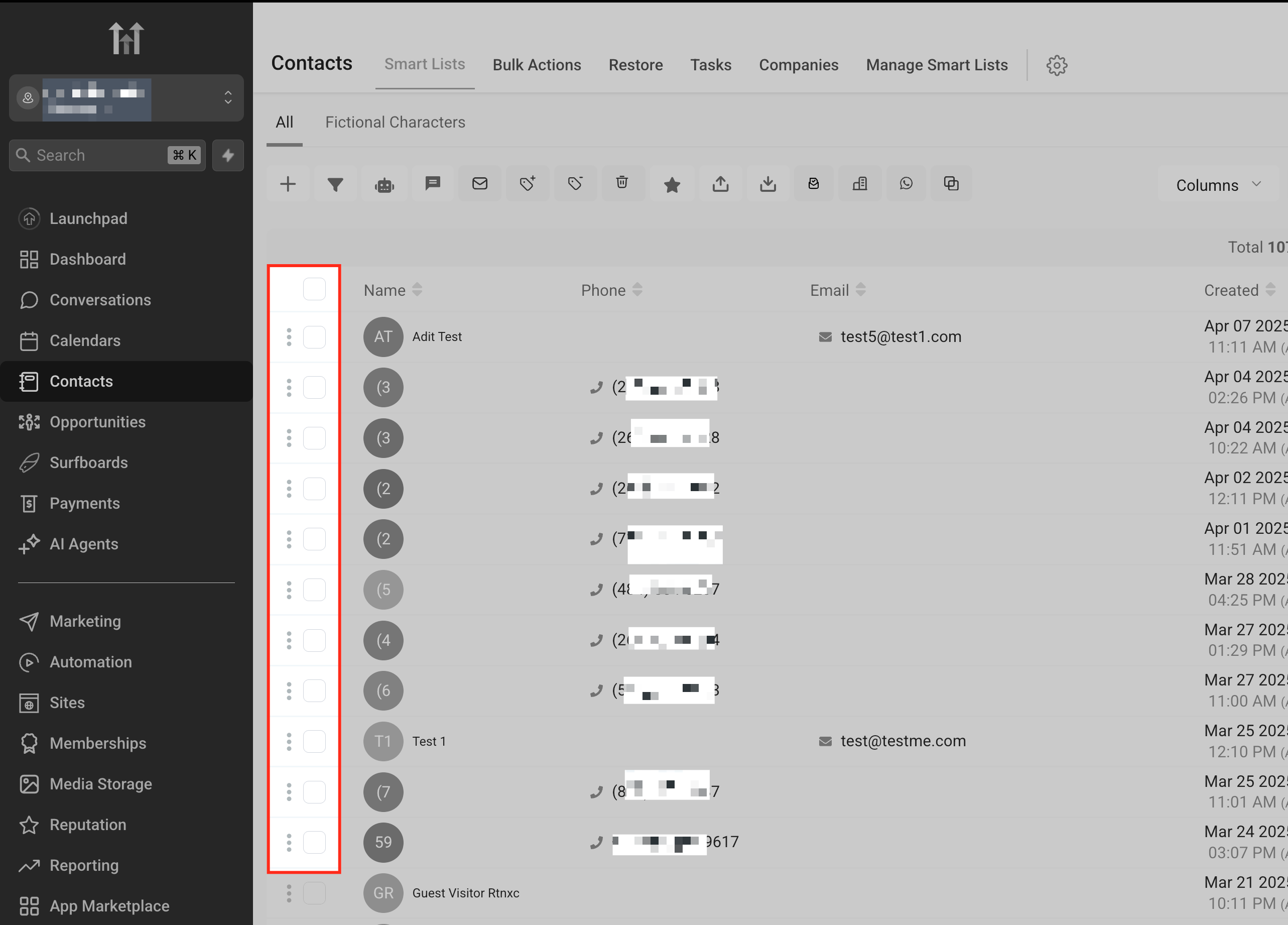
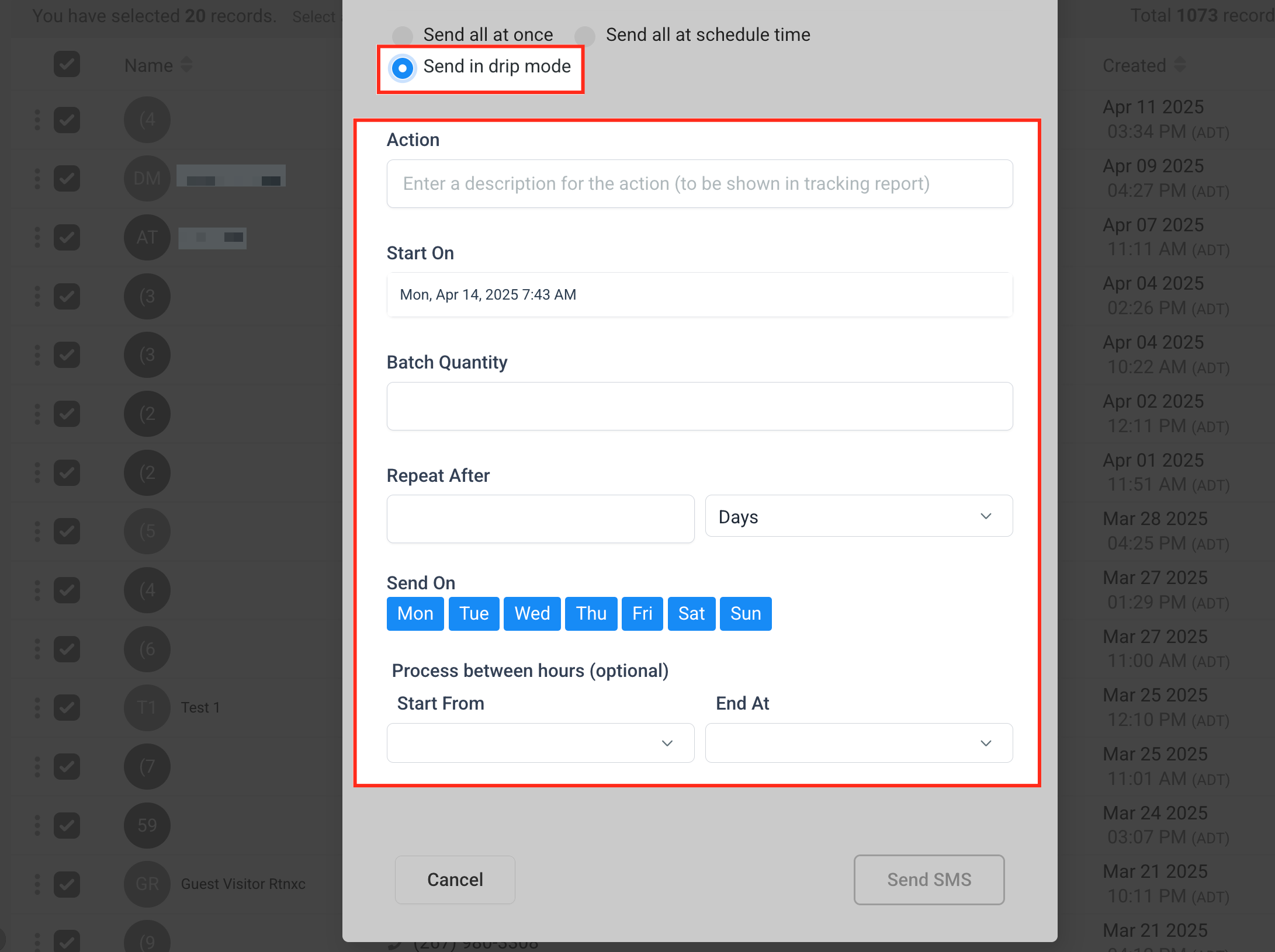
You access the feature from the Contacts area. After selecting an action type and audience, you choose “Send in Drip Mode” as the delivery method and then fill out the Drip Settings form, which includes start time, batch quantity, repeat interval, optional weekdays, allowed send hours, and daily end time. An action description and an estimated duration help you track the campaign.
03How businesses use drip mode for bulk actions
- Digital marketing agency. The agency selects a bulk SMS action, chooses a client’s SmartList, enables Drip Mode, and sets a batch of 500 contacts every hour. This spreads the campaign over several days, keeping the client’s sender reputation intact.
- Fitness studio. The studio adds a tag to members for a 10 week challenge. Using Drip Mode, it applies the tag to 2,000 members in daily batches of 200, ensuring the system remains responsive throughout the program.
- SaaS startup. The startup updates opportunity statuses for a quarterly promotion. With Drip Mode, it processes 1,000 opportunities per run, repeating every day until the promotion end date, without manual intervention.
04The numbers and rules that matter
- Supports schedules well beyond the previous 30 day cap.
- Batch Quantity: 1, 10,000 contacts per run.
- Carrier level limits remain, e.g., 1,000 SMS/min at a 1 min frequency.
- No hard limit on total campaign duration.
05How to set up and use drip mode for bulk actions in HighLevel
Set up Drip Mode in bulk actions
- Navigate to Contacts in the platform.
- Open the bulk actions setup screen where you define the action and its pacing.
- Choose the desired Action Type, such as Send SMS, Send Email, or Add Tag.
- Select the audience, using an existing SmartList or manually picking contacts.
- Under Delivery Method, pick Send in Drip Mode to enable paced delivery.
- Configure the Drip Settings: set Start On date and time, define Batch Quantity (1 to 10,000 contacts), choose Repeat After interval, optionally set Send On weekdays, set Process Between business hours, and define End At daily cutoff.
- Enter an Action Description to identify the campaign.
- Review the Estimated Duration calculated by the system.
- Save the bulk action to activate Drip Mode.
06What it looks like in HighLevel
07Settings that matter
- Start On. Specifies when the first batch of contacts will be processed.
- Batch Quantity. Determines how many contacts are handled in each execution, from 1 up to 10,000.
- Repeat After. Sets the waiting period between successive batches, selectable in minutes, hours, or days.
- Send On. Limits execution to specific days of the week, if needed.
- Process Between. Defines allowable send hours, respecting the account’s time zone.
- End At. Provides a daily cutoff time after which batches pause until the next valid window.
08Things to know before you rely on it
- Batch Quantity can be set from 1 to 10,000 contacts per run.
- Schedules are no longer capped at 30 days; any future date can be chosen.
- There is no hard maximum total duration; campaigns may run for months or years.
- Carrier level limits, such as 1,000 SMS per minute at a 1 minute frequency, still apply.
09How it connects to the rest of HighLevel
- Overview of bulk actions for contacts and smartlists Bulk actions guide
- HighLevel pricing and plan details Pricing page
- Start a 30 day trial of HighLevel Free trial
Michael's take

Drip mode for bulk actions is a solid upgrade for anyone who needs to send large outreach campaigns without overloading the system.
If you only ever send tiny one off messages, you can safely skip this feature.