
01Who this is for
- Founders who need a single view of all people from a client business to streamline outreach.
- Sales teams that interact with several decision makers at the same organization and require consolidated activity tracking.
- Customer support groups that want consistent company data when handling tickets from different contacts.
02Company objects, explained
The Company Object is a record type that holds company level information such as name, phone, email, website, description, and address. Contacts can be linked to one company, giving you a collective view of engagement across the organization.
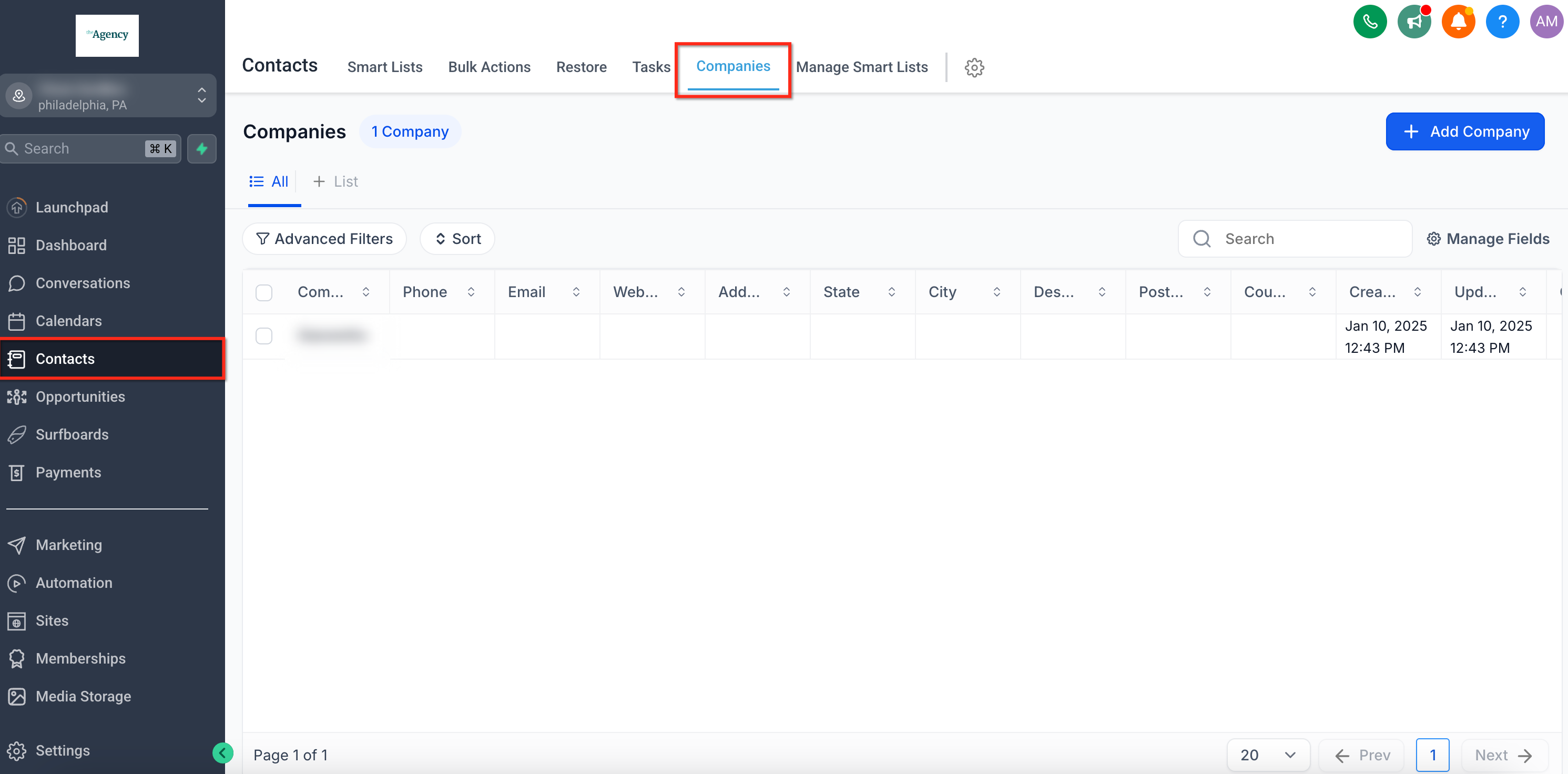
You find the feature under the Contacts section of the main navigation. The secondary navigation at the top of the page contains a Companies tab where you can create, edit, and delete company records and see associated contacts.
03How businesses use company object
- Real estate agency. Create a company record for each property owner or development firm. Add every agent, manager, and contact associated with that owner so the team can see all interactions in one place. When an owner changes representation, update the company details without recreating contacts.
- Marketing agency. Set up a company for each client brand. Link the brand's marketing director, copywriter, and media buyer to the same record. Use the consolidated view to track campaigns, messages, and notes across all client contacts.
- SaaS startup. Register each partner organization as a company. Assign sales reps, technical contacts, and billing contacts to the partner’s record. When a partner signs a new contract, edit the company details and keep all related contacts grouped together.
04How to set up and use company object in HighLevel
Create a new company
- Select Contacts from the left hand navigation menu.
- Click the Companies tab in the top ribbon.
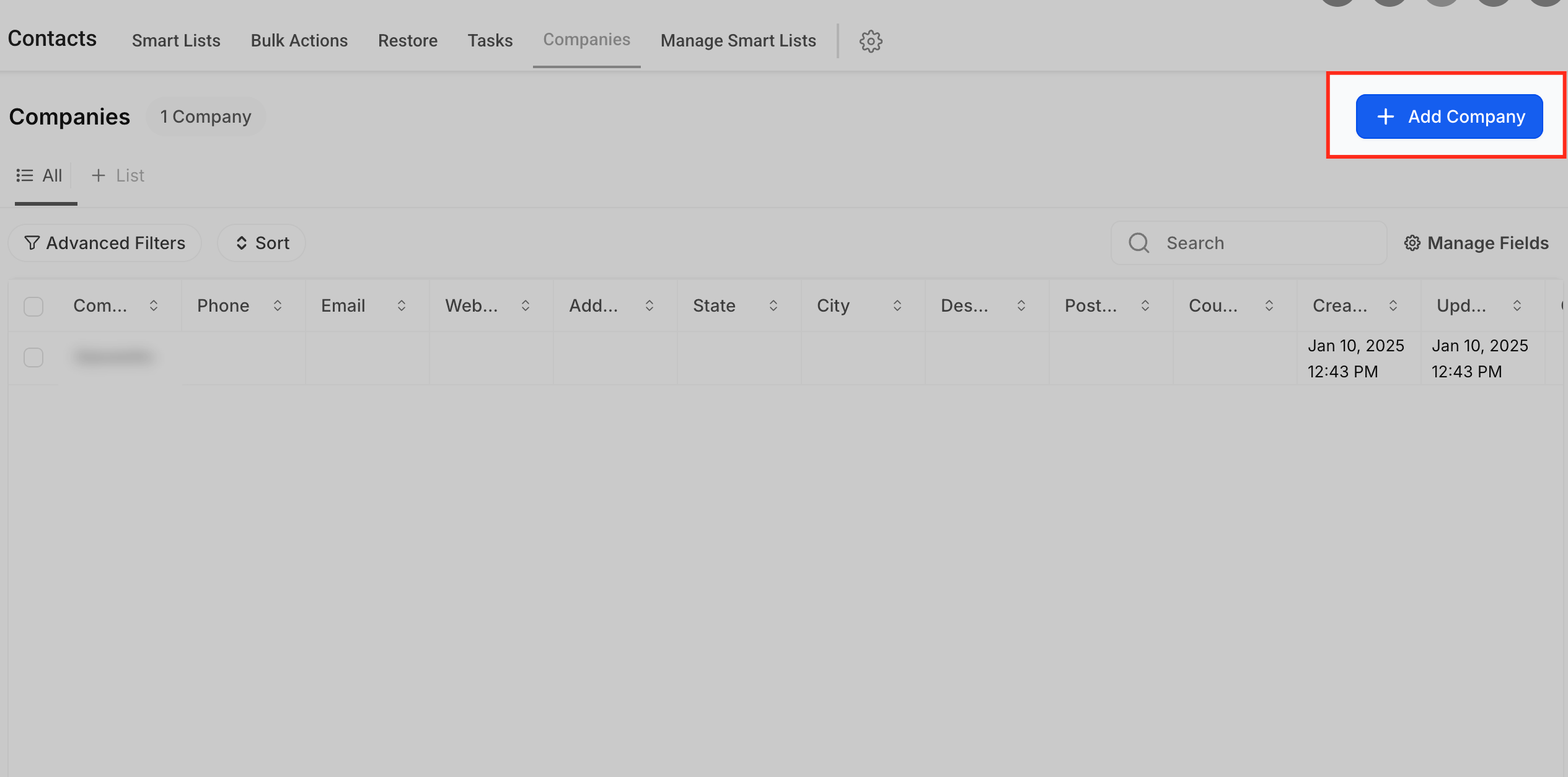
- Press the "+ New Company" button at the upper right.
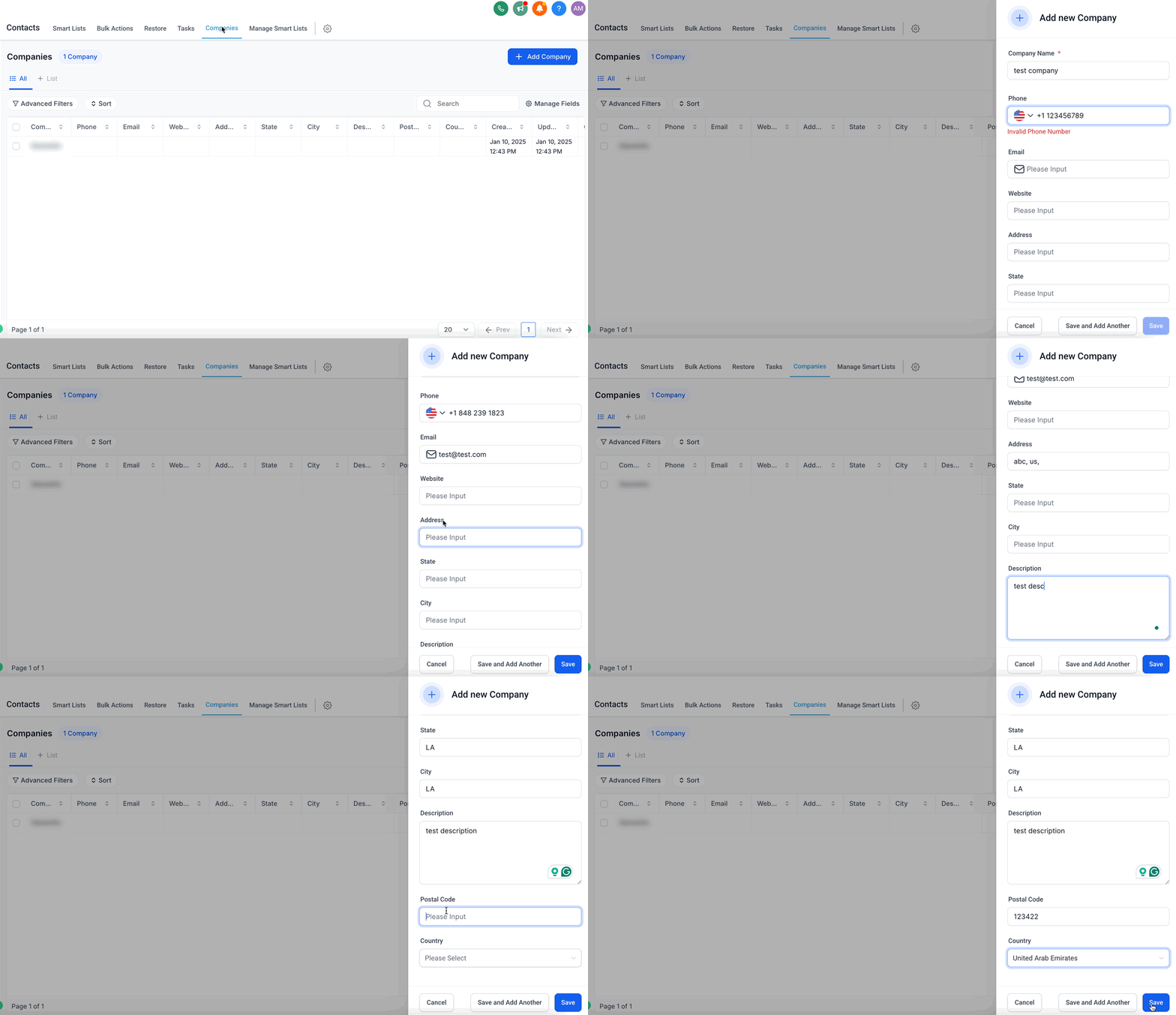
- Enter the required Company Name and any optional information.
- Save the new company record.
Edit or update company details
- Open Contacts via the main navigation bar.
- Choose the Companies tab in the top navigation.
- Click the three dot menu next to the target company and select Edit Company.
- Change the desired fields such as phone, email, or address.
- Click Save to apply the changes.
Delete a company
- Navigate to Contacts using the main navigation.
- Select the Companies tab at the top.
- Click the three dot menu next to the company you want to remove and choose Delete Company.
- Confirm the deletion by clicking Yes.
- Note: Deleting a company only clears the company field on related contacts but does not delete the contacts themselves.
Add contacts to a company
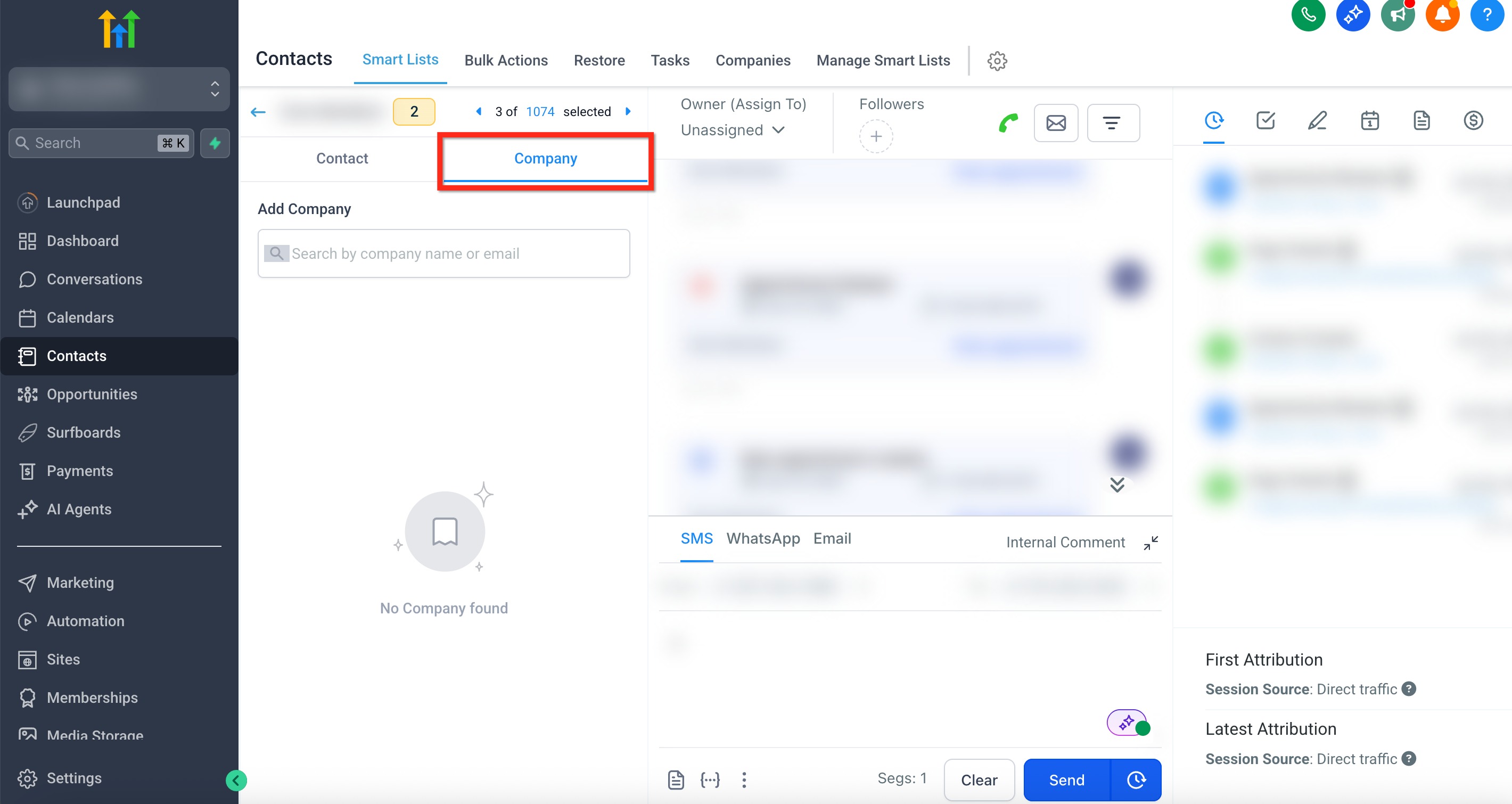
- Find the contact’s profile by navigating to Contacts and selecting the contact’s name.
- Open the Company tab in the left secondary navigation.
- Search for the desired company and select it.
- Click Save to link the contact with the company.
Remove a contact from a company
- Go to Contacts and open the Companies tab.
- Select the company that currently includes the contact.
- Open the Contacts sub tab to view linked contacts.
- Click the Trash Bin icon next to the contact you wish to remove.
- Confirm the removal by clicking Yes.
05What it looks like in HighLevel
06Settings that matter
- Automatically Create and Associate Companies from Contact Business Names. When enabled, the platform will generate a company record and link the contact whenever the contact’s Business Name field contains a value.
07Things to know before you rely on it
- Only one company can be linked to a contact at a time.
- Company Name is the only mandatory field when creating a record.
- Deleting a company clears the company field on related contacts but does not delete the contacts themselves.
08How it connects to the rest of HighLevel
- Learn how to build and manage Smart Lists for better contact segmentation. Smart Lists
- Explore bulk CSV import options for adding many contacts at once. CSV import
- Review HighLevel pricing and plan details, including access to custom objects. Pricing
Michael's take

Grouping all the people you talk to at a client under one record helps keep your team on the same page and reduces duplicate data when multiple reps reach out to the same business.
If I were setting this up, I’d start by creating the core company records for my top accounts, then bulk assign the contacts I already have. Turning on the automatic association from the Business Name field lets the system create and link companies without manual effort.