
01Who this is for
- Founders of SaaS platforms who need to keep personal, work and billing emails for the same user in one record.
- Digital marketing agencies that send campaigns based on the primary email but also store alternate contacts for targeting.
- Consulting firms that track multiple client email points for invoicing, communications and follow up.
02Multiple email addresses, explained
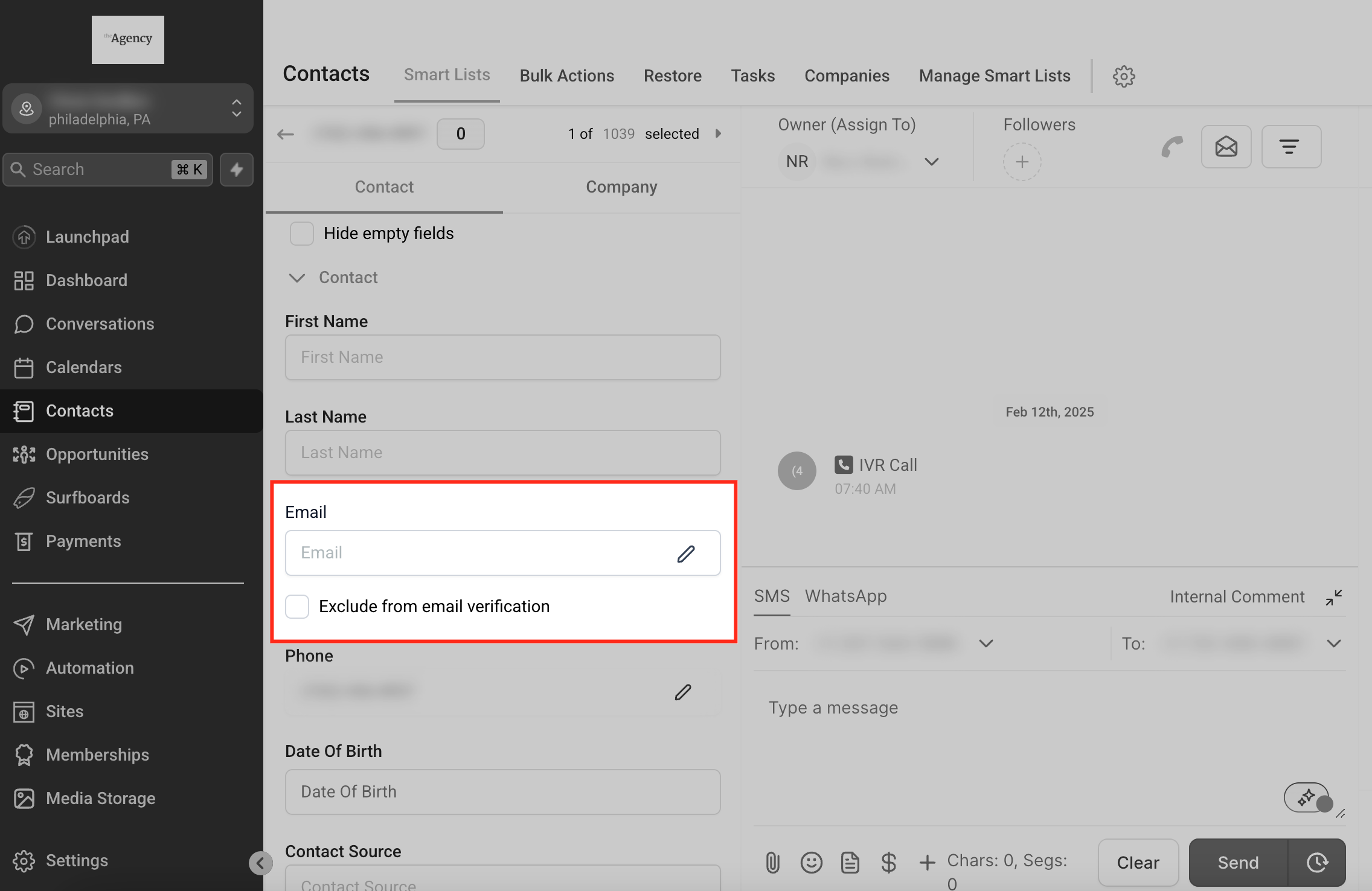
The feature expands a contact record to hold up to eleven email values: one primary address and ten additional emails. The primary address stays in the standard Email field while extra addresses are stored separately but remain linked to the same contact.
These emails appear in the contact’s detail view, can be imported through the CSV Import tool, exported when the visible columns include them, and are considered during duplicate contact merges. Workflow actions such as Find Contact can be configured to match on these extra addresses as well.
03How businesses use multiple email addresses
- Digital marketing agency. The agency adds a client’s work and personal emails to the same contact so the primary email can be used for campaign sends while the additional addresses stay on file for future segmentation. They also import bulk alternate emails when onboarding new clients.
- Ecommerce store. The store records a shopper’s billing, shipping and support email addresses on one contact. When an order is placed, the primary email receives order confirmations, while the additional emails can be exported for analysis or merged with duplicate shopper records.
- Consulting firm. Consultants store a client’s personal, corporate and assistant emails together. They set the corporate address as primary for invoicing, import new client emails in bulk from a CSV, and use Find Contact in workflows to locate a client by any of the stored addresses.
04The numbers and rules that matter
- One primary email per contact.
- Up to 10 additional email addresses per contact.
- Maximum of 11 email addresses total.
05Before you start
- Access the Subaccount view where contacts are managed.
- A contact record must exist to add or edit email addresses.
- Prepare a CSV file with an Additional Email column for bulk imports.
- Make the desired email columns visible in the Contacts table before exporting.
06How to set up and use multiple email addresses in HighLevel
Add additional email addresses to a contact
- Open the Subaccount view that contains the contacts.
- Navigate to the Contacts section.
- Search for the target contact and open its record.
- Locate the Email Address area within the contact details.
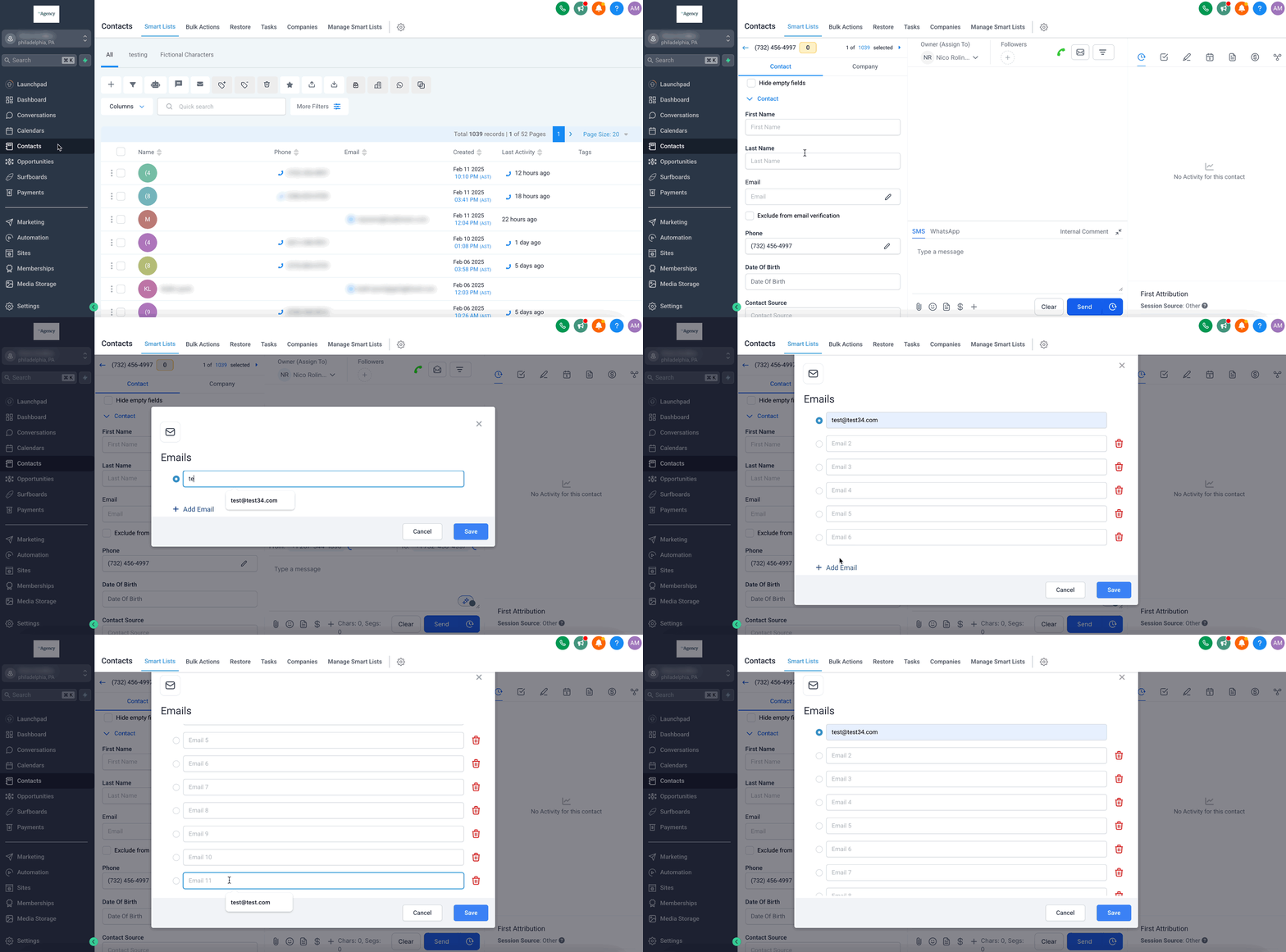
- Select Add Another Email.
- Enter the new email address in the field provided.
- Repeat the entry step for each extra address needed.
- Click Save Changes to store the added emails.
Set the primary email address for a contact
- Open the contact record you want to modify.
- Find the Email Address area on the page.
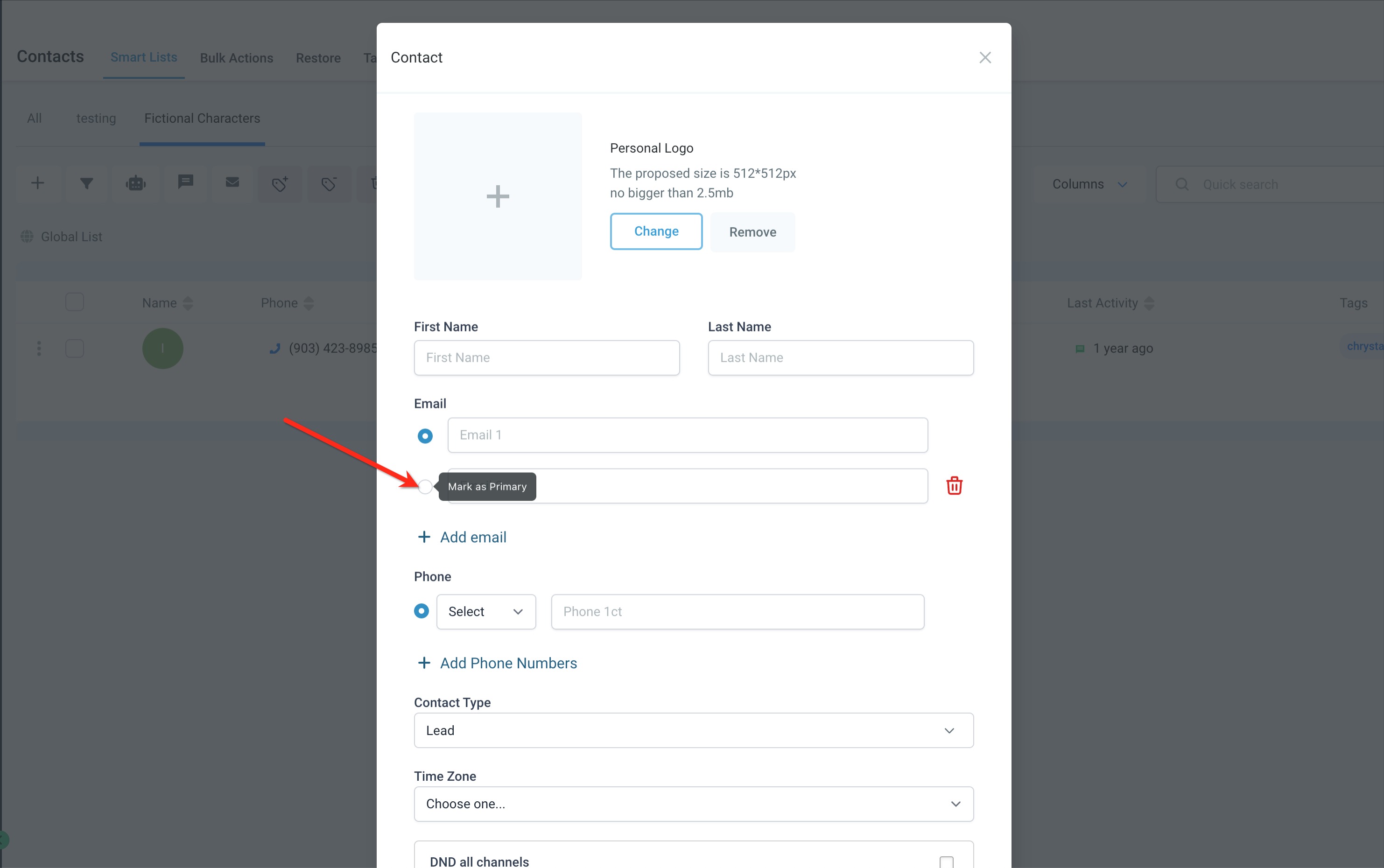
- Identify the email address you wish to designate as primary.
- Click the star icon next to that email address.
Import additional email addresses via CSV
- Add a column named Additional Email to the CSV file.
- Enter each extra email in that column, separating multiple emails for the same contact with commas.
- Open the Contacts section in HighLevel.
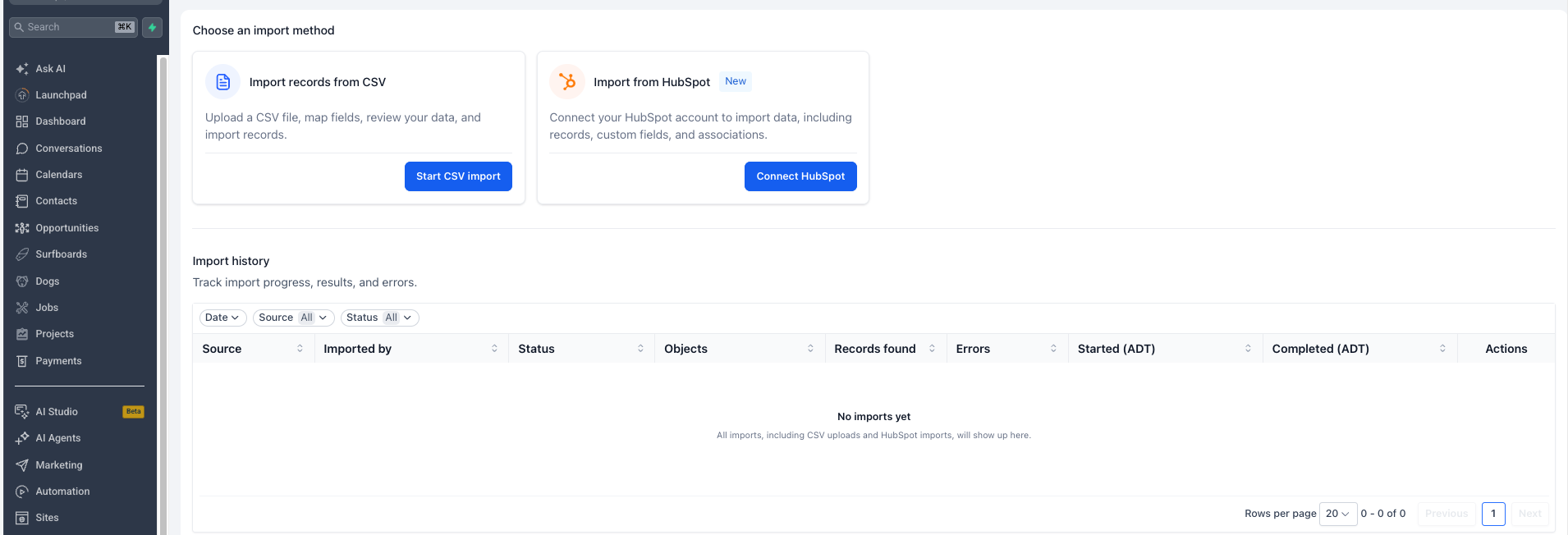
- Click the Import button.
- Choose Start CSV import under the Import records from CSV area.
- Upload the prepared CSV file.
- Proceed to the field mapping screen.
- Map the Additional Email column to the Additional Email field.
- Review the remaining field mappings for accuracy.
- Finish the process to complete the import.
Export contact email data
- Go to Contacts > Smart Lists.
- Filter or select the contacts you want to export.
- Open Manage Fields.
- Make the desired email related columns visible in the table.
- Select the contacts for export.
- Click Export or choose the export option from the contact actions.
- Confirm the export request.
Merge contacts while preserving multiple email addresses
- Go to Contacts > Smart Lists.
- Locate the duplicate contacts you want to combine.
- Select the contacts you wish to merge.
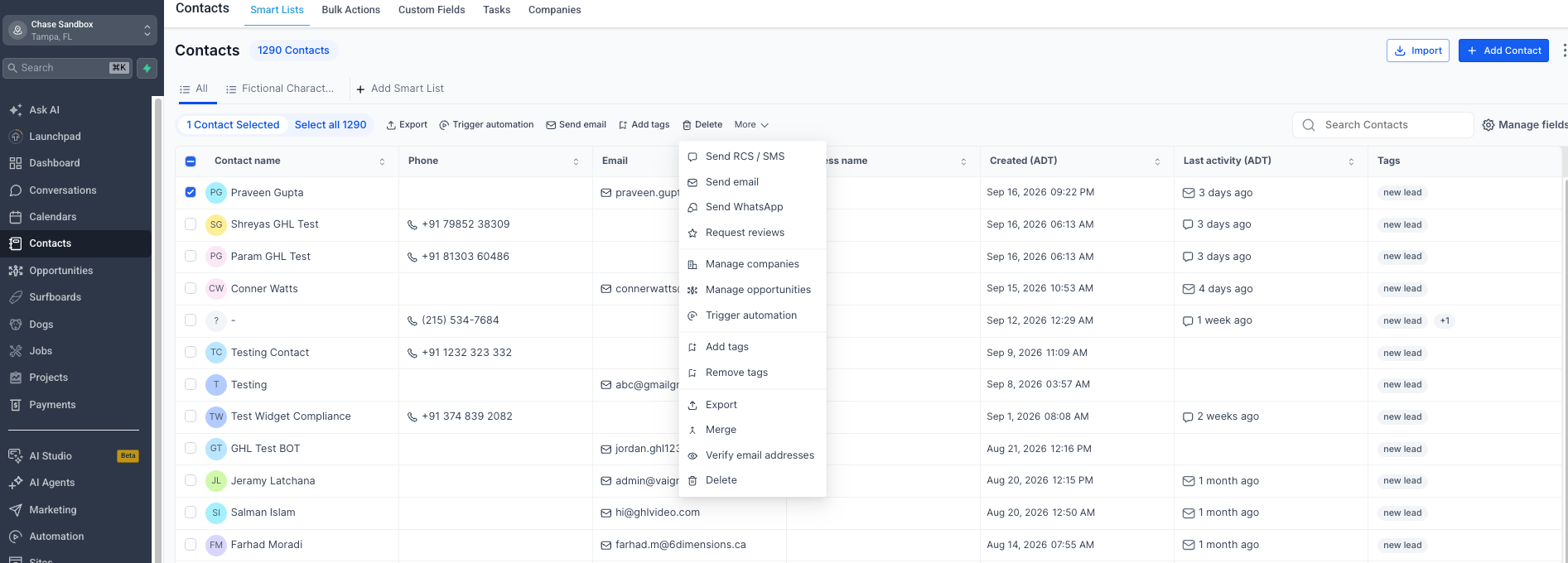
- Click the More button.
- Choose Merge from the dropdown.
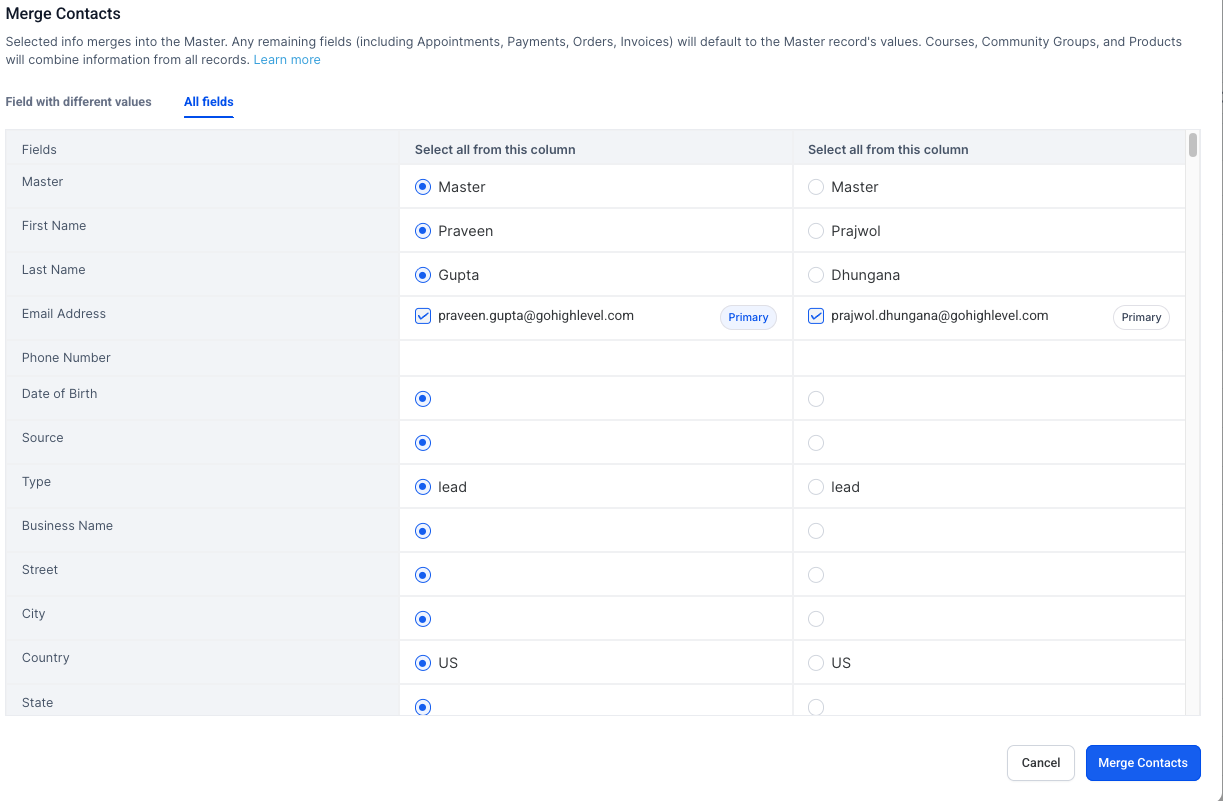
- Select which contact will serve as the Master record.
- Review fields that contain differing values.
- Review the available Email Address values.
- Choose which email values to keep in the merged record.
- Confirm which email should remain primary after the merge.
- Review all selections one final time.
- Click Merge Contacts to complete the merge.
Find contacts by additional email in a workflow
- Go to Automation > Workflows.
- Open an existing workflow or create a new one.
- Add the Find Contact action to the workflow.
- Under the standard fields used for matching, select Email.
- Enable the option to include additional emails in the search.
- Complete any remaining Find Contact configuration settings.
- Save the Find Contact action.
07What it looks like in HighLevel
08Settings that matter
- Additional Email. Specifies which CSV column contains extra email addresses when importing contacts.
- Include additional emails in the search. Controls whether the Find Contact workflow action also matches email values stored as additional addresses.
09Things to know before you rely on it
- A contact can store up to ten additional email addresses, for a maximum of eleven emails.
- Only one email address can be set as primary at any time.
- When the limit of ten additional emails is reached, the Add Another Email button disappears.
- Merging contacts cannot be undone; email selections must be verified before confirming the merge.
10How it connects to the rest of HighLevel
- Troubleshoot CSV imports if additional emails do not appear CSV import troubleshooting
- Learn how to merge duplicate contacts while preserving email data Merge duplicate contacts
- Configure visible email columns in Smart Lists before exporting Smart Lists setup
Michael's take

Ever wonder if you really need separate contact records for a client’s personal and work emails? You can keep them all on one profile, pick the address that matters for campaigns, and still have the others handy for reporting or support.
If I were setting up a new list, I’d add any extra addresses right in the contact record, then flag the most used one as primary. Before I rely on a merge, I’d double check which email stays primary, because you can’t undo that step.