
01Who this is for
- Marketing teams can automate social media posting and brand consistent content generation, reducing manual effort.
- Sales departments can capture leads from Facebook forms and automatically tag contacts or enroll them in follow up workflows.
- Customer support groups can use survey triggers to update contact records and create follow up tasks.
02Managed Agents, explained
Managed Agents are AI driven assistants built from natural language descriptions. The builder creates a draft that includes suggested behavior, Knowledge Base links, HighLevel actions and possible triggers. You refine the draft, add triggers, enable media generation, test the agent and then publish it for live use.
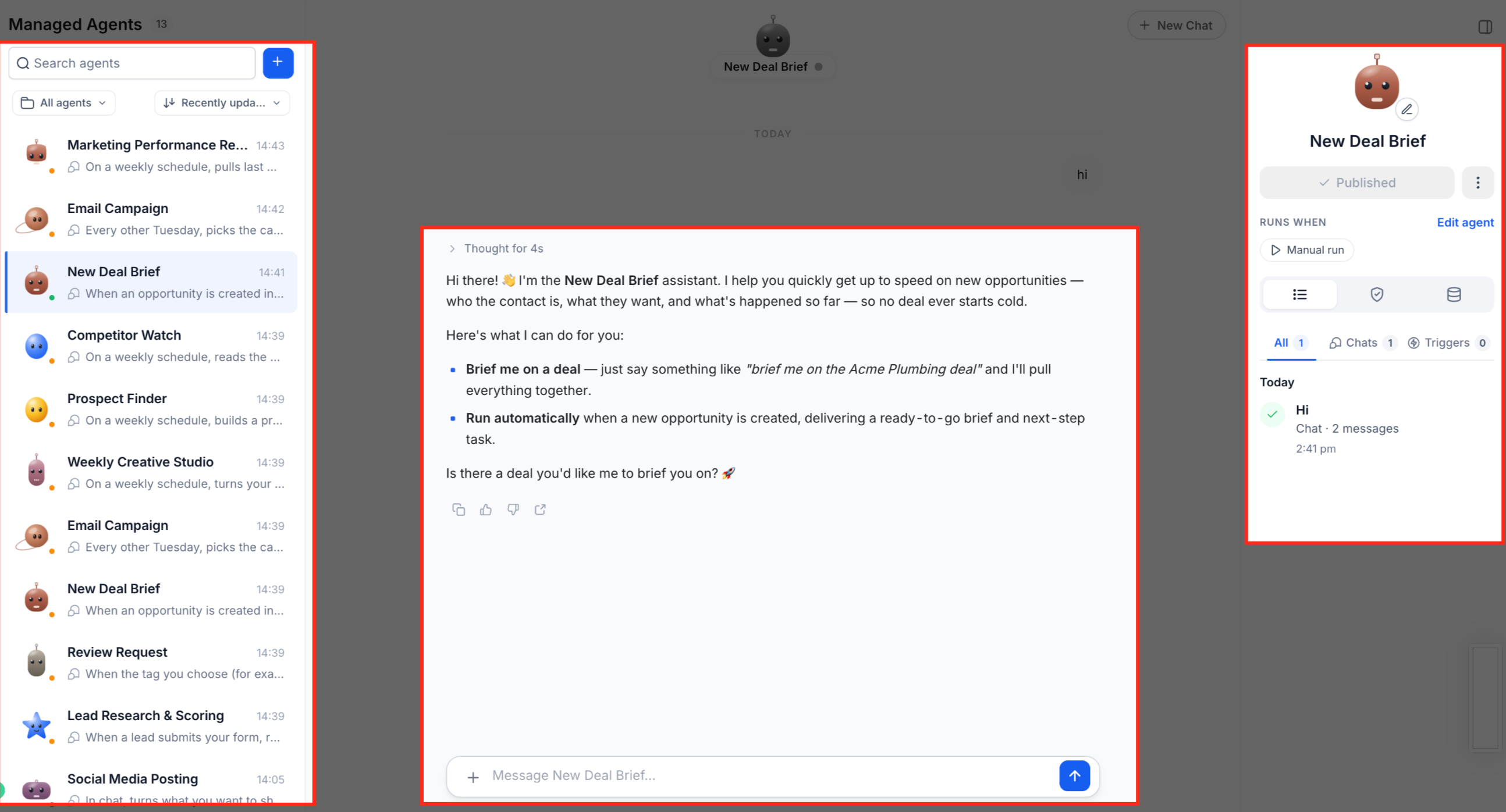
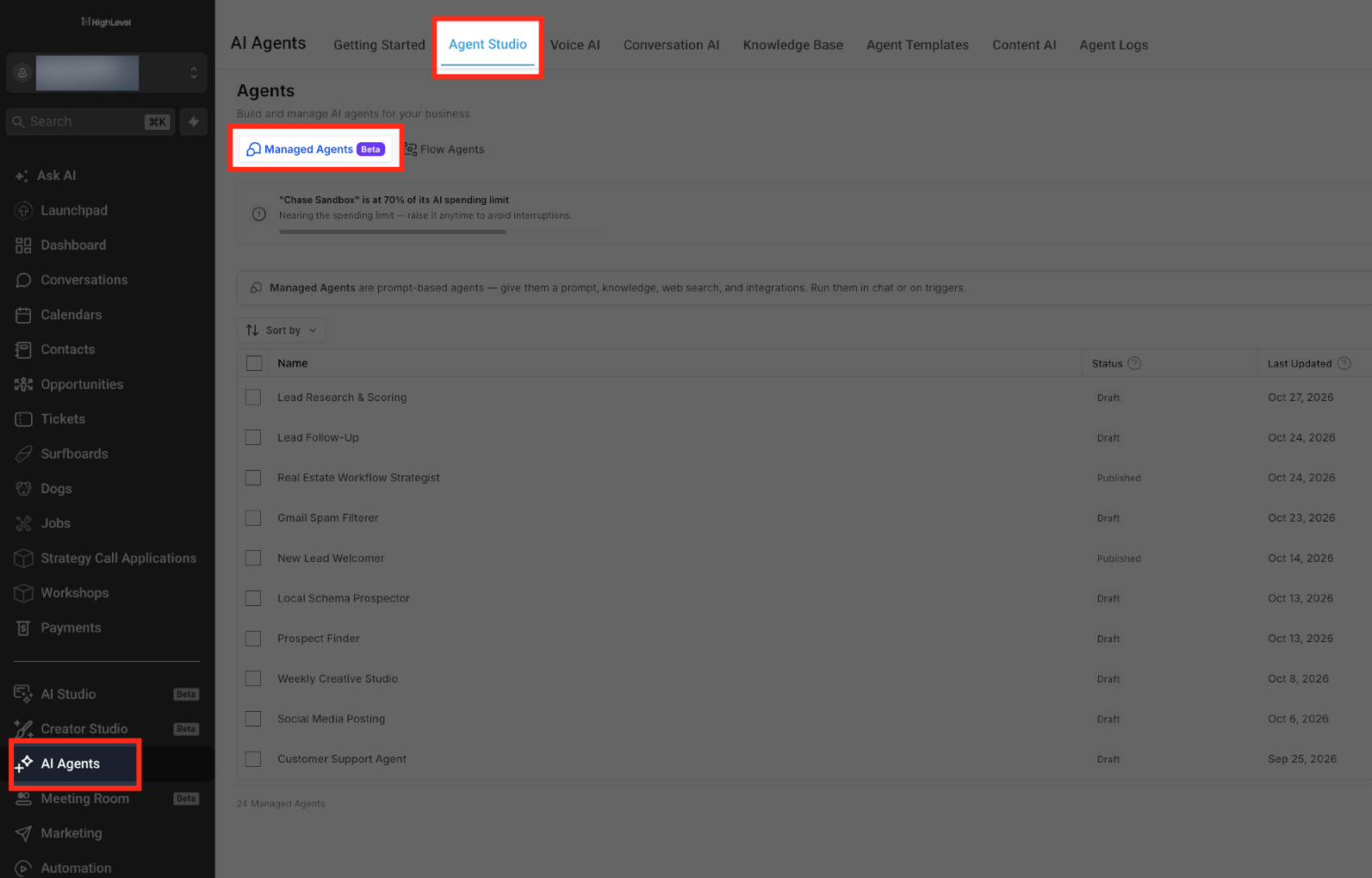
In HighLevel the feature lives under **AI Agents > Agent Studio > Managed Agents**. If Labs are enabled, the Unified Workspace replaces the classic view, offering a single screen for discovery, testing, conversation history and configuration.
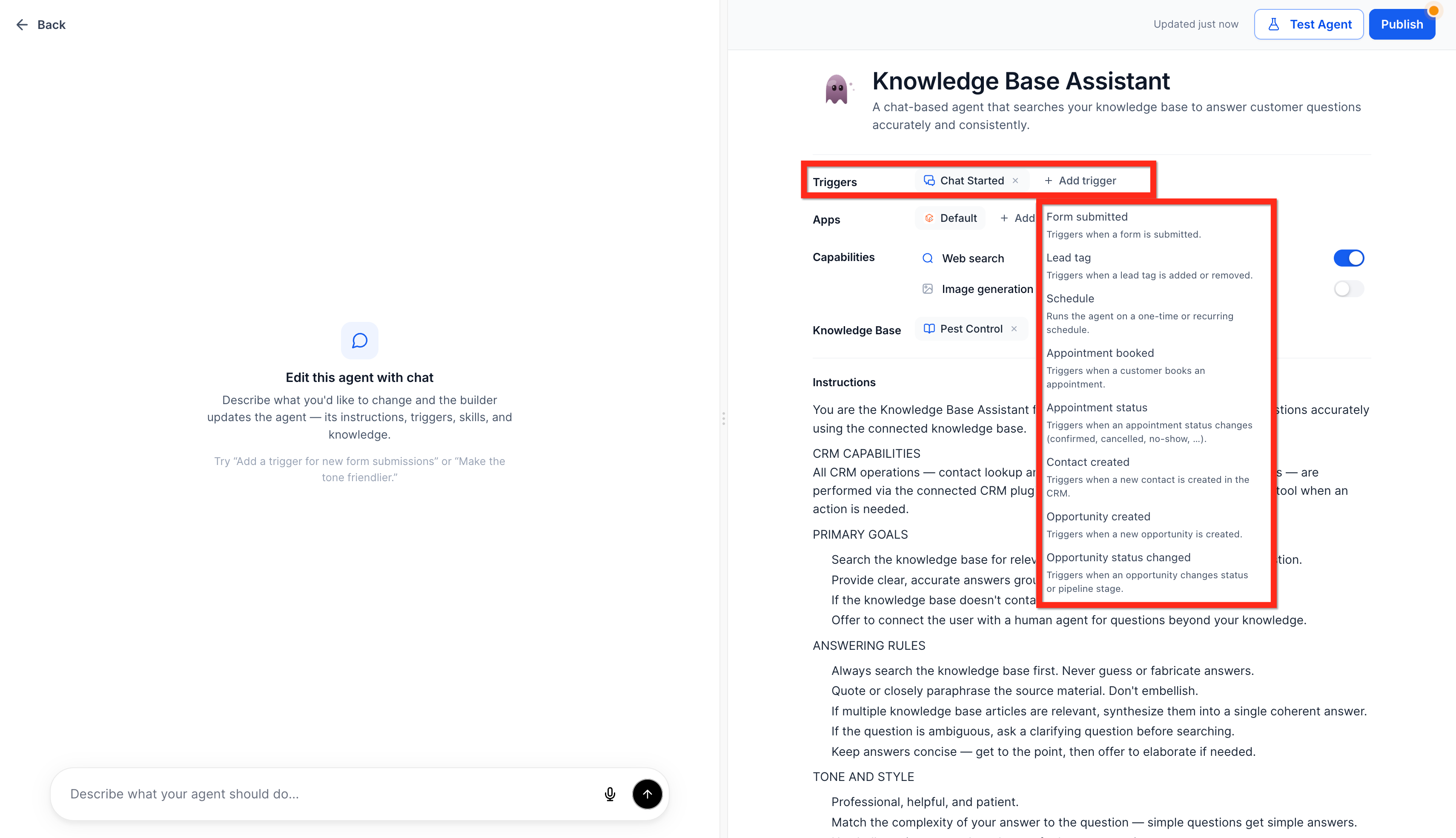
Agents can answer questions using approved Knowledge Base content, update contacts, tags, tasks or appointments, generate images, audio or short videos, and run parallel browser tasks through dedicated computer environments. Trigger types include Facebook lead forms, survey submissions, tag changes, form submissions and chat interactions.
03How businesses use Managed Agents
- Real estate agency. The agency creates a Managed Agent that pulls property details from a Knowledge Base and answers inbound inquiries. The agent is triggered by web form submissions, updates contact records with interested properties, and can generate image previews of listings.
- Ecommerce store. The store configures a Managed Agent with a Facebook lead form trigger. When a lead arrives, the agent captures the contact, tags the lead, and enrolls the prospect in an email sequence, all without manual data entry.
- Event management company. The company sets up a survey submitted trigger for post event feedback surveys. The agent records responses, updates attendee records, creates follow up tasks, and generates thank you images using the image generation capability.
04The numbers and rules that matter
- Each Managed Agent can run 8, 10 browser conversations in parallel.
- Supported image ratios are 1:1, 4:5, 2:3, 3:2, 9:16, 3:4, 4:3, 5:4, 16:9, 21:9.
- Generated videos are eight seconds long in a 16:9 aspect ratio.
05Before you start
- User must have permission to access and manage Managed Agents.
- All Knowledge Bases, workflows, or calendars the agent will use must be created and tested beforehand.
- For Facebook lead form triggers, the Facebook Page must be connected and a Page administrator must accept Meta's Lead Ads Terms of Service.
06How to set up and use Managed Agents in HighLevel
Set up a Managed Agent
- Open the HighLevel subaccount where the agent will run.
- Click **AI Agents** in the navigation menu.
- Select **Agent Studio**.
- Choose the **Managed Agents** tab.
- Click **+ Create Agent**.
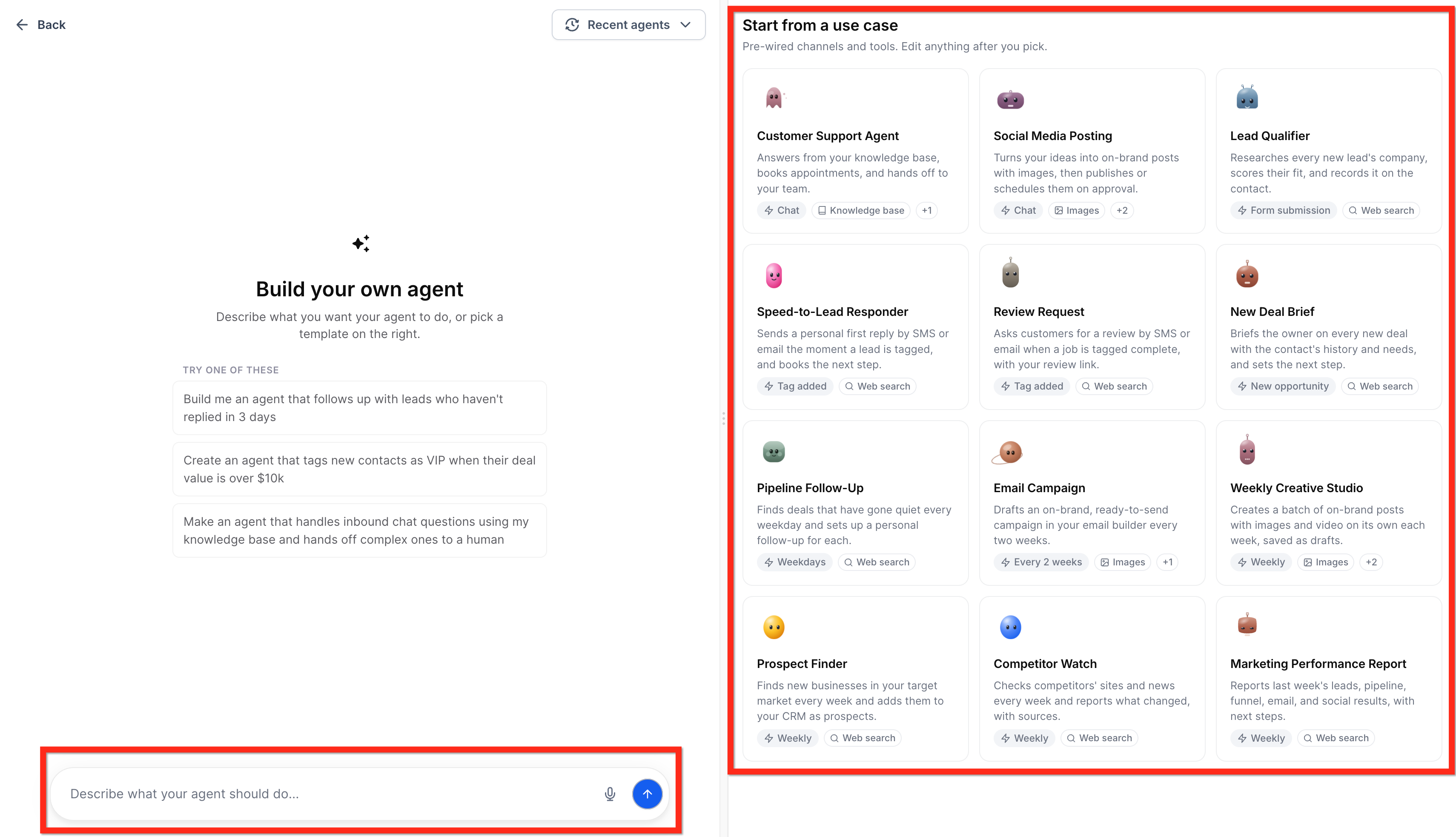
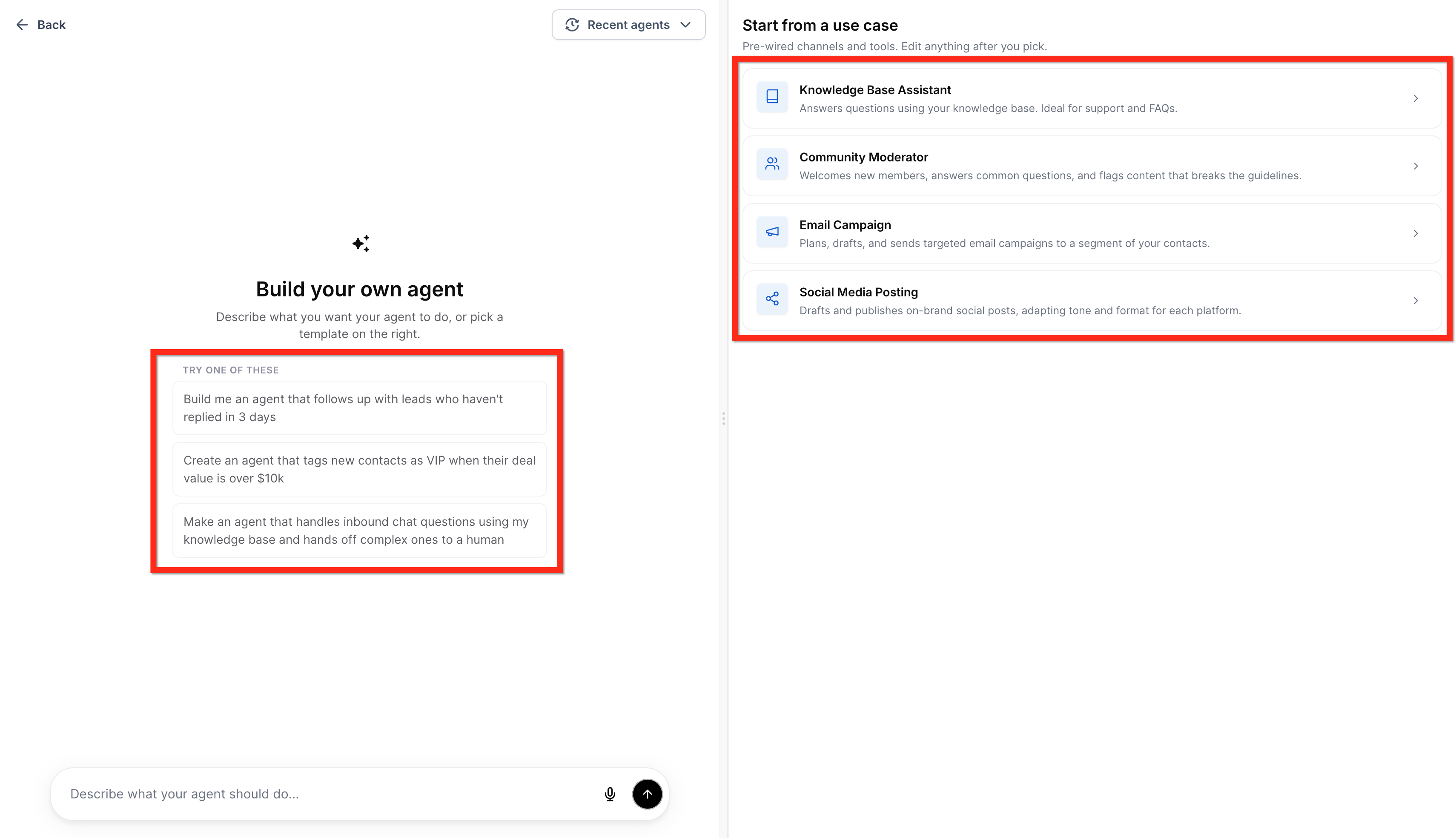
- Enter a natural language description of the agent’s purpose, supported channels, Knowledge Bases and allowed HighLevel actions, or pick a prebuilt use case.
- Press **Submit** to generate a draft agent.
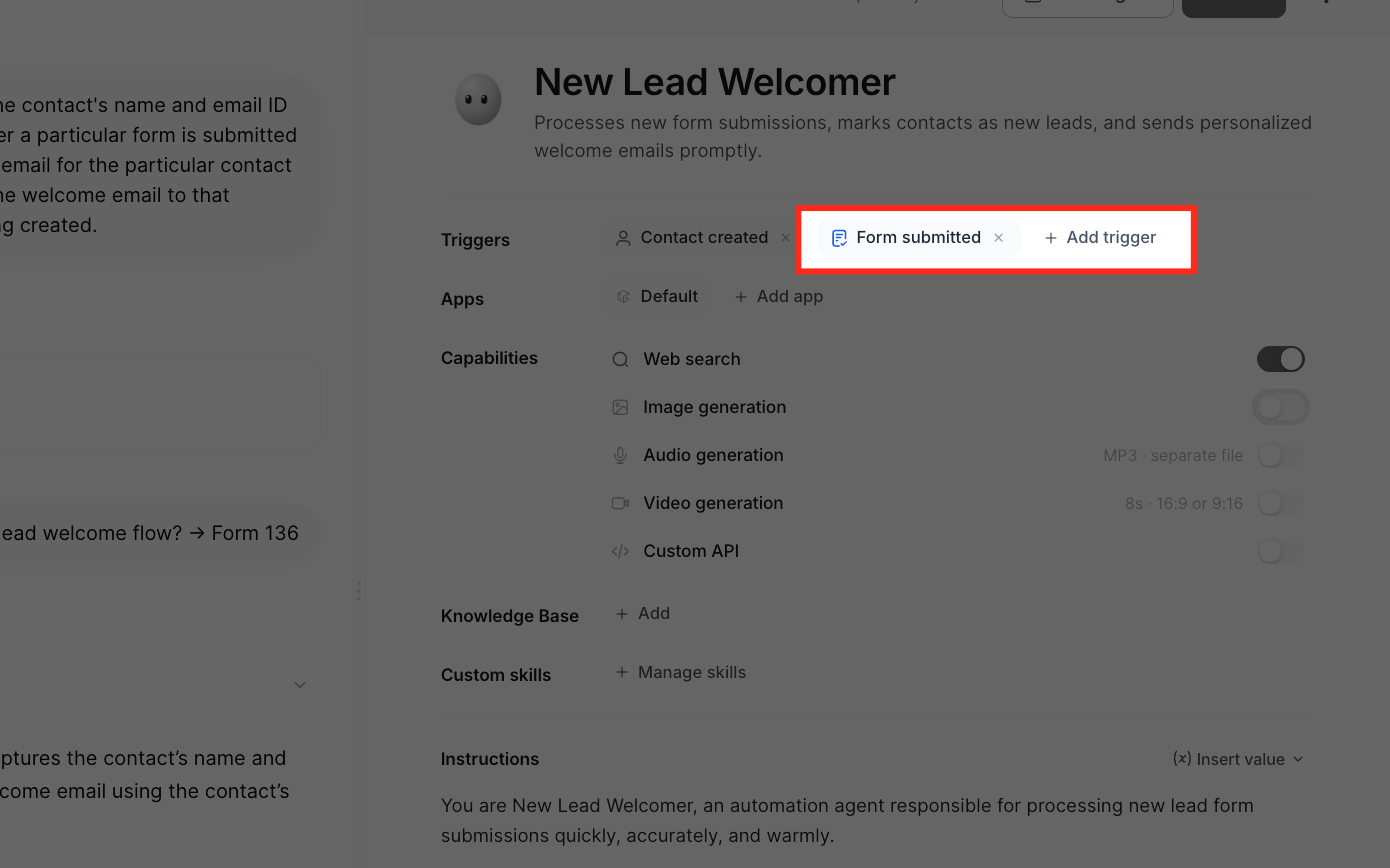
- Open the **Triggers** pane for the agent and click **+ Add Trigger**.
- Select a trigger type, configure its required settings, and click **Save**.
- Open the **Capabilities** section and toggle on any needed media generation options (image, audio, video).
- Open the **Testing** panel and run sample requests that exercise Knowledge Base lookups, HighLevel actions and any media generation.
- Change the agent’s status from **Draft** to **Published**.
- Review the agent’s activity in the workspace and edit instructions as needed.
Configure a Facebook lead form trigger
- From the subaccount view, click **AI Agents**, select **Agent Studio**, then choose **Managed Agents**.
- Open the agent you want to configure.
- Open the **Triggers** section and click **+ Add Trigger**.
- Under **Communications**, select **Facebook lead form**.
- Select the Facebook Page and optionally choose specific lead forms.
- Click **Save** to store the Facebook lead form trigger configuration.
Configure a Survey submitted trigger
- From the subaccount view, click **AI Agents**, select **Agent Studio**, then choose **Managed Agents**.
- Open the agent you want to configure.
- Open the **Triggers** section and click **+ Add Trigger**.
- Under **Forms & Surveys**, select **Survey submitted**.
- Select one or more surveys, using search if needed.
- Click **Save** to store the Survey submitted trigger configuration.
07What it looks like in HighLevel
08Settings that matter
- Image generation. Enables the agent to create pictures based on prompts.
- Audio generation. Allows the agent to produce spoken audio files using selected voices and tone settings.
- Video generation. Lets the agent generate short eight second videos in a 16:9 aspect ratio.
- Image quality. Sets the rendering detail for generated images; options are Low, Medium or High.
09Things to know before you rely on it
- Supported channels and events depend on the triggers and integrations that are configured in the account.
- The Unified Workspace is available only through Labs; locations without Labs continue using the classic Managed Agents interface.
- A single Managed Agent can run eight to ten browser conversations in parallel, each in its own tab.
- Generated videos are limited to eight seconds and a 16:9 aspect ratio.
- If an image shape is not specified, the agent generates a square image by default.
10How it connects to the rest of HighLevel
- Compare Managed Agents with existing Flow Based Agents. Flow agents overview
- Step by step guide to create, test and publish agents. Create, test, publish agents
- Details on configuring triggers for agents. Trigger setup guide
- Information on AI usage limits and extra usage options. AI limits and pricing
- View all HighLevel AI Employee features. AI Employee feature list
Michael's take

Managed Agents can be a capable way to automate repetitive tasks, but whether they’re worth the effort depends on your specific workflow and the stability of your Knowledge Bases.