
01Who this is for
- Founders who run multiple locations and need a single agent template that adapts to each site’s settings.
- Marketing teams that want to personalize messages with contact fields without rewriting copy for each campaign.
02Custom Values and variables, explained
Custom Values are reusable key value pairs stored in Settings > Custom Values. Once defined, they can be referenced in any text field inside an agent using the {{custom_values.key}} syntax. Variable placeholders pull data from five built in sources: Account, Custom Values, Right Now, Form Data, and Contact. When the agent runs, each placeholder is replaced with the current value from its source.
These placeholders work in AI prompts, text generation nodes, tool inputs, message cards, and conditional logic. If a source does not contain a value, the placeholder returns an empty string, preventing the agent from failing. Right Now variables automatically apply the subaccount’s timezone, and Form Data variables are only available when the agent is triggered by a form submission event.
03How businesses use Custom Values and variables
- Retail chain. Define a support email as a Custom Value and reference {{custom_values.support_email}} in order confirmation messages. Updating the email in Settings right away changes it across all store agents.
- Real estate agency. Insert {{contact.first_name}} and {{contact.email}} into lead follow up prompts so each prospect receives a personalized greeting without editing the workflow for each contact.
- Event registration site. Use {{form.event_date}} inside confirmation texts, which only appears when the agent is started by a form submission, ensuring the correct event date is shown to each registrant.
04How to set up and use Custom Values and variables in HighLevel
Set up Custom Values and variables
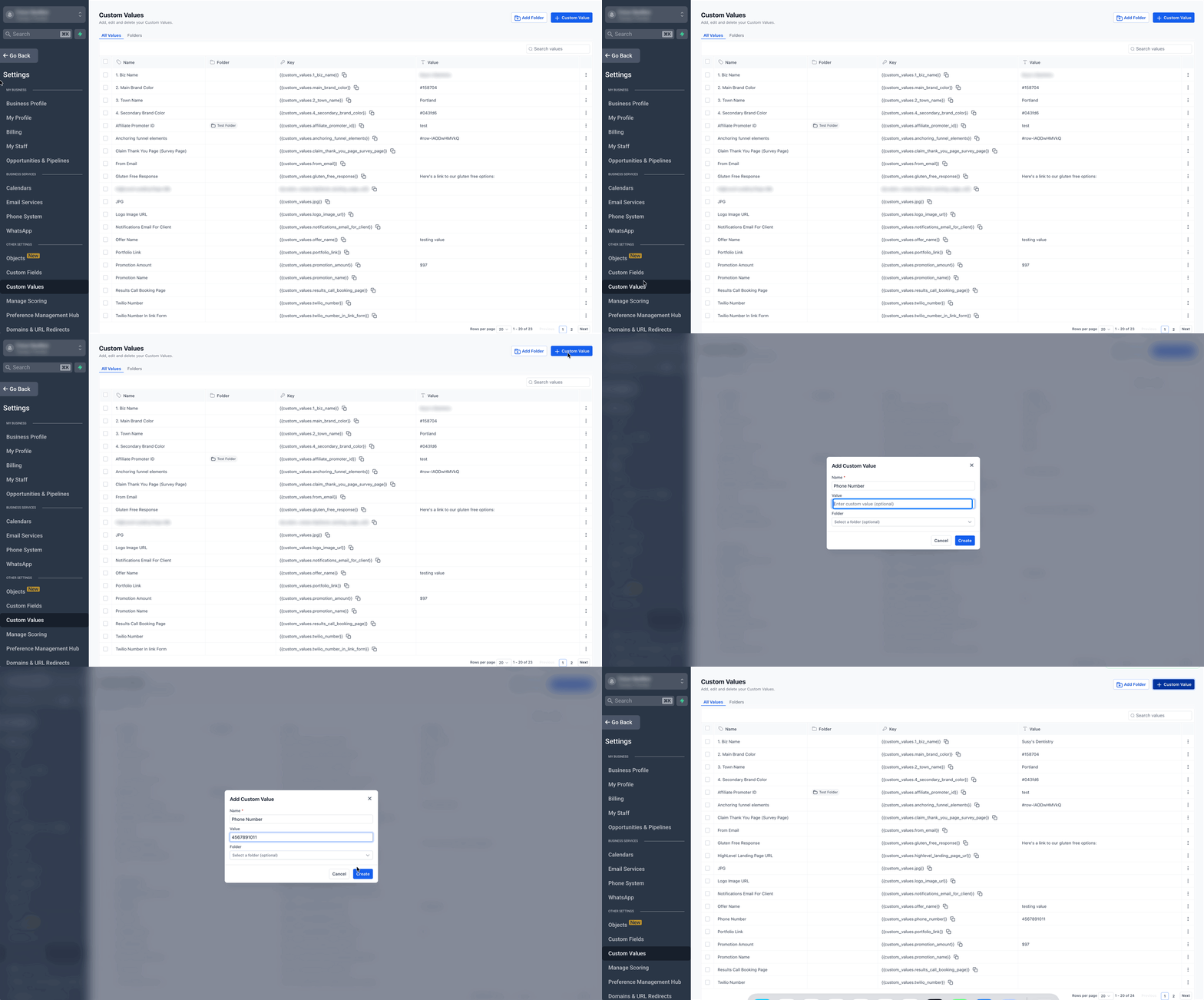
- Navigate to Settings > Custom Values.
- Select Add Custom Value.
- Enter a Name and the corresponding Value.
- Click Create to store the new Custom Value.
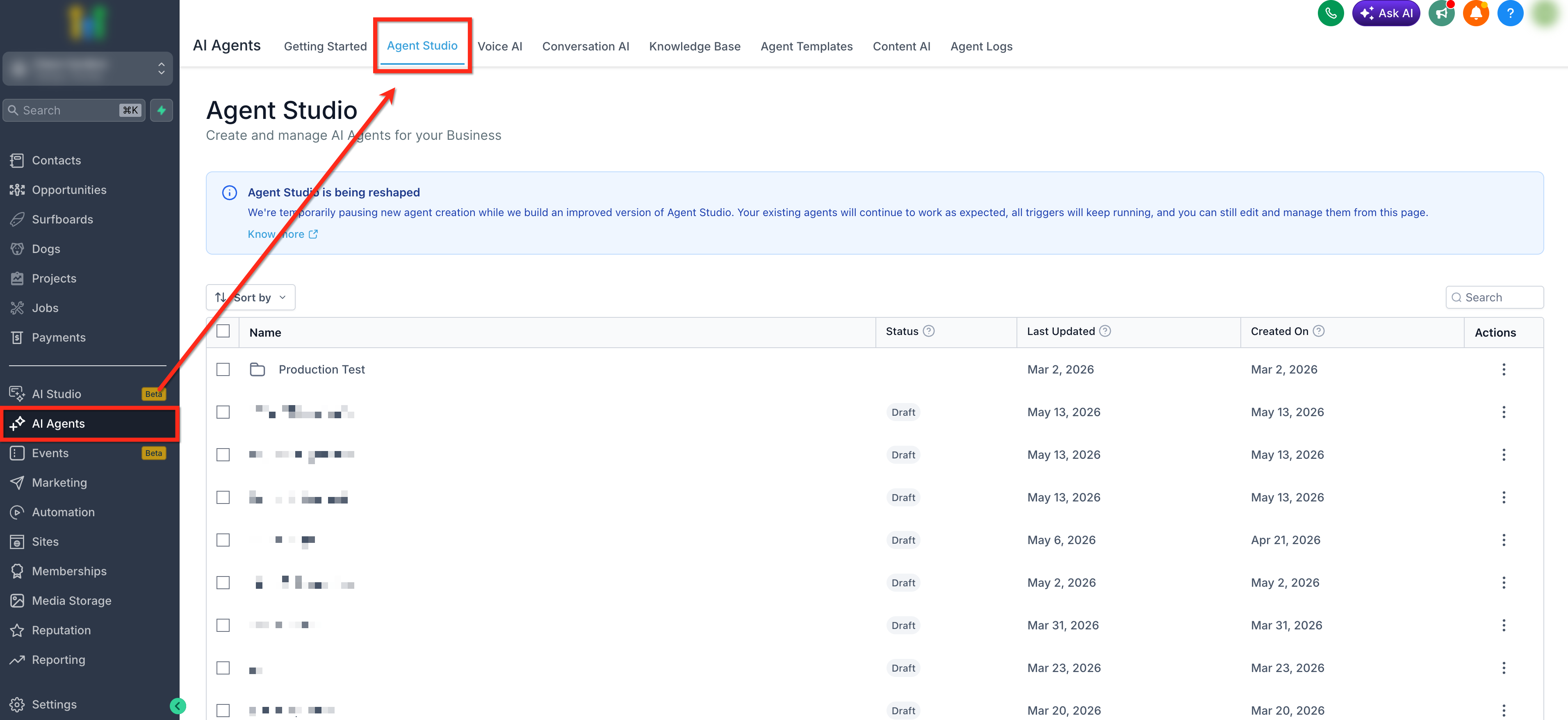
- Go to AI Agents > Agent Studio and open an existing agent or create a new one.
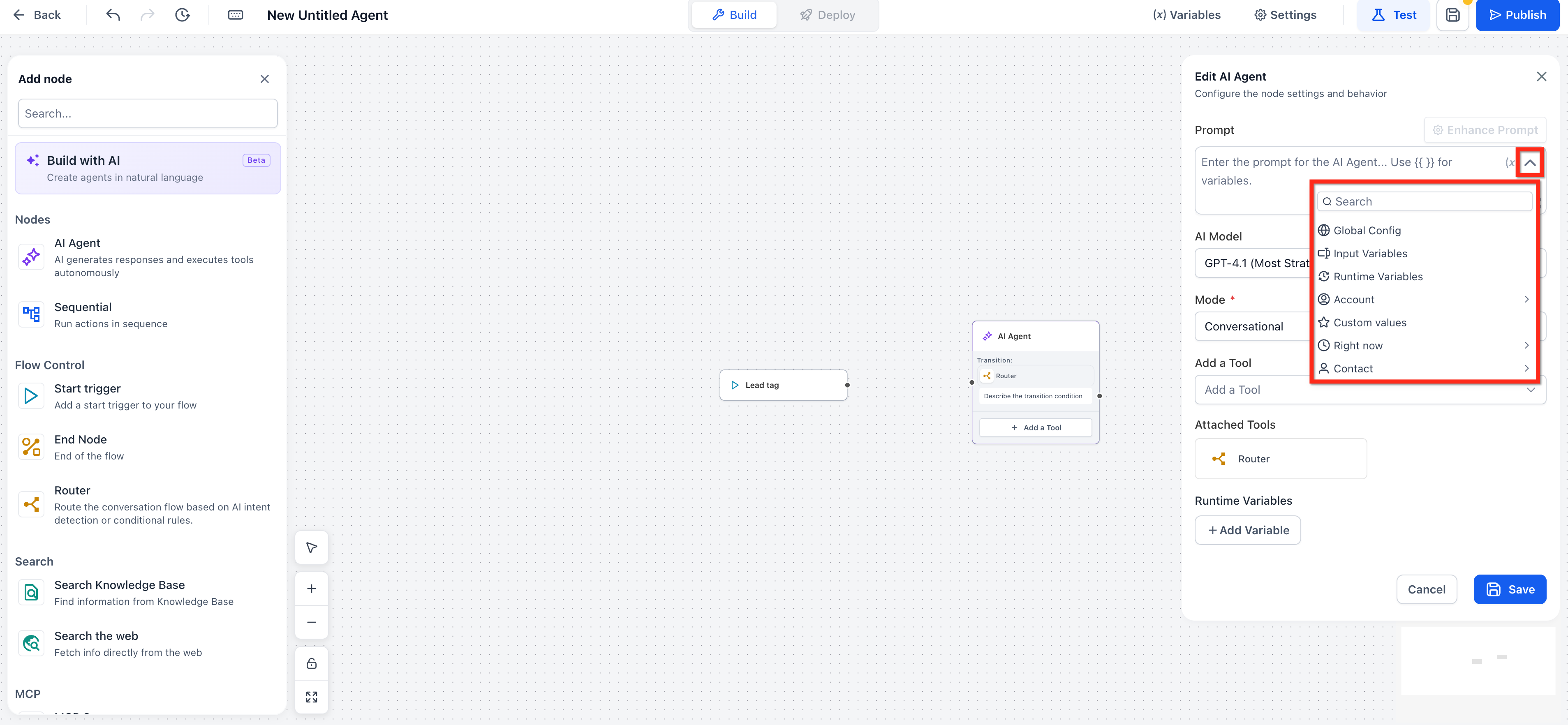
- Click inside any prompt or message text box.
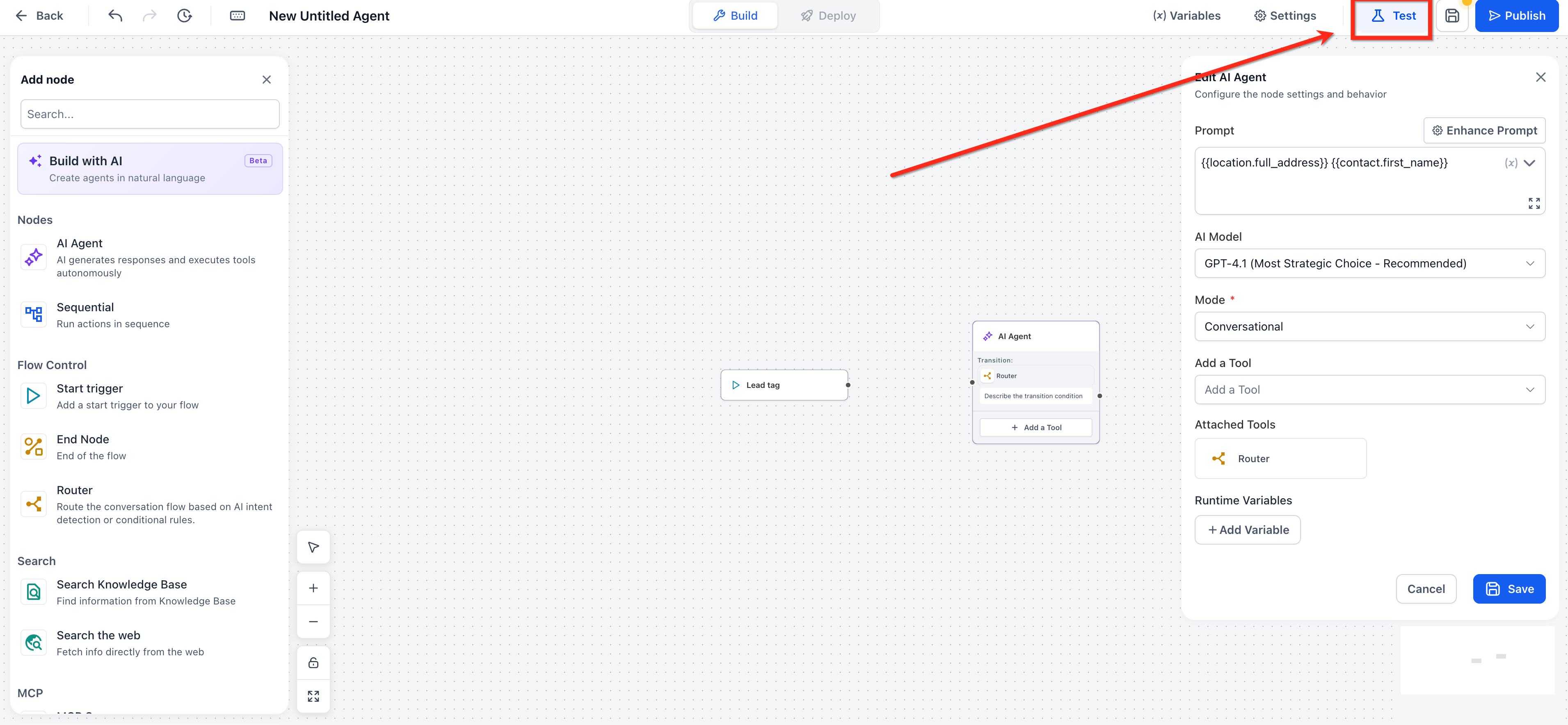
- Open the variable picker by clicking the dropdown arrow or by typing {{.
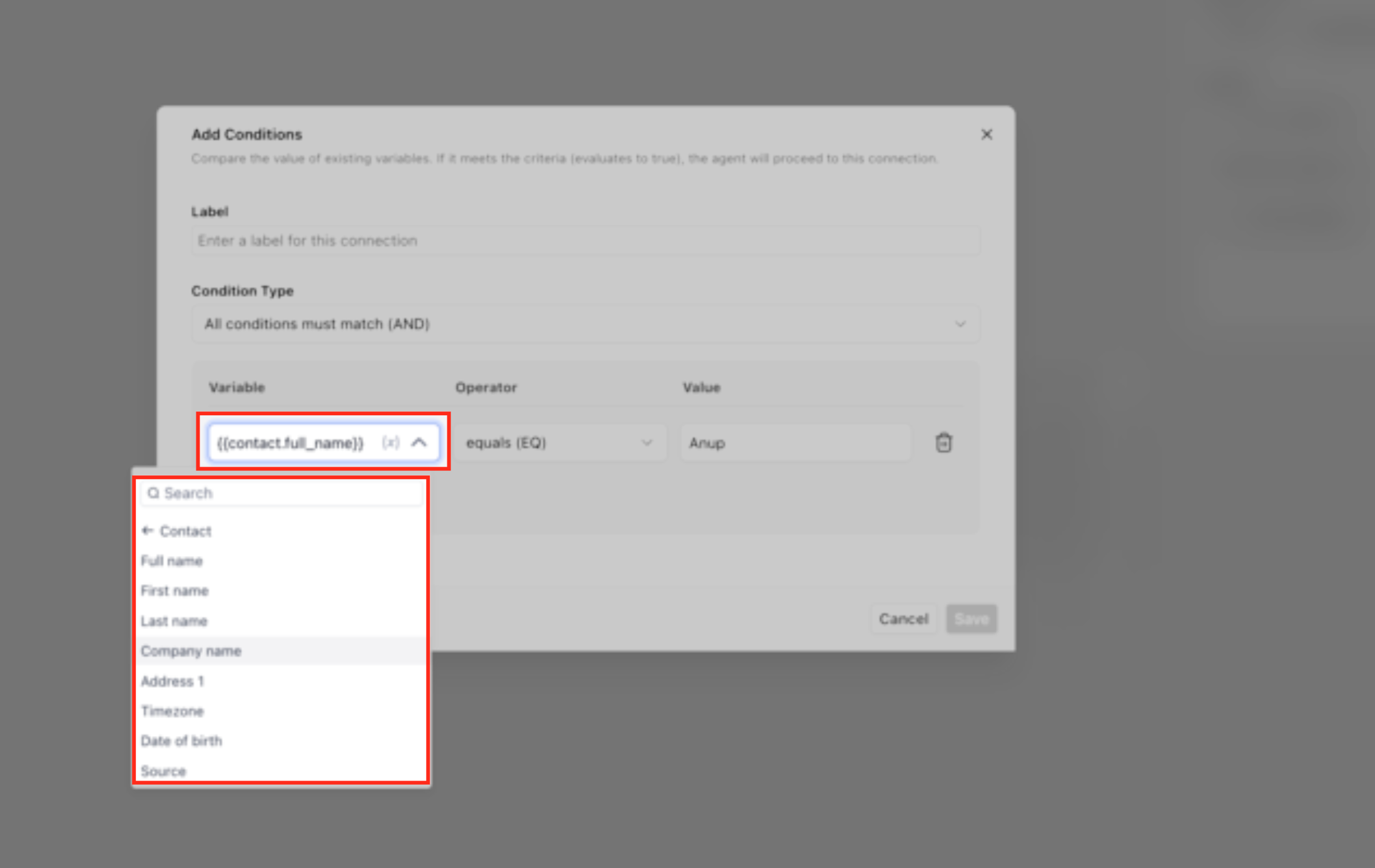
- Choose a category: Account, Custom Values, Right Now, Form Data, or Contact.
- Select the specific variable you want to insert.
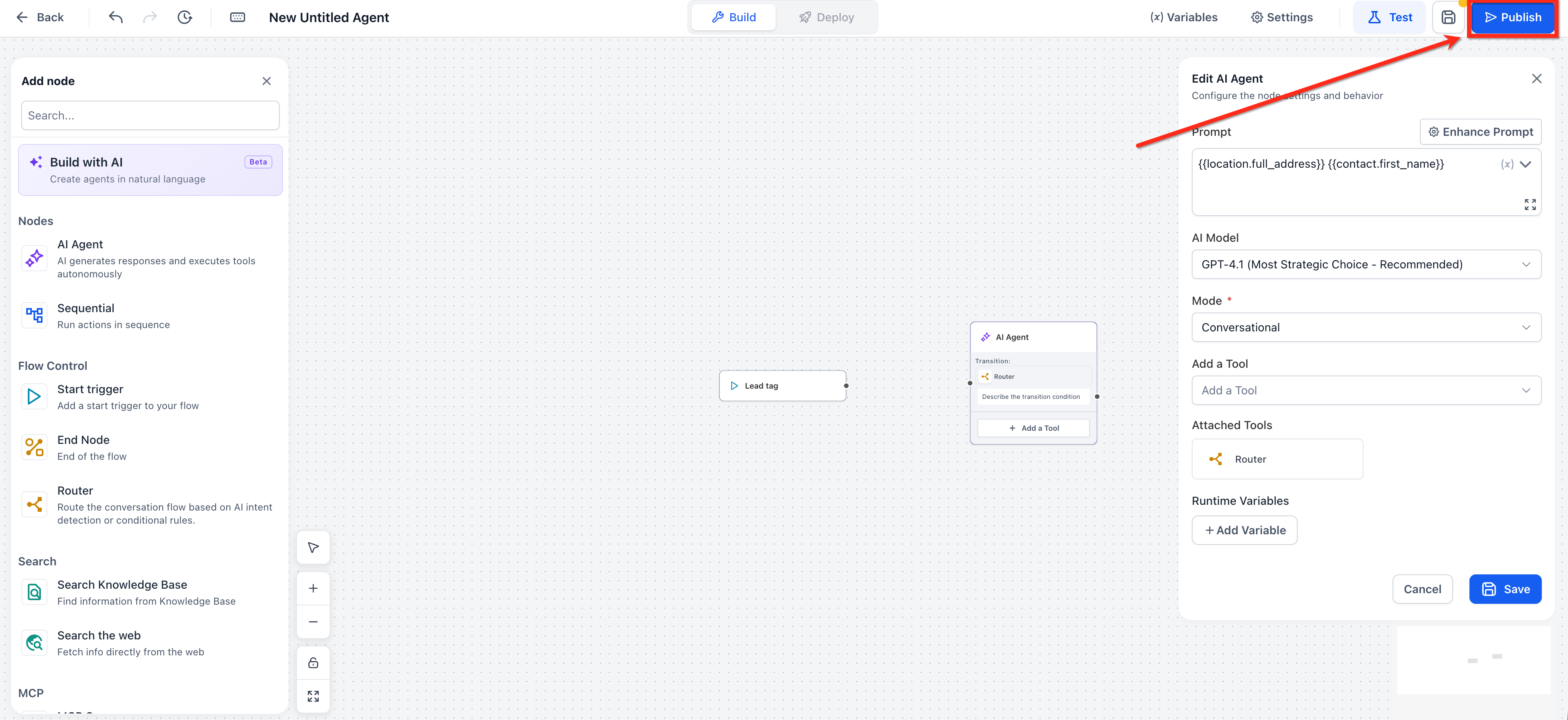
- Click Save to store the changes.
- Select Test, run a sample conversation, and verify that each placeholder resolves correctly.
- If a placeholder appears blank, confirm that the required data exists in the contact record or location settings.
- When the test succeeds, promote the agent to Production.
05What it looks like in HighLevel
06Settings that matter
- Custom Values. Stores reusable key value pairs that can be inserted into any agent text using the {{custom_values.key}} placeholder.
07Things to know before you rely on it
- If a placeholder has no associated data, it returns an empty string instead of causing an error.
- Form Data variables are only populated when the agent is started by a form submission event.
- Variable names are case sensitive; use the exact key shown in the picker.
- Right Now variables follow the timezone set for the subaccount.
08If something goes wrong
- A variable shows up blank during testing.. Check that the required data exists in the contact record or in the location settings.
09How it connects to the rest of HighLevel
- Overview of flow agents in Agent Studio Flow agents overview
- How to set up and use Managed Agents Managed agents
- All AI Employee features AI Employee features
Michael's take

Custom Values and variables are a neat way to keep agents tidy and up to date.
Teams that never need dynamic content or personalization can skip it.