
01Who this is for
- Agency admins who need to keep legacy AI automations running while making improvements.
- Subaccount admins responsible for updating existing agent logic without rebuilding from scratch.
02Flow agents, explained
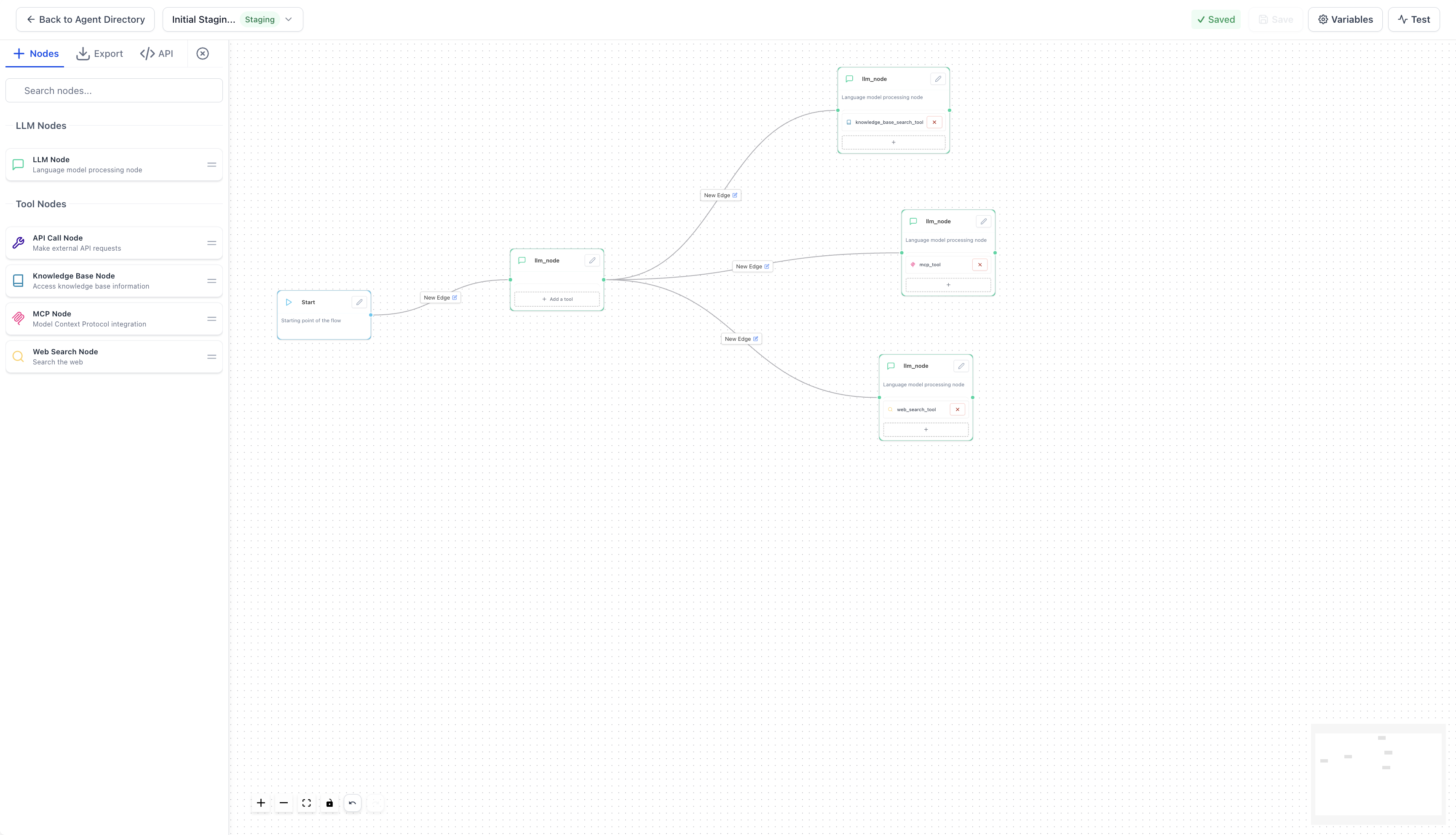
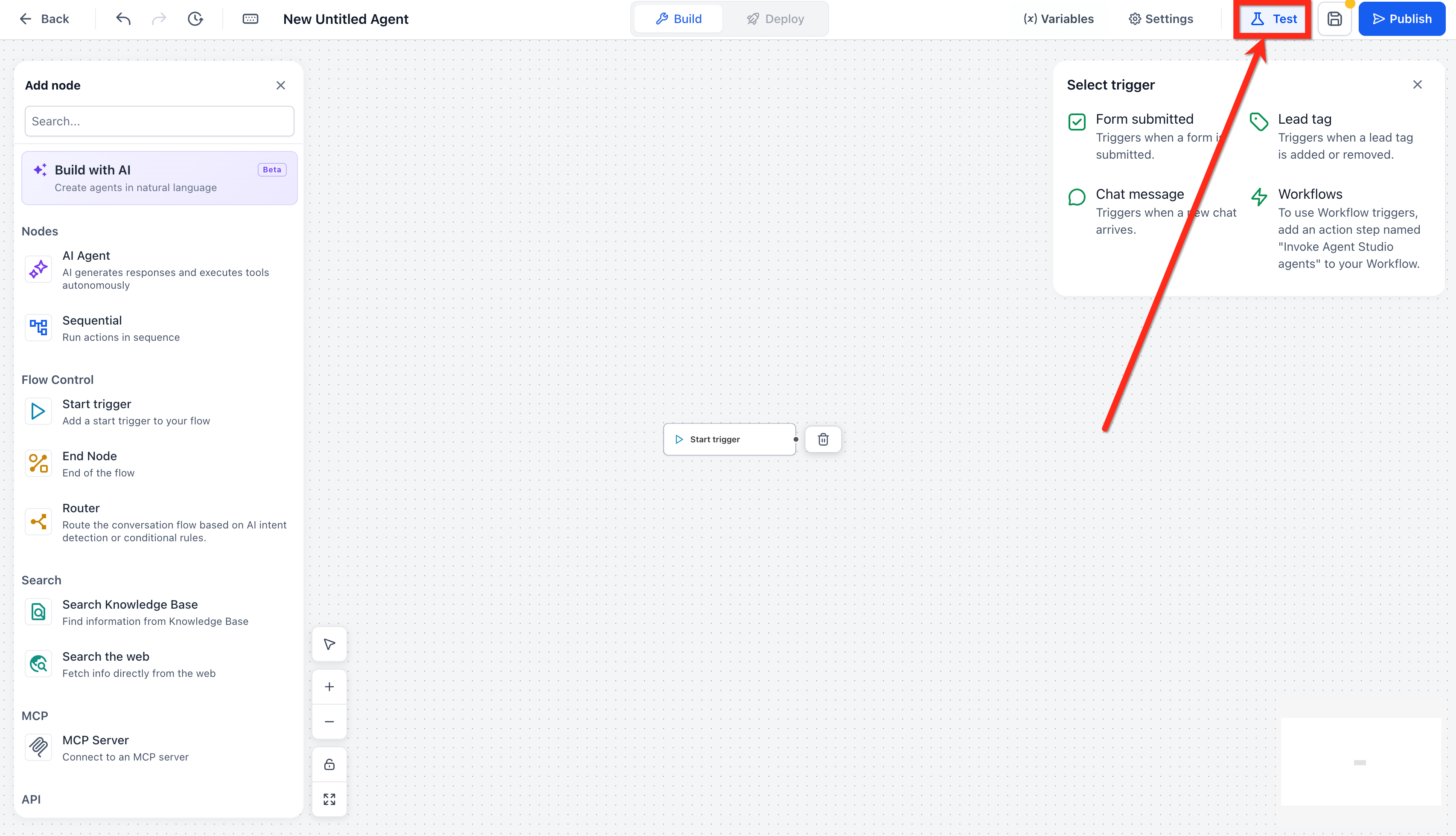
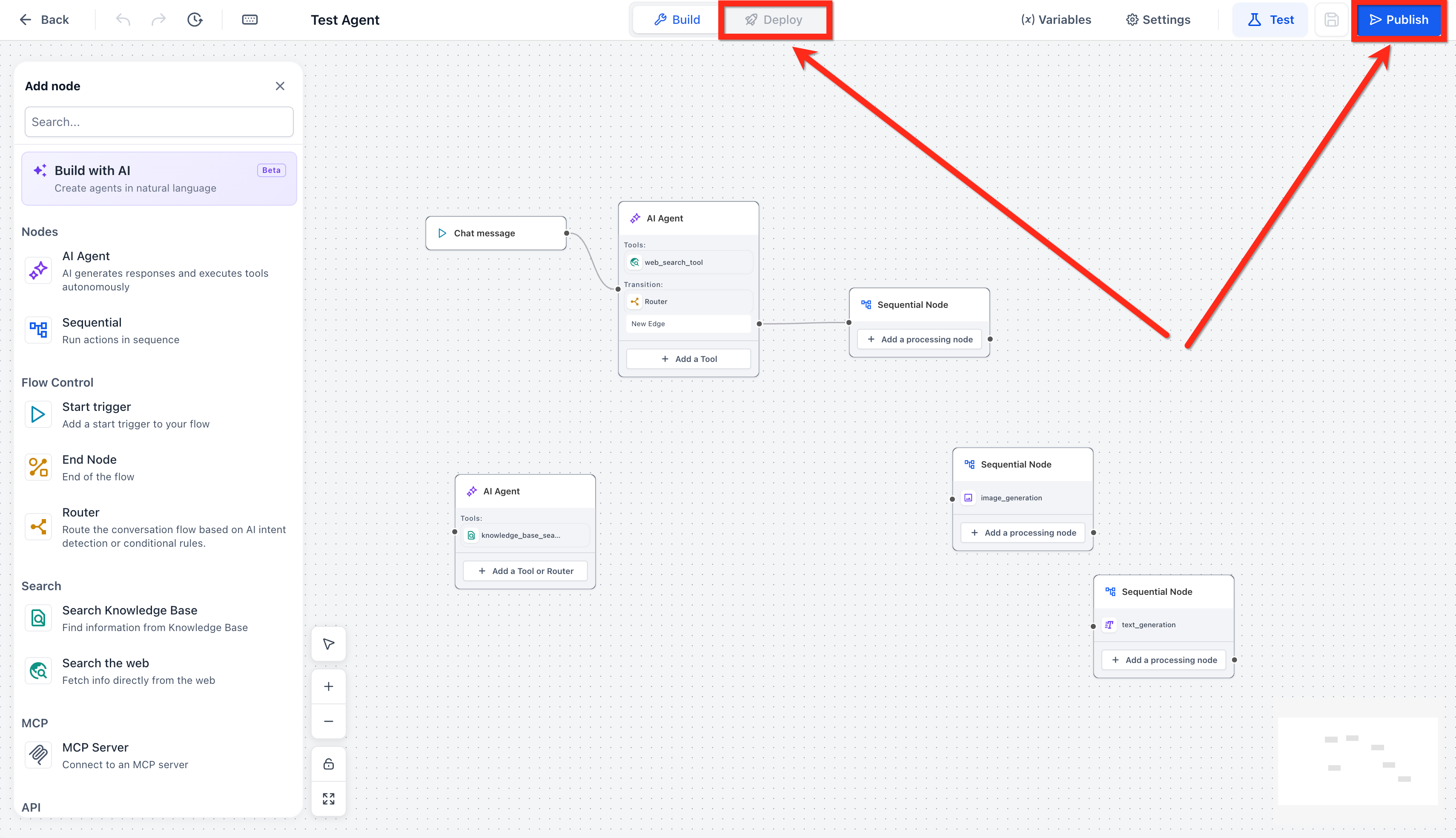
Agent Studio provides a drag and drop canvas where you can view and modify the nodes of an existing flow based agent. You can add or edit LLM, API, MCP, Knowledge Base, and Web Search tool nodes, then connect them with edges to define decision paths.
The builder also includes variable management and a Test tab for simulating conversations. Version control is built in, offering Draft, Staging, and Production modes so changes can be verified before they go live.
All of these features live under the AI Agents > Agent Studio section of the HighLevel dashboard, and they apply only to agents that were originally created with the flow based builder.
03How businesses use flow agents
- Digital marketing agency. The agency opens an existing flow agent, updates the API tool node to call a new reporting service, tests the flow in the Test tab, and then promotes the revised version to Production so client campaigns use the latest data.
- Real estate brokerage. The brokerage edits the Knowledge Base node of a property search agent to add recent listings, runs a test conversation to verify accuracy, and publishes the changes without interrupting the live chatbot on their website.
- Healthcare clinic. The clinic modifies the LLM node prompts for appointment scheduling, configures new variables for patient details, validates the flow in staging, and then promotes it to production to improve the patient intake experience.
04Before you start
- You must have Agency Admin or Subaccount Admin access.
- An existing flow based agent must already be created in the platform.
05How to set up and use flow agents in HighLevel
Use Agent Studio to edit and publish flow agents
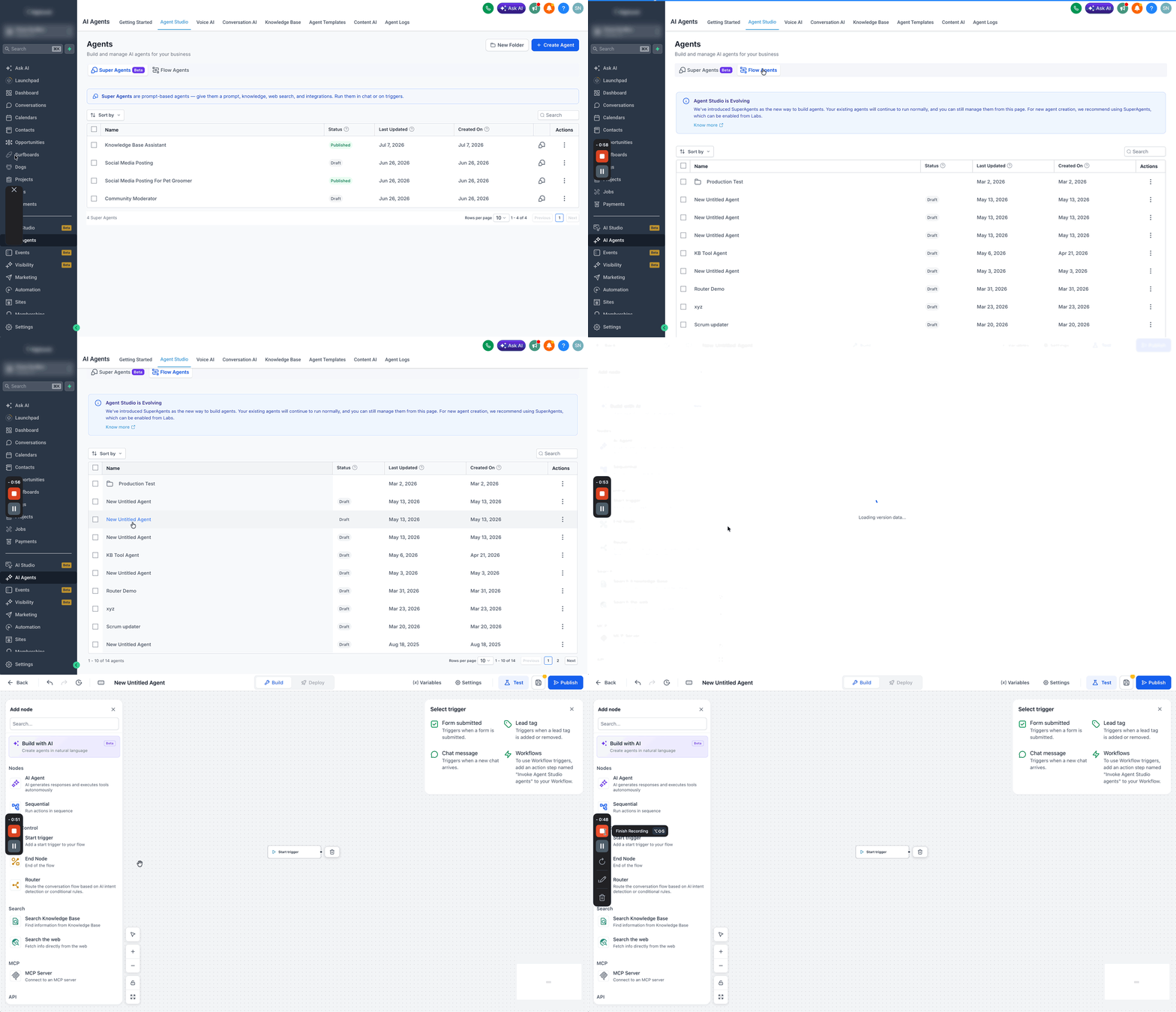
- Navigate to AI Agents > Agent Studio from the HighLevel dashboard.
- Select the Flow Agents tab to view the list of existing agents.
- Click the name of the flow agent you want to modify.
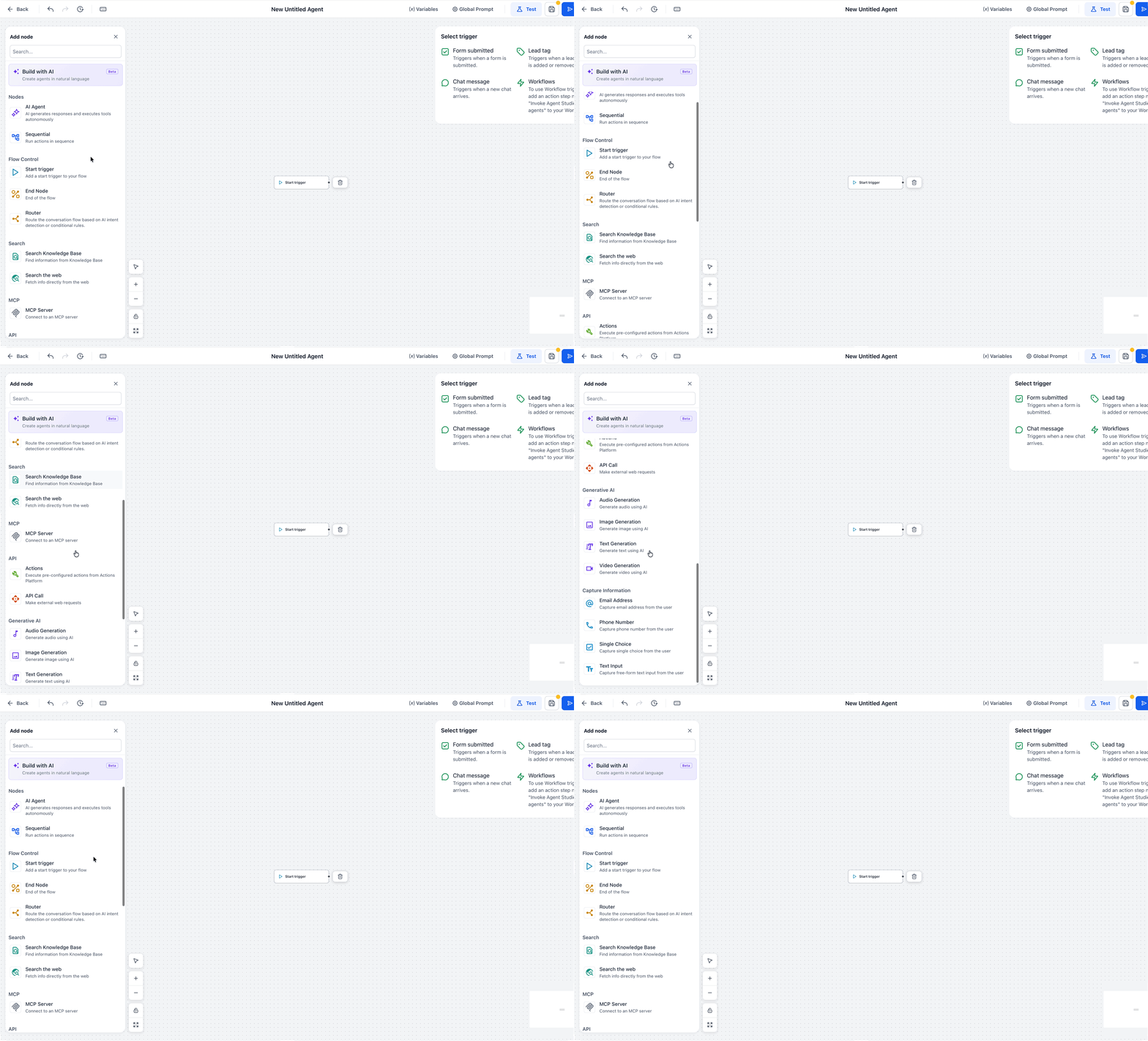
- Add any required tool nodes such as LLM, MCP, API, Knowledge Base, or Web Search.
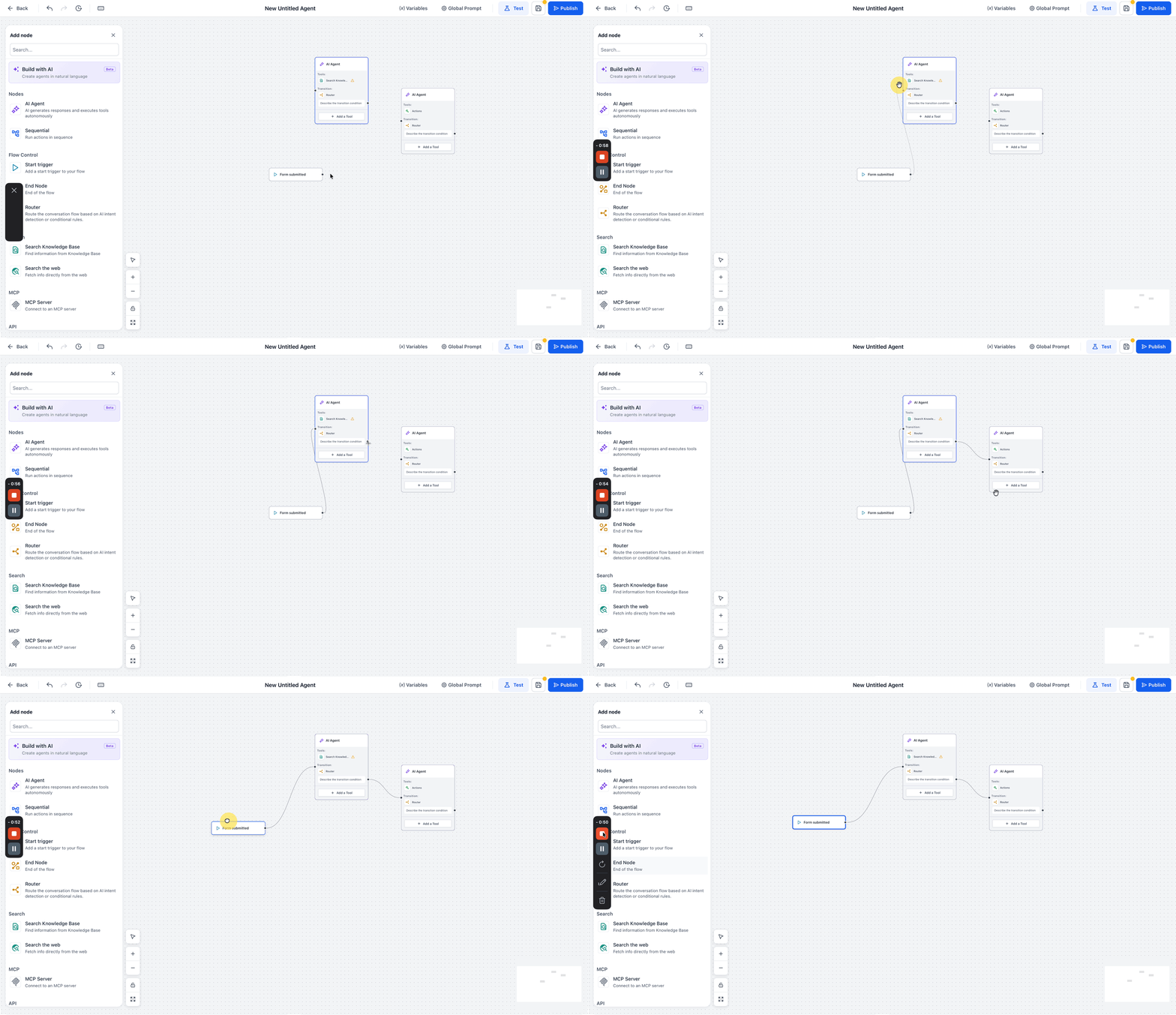
- Connect the newly added nodes to existing ones using edges to define the logic.
- Configure variables to pass information between the nodes.
- Open the Test tab and run a test to verify the agent’s behavior.
- Save the changes and publish to create or update the Staging version.
- When satisfied, promote the Staging version to Production.
- Deploy the agent so the updated version is active for live contacts.
06What it looks like in HighLevel
07Settings that matter
- Staging. Holds the work in progress version of the agent that can be tested without affecting live traffic.
- Production. Runs the live version of the agent that interacts with real contacts after promotion from Staging.
- Draft. Represents the initial edit state before a Staging version is saved.
08Things to know before you rely on it
- The flow based builder is being replaced; new agents must be created in Managed Agents.
- Only users with Agency Admin or Subaccount Admin roles can access Agent Studio.
- Existing flow based agents continue to work, but no new flow agents can be built in this interface.
09How it connects to the rest of HighLevel
- Create, test and publish flow agents in HighLevel Agent Studio Flow agents guide
- Set up and Use Managed Agents in Agent Studio Managed agents
- Agent Studio: Setting Up Triggers for Flow Agents Triggers for flow agents
Michael's take

When a business has spent weeks building an AI agent that’s already handling live conversations, they can’t afford to rebuild it from scratch. The biggest hassle is updating that logic without breaking the triggers that keep the bot running. The first setting I would lock in is the version mode. Keep changes in Staging and only promote to Production after a solid test.
If I were running an agency with several legacy agents, I’d review each node for needed upgrades. Maybe swapping an old API call for a newer endpoint. Using the Staging workflow lets the team experiment safely before promoting to Production.