
01Who this is for
- Founders of SaaS startups who need flexible conversational flows that adapt to varied user wording.
- Customer support teams that want to route inquiries based on captured ticket status or selected options.
- Marketing managers who require an always on transition between lead capture steps and follow up messages.
02Router tools, explained
The Router node sits inside an agent flow and acts as a decision point. Depending on the selected mode, it evaluates the last user message for intent, checks a stored variable against logical operators, or skips evaluation entirely. The chosen branch then connects to the next node in the graph.
You add the Router from the Flow Control panel, open its edit pane, pick a mode, and configure intents or conditions. After linking each output to a destination node, you save, test, and publish the agent so the routing works in real time.
03How businesses use router tool
- E learning platform. Creates a Router that reads students' free text answers, matches them to intents such as "need help" or "understood", and sends them to remedial content or the next lesson automatically.
- Appointment booking service. Uses Conditional Router to examine a saved variable indicating the selected service type and routes the conversation to the correct calendar integration node.
- Product feedback survey. Enables No Condition routing to move respondents from a rating question directly to a thank you message, ensuring a smooth end to the flow.
04How to set up and use router tool in HighLevel
Set up a router in Agent Studio
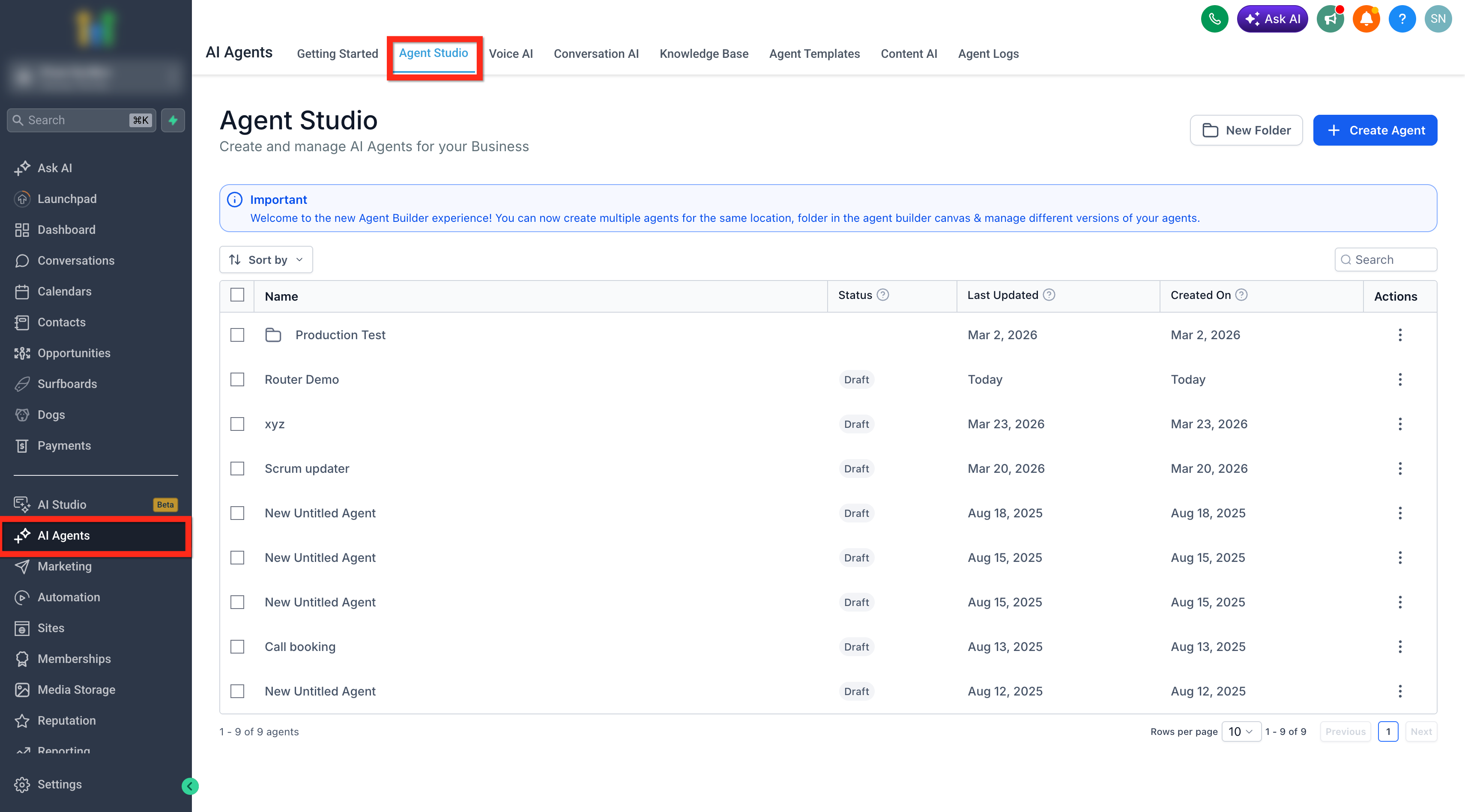
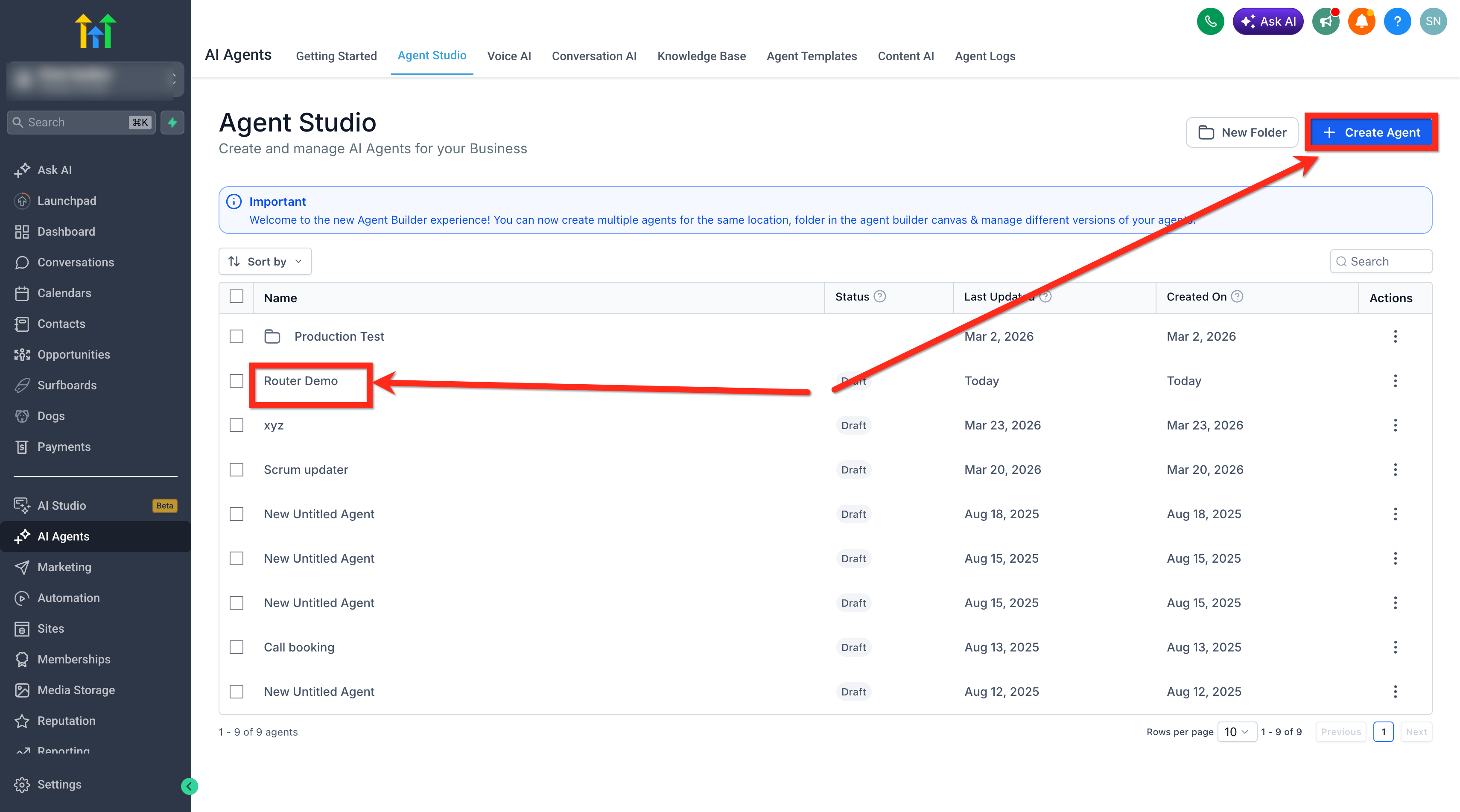
- Open the AI Agents menu and click the Agent Studio tab.
- Select an existing agent or create a new one.
- Add a trigger such as a chat message or a form submission.
- Insert an AI Agent node and configure its settings.
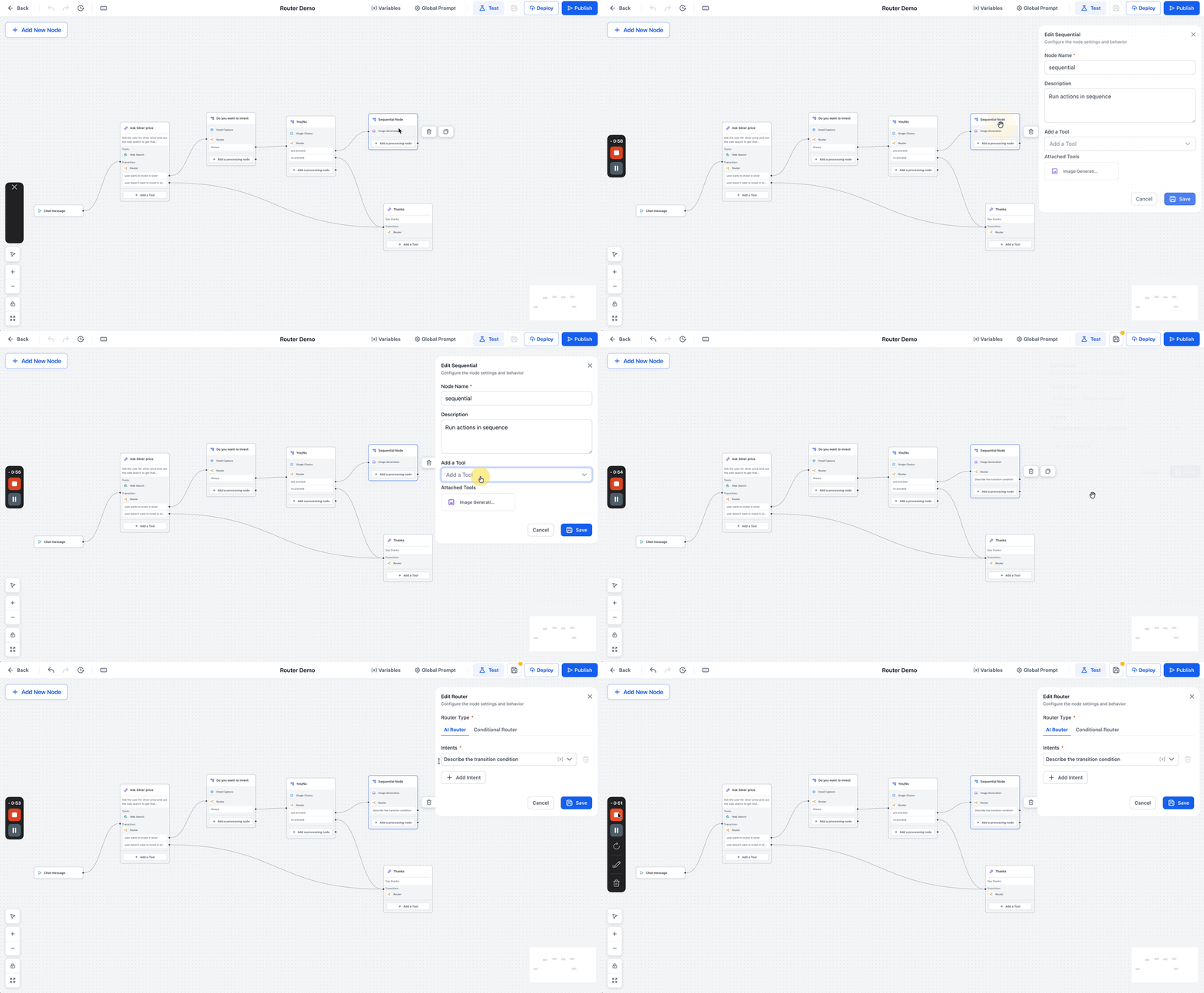
- Drag the Router node from Flow Control onto the canvas.
- When the edit panel appears, choose the routing mode you need.
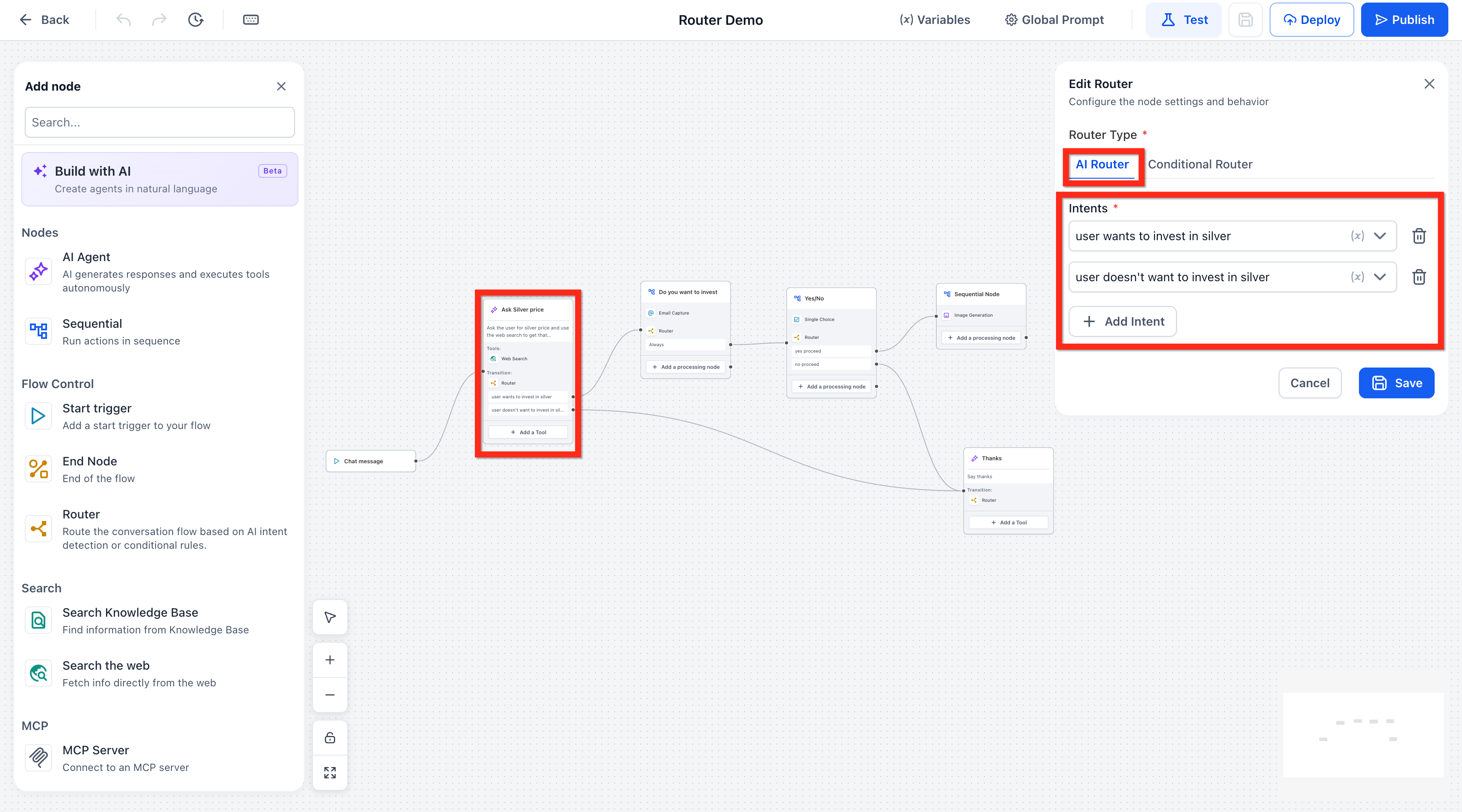
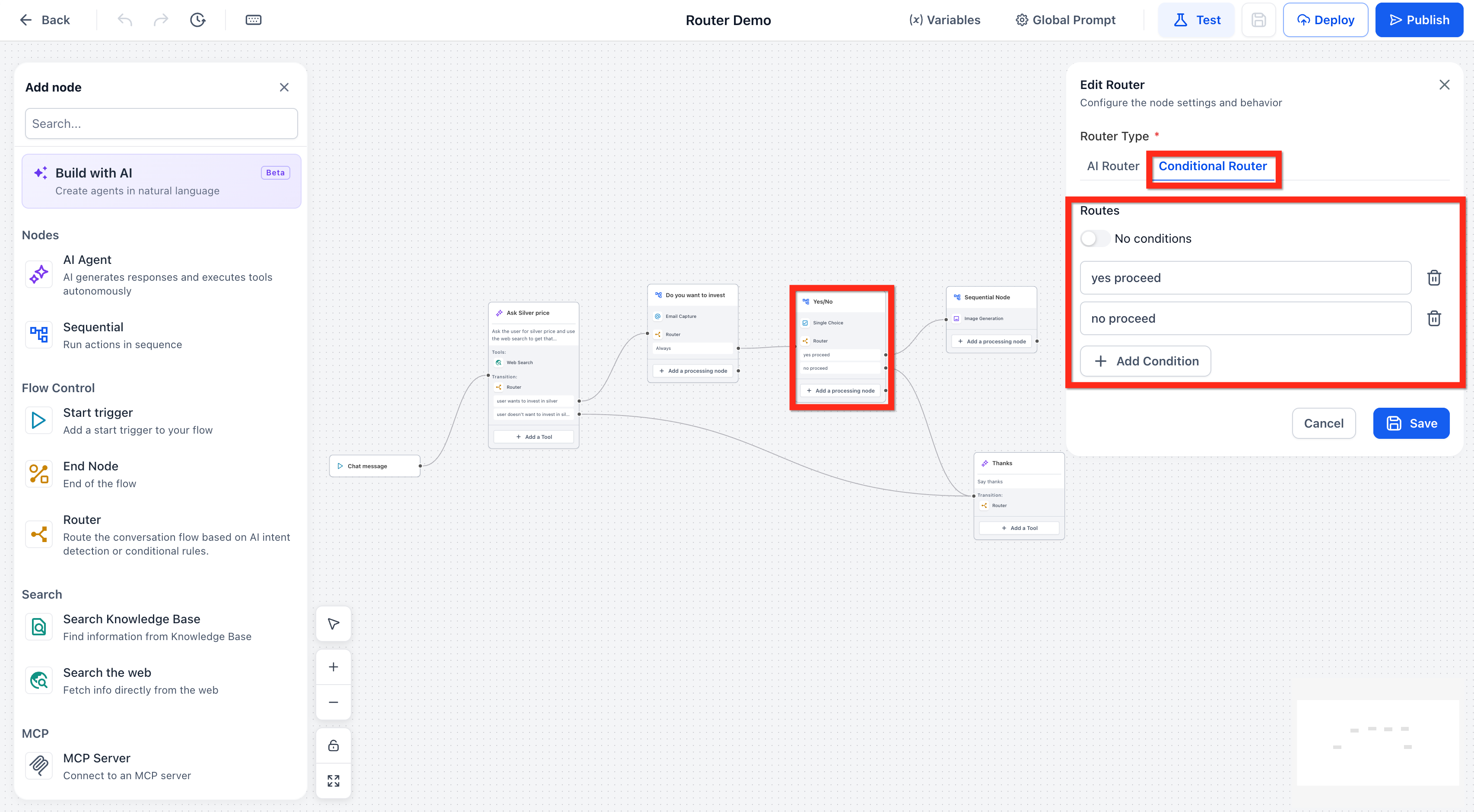
- In the Router Type section, select AI Router or Conditional Router.
- If using AI Router, enter the intents that will define each branch.
- If using Conditional Router, add a rule by picking a variable, an operator, and the expected value.
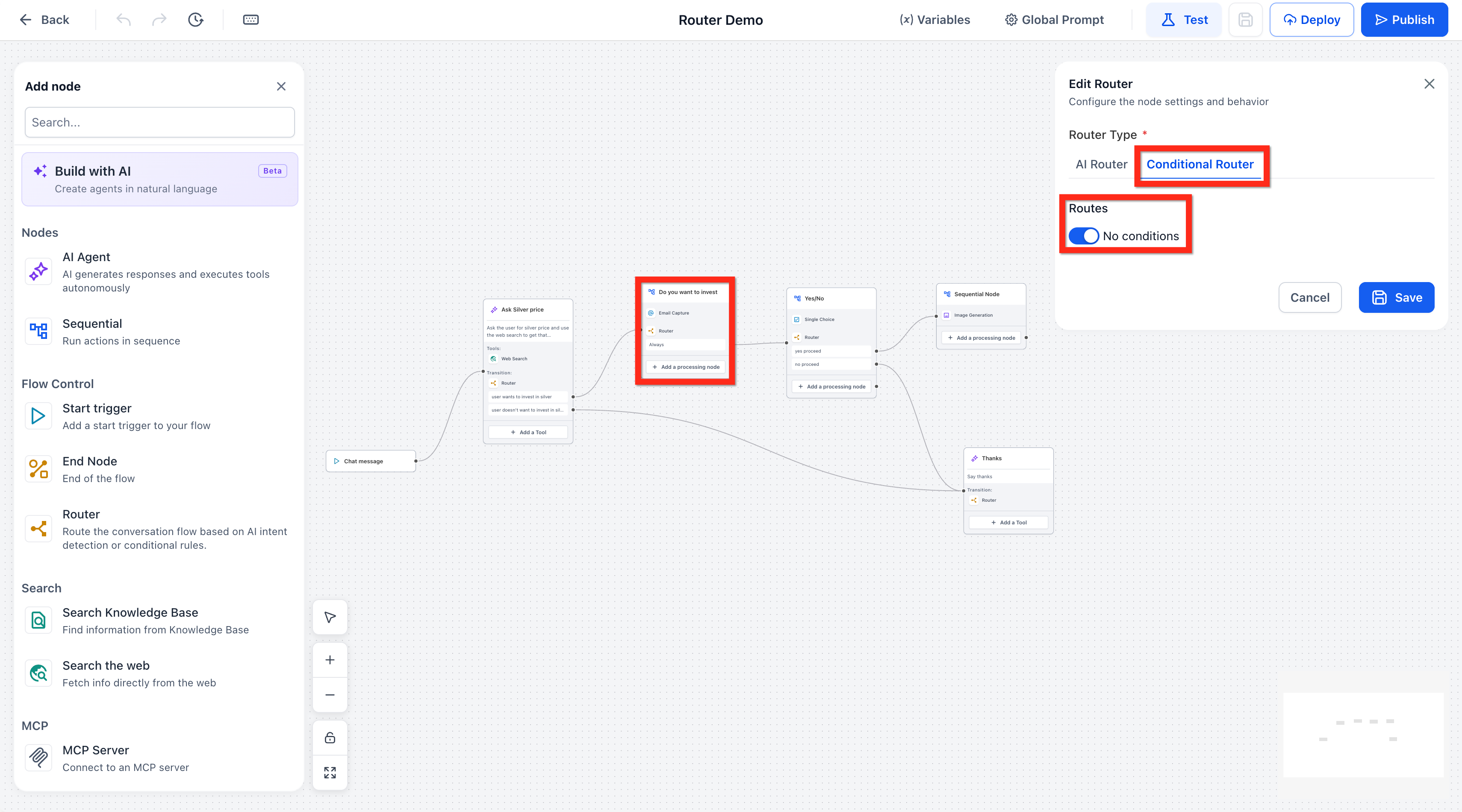
- Toggle the No Condition option to make the route always continue.
- Connect every output edge to the appropriate destination node.
- Save the router, run a test to verify each path, then publish and deploy the agent.
05What it looks like in HighLevel
06Settings that matter
- Router Type. Determines whether the node uses AI intent detection, variable based logic, or always proceeds without evaluation.
- Label. A descriptive tag for the branch that appears on the graph connection line.
- Condition Type. Specifies if all conditions must be true (AND) or if any single condition can be true (OR) for the branch to fire.
- Variable. The runtime value that the condition will examine.
- Operator. The comparison applied to the variable, such as equals (EQ).
- Value. The literal data the variable is compared against.
- No Condition toggle. When enabled, forces the route to move to the next node without checking intent or logic.
07Things to know before you rely on it
- Only AI Router executions count toward your LLM billing; Conditional and No Condition modes are free.
- A single Router node can run in only one mode at a time, but you can place multiple routers consecutively.
- If no intent or condition matches and there is no default edge, the conversation ends with an error log entry.
08If something goes wrong
- The route does not lead to the expected node.. Check the node connections in the router, confirm the correct intent or condition is set, and retest the flow.
- No intent or condition matches during a conversation.. Ensure each possible outcome has a connected edge, and add a default branch if needed.
09How it connects to the rest of HighLevel
- Manage existing flow agents in Agent Studio. Manage agents
- Set up and use managed agents for broader workflows. Managed agents
- Learn how to test and debug AI conversations in Agent Studio. Debug conversations
Michael's take

Michael ReimerFounder of CRM Pros, HighLevel Commander and Certified Admin
Avoid the mistake of leaving a branch without a fallback path, which can cause the conversation to end abruptly.
Get More InformationOpens on HighLevelPublished November 2, 2026 · Updated November 17, 2026