
01Who this is for
- Founders who need to oversee multiple AI driven tasks without waiting for each to finish.
- Marketing teams that want to draft copy, gather data and create assets simultaneously.
- Support managers who must run separate client service queries in parallel.
02Parallel conversations in Managed Agents, explained
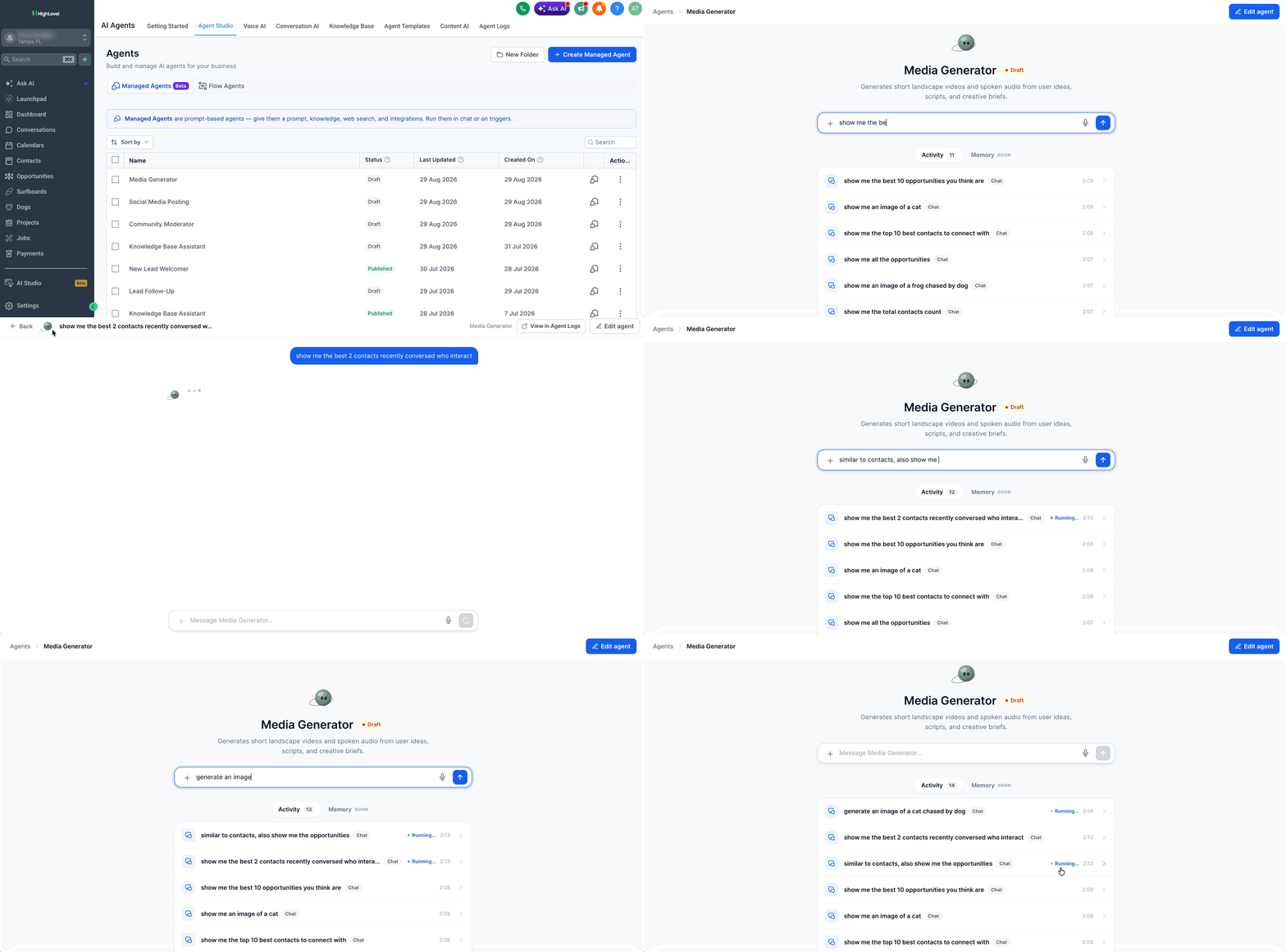
Parallel conversations are a feature of Managed Agents that creates separate chat workspaces for each request. Each workspace runs on its own thread, preserving its message history, scroll location, loading and error status.
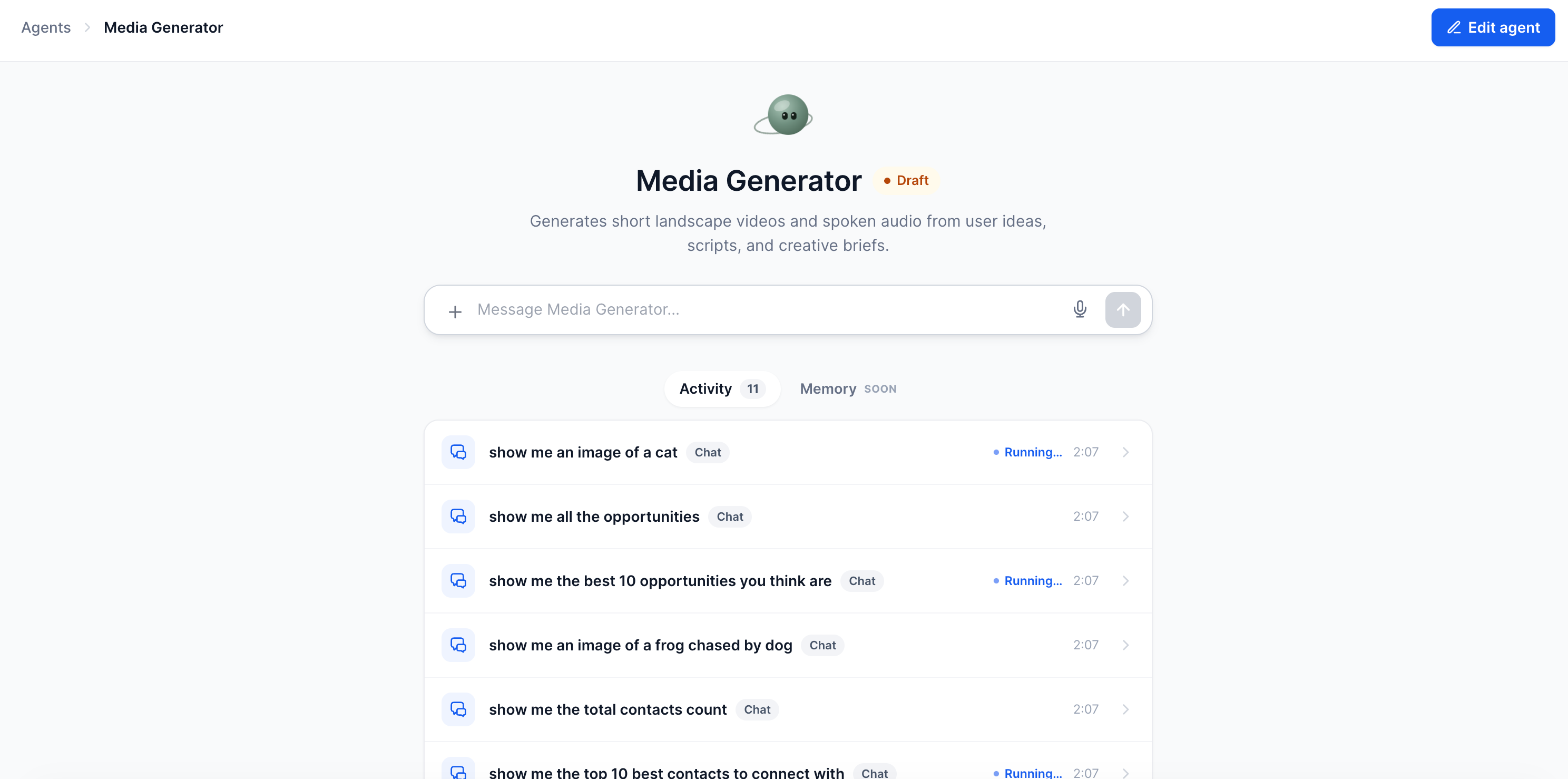
The chats appear beside an Activity tab that shows which runs are currently processing and which have completed. The composer is tied to the conversation you are viewing, so you can keep typing in one chat while others continue in the background.
03How businesses use parallel conversations in Managed Agents
- Digital marketing agency. The agency opens separate Managed Agent chats to write newsletter drafts, pull research for a client report, and generate ad copy. Each task runs independently, letting the team switch between drafts without losing progress.
- Real estate brokerage. Agents start one conversation to pull property details, another to draft client outreach messages, and a third to create marketing flyers. The broker can monitor all three runs in the Activity tab and return to any chat to continue editing.
- Ecommerce store. Store owners launch one chat to generate product descriptions, another to analyze sales data, and a third to draft promotional emails. While the description engine works, the owner can switch to the analytics chat and send new queries.
04The numbers and rules that matter
- Up to 10 conversations can run in parallel.
- 20 most recent conversations remain readily available.
05Before you start
- You must be logged into a HighLevel subaccount.
- A Managed Agent must be created and available in Agent Studio.
06How to set up and use parallel conversations in Managed Agents in HighLevel
Run parallel Managed Agent conversations
- Sign in to your HighLevel subaccount.
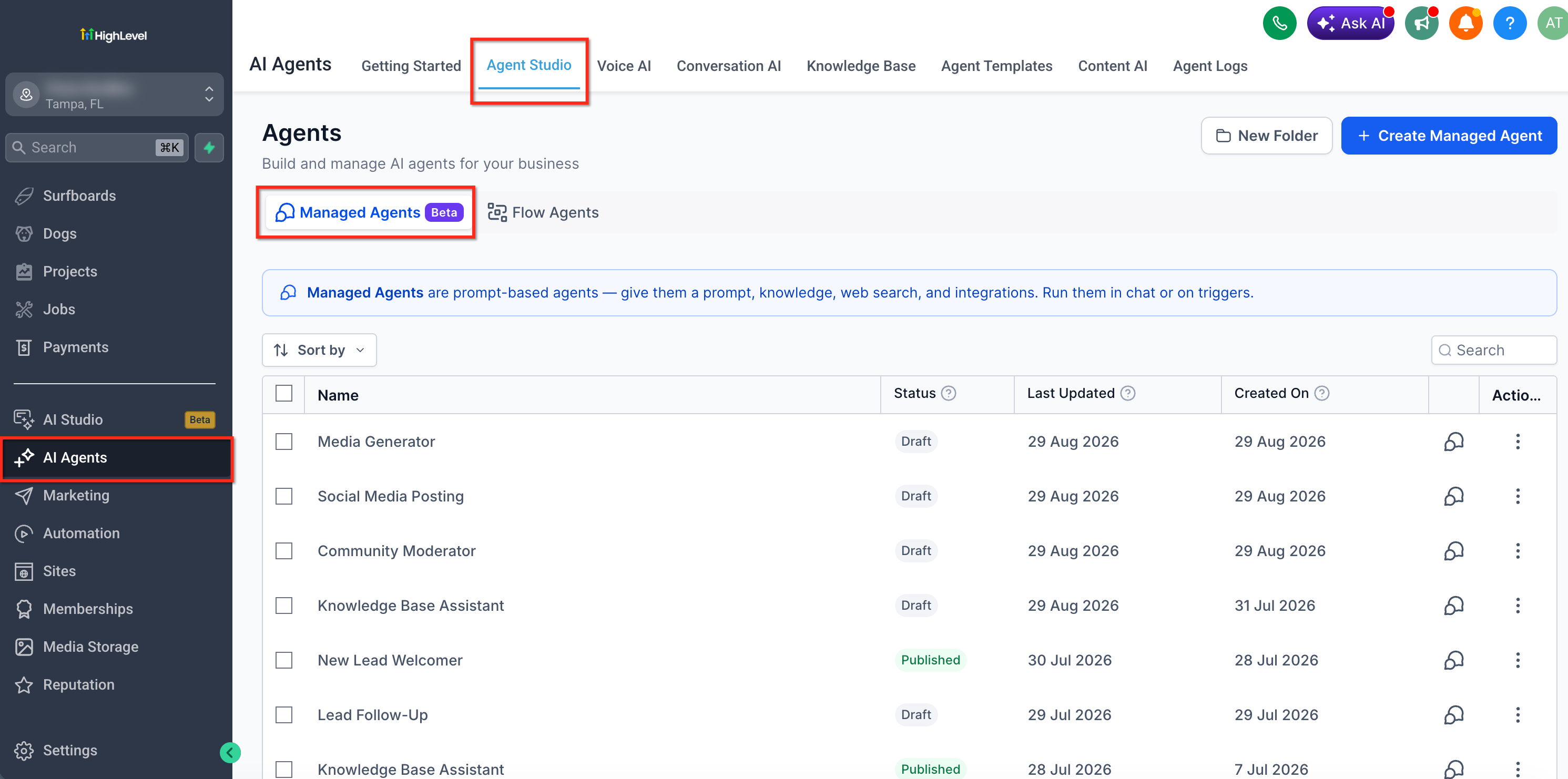
- Navigate to AI Agents > Agent Studio.
- Open the Managed Agents area and select the Managed Agent you want to use.
- Start a new conversation with the chosen Managed Agent.
- Enter your first request and submit it.
- While that request is processing, open a second conversation with the same agent.
- Enter the next request in the new conversation and send it.
- Repeat the process until you have up to ten conversations running simultaneously.
- Watch the Activity tab next to the chat to see which runs are active and view completed results.
- Select any conversation from the list to return to its thread and keep using its composer there.
07What it looks like in HighLevel
08Things to know before you rely on it
- A maximum of 10 Managed Agent conversations can run at the same time.
- The 20 most recent conversations stay readily accessible for quick switching.
- Each conversation keeps its own messages, scroll position, loading state and error state separate from others.
09How it connects to the rest of HighLevel
- Set up and Use Managed Agents in Agent Studio Managed Agents setup
- Managing existing flow agents in HighLevel Agent Studio Flow agents overview
- Testing and debugging AI agents in HighLevel Agent Studio Debug AI agents
Michael's take

Michael ReimerFounder of CRM Pros, HighLevel Commander and Certified Admin
In my experience, being able to start several tasks at once can feel more efficient when each task takes a few minutes.
If most of my tasks are brief, I sometimes prefer a single conversation to avoid juggling multiple tabs.
Get More InformationOpens on HighLevelPublished November 3, 2026 · Updated November 17, 2026