
01Who this is for
- Founders who need to pull data from contracts or invoices without manual copying, because the agent can extract key fields from attached documents.
- Marketing teams that want to edit brand images on the fly, since PNG files can be modified conversationally when image generation is turned on.
- Operations managers handling multiple reports, as the agent can pull information from several CSV or JSON files in a single chat.
02Managed Agents file support, explained
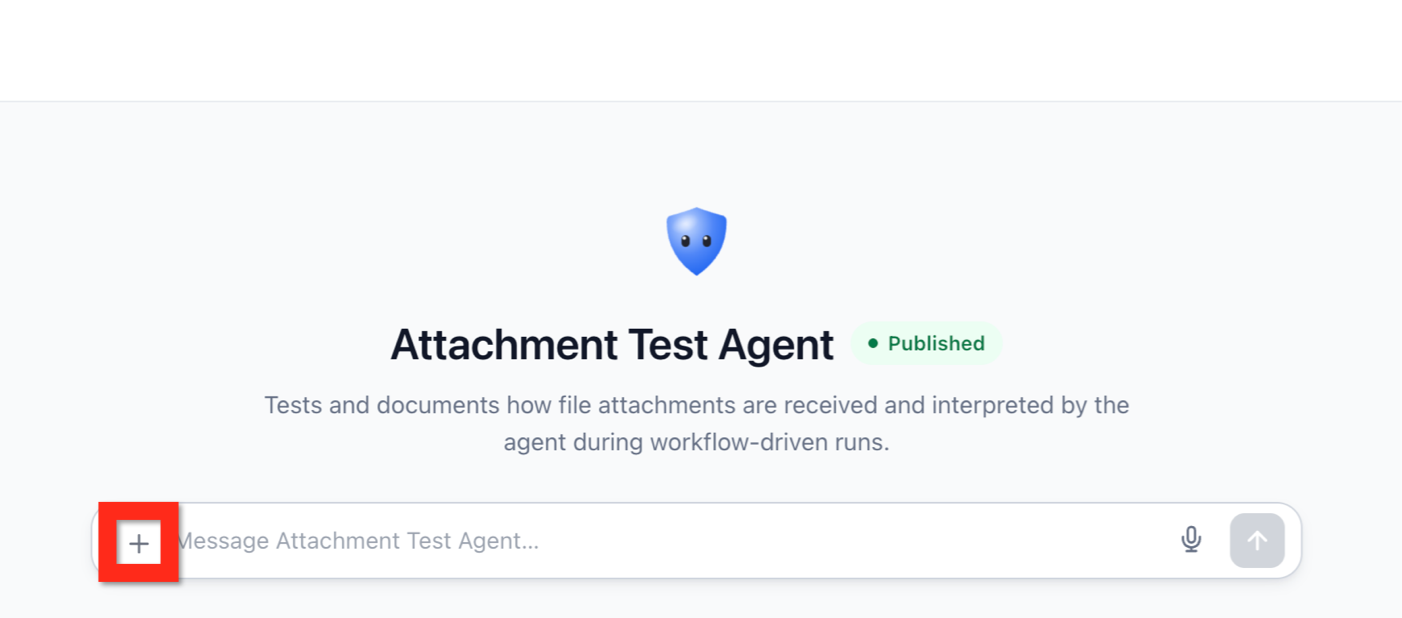
File Support adds a drag and drop style attachment control to the Managed Agent chat window. You can select a supported document or PNG image and send it together with a question or instruction. The agent reads the file, uses its text as context and replies with analysis, summaries or extracted values.
When image generation is active on the Managed Agent, the same conversation can be used to request changes to an attached PNG. You describe the desired edit, the agent returns a modified image, and you can keep refining it with additional prompts.
All attachments stay linked to the conversation until it ends, allowing you to ask follow up questions about the same files. The agent can also reference multiple files at once, pulling relevant sections from long documents as needed.
03How businesses use Managed Agents file support
- Legal practice. A law firm uploads a client contract PDF and asks the Managed Agent to list obligations, dates and parties. The agent reads the document and replies with a concise summary, allowing attorneys to review key points without opening the file.
- Retail inventory team. The team attaches a CSV of stock levels and requests rows where quantity is below a threshold. The Managed Agent filters the data and returns the matching rows, supporting quick inventory checks.
- Creative agency. A designer attaches a PNG logo and asks the Managed Agent to change the color palette. With image generation enabled, the agent returns an edited version, and the agency can request further tweaks in the same chat.
04The numbers and rules that matter
- Each document can be up to 5 MB.
- Supported document formats: PDF, DOCX, TXT, Markdown, CSV, JSON.
05Before you start
- The Managed Agent must be published before using the chat interface.
- Image generation must be enabled on the Managed Agent to edit PNG images.
- Each attached file must be 5 MB or smaller and use a supported format (PDF, DOCX, TXT, Markdown, CSV, JSON or PNG).
06How to set up and use Managed Agents file support in HighLevel
Attach and work with files using a Managed Agent
- From the Subaccount view, select AI Agents.
- Select Agent Studio.
- Select Managed Agents.
- Choose the Managed Agent you want to use.
- Apply any required changes to the agent.
- Click Publish.
- Click Back to return to the agent’s main page.
- In the chat interface, click the + attachment control next to the message field.
- Select the supported document or PNG image you wish to attach.
- Enter a question or instruction related to the attachment.
- If editing a PNG, describe the exact change you want the agent to make.
- Send the message.
- Review the response or edited image.
- Provide follow up questions, corrections, or additional image editing instructions as needed.
- Select another supported file or PNG image to analyze.
- Enter a new question or instruction about this attachment.
- Send the message.
- Review the response.
- Continue with any follow up questions or corrections as needed.
07What it looks like in HighLevel
08Settings that matter
- Image generation. When turned on for a Managed Agent, it allows the agent to create and edit PNG images attached in the chat.
09Things to know before you rely on it
- Each attached document can be no larger than 5 MB.
- Supported document types are PDF, DOCX, TXT, Markdown, CSV and JSON; PNG images are also accepted.
- Some technically valid PDFs may be rejected if their cross reference data is encoded in an unsupported way.
- Attachments stay in the conversation context and can affect later responses; start a new conversation for unrelated documents.
- Agent privacy or safety rules may block the return of certain extracted values.
- Text extraction does not preserve Word formatting, comments, tracked changes, headers or embedded objects.
- Minor model errors can occur; always verify critical extracted data.
10How it connects to the rest of HighLevel
- Set up and use Managed Agents in Agent Studio Managed Agents setup
- Managing existing flow agents in HighLevel Agent Studio Flow agents overview
- Testing and debugging AI agents in HighLevel Agent Studio Agent testing
Michael's take

People often think the file attachment button is just a shortcut for pasting text, so they upload a PDF and then keep typing the same content. That adds unnecessary steps and defeats the purpose of letting the agent read the source directly.
I would put the whole document into the chat as an attachment, ask a precise question, and let the agent work from the original file. If I need to tweak an image, I would describe the change and let the conversational edit loop take over, checking the result before moving on.