
01Who this is for
- Users of Managed Agents can monitor activity and debug runs within the platform.
- Teams that rely on AI assistants can review conversations and provide feedback to improve responses.
02Managed Agent Activity Feed, explained
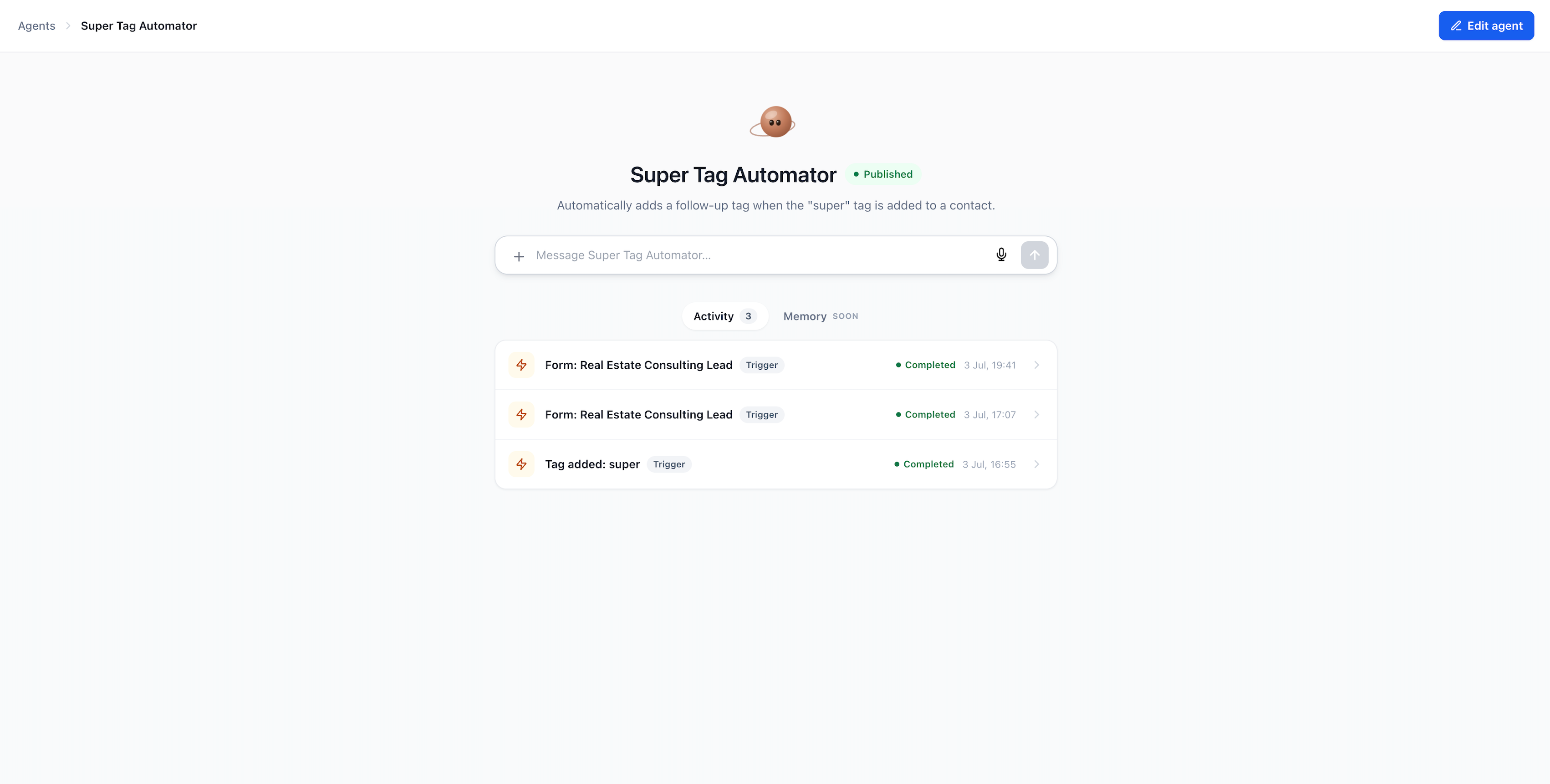
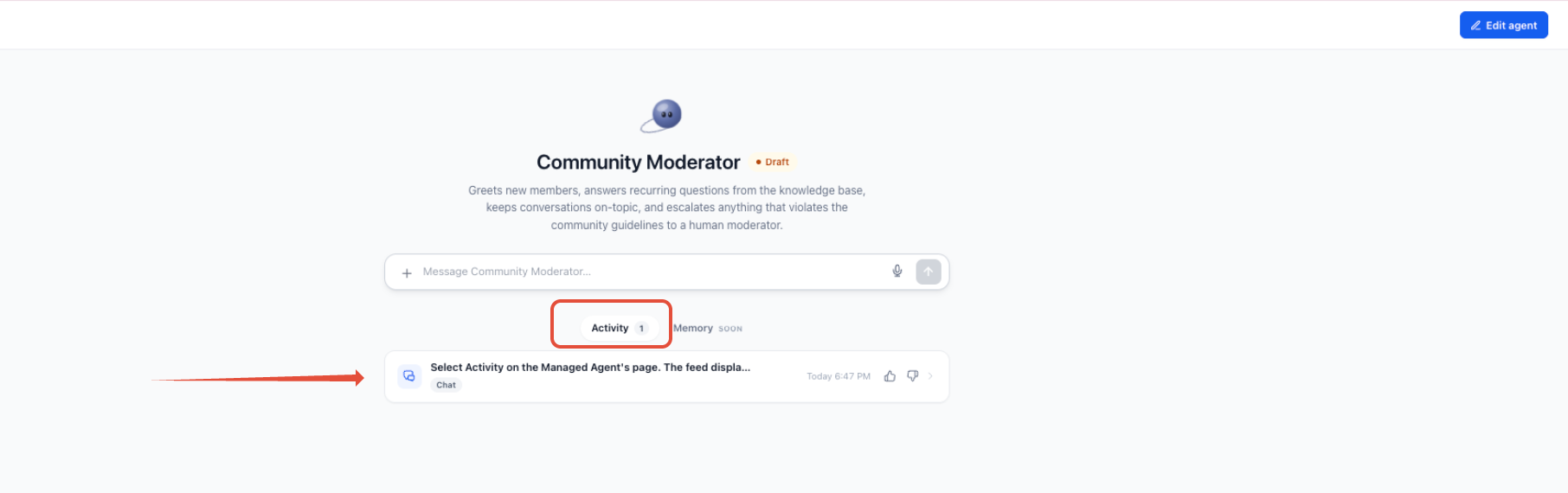
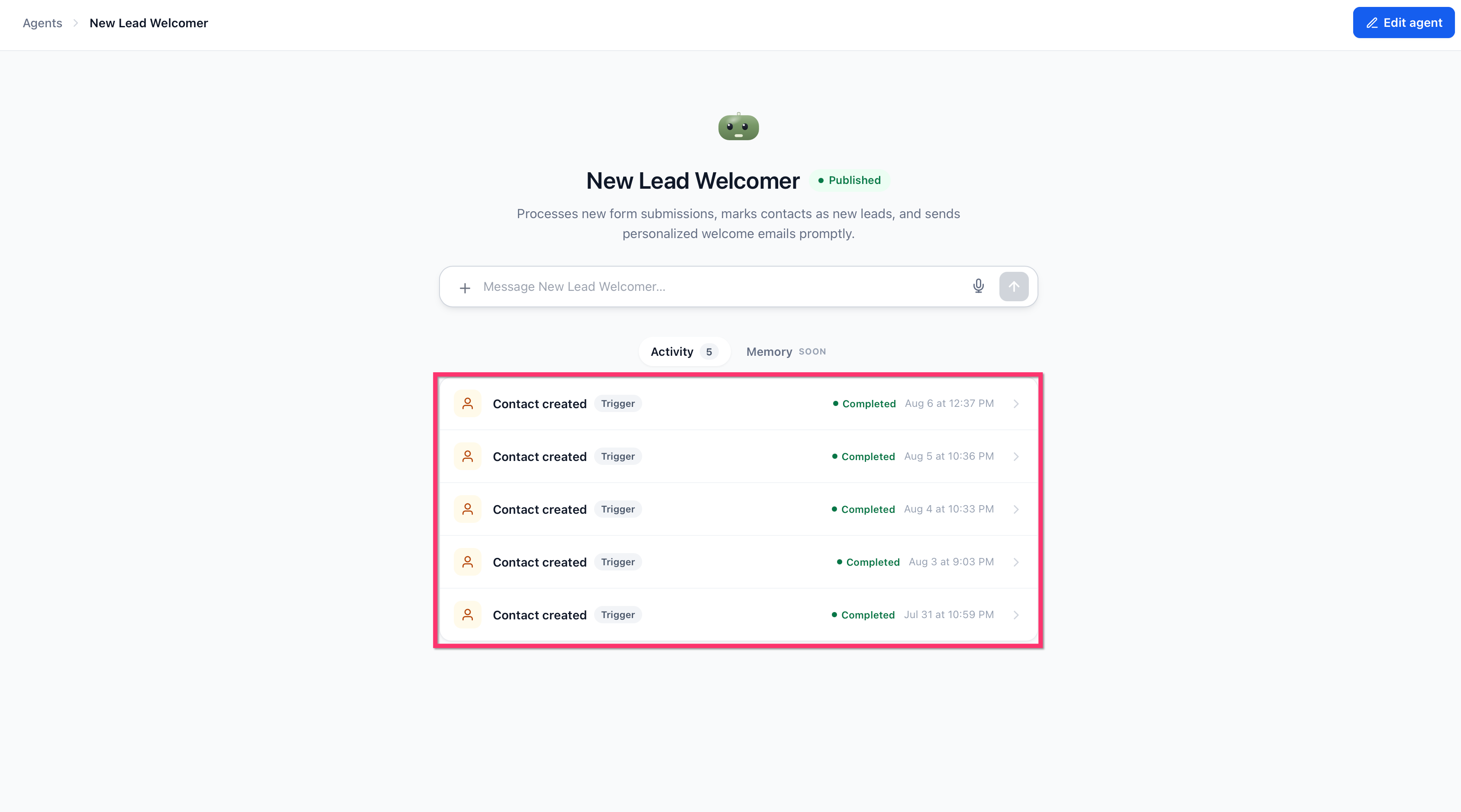
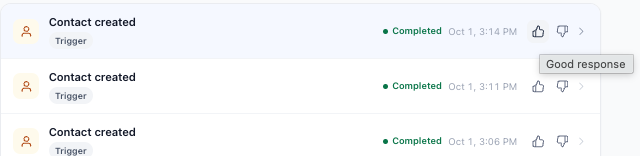
The Activity Feed lives on the Managed Agent page within Agent Studio. After selecting a Managed Agent, an Activity tab shows a reverse chronological list of every run, whether it started from a live chat or an automated trigger such as a form submission.
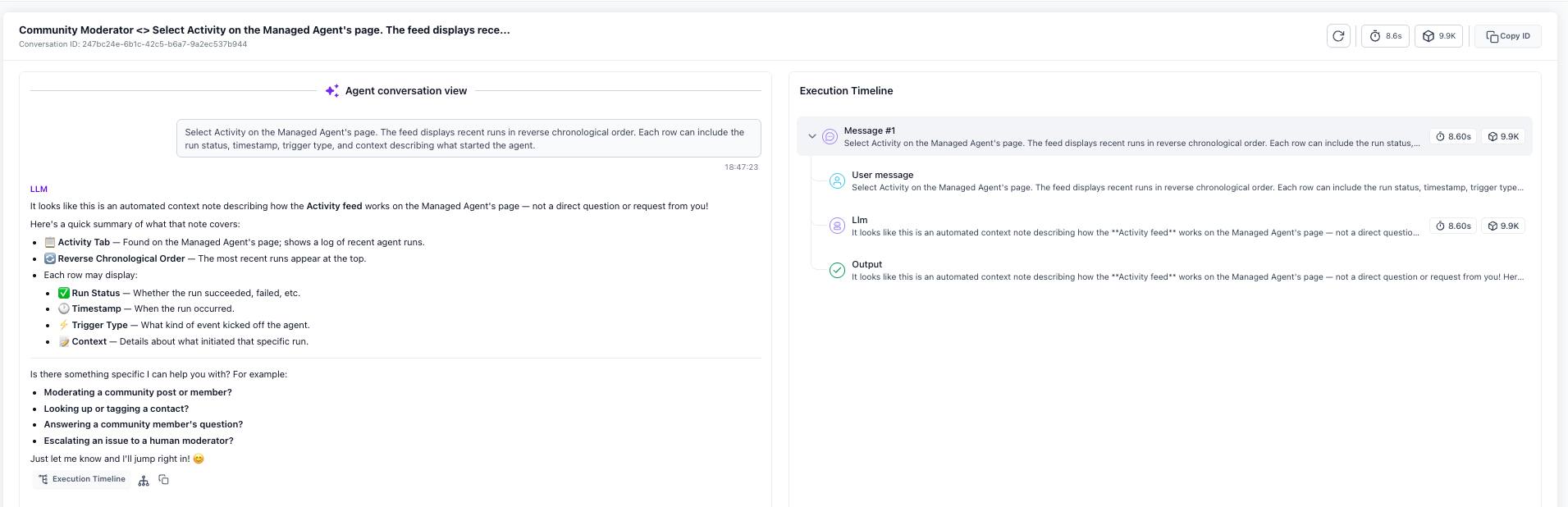
Each row displays an icon for the run type, the run status, the time it began, the trigger label, and a short description of what started the agent. Clicking a row opens the execution log, which includes the conversation view, step by step timeline, tool usage, timing data and token consumption.
While reviewing a conversation, you can press thumbs up or thumbs down next to any reply. The rating is saved with the response, and negative feedback allows you to add optional notes for further clarification.
03How businesses use Managed Agent Activity Feed
- Real estate agency. The agency opens the Activity Feed for its lead qualification bot, selects a recent Facebook lead form run, and checks the execution timeline to confirm the bot captured the correct property preferences. It rates the bot’s reply that suggested a listing as thumbs up.
- Online retailer. The retailer reviews an automated order confirmation run that was triggered by a checkout tag event. By opening the run, the team inspects the steps that sent the confirmation email and rates the final chat response that offered shipping details.
- Coaching business. The coaching practice looks at a live chat session where a prospective client asked about program pricing. It opens the conversation in the Activity Feed, examines the tool call that fetched pricing data, and marks the reply with thumbs down to note that the pricing information was outdated.
04The numbers and rules that matter
- Automated runs can include form submissions, tag changes, Facebook lead form submissions, survey submissions, and other supported trigger events.
05How to set up and use Managed Agent Activity Feed in HighLevel
Open activity feed
- Navigate to the desired Subaccount, then choose AI Agents > Agent Studio > Managed Agents.
- Select the Managed Agent you want to examine from the list.
- Click the Activity tab to display the recent runs in reverse chronological order.
Review execution log
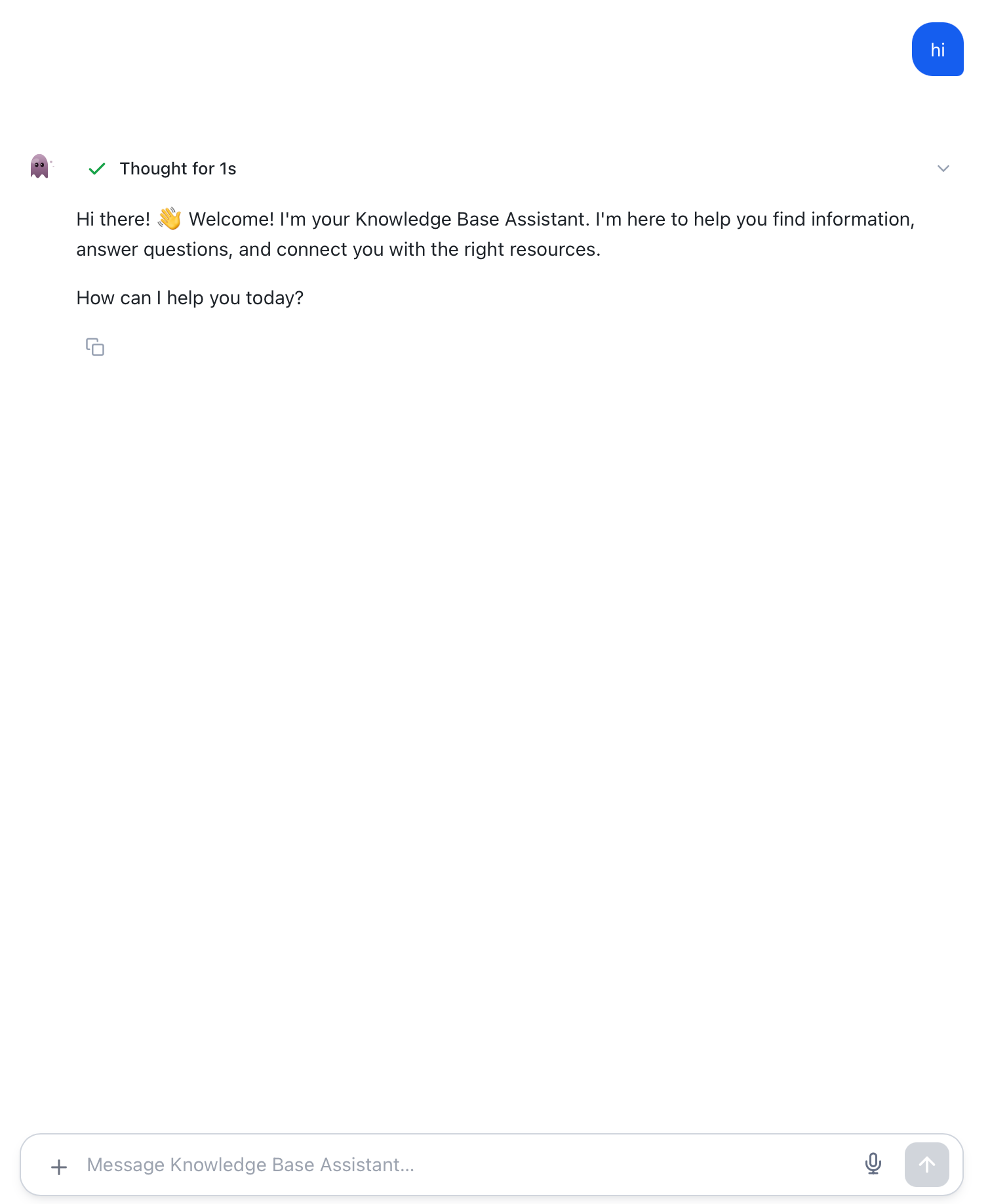
- In the Activity Feed, pick a run or conversation and open it to view the Agent Conversation View and execution timeline.
Testing tip
- During testing, use the Activity Feed to verify that the Managed Agent's skills and triggers work as expected.
06What it looks like in HighLevel
07Settings that matter
- Run status. Indicates whether the selected run finished successfully, failed, or is still processing.
- Trigger type. Shows the source that started the run, such as a live chat, form submission, tag change or survey.
- Context description. Provides a brief preview of the user message for chat runs or identifies the specific form or event that triggered the agent.
08If something goes wrong
- Managed Agent run fails to complete. Open the failed run from the Activity Feed and inspect the execution timeline to locate the step where the error occurred.
09How it connects to the rest of HighLevel
- Set up and use Managed Agents in Agent Studio Managed Agents setup
- Testing and debugging AI agents in HighLevel Agent Studio Debugging guide
- All AI Employee features overview AI Employee features
Michael's take

The Activity Feed lets me see exactly why a Managed Agent ran and lets me attach thumbs up/down feedback to specific replies.
If I only have a few agents with low run volume, I sometimes don’t need to open the Activity tab for each one.