
01Who this is for
- Founders who need to halt automated workflows while refining the agent’s logic without losing work.
- Operations managers who want to prevent scheduled runs during a maintenance window.
- Product teams that require a safe way to test changes before a live rollout.
02Unpublishing a managed agent, explained
Unpublishing a Managed Agent temporarily stops its production activity. The feature pauses any active triggers and clears armed scheduled runs, but retains the agent’s apps, knowledge base, and instructions.
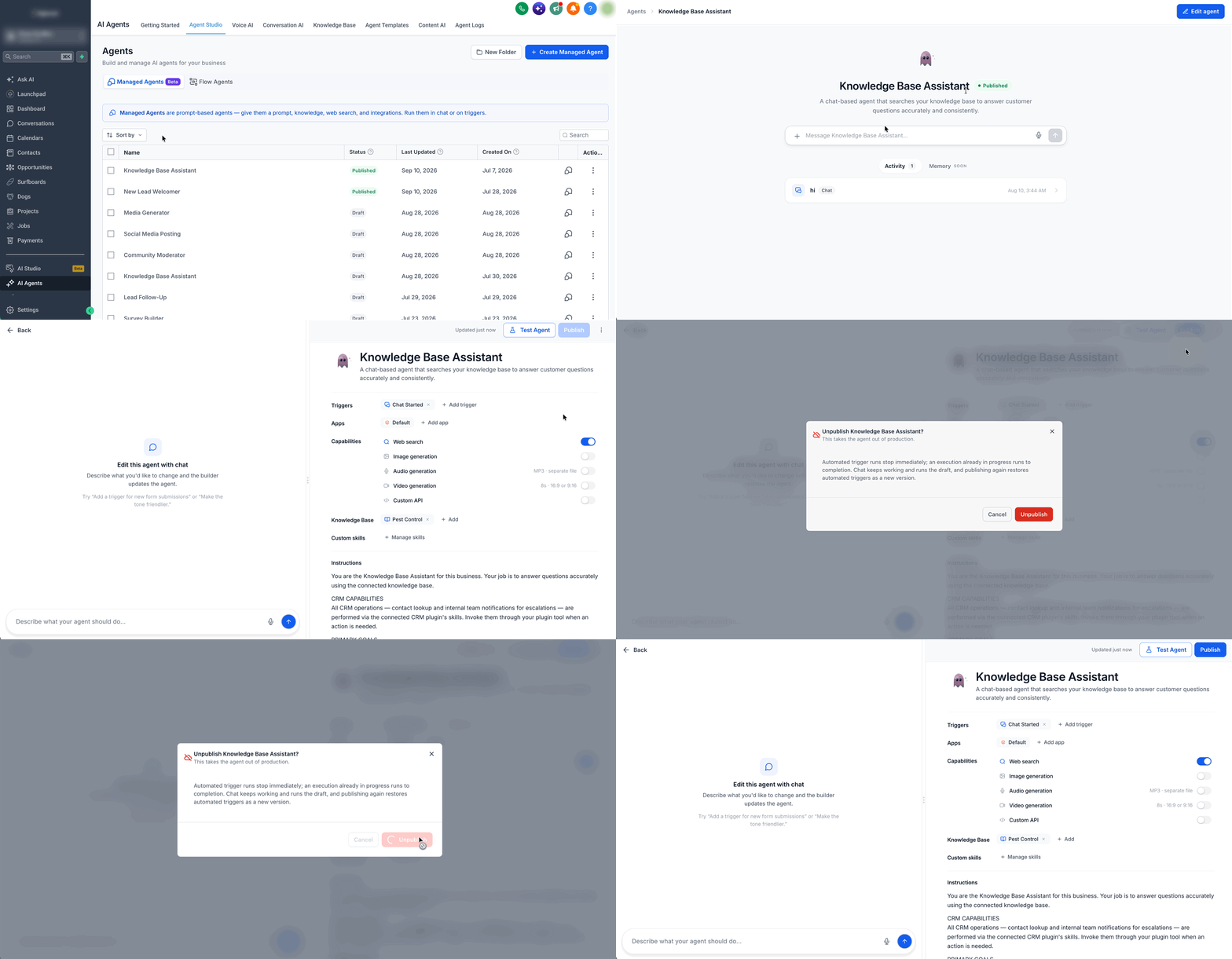
The option is located in the Agent Studio builder. After opening a published Managed Agent, you use the edit controls in the upper right corner to switch the agent to an unpublished state. While unpublished, you can continue editing, testing in the test panel, or chatting with the agent.
When the work is finished, selecting Publish restores the production triggers using the most recent saved configuration, returning the agent to active status.
03How businesses use unpublishing a managed agent
- SaaS startup. The team pauses a Managed Agent before a major version release to avoid unintended automation. They edit the agent’s logic, run tests in the builder, and republish once the release is stable.
- Ecommerce store. During a holiday inventory update, the owner unpublishes the order processing agent, clears any scheduled runs, and updates the workflow. After the inventory is refreshed, the agent is republished to resume order handling.
- Coaching business. A coach temporarily unpublishes the client onboarding agent while customizing welcome messages. The coach tests the new content in the builder and later republishes to activate the updated onboarding flow.
04How to set up and use unpublishing a managed agent in HighLevel
Unpublish a Managed Agent
- Navigate to AI Agents > Agent Studio.
- Open the published Managed Agent you want to pause.
- Click the Edit Agent icon next to the publish button in the builder’s upper right corner.
- Click the three dot icon next to publish in the upper right corner and select Unpublish from the dropdown.
- If an event was already in progress when you unpublish, it will appear as Skipped in Activity history with a reason.
Republish a Managed Agent
- Open the unpublished Managed Agent in Agent Studio.
- Click Publish. The latest saved configuration is applied and the production triggers become active again.
05What it looks like in HighLevel
06How it connects to the rest of HighLevel
- Learn how to initially set up a Managed Agent. Setup Managed Agents
- Find out how to test and debug AI agents in the builder. Test and debug agents
- Explore configuring triggers that drive Managed Agents. Agent triggers
Michael's take

When a Managed Agent needs a major overhaul, unpublishing lets you pause production while retaining all settings, so you can make changes without affecting live interactions.
If the changes are minor or you need the agent to stay fully active, unpublishing stops all production triggers, so real time interactions stop as well. For fast moving campaigns where uptime matters, republishing later might add delay.