
01Who this is for
- Marketing teams that need to gather contact details before sending a follow up email.
- Support groups that must capture a phone number to route the user to a live agent.
- Content creators who require a topic or description before an AI node generates copy.
02Capture information tools, explained
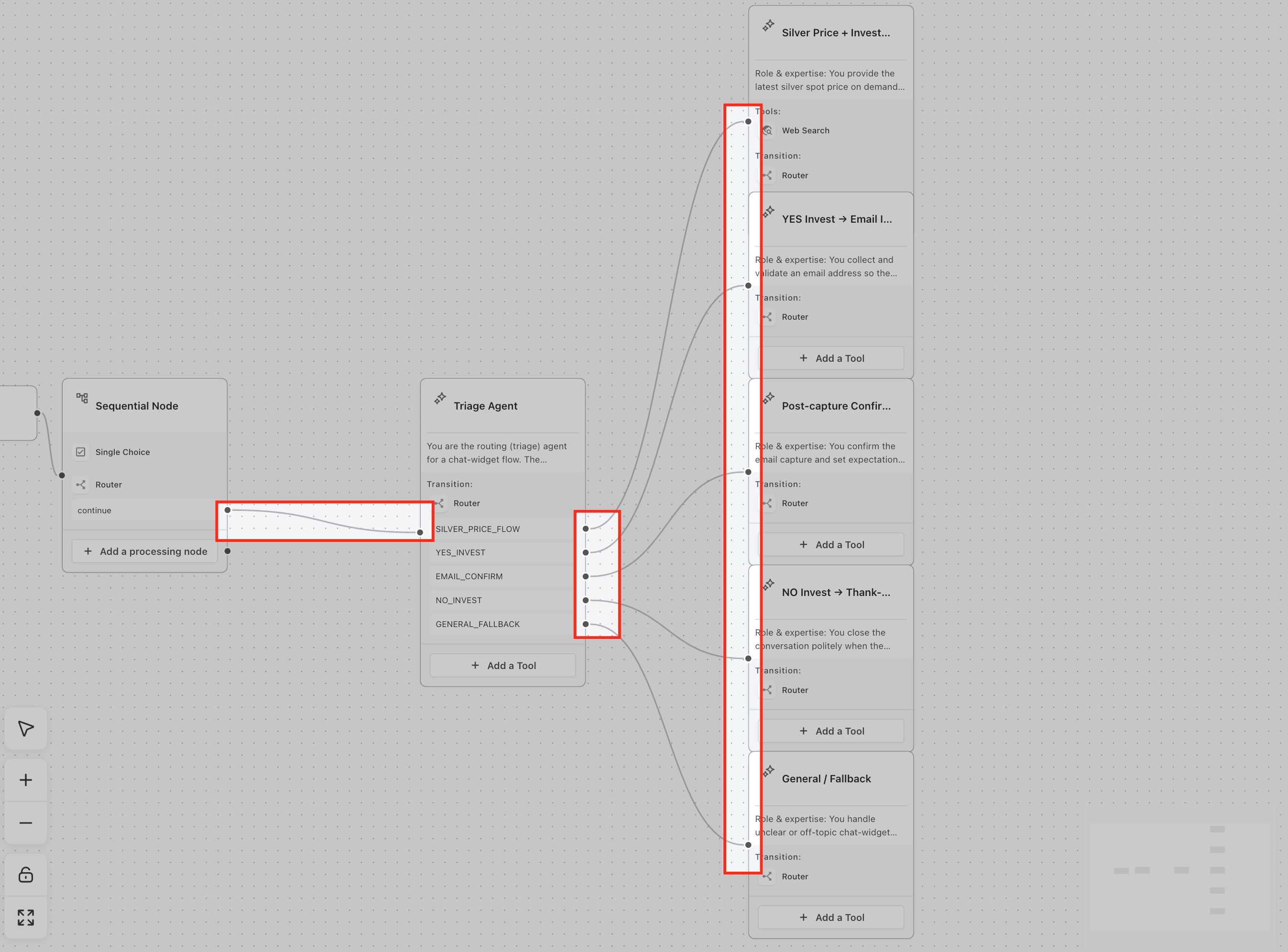
Capture Information tools are input blocks that ask a user a direct question and keep the answer for later use. The four available tools are Email Address, Phone Number, Single Choice and Text Input. When placed inside a Sequential Node the agent presents each question in order, validates the response if needed, and saves it as a runtime variable.
The tools do not rely on AI; they simply collect the data you request. After the Sequential Node finishes, any following node, such as a Router, an AI Agent, or a message, can reference the stored variables. This lets you build predictable conversations that still benefit from AI later on.
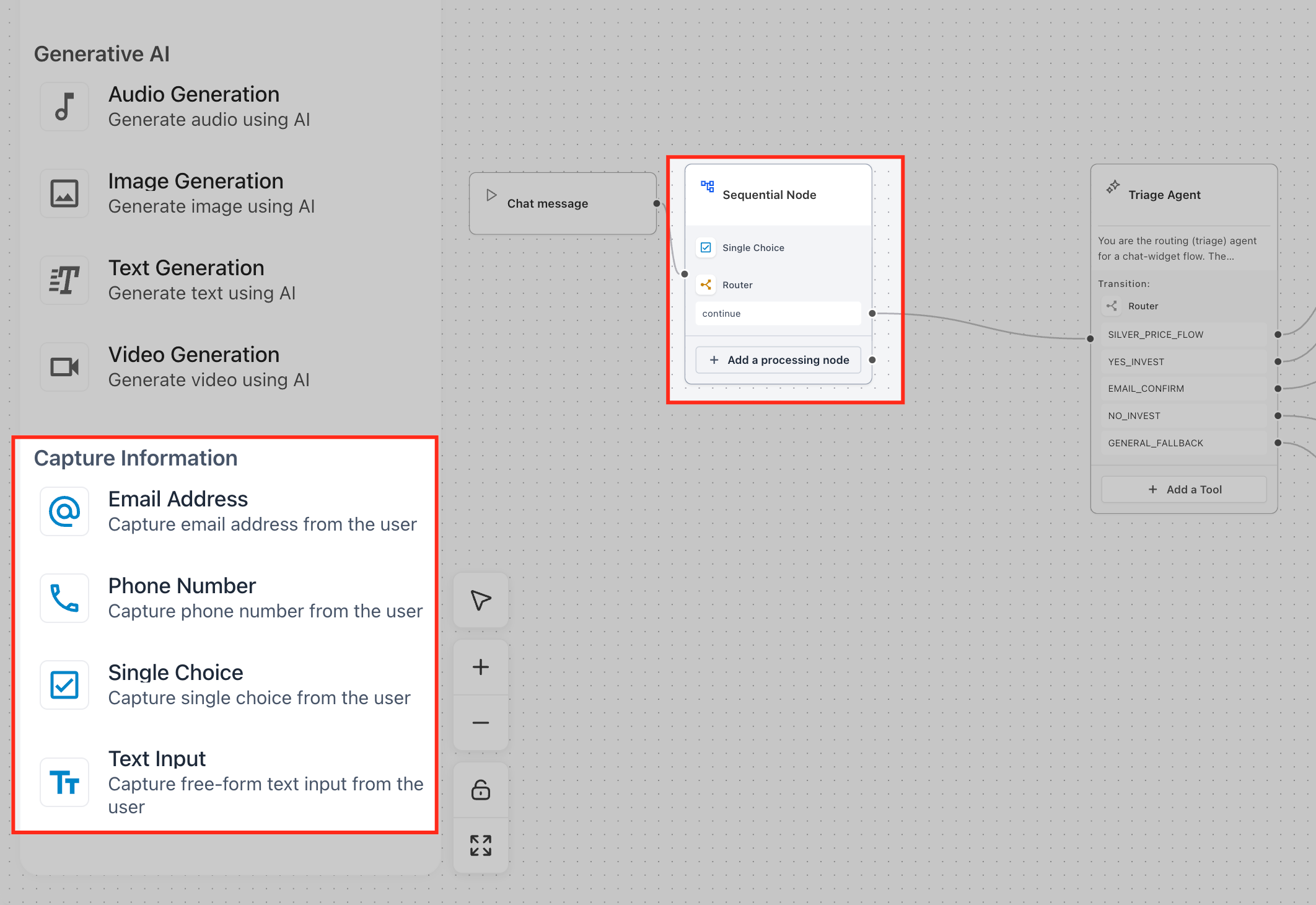
You find the Capture Information tools in the left panel of Agent Studio under the Capture Information heading. Drag the desired tool into a Sequential Node, set the prompt, assign a variable name, and connect the next node.
03How businesses use capture information tools
- Real estate agency. The agency adds an Email Address tool inside a Sequential Node to collect a prospect's email before sending a property brochure. The captured email variable is then inserted into a follow up message node.
- Fitness studio. The studio uses a Phone Number tool to record a member's contact number, stores it in a variable, and routes the conversation to a Scheduler node that can call the member for appointment confirmation.
- Online course provider. The provider places a Single Choice tool that lists course topics. The selected option is saved as a variable and later used by an AI Agent node to generate a custom syllabus for the learner.
04The numbers and rules that matter
- Four Capture Information tools are available: Email Address, Phone Number, Single Choice, Text Input.
05Before you start
- An agent must already exist in Agent Studio.
- A Sequential Node should be added to the flow where information will be collected.
06How to set up and use capture information tools in HighLevel
Set up capture information tools
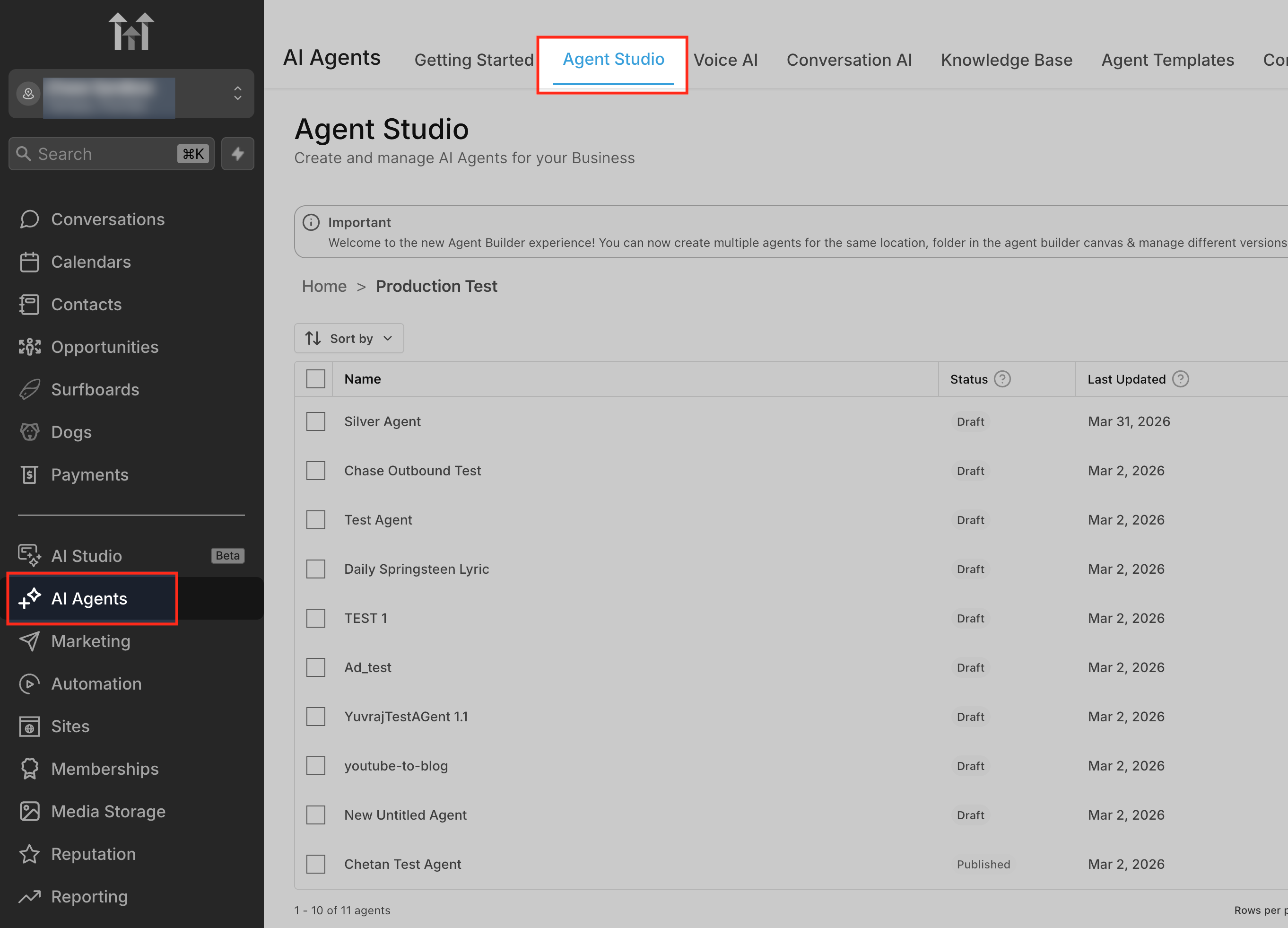
- Open Agent Studio and select the agent you want to edit.
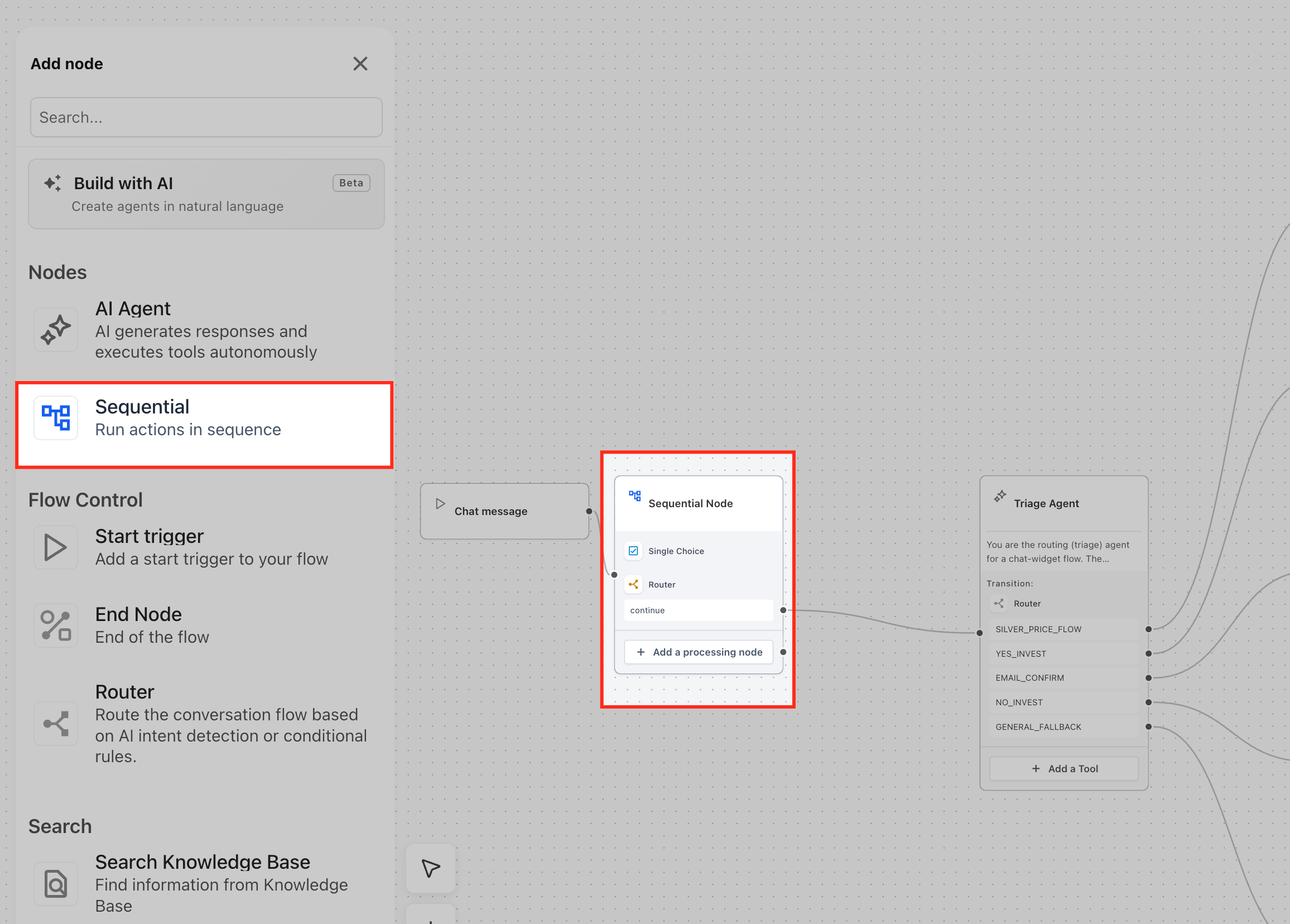
- Add a new Sequential Node to the canvas or open an existing one.
- In the left panel, expand Capture Information and choose the desired tool such as Email Address.
- Drag the chosen tool into the Sequential Node.
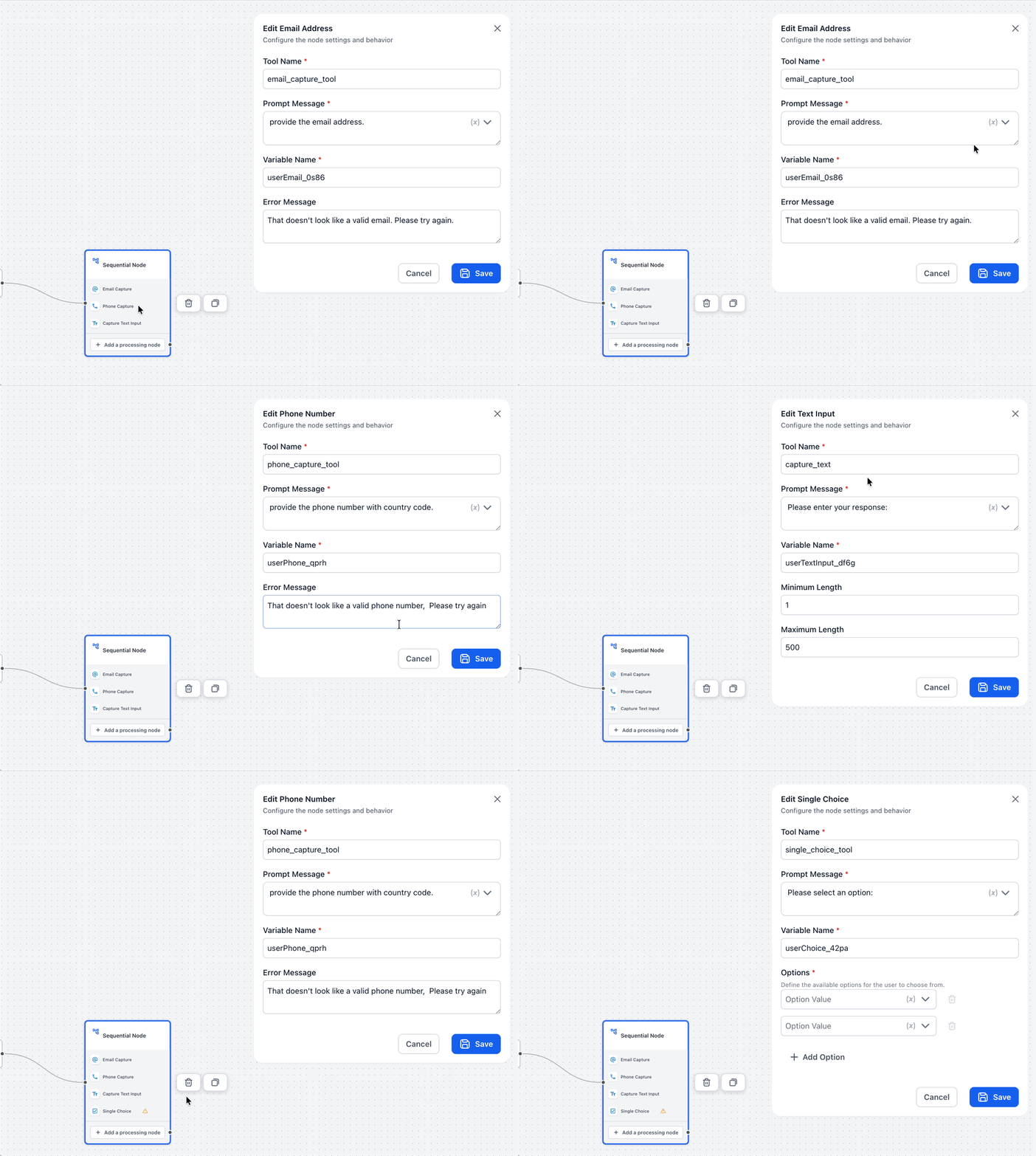
- Enter the question you want the agent to ask in the Prompt field.
- Assign a variable name in the Variable field to store the user’s answer.
- Connect the Sequential Node to the next node in the flow, such as a Router or an AI Agent.
- Run a test conversation to verify the prompt order, validation and variable storage.
07What it looks like in HighLevel
08Settings that matter
- Prompt. The text the agent sends to the user to request the specific information.
- Variable. The name used to store the captured response so it can be referenced later in the flow.
09Things to know before you rely on it
- Capture Information tools work only inside a Sequential Node; they cannot be placed directly in an AI Agent node.
- The tools do not use AI for extraction; they rely on the user providing the requested format.
10How it connects to the rest of HighLevel
- Learn how to build sequential flows that use these tools. Flow agents overview
- Set up triggers that start a conversation before the capture steps. Agent triggers
- Use runtime variables later in the flow after capturing input. Runtime variables
- Route users based on a Single Choice answer collected here. Conditional routing
- Start a free trial to experiment with capture tools. 30 day trial
Michael's take

Capture information tools ask the user for a specific piece of information and store the response as a variable you can use right away.
The prompt text you configure is the message the agent asks the user.