
01Who this is for
- Support teams can rely on the tool to pull policy or troubleshooting details from a central Knowledge Base, reducing manual replies.
- Product marketers can expose pricing tables or feature lists stored in the Knowledge Base, ensuring consistent product information.
- Documentation managers can connect internal manuals or external guides to agents, so agents reference up to date documentation.
02Knowledge Base tools, explained
The Search Knowledge Base tool links an AI agent to one or more Knowledge Bases created in the AI Agents > Knowledge Base area. When the agent runs, the tool searches the selected sources and returns relevant passages to compose a reply.
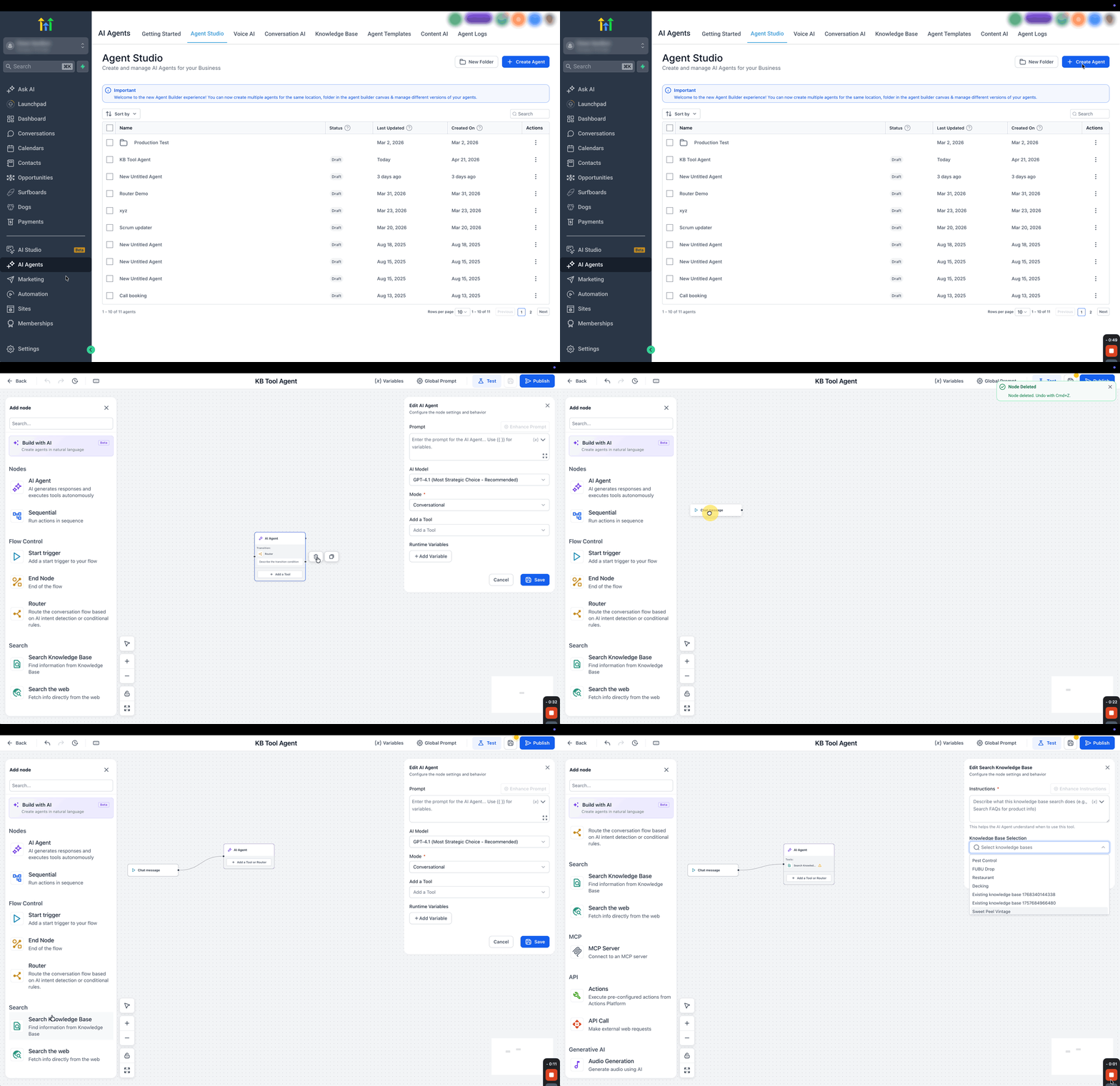
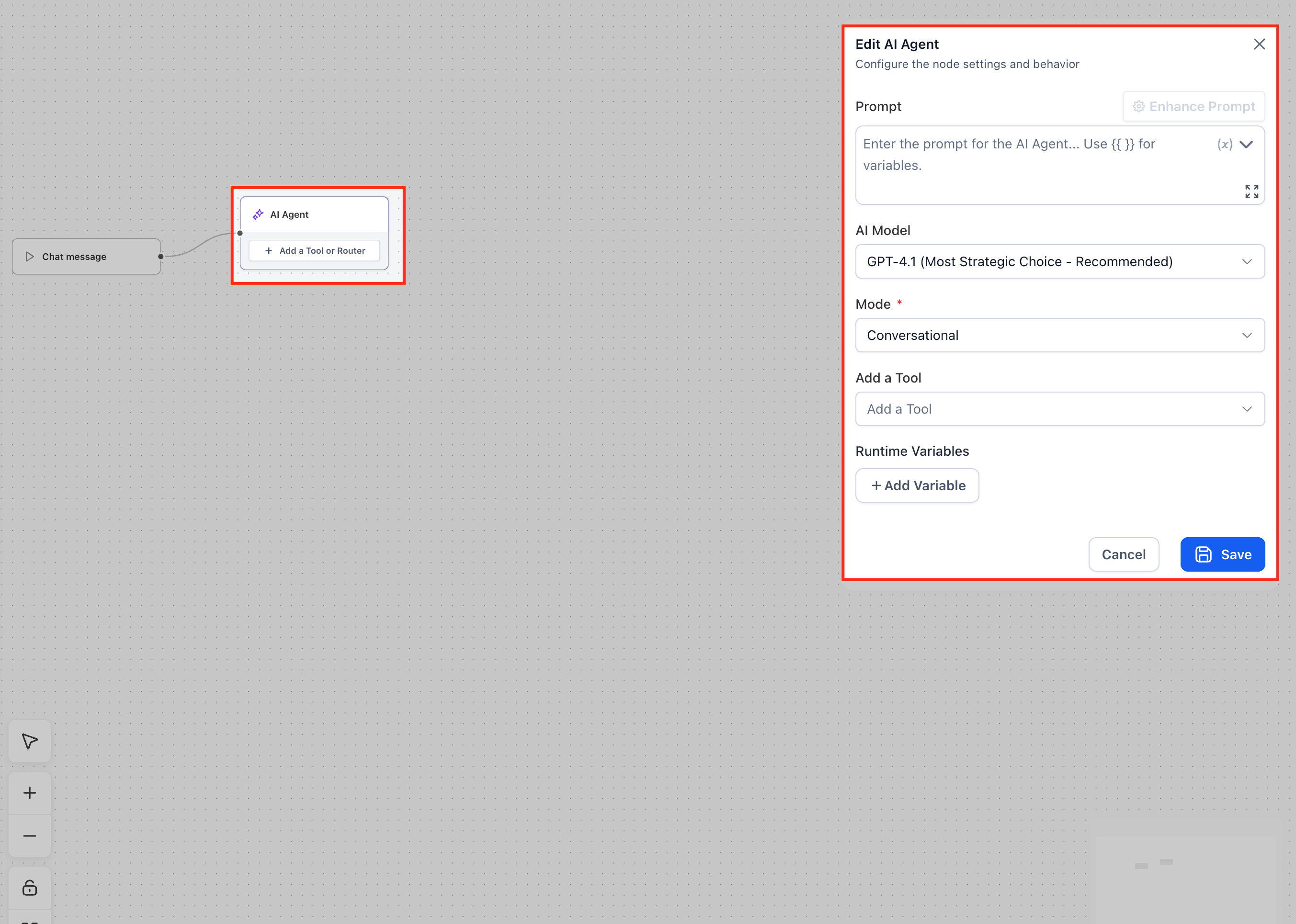
The tool lives inside an AI Agent node on the Agent Studio canvas. It is added either from the node’s Add a Tool dropdown or by dragging it from the Add node panel. Configuration requires writing Instructions that tell the agent when to use the tool and selecting the Knowledge Base(s) to search.
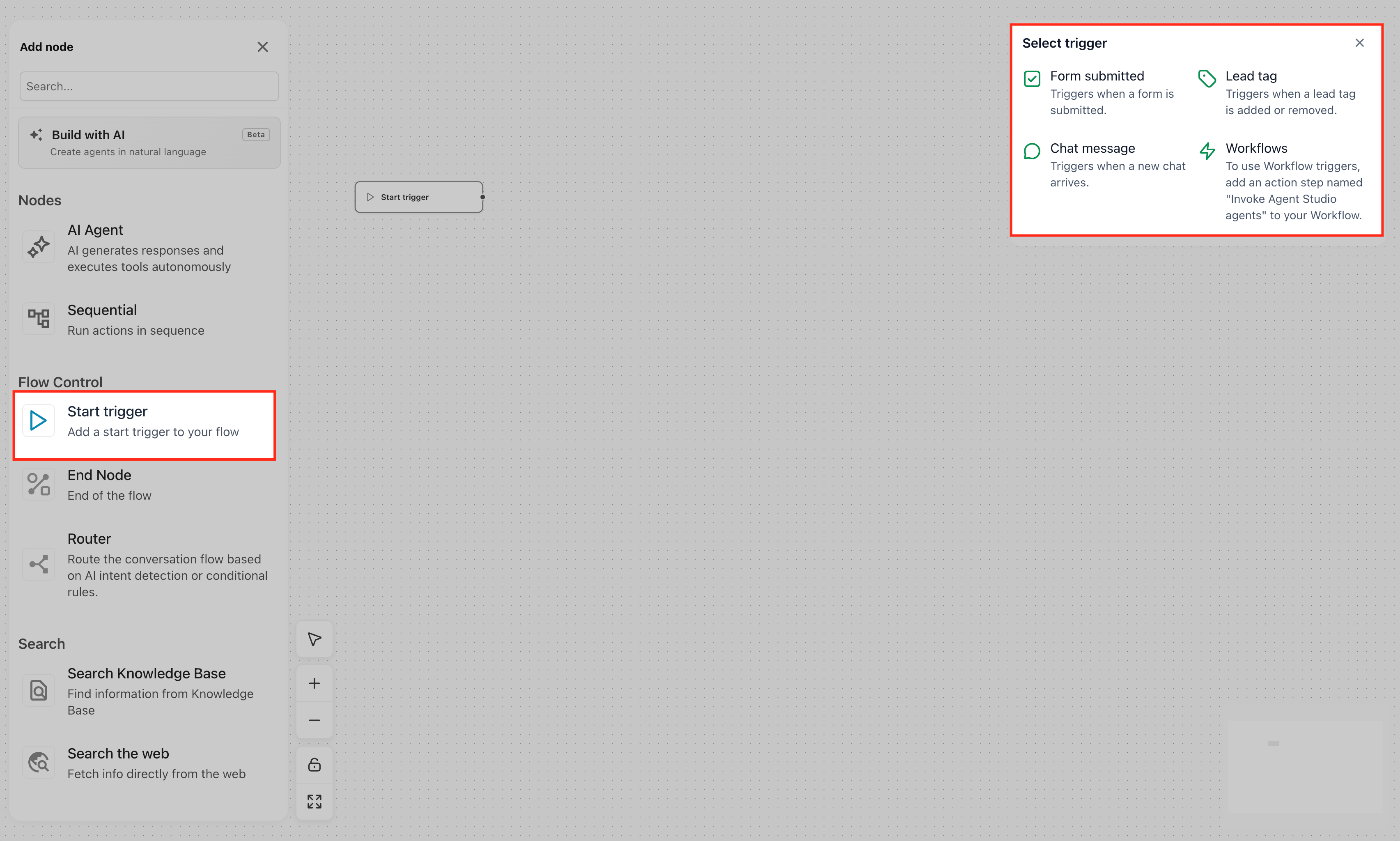
The tool does not start the agent; a trigger such as a chat message, form submission, or lead tag must launch the agent flow before the node can call the Knowledge Base.
03How businesses use the Knowledge Base tool
- Ecommerce store. Create a Knowledge Base that contains product specifications and pricing tables. Add the Search Knowledge Base tool to an AI Agent node that activates on a chat message. When a shopper asks about a product price, the agent searches the Knowledge Base and replies with the exact figure.
- Tech support service. Build a Knowledge Base with troubleshooting steps and FAQ pairs. Configure the tool inside an agent that starts on a form submission. The agent looks up the relevant solution and provides it to the user, while unrelated questions are answered without the tool.
- Corporate training department. Upload policy documents and internal guides into a Knowledge Base. Add the tool to a lead tag triggered agent that runs when a new employee is tagged. The agent references the uploaded files to answer onboarding questions directly in chat.
04The numbers and rules that matter
- Supported Knowledge Base source types: Web Crawler, FAQ, Web Search, Tables, Rich Text, File Upload.
05Before you start
- A Knowledge Base must be created and populated with the desired source content before adding the Search Knowledge Base tool to an agent.
06How to set up and use the Knowledge Base tool in HighLevel
Set up the Search Knowledge Base tool
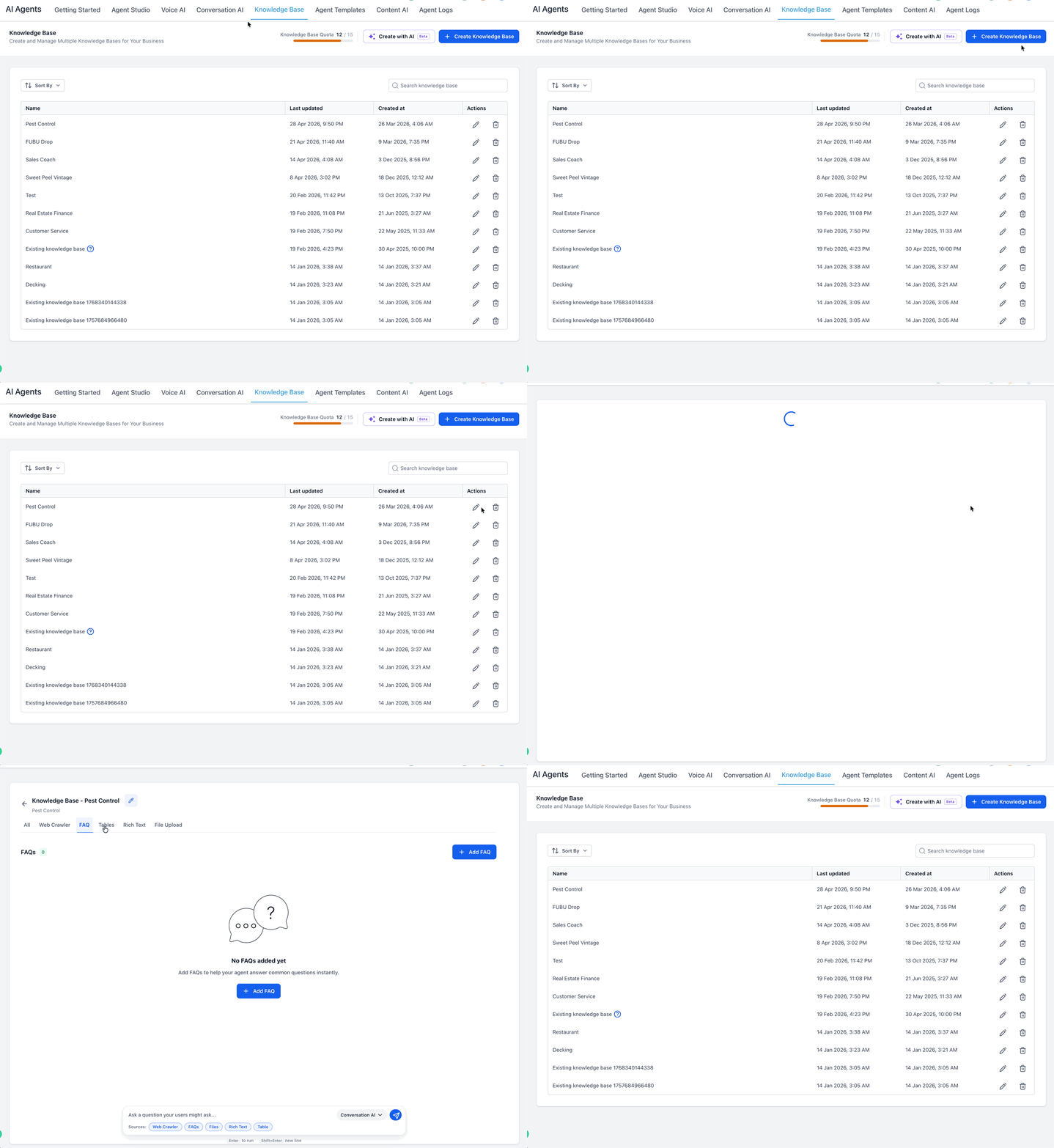
- Navigate to AI Agents > Knowledge Base.
- Create a new Knowledge Base or open an existing one.
- Add source content such as website pages, FAQs, tables, rich text, or uploaded files.
- Confirm the Knowledge Base contains the information needed for expected customer queries.
- Go to AI Agents > Agent Studio.
- Create a new agent or open an existing one, then open the builder canvas.
- Add a trigger (Chat Message, Form Submitted, or Lead Tag) to start the agent.
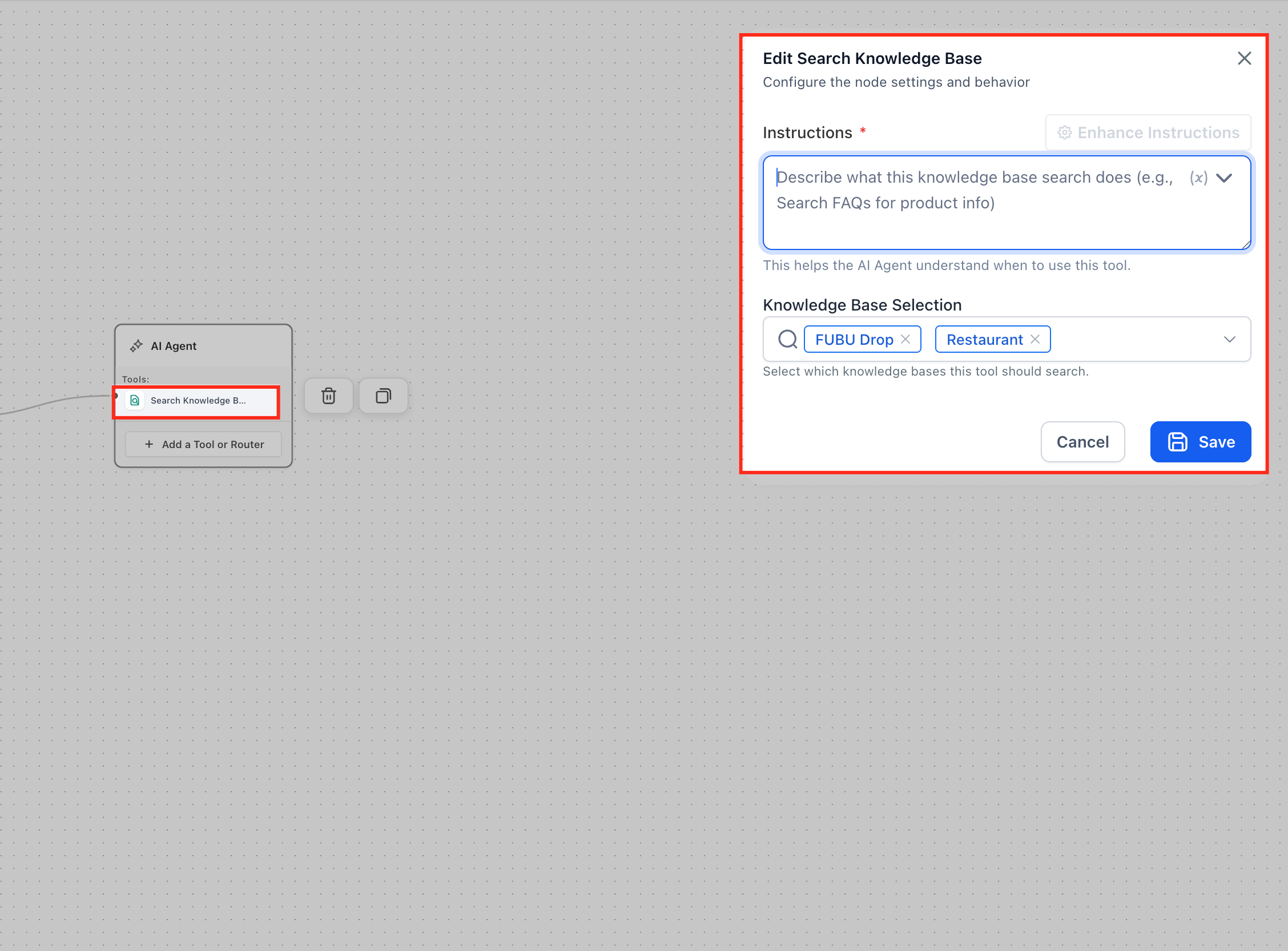
- Add an AI Agent node, open its configuration, add the Search Knowledge Base tool, write Instructions, select the Knowledge Base(s), and click Save.
Test the Search Knowledge Base tool
- Open the agent in Agent Studio.
- Run a test conversation.
- Ask a question that should be answered by the selected Knowledge Base.
- Confirm the response matches the Knowledge Base content.
- Ask an unrelated question to verify the agent does not overuse the Knowledge Base.
- Adjust the tool instruction if needed, then save and test again.
07What it looks like in HighLevel
08Settings that matter
- Instructions. Required text that tells the AI agent when and how to use the Knowledge Base during a conversation.
- Enhance Instructions. Optional helper to improve or expand the main instruction before saving.
- Variable picker. Allows insertion of dynamic values into the instruction for contextual use.
- Knowledge Base Selection. Lets you choose one or more Knowledge Bases that the tool will search for relevant content.
- Cancel. Closes the configuration panel without applying changes.
- Save. Commits the selected Knowledge Bases and instructions so the AI Agent node can use the tool.
09Things to know before you rely on it
- The Knowledge Base Tool does not start the agent; a separate trigger is required.
- Only the supported source types, Web Crawler, FAQ, Web Search, Tables, Rich Text, and File Upload, can be used in a Knowledge Base.
10How it connects to the rest of HighLevel
- Learn how to manage existing flow agents. Managing flow agents
- Step by step guide to create, test and publish flow agents. Create and publish agents
- Instructions for setting up triggers that start agents in real time. Agent triggers
- Details on testing and debugging AI conversations in Agent Studio. Test and debug agents
- Explore all AI Employee features and tools available in the platform. AI Employee overview
Michael's take

The Knowledge Base Tool is a practical way to ground AI replies in verified business data.
Teams focused on generic chat without needing precise doc based answers should skip it.